

このクイック スタートガイドでは、Google Ads API に対して最初の API 呼び出しを行う方法について説明します。
主なコンセプト
- Google Cloud プロジェクト: Google Cloud プロジェクトは、 API や OAuth 2.0 API 認証情報の管理など、すべての Google サービスの作成、有効化、使用の基礎となります。これは Google Cloud コンソールから作成できます。
- API アクセスレベル: Google Cloud プロジェクトの API アクセスレベルによって、1 日に送信できる API リクエストの数と、API リクエストを送信できる環境が制御されます。プロジェクトの API アクセスレベルは、プロジェクトの Google Ads API の概要ページに表示されます。
- Google 広告のクライアント センター(MCC)アカウント: Google 広告のクライアント センター(MCC)アカウントは、他の Google 広告アカウント(Google 広告のクライアント アカウントのコレクションや他の Google 広告のクライアント センター(MCC)アカウントなど)を管理するために使用されます。
- Google 広告のクライアント アカウント: API 呼び出しのターゲットとする広告の掲載に使用する Google 広告アカウント。
- クライアントのお客様 ID: Google 広告のクライアント アカウントを識別する 10 桁の数字。この ID を Google 広告の管理画面からコピーした場合は、ハイフンを削除してください。
- **OAuth 2.0:** OAuth 2.0 は、すべての Google API で使用される、業界標準の承認プロトコルです。API 呼び出しを行うには、OAuth 2.0 認証情報を生成するためのサービス アカウントとキーが必要です。
- サービス アカウント: 個々のユーザーではなく、アプリケーションに属する特殊なタイプの Google アカウント。 Google Ads API に対してアプリケーションを認証するために使用されます。サービス アカウントを取得するには、Google Cloud プロジェクトが必要です。
- サービス アカウント キー: サービス アカウントの秘密鍵を含む JSON アプリケーション認証情報ファイル。Google Ads API API リクエストを送信するときにサービス アカウントを認証するための OAuth 2.0 認証情報を生成するために使用されます。サービス アカウント キーを取得するには、サービス アカウントが必要です。
前提条件
Google Ads API 呼び出しを行うには、次の手順を完了する必要があります。
Google Ads API アクセス用にクラウド プロジェクトを構成する
Google Cloud プロジェクトは、Google API と OAuth 2.0 API 認証情報の管理に使用されます。既存の Google Cloud プロジェクトを確認したり、新しいプロジェクトを作成したりするには、 Google Cloud コンソールにアクセスします。
まず、プロジェクトで Google Ads API を有効にします。
次に、Google Ads API の概要ページにアクセスします。このページには、現在の API アクセスレベルが表示されます。現在の API アクセスレベルが [テスト] の場合は、 [アクセスレベルをアップグレード] セクションを開きます。手順に沿って [エクスプローラ] アクセスレベルを申請します。
申請が完了すると、Google が自動システムによる審査で申請内容を確認し、ほとんどの場合、エクスプローラにアップグレードします。エクスプローラ アクセス権が付与され なかった場合でも、心配する必要はありません。このガイドでは、Google 広告のクライアント アカウントを構成する際に 適切な 手順をご案内します。
サービス アカウントを作成する
API 呼び出しを行うには、サービス アカウントとサービス アカウント キーが必要です。すでに別の Google API を使用していて、OAuth 2.0 サービス アカウントとキーを作成している場合は、この手順をスキップして既存の認証情報を再利用できます。
サービス アカウントとキーを作成する方法
- Google Cloud コンソールで、メニュー アイコン > [**IAM と管理**] > [**サービス アカウント**] に移動します。
- サービス アカウントを選択します。
- [Keys] > [Add key] > [Create new key] をクリックします。
- [JSON] を選択し、[作成] をクリックします。
新しい公開鍵と秘密鍵のペアが生成され、新しいファイルとしてパソコンにダウンロードされます。ダウンロードした JSON ファイルを、作業ディレクトリに
credentials.jsonとして保存します。このファイルは このキーの唯一のコピーです。credentials.jsonを バージョン管理に commit しないでください(たとえば、.gitignoreファイルに追加します)。 - [閉じる] をクリックします。
Google 広告のクライアント アカウントを構成する
まず、API 呼び出しを行う Google 広告アカウントを特定します。API リクエストを送信できるアカウントのタイプは、Google Cloud プロジェクトの API アクセスレベルによって異なります。API アクセスレベルを確認するには、 Google Ads API の概要ページをご覧ください。
エクスプローラ、ベーシック、スタンダードのアクセスレベル
Google 広告の本番環境アカウントにリクエストを送信できます。必要に応じて、[アクセスをテストする] タブの手順に沿って Google 広告のテストアカウントを作成できます。
アクセスをテストする
Google Cloud プロジェクトを使用して、Google 広告の本番環境アカウントに API リクエストを送信することはできません 。API 呼び出しを送信できるのは、Google 広告のテストアカウントに対してのみです。
Google 広告 テストアカウントを作成する方法
次の手順では、Google 広告のテスト MCC アカウントと、その下に Google 広告のテスト広告主アカウントを作成します。
青いボタンをクリックして、Google 広告のテスト MCC アカウントを作成します。 メッセージが表示されたら、Google 広告の本番環境の MCC アカウントにリンクされていない Google アカウントでログインします。アカウントをお持ちでない場合は、そのページの [**アカウントを作成**] ボタンを使用して新しい Google アカウントを作成します。
- Google 広告のテスト MCC アカウントで、Google 広告のテスト クライアント アカウントを作成します。[アカウント > > 新しいアカウントを作成] をクリックして フォームに記入します。Google 広告のテスト MCC アカウントから作成した Google 広告アカウントは、すべて Google 広告のテストアカウントになります。
- 必要に応じて、Google 広告のページから Google 広告のテスト クライアント アカウントにいくつかのキャンペーンを作成します。
Google 広告のお客様に API リクエストを送信するには、Google 広告のお客様アカウントに対するアクセス権と適切な権限をサービス アカウントに付与する必要があります。これを行うには、お客様アカウントの管理者権限が必要です。
サービス アカウントに Google 広告アカウントへのアクセス権を付与する方法
- まず、管理者として Google 広告アカウントにログインします。
- [管理者 > アクセスとセキュリティ] に移動します。
-
ボタンを [ユーザー] タブの下でクリックします。
![ユーザー追加ボタンが表示されている Google 広告の [アクセスとセキュリティ] ページ](https://developers.google.com/static/google-ads/api/images/sa-before-access.png?authuser=09&hl=ja)
- [メール] 入力ボックスにサービス アカウントのメールアドレスを入力します。
適切なアカウントのアクセスレベルを選択し、
[アカウントを追加] ボタンをクリックします。サービス アカウントでは、メールのアクセスレベルはサポートされていません。
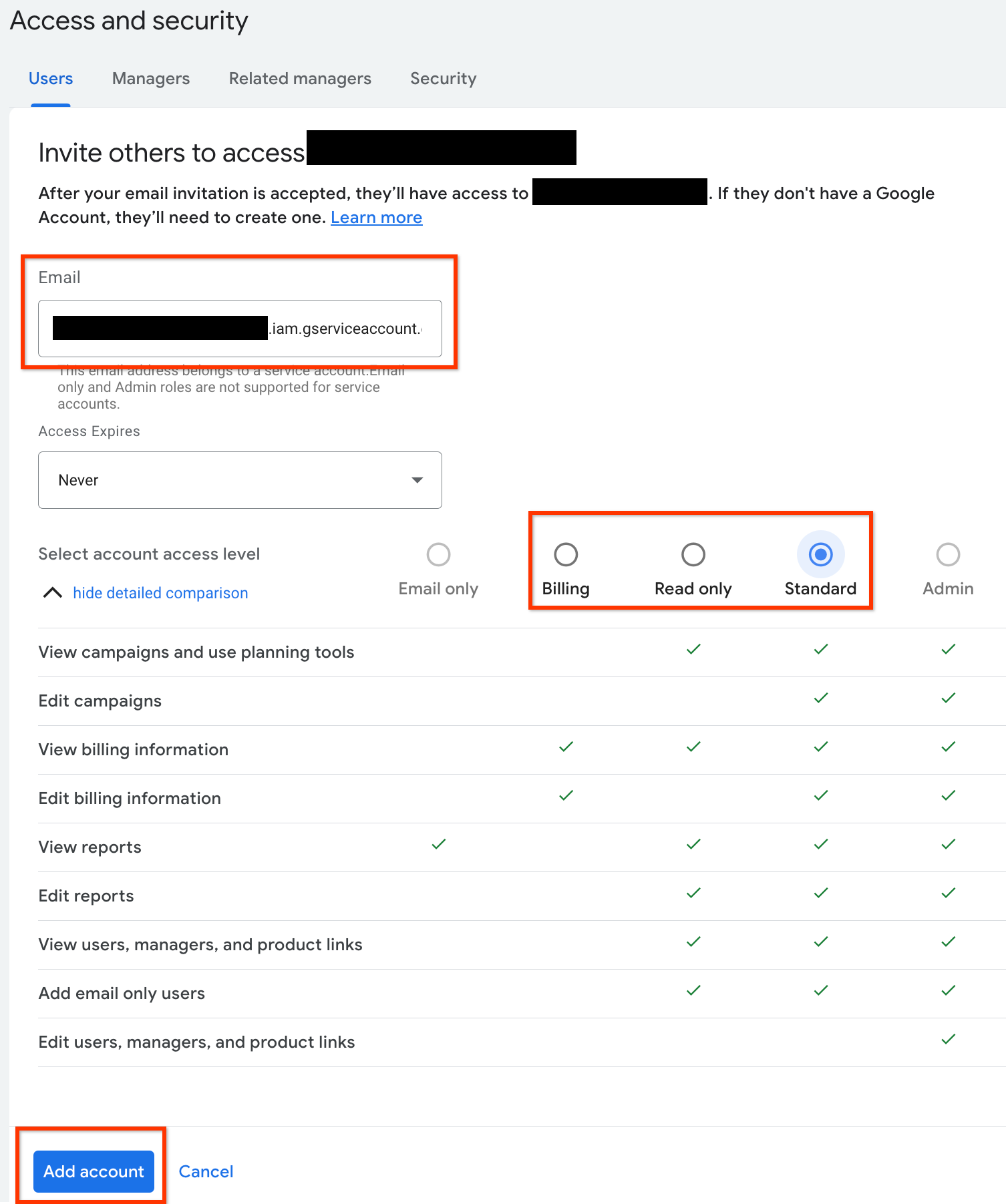
- サービス アカウントにアクセス権が付与されます。
![アクセス権を持つサービス アカウントが表示されている [アクセスとセキュリティ] ページ](https://developers.google.com/static/google-ads/api/images/sa-has-access.png?authuser=09&hl=ja)
- [省略可]最初の設定時にサービス アカウントに管理者権限を付与することはできません。API 呼び出しに管理者
権限が必要な場合は、次のようにアクセス権をアップグレードできます。
- [**アクセスレベル**] 列で、サービス アカウントのアクセスレベルの横にあるプルダウン矢印をクリックします。
- プルダウン リストから [管理者] を選択します。
ツールとクライアント ライブラリをダウンロードする
API 呼び出しの実行方法に応じて、クライアント ライブラリまたは HTTP クライアントをダウンロードできます。
クライアント ライブラリを使用する
任意のクライアント ライブラリをダウンロードしてインストールします。
HTTP クライアント(REST)を使用する
curl
URL を介してデータを転送するためのコマンドライン ツールである curl をダウンロードしてインストールします。
Google Cloud コマンドライン インターフェース
Google Cloud CLI のインストール ガイドに沿って、 gcloud CLI をインストールします。
このガイドの残りの手順は、gcloud ツールの次のバージョンで動作することが確認されています。アプリケーションの動作やコマンドライン オプションが異なるため、以前のバージョンでは動作しない可能性があります。
:~$ gcloud version
Google Cloud SDK 492.0.0
alpha 2024.09.06
beta 2024.09.06
bq 2.1.8
bundled-python3-unix 3.11.9
core 2024.09.06
enterprise-certificate-proxy 0.3.2
gcloud-crc32c 1.0.0
gsutil 5.30
API 呼び出しを行う
API 呼び出しを行う手順については、使用するクライアントを選択してください。
Java
クライアント ライブラリのアーティファクトは、 Maven Central リポジトリに公開されています。
依存関係のバージョンを管理し、競合を回避するには、 Google Ads API の部品構成表(BOM)ガイドをご覧ください。
BOM を使用していない場合は、次のいずれかのビルドツールを使用して、クライアント ライブラリをプロジェクトに直接追加します。
Maven: pom.xml ファイルに次の依存関係を追加します。
<dependency>
  <groupId>com.google.api-ads</groupId>
  <artifactId>google-ads</artifactId>
  <version>48.0.0</version>
</dependency>
Gradle: build.gradle ファイルに次の依存関係を追加します。
implementation 'com.google.api-ads:google-ads:48.0.0'
次の内容で、ホーム ディレクトリ(~/ads.properties
Linux と macOS の場合は、または %USERPROFILE%\ads.properties Windows の場合)に ads.properties ファイルを作成します。
api.googleads.serviceAccountSecretsPath=JSON_KEY_FILE_PATH
api.googleads.loginCustomerId=INSERT_LOGIN_CUSTOMER_ID_HERE
API リクエストを実行する前に、GoogleAdsClient インスタンスを作成します。デフォルトでは、fromPropertiesFile() はホーム ディレクトリにある ads.properties ファイルから認証情報を読み込みます。
GoogleAdsClient googleAdsClient;
try {
  googleAdsClient = GoogleAdsClient.newBuilder().fromPropertiesFile().build();
} catch (IOException e) {
  System.err.printf("Failed to create GoogleAdsClient: %s%n", e);
  throw new RuntimeException("Initialization failed", e);
}
次に、 GoogleAdsService.SearchStream を使用してキャンペーン レポートを実行し、大きな結果セットを効率的にストリーミングして、アカウント内のキャンペーンを取得します。
private void runExample(GoogleAdsClient googleAdsClient, long customerId) {
try (GoogleAdsServiceClient googleAdsServiceClient =
googleAdsClient.getLatestVersion().createGoogleAdsServiceClient()) {
String query = "SELECT campaign.id, campaign.name FROM campaign ORDER BY campaign.id";
// Constructs the SearchGoogleAdsStreamRequest.
SearchGoogleAdsStreamRequest request =
SearchGoogleAdsStreamRequest.newBuilder()
.setCustomerId(Long.toString(customerId))
.setQuery(query)
.build();
// Creates and issues a search Google Ads stream request that will retrieve all campaigns.
ServerStream<SearchGoogleAdsStreamResponse> stream =
googleAdsServiceClient.searchStreamCallable().call(request);
// Iterates through and prints all of the results in the stream response.
for (SearchGoogleAdsStreamResponse response : stream) {
for (GoogleAdsRow googleAdsRow : response.getResultsList()) {
System.out.printf(
"Campaign with ID %d and name '%s' was found.%n",
googleAdsRow.getCampaign().getId(), googleAdsRow.getCampaign().getName());
}
}
}
}
C#
クライアント ライブラリ パッケージは
NuGet.org リポジトリに公開されています。
まず、NuGet パッケージ参照を Google.Ads.GoogleAds パッケージに追加します。
dotnet add package Google.Ads.GoogleAds --version 27.5.0API 呼び出しを行うには、構成設定(appsettings.json、環境変数、カスタム設定など)から GoogleAdsConfig オブジェクトを作成し、それを渡して GoogleAdsClient インスタンスを初期化します。
GoogleAdsConfig config = new GoogleAdsConfig()
{
    OAuth2Mode = OAuth2Flow.SERVICE_ACCOUNT,
    OAuth2SecretsJsonPath = "JSON_KEY_FILE_PATH",
    LoginCustomerId = "INSERT_LOGIN_CUSTOMER_ID_HERE"
};
GoogleAdsClient client = new GoogleAdsClient(config);
次に、
GoogleAdsService.SearchStream
メソッドを使用してキャンペーン レポートを実行し、アカウント内のキャンペーンを取得します。このガイドでは、
レポートの詳細については説明しません。
public void Run(GoogleAdsClient client, long customerId)
{
// Get the GoogleAdsService.
GoogleAdsServiceClient googleAdsService = client.GetService(
Services.V26.GoogleAdsService);
// Create a query that will retrieve all campaigns.
string query = @"SELECT
campaign.id,
campaign.name,
campaign.network_settings.target_content_network
FROM campaign
ORDER BY campaign.id";
try
{
// Issue a search request.
googleAdsService.SearchStream(customerId.ToString(), query,
delegate (SearchGoogleAdsStreamResponse resp)
{
foreach (GoogleAdsRow googleAdsRow in resp.Results)
{
Console.WriteLine("Campaign with ID {0} and name '{1}' was found.",
googleAdsRow.Campaign.Id, googleAdsRow.Campaign.Name);
}
}
);
}
catch (GoogleAdsException e)
{
Console.WriteLine("Failure:");
Console.WriteLine($"Message: {e.Message}");
Console.WriteLine($"Failure: {e.Failure}");
Console.WriteLine($"Request ID: {e.RequestId}");
throw;
}
}
PHP
クライアント ライブラリ パッケージは
Packagist リポジトリに公開されています。
互換性のある PHP バージョンと Composer がインストールされていることを確認し、プロジェクトのルート ディレクトリに移動して次のコマンドを実行し、ライブラリとその依存関係をプロジェクトの vendor/ ディレクトリにインストールします。
composer require googleads/google-ads-php:35.2.0GitHub リポジトリから
google_ads_php.ini
ファイルのコピーを作成し、ホーム ディレクトリまたは
プロジェクトのルート ディレクトリに保存して、認証情報を含めるように変更します。
[GOOGLE_ADS]
loginCustomerId = "INSERT_LOGIN_CUSTOMER_ID_HERE"

[OAUTH2]
jsonKeyFilePath = "JSON_KEY_FILE_PATH"
scopes = "https://www.googleapis.com/auth/adwords"
google_ads_php.ini 構成ファイルを使用して GoogleAdsClient インスタンスを作成します。
use Google\Ads\GoogleAds\Lib\OAuth2TokenBuilder;
use Google\Ads\GoogleAds\Lib\V26\GoogleAdsClientBuilder;

$oauth2Credential = (new OAuth2TokenBuilder())
    ->fromFile('/path/to/google_ads_php.ini')
    ->build();

$googleAdsClient = (new GoogleAdsClientBuilder())
    ->fromFile('/path/to/google_ads_php.ini')
    ->withOAuth2Credential($oauth2Credential)
    ->build();
次に、
GoogleAdsService.SearchStream
メソッドを使用してキャンペーン レポートを実行し、アカウント内のキャンペーンを取得します。
public static function runExample(GoogleAdsClient $googleAdsClient, int $customerId)
{
$googleAdsServiceClient = $googleAdsClient->getGoogleAdsServiceClient();
// Creates a query that retrieves all campaigns.
$query = 'SELECT campaign.id, campaign.name FROM campaign ORDER BY campaign.id';
// Issues a search stream request.
/** @var GoogleAdsServerStreamDecorator $stream */
$stream = $googleAdsServiceClient->searchStream(
SearchGoogleAdsStreamRequest::build($customerId, $query)
);
// Iterates over all rows in all messages and prints the requested field values for
// the campaign in each row.
foreach ($stream->iterateAllElements() as $googleAdsRow) {
/** @var GoogleAdsRow $googleAdsRow */
printf(
"Campaign with ID %d and name '%s' was found.%s",
$googleAdsRow->getCampaign()->getId(),
$googleAdsRow->getCampaign()->getName(),
PHP_EOL
);
}
}
Python
Python 用の Google Ads API クライアント ライブラリは
PyPIで配布されています。サポートされている Python
バージョンがインストールされていることを確認し、pipを使用してライブラリをインストールします。
python -m pip install google-ads==34.0.0API 呼び出しを認証するには、google-ads.yaml ファイルを構成します。
- GitHub リポジトリからサンプル
google-ads.yamlファイルのコピーをダウンロードします。 - ファイルをホーム ディレクトリ(
~/google-ads.yaml)またはカスタムパスに保存します。 google-ads.yamlを開き、認証情報を含めるように更新します。login_customer_id: INSERT_LOGIN_CUSTOMER_ID_HERE json_key_file_path: JSON_KEY_FILE_PATHライブラリが初期化または構成の警告をキャプチャできるように、クライアントを初期化する前にロギングを構成します。次の例では、ライブラリのロガーを構成して、
INFOログを標準出力(stdout)に出力します。
import logging
import sys

logger = logging.getLogger("google.ads.googleads.client")
logger.setLevel(logging.INFO)
logger.addHandler(logging.StreamHandler(sys.stdout))
GoogleAdsClient インスタンスを作成するには、
GoogleAdsClient.load_from_storage メソッドを呼び出し、
google-ads.yaml ファイルのパスを渡します。
from google.ads.googleads.client import GoogleAdsClient

client = GoogleAdsClient.load_from_storage("path/to/google-ads.yaml")
パス引数を省略すると、load_from_storage() はデフォルトでホーム ディレクトリ(~/google-ads.yaml)で構成ファイルを検索します。
次に、
GoogleAdsService.SearchStream
メソッドを使用してキャンペーン レポートを実行し、アカウント内のキャンペーンを取得します。
def main(client: GoogleAdsClient, customer_id: str) -> None:
ga_service: GoogleAdsServiceClient = client.get_service("GoogleAdsService")
query: str = """
SELECT
campaign.id,
campaign.name
FROM campaign
ORDER BY campaign.id"""
# Issues a search request using streaming.
stream: Iterator[SearchGoogleAdsStreamResponse] = ga_service.search_stream(
customer_id=customer_id, query=query
)
for batch in stream:
rows: List[GoogleAdsRow] = batch.results
for row in rows:
print(
f"Campaign with ID {row.campaign.id} and name "
f'"{row.campaign.name}" was found.'
)
Ruby
クライアント ライブラリの Ruby gem は RubyGemsに公開されています。サポートされている Ruby バージョンがインストールされていることを確認し、Bundler を使用してライブラリをインストールします。
gem をアプリケーションの
Gemfileに追加します。gem 'google-ads-googleads', '~> 46.0.0'次のコマンドを実行して gem をインストールします。
bundle install
認証情報を構成するには:
- GitHub リポジトリからサンプル
google_ads_config.rbファイルをコピーします。 - ファイルをプロジェクトのルート ディレクトリまたはホーム ディレクトリ(
~)に保存します。 google_ads_config.rbを開き、プレースホルダの値を Google Ads API 認証情報に置き換えます。Google::Ads::GoogleAds::Config.new do |c| c.login_customer_id = 'INSERT_LOGIN_CUSTOMER_ID_HERE' c.keyfile = 'JSON_KEY_FILE_PATH' end構成ファイル(
google_ads_config.rb)のパスを渡して、GoogleAdsClientインスタンスを作成します。
client = Google::Ads::GoogleAds::GoogleAdsClient.new(
  'path/to/google_ads_config.rb'
)
次に、
GoogleAdsService.SearchStream
メソッドを使用してキャンペーン レポートを実行し、アカウント内のキャンペーンを取得します。
def get_campaigns(customer_id)
# GoogleAdsClient will read a config file from
# ENV['HOME']/google_ads_config.rb when called without parameters
client = Google::Ads::GoogleAds::GoogleAdsClient.new
responses = client.service.google_ads.search_stream(
customer_id: customer_id,
query: 'SELECT campaign.id, campaign.name FROM campaign ORDER BY campaign.id',
)
responses.each do |response|
response.results.each do |row|
puts "Campaign with ID #{row.campaign.id} and name '#{row.campaign.name}' was found."
end
end
end
Perl
Perl クライアント ライブラリは
CPAN で配布されており、Perl
5.28 以降と cpan または cpanm パッケージ マネージャーが必要です。
任意のディレクトリに
google-ads-perlリポジトリのクローンを作成します。git clone https://github.com/googleads/google-ads-perl.gitgoogle-ads-perlディレクトリに移動し、次のコマンドを実行して必要な依存関係をインストールし、ライブラリをビルドします。cd google-ads-perl cpan install Module::Build perl Build.PL perl Build installdeps perl Build perl Build install
認証情報を構成するには:
GitHub リポジトリからサンプル
googleads.properties構成ファイルをホーム ディレクトリ (~/googleads.properties)にコピーします。cp googleads.properties ~/googleads.properties~/googleads.propertiesを編集して認証情報を含めます。jsonKeyFilePath=JSON_KEY_FILE_PATH loginCustomerId=INSERT_LOGIN_CUSTOMER_ID_HERE構成済みの
googleads.propertiesファイル(~/googleads.propertiesなど)のパスを渡して、Clientインスタンスを作成します。
my $api_client = Google::Ads::GoogleAds::Client->new({
  properties_file => "/path/to/googleads.properties"
});
次に、
GoogleAdsService.SearchStream
メソッドを使用してキャンペーン レポートを実行し、アカウント内のキャンペーンを取得します。
sub get_campaigns {
my ($api_client, $customer_id) = @_;
# Create a search Google Ads stream request that will retrieve all campaigns.
my $search_stream_request =
Google::Ads::GoogleAds::V26::Services::GoogleAdsService::SearchGoogleAdsStreamRequest
->new({
customerId => $customer_id,
query =>
"SELECT campaign.id, campaign.name FROM campaign ORDER BY campaign.id"
});
# Get the GoogleAdsService.
my $google_ads_service = $api_client->GoogleAdsService();
my $search_stream_handler =
Google::Ads::GoogleAds::Utils::SearchStreamHandler->new({
service => $google_ads_service,
request => $search_stream_request
});
# Issue a search request and process the stream response to print the requested
# field values for the campaign in each row.
$search_stream_handler->process_contents(
sub {
my $google_ads_row = shift;
printf "Campaign with ID %d and name '%s' was found.\n",
$google_ads_row->{campaign}{id}, $google_ads_row->{campaign}{name};
});
return 1;
}
実行すると、スクリプトは一致する行をストリーミングし、アカウント内の各キャンペーンの ID と名前を出力します。
curl
まず、gcloud CLI でサービス アカウントをアクティブな認証情報として設定します。
gcloud auth login --cred-file=JSON_KEY_FILE_PATH次に、Google Ads API の OAuth 2.0 アクセス トークンを取得します。
gcloud auth \
  print-access-token \
  --scopes='https://www.googleapis.com/auth/adwords'
Google 広告 Query Language(GAQL)リクエストを含む query.json という名前のファイルを作成します。
{
  "query": "SELECT campaign.id, campaign.name, campaign.network_settings.target_content_network FROM campaign ORDER BY campaign.id"
}
GoogleAdsService.SearchStream
メソッドを使用してキャンペーン レポートを実行し、アカウント内のキャンペーンを取得します。
curl -i -X POST \
  https://googleads.googleapis.com/v26/customers/CUSTOMER_ID/googleAds:searchStream \
  -H "Content-Type: application/json" \
  -H "Authorization: Bearer ACCESS_TOKEN" \
  -H "login-customer-id: LOGIN_CUSTOMER_ID" \
--data-binary "@query.json"最初のリクエストを送信するときにエラーが発生した場合は、 API エラーの処理で トラブルシューティングの方法をご確認ください。