

คู่มือเริ่มต้นฉบับย่อนี้จะช่วยให้คุณทำการเรียก API ครั้งแรกไปยัง Google Ads API ได้
หัวข้อสำคัญ
- โปรเจ็กต์ Google Cloud: โปรเจ็กต์ Google Cloud เป็น พื้นฐานสำหรับการสร้าง เปิดใช้ และใช้บริการทั้งหมดของ Google รวมถึงการจัดการ API และข้อมูลเข้าสู่ระบบ OAuth 2.0 API คุณสร้างโปรเจ็กต์ได้จากคอนโซล Google Cloud
- ระดับการเข้าถึง API: ระดับการเข้าถึง API ของโปรเจ็กต์ที่อยู่ในระบบคลาวด์ Google จะควบคุมจำนวนการเรียก API ที่คุณทำได้ต่อวันและสภาพแวดล้อมที่คุณสามารถเรียก API ได้ ระดับการเข้าถึง API ของโปรเจ็กต์จะแสดงอยู่ในหน้าภาพรวมของ Google Ads API ของโปรเจ็กต์
- บัญชีดูแลจัดการ Google Ads: ใช้บัญชีดูแลจัดการ Google Ads เพื่อจัดการบัญชี Google Ads อื่นๆ ซึ่งอาจเป็นคอลเล็กชัน ของบัญชีลูกค้า Google Ads หรือบัญชีดูแลจัดการ Google Ads อื่นๆ
- บัญชีลูกค้า Google Ads: บัญชี Google Ads ที่ใช้แสดงโฆษณาที่คุณต้องการกำหนดเป้าหมายด้วยการเรียก API
- รหัสลูกค้าของลูกค้า: ตัวเลข 10 หลักที่ระบุบัญชีลูกค้า Google Ads หากคัดลอกรหัสนี้จาก UI ของ Google Ads โปรดนำขีดกลางออก
- OAuth 2.0: OAuth 2.0 เป็นโปรโตคอลมาตรฐานอุตสาหกรรม สำหรับการให้สิทธิ์ ซึ่ง Google APIs ทั้งหมดใช้ คุณต้องมีบัญชีบริการและคีย์เพื่อสร้างข้อมูลเข้าสู่ระบบ OAuth 2.0 สำหรับทำการเรียก API
- บัญชีบริการ: บัญชี Google ประเภทพิเศษที่เป็นของแอปพลิเคชันของคุณ ไม่ใช่ของผู้ใช้แต่ละราย ใช้เพื่อตรวจสอบสิทธิ์แอปพลิเคชันของคุณกับ Google Ads API คุณต้องมีโปรเจ็กต์ Google Cloud เพื่อรับบัญชีบริการ
- คีย์บัญชีบริการ: ไฟล์ข้อมูลเข้าสู่ระบบของแอป JSON ที่มีคีย์ส่วนตัวสำหรับบัญชีบริการ ใช้เพื่อสร้างข้อมูลเข้าสู่ระบบ OAuth 2.0 เพื่อตรวจสอบสิทธิ์บัญชีบริการเมื่อทำการเรียก Google Ads API คุณต้องมีบัญชีบริการเพื่อรับคีย์บัญชีบริการ
ข้อกำหนดเบื้องต้น
หากต้องการทำการเรียก Google Ads API คุณควรทำตามขั้นตอนต่อไปนี้
กำหนดค่าโปรเจ็กต์คอนโซล Google API เพื่อเข้าถึง Google Ads API
โปรเจ็กต์ Google Cloud ใช้สำหรับการจัดการ Google APIs และข้อมูลเข้าสู่ระบบ OAuth 2.0 API คุณดูโปรเจ็กต์ Google Cloud ที่มีอยู่หรือสร้างโปรเจ็กต์ใหม่ได้โดย ไปที่ คอนโซล Google Cloud
เริ่มต้นด้วยการเปิดใช้ Google Ads API ในโปรเจ็กต์โดยทำดังนี้
จากนั้นไปที่หน้าภาพรวมของ Google Ads API หน้านี้จะแสดงระดับการเข้าถึง API ปัจจุบัน หากระดับการเข้าถึง API ปัจจุบันคือTest ระดับการเข้าถึงบัญชี ให้ขยายส่วนสมัครขอระดับการเข้าถึงถัดไป ทำตามวิธีการเพื่อสมัครขอระดับการเข้าถึง Explorer
เมื่อคุณสมัครเสร็จแล้ว Google จะตรวจสอบใบสมัครของคุณโดยอัตโนมัติและอัปเกรดเป็นระดับการเข้าถึง Explorer ในกรณีส่วนใหญ่ หากไม่ได้รับสิทธิ์เข้าถึงระดับ Explorer ไม่ต้องกังวล คู่มือนี้จะให้วิธีการที่เหมาะสม เมื่อ กำหนดค่าบัญชีลูกค้า Google Ads
สร้างบัญชีบริการ
คุณต้องมีบัญชีบริการและคีย์บัญชีบริการเพื่อทำการเรียก API หากคุณใช้ Google API อื่นอยู่แล้วและได้สร้างบัญชีบริการและคีย์ OAuth 2.0 ไว้ คุณสามารถข้ามขั้นตอนนี้และใช้ข้อมูลเข้าสู่ระบบที่มีอยู่ซ้ำได้
วิธีสร้างบัญชีบริการและคีย์
- ในคอนโซล Google Cloud ให้ไปที่เมนู > IAM และผู้ดูแลระบบ > บัญชีบริการ
- เลือกบัญชีบริการ
- คลิกคีย์ > เพิ่มคีย์ > สร้างคีย์ใหม่
- เลือก JSON แล้วคลิก สร้าง
ระบบจะสร้างคู่คีย์สาธารณะ/ส่วนตัวใหม่และดาวน์โหลดลงในเครื่องของคุณเป็นไฟล์ใหม่ บันทึกไฟล์ JSON ที่ดาวน์โหลดเป็น
credentials.jsonในไดเรกทอรีงาน ไฟล์นี้เป็น สำเนาเพียงรายการเดียวของคีย์นี้ - คลิกปิด
กำหนดค่าบัญชีลูกค้า Google Ads
เริ่มต้นด้วยการระบุบัญชี Google Ads ที่จะทำการเรียก API ประเภทบัญชีที่คุณสามารถทำการเรียก API ได้จะขึ้นอยู่กับ ระดับการเข้าถึง API ของโปรเจ็กต์ที่อยู่ในระบบคลาวด์ของ Google ดูระดับการเข้าถึง API ได้ในหน้าภาพรวมของ Google Ads API
ระดับการเข้าถึง Explorer, Basic และ Standard
คุณสามารถทำการเรียกไปยังบัญชี Google Ads ที่ใช้งานจริงได้ อย่างไรก็ตาม คุณสามารถสร้างบัญชีทดสอบ Google Ads ได้โดยทำตามวิธีการในแท็บการเข้าถึงบัญชีทดสอบ หากจำเป็น
ระดับการเข้าถึงบัญชีทดสอบ
คุณไม่สามารถ ใช้โปรเจ็กต์ที่อยู่ในระบบคลาวด์ของ Google เพื่อทำการเรียก API ไปยังบัญชี Google Ads ที่ใช้งานจริงได้ คุณสามารถทำการเรียก API ไปยังบัญชีทดสอบ Google Ads เท่านั้น
วิธีสร้างบัญชีทดสอบ Google Ads
วิธีการต่อไปนี้จะสร้างบัญชีดูแลจัดการทดสอบ Google Ads และบัญชีผู้ลงโฆษณา Google Ads ทดสอบภายใต้บัญชีดูแลจัดการดังกล่าว
คลิกปุ่มสีน้ำเงินเพื่อสร้างบัญชีดูแลจัดการทดสอบ Google Ads หากได้รับข้อความแจ้ง ให้ลงชื่อเข้าใช้ด้วยบัญชี Google ที่ไม่ได้ลิงก์กับ บัญชีดูแลจัดการ Google Ads ที่ใช้งานจริง หากยังไม่มีบัญชี ให้ใช้ปุ่ม สร้างบัญชี ในหน้านั้นเพื่อสร้างบัญชี Google ใหม่
- ขณะอยู่ในบัญชีดูแลจัดการทดสอบ Google Ads ให้สร้างบัญชีลูกค้าทดสอบ Google Ads โดยคลิกบัญชี > > สร้างบัญชีใหม่ แล้ว กรอกข้อมูลในแบบฟอร์ม บัญชี Google Ads ที่คุณสร้างจากบัญชีดูแลจัดการทดสอบ Google Ads จะเป็นบัญชีทดสอบ Google Ads โดยอัตโนมัติ
- คุณเลือกสร้างแคมเปญ 2-3 รายการในบัญชีลูกค้าทดสอบ Google Ads จากหน้า Google Ads ได้
หากต้องการทำการเรียก API ไปยังลูกค้า Google Ads คุณต้องให้สิทธิ์เข้าถึงและสิทธิ์ที่เหมาะสมแก่บัญชีบริการในบัญชีลูกค้า Google Ads คุณต้องมีสิทธิ์เข้าถึงระดับผู้ดูแลระบบในบัญชีลูกค้าจึงจะดำเนินการนี้ได้
วิธีให้สิทธิ์เข้าถึงบัญชี Google Ads แก่บัญชีบริการ
- เริ่มต้นด้วยการลงชื่อเข้าใช้บัญชี Google Ads ในฐานะผู้ดูแลระบบ
- ไปที่ผู้ดูแลระบบ > การเข้าถึงและความปลอดภัย
- คลิกปุ่ม
ในแท็บผู้ใช้
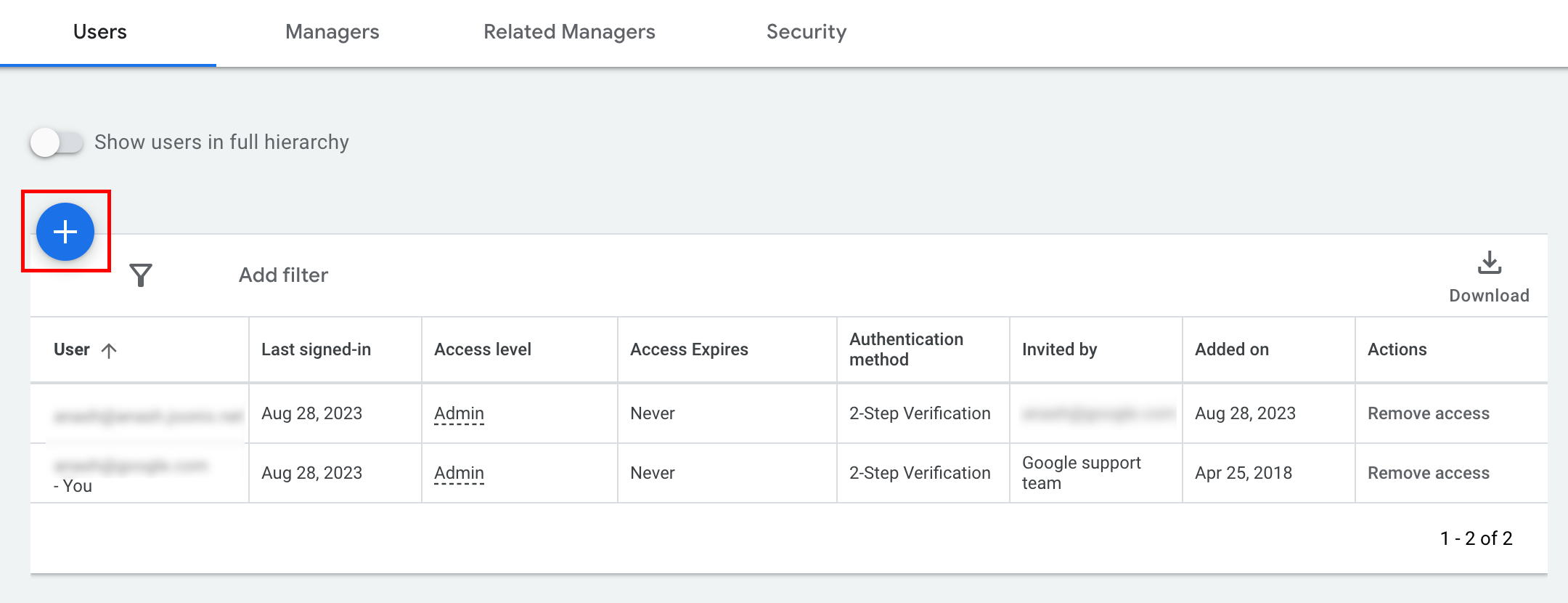
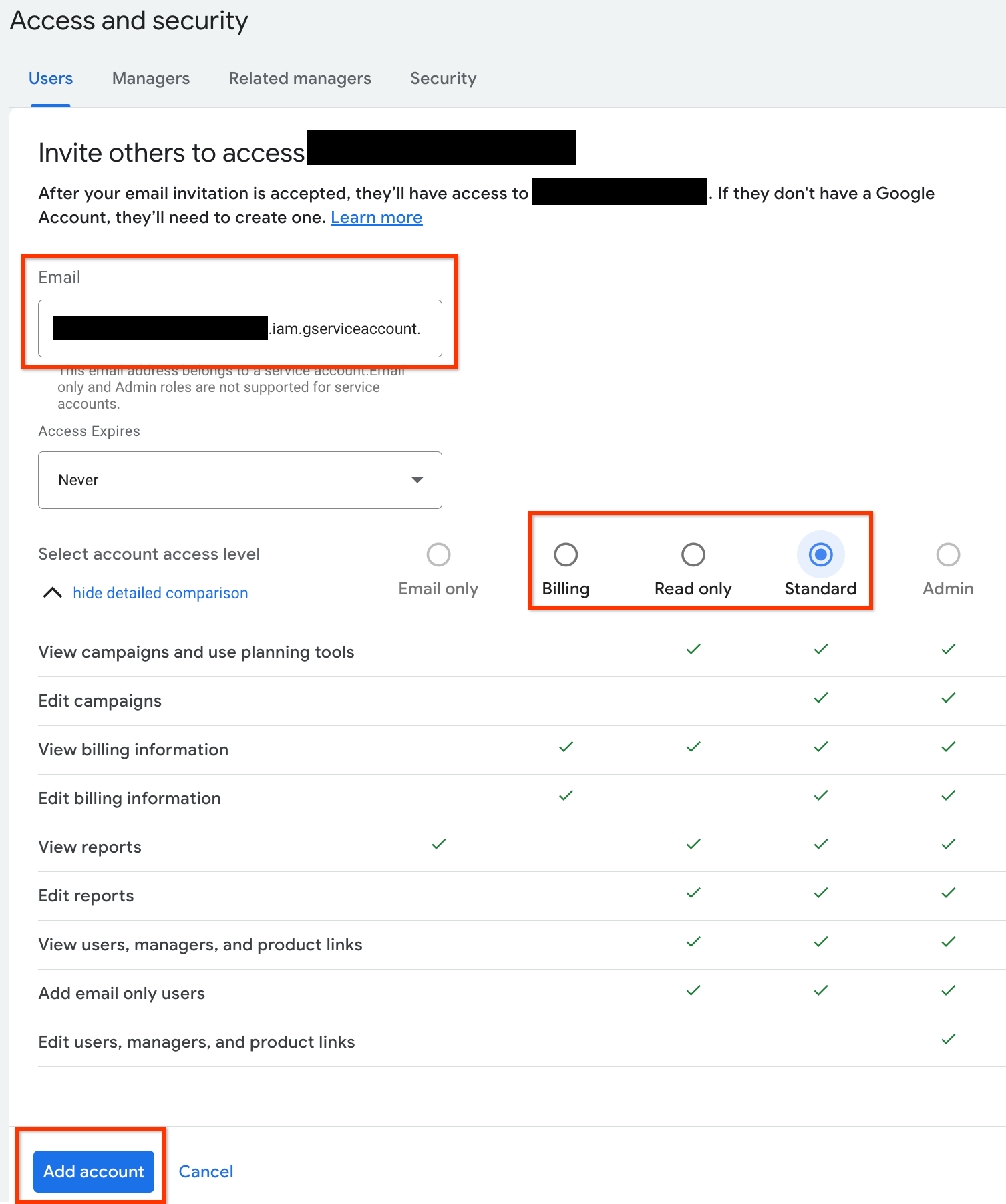
- พิมพ์อีเมลของบัญชีบริการลงในช่องป้อนข้อมูลอีเมล
เลือกระดับการเข้าถึงบัญชีที่เหมาะสม แล้วคลิกปุ่ม
เพิ่มบัญชี โปรดทราบว่าระบบไม่รองรับระดับการเข้าถึงแบบอีเมลสำหรับ
บัญชีบริการ
- บัญชีบริการได้รับสิทธิ์เข้าถึงแล้ว
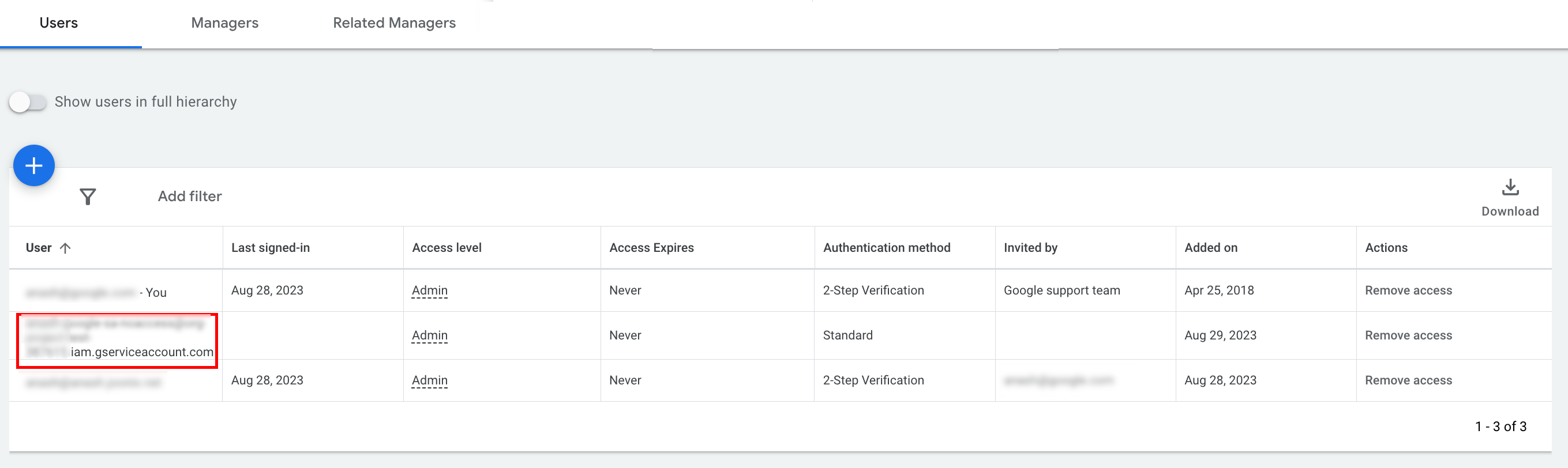
- [ไม่บังคับ] โดยค่าเริ่มต้น คุณไม่สามารถให้สิทธิ์เข้าถึงระดับผู้ดูแลระบบแก่
บัญชีบริการได้ หากการเรียก API ต้องใช้สิทธิ์เข้าถึงระดับผู้ดูแลระบบ คุณสามารถ
อัปเกรดสิทธิ์เข้าถึงได้โดยทำดังนี้
- คลิกลูกศรแบบเลื่อนลงข้างระดับการเข้าถึงของบัญชีบริการในคอลัมน์ระดับการเข้าถึง
- เลือกผู้ดูแลระบบ จากรายการแบบเลื่อนลง
ดาวน์โหลดเครื่องมือและไลบรารีของไคลเอ็นต์
คุณสามารถเลือกดาวน์โหลดไลบรารีของไคลเอ็นต์หรือไคลเอ็นต์ HTTP ก็ได้ ทั้งนี้ขึ้นอยู่กับวิธีที่คุณต้องการทำการเรียก API
ใช้ไลบรารีของไคลเอ็นต์
ดาวน์โหลดและติดตั้งไลบรารีของไคลเอ็นต์ที่ต้องการ
ใช้ไคลเอ็นต์ HTTP (REST)
curl
ดาวน์โหลดและติดตั้ง curl ซึ่งเป็นเครื่องมือบรรทัดคำสั่งสำหรับการ โอนข้อมูลผ่าน URL
Google Cloud CLI
ทำตาม วิธีการ ติดตั้ง gcloud CLI
เราได้ยืนยันแล้วว่าวิธีการสำหรับส่วนที่เหลือของคู่มือนี้ใช้งานได้กับ gcloud เวอร์ชันต่อไปนี้ และอาจใช้งานไม่ได้กับเวอร์ชันก่อนหน้าเนื่องจากลักษณะการทำงานของแอปพลิเคชันหรือตัวเลือกบรรทัดคำสั่งที่แตกต่างกัน
:~$ gcloud version
Google Cloud SDK 492.0.0
alpha 2024.09.06
beta 2024.09.06
bq 2.1.8
bundled-python3-unix 3.11.9
core 2024.09.06
enterprise-certificate-proxy 0.3.2
gcloud-crc32c 1.0.0
gsutil 5.30
ทำการเรียก API
เลือกไคลเอ็นต์ที่ต้องการเพื่อดูวิธีการทำการเรียก API
Java
ระบบจะเผยแพร่สิ่งประดิษฐ์ของไลบรารีของไคลเอ็นต์ไปยังที่เก็บ Maven Central เพิ่มไลบรารีของไคลเอ็นต์เป็นทรัพยากร Dependency ลงในโปรเจ็กต์โดยทำดังนี้
ทรัพยากร Dependency ของ Maven มีดังนี้
<dependency>
  <groupId>com.google.api-ads</groupId>
  <artifactId>google-ads</artifactId>
  <version>46.0.0</version>
</dependency>
ทรัพยากร Dependency ของ Gradle มีดังนี้
implementation 'com.google.api-ads:google-ads:46.0.0'
นอกจากนี้ เรายังแนะนำให้ใช้ Google Ads API Bill of Materials (BOM) เพื่อจัดการเวอร์ชันทรัพยากร Dependency ดูวิธีการได้ใน คู่มือ BOM
สร้างไฟล์ ~/ads.properties ที่มีเนื้อหาต่อไปนี้
api.googleads.serviceAccountSecretsPath=JSON_KEY_FILE_PATH
api.googleads.loginCustomerId=INSERT_LOGIN_CUSTOMER_ID_HERE
สร้างออบเจ็กต์ GoogleAdsClient โดยทำดังนี้
GoogleAdsClient googleAdsClient = null;
try {
  googleAdsClient = GoogleAdsClient.newBuilder().fromPropertiesFile().build();
} catch (FileNotFoundException fnfe) {
  System.err.printf(
      "Failed to load GoogleAdsClient configuration from file. Exception: %s%n",
      fnfe);
  System.exit(1);
} catch (IOException ioe) {
  System.err.printf("Failed to create GoogleAdsClient. Exception: %s%n", ioe);
  System.exit(1);
}
จากนั้นเรียกใช้รายงานแคมเปญโดยใช้เมธอด GoogleAdsService.SearchStream เพื่อดึงข้อมูลแคมเปญ
ในบัญชี
private void runExample(GoogleAdsClient googleAdsClient, long customerId) {
try (GoogleAdsServiceClient googleAdsServiceClient =
googleAdsClient.getLatestVersion().createGoogleAdsServiceClient()) {
String query = "SELECT campaign.id, campaign.name FROM campaign ORDER BY campaign.id";
// Constructs the SearchGoogleAdsStreamRequest.
SearchGoogleAdsStreamRequest request =
SearchGoogleAdsStreamRequest.newBuilder()
.setCustomerId(Long.toString(customerId))
.setQuery(query)
.build();
// Creates and issues a search Google Ads stream request that will retrieve all campaigns.
ServerStream<SearchGoogleAdsStreamResponse> stream =
googleAdsServiceClient.searchStreamCallable().call(request);
// Iterates through and prints all of the results in the stream response.
for (SearchGoogleAdsStreamResponse response : stream) {
for (GoogleAdsRow googleAdsRow : response.getResultsList()) {
System.out.printf(
"Campaign with ID %d and name '%s' was found.%n",
googleAdsRow.getCampaign().getId(), googleAdsRow.getCampaign().getName());
}
}
}
}
C#
ระบบจะเผยแพร่แพ็กเกจไลบรารีของไคลเอ็นต์ไปยังที่เก็บ Nuget.org เริ่มต้นด้วยการเพิ่มการอ้างอิง nuget ไปยังแพ็กเกจ Google.Ads.GoogleAds
dotnet add package Google.Ads.GoogleAds --version 26.1.0สร้างออบเจ็กต์ GoogleAdsConfig ที่มีการตั้งค่าที่เกี่ยวข้อง แล้วใช้ออบเจ็กต์ดังกล่าวเพื่อสร้างออบเจ็กต์ GoogleAdsClient
GoogleAdsConfig config = new GoogleAdsConfig()
{
    OAuth2Mode = OAuth2Flow.SERVICE_ACCOUNT,
    OAuth2SecretsJsonPath = "PATH_TO_CREDENTIALS_JSON",
    LoginCustomerId = ******
};
GoogleAdsClient client = new GoogleAdsClient(config);
จากนั้นเรียกใช้รายงานแคมเปญโดยใช้เมธอด GoogleAdsService.SearchStream เพื่อดึงข้อมูลแคมเปญ
ในบัญชี คู่มือนี้ไม่ได้กล่าวถึงรายละเอียดของ
การรายงาน
public void Run(GoogleAdsClient client, long customerId)
{
// Get the GoogleAdsService.
GoogleAdsServiceClient googleAdsService = client.GetService(
Services.V25.GoogleAdsService);
// Create a query that will retrieve all campaigns.
string query = @"SELECT
campaign.id,
campaign.name,
campaign.network_settings.target_content_network
FROM campaign
ORDER BY campaign.id";
try
{
// Issue a search request.
googleAdsService.SearchStream(customerId.ToString(), query,
delegate (SearchGoogleAdsStreamResponse resp)
{
foreach (GoogleAdsRow googleAdsRow in resp.Results)
{
Console.WriteLine("Campaign with ID {0} and name '{1}' was found.",
googleAdsRow.Campaign.Id, googleAdsRow.Campaign.Name);
}
}
);
}
catch (GoogleAdsException e)
{
Console.WriteLine("Failure:");
Console.WriteLine($"Message: {e.Message}");
Console.WriteLine($"Failure: {e.Failure}");
Console.WriteLine($"Request ID: {e.RequestId}");
throw;
}
}
PHP
ระบบจะเผยแพร่แพ็กเกจไลบรารีของไคลเอ็นต์ไปยังที่เก็บ Packagist เปลี่ยนเป็นไดเรกทอรีรากของโปรเจ็กต์ แล้วเรียกใช้คำสั่งต่อไปนี้เพื่อติดตั้งไลบรารีและทรัพยากร Dependency ทั้งหมดในไดเรกทอรี vendor/ ของไดเรกทอรีรากของโปรเจ็กต์
composer require googleads/google-ads-php:33.6.0คัดลอกไฟล์
google_ads_php.ini
จากที่เก็บ GitHub แล้วแก้ไขให้มีข้อมูลเข้าสู่ระบบ
[GOOGLE_ADS]
loginCustomerId = "INSERT_LOGIN_CUSTOMER_ID_HERE"

[OAUTH2]
jsonKeyFilePath = "INSERT_ABSOLUTE_PATH_TO_OAUTH2_JSON_KEY_FILE_HERE"
scopes = "https://www.googleapis.com/auth/adwords"
สร้างอินสแตนซ์ของออบเจ็กต์ GoogleAdsClient
$oAuth2Credential = (new OAuth2TokenBuilder())
    ->fromFile('/path/to/google_ads_php.ini')
    ->build();

$googleAdsClient = (new GoogleAdsClientBuilder())
    ->fromFile('/path/to/google_ads_php.ini')
    ->withOAuth2Credential($oAuth2Credential)
    ->build();
จากนั้นเรียกใช้รายงานแคมเปญโดยใช้เมธอด GoogleAdsService.SearchStream เพื่อดึงข้อมูลแคมเปญ
ในบัญชี
public static function runExample(GoogleAdsClient $googleAdsClient, int $customerId)
{
$googleAdsServiceClient = $googleAdsClient->getGoogleAdsServiceClient();
// Creates a query that retrieves all campaigns.
$query = 'SELECT campaign.id, campaign.name FROM campaign ORDER BY campaign.id';
// Issues a search stream request.
/** @var GoogleAdsServerStreamDecorator $stream */
$stream = $googleAdsServiceClient->searchStream(
SearchGoogleAdsStreamRequest::build($customerId, $query)
);
// Iterates over all rows in all messages and prints the requested field values for
// the campaign in each row.
foreach ($stream->iterateAllElements() as $googleAdsRow) {
/** @var GoogleAdsRow $googleAdsRow */
printf(
"Campaign with ID %d and name '%s' was found.%s",
$googleAdsRow->getCampaign()->getId(),
$googleAdsRow->getCampaign()->getName(),
PHP_EOL
);
}
}
Python
ไลบรารีของไคลเอ็นต์เผยแพร่ใน PyPI
ติดตั้งได้โดยใช้คำสั่ง pip
ดังนี้
python -m pip install google-ads==31.2.0คัดลอกไฟล์
google-ads.yaml จากที่เก็บ
GitHub แล้วแก้ไขให้มีข้อมูลเข้าสู่ระบบ
login_customer_id: INSERT_LOGIN_CUSTOMER_ID_HERE
json_key_file_path: JSON_KEY_FILE_PATH_HERE
สร้างอินสแตนซ์ GoogleAdsClient โดยเรียกใช้เมธอด
GoogleAdsClient.load_from_storage ส่งเส้นทางไปยัง google-ads.yaml เป็นสตริงไปยังเมธอดเมื่อเรียกใช้
from google.ads.googleads.client import GoogleAdsClient
client = GoogleAdsClient.load_from_storage("path/to/google-ads.yaml")
เพิ่มตัวแฮนเดิลลงในตัวบันทึกของไลบรารีเพื่อบอกตำแหน่งที่จะพิมพ์บันทึก
คำสั่งต่อไปนี้จะบอกตัวบันทึกของไลบรารีให้พิมพ์ไปยังคอนโซล (stdout)
import logging
import sys

logger = logging.getLogger('google.ads.googleads.client')
logger.addHandler(logging.StreamHandler(sys.stdout))
จากนั้นเรียกใช้รายงานแคมเปญโดยใช้เมธอด GoogleAdsService.SearchStream เพื่อดึงข้อมูลแคมเปญ
ในบัญชี
def main(client: GoogleAdsClient, customer_id: str) -> None:
ga_service: GoogleAdsServiceClient = client.get_service("GoogleAdsService")
query: str = """
SELECT
campaign.id,
campaign.name
FROM campaign
ORDER BY campaign.id"""
# Issues a search request using streaming.
stream: Iterator[SearchGoogleAdsStreamResponse] = ga_service.search_stream(
customer_id=customer_id, query=query
)
for batch in stream:
rows: List[GoogleAdsRow] = batch.results
for row in rows:
print(
f"Campaign with ID {row.campaign.id} and name "
f'"{row.campaign.name}" was found.'
)
Ruby
ระบบจะเผยแพร่ Ruby Gem สำหรับไลบรารีของไคลเอ็นต์ไปยังเว็บไซต์โฮสต์ Gem ของ Rubygems gem hosting site วิธีที่แนะนำในการติดตั้งคือการใช้ Bundler เพิ่มบรรทัดลงใน Gemfile ดังนี้
gem 'google-ads-googleads', '~> 43.0.0'
จากนั้นเรียกใช้คำสั่งต่อไปนี้
bundle installคัดลอกไฟล์
google_ads_config.rb
จากที่เก็บ GitHub แล้วแก้ไขให้มีข้อมูลเข้าสู่ระบบ
Google::Ads::GoogleAds::Config.new do |c|
  c.login_customer_id = 'INSERT_LOGIN_CUSTOMER_ID_HERE'
  c.keyfile = 'JSON_KEY_FILE_PATH'
end
สร้างอินสแตนซ์ GoogleAdsClient โดยส่งเส้นทางไปยังตำแหน่งที่คุณเก็บไฟล์นี้
client = Google::Ads::GoogleAds::GoogleAdsClient.new('path/to/google_ads_config.rb')
จากนั้นเรียกใช้รายงานแคมเปญโดยใช้เมธอด GoogleAdsService.SearchStream เพื่อดึงข้อมูลแคมเปญ
ในบัญชี
def get_campaigns(customer_id)
# GoogleAdsClient will read a config file from
# ENV['HOME']/google_ads_config.rb when called without parameters
client = Google::Ads::GoogleAds::GoogleAdsClient.new
responses = client.service.google_ads.search_stream(
customer_id: customer_id,
query: 'SELECT campaign.id, campaign.name FROM campaign ORDER BY campaign.id',
)
responses.each do |response|
response.results.each do |row|
puts "Campaign with ID #{row.campaign.id} and name '#{row.campaign.name}' was found."
end
end
end
Perl
ไลบรารีเผยแพร่ใน
CPAN เริ่มต้นด้วยการโคลนที่เก็บ google-ads-perl ในไดเรกทอรีที่ต้องการ
git clone https://github.com/googleads/google-ads-perl.gitเปลี่ยนเป็นไดเรกทอรี google-ads-perl แล้วเรียกใช้คำสั่งต่อไปนี้ที่ Command Prompt เพื่อติดตั้งทรัพยากร Dependency ทั้งหมดที่จำเป็นสำหรับการใช้ไลบรารี
cd google-ads-perlcpan install Module::Buildperl Build.PLperl Build installdeps
คัดลอกไฟล์
googleads.properties
จากที่เก็บ GitHub แล้วแก้ไขให้มีข้อมูลเข้าสู่ระบบ
jsonKeyFilePath=JSON_KEY_FILE_PATH
loginCustomerId=INSERT_LOGIN_CUSTOMER_ID_HERE
สร้างอินสแตนซ์ Client โดยส่งเส้นทางไปยังตำแหน่งที่คุณเก็บไฟล์นี้
my $properties_file = "/path/to/googleads.properties";

my $api_client = Google::Ads::GoogleAds::Client->new({
  properties_file => $properties_file
});
จากนั้นเรียกใช้รายงานแคมเปญโดยใช้เมธอด GoogleAdsService.SearchStream เพื่อดึงข้อมูลแคมเปญ
ในบัญชี
sub get_campaigns {
my ($api_client, $customer_id) = @_;
# Create a search Google Ads stream request that will retrieve all campaigns.
my $search_stream_request =
Google::Ads::GoogleAds::V25::Services::GoogleAdsService::SearchGoogleAdsStreamRequest
->new({
customerId => $customer_id,
query =>
"SELECT campaign.id, campaign.name FROM campaign ORDER BY campaign.id"
});
# Get the GoogleAdsService.
my $google_ads_service = $api_client->GoogleAdsService();
my $search_stream_handler =
Google::Ads::GoogleAds::Utils::SearchStreamHandler->new({
service => $google_ads_service,
request => $search_stream_request
});
# Issue a search request and process the stream response to print the requested
# field values for the campaign in each row.
$search_stream_handler->process_contents(
sub {
my $google_ads_row = shift;
printf "Campaign with ID %d and name '%s' was found.\n",
$google_ads_row->{campaign}{id}, $google_ads_row->{campaign}{name};
});
return 1;
}
curl
เริ่มต้นด้วยการตั้งค่าบัญชีบริการเป็นข้อมูลเข้าสู่ระบบที่ใช้งานอยู่ใน gcloud CLI
gcloud auth login --cred-file=PATH_TO_CREDENTIALS_JSONจากนั้นดึงข้อมูลโทเค็นเพื่อการเข้าถึง OAuth 2.0 สำหรับ Google Ads API
gcloud auth \
  print-access-token \
  --scopes='https://www.googleapis.com/auth/adwords'
จากนั้นเรียกใช้รายงานแคมเปญโดยใช้เมธอด GoogleAdsService.SearchStream เพื่อดึงข้อมูลแคมเปญ
ในบัญชี
curl -i -X POST https://googleads.googleapis.com/v25/customers/CUSTOMER_ID/googleAds:searchStream \
   -H "Content-Type: application/json" \
   -H "Authorization: Bearer ACCESS_TOKEN" \
   -H "developer-token: DEVELOPER_TOKEN" \
   -H "login-customer-id: LOGIN_CUSTOMER_ID" \
   --data-binary "@query.json"
เนื้อหาของ query.json มีดังนี้
{
  "query": "SELECT campaign.id, campaign.name, campaign.network_settings.target_content_network FROM campaign ORDER BY campaign.id"
}
หากพบข้อผิดพลาดเมื่อทำการเรียกครั้งแรก โปรดดู การจัดการข้อผิดพลาดของ API เพื่อขอคำแนะนำในการ แก้ปัญหา