

Page Summary
-
The ARCore Extensions package enhances Unity's AR Foundation with features like Cloud Anchors and Recording and Playback.
-
Developing with ARCore Extensions requires specific hardware and software configurations for both Android and iOS platforms, including compatible devices, Unity 2019.4.3f1 or later, and AR Foundation 4.1.5 or later.
-
The installation process for the ARCore Extensions package depends on your installed version of AR Foundation, which can be found using the Unity Package Manager.
The optional ARCore Extensions for AR Foundation package adds functionality to Unity’s AR Foundation package, enabling you to use features such as Cloud Anchors, camera configuration filters, and Recording and Playback in your app.
Requirements
To develop with ARCore Extensions for AR Foundation, you will need the following:
Android
Hardware
- An ARCore supported Android device
- A USB cable for connecting your device to your development machine
Software
- Unity 2019.4.3f1 or later with Android Build Support
- AR Foundation 4.1.5 or later (automatically installed with the ARCore Extensions for AR Foundation SDK)
- ARCore XR Plugin 4.1.5 or later (automatically installed with the ARCore Extensions for AR Foundation SDK)
iOS
Hardware
- An ARKit-compatible, ARCore-supported device
- A USB cable for connecting your device to your development machine
Software
- Unity 2019.4.3f1 or later with iOS Build Support
- AR Foundation 4.1.5 or later (automatically installed with the ARCore Extensions for AR Foundation SDK)
- ARKit XR Plugin 4.1.5 or later (automatically installed with the ARCore Extensions for AR Foundation SDK)
- Xcode 16.0 or later
Install the ARCore Extensions package
ARCore Extensions for AR Foundation supports AR Foundation versions 4 and 5. The installation instructions differ depending on AR Foundation's version.
To determine the version of AR Foundation, follow these steps:
- Navigate to Window > Package Manager.
Next to Packages, select Unity Registry.
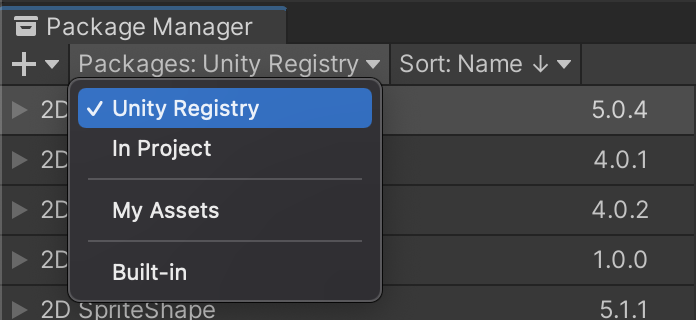
In the search bar, type "AR Foundation".

The installed version of AR Foundation is displayed.
Select the installed version of AR Foundation:
Follow these steps to install ARCore Extensions for AR Foundation 4.
Bundled dependencies
- Make sure that you have AR Foundation installed and configured in your development environment.
- Open or create a new Unity project.
- Select the desired target build platform:
- From the File menu, select Build Settings.
- Select Android or iOS, depending on the desired target platform.
- Click Switch Platform.
Import the latest ARCore Extensions package:
- Navigate to Window > Package Manager.
Click the
 button and choose the Add package from git URL... option from the
drop-down menu.
button and choose the Add package from git URL... option from the
drop-down menu.
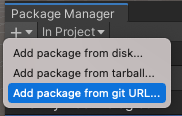
Paste the following URL into the text field:
https://github.com/google-ar/arcore-unity-extensions.git#arf4Click Add.
Without EDM4U
By default, ARCore Extensions is bundled with additional dependencies. When using other libraries (for example, Firebase Analytics) that depend on a different version of External Dependency Manager for Unity, undefined behavior may occur, causing dependents to stop working correctly.
Install ARCore Extensions without bundled dependencies to prevent library versioning conflicts:
- Download the ARCore Extensions without EDM4U release and
com.google.external-dependency-manager, - Follow instructions on importing UPM packages with
.tgzfiles, installing packages in the following order:com.google.external-dependency-manager,- ARCore Extensions (without EDM4U).
When installing ARCore Extensions, Unity will also automatically install a suitable version of the required dependencies:
- AR Foundation
- ARCore XR Plugin (used when targeting Android)
- ARKit XR Plugin (used when targeting iOS)
These dependencies might not be visible in the Package Manager > Package: In project view. However, the packages can be seen in the Project window under Packages
Set up ARCore Extensions
In the Hierarchy pane, right-click and add the following game objects (if not already added):
- XR > AR Session
- XR > AR Session Origin
- XR > ARCore Extensions
In the Hierarchy pane, select the ARCore Extensions package.
In the Inspector pane, for each of the following fields, click the target
 button, and connect each field with its corresponding game object, as follows:
- Session: Use your scene's AR Session.
- AR Session Origin: Use your scene's AR Session Origin.
- Camera Manager: Use your scene's AR Camera.
Optionally, create and connect the following assets for Cloud Anchors and camera config filters.
In the Project > Assets pane, right-click, select Create > XR > ARCore Extensions Config.
In the Project > Assets pane, right-click, select Create > XR > Camera Config Filter.
In the Hierarchy pane, select the ARCore Extensions package.
In the Inspector pane's ARCore Extensions Config field, click the target
button, and connect to the ARCoreExtensionsConfig
asset.In the Inspector pane's Camera Config Filter field, click the target
button, and connect to the ARCoreExtensionsCameraConfigFilter
asset.To learn more, see the Cloud Anchors developer's guide, and the guide to Configuring the camera.
If you are using a Unity version below 2020.3:
- Select Custom Gradle Properties Template in Project Settings > Player > Android > Publishing Settings > Build.
With all of the above ARCore Extensions fields connected appropriately, your ARCore Extensions Inspector pane looks like this:
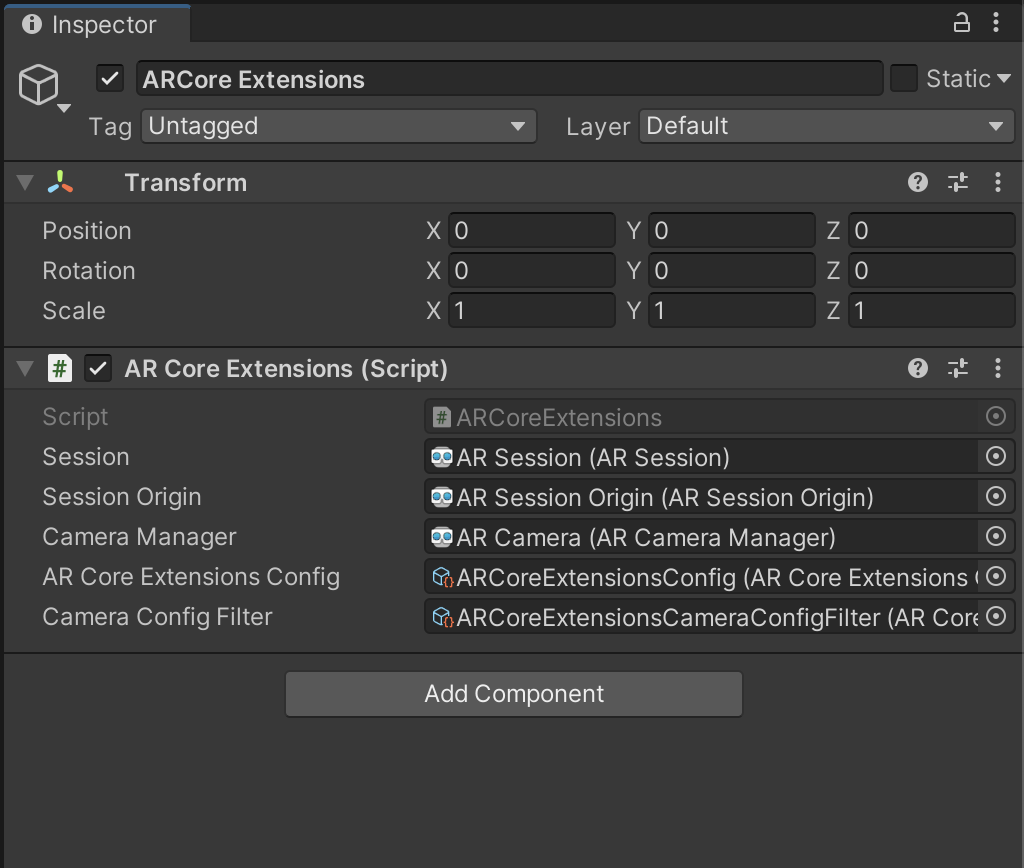
See Unity's guide to editing properties for more information about setting up properties.
Sample projects
Bundled with ARCore Extensions for AR Foundation are sample projects that you may use to get started with building your own projects.
From the Window menu, open the Package Manager and select the ARCore Extensions package.
Under Samples, click Import for the sample project, described below.
The following sample projects are imported from the GitHub repository:
Geospatial (Android only) - Create AR experiences on a global scale, and remotely attach content to any area covered by Google Street View. See the Geospatial API introduction for more information.
PersistentCloudAnchors (Android and iOS) - Create persistent AR experiences in the real world with interactive layers of digital information anchored to actual locations, and design experiences that can be shared over time by multiple people across many different devices. See the Cloud Anchors introduction for more information.
What's next
With ARCore Extensions for AR Foundation, you can now use Cloud Anchors and camera configurations in your apps.