

了解如何在自己的应用中使用 即时放置 API 或 持久光线投射。
前提条件
在继续操作之前,请确保您了解 基本的 AR 概念 以及如何配置 ARCore 会话。
概念名称
某些概念和方法的名称在 AR Foundation 和 ARCore SDK for Unity 之间可能有所不同。下表列出了这些名称,方便您参考。
前提条件
本指南假设您已安装并配置 Unity。如果尚未安装和配置,请参阅 ARCore Extensions for AR Foundation 使用入门 ,了解安装和设置步骤。
使用 ARRaycastManager 配置新会话
AR Foundation 软件包开箱即用,支持即时放置(持久光线投射)。请按照以下步骤设置场景。
AR Foundation 4.x
添加预定义的游戏对象 AR Session Origin 和 AR Session。
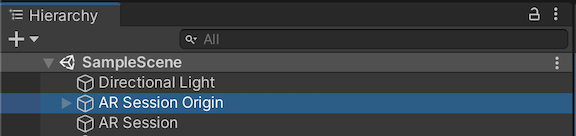
将 AR Raycast Manager 组件添加到 AR Session Origin 游戏对象中。
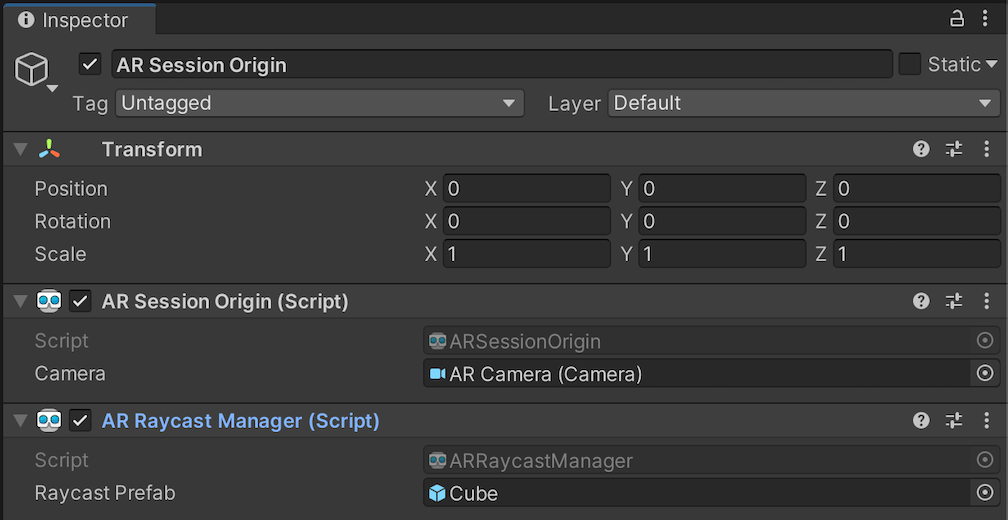
当 Raycast Prefab 不为 null 时,ARRaycastManager
将实例化预制件,并自动将其姿势与
ARRaycast的姿势同步。
AR Foundation 5.x
添加预定义的游戏对象 XR Origin 和 AR Session。
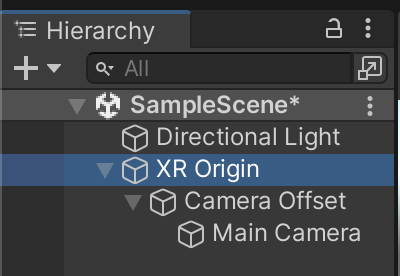
将 AR Raycast Manager 组件添加到 XR Origin 游戏对象中。
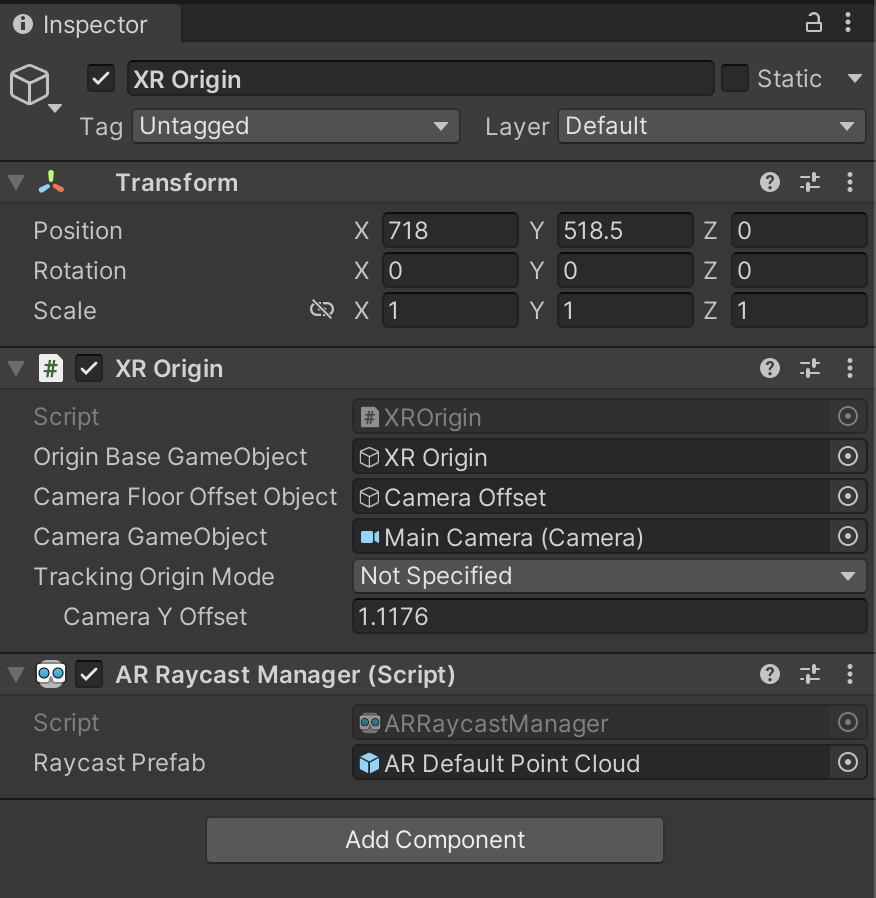
当 Raycast Prefab 不为 null 时,ARRaycastManager
将实例化预制件,并自动将其姿势与
ARRaycast的姿势同步。
AR Foundation 6.x
添加预定义的游戏对象 XR Origin 和 AR Session。
将 AR Raycast Manager 组件添加到 XR Origin 游戏对象中。
当 Raycast Prefab 不为 null 时,ARRaycastManager
将实例化预制件,并自动将其姿势与
ARRaycast的姿势同步。
放置对象
在新的 ARCore 会话中,使用
ARRaycastManager.AddRaycast(Vector2, float)执行点击测试。
public ARRaycastManager RaycastManager; // set from the Editor Inspector.

void Update()
{
    Touch touch;
    if (Input.touchCount < 1 || (touch = Input.GetTouch(0)).phase != TouchPhase.Began)
    {
        return;
    }

    if (EventSystem.current.IsPointerOverGameObject(touch.fingerId))
    {
        return;
    }

    ARRaycast raycast = RaycastManager.AddRaycast(touch.position, _estimateDistance);
    if (raycast != null)
    {
        // You can instantiate a 3D object here if you haven’t set Raycast Prefab in the scene.
        …
    }
}
监控 ARRaycast 跟踪状态
如果 ARCore 具有准确的 3D 姿势,则 ARRaycast.trackingState 将为 Tracking。
否则,它将以 Limited
开头,并在 ARCore 具有准确的 3D 姿势后转换为 Tracking。跟踪状态变为 Tracking 后,
不会恢复为
Limited。