
Business Messages एजेंट के साथ बातचीत में, वेलकम मैसेज से बातचीत की टोन तय होती है. इससे लोगों को यह भी पता चलता है कि एजेंट क्या-क्या कर सकता है. इससे लोगों के सवालों और उम्मीदों पर असर पड़ता है.
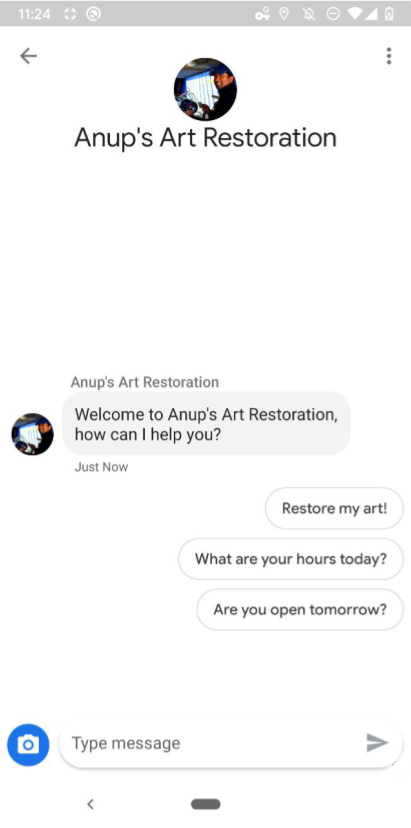
जब भी कोई व्यक्ति बातचीत शुरू करता है, तब एजेंट उसे वेलकम मैसेज भेजता है. एजेंट, उपयोगकर्ताओं को अक्सर इस्तेमाल किए जाने वाले या जाने-पहचाने पाथ पर ले जाने के लिए, बातचीत शुरू करने के लिए सुझाव भी दिखा सकता है.
अगर कोई व्यक्ति, कारोबार के खुले होने के समय के बाद एजेंट से बातचीत शुरू करता है, तो एजेंट को ऑफ़लाइन मैसेज दिखता है. इसका इस्तेमाल करके, अन्य चैनलों के बारे में बताया जा सकता है या अगले चरणों के बारे में सुझाव दिया जा सकता है. इन सेटिंग का इस्तेमाल करके, अपने एजेंट की विश्वसनीयता और इस्तेमाल करने की क्षमता को बढ़ाया जा सकता है.
एजेंट और जगह के हिसाब से सेटिंग
एजेंट या जगह के हिसाब से, बातचीत की सेटिंग तय की जा सकती हैं.
एजेंट लेवल: बातचीत से जुड़ी ये सेटिंग, सभी एंट्री पॉइंट पर एजेंट के साथ होने वाली सभी बातचीत पर लागू होती हैं.
एजेंट-लेवल का वेलकम मैसेज, "Bridgepoint Runners से संपर्क करने के लिए धन्यवाद..." से शुरू हो सकता है बातचीत शुरू करने वाले मैसेज में, कंपनी की सभी कार्रवाइयों या जानकारी पर फ़ोकस किया जा सकता है.
जगह के हिसाब से: ये सेटिंग, एजेंट-लेवल की सेटिंग को बदल देती हैं. साथ ही, ये सिर्फ़
PLACESHEETऔरMAPSएंट्री पॉइंट के ज़रिए की गई बातचीत पर लागू होती हैं.जगह के हिसाब से स्वागत मैसेज इस तरह से शुरू हो सकता है: "Amphitheatre Pkwy पर Bridgepoint Runners से संपर्क करने के लिए धन्यवाद..." बातचीत शुरू करने वाले प्रॉम्प्ट, जगह के हिसाब से टास्क या जानकारी पर फ़ोकस कर सकते हैं. ऑफ़लाइन मैसेज में यह जानकारी दी जा सकती है कि जगह की जानकारी कब अपडेट होगी.
स्थान-भाषा
एजेंट और जगहों के हिसाब से, अलग-अलग भाषाओं के लिए अलग-अलग सेटिंग तय की जा सकती हैं. उदाहरण के लिए, कोई एजेंट "en" स्थान-भाषा के लिए अंग्रेज़ी में वेलकम मैसेज सेट कर सकता है. साथ ही, "es" स्थान-भाषा के लिए स्पैनिश में वही वेलकम मैसेज सेट कर सकता है. Business Messages, उपयोगकर्ता के डिवाइस की बताई गई स्थान-भाषा और उन स्थान-भाषाओं के बीच मिलान करता है जिनके लिए किसी एजेंट या जगह के पास बातचीत की कोई सेटिंग है.
लोकल मैच की इस जानकारी को हर मैसेज के resolvedLocale फ़ील्ड में रिपोर्ट किया जाता है. आपके पास किसी एजेंट या जगह के लिए defaultLocale तय करने का विकल्प होता है. इससे यह तय होता है कि स्थानीय भाषा के हिसाब से मैच करने वाले क्वेरी के जवाबों को कितना महत्व दिया जाएगा. स्थानीय भाषा और स्थान-भाषाएं देखें.
Business Messages, बातचीत की कौनसी सेटिंग लागू करनी हैं, यह तय करने के लिए हल किए गए स्थान-भाषा का इस्तेमाल करता है.
स्वागत मैसेज
किसी एजेंट और उपयोगकर्ता के बीच हुई बातचीत में, एजेंट का पहला मैसेज वेलकम मैसेज होता है. जब कोई व्यक्ति नई बातचीत शुरू करता है, तो वेलकम मैसेज अपने-आप दिखता है. अच्छा वेलकम मैसेज, एजेंट से इंटरैक्ट करने के लिए उपयोगकर्ता की उम्मीदों को पूरा करता है. स्वागत संदेश में बदलाव करने के लिए, बातचीत की सेटिंग अपडेट करना लेख पढ़ें.
बातचीत शुरू करने के विकल्प
एक अच्छा वेलकम मैसेज, एजेंट की सुविधाओं के बारे में सामान्य जानकारी देता है और इसमें बातचीत शुरू करने के लिए कई विकल्प होते हैं. वहीं, बातचीत शुरू करने के लिए अच्छे सुझाव, उपयोगकर्ताओं को अक्सर पूछे जाने वाले सवालों या जानी-पहचानी सुविधाओं के बारे में जानकारी देते हैं.
बातचीत शुरू करने के विकल्प, वेलकम मैसेज के तुरंत बाद, सुझाए गए जवाबों की सूची के तौर पर दिखते हैं. जब कोई उपयोगकर्ता बातचीत शुरू करने वाले किसी बटन पर टैप करता है, तो एजेंट को पहले से तय किया गया कॉन्टेंट और पोस्टबैक डेटा मिलता है. यह डेटा, बातचीत शुरू करने वाले बटन को सेट करते समय तय किया जाता है.
अगर कोई एजेंट, कुछ अनुरोधों के लिए ऑटोमेशन की सुविधा देता है, तो बातचीत शुरू करने वाले वाक्यांशों को उन अनुरोधों से मैप किया जा सकता है. इससे, ऑटोमेशन के लिए जाने-पहचाने इनपुट का इस्तेमाल किया जा सकता है. साथ ही, लाइव एजेंट को ऐसे सवाल भेजे जा सकते हैं जिनके जवाब देने के लिए, वे तैयार हैं.
कोई एजेंट, बातचीत शुरू करने के लिए ज़्यादा से ज़्यादा पांच प्रॉम्प्ट बना सकता है. साथ ही, हर प्रॉम्प्ट में ज़्यादा से ज़्यादा 35 वर्ण हो सकते हैं.
बातचीत शुरू करने वाले सवाल जोड़ने या उनमें बदलाव करने के लिए, बातचीत की सेटिंग अपडेट करना लेख पढ़ें.
ऑफ़लाइन मैसेज
जब कोई व्यक्ति, कारोबार के खुले होने के समय के बाद एजेंट से बातचीत शुरू करता है (जैसा कि MessagingAvailability ने तय किया है), तो उसे एजेंट का ऑफ़लाइन मैसेज मिलता है. ऑफ़लाइन मैसेज ट्रिगर करते समय, सिर्फ़ यह देखा जाता है कि कोई व्यक्ति उपलब्ध है या नहीं. जिन एजेंट के पास सिर्फ़ बॉट प्रतिनिधि होते हैं वे हमेशा स्वागत मैसेज भेजते हैं. ऑफ़लाइन मैसेज की सुविधा का सही तरीके से इस्तेमाल करना
- इस कुकी से पता चलता है कि एजेंट क्यों उपलब्ध नहीं है
- उपयोगकर्ता को अगले ज़रूरी चरणों या संपर्क करने के अन्य तरीकों के बारे में जानकारी देता है
- वेलकम मैसेज और बातचीत शुरू करने के लिए दिए गए सुझावों की टोन से मेल खाती हो
ऑफ़लाइन मैसेज की क्वालिटी खराब होना
"माफ़ करें, हम बंद हैं."
ऑफ़लाइन मैसेज
"हमारा कारोबार अभी बंद है, लेकिन कल सुबह 8 बजे खुलेगा. अगर आपको तुरंत मदद चाहिए, तो सहायता टीम से +12223334444 पर संपर्क करें या support@gtb.com पर ईमेल भेजें."
ऑफ़लाइन मैसेज में बदलाव करने के लिए, बातचीत की सेटिंग अपडेट करना लेख पढ़ें.
बातचीत की सेटिंग अपडेट करना
वेलकम मैसेज या बातचीत शुरू करने वाले मैसेज को मैनेज करने के लिए, Business Communications API के साथ PATCH अनुरोध करें. इससे एजेंट या जगह की जानकारी के conversationalSettings फ़ील्ड को अपडेट किया जा सकता है.
conversationalSettings फ़ील्ड को अपडेट करते समय, आपको ConversationalSetting ऑब्जेक्ट में मौजूद सभी फ़ील्ड के लिए वैल्यू शामिल करनी होंगी. अपडेट के अनुरोधों से, आपके बदले गए सभी फ़ील्ड का कॉन्टेंट बदल जाता है. इनमें चाइल्ड फ़ील्ड भी शामिल हैं. उदाहरण के लिए, अगर आपको वेलकम मैसेज में बदलाव करने का अनुरोध करना है, लेकिन उसमें बातचीत शुरू करने के लिए कोई सुझाव शामिल नहीं करना है, तो अनुरोध करने पर बातचीत शुरू करने के लिए दिए गए पिछले सभी सुझाव हट जाएंगे.
ज़रूरी शर्तें
बातचीत की सेटिंग अपडेट करने से पहले, आपके पास ये चीज़ें होनी चाहिए:
- आपकी डेवलपमेंट मशीन पर, आपके GCP प्रोजेक्ट के सेवा खाते की कुंजी का पाथ
- वह स्थान-भाषा जिसके लिए आपको सेटिंग अपडेट करनी हैं
एजेंट-लेवल की सेटिंग के लिए, एजेंट
name(उदाहरण के लिए, "brands/12345/agents/67890")अगर आपको एजेंट का
nameनहीं पता है, तो किसी ब्रैंड के लिए सभी एजेंट की सूची देखें पर जाएं.जगह के हिसाब से सेटिंग के लिए, जगह की जानकारी
name(उदाहरण के लिए, "brands/12345/locations/67890")अगर आपको जगह की जानकारी का
nameनहीं पता है, तो किसी ब्रैंड के लिए सभी जगहों की सूची देखें पर जाएं.अपडेट करने के लिए स्थान-भाषा, जिसे दो वर्णों वाले ISO 639-1 भाषा कोड के तौर पर दिखाया जाता है
नया वेलकम मैसेज
निजता नीति यूआरएल
(ज़रूरी नहीं) बातचीत शुरू करने के लिए टेक्स्ट
(ज़रूरी नहीं) बातचीत शुरू करने के विकल्पों के लिए पोस्टबैक डेटा
(ज़रूरी नहीं) नया ऑफ़लाइन मैसेज
अगर आपको मौजूदा conversationalSettings वैल्यू के बारे में नहीं पता है, तो एजेंट की जानकारी पाना और जगह की जानकारी पाना लेख पढ़ें.
अपडेट का अनुरोध भेजना
एजेंट या जगह की जानकारी अपडेट करने के लिए, यह निर्देश चलाएं. चरों को उन वैल्यू से बदलें जिनकी पहचान आपने ज़रूरी शर्तें में की है.
अगर आपको बातचीत शुरू करने वाले सुझाव नहीं चाहिए, तो conversationStarters और इसके सभी चाइल्ड फ़ील्ड हटा दें.
एजेंट-लेवल की सेटिंग
cURL
# This code updates the conversational settings of a Business Messages agent. # Read more: https://developers.google.com/business-communications/business-messages/reference/business-communications/rest/v1/brands.agents/patch # Replace the __BRAND_ID__, __AGENT_ID__ and __LOCALE__ # Make sure a service account key file exists at ./service_account_key.json curl -X PATCH \ "https://businesscommunications.googleapis.com/v1/brands/__BRAND_ID__/agents/__AGENT_ID__?updateMask=businessMessagesAgent.conversationalSettings.__LOCALE__" \ -H "Content-Type: application/json" \ -H "User-Agent: curl/business-communications" \ -H "$(oauth2l header --json ./service_account_key.json businesscommunications)" \ -d '{ "businessMessagesAgent": { "conversationalSettings": { "__LOCALE__": { "welcomeMessage": { "text": "My first welcome message" }, "offlineMessage": { "text": "My first offline message" }, "privacyPolicy": { "url": "https://www.your-company-website.com/privacy" }, "conversationStarters": [ { "suggestion": { "reply": { "text": "Suggestion 1", "postbackData": "post_back_suggestion_1" } } } ] } } } }'
Node.js
/** * This code snippet updates the conversationalSettings of a Business Messages agent. * Read more: https://developers.google.com/business-communications/business-messages/reference/business-communications/rest/v1/brands.agents/patch * * This code is based on the https://github.com/google-business-communications/nodejs-businesscommunications Node.js * Business Communications client library. */ /** * Edit the values below: */ const BRAND_ID = 'EDIT_HERE'; const AGENT_ID = 'EDIT_HERE'; const LOCALE = 'en'; const PATH_TO_SERVICE_ACCOUNT_KEY = './service_account_key.json'; const businesscommunications = require('businesscommunications'); const {google} = require('googleapis'); // Initialize the Business Communications API const bcApi = new businesscommunications.businesscommunications_v1.Businesscommunications({}); // Set the scope that we need for the Business Communications API const scopes = [ 'https://www.googleapis.com/auth/businesscommunications', ]; // Set the private key to the service account file const privatekey = require(PATH_TO_SERVICE_ACCOUNT_KEY); async function main() { const authClient = await initCredentials(); const agentName = 'brands/' + BRAND_ID + '/agents/' + AGENT_ID; if (authClient) { // Setup the parameters for the API call const apiParams = { auth: authClient, name: agentName, updateMask: 'businessMessagesAgent.conversationalSettings.' + LOCALE, resource: { businessMessagesAgent: { conversationalSettings: { [LOCALE]: { privacyPolicy: { url: 'https://www.your-company-website.com/privacy' }, welcomeMessage: { text: 'My updated welcome message' }, offlineMessage: { text: 'My updated offline message' }, conversationStarters: [ { suggestion: { reply: { 'text': 'Suggestion 2', 'postbackData': 'post_back_suggestion_2', }, }, } ], }, } } } }; bcApi.brands.agents.patch(apiParams, {}, (err, response) => { if (err !== undefined && err !== null) { console.dir(err); } else { // Agent found console.log(response.data); } }); } else { console.log('Authentication failure.'); } } /** * Initializes the Google credentials for calling the * Business Messages API. */ async function initCredentials() { // Configure a JWT auth client const authClient = new google.auth.JWT( privatekey.client_email, null, privatekey.private_key, scopes, ); return new Promise(function(resolve, reject) { // Authenticate request authClient.authorize(function(err, tokens) { if (err) { reject(false); } else { resolve(authClient); } }); }); } main();
Java
import com.google.api.client.googleapis.auth.oauth2.GoogleCredential;
import com.google.api.client.googleapis.javanet.GoogleNetHttpTransport;
import com.google.api.client.http.HttpTransport;
import com.google.api.client.json.jackson2.JacksonFactory;
import com.google.api.services.businesscommunications.v1.BusinessCommunications;
import com.google.api.services.businesscommunications.v1.model.*;
import com.google.common.collect.ImmutableMap;
import java.io.FileInputStream;
import java.util.Arrays;

class Main {
  /**
   * Initializes credentials used by the Business Communications API.
   */
  private static BusinessCommunications.Builder getBusinessCommunicationsBuilder() {
    BusinessCommunications.Builder builder = null;
    try {
      GoogleCredential credential = GoogleCredential
            .fromStream(new FileInputStream("PATH_TO_SERVICE_ACCOUNT_KEY"));

      credential = credential.createScoped(Arrays.asList(
          "https://www.googleapis.com/auth/businesscommunications"));

      credential.refreshToken();

      HttpTransport httpTransport = GoogleNetHttpTransport.newTrustedTransport();
      JacksonFactory jsonFactory = JacksonFactory.getDefaultInstance();

      // Create instance of the Business Communications API
      builder = new BusinessCommunications
          .Builder(httpTransport, jsonFactory, null)
          .setApplicationName(credential.getServiceAccountProjectId());

      // Set the API credentials and endpoint
      builder.setHttpRequestInitializer(credential);
    } catch (Exception e) {
      e.printStackTrace();
    }

    return builder;
  }

  public static void main(String args[]) {
    try {
      // Create client library reference
      BusinessCommunications.Builder builder = getBusinessCommunicationsBuilder();

      String agentName = "brands/BRAND_ID/agents/AGENT_ID";

      Agent agent = new Agent().setBusinessMessagesAgent(
          new BusinessMessagesAgent().setConversationalSettings(ImmutableMap.of("LOCALE",
              new ConversationalSetting()
                  .setPrivacyPolicy(new PrivacyPolicy().setUrl("PRIVACY_POLICY_URL"))
                  .setWelcomeMessage(new WelcomeMessage().setText("WELCOME_MESSAGE"))
                  .setOfflineMessage(new OfflineMessage().setText("OFFLINE_MESSAGE"))
                  .setConversationStarters(Arrays.asList(
                      new ConversationStarters().setSuggestion(new Suggestion()
                          .setReply(new SuggestedReply()
                              .setText("REPLY_TEXT")
                              .setPostbackData("POSTBACK_DATA"))),
                      )))));

      BusinessCommunications.Brands.Agents.Patch request = builder
          .build().brands().agents().patch(agentName, agent);

      request.setUpdateMask("businessMessagesAgent.conversationalSettings.LOCALE");

      Agent updatedAgent = request.execute();
      System.out.println(updatedAgent.toPrettyString());
    } catch (Exception e) {
      e.printStackTrace();
    }
  }
}
Python
"""This code updates the conversational settings of a Business Messages agent. Read more: https://developers.google.com/business-communications/business-messages/reference/business-communications/rest/v1/brands.agents/patch This code is based on the https://github.com/google-business-communications/python-businessmessages Python Business Messages client library. """ from oauth2client.service_account import ServiceAccountCredentials from businesscommunications.businesscommunications_v1_client import BusinesscommunicationsV1 from businesscommunications.businesscommunications_v1_messages import ( Agent, BusinessMessagesAgent, ConversationStarters, ConversationalSetting, OfflineMessage, PrivacyPolicy, WelcomeMessage, NegativeBotFeedbackMessage, BusinesscommunicationsBrandsAgentsPatchRequest, ) # Edit the values below: BRAND_ID = 'EDIT_HERE' AGENT_ID = 'EDIT_HERE' SCOPES = ['https://www.googleapis.com/auth/businesscommunications'] SERVICE_ACCOUNT_FILE = './service_account_key.json' credentials = ServiceAccountCredentials.from_json_keyfile_name( SERVICE_ACCOUNT_FILE, scopes=SCOPES) client = BusinesscommunicationsV1(credentials=credentials) agents_service = BusinesscommunicationsV1.BrandsAgentsService(client) agent_name = 'brands/' + BRAND_ID + '/agents/' + AGENT_ID agent=Agent( businessMessagesAgent=BusinessMessagesAgent( conversationalSettings=BusinessMessagesAgent.ConversationalSettingsValue( additionalProperties=[BusinessMessagesAgent.ConversationalSettingsValue.AdditionalProperty( key='en', value=ConversationalSetting( privacyPolicy=PrivacyPolicy(url='https://www.your-company-website.com/privacy'), welcomeMessage=WelcomeMessage(text='Welcome to Business Messages'), offlineMessage=OfflineMessage(text='This is an offline message'), conversationStarters=[ ConversationStarters( suggestion=Suggestion( reply=SuggestedReply(text='Option 1', postbackData='option_1') ) )] ) ) ] ) ) ) updated_agent = agents_service.Patch( BusinesscommunicationsBrandsAgentsPatchRequest( agent=agent, name=agent_name, updateMask='businessMessagesAgent.conversationalSettings.en' ) ) print(updated_agent)
जगह के हिसाब से सेटिंग
# This code updates the agent interaction of a bot and human representatives. # Read more: https://developers.google.com/business-communications/business-messages/reference/business-communications/rest/v1/brands.locations/patch # Replace the __BRAND_ID__, __AGENT_ID__, __LOCATION_ID__, __LOCALE__ # Make sure a service account key file exists at ./service_account_key.json curl -X PATCH \ "https://businesscommunications.googleapis.com/v1/brands/__BRAND_ID__/locations/__LOCATION_ID__?updateMask=conversationalSettings.__LOCALE__" \ -H "Content-Type: application/json" \ -H "User-Agent: curl/business-communications" \ -H "$(oauth2l header --json ./service_account_key.json businesscommunications)" \ -d '{ "conversationalSettings": { "__LOCALE__": { "welcomeMessage": { "text": "My second welcome message" }, "offlineMessage": { "text": "My second offline message" }, "privacyPolicy": { "url": "https://www.your-company-website.com/privacy" }, "conversationStarters": [ { "suggestion": { "reply": { "text": "Suggestion 2", "postbackData": "post_back_suggestion_2" } } } ] } } }'
फ़ॉर्मैटिंग और वैल्यू की जानकारी के लिए, brands.agents.patch, brands.locations.patch, और ConversationalSetting देखें.
उदाहरण
एजेंट-लेवल की सेटिंग
curl -X PATCH \
"https://businesscommunications.googleapis.com/v1/brands/BRAND_ID/agents/AGENT_ID?updateMask=businessMessagesAgent.conversationalSettings.en" \
-H "Content-Type: application/json" \
-H "User-Agent: curl/business-communications" \
-H "$(oauth2l header --json PATH_TO_SERVICE_ACCOUNT_KEY businesscommunications)" \
-d "{
    'businessMessagesAgent': {
        'conversationalSettings': {
            'en': {
                'welcomeMessage': {
                    'text': 'Thanks for contacting Growing Tree Bank. What can I help with today?',
                },
                'offlineMessage': {
                    'text': 'We\'re closed for the night. Please reach out to us again tomorrow.',
                },
                'privacyPolicy': {
                    'url': 'https://www.growingtreebank.com/privacy',
                },
                'conversationStarters': [
                    {
                        'suggestion': {
                            'reply': {
                                'text': 'Set up an account',
                                'postbackData': 'new-account',
                            },
                        },
                    },
                    {
                        'suggestion': {
                            'reply': {
                                'text': 'Look up account information',
                                'postbackData': 'account-lookup',
                            },
                        },
                    },
                ],
            },
        },
    },
}"
जगह के हिसाब से सेटिंग
curl -X PATCH \
"https://businesscommunications.googleapis.com/v1/brands/12345/locations/67890?updateMask=conversationalSettings.en" \
-H "Content-Type: application/json" \
-H "User-Agent: curl/business-communications" \
-H "$(oauth2l header --json /path/to/service/account/key businesscommunications)" \
-d "{
    'conversationalSettings': {
        'en': {
            'welcomeMessage': {
                'text': 'Thanks for contacting Growing Tree Bank on Amphitheatre Pkwy. What can I help with today?',
            },
            'offlineMessage': {
                'text': 'We\'re closed for the night. Please reach out to us again tomorrow.',
            },
            'privacyPolicy': {
                'url': 'https://www.growingtreebank.com/privacy',
            },
            'conversationStarters': [
                {
                    'suggestion': {
                        'reply': {
                            'text': 'What are your hours?',
                            'postbackData': 'hours',
                        },
                    },
                },
                {
                    'suggestion': {
                        'reply': {
                            'text': 'Set up an account',
                            'postbackData': 'new-account',
                        },
                    },
                },
                {
                    'suggestion': {
                        'reply': {
                            'text': 'Look up account information',
                            'postbackData': 'account-lookup',
                        },
                    },
                },
                {
                    'suggestion': {
                        'action': {
                            'text': 'Call us',
                            'postbackData': 'call',
                            'dialAction': {
                              'phoneNumber': '+12223334444',
                            },
                        },
                    },
                },
            ],
        },
    },
}"