
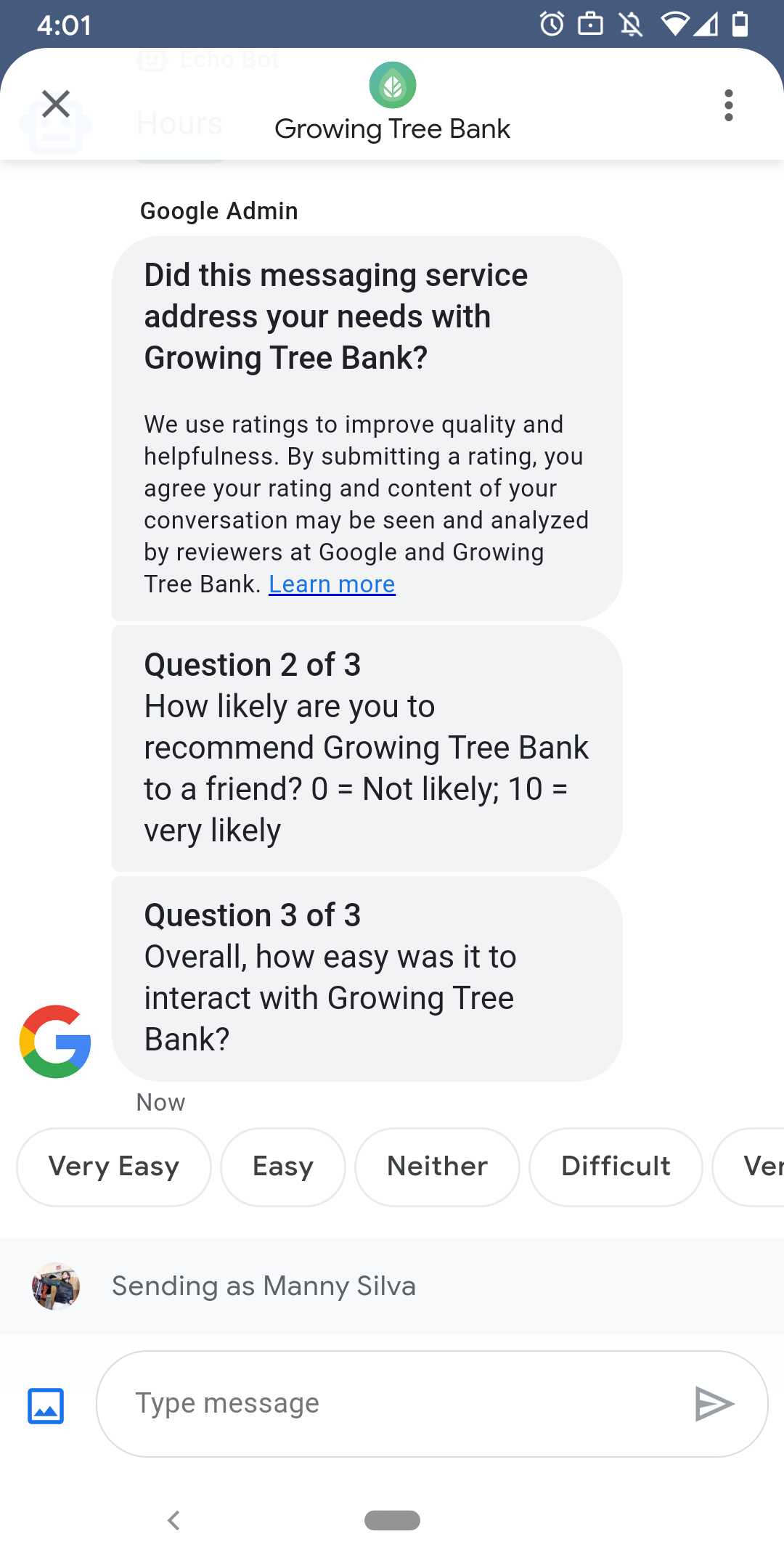
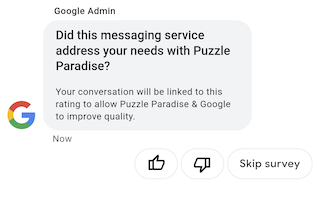
ユーザーがエージェントとのやり取りに満足できるように、Google はユーザーがエージェントとの会話を終了した後にアンケートを送信します。会話の終了時など、異なるタイミングでデータを収集する場合は、会話のコンテキスト内でアンケートを送信できます。アンケートは会話に表示され、ユーザーは質問に応じてさまざまなオプションでフィードバックを提供できます。
Google がトリガーするアンケートのタイミングは、エージェントのメッセージの利用可能性によって異なります。
| 対象 | アンケートのタイミング |
|---|---|
| Bot のみ | 最後のメッセージから 30 分後 |
| 人間のみ | 最後のメッセージから 24 営業時間後 |
| ボットと人間 | 最後のメッセージから 24 営業時間後 |
次の 7 日間の営業時間が 24 時間未満の場合は、代わりに 24 時間を使用します。
会話ごとに 24 時間に 1 回アンケートを送信できます。Google より先に会話でアンケートを送信した場合、Google はその会話にアンケートを送信しません。エージェントが 24 時間以内に同じ会話で複数のアンケートを送信した場合、Business Messages は最初のアンケートのみをユーザーに送信しようとします。
アンケートの完了後にユーザーがエージェントとの会話を開始すると、エージェントは挨拶を表示します。ユーザーがアンケートに回答しない場合、アンケートは 7 日後に期限切れとなり、アンケートの期限切れ後にユーザーが次の会話を開始すると、挨拶が表示されます。
会話でアンケートが有効になっているときに、ユーザーがアンケートに関係のないメッセージを送信すると、ビジネス メッセージはアンケートをキャンセルし、ユーザーのメッセージをエージェントの Webhook に送信します。
ユーザーにアンケートを送信しない場合でも、エージェントは Google のアンケートの結果を Webhook で受け取ります。したがって、それに応じて結果を受け取って処理する必要があります。
質問
アンケートには最大 5 つの質問を含めることができ、必須、テンプレート、カスタムの 3 つのカテゴリに分類されます。アンケートには必ず必須の質問が含まれ、テンプレートの質問が最大 2 つ、カスタムの質問が最大 2 つ表示されます。
必須の質問
必須の質問は、Business Messages がサポートするすべての言語 / 地域でローカライズされます。ユーザーは高評価または低評価で回答できます。
必須の質問: 「このメッセージ サービスを使って AGENT_NAME とチャットすることで、用件を済ませられましたか?」
質問テンプレート
テンプレートの質問は、ビジネス メッセージがサポートするすべてのロケールでローカライズされる、Google が定義したオプションの質問です。アンケートには、テンプレートの質問を 2 つまで含めることができます。ユーザーの回答形式は質問によって異なります。
質問テンプレートには、次のようなものがあります。
- AGENT_NAME とメッセージをやり取りした印象をお聞かせください。
- AGENT_NAME をご友人にすすめる可能性はどれくらいですか?
- 次に AGENT_NAME に連絡する際に、連絡方法としてメッセージを選択する可能性はどれくらいですか?
- 全体的に、AGENT_NAME とのやりとりはどれくらい簡単でしたか?
- 以下の文にどの程度同意しますか?「AGENT_NAME のおかげで、問題に簡単に対処できた。」
- サポート担当者に対する全体的な満足度をお答えください。
- このチャット セッションにより、AGENT_NAME に電話で問い合わせる手間を省けましたか?
使用可能なすべてのテンプレートの質問の一覧を表示してテンプレート ID を取得するには、
- ビジネス コミュニケーション デベロッパー コンソールを開き、ビジネス メッセージの Google アカウントでログインします。
- エージェントを選択します。
- 左側のナビゲーションで [アンケート] をクリックします。
カスタムの質問
アンケートには最大 2 つのカスタム質問を含めることができます。カスタムの質問を指定する場合は、エージェントがサポートする各ロケールの質問のバージョンを含めます。デフォルトの言語 / 地域ごとに各質問のバージョンを指定する必要があります。ユーザーがアンケートを受け取ったものの、そのユーザーのロケールにカスタム質問の指定されたバージョンがない場合、質問はエージェントのデフォルトのロケールで定義されているとおりに表示されます。
カスタム質問への回答では、提案された返信と同様に、テキストとポストバック データが別々にサポートされます。
アンケートをカスタマイズする
エージェントのアンケートをカスタマイズするには:
- ビジネス コミュニケーション デベロッパー コンソールを開き、ビジネス メッセージの Google アカウントでログインします。
- エージェントを選択します。
- 左側のナビゲーションで [アンケート] をクリックします。
- 利用可能なテンプレートの質問をアンケートに 2 つまで追加します。
- [カスタムの質問を作成] をクリックして、アンケートにカスタムの質問を追加します。
書式設定と値のオプションについては、surveyConfig をご覧ください。
アンケートを送信する
アンケートを送信するには、次のコマンドを実行します。CONVERSATION_ID は、アンケートを送信する会話の識別子に置き換え、SURVEY_ID はアンケートの固有識別子に置き換えます。
cURL
# Copyright 2021 Google LLC # # Licensed under the Apache License, Version 2.0 (the "License"); # you may not use this file except in compliance with the License. # You may obtain a copy of the License at # https://www.apache.org/licenses/LICENSE-2.0 # Unless required by applicable law or agreed to in writing, software # distributed under the License is distributed on an "AS IS" BASIS, # WITHOUT WARRANTIES OR CONDITIONS OF ANY KIND, either express or implied. # See the License for the specific language governing permissions and # limitations under the License. # This code sends a survey to the user: # Read more: https://developers.google.com/business-communications/business-messages/guides/how-to/message/surveys?hl=en # Replace the __CONVERSATION_ID__ with a conversation id that you can send messages to # Make sure a service account key file exists at ./service_account_key.json curl -X POST "https://businessmessages.googleapis.com/v1/conversations/__CONVERSATION_ID__/surveys?surveyId=f4bd7576-6c2e-4674-9db4-d697166f63ce" \ -H "Content-Type: application/json" \ -H "User-Agent: curl/business-messages" \ -H "$(oauth2l header --json ./service_account_key.json businessmessages)"
Node.js
/** * This code sends a survey to the user: * Read more: https://developers.google.com/business-communications/business-messages/guides/how-to/message/surveys?hl=en * * This code is based on the https://github.com/google-business-communications/nodejs-businessmessages Node.js * Business Messages client library. */ /** * Edit the values below: */ const PATH_TO_SERVICE_ACCOUNT_KEY = './service_account_key.json'; const CONVERSATION_ID = 'EDIT_HERE'; const businessmessages = require('businessmessages'); const uuidv4 = require('uuid').v4; const {google} = require('googleapis'); // Initialize the Business Messages API const bmApi = new businessmessages.businessmessages_v1.Businessmessages({}); // Set the scope that we need for the Business Messages API const scopes = [ 'https://www.googleapis.com/auth/businessmessages', ]; // Set the private key to the service account file const privatekey = require(PATH_TO_SERVICE_ACCOUNT_KEY); /** * Posts a survey to the Business Messages API. * * @param {string} conversationId The unique id for this user and agent. */ async function sendSurvey(conversationId) { const authClient = await initCredentials(); // Create the payload for creating a new survey const apiParams = { auth: authClient, parent: 'conversations/' + conversationId, surveyId: uuidv4(), resource: {} }; // Call the message create function using the // Business Messages client library bmApi.conversations.surveys.create(apiParams, {auth: authClient}, (err, response) => { console.log(err); console.log(response); }); } /** * Initializes the Google credentials for calling the * Business Messages API. */ async function initCredentials() { // configure a JWT auth client const authClient = new google.auth.JWT( privatekey.client_email, null, privatekey.private_key, scopes, ); return new Promise(function(resolve, reject) { // authenticate request authClient.authorize(function(err, tokens) { if (err) { reject(false); } else { resolve(authClient); } }); }); } sendSurvey(CONVERSATION_ID);
Java
import com.google.api.client.googleapis.services.AbstractGoogleClientRequest; import com.google.api.client.http.HttpBackOffUnsuccessfulResponseHandler; import com.google.api.client.http.HttpRequest; import com.google.api.client.googleapis.auth.oauth2.GoogleCredential; import com.google.api.client.googleapis.javanet.GoogleNetHttpTransport; import com.google.api.client.http.HttpTransport; import com.google.api.client.json.jackson2.JacksonFactory; import com.google.api.client.util.ExponentialBackOff; import com.google.api.services.businessmessages.v1.Businessmessages; import com.google.api.services.businessmessages.v1.model.*; import java.io.FileInputStream; import java.util.Arrays; import java.util.UUID; class SendSurveySnippet { /** * Initializes credentials used by the Business Messages API. */ private static Businessmessages.Builder getBusinessMessagesBuilder() { Businessmessages.Builder builder = null; try { GoogleCredential credential = GoogleCredential .fromStream(new FileInputStream("PATH_TO_SERVICE_ACCOUNT_KEY")); credential = credential.createScoped(Arrays.asList( "https://www.googleapis.com/auth/businessmessages")); credential.refreshToken(); HttpTransport httpTransport = GoogleNetHttpTransport.newTrustedTransport(); JacksonFactory jsonFactory = JacksonFactory.getDefaultInstance(); // Create instance of the Business Messages API builder = new Businessmessages .Builder(httpTransport, jsonFactory, null) .setApplicationName("Sample Application"); // Set the API credentials and endpoint builder.setHttpRequestInitializer(credential); } catch (Exception e) { e.printStackTrace(); } return builder; } public static void main(String args[]) { try { String conversationId = "CONVERSATION_ID"; // Create client library reference Businessmessages.Builder builder = getBusinessMessagesBuilder(); // Create a new survey to send to the user associated with the conversationId Businessmessages.Conversations.Surveys.Create request = bmBuilder.build().conversations().surveys() .create("conversations/" + conversationId, new BusinessMessagesSurvey()); request.setSurveyId(UUID.randomUUID().toString()); // Setup retries with exponential backoff HttpRequest httpRequest = ((AbstractGoogleClientRequest) request).buildHttpRequest(); httpRequest.setUnsuccessfulResponseHandler(new HttpBackOffUnsuccessfulResponseHandler( new ExponentialBackOff())); // Execute request httpRequest.execute(); } catch (Exception e) { e.printStackTrace(); } } }
Python
"""This code sends a survey to the user. Read more: https://developers.google.com/business-communications/business-messages/guides/how-to/message/surveys?hl=en This code is based on the https://github.com/google-business-communications/python-businessmessages Python Business Messages client library. """ import uuid from businessmessages import businessmessages_v1_client as bm_client from businessmessages.businessmessages_v1_messages import BusinessmessagesConversationsSurveysCreateRequest from businessmessages.businessmessages_v1_messages import BusinessMessagesSurvey from oauth2client.service_account import ServiceAccountCredentials # Edit the values below: path_to_service_account_key = './service_account_key.json' conversation_id = 'EDIT_HERE' credentials = ServiceAccountCredentials.from_json_keyfile_name( path_to_service_account_key, scopes=['https://www.googleapis.com/auth/businessmessages']) client = bm_client.BusinessmessagesV1(credentials=credentials) # Create the survey request survey_request = BusinessmessagesConversationsSurveysCreateRequest( surveyId=str(uuid.uuid4().int), parent='conversations/' + conversation_id, businessMessagesSurvey=BusinessMessagesSurvey()) # Send the survey bm_client.BusinessmessagesV1.ConversationsSurveysService( client=client).Create(request=survey_request)
書式設定と値のオプションについては、conversations.surveys をご覧ください。
アンケートの回答を受け取る
ユーザーがアンケートの質問に回答すると、エージェントは Webhook で回答を受け取ります。メッセージを受信するのと同じ方法で、アンケートの回答を受信して処理します。
アンケートのすべての質問に同じ surveyResponse.survey 値が設定されます。アンケートに複数の質問が含まれている場合は、インフラストラクチャで同じ surveyResponse.survey 値の回答を複数受け入れ、surveyResponse.surveyQuestionId フィールドで個々の質問を識別できるようにしてください。
アンケートの回答のテキスト値は surveyResponse.questionResponseText に表示されます。必須の質問とテンプレートの質問に対して、Business Messages は高評価の回答を VERY_SATISFIED、低評価の回答を VERY_DISSATISFIED として返します。カスタム質問の回答に絵文字が含まれている場合は、Unicode 値を解析するのではなく、surveyResponse.questionResponsePostbackData を使用することが効果的な手法です。
アンケートの回答は次の形式になります。
{
  "agent": "brands/BRAND_ID/agents/AGENT_ID",
  "sendTime": "SEND_TIME",
  "conversationId": "CONVERSATION_ID",
  "requestId": "REQUEST_ID",
  "surveyResponse": {
    "survey": "conversations/CONVERSATION_ID/surveys/SURVEY_ID",
    "rating": "SURVEY_RATING",
    "createTime": "CREATE_TIME",
    "surveyQuestionId": "QUESTION_ID",
    "questionResponseText": "RESPONSE_TEXT",
    "questionResponsePostbackData": "RESPONSE_POSTBACK_DATA",
    "questionType": "QUESTION_TYPE",
    "questionIndex": QUESTION_INDEX,
    "totalQuestionCount": TOTAL_QUESTION_COUNT,
    "surveyTriggerSource": "TRIGGER_SOURCE"
  }
}
書式設定と値のオプションについては、UserMessage と SurveyResponse をご覧ください。