
Page Summary
-
This guide provides instructions for setting up a Google VR development environment with Unity.
-
You can build a demo Daydream or Cardboard app for Android by following the outlined steps.
-
The guide covers hardware and software requirements, downloading the Google VR SDK, importing the package, and configuring settings.
-
It also includes instructions on previewing the demo scene in Unity and building/running it on your device.
-
Further resources are provided for more in-depth details on specific Daydream app development features.
This guide shows you how to set up Google VR development with Unity and build a demo Daydream or Cardboard app for Android.
Set up your development environment
Hardware requirements:
Daydream: You'll need a Daydream-ready phone and a Daydream View.
Cardboard: You'll need an Android device running Android 4.4 'KitKat' (API level 19) or higher and a Cardboard viewer.
Software requirements:
Install Unity:
- Recommended version: LTS release 2018.4 or newer
- Minimum version for 6DoF head tracking: 2017.3
- Minimum version for smartphone: 5.6
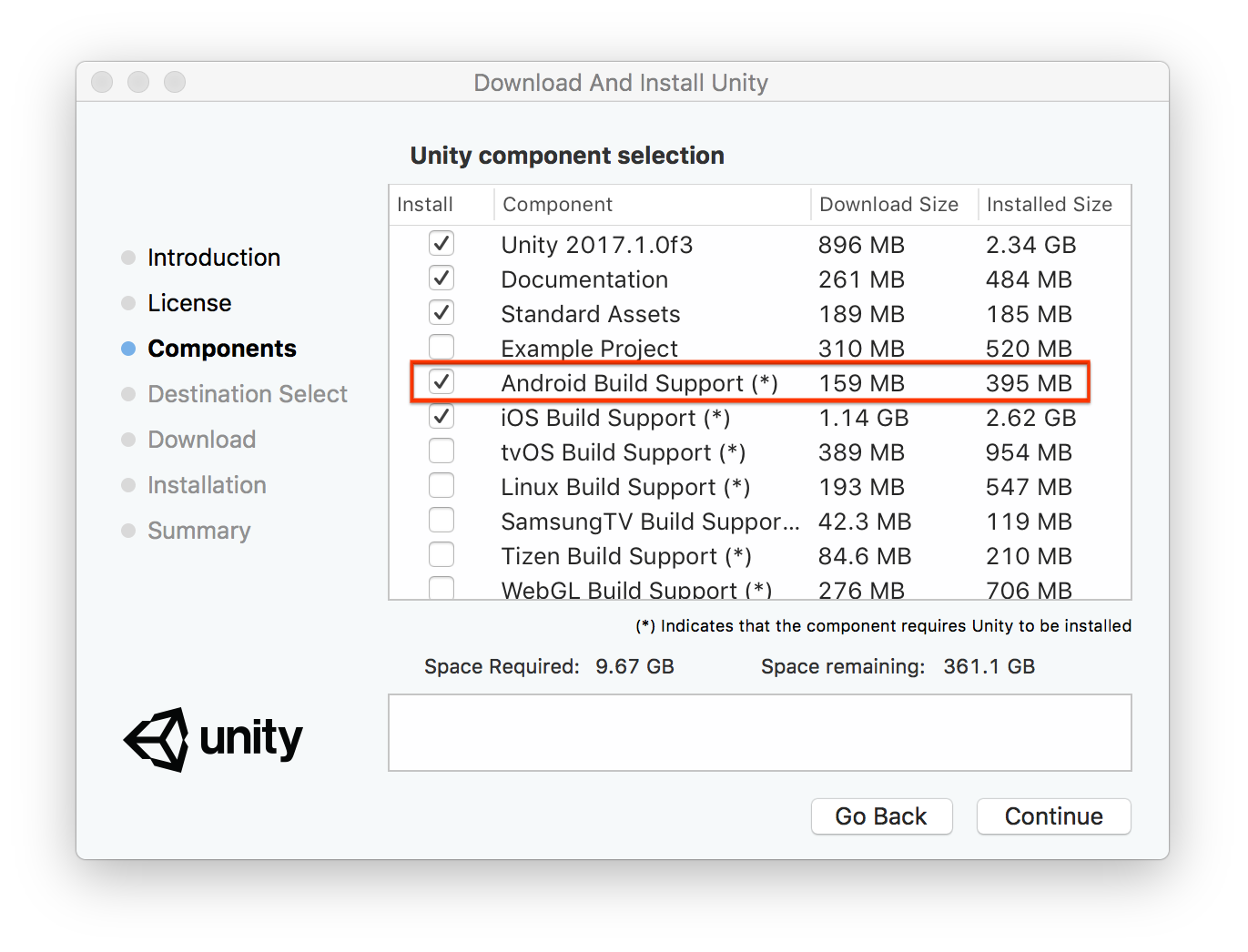
Make sure that the Android Build Support component is selected during installation.
Make sure your environment is configured for Android development.
Refer to Unity's guide for Android SDK/NDK setup.
Download the Google VR SDK for Unity
Download the latest
GoogleVRForUnity_*.unitypackagefrom the releases page.The SDK includes the following demo scenes for Daydream and Cardboard:
Scene Description HelloVR Simple VR game in which you find and select a geometric shape KeyboardDemo Daydream: Shows keyboard input on a UI canvas PermissionsDemo Daydream: Shows a correct user permissions request flow VideoDemo Shows various ways to use stereo or 360° video through playback or remote streaming Hello6DoFControllers Demonstrates use of experimental 6DoF controllers
Import the Google VR Unity package
Open Unity and create a new 3D project.
Select Assets > Import Package > Custom Package.
Select the
GoogleVRForUnity_*.unitypackagefile that you downloaded.In the Importing Package dialog, click Import.
Accept any API upgrades, if prompted.
Configure settings
Select File > Build Settings.
Select Android and click Switch Platform.
In the Build Settings window, click Player Settings.
Configure the following player settings:
Setting Value Player Settings > XR Settings > Virtual Reality Supported Enabled Player Settings > XR Settings > Virtual Reality SDKs Click + and select Daydream or Cardboard Player Settings > Other Settings > Minimum API Level Daydream:
Android 7.0 'Nougat' (API level 24) or higher
Cardboard:
Android 4.4 'KitKat' (API level 19) or higherPlayer Settings > Other Settings > Package Name Your app's package identifier
Preview the demo scene in Unity
In the Unity Project window, go to Google VR > Demos > Scenes. Open the HelloVR scene.
Press the Play button. In the Game view you should see a rendered demo scene.
Note that although the scene here is monoscopic, the rendering on your phone will be stereo. Unity might display this warning message as a reminder:
Virtual Reality SDK Daydream is not supported in Editor Play Mode. Please Build and run on a supported target device. Will attempt to enable None instead.
Daydream: (Optional) You can use a physical Daydream controller instead of simulated controls while in play mode in the editor. To do this, use Instant Preview.
Interact with the scene using simulation controls:
Type Simulated action What to do Head movement Turn your head Hold Alt + move mouse Tilt your view Hold Control + move mouse Cardboard input Button press Click anywhere in the Game view Daydream input Change controller orientation Hold Shift + move mouse Click touchpad button Hold Shift + click left Click app button Hold Shift + click right Click home button to recenter Hold Shift + click middle Touch the touchpad.
To see the controller, tilt your view downHold Control Change the touch position on the touchpad.
To see the controller, tilt your view downHold Control + move mouse
Prepare your device
To prepare your supported device, enable developer options and USB debugging.
Build and run the demo scene on your device
Connect your phone to your computer using a USB cable.
Select File > Build and Run.
Unity builds your project into an Android APK, installs it on the device, and launches it.
Put the phone in your viewer and try out the demo.
Next steps
For more details on building Daydream apps in Unity, see: