

खास जानकारी
Google Street View, अपने कवरेज एरिया में मौजूद सड़कों के 360 डिग्री पैनोरमिक व्यू दिखाता है. Street View के एपीआई की कवरेज, Google Maps ऐप्लिकेशन (https://maps.google.com/) की कवरेज के बराबर है. Street View की सुविधा के लिए, फ़िलहाल जिन शहरों में सहायता उपलब्ध है उनकी सूची Google Maps की वेबसाइट पर उपलब्ध है.
यहाँ Street View की इमेज का एक सैंपल दिखाया गया है.
Maps JavaScript API, Street View सेवा उपलब्ध कराता है. इसकी मदद से, Google Maps के Street View में इस्तेमाल की गई इमेज को हासिल किया जा सकता है और उनमें बदलाव किया जा सकता है. यह Street View सेवा, ब्राउज़र में पहले से मौजूद होती है.
Street View Map Usage
Street View का इस्तेमाल, स्टैंडअलोन DOM एलिमेंट में किया जा सकता है. हालांकि, यह मैप पर किसी जगह की जानकारी दिखाने के लिए सबसे ज़्यादा काम आता है. डिफ़ॉल्ट रूप से, मैप पर Street View चालू होता है. साथ ही, नेविगेशन (ज़ूम और पैन) कंट्रोल में Street View पेगमैन कंट्रोल दिखता है. streetViewControl को false पर सेट करके, मैप के MapOptions में इस कंट्रोल को छिपाया जा सकता है. Map की streetViewControlOptions.position प्रॉपर्टी को नए ControlPosition पर सेट करके, Street View कंट्रोल की डिफ़ॉल्ट जगह भी बदली जा सकती है.
Street View पेगमैन कंट्रोल की मदद से, मैप में सीधे तौर पर Street View पैनोरामा देखे जा सकते हैं. जब उपयोगकर्ता, पेगमैन पर क्लिक करके उसे दबाए रखता है, तो मैप अपडेट हो जाता है. इसमें Street View की सुविधा वाली सड़कों के चारों ओर नीली आउटलाइन दिखती है. इससे उपयोगकर्ता को Google Maps ऐप्लिकेशन जैसा अनुभव मिलता है.
जब उपयोगकर्ता पेगमैन मार्कर को किसी सड़क पर छोड़ता है, तो मैप अपडेट हो जाता है. इससे, चुनी गई जगह का Street View पैनोरमा दिखता है.
Street View पैनोरामा
Street View की इमेज, StreetViewPanorama ऑब्जेक्ट का इस्तेमाल करके दिखाई जाती हैं. यह ऑब्जेक्ट, Street View "व्यूअर" को एपीआई इंटरफ़ेस उपलब्ध कराता है. हर मैप में डिफ़ॉल्ट रूप से Street View पैनोरामा होता है. इसे मैप के getStreetView() तरीके को कॉल करके वापस पाया जा सकता है. जब मैप में Street View कंट्रोल जोड़ने के लिए, उसके streetViewControl विकल्प को true पर सेट किया जाता है, तब Pegman कंट्रोल अपने-आप इस डिफ़ॉल्ट Street View पैनोरमा से कनेक्ट हो जाता है.
आपके पास अपना StreetViewPanorama
ऑब्जेक्ट बनाने का विकल्प भी होता है. इसके बाद, मैप की streetView प्रॉपर्टी को उस ऑब्जेक्ट पर सेट करके, मैप को डिफ़ॉल्ट ऑब्जेक्ट के बजाय उस ऑब्जेक्ट का इस्तेमाल करने के लिए सेट किया जा सकता है. अगर आपको डिफ़ॉल्ट व्यवहार में बदलाव करना है, तो डिफ़ॉल्ट पैनोरमा को बदला जा सकता है. जैसे, मैप और पैनोरमा के बीच ओवरले अपने-आप शेयर होने की सुविधा. (नीचे Street View में ओवरले देखें.)
Street View कंटेनर
इसके बजाय, आपको StreetViewPanorama को किसी अलग डीओएम एलिमेंट में दिखाना पड़ सकता है. आम तौर पर, यह <div> एलिमेंट होता है.
इसके लिए, StreetViewPanorama के कंस्ट्रक्टर में डीओएम एलिमेंट पास करें. इमेज अच्छी तरह से दिखें, इसके लिए हमारा सुझाव है कि उनका साइज़ कम से कम 200 पिक्सल x 200 पिक्सल हो.
ध्यान दें: Street View की सुविधा को मैप के साथ इस्तेमाल करने के लिए डिज़ाइन किया गया है. हालांकि, इसका इस्तेमाल करना ज़रूरी नहीं है. मैप के बिना, स्टैंडअलोन Street View ऑब्जेक्ट का इस्तेमाल किया जा सकता है.
Street View की लोकेशन और पॉइंट-ऑफ़-व्यू (पीओवी)
StreetViewPanorama कंस्ट्रक्टर की मदद से, StreetViewOptions पैरामीटर का इस्तेमाल करके, Street View की जगह और व्यू पॉइंट को भी सेट किया जा सकता है. ऑब्जेक्ट बनाने के बाद, उसकी जगह और पीओवी बदलने के लिए, ऑब्जेक्ट पर
setPosition() और setPov() को कॉल किया जा सकता है.
Street View की लोकेशन से, किसी इमेज के लिए कैमरे के फ़ोकस की जगह तय होती है. हालांकि, इससे उस इमेज के लिए कैमरे का ओरिएंटेशन तय नहीं होता. इसके लिए, StreetViewPov ऑब्जेक्ट में दो प्रॉपर्टी तय की जाती हैं:
heading(डिफ़ॉल्ट0) से, कैमरे के लोकस के चारों ओर घूमने का ऐंगल तय होता है. यह ऐंगल, ट्रू नॉर्थ से डिग्री में मापा जाता है. हेडिंग को घड़ी की सुई की दिशा में मापा जाता है. 90 डिग्री का मतलब पूरब दिशा है.pitch(डिफ़ॉल्ट0) से, कैमरे के शुरुआती डिफ़ॉल्ट पिच से "ऊपर" या "नीचे" के ऐंगल में अंतर तय होता है. यह अक्सर (लेकिन हमेशा नहीं) फ़्लैट हॉरिज़ॉन्टल होता है. (उदाहरण के लिए, किसी पहाड़ी पर ली गई इमेज में, डिफ़ॉल्ट पिच हॉरिज़ॉन्टल नहीं होगी.) पिच ऐंगल को मापा जाता है. ऊपर की ओर देखने पर, पिच ऐंगल की वैल्यू पॉज़िटिव होती है. यह सीधे ऊपर की ओर +90 डिग्री तक और डिफ़ॉल्ट पिच के ऑर्थोगोनल होती है. नीचे की ओर देखने पर, पिच ऐंगल की वैल्यू नेगेटिव होती है. यह सीधे नीचे की ओर -90 डिग्री तक और डिफ़ॉल्ट पिच के ऑर्थोगोनल होती है.
StreetViewPov ऑब्जेक्ट का इस्तेमाल, Street View कैमरे के पॉइंट ऑफ़ व्यू का पता लगाने के लिए किया जाता है. StreetViewPanorama.getPhotographerPov() तरीके का इस्तेमाल करके, फ़ोटोग्राफ़र के पॉइंट-ऑफ़-व्यू का भी पता लगाया जा सकता है. आम तौर पर, यह वह दिशा होती है जिसमें कार या ट्राइक का फ़ेस होता है.
यहां दिए गए कोड में, बॉस्टन का मैप दिखाया गया है. इसमें फ़ेनवे पार्क का शुरुआती व्यू दिखता है. पेगमैन को चुनकर, उसे मैप पर मौजूद किसी ऐसी जगह पर खींचकर छोड़ें जहां Street View की सुविधा काम करती है. इससे Street View पैनोरमा बदल जाएगा:
TypeScript
function initialize() { const fenway = { lat: 42.345573, lng: -71.098326 }; const map = new google.maps.Map( document.getElementById("map") as HTMLElement, { center: fenway, zoom: 14, } ); const panorama = new google.maps.StreetViewPanorama( document.getElementById("pano") as HTMLElement, { position: fenway, pov: { heading: 34, pitch: 10, }, } ); map.setStreetView(panorama); } declare global { interface Window { initialize: () => void; } } window.initialize = initialize;
JavaScript
function initialize() { const fenway = { lat: 42.345573, lng: -71.098326 }; const map = new google.maps.Map(document.getElementById("map"), { center: fenway, zoom: 14, }); const panorama = new google.maps.StreetViewPanorama( document.getElementById("pano"), { position: fenway, pov: { heading: 34, pitch: 10, }, }, ); map.setStreetView(panorama); } window.initialize = initialize;
सीएसएस
html, body { height: 100%; margin: 0; padding: 0; } #map, #pano { float: left; height: 100%; width: 50%; }
एचटीएमएल
<html>
<head>
<title>Street View split-map-panes</title>
<link rel="stylesheet" type="text/css" href="./style.css" />
<script type="module" src="./index.js"></script>
</head>
<body>
<div id="map"></div>
<div id="pano"></div>
<!--
The `defer` attribute causes the script to execute after the full HTML
document has been parsed. For non-blocking uses, avoiding race conditions,
and consistent behavior across browsers, consider loading using Promises. See
https://developers.google.com/maps/documentation/javascript/load-maps-js-api
for more information.
-->
<script
src="https://maps.googleapis.com/maps/api/js?key=AIzaSyB41DRUbKWJHPxaFjMAwdrzWzbVKartNGg&callback=initialize&v=weekly"
defer
></script>
</body>
</html>फ़ोन या टैबलेट पर मोशन ट्रैकिंग की सुविधा
जिन डिवाइसों पर डिवाइस ओरिएंटेशन इवेंट काम करते हैं उन पर यह एपीआई, उपयोगकर्ताओं को डिवाइस की गतिविधि के आधार पर Street View के पॉइंट ऑफ़ व्यू को बदलने की सुविधा देता है. उपयोगकर्ता, अपने डिवाइसों को घुमाकर आस-पास के नज़ारे देख सकते हैं. इसे मोशन ट्रैकिंग या डिवाइस रोटेशन ट्रैकिंग कहा जाता है.
ऐप्लिकेशन डेवलपर के तौर पर, डिफ़ॉल्ट सेटिंग को इस तरह बदला जा सकता है:
- मोशन ट्रैकिंग की सुविधा को चालू या बंद करें. डिफ़ॉल्ट रूप से, मोशन ट्रैकिंग की सुविधा उन सभी डिवाइसों पर चालू होती है जिन पर यह काम करती है. इस सैंपल में, मोशन ट्रैकिंग की सुविधा बंद की गई है. हालांकि, मोशन ट्रैकिंग कंट्रोल को दिखने की अनुमति दी गई है.
(ध्यान दें कि उपयोगकर्ता, कंट्रोल पर टैप करके मोशन ट्रैकिंग की सुविधा चालू कर सकता है.)
var panorama = new google.maps.StreetViewPanorama(
    document.getElementById('pano'), {
      position: {lat: 37.869260, lng: -122.254811},
      pov: {heading: 165, pitch: 0},
      motionTracking: false
    });
-
मोशन ट्रैकिंग कंट्रोल को छिपाएं या दिखाएं. डिफ़ॉल्ट रूप से, यह कंट्रोल उन डिवाइसों पर दिखता है जिनमें मोशन ट्रैकिंग की सुविधा काम करती है. उपयोगकर्ता, मोशन ट्रैकिंग की सुविधा को चालू या बंद करने के लिए, कंट्रोल पर टैप कर सकता है. ध्यान दें कि अगर डिवाइस पर मोशन ट्रैकिंग की सुविधा काम नहीं करती है, तो कंट्रोल कभी नहीं दिखेगा. भले ही,
motionTrackingControlकी वैल्यू कुछ भी हो.यहां दिए गए सैंपल में, मोशन ट्रैकिंग और मोशन ट्रैकिंग कंट्रोल, दोनों को बंद किया गया है. इस मामले में, उपयोगकर्ता मोशन ट्रैकिंग की सुविधा चालू नहीं कर सकता:
var panorama = new google.maps.StreetViewPanorama(
    document.getElementById('pano'), {
      position: {lat: 37.869260, lng: -122.254811},
      pov: {heading: 165, pitch: 0},
      motionTracking: false,
      motionTrackingControl: false
    });
- मोशन ट्रैकिंग कंट्रोल की डिफ़ॉल्ट पोज़िशन बदलें. डिफ़ॉल्ट रूप से, कंट्रोल पैनोरमा के सबसे नीचे दाईं ओर दिखता है (जगह
RIGHT_BOTTOM). यहां दिए गए सैंपल में, कंट्रोल को सबसे नीचे बाईं ओर सेट किया गया है:var panorama = new google.maps.StreetViewPanorama( document.getElementById('pano'), { position: {lat: 37.869260, lng: -122.254811}, pov: {heading: 165, pitch: 0}, motionTrackingControlOptions: { position: google.maps.ControlPosition.LEFT_BOTTOM } });
मोशन ट्रैकिंग की सुविधा को काम करते हुए देखने के लिए, किसी फ़ोन या टैबलेट (या डिवाइस ओरिएंटेशन इवेंट के साथ काम करने वाले किसी भी डिवाइस) पर यह सैंपल देखें:
Street View में ओवरले
डिफ़ॉल्ट StreetViewPanorama ऑब्जेक्ट, मैप के ओवरले को नेटिव तरीके से दिखाने की सुविधा देता है.
आम तौर पर, ओवरले "स्ट्रीट लेवल" पर दिखते हैं. इन्हें LatLng
जगहों पर ऐंकर किया जाता है. (उदाहरण के लिए, मार्कर Street View पैनोरमा में जगह के हॉरिज़ॉन्टल प्लेन पर ऐंकर किए गए टेल के साथ दिखेंगे.)
फ़िलहाल, Street View पैनोरमा पर सिर्फ़ Marker, InfoWindow, और कस्टम OverlayView ओवरले इस्तेमाल किए जा सकते हैं. मैप पर दिखाए जाने वाले ओवरले, Street View पैनोरमा पर भी दिखाए जा सकते हैं. इसके लिए, पैनोरमा को Map ऑब्जेक्ट के विकल्प के तौर पर इस्तेमाल किया जाता है. साथ ही, setMap() को कॉल किया जाता है और मैप के बजाय StreetViewPanorama को आर्ग्युमेंट के तौर पर पास किया जाता है. इसी तरह, Street View पैनोरमा में जानकारी वाली विंडो खोलने के लिए, open() को कॉल किया जा सकता है. इसके लिए, मैप की जगह StreetViewPanorama() को पास करें.
इसके अलावा, डिफ़ॉल्ट StreetViewPanorama का इस्तेमाल करके मैप बनाते समय, मैप पर बनाए गए सभी मार्कर, मैप से जुड़े Street View पैनोरमा के साथ अपने-आप शेयर हो जाते हैं. हालांकि, ऐसा तब होता है, जब पैनोरमा दिखता हो. डिफ़ॉल्ट Street View पैनोरामा वापस पाने के लिए, Map ऑब्जेक्ट पर getStreetView() को कॉल करें. ध्यान दें कि अगर आपने मैप की streetView प्रॉपर्टी को साफ़ तौर पर अपने बनाए गए StreetViewPanorama पर सेट किया है, तो डिफ़ॉल्ट पैनोरमा बदल जाएगा.
इस उदाहरण में, न्यूयॉर्क शहर के ऐस्टर प्लेस के आस-पास की अलग-अलग जगहों को दिखाने वाले मार्कर दिखाए गए हैं. शेयर किए गए मार्कर को StreetViewPanorama में दिखाने के लिए, डिसप्ले को Street View पर टॉगल करें.
TypeScript
let panorama: google.maps.StreetViewPanorama; let innerMap: google.maps.Map; async function init() { // Request needed libraries. const [{ Marker }] = await Promise.all([ google.maps.importLibrary('marker'), google.maps.importLibrary('maps'), ]); // Set the location of Astor Place. const astorPlace = { lat: 40.729884, lng: -73.990988 }; const mapElement = document.querySelector('gmp-map')!; innerMap = mapElement.innerMap; document .getElementById('streetview-toggle-button')! .addEventListener('click', toggleStreetView); const cafeIcon = document.createElement('img'); cafeIcon.src = new URL('./public/cafe_icon.svg', import.meta.url).href; const dollarIcon = document.createElement('img'); dollarIcon.src = new URL('./public/bank_icon.svg', import.meta.url).href; const busIcon = document.createElement('img'); busIcon.src = new URL('./public/bus_icon.svg', import.meta.url).href; // Set up the markers on the map new Marker({ position: { lat: 40.730031, lng: -73.991428 }, map: innerMap, title: 'Cafe', icon: cafeIcon.src, }); new Marker({ position: { lat: 40.729681, lng: -73.991138 }, map: innerMap, title: 'Bank', icon: dollarIcon.src, }); new Marker({ position: { lat: 40.729559, lng: -73.990741 }, map: innerMap, title: 'Bus Stop', icon: busIcon.src, }); // We get the map's default panorama and set up some defaults. // Note that we don't yet set it visible. panorama = innerMap.getStreetView()!; // TODO fix type panorama.setPosition(astorPlace); panorama.setPov({ heading: 265, pitch: 0, }); } function toggleStreetView(): void { const toggle = panorama.getVisible(); if (!toggle) { panorama.setVisible(true); } else { panorama.setVisible(false); } } void init();
JavaScript
let panorama; let innerMap; async function init() { // Request needed libraries. const [{ Marker }] = await Promise.all([ google.maps.importLibrary('marker'), google.maps.importLibrary('maps'), ]); // Set the location of Astor Place. const astorPlace = { lat: 40.729884, lng: -73.990988 }; const mapElement = document.querySelector('gmp-map'); innerMap = mapElement.innerMap; document .getElementById('streetview-toggle-button') .addEventListener('click', toggleStreetView); const cafeIcon = document.createElement('img'); cafeIcon.src = new URL('./public/cafe_icon.svg', import.meta.url).href; const dollarIcon = document.createElement('img'); dollarIcon.src = new URL('./public/bank_icon.svg', import.meta.url).href; const busIcon = document.createElement('img'); busIcon.src = new URL('./public/bus_icon.svg', import.meta.url).href; // Set up the markers on the map new Marker({ position: { lat: 40.730031, lng: -73.991428 }, map: innerMap, title: 'Cafe', icon: cafeIcon.src, }); new Marker({ position: { lat: 40.729681, lng: -73.991138 }, map: innerMap, title: 'Bank', icon: dollarIcon.src, }); new Marker({ position: { lat: 40.729559, lng: -73.990741 }, map: innerMap, title: 'Bus Stop', icon: busIcon.src, }); // We get the map's default panorama and set up some defaults. // Note that we don't yet set it visible. panorama = innerMap.getStreetView(); // TODO fix type panorama.setPosition(astorPlace); panorama.setPov({ heading: 265, pitch: 0, }); } function toggleStreetView() { const toggle = panorama.getVisible(); if (!toggle) { panorama.setVisible(true); } else { panorama.setVisible(false); } } void init(); export {};
सीएसएस
/* * Always set the map height explicitly to define the size of the div element * that contains the map. */ #map { height: 100%; } /* * Optional: Makes the sample page fill the window. */ html, body { height: 100%; margin: 0; padding: 0; } #floating-panel { position: absolute; top: 10px; left: 25%; z-index: 5; background-color: #fff; padding: 5px; border: 1px solid #999; text-align: center; font-family: 'Roboto', sans-serif; line-height: 30px; padding-left: 10px; } #streetview-toggle-button { height: 40px; display: flex; align-items: center; justify-content: center; padding: 0 17px; border: none; background: white; cursor: pointer; border-radius: 2px; box-shadow: 0 1px 4px -1px rgba(0, 0, 0, 0.3); margin: 10px 0px 10px -2px; font-family: Roboto, Arial, sans-serif; font-size: 18px; font-weight: 400; color: rgb(86, 86, 86); } #streetview-toggle-button:hover { background: #f4f4f4; color: #000; }
एचटीएमएल
<html>
<head>
<title>Overlays Within Street View</title>
<link rel="stylesheet" type="text/css" href="./style.css" />
<script type="module" src="./index.js"></script>
<script>
// prettier-ignore
(g=>{var h,a,k,p="The Google Maps JavaScript API",c="google",l="importLibrary",q="__ib__",m=document,b=window;b=b[c]||(b[c]={});var d=b.maps||(b.maps={}),r=new Set,e=new URLSearchParams,u=()=>h||(h=new Promise(async(f,n)=>{await (a=m.createElement("script"));e.set("libraries",[...r]+"");for(k in g)e.set(k.replace(/[A-Z]/g,t=>"_"+t[0].toLowerCase()),g[k]);e.set("callback",c+".maps."+q);a.src=`https://maps.${c}apis.com/maps/api/js?`+e;d[q]=f;a.onerror=()=>h=n(Error(p+" could not load."));a.nonce=m.querySelector("script[nonce]")?.nonce||"";m.head.append(a)}));d[l]?console.warn(p+" only loads once. Ignoring:",g):d[l]=(f,...n)=>r.add(f)&&u().then(()=>d[l](f,...n))})({
key: "GOOGLE_MAPS_API_KEY"
});
</script>
</head>
<body>
<gmp-map map-id="DEMO_MAP_ID" center="40.729884, -73.990988" zoom="18">
<input
type="button"
value="Toggle Street View"
id="streetview-toggle-button"
slot="control-block-start-inline-start" />
</gmp-map>
</body>
</html>Street View इवेंट
Street View के बीच नेविगेट करते समय या उसके ओरिएंटेशन में बदलाव करते समय, आपको ऐसे कई इवेंट मॉनिटर करने पड़ सकते हैं जो StreetViewPanorama की स्थिति में बदलावों के बारे में बताते हैं:
pano_changedतब ट्रिगर होता है, जब पैनो आईडी बदलता है. इस इवेंट से यह गारंटी नहीं मिलती कि पैनोरमा में मौजूद लिंक जैसे किसी भी जुड़े हुए डेटा में भी बदलाव हो गया है. यह इवेंट सिर्फ़ यह बताता है कि पैनो आईडी बदल गया है. ध्यान दें कि पैनो आईडी (जिसका इस्तेमाल इस पैनोरमा को रेफ़रंस देने के लिए किया जा सकता है) सिर्फ़ मौजूदा ब्राउज़र सेशन में स्थिर होता है.position_changedतब ट्रिगर होता है, जब पैनोरमा कीLatLngपोज़िशन बदलती है. पैनोरमा को घुमाने पर, यह इवेंट ट्रिगर नहीं होगा. ध्यान दें कि पैनोरमा से जुड़े पैनो आईडी में बदलाव किए बिना, पैनोरमा की पोज़िशन बदली जा सकती है. ऐसा इसलिए, क्योंकि एपीआई, पैनोरमा की पोज़िशन के हिसाब से सबसे नज़दीकी पैनो आईडी को अपने-आप जोड़ देगा.pov_changedतब ट्रिगर होता है, जब Street View काStreetViewPovबदलता है. ध्यान दें कि यह इवेंट तब भी ट्रिगर हो सकता है, जब पोज़िशन और पैनो आईडी में कोई बदलाव न हो.- Street View के लिंक में बदलाव होने पर,
links_changedट्रिगर होता है. ध्यान दें किpano_changedसे दिखाए गए पैनो आईडी में बदलाव होने के बाद, यह इवेंट एसिंक्रोनस तरीके से ट्रिगर हो सकता है. visible_changedतब ट्रिगर होता है, जब Street View के दिखने की सेटिंग बदलती है. ध्यान दें किpano_changedसे दिखाए गए पैनो आईडी में बदलाव होने के बाद, यह इवेंट एसिंक्रोनस तरीके से ट्रिगर हो सकता है.
यहां दिए गए कोड से पता चलता है कि इन इवेंट को कैसे हैंडल किया जा सकता है, ताकि StreetViewPanorama के बारे में डेटा इकट्ठा किया जा सके:
TypeScript
function initPano() { const panorama = new google.maps.StreetViewPanorama( document.getElementById("pano") as HTMLElement, { position: { lat: 37.869, lng: -122.255 }, pov: { heading: 270, pitch: 0, }, visible: true, } ); panorama.addListener("pano_changed", () => { const panoCell = document.getElementById("pano-cell") as HTMLElement; panoCell.innerHTML = panorama.getPano(); }); panorama.addListener("links_changed", () => { const linksTable = document.getElementById("links_table") as HTMLElement; while (linksTable.hasChildNodes()) { linksTable.removeChild(linksTable.lastChild as ChildNode); } const links = panorama.getLinks(); for (const i in links) { const row = document.createElement("tr"); linksTable.appendChild(row); const labelCell = document.createElement("td"); labelCell.innerHTML = "<b>Link: " + i + "</b>"; const valueCell = document.createElement("td"); valueCell.innerHTML = links[i].description as string; linksTable.appendChild(labelCell); linksTable.appendChild(valueCell); } }); panorama.addListener("position_changed", () => { const positionCell = document.getElementById( "position-cell" ) as HTMLElement; (positionCell.firstChild as HTMLElement).nodeValue = panorama.getPosition() + ""; }); panorama.addListener("pov_changed", () => { const headingCell = document.getElementById("heading-cell") as HTMLElement; const pitchCell = document.getElementById("pitch-cell") as HTMLElement; (headingCell.firstChild as HTMLElement).nodeValue = panorama.getPov().heading + ""; (pitchCell.firstChild as HTMLElement).nodeValue = panorama.getPov().pitch + ""; }); } declare global { interface Window { initPano: () => void; } } window.initPano = initPano;
JavaScript
function initPano() { const panorama = new google.maps.StreetViewPanorama( document.getElementById("pano"), { position: { lat: 37.869, lng: -122.255 }, pov: { heading: 270, pitch: 0, }, visible: true, }, ); panorama.addListener("pano_changed", () => { const panoCell = document.getElementById("pano-cell"); panoCell.innerHTML = panorama.getPano(); }); panorama.addListener("links_changed", () => { const linksTable = document.getElementById("links_table"); while (linksTable.hasChildNodes()) { linksTable.removeChild(linksTable.lastChild); } const links = panorama.getLinks(); for (const i in links) { const row = document.createElement("tr"); linksTable.appendChild(row); const labelCell = document.createElement("td"); labelCell.innerHTML = "<b>Link: " + i + "</b>"; const valueCell = document.createElement("td"); valueCell.innerHTML = links[i].description; linksTable.appendChild(labelCell); linksTable.appendChild(valueCell); } }); panorama.addListener("position_changed", () => { const positionCell = document.getElementById("position-cell"); positionCell.firstChild.nodeValue = panorama.getPosition() + ""; }); panorama.addListener("pov_changed", () => { const headingCell = document.getElementById("heading-cell"); const pitchCell = document.getElementById("pitch-cell"); headingCell.firstChild.nodeValue = panorama.getPov().heading + ""; pitchCell.firstChild.nodeValue = panorama.getPov().pitch + ""; }); } window.initPano = initPano;
सीएसएस
/* * Always set the map height explicitly to define the size of the div element * that contains the map. */ #map { height: 100%; } /* * Optional: Makes the sample page fill the window. */ html, body { height: 100%; margin: 0; padding: 0; } #floating-panel { position: absolute; top: 10px; left: 25%; z-index: 5; background-color: #fff; padding: 5px; border: 1px solid #999; text-align: center; font-family: "Roboto", "sans-serif"; line-height: 30px; padding-left: 10px; } #pano { width: 50%; height: 100%; float: left; } #floating-panel { width: 45%; height: 100%; float: right; text-align: left; overflow: auto; position: static; border: 0px solid #999; }
एचटीएमएल
<html>
<head>
<title>Street View Events</title>
<link rel="stylesheet" type="text/css" href="./style.css" />
<script type="module" src="./index.js"></script>
</head>
<body>
<div id="pano"></div>
<div id="floating-panel">
<table>
<tr>
<td><b>Position</b></td>
<td id="position-cell"> </td>
</tr>
<tr>
<td><b>POV Heading</b></td>
<td id="heading-cell">270</td>
</tr>
<tr>
<td><b>POV Pitch</b></td>
<td id="pitch-cell">0.0</td>
</tr>
<tr>
<td><b>Pano ID</b></td>
<td id="pano-cell"> </td>
</tr>
<table id="links_table"></table>
</table>
</div>
<!--
The `defer` attribute causes the script to execute after the full HTML
document has been parsed. For non-blocking uses, avoiding race conditions,
and consistent behavior across browsers, consider loading using Promises. See
https://developers.google.com/maps/documentation/javascript/load-maps-js-api
for more information.
-->
<script
src="https://maps.googleapis.com/maps/api/js?key=AIzaSyB41DRUbKWJHPxaFjMAwdrzWzbVKartNGg&callback=initPano&v=weekly"
defer
></script>
</body>
</html>Street View कंट्रोल
StreetViewPanorama दिखाते समय, पैनोरमा पर डिफ़ॉल्ट रूप से कई तरह के कंट्रोल दिखते हैं. इन कंट्रोल को चालू या बंद किया जा सकता है. इसके लिए, StreetViewPanoramaOptions में जाकर, इनके फ़ील्ड को true या false पर सेट करें:
panControlकी मदद से, पैनोरामा को घुमाया जा सकता है. यह कंट्रोल, डिफ़ॉल्ट रूप से इंटिग्रेट किए गए स्टैंडर्ड कंपास और पैन कंट्रोल के तौर पर दिखता है.PanControlOptionsफ़ील्ड मेंpanControlOptionsडालकर, कंट्रोल की पोज़िशन बदली जा सकती है.zoomControlकी मदद से, इमेज को ज़ूम किया जा सकता है. यह कंट्रोल, पैनोरमा के सबसे नीचे दाईं ओर डिफ़ॉल्ट रूप से दिखता है.zoomControlOptionsफ़ील्ड मेंZoomControlOptionsडालकर, कंट्रोल के दिखने के तरीके में बदलाव किया जा सकता है.addressControlमें टेक्स्ट वाला ओवरले होता है. इसमें जगह का पता दिखता है. साथ ही, Google Maps में जगह खोलने का लिंक भी होता है.addressControlOptionsफ़ील्ड मेंStreetViewAddressControlOptionsडालकर, कंट्रोल के दिखने के तरीके में बदलाव किया जा सकता है.fullscreenControlमें, Street View को फ़ुलस्क्रीन मोड में खोलने का विकल्प मिलता है.fullscreenControlOptionsफ़ील्ड मेंFullscreenControlOptionsडालकर, कंट्रोल के दिखने के तरीके में बदलाव किया जा सकता है.motionTrackingControlमें, फ़ोन या टैबलेट पर मोशन ट्रैकिंग की सुविधा को चालू या बंद करने का विकल्प होता है. यह कंट्रोल सिर्फ़ उन डिवाइसों पर दिखता है जिन पर डिवाइस ओरिएंटेशन इवेंट काम करते हैं. डिफ़ॉल्ट रूप से, कंट्रोल पैनोरमा के सबसे नीचे दाईं ओर दिखता है.MotionTrackingControlOptionsदेकर, कंट्रोल की पोज़िशन बदली जा सकती है. ज़्यादा जानकारी के लिए, मोशन ट्रैकिंग सेक्शन देखें.linksControl, इमेज पर गाइड ऐरो दिखाता है. इनकी मदद से, आस-पास की पैनोरामा इमेज पर जाया जा सकता है.- 'बंद करें' कंट्रोल की मदद से, उपयोगकर्ता Street View व्यूअर को बंद कर सकता है.
enableCloseButtonकोtrueयाfalseपर सेट करके, बंद करने के कंट्रोल को चालू या बंद किया जा सकता है.
यहां दिए गए उदाहरण में, Street View से जुड़े कंट्रोल में बदलाव किया गया है. साथ ही, व्यू के लिंक हटा दिए गए हैं:
TypeScript
function initPano() { // Note: constructed panorama objects have visible: true // set by default. const panorama = new google.maps.StreetViewPanorama( document.getElementById("map") as HTMLElement, { position: { lat: 42.345573, lng: -71.098326 }, addressControlOptions: { position: google.maps.ControlPosition.BOTTOM_CENTER, }, linksControl: false, panControl: false, enableCloseButton: false, } ); } declare global { interface Window { initPano: () => void; } } window.initPano = initPano;
JavaScript
function initPano() { // Note: constructed panorama objects have visible: true // set by default. const panorama = new google.maps.StreetViewPanorama( document.getElementById("map"), { position: { lat: 42.345573, lng: -71.098326 }, addressControlOptions: { position: google.maps.ControlPosition.BOTTOM_CENTER, }, linksControl: false, panControl: false, enableCloseButton: false, }, ); } window.initPano = initPano;
सीएसएस
/* * Always set the map height explicitly to define the size of the div element * that contains the map. */ #map { height: 100%; } /* * Optional: Makes the sample page fill the window. */ html, body { height: 100%; margin: 0; padding: 0; }
एचटीएमएल
<html>
<head>
<title>Street View Controls</title>
<link rel="stylesheet" type="text/css" href="./style.css" />
<script type="module" src="./index.js"></script>
</head>
<body>
<div id="map"></div>
<!--
The `defer` attribute causes the script to execute after the full HTML
document has been parsed. For non-blocking uses, avoiding race conditions,
and consistent behavior across browsers, consider loading using Promises. See
https://developers.google.com/maps/documentation/javascript/load-maps-js-api
for more information.
-->
<script
src="https://maps.googleapis.com/maps/api/js?key=AIzaSyB41DRUbKWJHPxaFjMAwdrzWzbVKartNGg&callback=initPano&v=weekly"
defer
></script>
</body>
</html>Street View डेटा को सीधे तौर पर ऐक्सेस करना
ऐसा हो सकता है कि आपको प्रोग्राम के हिसाब से Street View डेटा की उपलब्धता का पता लगाना हो या किसी मैप/पैनोरामा में सीधे तौर पर बदलाव किए बिना, खास पैनोरामा के बारे में जानकारी चाहिए हो. इसके लिए, StreetViewService ऑब्जेक्ट का इस्तेमाल किया जा सकता है. यह Google की Street View सेवा में सेव किए गए डेटा का इंटरफ़ेस उपलब्ध कराता है.
Street View की सेवा के अनुरोध
Street View सेवा को एसिंक्रोनस तरीके से ऐक्सेस किया जाता है, क्योंकि Google Maps API को किसी बाहरी सर्वर पर कॉल करना होता है. इसलिए, अनुरोध पूरा होने पर आपको callback तरीका पास करना होगा. यह कॉलबैक तरीका, नतीजे को प्रोसेस करता है.
StreetViewPanoRequest या StreetViewLocationRequest का इस्तेमाल करके, StreetViewService से अनुरोध किए जा सकते हैं.
StreetViewPanoRequest का इस्तेमाल करके किए गए अनुरोध से, पैनोरमा का डेटा मिलता है. इसके लिए, एक रेफ़रंस आईडी दिया जाता है. यह आईडी, पैनोरमा की खास तौर पर पहचान करता है. ध्यान दें कि ये रेफ़रंस आईडी, सिर्फ़ उस पैनोरमा की इमेज के लाइफ़टाइम के लिए स्थिर होते हैं.
StreetViewLocationRequest का इस्तेमाल करके किए गए अनुरोध में, यहां दिए गए पैरामीटर का इस्तेमाल करके किसी जगह के पैनोरमा डेटा को खोजा जाता है:
locationमें, पैनोरमा खोजने के लिए जगह (अक्षांश और देशांतर) की जानकारी दी जाती है.preferenceसे यह तय किया जाता है कि दिए गए दायरे में कौनसे पैनोरामा को खोजा जाना चाहिए: वह पैनोरामा जो दी गई जगह के सबसे करीब है या वह पैनोरामा जो दायरे में सबसे अच्छा है.radius, मीटर में तय की गई एक रेडियस सेट करता है. इस रेडियस में, दिए गए अक्षांश और देशांतर के हिसाब से पैनोरमा खोजा जाता है. अगर वैल्यू नहीं दी जाती है, तो डिफ़ॉल्ट रूप से इसकी वैल्यू 50 होती है.sourceमें, पैनोरमा के उस सोर्स के बारे में बताया जाता है जिसे खोजना है. मान्य वैल्यू ये हैं:defaultमें Street View के लिए डिफ़ॉल्ट सोर्स का इस्तेमाल किया जाता है; खोजें, किसी खास सोर्स तक सीमित नहीं होती हैं.outdoor, खोज के नतीजों को सिर्फ़ आउटडोर कलेक्शन तक सीमित रखता है. ध्यान दें कि ऐसा हो सकता है कि चुनी गई जगह के लिए, आउटडोर पैनोरामा मौजूद न हों.
Street View सेवा के जवाब
Street View सेवा से नतीजे मिलने पर, getPanorama() फ़ंक्शन को कॉलबैक फ़ंक्शन की ज़रूरत होती है, ताकि वह काम कर सके. यह कॉलबैक फ़ंक्शन, StreetViewPanoramaData ऑब्जेक्ट में पैनोरमा डेटा का एक सेट दिखाता है. साथ ही, StreetViewStatus कोड दिखाता है, जो अनुरोध की स्थिति को दिखाता है. ये दोनों, इसी क्रम में दिखाए जाते हैं.
StreetViewPanoramaData ऑब्जेक्ट स्पेसिफ़िकेशन में, Street View पैनोरमा के बारे में मेटा-डेटा होता है. यह मेटा-डेटा इस फ़ॉर्म में होता है:
{
  "location": {
    "latLng": LatLng,
    "description": string,
    "pano": string
  },
  "copyright": string,
  "links": [{
      "heading": number,
      "description": string,
      "pano": string,
      "roadColor": string,
      "roadOpacity": number
    }],
  "tiles": {
    "worldSize": Size,
    "tileSize": Size,
    "centerHeading": number
  }
}
ध्यान दें कि यह डेटा ऑब्जेक्ट, StreetViewPanorama ऑब्जेक्ट नहीं है. इस डेटा का इस्तेमाल करके Street View ऑब्जेक्ट बनाने के लिए, आपको StreetViewPanorama बनाना होगा और setPano() को कॉल करना होगा. साथ ही, location.pano फ़ील्ड में दिए गए आईडी को पास करना होगा.
status कोड इनमें से कोई एक वैल्यू दिखा सकता है:
OKसे पता चलता है कि सेवा को मिलता-जुलता पैनोरमा मिला है.ZERO_RESULTSका मतलब है कि सेवा को, पास की गई शर्तों के मुताबिक पैनोरमा नहीं मिला.UNKNOWN_ERRORसे पता चलता है कि Street View का अनुरोध प्रोसेस नहीं किया जा सका. हालांकि, इसकी सटीक वजह नहीं पता है.
नीचे दिए गए कोड से एक StreetViewService बनता है. यह मैप पर उपयोगकर्ता के क्लिक का जवाब देता है. इसके लिए, यह मार्कर बनाता है. इन मार्कर पर क्लिक करने से, उस जगह का StreetViewPanorama दिखता है. यह कोड, सेवा से मिले StreetViewPanoramaData के कॉन्टेंट का इस्तेमाल करता है.
TypeScript
/* * Click the map to set a new location for the Street View camera. */ let map: google.maps.Map; let panorama: google.maps.StreetViewPanorama; function initMap(): void { const berkeley = { lat: 37.869085, lng: -122.254775 }; const sv = new google.maps.StreetViewService(); panorama = new google.maps.StreetViewPanorama( document.getElementById("pano") as HTMLElement ); // Set up the map. map = new google.maps.Map(document.getElementById("map") as HTMLElement, { center: berkeley, zoom: 16, streetViewControl: false, }); // Set the initial Street View camera to the center of the map sv.getPanorama({ location: berkeley, radius: 50 }).then(processSVData); // Look for a nearby Street View panorama when the map is clicked. // getPanorama will return the nearest pano when the given // radius is 50 meters or less. map.addListener("click", (event) => { sv.getPanorama({ location: event.latLng, radius: 50 }) .then(processSVData) .catch((e) => console.error("Street View data not found for this location.") ); }); } function processSVData({ data }: google.maps.StreetViewResponse) { const location = data.location!; const marker = new google.maps.Marker({ position: location.latLng, map, title: location.description, }); panorama.setPano(location.pano as string); panorama.setPov({ heading: 270, pitch: 0, }); panorama.setVisible(true); marker.addListener("click", () => { const markerPanoID = location.pano; // Set the Pano to use the passed panoID. panorama.setPano(markerPanoID as string); panorama.setPov({ heading: 270, pitch: 0, }); panorama.setVisible(true); }); } declare global { interface Window { initMap: () => void; } } window.initMap = initMap;
JavaScript
/* * Click the map to set a new location for the Street View camera. */ let map; let panorama; function initMap() { const berkeley = { lat: 37.869085, lng: -122.254775 }; const sv = new google.maps.StreetViewService(); panorama = new google.maps.StreetViewPanorama( document.getElementById("pano"), ); // Set up the map. map = new google.maps.Map(document.getElementById("map"), { center: berkeley, zoom: 16, streetViewControl: false, }); // Set the initial Street View camera to the center of the map sv.getPanorama({ location: berkeley, radius: 50 }).then(processSVData); // Look for a nearby Street View panorama when the map is clicked. // getPanorama will return the nearest pano when the given // radius is 50 meters or less. map.addListener("click", (event) => { sv.getPanorama({ location: event.latLng, radius: 50 }) .then(processSVData) .catch((e) => console.error("Street View data not found for this location."), ); }); } function processSVData({ data }) { const location = data.location; const marker = new google.maps.Marker({ position: location.latLng, map, title: location.description, }); panorama.setPano(location.pano); panorama.setPov({ heading: 270, pitch: 0, }); panorama.setVisible(true); marker.addListener("click", () => { const markerPanoID = location.pano; // Set the Pano to use the passed panoID. panorama.setPano(markerPanoID); panorama.setPov({ heading: 270, pitch: 0, }); panorama.setVisible(true); }); } window.initMap = initMap;
सीएसएस
/* * Always set the map height explicitly to define the size of the div element * that contains the map. */ #map { height: 100%; } /* * Optional: Makes the sample page fill the window. */ html, body { height: 100%; margin: 0; padding: 0; }
एचटीएमएल
<html>
<head>
<title>Directly Accessing Street View Data</title>
<link rel="stylesheet" type="text/css" href="./style.css" />
<script type="module" src="./index.js"></script>
</head>
<body>
<div id="map" style="width: 45%; height: 100%; float: left"></div>
<div id="pano" style="width: 45%; height: 100%; float: left"></div>
<!--
The `defer` attribute causes the script to execute after the full HTML
document has been parsed. For non-blocking uses, avoiding race conditions,
and consistent behavior across browsers, consider loading using Promises. See
https://developers.google.com/maps/documentation/javascript/load-maps-js-api
for more information.
-->
<script
src="https://maps.googleapis.com/maps/api/js?key=AIzaSyB41DRUbKWJHPxaFjMAwdrzWzbVKartNGg&callback=initMap&v=weekly"
defer
></script>
</body>
</html>कस्टम Street View पैनोरमा उपलब्ध कराना
Maps JavaScript API, StreetViewPanorama ऑब्जेक्ट में कस्टम पैनोरमा दिखाने की सुविधा देता है. कस्टम पैनोरमा का इस्तेमाल करके, इमारतों के अंदर का हिस्सा, खूबसूरत जगहों के नज़ारे या अपनी कल्पना के हिसाब से कुछ भी दिखाया जा सकता है. इन कस्टम पैनोरमा को Google के मौजूदा Street View पैनोरमा से भी लिंक किया जा सकता है.
कस्टम पैनोरमा इमेज का सेट अप करने के लिए, यह तरीका अपनाएं:
- हर कस्टम पैनोरमा के लिए, एक बुनियादी पैनोरमिक इमेज बनाएं. यह बेस इमेज, सबसे ज़्यादा रिज़ॉल्यूशन वाली इमेज होनी चाहिए. इसी इमेज को ज़ूम करके दिखाया जाएगा.
- (ज़रूरी नहीं, लेकिन सुझाव दिया गया है) बुनियादी इमेज से, अलग-अलग ज़ूम लेवल पर पैनोरमिक टाइल का एक सेट बनाएं.
- अपने कस्टम पैनोरमा के बीच लिंक बनाएं.
- (ज़रूरी नहीं) Google की मौजूदा Street View की तस्वीरों में "एंट्री" पैनोरमा तय करें. साथ ही, कस्टम सेट से स्टैंडर्ड सेट में और स्टैंडर्ड सेट से कस्टम सेट में जाने वाले लिंक को पसंद के मुताबिक बनाएं.
StreetViewPanoramaDataऑब्जेक्ट में मौजूद हर पैनोरमा इमेज के लिए मेटाडेटा तय करें.- कस्टम पैनोरमा
डेटा और इमेज का पता लगाने वाला कोई तरीका लागू करें. साथ ही, उस तरीके को
StreetViewPanoramaऑब्जेक्ट में कस्टम हैंडलर के तौर पर असाइन करें.
इस प्रोसेस के बारे में यहां दिए गए सेक्शन में बताया गया है.
कस्टम पैनोरमा बनाना
हर Street View पैनोरामा, एक इमेज या इमेज का सेट होता है. इससे किसी एक जगह का पूरा 360 डिग्री व्यू मिलता है.
StreetViewPanorama ऑब्जेक्ट, ऐसी इमेज का इस्तेमाल करता है जो इक्विरैक्टैंगुलर (प्लेट कैरे) प्रोजेक्शन के मुताबिक होती हैं. इस तरह के प्रोजेक्शन में, 360 डिग्री का हॉरिज़ॉन्टल व्यू (पूरी तरह से रैप-अराउंड) और 180 डिग्री का वर्टिकल व्यू (ऊपर से नीचे तक) होता है. इन फ़ील्ड से, 2:1 के आसपेक्ट रेशियो वाली इमेज मिलती है. नीचे, पूरी तरह से रैप-अराउंड पैनोरामा दिखाया गया है.
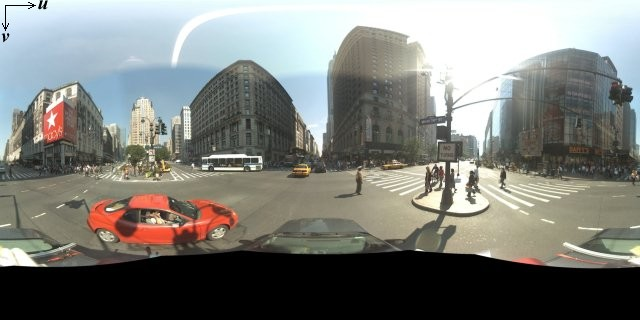
पैनोरामा इमेज आम तौर पर, एक ही जगह से कई फ़ोटो खींचकर बनाई जाती हैं. इसके बाद, पैनोरामा सॉफ़्टवेयर का इस्तेमाल करके, इन फ़ोटो को एक साथ जोड़ दिया जाता है. (ज़्यादा जानकारी के लिए, Wikipedia पर फ़ोटो स्टिचिंग ऐप्लिकेशन की तुलना देखें.) ऐसी इमेज में एक ही "कैमरा" होना चाहिए, जिससे सभी पैनोरामा इमेज ली गई हों. इसके बाद, 360 डिग्री पैनोरामा को किसी स्फ़ीयर पर प्रोजेक्ट किया जा सकता है. इसमें इमेज को स्फ़ीयर की दो डाइमेंशन वाली सतह पर रैप किया जाता है.

पैनोरमा को स्फ़ियर पर प्रोजेक्शन के तौर पर ट्रीट करना फ़ायदेमंद होता है. ऐसा तब होता है, जब इमेज को रेक्टिलिनियर कोऑर्डिनेट सिस्टम के साथ रेक्टिलिनियर टाइल में बांटा जाता है. साथ ही, कंप्यूट की गई टाइल के कोऑर्डिनेट के आधार पर इमेज दिखाई जाती हैं.
कस्टम पैनोरमा टाइलें बनाना
Street View में, ज़ूम कंट्रोल का इस्तेमाल करके इमेज को अलग-अलग लेवल पर ज़ूम किया जा सकता है. इससे आपको डिफ़ॉल्ट व्यू में ज़ूम इन और ज़ूम आउट करने की सुविधा मिलती है. आम तौर पर, Street View किसी भी पैनोरामा इमेज के लिए, ज़ूम करने के पांच लेवल का रिज़ॉल्यूशन उपलब्ध कराता है. अगर आपको सभी ज़ूम लेवल के लिए सिर्फ़ एक पैनोरमा इमेज पर भरोसा करना है, तो ऐसी इमेज या तो बहुत बड़ी होगी और आपके ऐप्लिकेशन की स्पीड को काफ़ी धीमा कर देगी या ज़्यादा ज़ूम लेवल पर उसका रिज़ॉल्यूशन इतना खराब होगा कि आपको पिक्सलेट की गई इमेज दिखानी पड़ेगी. हालांकि, अच्छी बात यह है कि हम Google की मैप टाइल को अलग-अलग ज़ूम लेवल पर दिखाने के लिए इस्तेमाल किए गए डिज़ाइन पैटर्न का इस्तेमाल कर सकते हैं. इससे हर ज़ूम लेवल पर पैनोरमा के लिए सही रिज़ॉल्यूशन वाली इमेज उपलब्ध कराई जा सकती हैं.
जब कोई StreetViewPanorama पहली बार लोड होता है, तो डिफ़ॉल्ट रूप से यह एक ऐसी इमेज दिखाता है जिसमें पैनोरमा की हॉरिज़ॉन्टल चौड़ाई का 25% (आर्क का 90 डिग्री) हिस्सा शामिल होता है. यह इमेज, ज़ूम करने के लेवल 1 पर दिखती है. यह व्यू, सामान्य तौर पर इंसान के देखने के दायरे के हिसाब से होता है. डिफ़ॉल्ट व्यू से ज़ूम "आउट" करने पर, ज़्यादा बड़ा आर्क मिलता है. वहीं, ज़ूम इन करने पर, व्यू का फ़ील्ड छोटे आर्क तक सीमित हो जाता है. StreetViewPanorama, चुने गए ज़ूम करने के लेवल के लिए सही फ़ील्ड ऑफ़ व्यू का हिसाब अपने-आप लगाता है. इसके बाद, उस रिज़ॉल्यूशन के लिए सबसे सही तस्वीरें/तस्वीरों का संग्रह चुनता है. इसके लिए, वह ऐसे टाइल सेट को चुनता है जो हॉरिज़ॉन्टल फ़ील्ड ऑफ़ व्यू के डाइमेंशन से काफ़ी हद तक मेल खाता हो. यहां दिए गए फ़ील्ड ऑफ़ व्यू, Street View के ज़ूम लेवल के हिसाब से मैप किए जाते हैं:
| Street View को ज़ूम करने का लेवल | फ़ील्ड ऑफ़ व्यू (डिग्री में) |
|---|---|
| 0 | 180 |
| 1 (डिफ़ॉल्ट) | 90 |
| 2 | 45 |
| 3 | 22.5 |
| 4 | 11.25 |
ध्यान दें कि Street View में दिखाई गई इमेज का साइज़, Street View कंटेनर की स्क्रीन के साइज़ (चौड़ाई) पर पूरी तरह से निर्भर करता है. अगर बड़ा कंटेनर दिया जाता है, तो सेवा किसी भी ज़ूम करने के लेवल के लिए फ़ील्ड ऑफ़ व्यू (देखने का दायरा) वही देगी. हालांकि, वह उस रिज़ॉल्यूशन के लिए ज़्यादा सही टाइल चुन सकती है.
हर पैनोरमा में इक्विरैक्टैंगुलर प्रोजेक्शन होता है. इसलिए, पैनोरमा टाइल बनाना आसान होता है. प्रोजेक्शन से 2:1 आसपेक्ट रेशियो (लंबाई-चौड़ाई का अनुपात) वाली इमेज मिलती है. इसलिए, 2:1 रेशियो वाली टाइलें इस्तेमाल करना आसान होता है. हालांकि, स्क्वेयर मैप पर स्क्वेयर टाइलें बेहतर परफ़ॉर्म कर सकती हैं, क्योंकि फ़ील्ड ऑफ़ व्यू स्क्वेयर होगा.
2:1 टाइल के लिए, पूरी पैनोरामा इमेज, ज़ूम लेवल 0 पर पूरे पैनोरामा "वर्ल्ड" (बेस इमेज) को दिखाती है. हर बढ़ते ज़ूम लेवल पर, 4zoomLevel टाइलें दिखती हैं. (उदाहरण के लिए, ज़ूम करने के लेवल 2 पर, पूरे पैनोरमा में 16 टाइल होती हैं.) ध्यान दें: स्ट्रीट व्यू की टाइलिंग में ज़ूम लेवल, Street View कंट्रोल का इस्तेमाल करके दिए गए ज़ूम लेवल से सीधे तौर पर मेल नहीं खाते. इसके बजाय, Street View कंट्रोल के ज़ूम लेवल, फ़ील्ड ऑफ़ व्यू (FoV) चुनते हैं. इससे सही टाइलें चुनी जाती हैं.
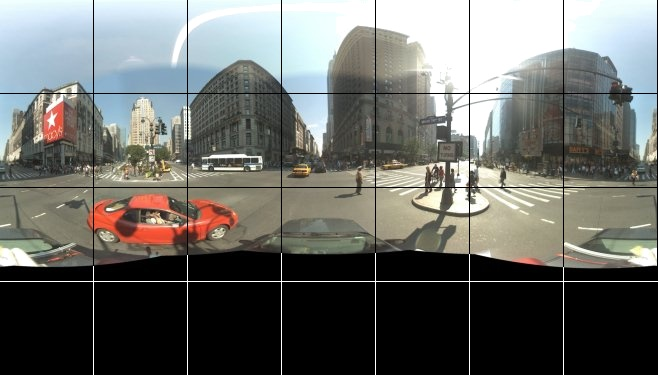
आम तौर पर, आपको अपनी इमेज टाइल के नाम रखने होंगे, ताकि उन्हें प्रोग्राम के हिसाब से चुना जा सके. नाम रखने की इस तरह की स्कीम के बारे में, यहां कस्टम पैनोरमा अनुरोधों को हैंडल करना में बताया गया है.
कस्टम पैनोरामा के अनुरोधों को मैनेज करना
कस्टम पैनोरामा का इस्तेमाल करने के लिए, StreetViewPanorama.registerPanoProvider() को कॉल करें. साथ ही, कस्टम पैनोरामा उपलब्ध कराने वाले तरीके का नाम बताएं. पैनोरा प्रोवाइडर के तरीके से, StreetViewPanoramaData ऑब्जेक्ट दिखना चाहिए. साथ ही, इसका सिग्नेचर यहां दिया गया है:
Function(pano):StreetViewPanoramaData
StreetViewPanoramaData, इस तरह का ऑब्जेक्ट होता है:
{
  copyright: string,
  location: {
    description: string,
    latLng: google.maps.LatLng,
    pano: string
  },
  tiles: {
    tileSize: google.maps.Size,
    worldSize: google.maps.Size,
    heading: number,
    getTileUrl: Function
  },
  links: [
    description: string,
    heading: number,
    pano: string,
    roadColor: string,
    roadOpacity: number
  ]
}
कस्टम पैनोरामा को इस तरह दिखाएं:
StreetViewPanoramaOptions.panoप्रॉपर्टी को कस्टम वैल्यू पर सेट करें.- कस्टम पैनोरामा प्रोवाइडर फ़ंक्शन देने के लिए,
StreetViewPanorama.registerPanoProvider()को कॉल करें. panoकी तय की गई वैल्यू को मैनेज करने के लिए, कस्टम पैनोरामा प्रोवाइडर फ़ंक्शन लागू करें.StreetViewPanoramaDataऑब्जेक्ट बनाएं.StreetViewTileData.getTileUrlप्रॉपर्टी को, कस्टम टाइल उपलब्ध कराने वाले फ़ंक्शन के नाम पर सेट करें. उदाहरण के लिए,getCustomPanoramaTileUrl.- नीचे दिए गए सैंपल में दिखाए गए तरीके से, कस्टम टाइल उपलब्ध कराने वाले फ़ंक्शन को लागू करें.
StreetViewPanoramaDataऑब्जेक्ट दिखाता है.
ध्यान दें: कस्टम पैनोरामा दिखाने के लिए, सीधे तौर पर StreetViewPanorama पर position सेट न करें. ऐसा करने पर, Street View सेवा को उस जगह के आस-पास की डिफ़ॉल्ट Street View की तस्वीरें का अनुरोध करने का निर्देश मिलेगा. इसके बजाय, इस पोज़िशन को कस्टम StreetViewPanoramaData ऑब्जेक्ट के location.latLng फ़ील्ड में सेट करें.
इस उदाहरण में, Google के सिडनी ऑफ़िस का कस्टम पैनोरमा दिखाया गया है. ध्यान दें कि इस उदाहरण में, मैप या डिफ़ॉल्ट Street View इमेज का इस्तेमाल नहीं किया गया है:
TypeScript
function initPano() { // Set up Street View and initially set it visible. Register the // custom panorama provider function. Set the StreetView to display // the custom panorama 'reception' which we check for below. const panorama = new google.maps.StreetViewPanorama( document.getElementById("map") as HTMLElement, { pano: "reception", visible: true } ); panorama.registerPanoProvider(getCustomPanorama); } // Return a pano image given the panoID. function getCustomPanoramaTileUrl( pano: string, zoom: number, tileX: number, tileY: number ): string { return ( "https://developers.google.com/maps/documentation/javascript/examples/full/images/" + "panoReception1024-" + zoom + "-" + tileX + "-" + tileY + ".jpg" ); } // Construct the appropriate StreetViewPanoramaData given // the passed pano IDs. function getCustomPanorama(pano: string): google.maps.StreetViewPanoramaData { if (pano === "reception") { return { location: { pano: "reception", description: "Google Sydney - Reception", }, links: [], // The text for the copyright control. copyright: "Imagery (c) 2010 Google", // The definition of the tiles for this panorama. tiles: { tileSize: new google.maps.Size(1024, 512), worldSize: new google.maps.Size(2048, 1024), // The heading in degrees at the origin of the panorama // tile set. centerHeading: 105, getTileUrl: getCustomPanoramaTileUrl, }, }; } // @ts-ignore TODO fix typings return null; } declare global { interface Window { initPano: () => void; } } window.initPano = initPano;
JavaScript
function initPano() { // Set up Street View and initially set it visible. Register the // custom panorama provider function. Set the StreetView to display // the custom panorama 'reception' which we check for below. const panorama = new google.maps.StreetViewPanorama( document.getElementById("map"), { pano: "reception", visible: true }, ); panorama.registerPanoProvider(getCustomPanorama); } // Return a pano image given the panoID. function getCustomPanoramaTileUrl(pano, zoom, tileX, tileY) { return ( "https://developers.google.com/maps/documentation/javascript/examples/full/images/" + "panoReception1024-" + zoom + "-" + tileX + "-" + tileY + ".jpg" ); } // Construct the appropriate StreetViewPanoramaData given // the passed pano IDs. function getCustomPanorama(pano) { if (pano === "reception") { return { location: { pano: "reception", description: "Google Sydney - Reception", }, links: [], // The text for the copyright control. copyright: "Imagery (c) 2010 Google", // The definition of the tiles for this panorama. tiles: { tileSize: new google.maps.Size(1024, 512), worldSize: new google.maps.Size(2048, 1024), // The heading in degrees at the origin of the panorama // tile set. centerHeading: 105, getTileUrl: getCustomPanoramaTileUrl, }, }; } // @ts-ignore TODO fix typings return null; } window.initPano = initPano;
सीएसएस
/* * Always set the map height explicitly to define the size of the div element * that contains the map. */ #map { height: 100%; } /* * Optional: Makes the sample page fill the window. */ html, body { height: 100%; margin: 0; padding: 0; }
एचटीएमएल
<html>
<head>
<title>Custom Street View Panoramas</title>
<link rel="stylesheet" type="text/css" href="./style.css" />
<script type="module" src="./index.js"></script>
</head>
<body>
<div id="map"></div>
<!--
The `defer` attribute causes the script to execute after the full HTML
document has been parsed. For non-blocking uses, avoiding race conditions,
and consistent behavior across browsers, consider loading using Promises. See
https://developers.google.com/maps/documentation/javascript/load-maps-js-api
for more information.
-->
<script
src="https://maps.googleapis.com/maps/api/js?key=AIzaSyB41DRUbKWJHPxaFjMAwdrzWzbVKartNGg&callback=initPano&v=weekly"
defer
></script>
</body>
</html>कस्टम पैनोरामा प्रोवाइडर, पास की गई पैनोरामा आईडी, ज़ूम करने का लेवल, और पैनोरामा टाइल कोऑर्डिनेट के हिसाब से सही टाइल दिखाता है.
इमेज चुनने की सुविधा, पास की गई इन वैल्यू पर निर्भर करती है. इसलिए, यह फ़ायदेमंद है कि उन इमेज को नाम दिया जाए जिन्हें पास की गई वैल्यू के आधार पर प्रोग्राम के हिसाब से चुना जा सकता है. जैसे, pano_zoom_tileX_tileY.png.
यहां दिए गए उदाहरण में, इमेज में एक और ऐरो जोड़ा गया है. यह ऐरो, Street View के डिफ़ॉल्ट नेविगेशन ऐरो के अलावा है. यह Google Sydney की ओर इशारा करता है और कस्टम इमेज से लिंक होता है:
TypeScript
let panorama: google.maps.StreetViewPanorama; // StreetViewPanoramaData of a panorama just outside the Google Sydney office. let outsideGoogle: google.maps.StreetViewPanoramaData; // StreetViewPanoramaData for a custom panorama: the Google Sydney reception. function getReceptionPanoramaData(): google.maps.StreetViewPanoramaData { return { location: { pano: "reception", // The ID for this custom panorama. description: "Google Sydney - Reception", latLng: new google.maps.LatLng(-33.86684, 151.19583), }, links: [ { heading: 195, description: "Exit", pano: (outsideGoogle.location as google.maps.StreetViewLocation).pano, }, ], copyright: "Imagery (c) 2010 Google", tiles: { tileSize: new google.maps.Size(1024, 512), worldSize: new google.maps.Size(2048, 1024), centerHeading: 105, getTileUrl: function ( pano: string, zoom: number, tileX: number, tileY: number ): string { return ( "https://developers.google.com/maps/documentation/javascript/examples/full/images/" + "panoReception1024-" + zoom + "-" + tileX + "-" + tileY + ".jpg" ); }, }, }; } function initPanorama() { panorama = new google.maps.StreetViewPanorama( document.getElementById("street-view") as HTMLElement, { pano: (outsideGoogle.location as google.maps.StreetViewLocation).pano } ); // Register a provider for the custom panorama. panorama.registerPanoProvider( (pano: string): google.maps.StreetViewPanoramaData => { if (pano === "reception") { return getReceptionPanoramaData(); } // @ts-ignore TODO fix typings return null; } ); // Add a link to our custom panorama from outside the Google Sydney office. panorama.addListener("links_changed", () => { if ( panorama.getPano() === (outsideGoogle.location as google.maps.StreetViewLocation).pano ) { panorama.getLinks().push({ description: "Google Sydney", heading: 25, pano: "reception", }); } }); } function initMap(): void { // Use the Street View service to find a pano ID on Pirrama Rd, outside the // Google office. new google.maps.StreetViewService() .getPanorama({ location: { lat: -33.867386, lng: 151.195767 } }) .then(({ data }: google.maps.StreetViewResponse) => { outsideGoogle = data; initPanorama(); }); } declare global { interface Window { initMap: () => void; } } window.initMap = initMap;
JavaScript
let panorama; // StreetViewPanoramaData of a panorama just outside the Google Sydney office. let outsideGoogle; // StreetViewPanoramaData for a custom panorama: the Google Sydney reception. function getReceptionPanoramaData() { return { location: { pano: "reception", // The ID for this custom panorama. description: "Google Sydney - Reception", latLng: new google.maps.LatLng(-33.86684, 151.19583), }, links: [ { heading: 195, description: "Exit", pano: outsideGoogle.location.pano, }, ], copyright: "Imagery (c) 2010 Google", tiles: { tileSize: new google.maps.Size(1024, 512), worldSize: new google.maps.Size(2048, 1024), centerHeading: 105, getTileUrl: function (pano, zoom, tileX, tileY) { return ( "https://developers.google.com/maps/documentation/javascript/examples/full/images/" + "panoReception1024-" + zoom + "-" + tileX + "-" + tileY + ".jpg" ); }, }, }; } function initPanorama() { panorama = new google.maps.StreetViewPanorama( document.getElementById("street-view"), { pano: outsideGoogle.location.pano }, ); // Register a provider for the custom panorama. panorama.registerPanoProvider((pano) => { if (pano === "reception") { return getReceptionPanoramaData(); } // @ts-ignore TODO fix typings return null; }); // Add a link to our custom panorama from outside the Google Sydney office. panorama.addListener("links_changed", () => { if (panorama.getPano() === outsideGoogle.location.pano) { panorama.getLinks().push({ description: "Google Sydney", heading: 25, pano: "reception", }); } }); } function initMap() { // Use the Street View service to find a pano ID on Pirrama Rd, outside the // Google office. new google.maps.StreetViewService() .getPanorama({ location: { lat: -33.867386, lng: 151.195767 } }) .then(({ data }) => { outsideGoogle = data; initPanorama(); }); } window.initMap = initMap;
सीएसएस
html, body { height: 100%; margin: 0; padding: 0; } #street-view { height: 100%; }
एचटीएमएल
<html>
<head>
<title>Custom Street View Panorama Tiles</title>
<link rel="stylesheet" type="text/css" href="./style.css" />
<script type="module" src="./index.js"></script>
</head>
<body>
<div id="street-view"></div>
<!--
The `defer` attribute causes the script to execute after the full HTML
document has been parsed. For non-blocking uses, avoiding race conditions,
and consistent behavior across browsers, consider loading using Promises. See
https://developers.google.com/maps/documentation/javascript/load-maps-js-api
for more information.
-->
<script
src="https://maps.googleapis.com/maps/api/js?key=AIzaSyB41DRUbKWJHPxaFjMAwdrzWzbVKartNGg&callback=initMap&v=weekly"
defer
></script>
</body>
</html>