

মার্চেন্ট এপিআই পরিষেবা আপনাকে গুগল অ্যাপস স্ক্রিপ্টে মার্চেন্ট এপিআই ব্যবহার করে পণ্য আপলোড করতে এবং মার্চেন্ট সেন্টার অ্যাকাউন্ট পরিচালনা করতে দেয়।
মার্চেন্ট এপিআই সম্পর্কে বিস্তারিত তথ্যের জন্য, রেফারেন্স ডকুমেন্টেশন দেখুন। অ্যাপস স্ক্রিপ্টের অন্যান্য সকল অ্যাডভান্সড সার্ভিসের মতো, মার্চেন্ট এপিআই সার্ভিসটিও পাবলিক এপিআই-এর মতোই একই অবজেক্ট, মেথড এবং প্যারামিটার ব্যবহার করে।
মার্চেন্ট এপিআই হলো সাব-এপিআইগুলোর একটি সংগ্রহ – যা সম্পর্কিত পরিষেবা এবং রিসোর্সের সমষ্টি। এখানে সাব-এপিআইগুলোর তালিকা দেওয়া হলো।
অ্যাপস স্ক্রিপ্টে মার্চেন্ট এপিআই পরিষেবা ব্যবহার করতে, এই ধাপগুলো অনুসরণ করুন:
নিশ্চিত করুন যে আপনার অ্যাপস স্ক্রিপ্ট প্রজেক্টটি একটি স্ট্যান্ডার্ড গুগল ক্লাউড প্রজেক্টের সাথে লিঙ্ক করা আছে। তথ্যের জন্য, ‘একটি ভিন্ন স্ট্যান্ডার্ড ক্লাউড প্রজেক্ট ব্যবহার করুন ’ দেখুন।
এই নথিতে বর্ণিত পদ্ধতি অনুসারে অ্যাপস স্ক্রিপ্ট অ্যাডভান্সড পরিষেবাটি সক্রিয় করুন:
- নতুন প্রোজেক্টের জন্য
appsscript.jsonসক্রিয় করুন। - বিদ্যমান প্রজেক্টগুলোর জন্য অ্যাপস স্ক্রিপ্ট সক্রিয় করুন।
- নতুন প্রোজেক্টের জন্য
মার্চেন্ট এপিআই কুইকস্টার্ট গাইডে বর্ণিত পদ্ধতি অনুসরণ করে আপনার মার্চেন্ট সেন্টার অ্যাকাউন্টের সাথে আপনার স্ট্যান্ডার্ড গুগল ক্লাউড প্রজেক্টটি রেজিস্টার করুন।
অ্যাপস স্ক্রিপ্ট অ্যাডভান্সড পরিষেবা সক্রিয় করুন
আপনি নিম্নলিখিত দুটি পদ্ধতির যেকোনো একটি ব্যবহার করে অ্যাপস স্ক্রিপ্ট পরিষেবাটি সক্রিয় করতে পারেন:
appsscript.json এ API সক্রিয় করুন
নিম্নলিখিত উদাহরণটি একটি appsscript.json ফাইল দেখায় যা Products, Accounts, Reports, এবং Data sources সাব-এপিআইগুলিকে সক্রিয় করে।
অ্যাপস স্ক্রিপ্ট এডিটরে, প্রজেক্ট নির্বাচন করুন।
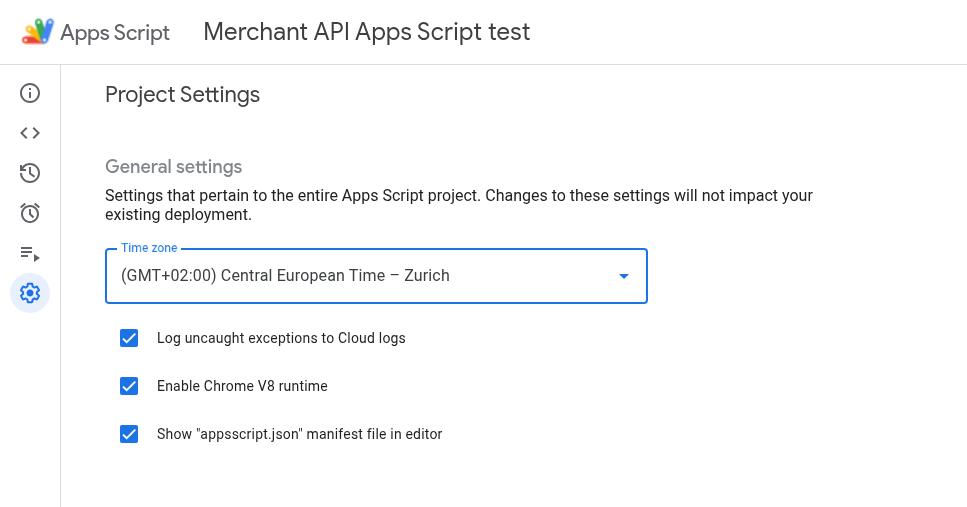
এডিটরে 'appsscript.json' ম্যানিফেস্ট ফাইল দেখানোর অপশনটি সক্রিয় করুন।
এডিটরে
appsscript.jsonফাইলটি নির্বাচন করুন।আপনার
appsscript.jsonফাইলের বিষয়বস্তু নিম্নলিখিত দিয়ে প্রতিস্থাপন করুন:{ "dependencies": { "enabledAdvancedServices": [ { "userSymbol": "MerchantApiAccounts", "version": "accounts_v1", "serviceId": "merchantapi" }, { "userSymbol": "MerchantApiDataSources", "version": "datasources_v1", "serviceId": "merchantapi" }, { "userSymbol": "MerchantApiProducts", "version": "products_v1", "serviceId": "merchantapi" }, { "userSymbol": "MerchantApiReports", "version": "reports_v1", "serviceId": "merchantapi" } ] }, "exceptionLogging": "STACKDRIVER", "runtimeVersion": "V8" }সংরক্ষণ করুন- এ ক্লিক করুন।
এখন আপনি আপনার কোডের মধ্যে নিম্নলিখিত সাব-এপিআইগুলিকে এভাবে উল্লেখ করতে পারেন:
ক.
MerchantApiAccountsখ.
MerchantApiDataSourcesগ.
MerchantApiProductsd.
MerchantApiReports
অতিরিক্ত সাব-এপিআই বা বিদ্যমান প্রোজেক্টগুলির জন্য অ্যাপস স্ক্রিপ্ট সক্রিয় করুন।
বিদ্যমান প্রজেক্টগুলিতে সাব-এপিআই সক্রিয় করতে, নিম্নলিখিতগুলি করুন:
আপনার অ্যাপস স্ক্রিপ্ট প্রজেক্টটি খুলুন।
বাম দিকে, এডিটর < > -এ ক্লিক করুন।
বাম দিকে, সার্ভিসেস-এর পাশে, অ্যাড আ সার্ভিস + -এ ক্লিক করুন।
ভার্সন সিলেক্টরের মধ্যে আপনি যে সাব-এপিআইটি সক্রিয় করতে চান, সেটি নির্বাচন করুন।
আপনার সাব-এপিআই-এর নামের সাথে আইডেন্টিফায়ারটি যুক্ত করুন। উদাহরণস্বরূপ, ইনভেন্টরিজ সাব-এপিআই সক্রিয় করতে,
inventories_v1সংস্করণটি নির্বাচন করুন এবং আইডেন্টিফায়ারটি পরিবর্তন করেMerchantApiInventoriesকরুন।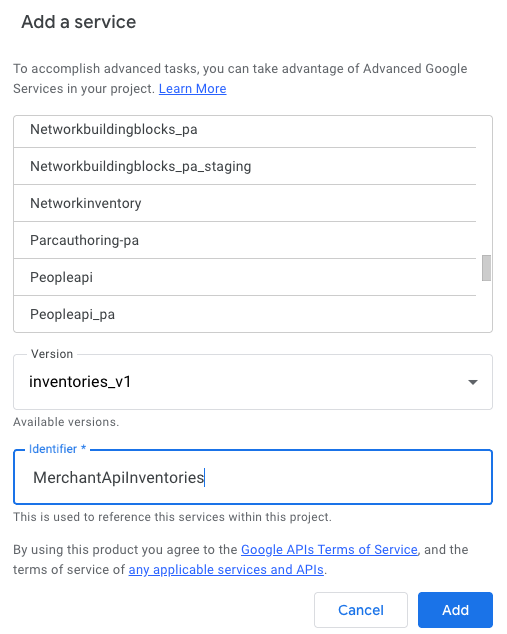
এখন আপনি আপনার কোডের মধ্যে Inventories সাব-এপিআই-কে
MerchantApiInventoriesহিসেবে উল্লেখ করতে পারেন।
নমুনা কোড
এই বিভাগে নির্বাচিত বৈশিষ্ট্যগুলির জন্য মার্চেন্ট এপিআই কীভাবে ব্যবহার করতে হয় তা ব্যাখ্যা করা হয়েছে।
পণ্যগুলো তালিকাভুক্ত করুন
এই উদাহরণটি দেখায় কিভাবে একটি নির্দিষ্ট মার্চেন্ট সেন্টার অ্যাকাউন্টের পণ্যগুলোর তালিকা তৈরি করতে হয়।
/**
* Lists all products for a given Merchant Center account.
*/
function productList() {
// IMPORTANT:
// Enable the Merchant API Products sub-API Advanced Service and call it
// "MerchantApiProducts"
// Replace this with your Merchant Center ID.
const accountId = '<MERCHANT_CENTER_ID>';
// Construct the parent name
const parent = 'accounts/' + accountId;
try {
console.log('Sending list Products request');
let pageToken;
// Set the page size to 1000. This is the maximum allowed page size.
let pageSize = 1000;
console.log('Retrieved products below:');
// Call the Products.list API method. Use the pageToken to iterate through
// all pages of results.
do {
response = MerchantApiProducts.Accounts.Products.list(parent, {pageToken, pageSize});
console.log(response);
pageToken = response.nextPageToken;
} while (pageToken); // Exits when there is no next page token.
} catch (e) {
console.log('ERROR!');
console.log(e);
}
}
অননুমোদিত পণ্য ফিল্টার করুন
এই উদাহরণটি দেখায় কিভাবে একটি মার্চেন্ট সেন্টার অ্যাকাউন্টে অননুমোদিত পণ্যগুলো ফিল্টার করতে হয়।
/**
* Demonstrates how to filter disapproved products using the Merchant API Reports service.
*/
function filterDisapprovedProducts() {
// IMPORTANT:
// Enable the Merchant API Reports sub-API Advanced Service and call it
// "MerchantApiReports"
// Enable the Merchant API Products sub-API Advanced Service and call it
// "MerchantApiProducts"
// Replace this with your Merchant Center ID.
const accountId = '<INSERT_MERCHANT_CENTER_ID>';
// Construct the parent name
const parent = 'accounts/' + accountId;
try {
console.log('Sending search Report request');
// Set pageSize to the maximum value (default: 1000)
let pageSize = 1000;
let pageToken;
// The query below is an example of a query for the productView that gets product informations
// for all disapproved products.
let query = 'SELECT offer_id,' +
'id,' +
'price,' +
'title' +
' FROM product_view' +
' WHERE aggregated_reporting_context_status = "NOT_ELIGIBLE_OR_DISAPPROVED"';
// Call the Reports.search API method. Use the pageToken to iterate through
// all pages of results.
do {
response =
MerchantApiReports.Accounts.Reports.search({query, pageSize, pageToken}, parent);
for (const reportRow of response.results) {
console.log("Printing data from Product View:");
console.log(reportRow);
// OPTIONALLY, you can get the full product details by calling the GetProduct method.
let productName = parent + "/products/" + reportRow.getProductView().getId();
product = MerchantApiProducts.Accounts.Products.get(productName);
console.log(product);
}
pageToken = response.nextPageToken;
} while (pageToken); // Exits when there is no next page token.
} catch (e) {
console.log('ERROR!');
console.log('Error message:' + e.message);
}
}
প্রদত্ত অ্যাকাউন্টের জন্য একটি প্রতিবেদন পুনরুদ্ধার করুন
এই উদাহরণটি দেখায় কিভাবে একটি নির্দিষ্ট মার্চেন্ট সেন্টার অ্যাকাউন্টের জন্য রিপোর্ট পুনরুদ্ধার করতে হয়।
/**
* Searches a report for a given Merchant Center account.
*/
function searchReport() {
// IMPORTANT:
// Enable the Merchant API Reports sub-API Advanced Service and call it
// "MerchantApiReports"
// Replace this with your Merchant Center ID.
const accountId = '<MERCHANT_CENTER_ID>';
// Construct the parent name
const parent = 'accounts/' + accountId;
try {
console.log('Sending search Report request');
// Set pageSize to the maximum value (default: 1000)
let pageSize = 1000;
let pageToken;
// Uncomment the desired query from below. Documentation can be found at
// https://developers.google.com/merchant/api/reference/rest/reports_v1beta/accounts.reports#ReportRow
// The query below is an example of a query for the product_view.
let query = 'SELECT offer_id,' +
'id,' +
'price,' +
'gtin,' +
'item_issues,' +
'language_code,' +
'feed_label,' +
'title,' +
'brand,' +
'category_l1,' +
'product_type_l1,' +
'availability,' +
'shipping_label,' +
'thumbnail_link,' +
'click_potential' +
' FROM product_view';
/*
// The query below is an example of a query for the
price_competitiveness_product_view. let query = "SELECT offer_id,"
+ "id,"
+ "benchmark_price,"
+ "report_country_code,"
+ "price,"
+ "title,"
+ "brand,"
+ "category_l1,"
+ "product_type_l1"
+ " FROM price_competitiveness_product_view"
+ " WHERE date BETWEEN '2023-03-03' AND '2025-03-10'"; */
/*
// The query below is an example of a query for the
price_insights_product_view. let query = "SELECT offer_id,"
+ "id,"
+ "suggested_price,"
+ "price,"
+ "effectiveness,"
+ "title,"
+ "brand,"
+ "category_l1,"
+ "product_type_l1,"
+ "predicted_impressions_change_fraction,"
+ "predicted_clicks_change_fraction,"
+ "predicted_conversions_change_fraction"
+ " FROM price_insights_product_view"; */
/*
// The query below is an example of a query for the
product_performance_view. let query = "SELECT offer_id,"
+ "conversion_value,"
+ "marketing_method,"
+ "customer_country_code,"
+ "title,"
+ "brand,"
+ "category_l1,"
+ "product_type_l1,"
+ "custom_label0,"
+ "clicks,"
+ "impressions,"
+ "click_through_rate,"
+ "conversions,"
+ "conversion_rate"
+ " FROM product_performance_view"
+ " WHERE date BETWEEN '2023-03-03' AND '2025-03-10'"; */
// Call the Reports.search API method. Use the pageToken to iterate through
// all pages of results.
do {
response =
MerchantApiReports.Accounts.Reports.search({query, pageSize, pageToken}, parent);
for (const reportRow of response.results) {
console.log(reportRow);
}
pageToken = response.nextPageToken;
} while (pageToken); // Exits when there is no next page token.
} catch (e) {
console.log('ERROR!');
console.log(e);
console.log('Error message:' + e.message);
if (e.stack) {
console.log('Stack trace:' + e.stack);
}
}
}
সমস্ত ডেটা উৎস তালিকাভুক্ত করুন
এই উদাহরণটি দেখায় কিভাবে একটি নির্দিষ্ট মার্চেন্ট সেন্টার অ্যাকাউন্টের সমস্ত ডেটা সোর্স তালিকাভুক্ত করতে হয়।
/**
* Lists all data sources for a given Merchant Center account.
*/
function listDataSources() {
// IMPORTANT:
// Enable the Merchant API DataSources sub-API Advanced Service and call it
// "MerchantApiDataSources"
// Replace this with your Merchant Center ID.
const accountId = '<MERCHANT_CENTER_ID>';
// Construct the parent name
const parent = 'accounts/' + accountId;
let dataSources = [];
let primaryDataSources = [];
try {
console.log('Sending list DataSources request');
let pageToken;
let pageSize = 10;
// Call the DataSources.list API method. Use the pageToken to iterate through
// all pages of results.
do {
response =
MerchantApiDataSources.Accounts.DataSources.list(parent, {pageSize, pageToken});
for (const datasource of response.dataSources) {
dataSources.push(datasource);
if (datasource.primaryProductDataSource) {
primaryDataSources.push(datasource);
}
}
pageToken = response.nextPageToken;
} while (pageToken); // Exits when there is no next page token.
console.log('Retrieved ' + dataSources.length + ' data sources.');
console.log(
'There were ' + primaryDataSources.length +
' primary product data sources.');
} catch (e) {
console.log('ERROR!');
console.log(e);
}
}