

FeatureStyleFunction 可用來定義邏輯,以在資料集中選擇性地設定地圖項目的樣式,再根據這個邏輯傳回 FeatureStyleOptions。如果不需要樣式邏輯,您可以使用 FeatureStyleOptions 直接設定樣式。本頁說明如何將在地圖中新增資料集,以及如何套用樣式。
必備條件
請先備妥地圖 ID、地圖樣式和資料集 ID,才能繼續操作。
將資料集 ID 與地圖樣式建立關聯
請按照下列步驟操作,將資料集與您目前使用的地圖樣式建立關聯:
- 在 Google Cloud 控制台中,前往「Datasets」(資料集) 頁面。
- 按一下資料集名稱。「Dataset details」(資料集詳細資料) 頁面隨即顯示。
- 按一下「預覽」分頁標籤。
- 捲動至「ADD MAP STYLE」(新增地圖樣式),然後按一下。
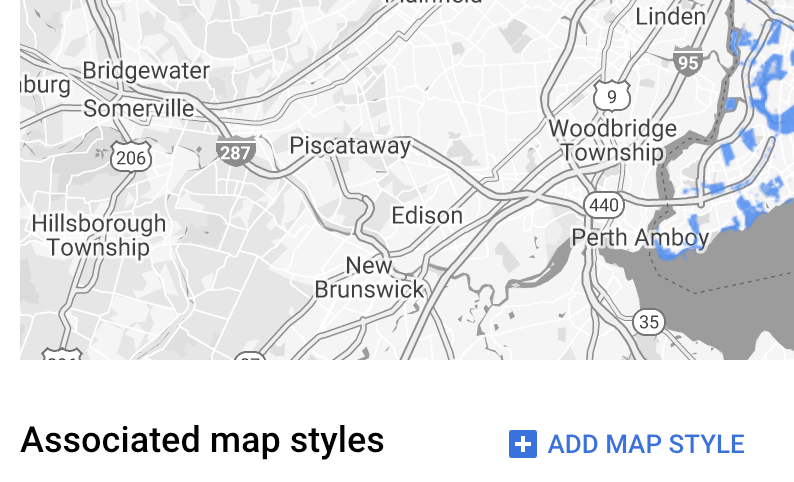
- 找出要建立關聯的地圖樣式,勾選對應的核取方塊,然後按一下「SAVE」(儲存)。
使用簡易樣式規則
要設定地圖項目樣式,最簡單的方法就是傳遞 FeatureStyleOptions 來定義樣式屬性,例如顏色、不透明度和線條寬度。您可以直接將地圖項目樣式選項套用至資料集地圖項目圖層,也可以搭配 FeatureStyleFunction 使用。
TypeScript
const styleOptions = { strokeColor: 'green', strokeWeight: 2, strokeOpacity: 1, fillColor: 'green', fillOpacity: 0.3, };
JavaScript
const styleOptions = { strokeColor: 'green', strokeWeight: 2, strokeOpacity: 1, fillColor: 'green', fillOpacity: 0.3, };
使用宣告式樣式規則
使用 FeatureStyleFunction 即可透過宣告方式設定樣式規則,並套用至整個資料集。您可以根據資料集屬性值,將 FeatureStyleOptions 套用至地圖項目。此外,也可以從地圖項目樣式函式傳回 null (例如,希望部分地圖項目保持隱藏時)。下例中的樣式函式會根據資料屬性設定一組點的顏色:
TypeScript
function setStyle(params: { feature: google.maps.Feature }) { // Get the dataset feature, so we can work with all of its attributes. const datasetFeature = params.feature as google.maps.DatasetFeature; // Get all of the needed dataset attributes. const furColors = datasetFeature.datasetAttributes.CombinationofPrimaryandHighlightColor; // Apply styles. Fill is primary fur color, stroke is secondary fur color. switch (furColors) { case 'Black+': return { fillColor: 'black', pointRadius: 8, }; break; case 'Cinnamon+': return { fillColor: '#8b0000', pointRadius: 8, }; break; case 'Cinnamon+Gray': return { fillColor: '#8b0000', strokeColor: 'gray', pointRadius: 6, }; break; case 'Cinnamon+White': return { fillColor: '#8b0000', strokeColor: 'white', pointRadius: 6, }; break; case 'Gray+': return { fillColor: 'gray', pointRadius: 8, }; break; case 'Gray+Cinnamon': return { fillColor: 'gray', strokeColor: '#8b0000', pointRadius: 6, }; break; case 'Gray+Cinnamon, White': return { fillColor: 'silver', strokeColor: '#8b0000', pointRadius: 6, }; break; case 'Gray+White': return { fillColor: 'gray', strokeColor: 'white', pointRadius: 6, }; break; default: // Color not defined. return { fillColor: 'yellow', pointRadius: 8, }; break; } }
JavaScript
function setStyle(params) { // Get the dataset feature, so we can work with all of its attributes. const datasetFeature = params.feature; // Get all of the needed dataset attributes. const furColors = datasetFeature.datasetAttributes.CombinationofPrimaryandHighlightColor; // Apply styles. Fill is primary fur color, stroke is secondary fur color. switch (furColors) { case 'Black+': return { fillColor: 'black', pointRadius: 8, }; break; case 'Cinnamon+': return { fillColor: '#8b0000', pointRadius: 8, }; break; case 'Cinnamon+Gray': return { fillColor: '#8b0000', strokeColor: 'gray', pointRadius: 6, }; break; case 'Cinnamon+White': return { fillColor: '#8b0000', strokeColor: 'white', pointRadius: 6, }; break; case 'Gray+': return { fillColor: 'gray', pointRadius: 8, }; break; case 'Gray+Cinnamon': return { fillColor: 'gray', strokeColor: '#8b0000', pointRadius: 6, }; break; case 'Gray+Cinnamon, White': return { fillColor: 'silver', strokeColor: '#8b0000', pointRadius: 6, }; break; case 'Gray+White': return { fillColor: 'gray', strokeColor: 'white', pointRadius: 6, }; break; default: // Color not defined. return { fillColor: 'yellow', pointRadius: 8, }; break; } }
將樣式套用至資料集地圖項目圖層
在地圖項目樣式函式中套用樣式的方法如下:
- 呼叫
map.getDatasetFeatureLayer()並傳遞資料集 ID,取得資料集地圖項目圖層。 - 在資料集圖層設定地圖項目樣式選項 (例如
styleOptions) 或函式 (例如setStyle),以套用樣式。
TypeScript
// Dataset ID for NYC park data. const datasetId = 'a75dd002-ad20-4fe6-af60-27cd2ed636b4'; const datasetLayer = innerMap.getDatasetFeatureLayer(datasetId); datasetLayer.style = styleOptions;
JavaScript
// Dataset ID for NYC park data. const datasetId = 'a75dd002-ad20-4fe6-af60-27cd2ed636b4'; const datasetLayer = innerMap.getDatasetFeatureLayer(datasetId); datasetLayer.style = styleOptions;
移除圖層中的樣式
如要移除圖層中的樣式,請將 style 設為 null:
featureLayer.style = null;
此外,也可以從地圖項目樣式函式傳回 null (例如,希望部分地圖項目保持隱藏時)。
新增作者資訊文字
在 Google 地圖上顯示上傳的資料集時,地圖必須顯示所有必要的作者資訊。作者資訊文字不得遮蓋或干擾 Google 標誌。
如要新增作者資訊文字,其中一種方法就是使用自訂控制項,將任意 HTML 程式碼加到地圖上的標準位置。下列程式碼片段顯示這個範例中用於出處資訊的 HTML 和 CSS:
<gmp-map
center="40.757815, -73.933123"
zoom="11"
map-id="5cd2c9ca1cf05670"
map-type-control="false">
<div id="attribution" slot="control-block-end-inline-start">
Data source: NYC Open Data
</div>
</gmp-map>
#attribution { background-color: rgba(255, 255, 255, 0.7); font-family: 'Roboto', 'Arial', sans-serif; font-size: 10px; padding: 2px; margin: 2px; }