

Spraw, aby funkcje danych reagowały na click zdarzenia, i używaj ich do zmiany wyglądu funkcji na podstawie interakcji użytkownika.
Napisz moduł obsługi zdarzeń kliknięcia
Gdy w warstwie mapy wystąpi zdarzenie kliknięcia, pakiet Maps SDK na Androida przekazuje do modułu obsługi zdarzeń obiekt FeatureClickEvent.
Użyj metody FeatureClickEvent.getFeatures(), aby uzyskać listę funkcji, na które ma wpływ kliknięcie.
Obsługa zdarzeń warstwy mapy
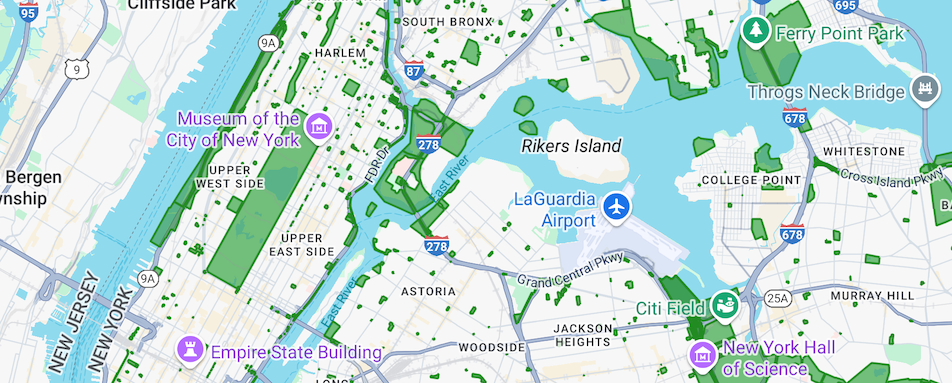
Aby obsługiwać zdarzenia w warstwie zbiorów danych, wykonaj te czynności. W tym przykładzie do wielokąta reprezentującego wybraną funkcję zastosowano niebieskie wypełnienie i obramowanie.
Gdy wywołasz funkcję FeatureLayer.setFeatureStyle(), funkcja fabryczna stylu ustawi styl funkcji na wszystkich funkcjach w zbiorze danych. Aby zaktualizować styl zbioru danych w procedurze obsługi zdarzeń, musisz wywołać funkcję FeatureLayer.setFeatureStyle(), aby ustawić zaktualizowany styl dla wszystkich obiektów zbioru danych.
Jeśli jeszcze tego nie zrobiono, wykonaj czynności opisane w sekcji Pierwsze kroki, aby utworzyć nowy identyfikator mapy i styl mapy. Upewnij się, że włączono warstwę mapy Zbiory danych.
Upewnij się, że Twoja klasa implementuje interfejs
FeatureLayer.OnFeatureClickListener.Zarejestruj moduł obsługi zdarzeń kliknięcia funkcji, wywołując
FeatureLayer.addOnFeatureClickListener().Kotlin
private var datasetLayer: FeatureLayer? = null
// The globalid of the clicked dataset feature.
var lastGlobalId: String? = null

override fun onMapReady(googleMap: GoogleMap) {
  // Get the DATASET feature layer.
  datasetLayer = googleMap.getFeatureLayer(FeatureLayerOptions.Builder()
    .featureType(FeatureType.DATASET)
    // Specify the dataset ID.
    .datasetId(YOUR_DATASET_ID)
    .build())

  // Register the click event handler for the Datasets layer.
  datasetLayer?.addOnFeatureClickListener(this)

  // Apply default style to all features on load to enable clicking.
  styleDatasetsLayer()
}

// Define the click event handler to set lastGlobalId to globalid of selected feature.
override fun onFeatureClick(event: FeatureClickEvent) {
  // Get the dataset feature affected by the click.
  val clickFeatures: MutableList<Feature> = event.features
  lastGlobalId = null
  if (clickFeatures.get(0) is DatasetFeature) {
      lastGlobalId = ((clickFeatures.get(0) as DatasetFeature).getDatasetAttributes().get("globalid"))
      // Remember to reset the Style Factory.
      styleDatasetsLayer()
  }
}
Java
private FeatureLayer datasetLayer;
// The globalid of the clicked dataset feature.
String lastgobalid = null;

@Override
public void onMapReady(GoogleMap map) {

  // Get the DATASET feature layer.
  datasetLayer = map.getFeatureLayer(new FeatureLayerOptions.Builder()
    .featureType(FeatureType.DATASET)
    // Specify the dataset ID.
    .datasetId(YOUR_DATASET_ID)
    .build());

  // Register the click event handler for the Datasets layer.
  datasetLayer.addOnFeatureClickListener(this);

  // Apply default style to all features on load to enable clicking.
  styleDatasetsLayer();
}

@Override
// Define the click event handler.
public void onFeatureClick(FeatureClickEvent event) {
  // Get the dataset feature affected by the click.
  List<Feature> clickFeatures = event.getFeatures();
  lastgobalid = null;
  if (clickFeatures.get(0) instanceof DatasetFeature) {
      lastgobalid = ((DatasetFeature) clickFeatures.get(0)).getDatasetAttributes().get("globalid");
      // Remember to reset the Style Factory.
      styleDatasetsLayer();
  }
}
Zastosuj kolor wypełnienia niebieski do wybranej cechy, a zielony do wszystkich pozostałych cech. Klikalne są tylko widoczne elementy.
Kotlin
// Set fill and border for all features.
private fun styleDatasetsLayer() {
    // Create the style factory function.
    val styleFactory = FeatureLayer.StyleFactory { feature: Feature ->

    // Check if the feature is an instance of DatasetFeature.
    if (feature is DatasetFeature) {
      val globalIDs: MutableMap<String, String> = feature.getDatasetAttributes()
      // Determine globalid attribute.
      val globalID = globalIDs!!["globalid"]
      // Set default colors to to green.
      var fillColor = 0x800000ff
      var strokeColor = 0xff0000ff
      if (globalID == lastGlobalId) {
        // Color selected area blue.
        fillColor = 0x8000ff00
        strokeColor = 0xff00ff00
      }
      return@StyleFactory FeatureStyle.Builder()
          .fillColor(fillColor)
          .strokeColor(strokeColor)
          .build()
    }
    return@StyleFactory null
  }

  // Apply the style factory function to the dataset feature layer.
  datasetLayer?.setFeatureStyle(styleFactory)
}
Java
// Set default green fill and border for all features.
private void styleDatasetsLayer() {
  // Create the style factory function.
  FeatureLayer.StyleFactory styleFactory = (Feature feature) -> {

  // Check if the feature is an instance of DatasetFeature.
  if (feature instanceof DatasetFeature) {

    // Check if "globalid" attribute of feature is the "globalid" of clicked feature.
    Map<String, String> globalIDs = ((DatasetFeature) feature).getDatasetAttributes();
    String globalID = globalIDs.get("globalid");
    // Set default colors to green.
    int fillColor = 0x4000ff00;
    int strokeColor = 0xff00ff00;
    if (Objects.equals(globalID, lastgobalid)) {
      // Color selected area blue.
      fillColor = 0x400000ff;
      strokeColor = 0xff0000ff;
    }
    return new FeatureStyle.Builder()
      .fillColor(fillColor)
      .strokeColor(strokeColor)
      .strokeWidth(2)
      .build();
    }
    return null;
  };

  // Apply the style factory function to the feature layer.
  datasetLayer.setFeatureStyle(styleFactory);
}