
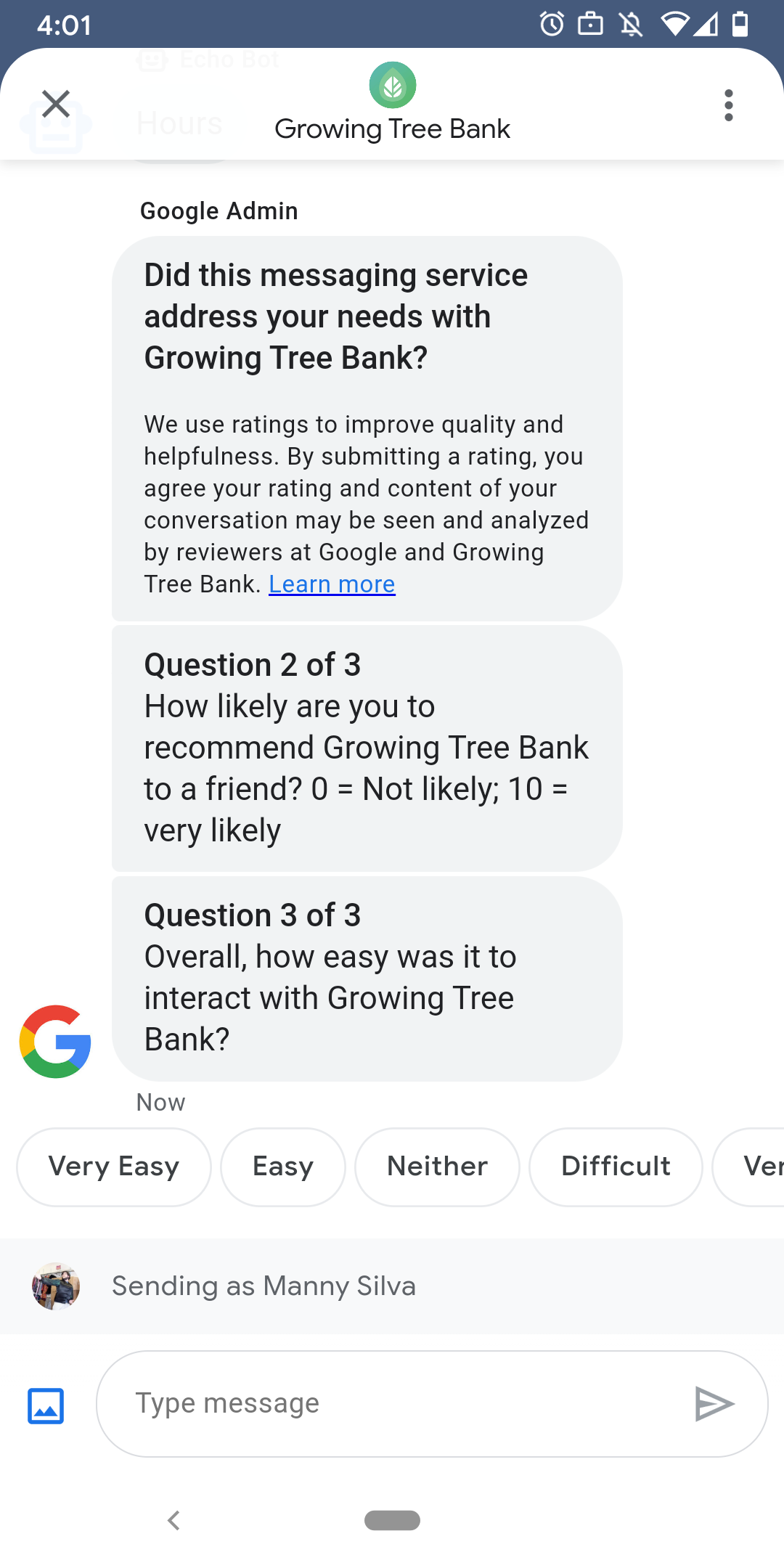
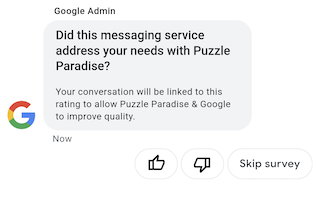
사용자가 에이전트와 만족스러운 상호작용을 할 수 있도록 Google에서는 사용자가 에이전트와의 대화를 마친 후 설문조사를 보냅니다. 대화가 끝날 때와 같이 다른 시점에 데이터를 수집하려면 대화 컨텍스트 내에서 설문조사를 전송하면 됩니다. 설문조사는 대화에 표시되며 사용자는 질문에 따라 다양한 옵션을 사용하여 의견을 제공할 수 있습니다.
Google에서 트리거하는 설문조사의 시기는 상담사의 메시지 사용 가능 여부에 따라 달라집니다.
| 가용성 | 설문조사 타이밍 |
|---|---|
| 봇 전용 | 마지막 메시지 후 30분 |
| 사람만 | 마지막 메시지 후 영업일 기준 24시간 |
| 봇 및 사람 | 마지막 메시지 후 영업일 기준 24시간 |
향후 7일 동안 영업시간이 24시간 미만인 경우 24시간이 사용됩니다.
24시간마다 대화당 하나의 설문조사를 보낼 수 있습니다. Google보다 먼저 대화에서 설문조사를 전송하면 Google에서 해당 대화에 설문조사를 전송하지 않습니다. 상담사가 24시간 이내에 동일한 대화에서 설문조사를 여러 개 전송하는 경우 비즈니스 메시지는 사용자에게 첫 번째 설문조사만 전송하려고 시도합니다.
사용자가 설문조사를 완료한 후 다음에 에이전트와 대화를 시작하면 에이전트가 인사말을 표시합니다. 사용자가 설문조사에 응답하지 않으면 7일 후에 설문조사가 만료되며, 설문조사 만료 후 다음 대화에서 인사말이 표시됩니다.
사용자가 대화에서 설문조사가 활성 상태일 때 설문조사와 관련이 없는 메시지를 보내면 Business Messages는 설문조사를 취소하고 사용자의 메시지를 상담사의 웹훅으로 보냅니다.
사용자에게 설문조사를 보내지 않더라도 에이전트는 웹훅에서 Google 설문조사 결과를 수신하므로 이에 따라 결과를 수락하고 처리해야 합니다.
질문
설문조사에는 최대 5개의 질문이 포함될 수 있으며, 필수, 템플릿, 맞춤의 세 가지 카테고리로 나뉩니다. 설문조사에는 항상 필수 질문이 포함되며, 최대 2개의 템플릿 질문이 표시된 후 최대 2개의 맞춤 질문이 표시됩니다.
필수 질문
필수 질문은 Business Messages에서 지원하는 모든 언어로 현지화됩니다. 사용자는 '좋아요' 또는 '싫어요'로 응답할 수 있습니다.
필수 질문: '이 메시지 서비스로 AGENT_NAME 관련 요구사항이 해결되었나요?'
템플릿 질문
템플릿 질문은 선택사항이며, Business Messages가 지원되는 모든 언어에서 현지화된 Google 정의 질문입니다. 설문조사에는 최대 2개의 템플릿 질문이 포함될 수 있습니다. 사용자 응답 형식은 질문에 따라 다릅니다.
템플릿 질문에는 다음이 포함됩니다.
- AGENT_NAME과(와) 메시지를 주고받은 경험에 대해 말씀해 주세요.
- AGENT_NAME 업체를 친구에게 추천할 가능성은 얼마나 됩니까?
- 다음에 AGENT_NAME 업체에 연락할 때 메시지를 이용할 가능성은 얼마나 됩니까?
- 전반적으로 AGENT_NAME 업체와 연락하기가 얼마나 쉬웠습니까?
- 다음 진술에 대해 어느 정도 동의하거나 반대하나요? AGENT_NAME 업체 덕분에 문제 처리가 수월했다.
- 지원 담당 직원에 관한 전반적인 만족도를 평가해 주세요.
- 이 채팅 세션 덕분에 AGENT_NAME 업체에 전화를 걸 필요가 없었나요?
사용 가능한 모든 템플릿 질문 목록을 확인하고 템플릿 ID를 가져오려면 다음 단계를 따르세요.
- 비즈니스 커뮤니케이션 개발자 콘솔을 열고 Business Messages Google 계정으로 로그인합니다.
- 에이전트를 선택합니다.
- 왼쪽 탐색 메뉴에서 설문조사를 클릭합니다.
맞춤 질문
설문조사에는 맞춤 질문이 최대 2개 포함될 수 있습니다. 맞춤 질문을 지정하는 경우 에이전트가 지원하는 각 언어의 질문 버전을 포함하세요. 기본 언어에 대해 각 질문의 버전을 지정해야 합니다. 사용자가 설문조사를 받았지만 맞춤 질문의 지정된 버전이 없는 언어에 있는 경우 질문은 상담사의 기본 언어에 정의된 대로 표시됩니다.
맞춤 질문에 대한 응답은 추천 답장과 마찬가지로 별도의 텍스트와 포스트백 데이터를 지원합니다.
설문조사 맞춤설정하기
상담사의 설문조사를 맞춤설정하려면 다음 단계를 따르세요.
- 비즈니스 커뮤니케이션 개발자 콘솔을 열고 Business Messages Google 계정으로 로그인합니다.
- 에이전트를 선택합니다.
- 왼쪽 탐색 메뉴에서 설문조사를 클릭합니다.
- 설문조사에 사용 가능한 템플릿 질문을 최대 2개까지 추가합니다.
- 맞춤 질문 만들기를 클릭하여 설문조사에 맞춤 질문을 추가합니다.
형식 지정 및 값 옵션은 surveyConfig를 참고하세요.
설문조사 보내기
설문조사를 보내려면 다음 명령어를 실행합니다. CONVERSATION_ID를 설문조사를 전송할 대화의 식별자로 바꾸고 SURVEY_ID를 설문조사의 고유 식별자로 바꿉니다.
cURL
# Copyright 2021 Google LLC # # Licensed under the Apache License, Version 2.0 (the "License"); # you may not use this file except in compliance with the License. # You may obtain a copy of the License at # https://www.apache.org/licenses/LICENSE-2.0 # Unless required by applicable law or agreed to in writing, software # distributed under the License is distributed on an "AS IS" BASIS, # WITHOUT WARRANTIES OR CONDITIONS OF ANY KIND, either express or implied. # See the License for the specific language governing permissions and # limitations under the License. # This code sends a survey to the user: # Read more: https://developers.google.com/business-communications/business-messages/guides/how-to/message/surveys?hl=en # Replace the __CONVERSATION_ID__ with a conversation id that you can send messages to # Make sure a service account key file exists at ./service_account_key.json curl -X POST "https://businessmessages.googleapis.com/v1/conversations/__CONVERSATION_ID__/surveys?surveyId=f4bd7576-6c2e-4674-9db4-d697166f63ce" \ -H "Content-Type: application/json" \ -H "User-Agent: curl/business-messages" \ -H "$(oauth2l header --json ./service_account_key.json businessmessages)"
Node.js
/** * This code sends a survey to the user: * Read more: https://developers.google.com/business-communications/business-messages/guides/how-to/message/surveys?hl=en * * This code is based on the https://github.com/google-business-communications/nodejs-businessmessages Node.js * Business Messages client library. */ /** * Edit the values below: */ const PATH_TO_SERVICE_ACCOUNT_KEY = './service_account_key.json'; const CONVERSATION_ID = 'EDIT_HERE'; const businessmessages = require('businessmessages'); const uuidv4 = require('uuid').v4; const {google} = require('googleapis'); // Initialize the Business Messages API const bmApi = new businessmessages.businessmessages_v1.Businessmessages({}); // Set the scope that we need for the Business Messages API const scopes = [ 'https://www.googleapis.com/auth/businessmessages', ]; // Set the private key to the service account file const privatekey = require(PATH_TO_SERVICE_ACCOUNT_KEY); /** * Posts a survey to the Business Messages API. * * @param {string} conversationId The unique id for this user and agent. */ async function sendSurvey(conversationId) { const authClient = await initCredentials(); // Create the payload for creating a new survey const apiParams = { auth: authClient, parent: 'conversations/' + conversationId, surveyId: uuidv4(), resource: {} }; // Call the message create function using the // Business Messages client library bmApi.conversations.surveys.create(apiParams, {auth: authClient}, (err, response) => { console.log(err); console.log(response); }); } /** * Initializes the Google credentials for calling the * Business Messages API. */ async function initCredentials() { // configure a JWT auth client const authClient = new google.auth.JWT( privatekey.client_email, null, privatekey.private_key, scopes, ); return new Promise(function(resolve, reject) { // authenticate request authClient.authorize(function(err, tokens) { if (err) { reject(false); } else { resolve(authClient); } }); }); } sendSurvey(CONVERSATION_ID);
자바
import com.google.api.client.googleapis.services.AbstractGoogleClientRequest; import com.google.api.client.http.HttpBackOffUnsuccessfulResponseHandler; import com.google.api.client.http.HttpRequest; import com.google.api.client.googleapis.auth.oauth2.GoogleCredential; import com.google.api.client.googleapis.javanet.GoogleNetHttpTransport; import com.google.api.client.http.HttpTransport; import com.google.api.client.json.jackson2.JacksonFactory; import com.google.api.client.util.ExponentialBackOff; import com.google.api.services.businessmessages.v1.Businessmessages; import com.google.api.services.businessmessages.v1.model.*; import java.io.FileInputStream; import java.util.Arrays; import java.util.UUID; class SendSurveySnippet { /** * Initializes credentials used by the Business Messages API. */ private static Businessmessages.Builder getBusinessMessagesBuilder() { Businessmessages.Builder builder = null; try { GoogleCredential credential = GoogleCredential .fromStream(new FileInputStream("PATH_TO_SERVICE_ACCOUNT_KEY")); credential = credential.createScoped(Arrays.asList( "https://www.googleapis.com/auth/businessmessages")); credential.refreshToken(); HttpTransport httpTransport = GoogleNetHttpTransport.newTrustedTransport(); JacksonFactory jsonFactory = JacksonFactory.getDefaultInstance(); // Create instance of the Business Messages API builder = new Businessmessages .Builder(httpTransport, jsonFactory, null) .setApplicationName("Sample Application"); // Set the API credentials and endpoint builder.setHttpRequestInitializer(credential); } catch (Exception e) { e.printStackTrace(); } return builder; } public static void main(String args[]) { try { String conversationId = "CONVERSATION_ID"; // Create client library reference Businessmessages.Builder builder = getBusinessMessagesBuilder(); // Create a new survey to send to the user associated with the conversationId Businessmessages.Conversations.Surveys.Create request = bmBuilder.build().conversations().surveys() .create("conversations/" + conversationId, new BusinessMessagesSurvey()); request.setSurveyId(UUID.randomUUID().toString()); // Setup retries with exponential backoff HttpRequest httpRequest = ((AbstractGoogleClientRequest) request).buildHttpRequest(); httpRequest.setUnsuccessfulResponseHandler(new HttpBackOffUnsuccessfulResponseHandler( new ExponentialBackOff())); // Execute request httpRequest.execute(); } catch (Exception e) { e.printStackTrace(); } } }
Python
"""This code sends a survey to the user. Read more: https://developers.google.com/business-communications/business-messages/guides/how-to/message/surveys?hl=en This code is based on the https://github.com/google-business-communications/python-businessmessages Python Business Messages client library. """ import uuid from businessmessages import businessmessages_v1_client as bm_client from businessmessages.businessmessages_v1_messages import BusinessmessagesConversationsSurveysCreateRequest from businessmessages.businessmessages_v1_messages import BusinessMessagesSurvey from oauth2client.service_account import ServiceAccountCredentials # Edit the values below: path_to_service_account_key = './service_account_key.json' conversation_id = 'EDIT_HERE' credentials = ServiceAccountCredentials.from_json_keyfile_name( path_to_service_account_key, scopes=['https://www.googleapis.com/auth/businessmessages']) client = bm_client.BusinessmessagesV1(credentials=credentials) # Create the survey request survey_request = BusinessmessagesConversationsSurveysCreateRequest( surveyId=str(uuid.uuid4().int), parent='conversations/' + conversation_id, businessMessagesSurvey=BusinessMessagesSurvey()) # Send the survey bm_client.BusinessmessagesV1.ConversationsSurveysService( client=client).Create(request=survey_request)
형식 지정 및 값 옵션은 conversations.surveys를 참고하세요.
설문조사 응답 수신
사용자가 설문조사의 질문에 응답하면 에이전트가 웹훅에서 응답을 수신합니다. 메시지를 수신하는 것과 동일한 방식으로 설문조사 응답을 수신하고 처리합니다.
설문조사의 모든 질문에는 동일한 surveyResponse.survey 값이 있습니다. 설문조사에 질문이 여러 개 포함된 경우 인프라에서 동일한 surveyResponse.survey 값을 가진 여러 응답을 수락하고 surveyResponse.surveyQuestionId 필드로 개별 질문을 식별하는지 확인하세요.
설문조사 응답의 텍스트 값은 surveyResponse.questionResponseText에 표시됩니다. 필수 질문과 템플릿 질문의 경우 비즈니스 메시지에서는 좋아요 응답을 VERY_SATISFIED로, 싫어요 응답을 VERY_DISSATISFIED로 반환합니다. 맞춤 질문 응답에 그림 이모티콘이 포함된 경우 유니코드 값을 파싱하려고 하지 말고 surveyResponse.questionResponsePostbackData를 사용하는 것이 좋습니다.
설문조사 응답의 형식은 다음과 같습니다.
{
  "agent": "brands/BRAND_ID/agents/AGENT_ID",
  "sendTime": "SEND_TIME",
  "conversationId": "CONVERSATION_ID",
  "requestId": "REQUEST_ID",
  "surveyResponse": {
    "survey": "conversations/CONVERSATION_ID/surveys/SURVEY_ID",
    "rating": "SURVEY_RATING",
    "createTime": "CREATE_TIME",
    "surveyQuestionId": "QUESTION_ID",
    "questionResponseText": "RESPONSE_TEXT",
    "questionResponsePostbackData": "RESPONSE_POSTBACK_DATA",
    "questionType": "QUESTION_TYPE",
    "questionIndex": QUESTION_INDEX,
    "totalQuestionCount": TOTAL_QUESTION_COUNT,
    "surveyTriggerSource": "TRIGGER_SOURCE"
  }
}
형식 지정 및 값 옵션은 UserMessage 및 SurveyResponse을 참고하세요.