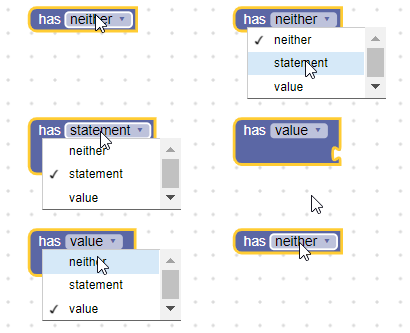

드롭다운 필드는 문자열을 값으로, 문자열을 텍스트로 저장합니다. 값은 텍스트에 액세스하는 데 사용되는 언어 중립 키이며 Blockly가 언어 간에 전환될 때 번역되지 않습니다. 텍스트는 사용자에게 표시되는 사람이 읽을 수 있는 문자열입니다.
드롭다운 필드
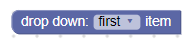
편집기가 열린 드롭다운 필드
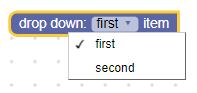
접힌 블록의 드롭다운 필드
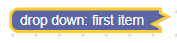
생성
드롭다운 생성자는 메뉴 생성자와 선택적 검사기를 가져옵니다. 메뉴 생성자는 옵션 배열 (각 옵션에 사람이 읽을 수 있는 부분과 언어 중립 문자열이 포함됨) 또는 옵션 배열을 생성하는 함수입니다. 각 옵션의 사람이 읽을 수 있는 부분은 문자열, 이미지 또는 HTML 요소일 수 있으며 배열에는 다양한 유형의 옵션이 혼합되어 포함될 수 있습니다.
간단한 텍스트 드롭다운
JSON
{
  "type": "example_dropdown",
  "message0": "drop down: %1",
  "args0": [
    {
      "type": "field_dropdown",
      "name": "FIELDNAME",
      "options": [
        [ "first item", "ITEM1" ],
        [ "second item", "ITEM2" ]
      ]
    }
  ]
}
JavaScript
Blockly.Blocks['example_dropdown'] = {
  init: function() {
    this.appendDummyInput()
        .appendField('drop down:')
        .appendField(new Blockly.FieldDropdown([
            ['first item', 'ITEM1'],
            ['second item', 'ITEM2']
        ]), 'FIELDNAME');
  }
};
사람이 읽을 수 있는 정보를 언어 중립 키와 분리하면 드롭다운 메뉴의 설정이 언어 간에 유지될 수 있습니다. 예를 들어 블록의 영어 버전은 [['left', 'LEFT'], ['right',
'RIGHT]]를 정의할 수 있지만 동일한 블록의 독일어 버전은 [['links',
'LEFT'], ['rechts', 'RIGHT]]를 정의합니다.
이미지 드롭다운
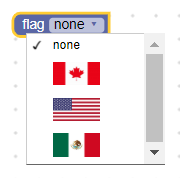
드롭다운 메뉴의 옵션은 src, width, height, alt 속성이 있는 객체로 표시되는 이미지일 수 있습니다.
JSON
{
  "type": "image_dropdown",
  "message0": "flag %1",
  "args0": [
    {
      "type": "field_dropdown",
      "name": "FLAG",
      "options": [
        ["none", "NONE"],
        [{"src": "canada.png", "width": 50, "height": 25, "alt": "Canada"}, "CANADA"],
        [{"src": "usa.png", "width": 50, "height": 25, "alt": "USA"}, "USA"],
        [{"src": "mexico.png", "width": 50, "height": 25, "alt": "Mexico"}, "MEXICO"]
      ]
    }
  ]
}
JavaScript
Blockly.Blocks['image_dropdown'] = {
  init: function() {
    var input = this.appendDummyInput()
        .appendField('flag');
    var options = [
        ['none', 'NONE'],
        [{'src': 'canada.png', 'width': 50, 'height': 25, 'alt': 'Canada'}, 'CANADA'],
        [{'src': 'usa.png', 'width': 50, 'height': 25, 'alt': 'USA'}, 'USA'],
        [{'src': 'mexico.png', 'width': 50, 'height': 25, 'alt': 'Mexico'}, 'MEXICO']
    ];
    input.appendField(new Blockly.FieldDropdown(options), 'FLAG');
  }
};
HTML 드롭다운
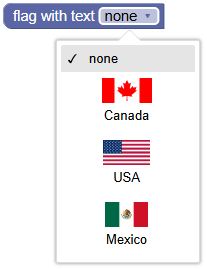
옵션은 너무 크지 않고 마우스 또는 키보드 이벤트를 처리하려고 하지 않는 한 모든 HTML 요소일 수 있습니다. (이러한 규칙을 준수하는 것은 사용자의 책임이며 Blockly는 이를 적용하지 않습니다.)
드롭다운이 열리면 목록에 HTML 요소가 표시됩니다. 닫혀 있고 요소가 선택된 옵션인 경우 목록에는 요소의 title 속성, aria-label 속성 또는 innerText 속성이 기본 설정의 내림차순으로 표시됩니다.
JSON
{
  "type": "flags_with_text_dropdown",
  "message0": "flag with text %1",
  "args0": [
    {
      "type": "field_dropdown",
      "name": "FLAG_WITH_TEXT",
      "options": [
        ["x", "X"], // Placeholder. An empty array throws an exception.
      ]
    }
  ],
  // Use an extension to add the HTML element options.
  "extensions": ["flag_with_text_extension"]
}
Blockly.Extensions.register('flag_with_text_extension',
  function() {
    function createFlagWithTextDiv(text, src) {
      const div = document.createElement('div');
      div.setAttribute('style', 'width: 75px;');
      div.setAttribute('title', text);
      const img = document.createElement('img');
      img.setAttribute('src', src);
      img.setAttribute('style', 'height: 25px; display: block; margin: auto;');
      div.appendChild(img);
      const para = document.createElement('p');
      para.innerText = text;
      para.setAttribute('style', 'text-align: center; margin: 5px;');
      div.appendChild(para);
      return div;
    }

    const canadaDiv = createFlagWithTextDiv('Canada', 'canada.png');
    const usaDiv = createFlagWithTextDiv('USA', 'usa.png');
    const mexicoDiv = createFlagWithTextDiv('Mexico', 'mexico.png');
    const options = [
      ['none', 'NONE'],
      [canadaDiv, 'CANADA'],
      [usaDiv, 'USA'],
      [mexicoDiv, 'MEXICO']
    ];
    this.getField('FLAG_WITH_TEXT').setOptions(options);
  });
이는 JSON 확장을 사용하여 실행됩니다.
JavaScript
function createFlagWithTextDiv(text, src) {
  const div = document.createElement('div');
  div.setAttribute('style', 'width: 75px;');
  div.setAttribute('title', text);
  const img = document.createElement('img');
  img.setAttribute('src', src);
  img.setAttribute('style', 'height: 25px; display: block; margin: auto;');
  div.appendChild(img);
  const para = document.createElement('p');
  para.innerText = text;
  para.setAttribute('style', 'text-align: center; margin: 5px;');
  div.appendChild(para);
  return div;
}

const canadaDiv = createFlagWithTextDiv('Canada', 'canada.png');
const usaDiv = createFlagWithTextDiv('USA', 'usa.png');
const mexicoDiv = createFlagWithTextDiv('Mexico', 'mexico.png');

Blockly.Blocks['flags_with_text_dropdown'] = {
  init: function() {
    const input = this.appendDummyInput()
        .appendField('flag with text');
    const options = [
        ['none', 'NONE'],
        [canadaDiv, 'CANADA'],
        [usaDiv, 'USA'],
        [mexicoDiv, 'MEXICO']
    ];
    input.appendField(new Blockly.FieldDropdown(options), 'FLAG_WITH_TEXT');
  }
};
동적 드롭다운
JSON
{
  "type": "dynamic_dropdown",
  "message0": "day %1",
  "args0": [
    {
      "type": "field_dropdown",
      "name": "DAY",
      "options": [
        ["x", "X"], // Placeholder. An empty array throws an exception.
      ]
     }
  ],
  // Use an extension to set the menu function.
  "extensions": ["dynamic_menu_extension"]
}
Blockly.Extensions.register('dynamic_menu_extension',
  function() {
    this.getField('DAY').setOptions(
      function() {
        var options = [];
        var now = Date.now();
        for(var i = 0; i < 7; i++) {
          var dateString = String(new Date(now)).substring(0, 3);
          options.push([dateString, dateString.toUpperCase()]);
          now += 24 * 60 * 60 * 1000;
        }
        return options;
      });
  });
이는 JSON 확장을 사용하여 실행됩니다.
JavaScript
Blockly.Blocks['dynamic_dropdown'] = {
  init: function() {
    var input = this.appendDummyInput()
      .appendField('day')
      .appendField(new Blockly.FieldDropdown(
        this.generateOptions), 'DAY');
  },

  generateOptions: function() {
    var options = [];
    var now = Date.now();
    for(var i = 0; i < 7; i++) {
      var dateString = String(new Date(now)).substring(0, 3);
      options.push([dateString, dateString.toUpperCase()]);
      now += 24 * 60 * 60 * 1000;
    }
    return options;
  }
};
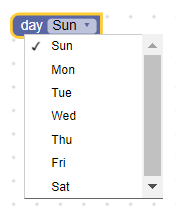
드롭다운에 정적 옵션 목록 대신 함수를 제공할 수도 있으므로 옵션을 동적으로 만들 수 있습니다. 함수는 정적 옵션과 동일한 [human-readable-value, language-neutral-key] 형식으로 옵션 배열을 반환해야 합니다. 드롭다운을 클릭할 때마다 함수가 실행되고 옵션이 다시 계산됩니다.
구분 기호
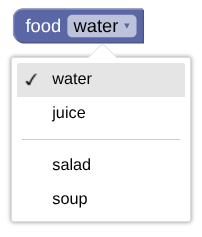
문자열 'separator'를 사용하여 드롭다운 메뉴의 옵션 사이에 선을 추가합니다.
JSON
{
  "type": "separator_dropdown",
  "message0": "food %1",
  "args0": [
    {
      "type": "field_dropdown",
      "name": "FOOD",
      "options": [
        ["water", "WATER"],
        ["juice", "JUICE"],
        "separator",
        ["salad", "SALAD"],
        ["soup", "SOUP"],
      ]
    }
  ]
}
JavaScript
Blockly.Blocks["separator_dropdown"] = {
  init: function() {
    var input = this.appendDummyInput()
        .appendField("food1");
    var options = [
        ["water", "WATER"],
        ["juice", "JUICE"],
        "separator",
        ["salad", "SALAD"],
        ["soup", "SOUP"],
    ];
    input.appendField(new Blockly.FieldDropdown(options), "FOOD");
  }
};
직렬화
JSON
드롭다운 필드의 JSON은 다음과 같습니다.
{
  "fields": {
    "FIELDNAME": "LANGUAGE-NEUTRAL-KEY"
  }
}
여기서 FIELDNAME은 드롭다운 필드를 참조하는 문자열이고 값은 필드에 적용할 값입니다. 값은 언어 중립 옵션 키여야 합니다.
XML
드롭다운 필드의 XML은 다음과 같습니다.
<field name="FIELDNAME">LANGUAGE-NEUTRAL-KEY</field>
여기서 필드의 name 속성에는 드롭다운 필드를 참조하는 문자열이 포함되어 있고 내부 텍스트는 필드에 적용할 값입니다. 내부 텍스트는 유효한 언어 중립 옵션 키여야 합니다.
맞춤설정
드롭다운 화살표
Blockly.FieldDropdown.ARROW_CHAR 속성을 사용하여 드롭다운 화살표를 나타내는 유니코드 문자를 변경할 수 있습니다.
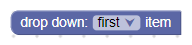
ARROW_CHAR 속성은 Android에서는 기본적으로 \u25BC (▼)이고 그 외의 경우에는 \u25BE (▾)입니다.
전역 속성이므로 설정하면 모든 드롭다운 필드가 수정됩니다.
메뉴 높이
Blockly.FieldDropdown.MAX_MENU_HEIGHT_VH 속성을 사용하여 메뉴의 최대 높이를 변경할 수 있습니다. 표시 영역 높이의 비율로 정의되며 표시 영역은 창입니다.
MAX_MENU_HEIGHT_VH 속성은 기본적으로 0.45입니다.
전역 속성이므로 설정하면 모든 드롭다운 필드가 수정됩니다.
프리픽스/서픽스 일치
모든 드롭다운 메뉴 옵션이 공통 프리픽스 및/또는 서픽스 단어를 공유하는 경우 이러한 단어는 자동으로 고려되어 정적 텍스트로 삽입됩니다. 예를 들어 동일한 블록을 만드는 두 가지 방법이 있습니다. 첫 번째는 서픽스 일치 없이, 두 번째는 서픽스 일치로 만듭니다.
서픽스 일치 없음:
JSON
{
  "type": "dropdown_no_matching",
  "message0": "hello %1",
  "args0": [
    {
      "type": "field_dropdown",
      "name": "MODE",
      "options": [
        ["world", "WORLD"],
        ["computer", "CPU"]
      ]
    }
  ]
}
JavaScript
Blockly.Blocks['dropdown_no_matching'] = {
  init: function() {
    var options = [
      ['world', 'WORLD'],
      ['computer', 'CPU']
    ];

    this.appendDummyInput()
        .appendField('hello')
        .appendField(new Blockly.FieldDropdown(options), 'MODE');
  }
};
서픽스 일치:
JSON
{
  "type": "dropdown_with_matching",
  "message0": "%1",
  "args0": [
    {
      "type": "field_dropdown",
      "name": "MODE",
      "options": [
        ["hello world", "WORLD"],
        ["hello computer", "CPU"]
      ]
    }
  ]
}
JavaScript
Blockly.Blocks['dropdown_with_matching'] = {
  init: function() {
    var options = [
      ['hello world', 'WORLD'],
      ['hello computer', 'CPU']
    ];

    this.appendDummyInput()
        .appendField(new Blockly.FieldDropdown(options), 'MODE');
  }
};
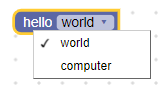
이 접근 방식의 한 가지 장점은 블록을 다른 언어로 더 쉽게 번역할 수 있다는 것입니다. 이전 코드에는 문자열 'hello', 'world',
'computer'가 있지만 수정된 코드에는 문자열 'hello world'와
'hello computer'가 있습니다. 번역자는 단어를 개별적으로 번역하는 것보다 구문을 번역하는 것이 훨씬 쉽습니다.
이 접근 방식의 또 다른 장점은 단어 순서가 언어마다 자주 변경된다는 것입니다. 'world hello'와 'computer hello'를 사용하는 언어를 상상해 보세요.
서픽스 일치 알고리즘은 공통 'hello'를 감지하여 드롭다운 뒤에 표시합니다.
하지만 프리픽스/서픽스 일치가 실패하는 경우도 있습니다. 두 단어가 항상 함께 사용되어야 하고 프리픽스를 고려해서는 안 되는 경우가 있습니다.
예를 들어 'drive red car'와 'drive red truck'은 'drive red'가 아닌 'drive'만
고려해야 합니다. 유니코드 줄바꿈 없는
공백 '\u00A0'은 일반 공백 대신 사용하여
프리픽스/서픽스 일치자를 억제할 수 있습니다. 따라서 위의 예는
'drive red\u00A0car'와 'drive red\u00A0truck'으로 수정할 수 있습니다.
프리픽스/서픽스 일치가 실패하는 또 다른 위치는 개별 단어를 공백으로 구분하지 않는 언어입니다. 중국어가 좋은 예입니다. 문자열
'訪問中國'은 'visit China'를 의미하며 단어 사이에 공백이 없습니다.
마지막 두 문자 ('中國')는 'China'라는 단어이지만
분할하면 각각 'centre' 및 'country'를 의미합니다. 중국어와 같은 언어에서 프리픽스/서픽스 일치가 작동하도록 하려면 줄바꿈이 있어야 하는 위치에 공백을 삽입하면 됩니다. 예를 들어 '訪問 中國' 및
'訪問 美國'은 "visit [China/USA]"를 생성하는 반면 '訪問 中 國' 및
'訪問 美 國'은 "visit [centre/beautiful] country"를 생성합니다.
드롭다운 검사기 만들기
드롭다운 필드의 값은 언어 중립 문자열이므로 모든 검사기는 문자열을 허용하고 사용 가능한 옵션인 문자열, null 또는 undefined를 반환해야 합니다.
검사기가 다른 항목을 반환하면 Blockly의 동작이 정의되지 않고 프로그램이 비정상 종료될 수 있습니다.
예를 들어 다음과 같이 세 가지 옵션과 검사기가 있는 드롭다운 필드를 정의할 수 있습니다.
validate: function(newValue) {
  this.getSourceBlock().updateConnections(newValue);
  return newValue;
},

init: function() {
  var options = [
   ['has neither', 'NEITHER'],
   ['has statement', 'STATEMENT'],
   ['has value', 'VALUE'],
  ];

  this.appendDummyInput()
  // Pass the field constructor the options list, the validator, and the name.
      .appendField(new Blockly.FieldDropdown(options, this.validate), 'MODE');
}
validate 는 항상 전달된 값을 반환하지만 드롭다운 값에 따라 입력을 추가하거나 삭제하는 도우미 함수 updateConnection을 호출합니다.
updateConnections: function(newValue) {
  this.removeInput('STATEMENT', /* no error */ true);
  this.removeInput('VALUE', /* no error */ true);
  if (newValue == 'STATEMENT') {
    this.appendStatementInput('STATEMENT');
  } else if (newValue == 'VALUE') {
    this.appendValueInput('VALUE');
  }
}