

The FeatureStyleFunction,
là nơi bạn xác định logic để chọn lọc kiểu cho các tính năng trong một tập dữ liệu. Hàm này
trả về FeatureStyleOptions
dựa trên logic này. Nếu không cần logic tạo kiểu, bạn có thể sử dụng FeatureStyleOptions để đặt kiểu trực tiếp. Trang này hướng dẫn bạn cách thêm một tập dữ liệu vào bản đồ và áp dụng kiểu.
Điều kiện tiên quyết
Trước khi tiếp tục, bạn phải có mã bản đồ, kiểu bản đồ và mã tập dữ liệu.
Liên kết mã tập dữ liệu với kiểu bản đồ
Hãy làm theo các bước sau để liên kết tập dữ liệu với kiểu bản đồ mà bạn đang sử dụng:
- Trong bảng điều khiển Cloud, hãy chuyển đến trang Tập dữ liệu.
- Nhấp vào tên của tập dữ liệu. Trang Chi tiết tập dữ liệu sẽ xuất hiện.
- Nhấp vào thẻ Xem trước.
- Di chuyển đến phần THÊM KIỂU BẢN ĐỒ rồi nhấp vào.
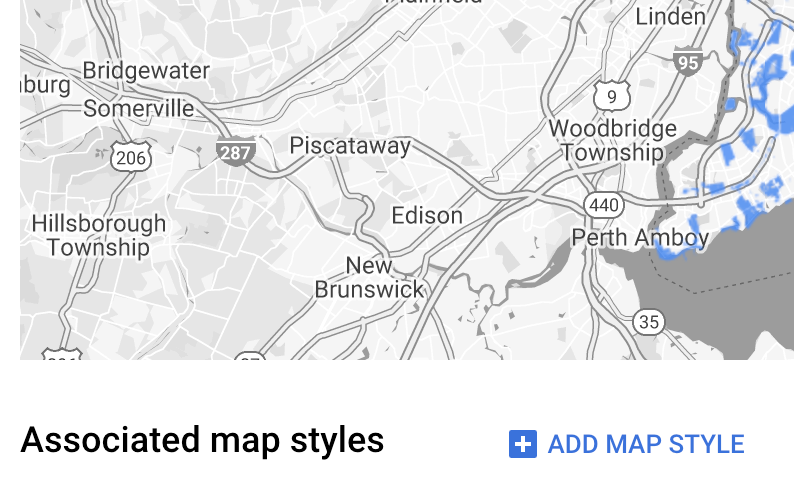
- Nhấp vào(các) hộp kiểm cho(các) Kiểu bản đồ cần liên kết, sau đó nhấp vào LƯU.
Sử dụng các quy tắc kiểu đơn giản
Cách đơn giản nhất để tạo kiểu cho các tính năng là truyền FeatureStyleOptions để xác định các thuộc tính kiểu như màu sắc, độ mờ và độ đậm của đường kẻ. Áp dụng trực tiếp các tuỳ chọn kiểu tính năng cho lớp đối tượng tập dữ liệu hoặc sử dụng các tuỳ chọn này cùng với FeatureStyleFunction.
TypeScript
const styleOptions = { strokeColor: 'green', strokeWeight: 2, strokeOpacity: 1, fillColor: 'green', fillOpacity: 0.3, };
JavaScript
const styleOptions = { strokeColor: 'green', strokeWeight: 2, strokeOpacity: 1, fillColor: 'green', fillOpacity: 0.3, };
Sử dụng các quy tắc kiểu khai báo
Sử dụng FeatureStyleFunction để đặt các quy tắc kiểu một cách khai báo và áp dụng các quy tắc này cho toàn bộ tập dữ liệu. Áp dụng FeatureStyleOptions cho một tính năng dựa trên các giá trị thuộc tính tập dữ liệu. Bạn cũng có thể trả về null từ hàm kiểu tính năng, chẳng hạn như nếu bạn muốn một tập hợp con các tính năng vẫn không hiển thị. Ví dụ này cho thấy một hàm kiểu tô màu một tập hợp điểm dựa trên các thuộc tính dữ liệu:
TypeScript
function setStyle(params: { feature: google.maps.Feature }) { // Get the dataset feature, so we can work with all of its attributes. const datasetFeature = params.feature as google.maps.DatasetFeature; // Get all of the needed dataset attributes. const furColors = datasetFeature.datasetAttributes.CombinationofPrimaryandHighlightColor; // Apply styles. Fill is primary fur color, stroke is secondary fur color. switch (furColors) { case 'Black+': return { fillColor: 'black', pointRadius: 8, }; break; case 'Cinnamon+': return { fillColor: '#8b0000', pointRadius: 8, }; break; case 'Cinnamon+Gray': return { fillColor: '#8b0000', strokeColor: 'gray', pointRadius: 6, }; break; case 'Cinnamon+White': return { fillColor: '#8b0000', strokeColor: 'white', pointRadius: 6, }; break; case 'Gray+': return { fillColor: 'gray', pointRadius: 8, }; break; case 'Gray+Cinnamon': return { fillColor: 'gray', strokeColor: '#8b0000', pointRadius: 6, }; break; case 'Gray+Cinnamon, White': return { fillColor: 'silver', strokeColor: '#8b0000', pointRadius: 6, }; break; case 'Gray+White': return { fillColor: 'gray', strokeColor: 'white', pointRadius: 6, }; break; default: // Color not defined. return { fillColor: 'yellow', pointRadius: 8, }; break; } }
JavaScript
function setStyle(params) { // Get the dataset feature, so we can work with all of its attributes. const datasetFeature = params.feature; // Get all of the needed dataset attributes. const furColors = datasetFeature.datasetAttributes.CombinationofPrimaryandHighlightColor; // Apply styles. Fill is primary fur color, stroke is secondary fur color. switch (furColors) { case 'Black+': return { fillColor: 'black', pointRadius: 8, }; break; case 'Cinnamon+': return { fillColor: '#8b0000', pointRadius: 8, }; break; case 'Cinnamon+Gray': return { fillColor: '#8b0000', strokeColor: 'gray', pointRadius: 6, }; break; case 'Cinnamon+White': return { fillColor: '#8b0000', strokeColor: 'white', pointRadius: 6, }; break; case 'Gray+': return { fillColor: 'gray', pointRadius: 8, }; break; case 'Gray+Cinnamon': return { fillColor: 'gray', strokeColor: '#8b0000', pointRadius: 6, }; break; case 'Gray+Cinnamon, White': return { fillColor: 'silver', strokeColor: '#8b0000', pointRadius: 6, }; break; case 'Gray+White': return { fillColor: 'gray', strokeColor: 'white', pointRadius: 6, }; break; default: // Color not defined. return { fillColor: 'yellow', pointRadius: 8, }; break; } }
Áp dụng kiểu cho lớp đối tượng tập dữ liệu
Cách áp dụng các kiểu trong hàm kiểu tính năng:
- Lấy lớp đối tượng tập dữ liệu bằng cách gọi
map.getDatasetFeatureLayer(), truyền mã tập dữ liệu. - Áp dụng kiểu bằng cách đặt các tuỳ chọn kiểu tính năng (ví dụ:
styleOptions) hoặc hàm (ví dụ:setStyle) trên lớp tập dữ liệu.
TypeScript
// Dataset ID for NYC park data. const datasetId = 'a75dd002-ad20-4fe6-af60-27cd2ed636b4'; const datasetLayer = innerMap.getDatasetFeatureLayer(datasetId); datasetLayer.style = styleOptions;
JavaScript
// Dataset ID for NYC park data. const datasetId = 'a75dd002-ad20-4fe6-af60-27cd2ed636b4'; const datasetLayer = innerMap.getDatasetFeatureLayer(datasetId); datasetLayer.style = styleOptions;
Xoá kiểu khỏi một lớp
Để xoá kiểu khỏi một lớp, hãy đặt style thành null:
featureLayer.style = null;
Bạn cũng có thể trả về null từ hàm kiểu tính năng, chẳng hạn như nếu bạn muốn một tập hợp con các tính năng vẫn không hiển thị.
Thêm văn bản ghi công
Bản đồ của bạn phải hiển thị(các) thông tin ghi công bắt buộc khi hiển thị các tập dữ liệu đã tải lên trên Google Maps. Văn bản ghi công không được che khuất hoặc gây cản trở biểu trưng của Google.
Một cách để thêm văn bản ghi công là sử dụng các thành phần điều khiển tuỳ chỉnh để đặt HTML tuỳ ý ở các vị trí tiêu chuẩn trên bản đồ. Các đoạn mã sau đây cho thấy HTML và CSS được dùng cho thông tin ghi công trong mẫu này:
<gmp-map
center="40.757815, -73.933123"
zoom="11"
map-id="5cd2c9ca1cf05670"
map-type-control="false">
<div id="attribution" slot="control-block-end-inline-start">
Data source: NYC Open Data
</div>
</gmp-map>
#attribution { background-color: rgba(255, 255, 255, 0.7); font-family: 'Roboto', 'Arial', sans-serif; font-size: 10px; padding: 2px; margin: 2px; }