

FeatureStyleFunction में, किसी डेटासेट में मौजूद सुविधाओं को स्टाइल करने के लिए लॉजिक तय किया जाता है. यह इस लॉजिक के आधार पर, FeatureStyleOptions दिखाता है. अगर स्टाइलिंग लॉजिक की ज़रूरत नहीं है, तो सीधे स्टाइल सेट करने के लिए FeatureStyleOptions का इस्तेमाल किया जा सकता है. इस पेज पर, मैप में डेटासेट जोड़ने और स्टाइलिंग लागू करने का तरीका बताया गया है.
ज़रूरी शर्तें
आगे बढ़ने से पहले, आपके पास मैप आईडी, मैप स्टाइल, और डेटासेट आईडी होना चाहिए.
किसी मैप स्टाइल से डेटासेट आईडी जोड़ना
अपने डेटासेट को इस्तेमाल की जा रही मैप स्टाइल से जोड़ने के लिए, यह तरीका अपनाएं:
- Google Cloud Console में, डेटासेट पेज पर जाएं.
- डेटासेट के नाम पर क्लिक करें. इसके बाद, डेटासेट की जानकारी पेज दिखेगा.
- झलक देखें टैब पर क्लिक करें.
- स्क्रोल करके मैप स्टाइल जोड़ें पर जाएं और क्लिक करें.
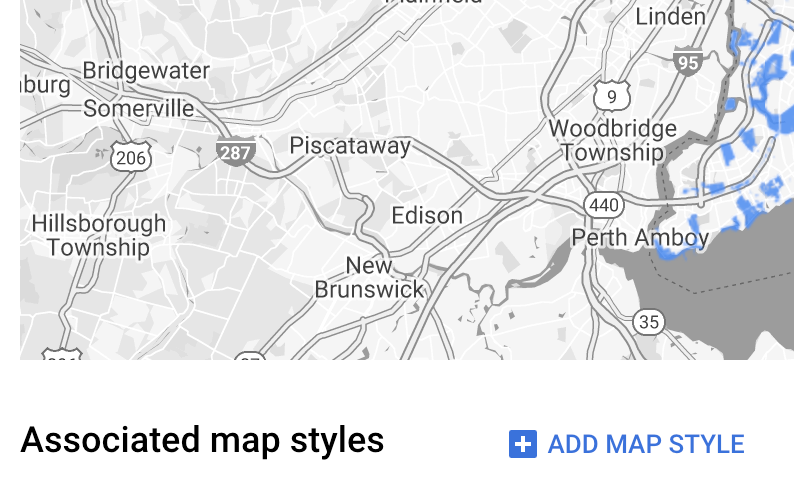
- असोसिएट करने के लिए, मैप स्टाइल के चेकबॉक्स पर क्लिक करें. इसके बाद, सेव करें पर क्लिक करें.
स्टाइल से जुड़े आसान नियमों का इस्तेमाल करना
सुविधाओं को स्टाइल करने का सबसे आसान तरीका FeatureStyleOptions पास करना है, ताकि रंग, अपारदर्शिता, और लाइन की मोटाई जैसे स्टाइल एट्रिब्यूट तय किए जा सकें. डेटासेट की फ़ीचर लेयर पर, फ़ीचर स्टाइल के विकल्प सीधे तौर पर लागू करें या उन्हें FeatureStyleFunction के साथ इस्तेमाल करें.
TypeScript
const styleOptions = { strokeColor: 'green', strokeWeight: 2, strokeOpacity: 1, fillColor: 'green', fillOpacity: 0.3, };
JavaScript
const styleOptions = { strokeColor: 'green', strokeWeight: 2, strokeOpacity: 1, fillColor: 'green', fillOpacity: 0.3, };
डिक्लेरेटिव स्टाइल के नियमों का इस्तेमाल करना
FeatureStyleFunction का इस्तेमाल करके, स्टाइल के नियमों को एलान के तौर पर सेट करें. इसके बाद, उन्हें अपने पूरे डेटासेट पर लागू करें. डेटासेट एट्रिब्यूट की वैल्यू के आधार पर, किसी सुविधा पर FeatureStyleOptions लागू करें. अगर आपको सुविधाओं के किसी सबसेट को छिपाना है, तो सुविधा की स्टाइल वाले फ़ंक्शन से null भी दिखाया जा सकता है. इस उदाहरण में, एक स्टाइल फ़ंक्शन दिखाया गया है. यह डेटा एट्रिब्यूट के आधार पर, पॉइंट के सेट को रंग देता है:
TypeScript
function setStyle(params: { feature: google.maps.Feature }) { // Get the dataset feature, so we can work with all of its attributes. const datasetFeature = params.feature as google.maps.DatasetFeature; // Get all of the needed dataset attributes. const furColors = datasetFeature.datasetAttributes.CombinationofPrimaryandHighlightColor; // Apply styles. Fill is primary fur color, stroke is secondary fur color. switch (furColors) { case 'Black+': return { fillColor: 'black', pointRadius: 8, }; break; case 'Cinnamon+': return { fillColor: '#8b0000', pointRadius: 8, }; break; case 'Cinnamon+Gray': return { fillColor: '#8b0000', strokeColor: 'gray', pointRadius: 6, }; break; case 'Cinnamon+White': return { fillColor: '#8b0000', strokeColor: 'white', pointRadius: 6, }; break; case 'Gray+': return { fillColor: 'gray', pointRadius: 8, }; break; case 'Gray+Cinnamon': return { fillColor: 'gray', strokeColor: '#8b0000', pointRadius: 6, }; break; case 'Gray+Cinnamon, White': return { fillColor: 'silver', strokeColor: '#8b0000', pointRadius: 6, }; break; case 'Gray+White': return { fillColor: 'gray', strokeColor: 'white', pointRadius: 6, }; break; default: // Color not defined. return { fillColor: 'yellow', pointRadius: 8, }; break; } }
JavaScript
function setStyle(params) { // Get the dataset feature, so we can work with all of its attributes. const datasetFeature = params.feature; // Get all of the needed dataset attributes. const furColors = datasetFeature.datasetAttributes.CombinationofPrimaryandHighlightColor; // Apply styles. Fill is primary fur color, stroke is secondary fur color. switch (furColors) { case 'Black+': return { fillColor: 'black', pointRadius: 8, }; break; case 'Cinnamon+': return { fillColor: '#8b0000', pointRadius: 8, }; break; case 'Cinnamon+Gray': return { fillColor: '#8b0000', strokeColor: 'gray', pointRadius: 6, }; break; case 'Cinnamon+White': return { fillColor: '#8b0000', strokeColor: 'white', pointRadius: 6, }; break; case 'Gray+': return { fillColor: 'gray', pointRadius: 8, }; break; case 'Gray+Cinnamon': return { fillColor: 'gray', strokeColor: '#8b0000', pointRadius: 6, }; break; case 'Gray+Cinnamon, White': return { fillColor: 'silver', strokeColor: '#8b0000', pointRadius: 6, }; break; case 'Gray+White': return { fillColor: 'gray', strokeColor: 'white', pointRadius: 6, }; break; default: // Color not defined. return { fillColor: 'yellow', pointRadius: 8, }; break; } }
डेटासेट की फ़ीचर लेयर पर स्टाइल लागू करना
स्टाइल फ़ंक्शन में स्टाइल लागू करने के लिए:
- डेटासेट आईडी पास करके,
map.getDatasetFeatureLayer()को कॉल करके डेटासेट फ़ीचर लेयर पाएं. - डेटासेट लेयर पर, स्टाइल के विकल्प (जैसे,
styleOptions) या फ़ंक्शन (जैसे,setStyle) सेट करके स्टाइल लागू करें.
TypeScript
// Dataset ID for NYC park data. const datasetId = 'a75dd002-ad20-4fe6-af60-27cd2ed636b4'; const datasetLayer = innerMap.getDatasetFeatureLayer(datasetId); datasetLayer.style = styleOptions;
JavaScript
// Dataset ID for NYC park data. const datasetId = 'a75dd002-ad20-4fe6-af60-27cd2ed636b4'; const datasetLayer = innerMap.getDatasetFeatureLayer(datasetId); datasetLayer.style = styleOptions;
किसी लेयर से स्टाइलिंग हटाना
किसी लेयर से स्टाइलिंग हटाने के लिए, style को null पर सेट करें:
featureLayer.style = null;
आपके पास अपनी सुविधा के स्टाइल फ़ंक्शन से null को वापस लाने का विकल्प भी होता है. उदाहरण के लिए, अगर आपको सुविधाओं के किसी सबसेट को छिपाना है.
एट्रिब्यूशन टेक्स्ट जोड़ना
Google Maps पर अपलोड किए गए डेटासेट दिखाते समय, आपके मैप में ज़रूरी एट्रिब्यूशन दिखने चाहिए. एट्रिब्यूशन टेक्स्ट, Google के लोगो को नहीं छिपाना चाहिए और न ही इसमें कोई रुकावट डालनी चाहिए.
एट्रिब्यूशन टेक्स्ट जोड़ने का एक तरीका यह है कि मैप पर स्टैंडर्ड पोज़िशन पर कोई भी एचटीएमएल रखने के लिए, कस्टम कंट्रोल का इस्तेमाल किया जाए. यहां दिए गए कोड स्निपेट में, इस सैंपल में एट्रिब्यूशन के लिए इस्तेमाल किए गए एचटीएमएल और सीएसएस को दिखाया गया है:
<gmp-map
center="40.757815, -73.933123"
zoom="11"
map-id="5cd2c9ca1cf05670"
map-type-control="false">
<div id="attribution" slot="control-block-end-inline-start">
Data source: NYC Open Data
</div>
</gmp-map>
#attribution { background-color: rgba(255, 255, 255, 0.7); font-family: 'Roboto', 'Arial', sans-serif; font-size: 10px; padding: 2px; margin: 2px; }