

Xem mã nguồn ví dụ hoàn chỉnh
Ví dụ này cho biết cách tuỳ chỉnh điểm đánh dấu theo những cách sau: thêm văn bản tiêu đề, điều chỉnh tỷ lệ điểm đánh dấu, thay đổi màu nền, thay đổi màu đường viền, thay đổi màu biểu tượng, ẩn biểu tượng.
TypeScript
const mapElement = document.querySelector('gmp-map')!; async function init() { // Request needed libraries. const [{ AdvancedMarkerElement, PinElement }] = await Promise.all([ google.maps.importLibrary('marker'), google.maps.importLibrary('maps'), ]); // Each PinElement is paired with a marker to demonstrate setting each parameter. // Default marker with title text (no PinElement). const markerWithText = new AdvancedMarkerElement({ position: { lat: 37.419, lng: -122.03 }, title: 'Title text for the marker at lat: 37.419, lng: -122.03', }); mapElement.append(markerWithText); // Adjust the scale. const pinScaled = new PinElement({ scale: 1.5, }); const markerScaled = new AdvancedMarkerElement({ position: { lat: 37.419, lng: -122.02 }, }); markerScaled.append(pinScaled); mapElement.append(markerScaled); // Change the background color. const pinBackground = new PinElement({ background: '#FBBC04', }); const markerBackground = new AdvancedMarkerElement({ position: { lat: 37.419, lng: -122.01 }, }); markerBackground.append(pinBackground); mapElement.append(markerBackground); // Change the border color. const pinBorder = new PinElement({ borderColor: '#137333', }); const markerBorder = new AdvancedMarkerElement({ position: { lat: 37.415, lng: -122.035 }, }); markerBorder.append(pinBorder); mapElement.append(markerBorder); // Change the glyph color. const pinGlyph = new PinElement({ glyphColor: 'white', }); const markerGlyph = new AdvancedMarkerElement({ position: { lat: 37.415, lng: -122.025 }, }); markerGlyph.append(pinGlyph); mapElement.append(markerGlyph); const pinTextGlyph = new PinElement({ glyphText: 'T', glyphColor: 'white', }); const markerGlyphText = new AdvancedMarkerElement({ position: { lat: 37.415, lng: -122.015 }, }); markerGlyphText.append(pinTextGlyph); mapElement.append(markerGlyphText); // Hide the glyph. const pinNoGlyph = new PinElement({ glyphText: '', }); const markerNoGlyph = new AdvancedMarkerElement({ position: { lat: 37.415, lng: -122.005 }, }); markerNoGlyph.append(pinNoGlyph); mapElement.append(markerNoGlyph); } void init();
JavaScript
const mapElement = document.querySelector('gmp-map'); async function init() { // Request needed libraries. const [{ AdvancedMarkerElement, PinElement }] = await Promise.all([ google.maps.importLibrary('marker'), google.maps.importLibrary('maps'), ]); // Each PinElement is paired with a marker to demonstrate setting each parameter. // Default marker with title text (no PinElement). const markerWithText = new AdvancedMarkerElement({ position: { lat: 37.419, lng: -122.03 }, title: 'Title text for the marker at lat: 37.419, lng: -122.03', }); mapElement.append(markerWithText); // Adjust the scale. const pinScaled = new PinElement({ scale: 1.5, }); const markerScaled = new AdvancedMarkerElement({ position: { lat: 37.419, lng: -122.02 }, }); markerScaled.append(pinScaled); mapElement.append(markerScaled); // Change the background color. const pinBackground = new PinElement({ background: '#FBBC04', }); const markerBackground = new AdvancedMarkerElement({ position: { lat: 37.419, lng: -122.01 }, }); markerBackground.append(pinBackground); mapElement.append(markerBackground); // Change the border color. const pinBorder = new PinElement({ borderColor: '#137333', }); const markerBorder = new AdvancedMarkerElement({ position: { lat: 37.415, lng: -122.035 }, }); markerBorder.append(pinBorder); mapElement.append(markerBorder); // Change the glyph color. const pinGlyph = new PinElement({ glyphColor: 'white', }); const markerGlyph = new AdvancedMarkerElement({ position: { lat: 37.415, lng: -122.025 }, }); markerGlyph.append(pinGlyph); mapElement.append(markerGlyph); const pinTextGlyph = new PinElement({ glyphText: 'T', glyphColor: 'white', }); const markerGlyphText = new AdvancedMarkerElement({ position: { lat: 37.415, lng: -122.015 }, }); markerGlyphText.append(pinTextGlyph); mapElement.append(markerGlyphText); // Hide the glyph. const pinNoGlyph = new PinElement({ glyphText: '', }); const markerNoGlyph = new AdvancedMarkerElement({ position: { lat: 37.415, lng: -122.005 }, }); markerNoGlyph.append(pinNoGlyph); mapElement.append(markerNoGlyph); } void init();
CSS
/* * Always set the map height explicitly to define the size of the div element * that contains the map. */ gmp-map { height: 100%; } /* * Optional: Makes the sample page fill the window. */ html, body { height: 100%; margin: 0; padding: 0; }
HTML
<html>
<head>
<title>Advanced Marker Basic Customization</title>
<link rel="stylesheet" type="text/css" href="./style.css" />
<script type="module" src="./index.js"></script>
<script>
// prettier-ignore
(g=>{var h,a,k,p="The Google Maps JavaScript API",c="google",l="importLibrary",q="__ib__",m=document,b=window;b=b[c]||(b[c]={});var d=b.maps||(b.maps={}),r=new Set,e=new URLSearchParams,u=()=>h||(h=new Promise(async(f,n)=>{await (a=m.createElement("script"));e.set("libraries",[...r]+"");for(k in g)e.set(k.replace(/[A-Z]/g,t=>"_"+t[0].toLowerCase()),g[k]);e.set("callback",c+".maps."+q);a.src=`https://maps.${c}apis.com/maps/api/js?`+e;d[q]=f;a.onerror=()=>h=n(Error(p+" could not load."));a.nonce=m.querySelector("script[nonce]")?.nonce||"";m.head.append(a)}));d[l]?console.warn(p+" only loads once. Ignoring:",g):d[l]=(f,...n)=>r.add(f)&&u().then(()=>d[l](f,...n))})({
key: "GOOGLE_MAPS_API_KEY"
});
</script>
</head>
<body>
<gmp-map
center="37.419,-122.02"
zoom="14"
map-id="4504f8b37365c3d0"></gmp-map>
</body>
</html>Trang này cho biết cách tuỳ chỉnh điểm đánh dấu theo những cách sau:
- Thêm văn bản tiêu đề
- Điều chỉnh tỷ lệ điểm đánh dấu
- Thay đổi màu nền
- Thay đổi màu đường viền
- Thay đổi màu biểu tượng
- Sử dụng văn bản trong biểu tượng
- Ẩn biểu tượng
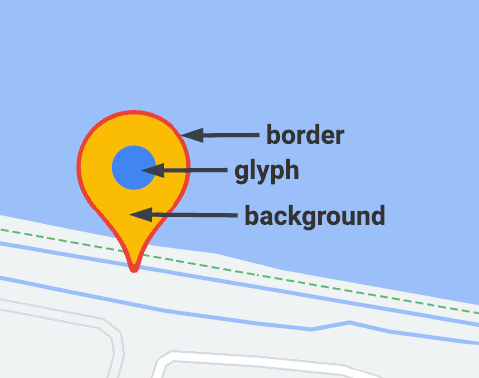
Điểm đánh dấu nâng cao sử dụng 2 lớp để xác định điểm đánh dấu: lớp AdvancedMarkerElement cung cấp các tham số cơ bản (position, title và map) và lớp PinElement chứa các tuỳ chọn để tuỳ chỉnh thêm.
Để thêm điểm đánh dấu vào bản đồ, trước tiên, bạn phải
tải thư viện marker
cung cấp các lớp AdvancedMarkerElement
và PinElement.
Đoạn mã sau đây cho thấy mã để tạo PinElement mới, sau đó áp dụng mã đó cho điểm đánh dấu.
// Create a pin element.
const myPin = new PinElement({
    scale: 1.5,
});
// Create a marker.
const myMarker = new AdvancedMarkerElement({
    position: { lat: 37.4239163, lng: -122.0947209 },
});
// Append the pin to the marker.
myMarker.append(myPin);
// Append the marker to the map.
mapElement.append(myMarker);
Trong bản đồ được tạo bằng các phần tử HTML tuỳ chỉnh, các tham số cơ bản cho điểm đánh dấu được khai báo bằng phần tử HTML gmp-advanced-marker; mọi hoạt động tuỳ chỉnh sử dụng lớp PinElement đều phải được áp dụng theo phương thức lập trình. Để thực hiện việc này, mã của bạn phải truy xuất các phần tử gmp-advanced-marker từ trang HTML. Đoạn mã sau đây cho thấy mã để truy vấn một tập hợp các phần tử gmp-advanced-marker, sau đó lặp lại các kết quả để áp dụng hoạt động tuỳ chỉnh đã được khai báo trong PinElement.
// Return an array of markers.
const advancedMarkers = [...document.querySelectorAll('gmp-advanced-marker')];

// Loop through the markers
for (let i = 0; i < advancedMarkers.length; i++) {
  const pin = new PinElement({
      scale: 2.0,
  });

  marker.append(pin);
}
Thêm văn bản tiêu đề
Văn bản tiêu đề xuất hiện khi con trỏ di chuột qua điểm đánh dấu. Trình đọc màn hình có thể đọc được văn bản tiêu đề.
Để thêm văn bản tiêu đề theo phương thức lập trình, hãy sử dụng tuỳ chọn AdvancedMarkerElement.title:
// Default marker with title text (no PinElement). const markerWithText = new AdvancedMarkerElement({ position: { lat: 37.419, lng: -122.03 }, title: 'Title text for the marker at lat: 37.419, lng: -122.03', }); mapElement.append(markerWithText);
Để thêm văn bản tiêu đề vào điểm đánh dấu được tạo bằng các phần tử HTML tuỳ chỉnh, hãy sử dụng thuộc tính title:
<gmp-map
center="41.027748173921374, -92.41852445367961"
zoom="13"
map-id="DEMO_MAP_ID">
<gmp-advanced-marker
position="41.027748173921374, -92.41852445367961"
title="Ottumwa, IA"></gmp-advanced-marker>
</gmp-map>Điều chỉnh tỷ lệ điểm đánh dấu
Để điều chỉnh tỷ lệ điểm đánh dấu, hãy sử dụng tuỳ chọn scale.
TypeScript
// Adjust the scale. const pinScaled = new PinElement({ scale: 1.5, }); const markerScaled = new AdvancedMarkerElement({ position: { lat: 37.419, lng: -122.02 }, }); markerScaled.append(pinScaled); mapElement.append(markerScaled);
JavaScript
// Adjust the scale. const pinScaled = new PinElement({ scale: 1.5, }); const markerScaled = new AdvancedMarkerElement({ position: { lat: 37.419, lng: -122.02 }, }); markerScaled.append(pinScaled); mapElement.append(markerScaled);
Thay đổi màu nền
Sử dụng tuỳ chọn PinElement.background để thay đổi màu nền của điểm đánh dấu:
TypeScript
// Change the background color. const pinBackground = new PinElement({ background: '#FBBC04', }); const markerBackground = new AdvancedMarkerElement({ position: { lat: 37.419, lng: -122.01 }, }); markerBackground.append(pinBackground); mapElement.append(markerBackground);
JavaScript
// Change the background color. const pinBackground = new PinElement({ background: '#FBBC04', }); const markerBackground = new AdvancedMarkerElement({ position: { lat: 37.419, lng: -122.01 }, }); markerBackground.append(pinBackground); mapElement.append(markerBackground);
Thay đổi màu đường viền
Sử dụng tuỳ chọn PinElement.borderColor để thay đổi màu đường viền của điểm đánh dấu:
TypeScript
// Change the border color. const pinBorder = new PinElement({ borderColor: '#137333', }); const markerBorder = new AdvancedMarkerElement({ position: { lat: 37.415, lng: -122.035 }, }); markerBorder.append(pinBorder); mapElement.append(markerBorder);
JavaScript
// Change the border color. const pinBorder = new PinElement({ borderColor: '#137333', }); const markerBorder = new AdvancedMarkerElement({ position: { lat: 37.415, lng: -122.035 }, }); markerBorder.append(pinBorder); mapElement.append(markerBorder);
Thay đổi màu biểu tượng
Sử dụng tuỳ chọn PinElement.glyphColor để thay đổi màu biểu tượng của điểm đánh dấu:
TypeScript
// Change the glyph color. const pinGlyph = new PinElement({ glyphColor: 'white', }); const markerGlyph = new AdvancedMarkerElement({ position: { lat: 37.415, lng: -122.025 }, }); markerGlyph.append(pinGlyph); mapElement.append(markerGlyph);
JavaScript
// Change the glyph color. const pinGlyph = new PinElement({ glyphColor: 'white', }); const markerGlyph = new AdvancedMarkerElement({ position: { lat: 37.415, lng: -122.025 }, }); markerGlyph.append(pinGlyph); mapElement.append(markerGlyph);
Sử dụng văn bản trong biểu tượng
Sử dụng tuỳ chọn PinElement.glyphText để thay thế biểu tượng mặc định bằng ký tự văn bản. Biểu tượng văn bản của PinElement điều chỉnh tỷ lệ theo PinElement và màu mặc định của biểu tượng này khớp với glyphColor mặc định của PinElement.
TypeScript
const pinTextGlyph = new PinElement({ glyphText: 'T', glyphColor: 'white', }); const markerGlyphText = new AdvancedMarkerElement({ position: { lat: 37.415, lng: -122.015 }, }); markerGlyphText.append(pinTextGlyph); mapElement.append(markerGlyphText);
JavaScript
const pinTextGlyph = new PinElement({ glyphText: 'T', glyphColor: 'white', }); const markerGlyphText = new AdvancedMarkerElement({ position: { lat: 37.415, lng: -122.015 }, }); markerGlyphText.append(pinTextGlyph); mapElement.append(markerGlyphText);
Ẩn biểu tượng
Đặt tuỳ chọn PinElement.glyphText thành chuỗi trống để ẩn biểu tượng của điểm đánh dấu:
TypeScript
// Hide the glyph. const pinNoGlyph = new PinElement({ glyphText: '', }); const markerNoGlyph = new AdvancedMarkerElement({ position: { lat: 37.415, lng: -122.005 }, }); markerNoGlyph.append(pinNoGlyph); mapElement.append(markerNoGlyph);
JavaScript
// Hide the glyph. const pinNoGlyph = new PinElement({ glyphText: '', }); const markerNoGlyph = new AdvancedMarkerElement({ position: { lat: 37.415, lng: -122.005 }, }); markerNoGlyph.append(pinNoGlyph); mapElement.append(markerNoGlyph);
Ngoài ra, hãy đặt PinElement.glyphColor thành cùng giá trị với PinElement.background. Điều này có tác dụng ẩn biểu tượng một cách trực quan.