
Add a Search profile badge to your website
If you're a website owner, publisher, or creator with a Search profile, you can add a badge to your website to help your audience find your Search profile.
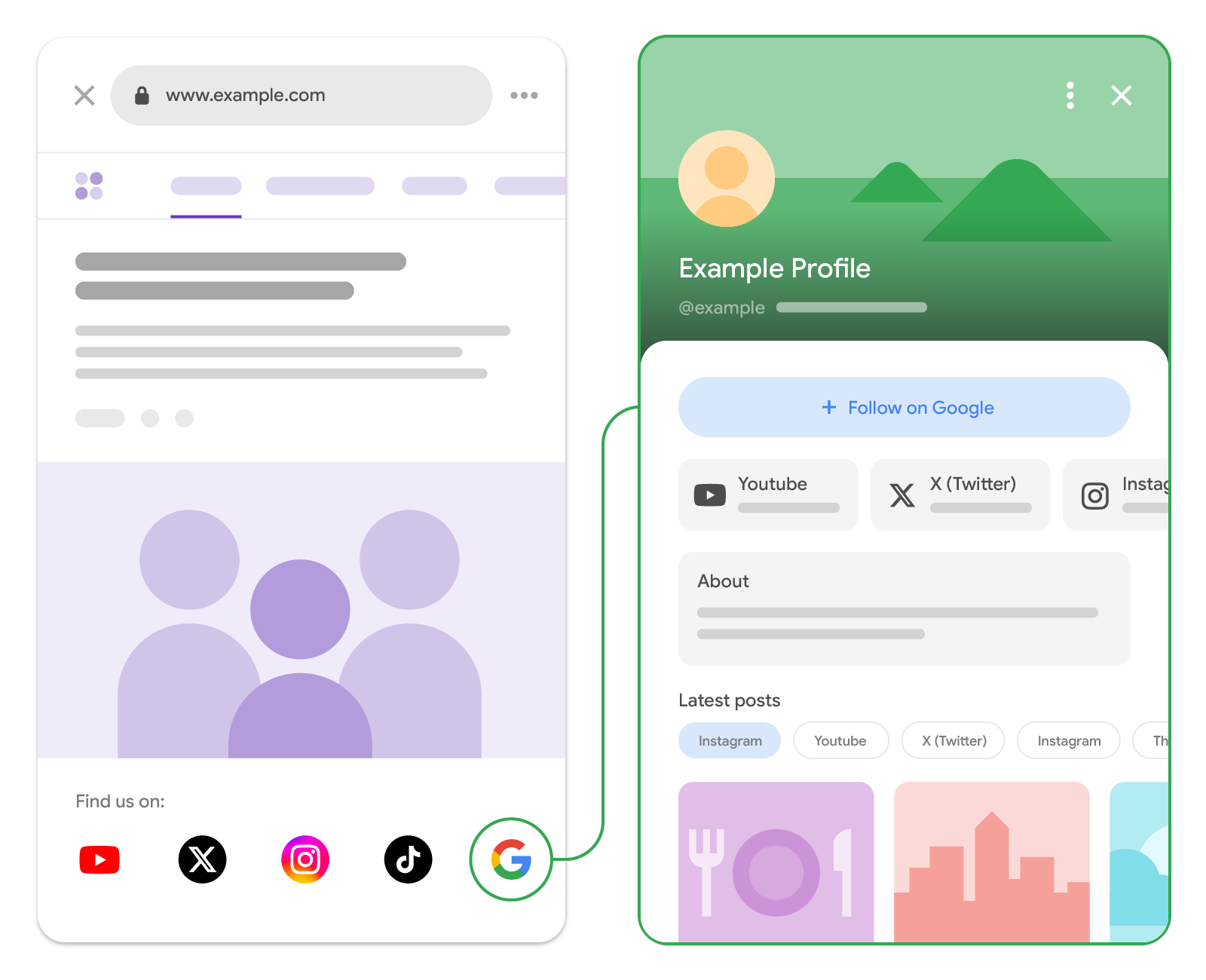
How Search profiles work on Google
A Search profile brings together your content from across the web and social platforms into a single destination on Google. When readers follow your Search profile, it makes your content that's linked on your Search profile (such as your content on Instagram, TikTok, YouTube, X, Facebook, and your website) more likely to appear for your audience on Google Discover.
Add a Search profile badge to your website
After you've claimed your Search profile, you can encourage your audience to find your content from across the web by adding a Search profile badge to your website:
-
Find your Search profile URL. Use the following URL
pattern, replacing
handlewith your profile handle:https://profile.google.com/@handle - Download the Search profile badge assets and follow brand guidelines when deciding where to place the badge on your site.
-
Add the following HTML snippet to your site:
<a href="https://profile.google.com/@example"
   aria-label="Find us on Google Search">
  <img src="/path/to/google-search-badge.svg" alt="Google Search">
</a>
Alternative option: If you prefer a text link in article bylines, newsletters, or bio links, use the following snippet:
<a href="https://profile.google.com/@example">Find us on Google Search</a>
Follow brand guidelines and best practices
When adding a Search profile badge to your site, follow these brand guidelines and best practices:
- Ensure accessible touch targets: Keep the clickable target at least 48 × 48 dp on Android and 44 × 44 px on iOS and web.
- Preserve logo integrity: If you're using the official assets from Google, don't stretch, distort, rotate, or alter the colors of the "Super G" icon and Search profile button.
- Avoid mixing and matching monochrome badges with colorful badges: For example, if you're using monochrome for all icons, use the monochrome "G" icon.
- Maintain badge clarity: If you want to use both the Search profile badge and Preferred Sources badge together, use the higher emphasis Search profile button with the label for clarity and distinction from the Preferred Sources badge. Don't use the "Super G" icon for the Search profile paired with the Preferred Sources badge.
Troubleshooting
If you're having trouble adding the badge to your website, post a question in the Google Search Central Help Community.