

במדריך הזה מוסבר איך להוסיף לאפליקציה ל-Android מפה עם סגנון אישי לאפליקציה ל-Android. המדריך משתמש במצב לילה כדוגמה לסגנון אישי.
אפשרויות הסגנון מאפשרות לכם להתאים אישית את הסגנונות הרגילים של מפות Google, ולשנות את התצוגה החזותית של מאפיינים כמו כבישים, פארקים, עסקים ונקודות עניין אחרות. כלומר, אתם יכולים להדגיש רכיבים מסוימים במפה או להתאים את המפה לסגנון של האפליקציה.
אפשר לעצב רק את סוג המפה normal. העיצוב לא משפיע על מפות פנימיות.
קבל את הקוד
משכפלים או מורידים את המאגר Google Maps Android API v2 Samples מ-GitHub.
הגדרת פרויקט הפיתוח
כדי ליצור את פרויקט המדריך ב-Android Studio, פועלים לפי השלבים הבאים.
- מורידים ומתקינים את Android Studio.
- מוסיפים את החבילה Google Play Services ל-Android Studio.
- משכפלים או מורידים את מאגר הדוגמאות של Google Maps Android API v2, אם לא עשיתם את זה כשהתחלתם לקרוא את המדריך הזה.
מייבאים את פרויקט המדריך:
- ב-Android Studio, בוחרים באפשרות File > New > Import Project (קובץ > חדש > ייבוא פרויקט).
- עוברים למיקום שבו שמרתם את מאגר הדוגמאות של Google Maps Android API v2 אחרי שהורדתם אותו.
- מאתרים את הפרויקט StyledMap במיקום הזה:
PATH-TO-SAVED-REPO/android-samples/tutorials/StyledMap - בוחרים את ספריית הפרויקט ולוחצים על OK (אישור). עכשיו Android Studio יוצר את הפרויקט באמצעות כלי ה-build של Gradle.
קבלת מפתח API והפעלת ממשקי ה-API הנדרשים
כדי להשלים את המדריך הזה, אתם צריכים מפתח Google API עם הרשאה להשתמש ב-SDK של מפות ל-Android.
כדי לקבל מפתח ולהפעיל את ה-API, לוחצים על הכפתור שלמטה.
פרטים נוספים זמינים במדריך קבלת מפתח API.
הוספת מפתח ה-API לאפליקציה
- עורכים את הקובץ
gradle.propertiesשל הפרויקט. מדביקים את מפתח ה-API בערך של המאפיין
GOOGLE_MAPS_API_KEY. כשמפתחים את האפליקציה, Gradle מעתיק את מפתח ה-API למניפסט של האפליקציה ל-Android.GOOGLE_MAPS_API_KEY=PASTE-YOUR-API-KEY-HERE
יוצרים ומריצים את האפליקציה
- מחברים מכשיר Android למחשב. פועלים לפי ההוראות כדי להפעיל את אפשרויות למפתחים במכשיר Android ולהגדיר את המערכת לזיהוי המכשיר. (לחלופין, אפשר להשתמש ב-Android Virtual Device (AVD) Manager כדי להגדיר מכשיר וירטואלי. כשבוחרים אמולטור, חשוב לבחור קובץ אימג' שכולל את Google APIs. לפרטים נוספים, קראו את המדריך לתחילת העבודה.
- ב-Android Studio, לוחצים על האפשרות Run בתפריט (או על סמל ההפעלה). בוחרים מכשיר לפי ההנחיות.
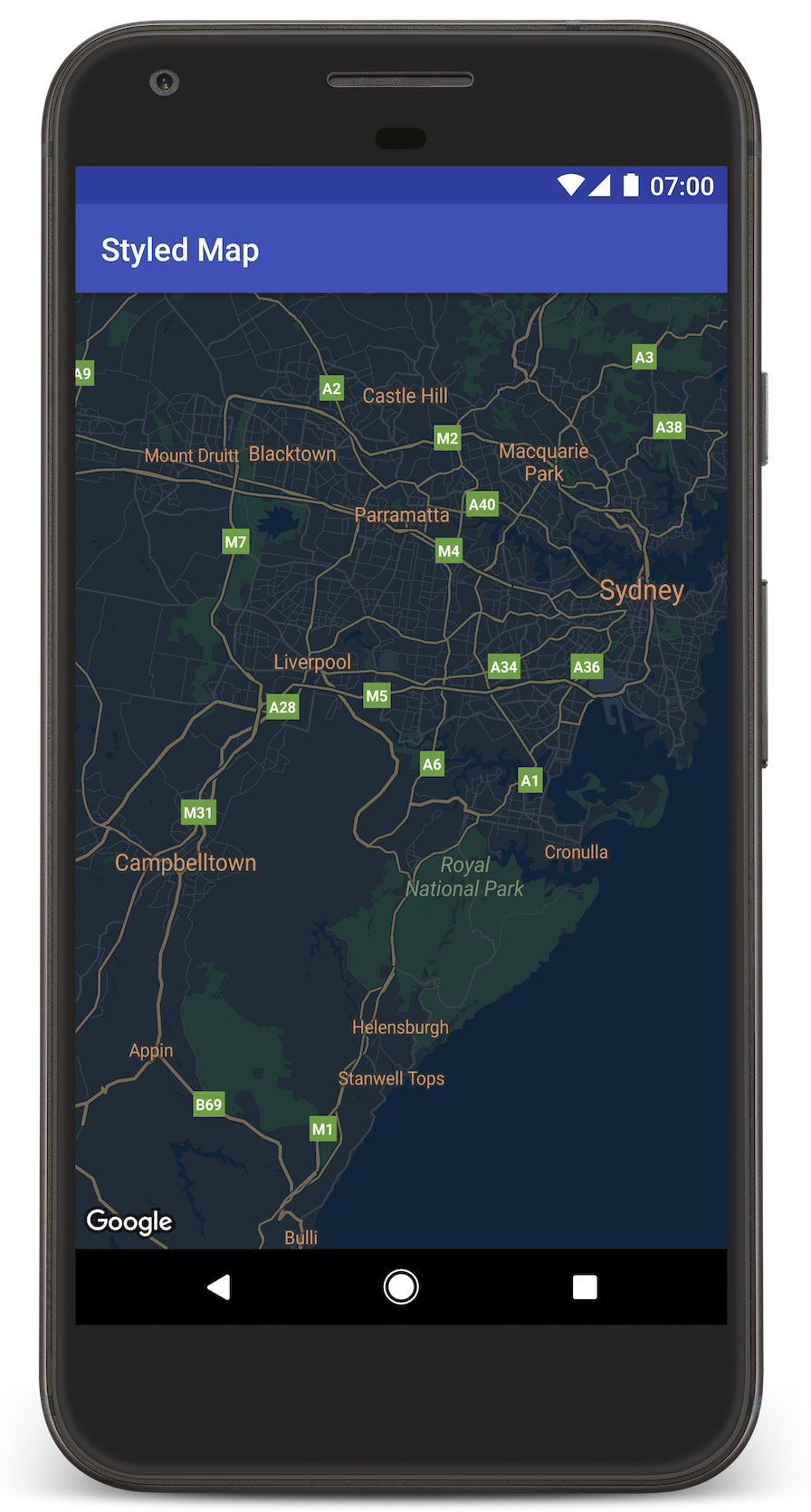
Android Studio מפעיל את Gradle כדי ליצור את האפליקציה, ואז מריץ את האפליקציה במכשיר או באמולטור. אמורה להופיע מפה בעיצוב כהה (מצב לילה), בדומה לתמונה שבדף הזה.
פתרון בעיות:
- אם המפה לא מופיעה, צריך לוודא שקיבלתם מפתח API והוספתם אותו לאפליקציה, כמו שמתואר למעלה. בודקים את הכניסה ב-Android Monitor של Android Studio כדי לראות הודעות שגיאה לגבי מפתח ה-API.
- משתמשים בכלים לניפוי באגים של Android Studio כדי להציג יומנים ולנפות באגים באפליקציה.
הבנת הקוד
בחלק הזה של המדריך מוסברים החלקים החשובים ביותר באפליקציה StyledMap, כדי לעזור לכם להבין איך ליצור אפליקציה דומה.
הוספת משאב שמכיל אובייקט סגנון בפורמט JSON
מוסיפים לפרויקט הפיתוח משאב שמכיל את הצהרות הסגנון בפורמט JSON. אפשר להשתמש במשאב גולמי או במחרוזת, כמו בדוגמאות הבאות.
משאב גולמי
מגדירים משאב גולמי ב-/res/raw/style_json.json, שמכיל את הצהרת הסגנון ב-JSON לעיצוב מצב לילה:
משאב מחרוזת
מגדירים משאב מחרוזת ב-/res/values/style_strings.xml, שמכיל את הצהרת הסגנון ב-JSON לסגנון של מצב לילה. במדריך הזה משתמשים בשם המחרוזת style_json. בקובץ הזה צריך להשתמש בלוכסן הפוך כדי להוסיף תו בריחה למירכאות:
העברת אובייקט סגנון בפורמט JSON למפה
כדי לעצב את המפה, מפעילים את GoogleMap.setMapStyle() ומעבירים אובייקט MapStyleOptions שמכיל את הצהרות הסגנון בפורמט JSON.
משאב גולמי
בדוגמת הקוד הבאה, אנחנו מניחים שהפרויקט מכיל משאב גולמי בשם style_json:
// Copyright 2020 Google LLC
//
// Licensed under the Apache License, Version 2.0 (the "License");
// you may not use this file except in compliance with the License.
// You may obtain a copy of the License at
//
//      http://www.apache.org/licenses/LICENSE-2.0
//
// Unless required by applicable law or agreed to in writing, software
// distributed under the License is distributed on an "AS IS" BASIS,
// WITHOUT WARRANTIES OR CONDITIONS OF ANY KIND, either express or implied.
// See the License for the specific language governing permissions and
// limitations under the License.

package com.example.styledmap;

import android.content.res.Resources;
import android.os.Bundle;
import android.util.Log;
import androidx.appcompat.app.AppCompatActivity;
import com.google.android.gms.maps.CameraUpdateFactory;
import com.google.android.gms.maps.GoogleMap;
import com.google.android.gms.maps.OnMapReadyCallback;
import com.google.android.gms.maps.SupportMapFragment;
import com.google.android.gms.maps.model.LatLng;
import com.google.android.gms.maps.model.MapStyleOptions;

/** A styled map using JSON styles from a raw resource. */
public class MapsActivityRaw extends AppCompatActivity implements OnMapReadyCallback {

    private static final String TAG = MapsActivityRaw.class.getSimpleName();

    @Override
    protected void onCreate(Bundle savedInstanceState) {
        super.onCreate(savedInstanceState);
        // Retrieve the content view that renders the map.
        setContentView(R.layout.activity_maps_raw);

        // Get the SupportMapFragment and register for the callback
        // when the map is ready for use.
        SupportMapFragment mapFragment =
                (SupportMapFragment) getSupportFragmentManager().findFragmentById(R.id.map);
        mapFragment.getMapAsync(this);
    }

    /**
     * Manipulates the map when it's available. The API invokes this callback when the map is ready
     * for use.
     */
    @Override
    public void onMapReady(GoogleMap googleMap) {

        try {
            // Customise the styling of the base map using a JSON object defined
            // in a raw resource file.
            boolean success =
                    googleMap.setMapStyle(
                            MapStyleOptions.loadRawResourceStyle(this, R.raw.style_json));

            if (!success) {
                Log.e(TAG, "Style parsing failed.");
            }
        } catch (Resources.NotFoundException e) {
            Log.e(TAG, "Can't find style. Error: ", e);
        }
        // Position the map's camera near Sydney, Australia.
        googleMap.moveCamera(CameraUpdateFactory.newLatLng(new LatLng(-34, 151)));
    }
}
הפריסה (activity_maps_raw.xml) נראית כך:
משאב מחרוזת
בדוגמת הקוד הבאה, אנחנו מניחים שהפרויקט מכיל משאב מחרוזת בשם style_json:
package com.example.styledmap;

import android.os.Bundle;
import android.support.v7.app.AppCompatActivity;
import android.util.Log;

import com.google.android.gms.maps.CameraUpdateFactory;
import com.google.android.gms.maps.GoogleMap;
import com.google.android.gms.maps.OnMapReadyCallback;
import com.google.android.gms.maps.SupportMapFragment;
import com.google.android.gms.maps.model.LatLng;
import com.google.android.gms.maps.model.MapStyleOptions;

/**
 * A styled map using JSON styles from a string resource.
 */
public class MapsActivityString extends AppCompatActivity
        implements OnMapReadyCallback {

    private static final String TAG = MapsActivityString.class.getSimpleName();

    @Override
    protected void onCreate(Bundle savedInstanceState) {
        super.onCreate(savedInstanceState);
        // Retrieve the content view that renders the map.
        setContentView(R.layout.activity_maps_string);

        // Get the SupportMapFragment and register for the callback
        // when the map is ready for use.
        SupportMapFragment mapFragment =
                (SupportMapFragment) getSupportFragmentManager()
                        .findFragmentById(R.id.map);
        mapFragment.getMapAsync(this);
    }

    /**
     * Manipulates the map when it's available.
     * The API invokes this callback when the map is ready for use.
     */
    @Override
    public void onMapReady(GoogleMap googleMap) {

        // Customise the styling of the base map using a JSON object defined
        // in a string resource file. First create a MapStyleOptions object
        // from the JSON styles string, then pass this to the setMapStyle
        // method of the GoogleMap object.
        boolean success = googleMap.setMapStyle(new MapStyleOptions(getResources()
                .getString(R.string.style_json)));

        if (!success) {
            Log.e(TAG, "Style parsing failed.");
        }
        // Position the map's camera near Sydney, Australia.
        googleMap.moveCamera(CameraUpdateFactory.newLatLng(new LatLng(-34, 151)));
    }
}
הפריסה (activity_maps_string.xml) נראית כך:
מידע נוסף על הצהרות סגנון ב-JSON
במפות מסוגננות משתמשים בשני מושגים כדי להחיל צבעים ושינויים אחרים בסגנון של המפה:
- בוררים מציינים את הרכיבים הגיאוגרפיים שאפשר לעצב במפה. הם כוללים כבישים, פארקים, מקווי מים ועוד, וגם את התוויות שלהם. הבוררים כוללים תכונות ורכיבים, שצוינו כמאפיינים של
featureTypeו-elementType. - מעצבים הם מאפייני צבע ונראות שאפשר להחיל על רכיבי מפה. הם מגדירים את הצבע שמוצג באמצעות שילוב של גוון, צבע, בהירות וערכי גמא.
בהפניית הסגנון מופיע תיאור מפורט של אפשרויות העיצוב ב-JSON.
אשף העיצוב של הפלטפורמה של מפות Google





אפשר להשתמש באשף העיצוב של הפלטפורמה של מפות Google כדי ליצור במהירות אובייקט עיצוב בפורמט JSON. SDK של מפות ל-Android תומך באותן הצהרות סגנון כמו Maps JavaScript API.
השלב הבא
איך מסתירים תכונות במפה באמצעות עיצוב