
This document provides best practices for defining SelectedRoutes using the Road Selection API for the Roads Management Insights (RMI) product. Properly defining your SelectedRoutes is the most critical step to ensure you receive accurate and reliable traffic data for the road segments you intend to monitor. For a complete technical overview, please refer to the official Road Selection API documentation.
Core principles of SelectedRoute Creation
When defining a SelectedRoute for monitoring, you should adhere to the following principles to ensure SelectedRoute accuracy and data validity.
1. Be specific to Side-of-Road
A SelectedRoute should represent a single direction of travel. For divided highways or roads with a median, you should create separate SelectedRoute objects for each direction (e.g., one for northbound, one for southbound). Ensure your origin, destination, and any intermediate waypoints are placed on the correct side of the road for the direction you want to monitor. An origin or destination placed on the wrong side of a divided highway can lead to unintended SelectedRoutes or data errors.
2. Handle Multi-Level Roads and overpasses
On complex roadways with multiple levels (e.g., stacked highways, overpasses, complex interchanges), a single latitude and longitude pair may be ambiguous and could result in the route being "snapped" to the wrong level. To prevent this, you should use intermediate waypoints to guide the route onto the correct road segment and level. Adding one or more waypoints ensures the route follows your exact intent.
3. Define Valid start and end points
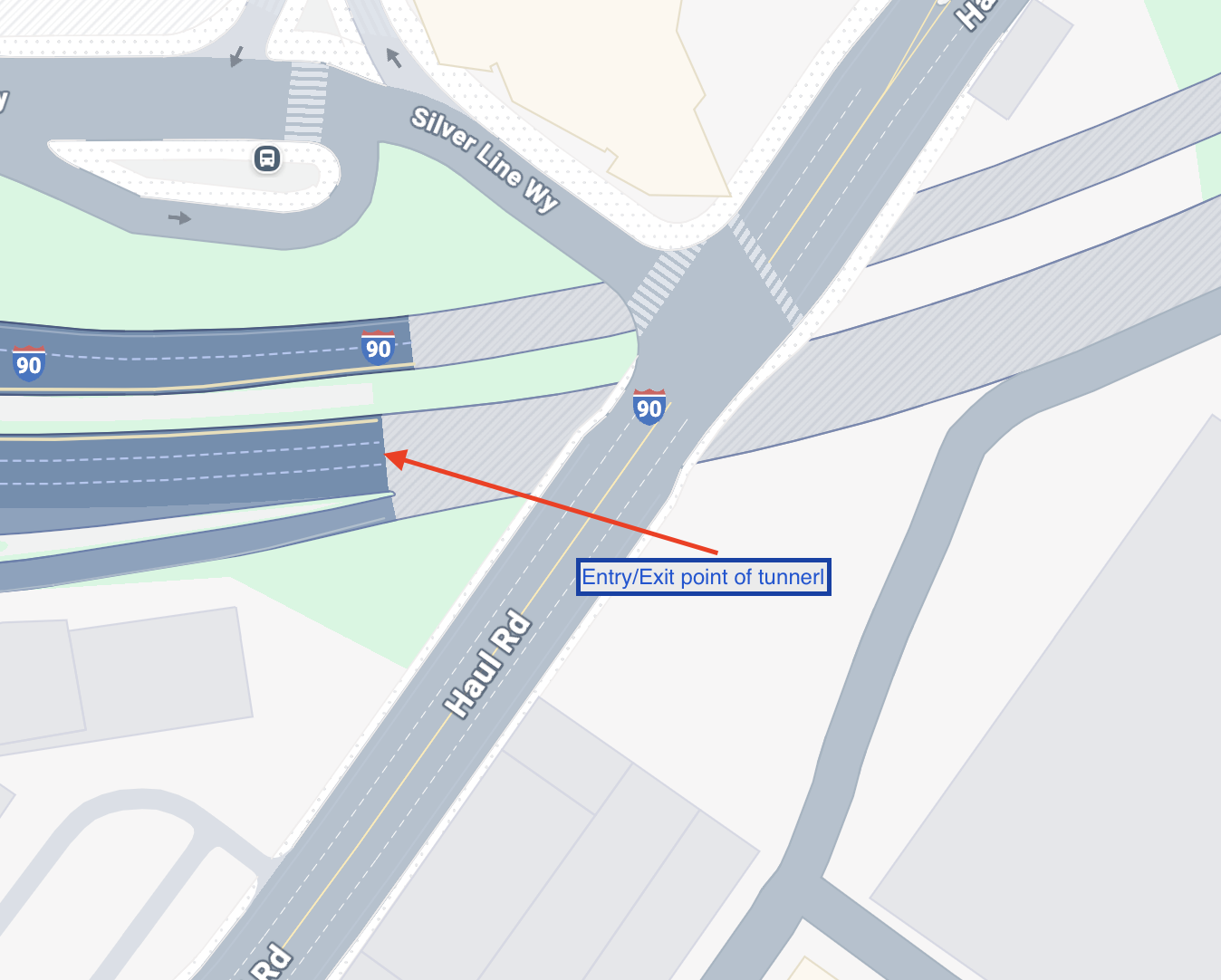
A SelectedRoute cannot start or end inside a tunnel. The origin and destination points for your SelectedRoute should be in open-air locations. SelectedRoutes that traverse tunnels are supported, but the monitoring segment itself cannot begin or end within one.
4. Define Appropriate Route Lengths
A SelectedRoute is flexible and can be defined at various scales:
- Short Routes: A SelectedRoute can be as small as a single city block, which is useful for granular analysis in urban areas.
- Uniform Routes: You can define SelectedRoutes of equal distances (e.g., every 0.5 miles) for consistent reporting.
- Long Routes: A SelectedRoute can cover a long, continuous stretch of road. This is ideal for monitoring entire highway corridors or major arterial roads between significant intersections.
Choose the SelectedRoute length that best matches your monitoring and analysis needs.
5. Identify Road Segments with Vertical Separation (Tunnels, Flyovers, Bridges, etc.)
When defining road segments using latitude and longitude coordinates, it is crucial to account for scenarios where multiple road segments occupy the same two-dimensional geographic space but are vertically separated. This often occurs with structures such as tunnels, flyovers, overpasses, and bridges. Simply relying on latitude and longitude without considering elevation can lead to inaccuracies in SelectedRoute selection and navigation. For example, a road passing through a tunnel will have the same overhead latitude and longitude as the road segment on the surface above it. Similarly, a flyover or bridge will share horizontal coordinates with the road beneath it. Failing to differentiate these vertically stacked segments can result in a routing system incorrectly directing traffic to a lower-level road when an upper-level road is intended, or vice-versa.
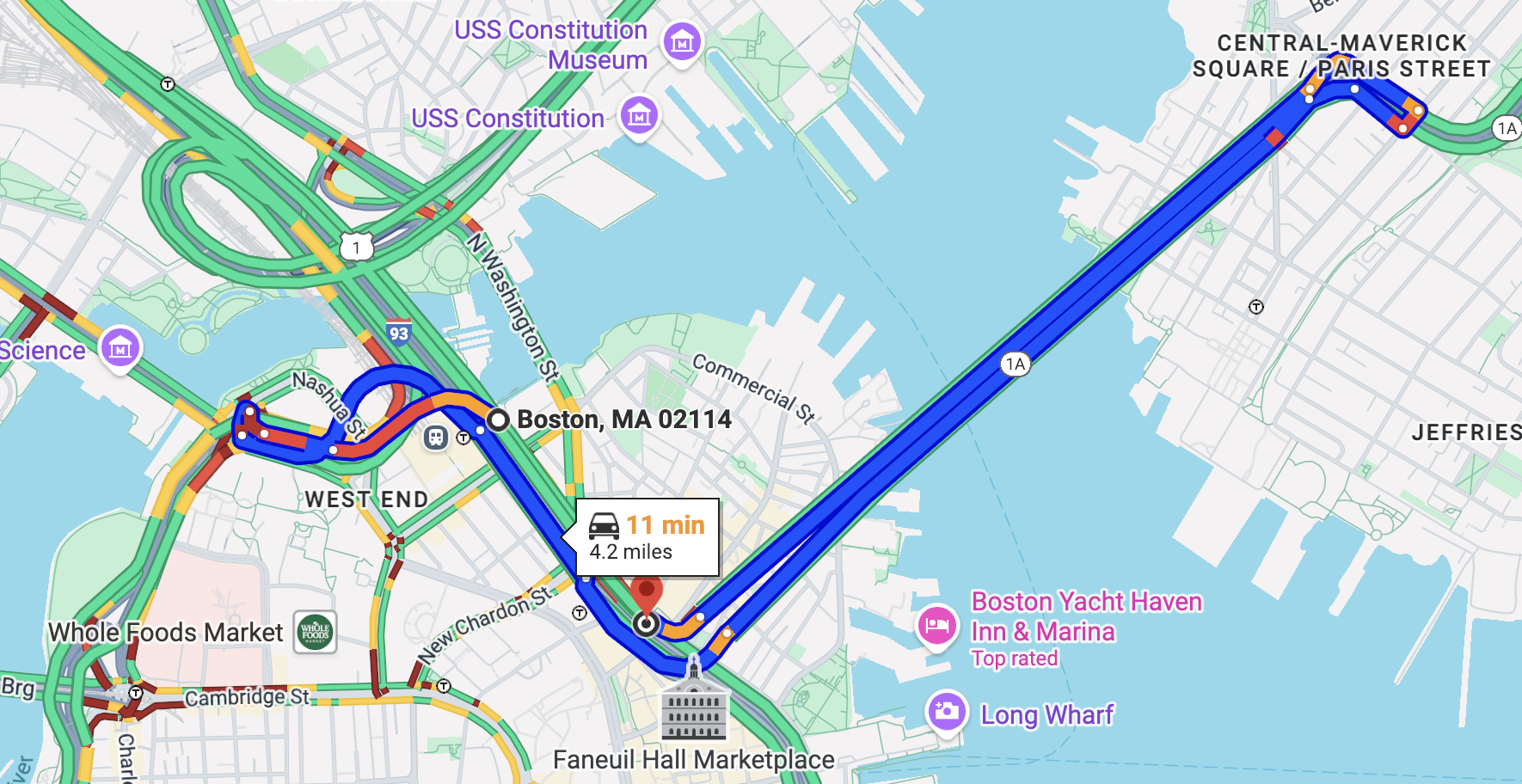
In this example in Boston at 42.362347, -71.055935 there is a huge tunnel called Big Dig.
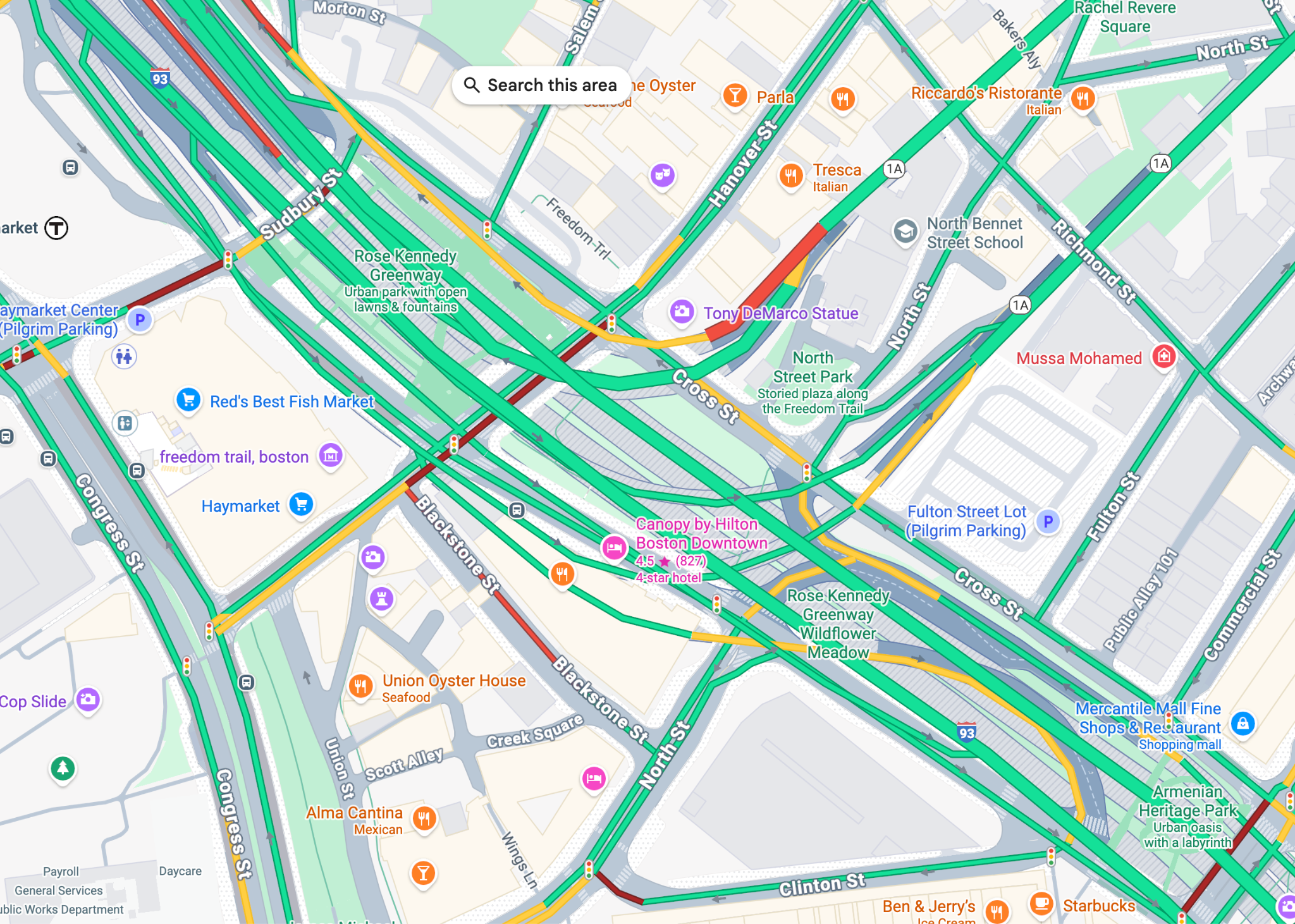
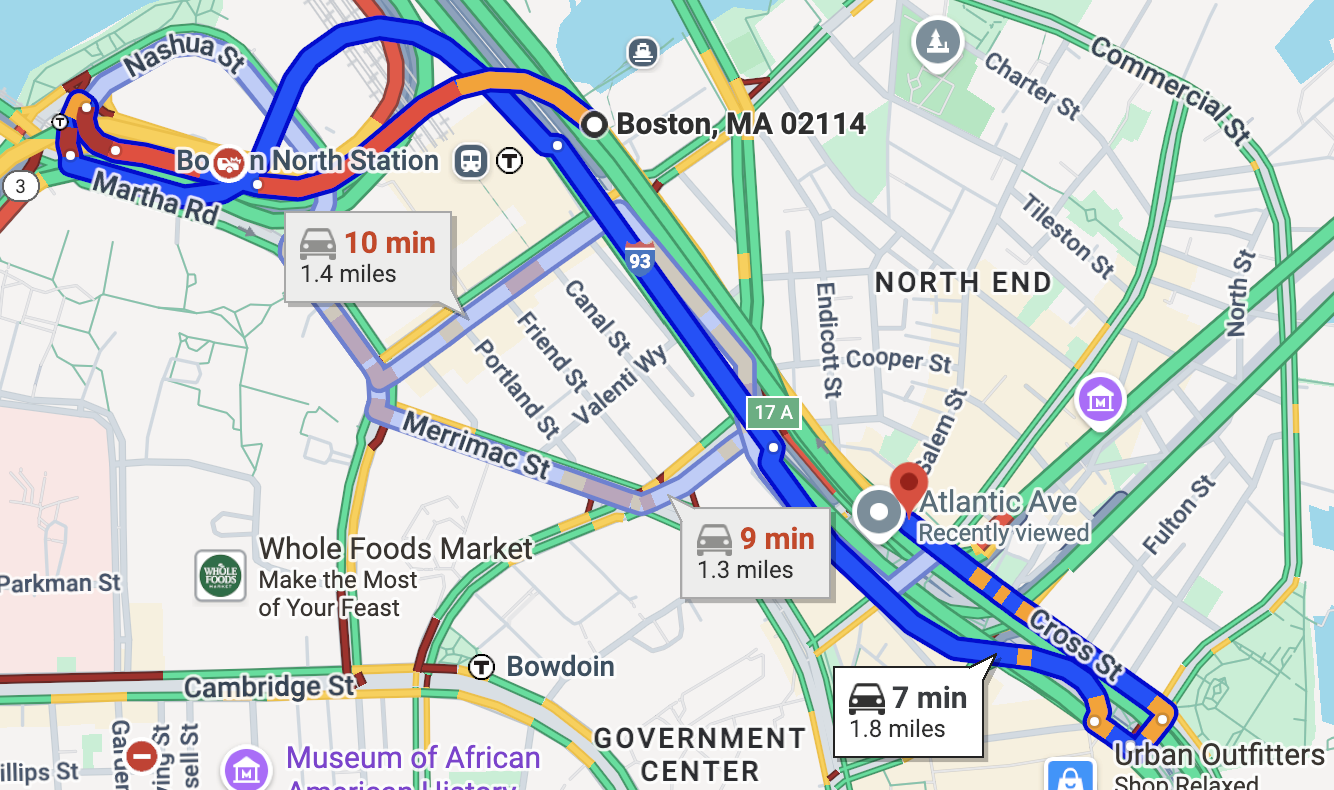
When we place a waypoint on a road, even a minor imprecision in its exact geographical coordinates can lead to a profoundly different route calculation. This sensitivity to waypoint placement is a critical factor in SelectedRoute selection algorithms.
For example, consider a scenario where a waypoint is initially set just inside a tunnel. If this waypoint's location is then ever so slightly adjusted to an adjacent access road, despite having nearly identical latitude and longitude coordinates, the routing engine may generate an entirely disparate route. This phenomenon underscores the importance of precise waypoint input and the complexities involved in route optimization, especially in areas with intricate road networks and geographical features.
6.Not all roads are trackable
Your SelectedRoute may not always be trackable
- Beyond registered "Jurisdiction"
- Low "Road Utility"
- This can result in trackability changing over time
Validation runs asynchronous ⇒ check if registered SelectedRoutes have all passed this
Best Practices for SelectedRoute Definition
Follow these best practices to improve the quality of your SelectedRoute definitions and the resulting data.
Use Intermediate Waypoints (Middle Points)
Even for short, seemingly simple SelectedRoutes, it is highly recommended to include at least one intermediate waypoint.
- Why?
- Guides Routing: Ensures your SelectedRoute follows the specific route you want, especially if alternative roads exist between the origin and destination.
- Enables Loops: Required to correctly represent loops or "out-and-back" SelectedRoutes where the origin and destination are the same.
- Improves Detour Detection: The more waypoints you provide, the easier it is to detect and flag data points where traffic may have deviated from your intended SelectedRoute.
- How?
- You can programmatically find a midpoint along a known SelectedRoute using geospatial functions.
- Example (BigQuery): Use the ST_LINEINTERPOLATEPOINT function.
- Example (JavaScript): Use the along function from the Turf.js library.
Match routes from external systems
If you are importing route data from an external GIS or a system built on a different road network, the coordinates may not align perfectly with Google's road network. This can result in "unintended routes."
- How to fix:
- Check side-of-Road: First, validate that your origin and start point is on the correct side of the road.
- Snap-to-road: Use the Roads API v2 matchPath method to snap your existing route data to Google's road network.
- Manually adjust & re-draw: Manually adjust your waypoints in a tool to match Google's roads. Then, use the Routes API computeRoute method (with traffic set to "unaware") to generate a clean polyline that follows Google's network.
- Trace: As a last resort, overlay your data on Google's road network in a GIS tool and manually trace the route to create new waypoints.
Data cleaning and Validation
The data you receive in BigQuery reflects real-world conditions. You should apply cleansing steps to filter out data that does not represent your core SelectedRoute.
Handle detours
The Routes API, which powers RMI, will always try to return a valid route. If
your intended SelectedRoute is blocked or severely congested, the API may return a route
that takes a detour and deviates from your defined intermediate waypoints. For
example, if your SelectedRoute specifies a route from A -> B -> C, a detour
might result in a returned route that travels directly from A -> C.
Example, if we plot this route: https://www.google.com/maps/dir/OR-213,+Oregon+City,+OR+97045/Caufield,+Oregon+City,+OR+97045/OR-213,+Oregon+City,+OR+97045/OR-213,+Oregon+City,+OR+97045/643+OR-213,+Oregon+City,+OR+97045/OR-213,+Oregon+City,+OR+97045/Oregon+City,+OR+97045/Washington+Dr,+Oregon+City,+OR+97045/@45.3754391,-122.5822044,15.2z/data=!4m50!4m49!1m5!1m1!1s0x549570b9f466b4a1:0x6390dd57f70701fd!2m2!1d-122.5787!2d45.3231933!1m5!1m1!1s0x549570ca19ded1b3:0xd28eaf8da19c4509!2m2!1d-122.5756369!2d45.3303343!1m5!1m1!1s0x549576c6b4992137:0xb6ed1e1848a8e2a5!2m2!1d-122.5841289!2d45.3640919!1m5!1m1!1s0x549576c0c48ee6f1:0x86497e036c5dd444!2m2!1d-122.5850086!2d45.3662193!1m5!1m1!1s0x549576bfbca6fa93:0xf6b573219354d3f!2m2!1d-122.5851045!2d45.3696112!1m5!1m1!1s0x549576be3782e5db:0xd0ea93d91e8a0792!2m2!1d-122.5857424!2d45.371047!1m5!1m1!1s0x5495769635216053:0x150f4a4f811b98d6!2m2!1d-122.5870571!2d45.3752342!1m5!1m1!1s0x54957697b928b269:0x2b114f280e6ab0f0!2m2!1d-122.5875209!2d45.3760557!3e0?entry=ttu&g_ep=EgoyMDI1MTAxMy4wIKXMDSoASAFQAw%3D%3D We can see a huge detour happening which is likely due to some road conditions, but if this not carefully corrected, it can lead to wrong data collection
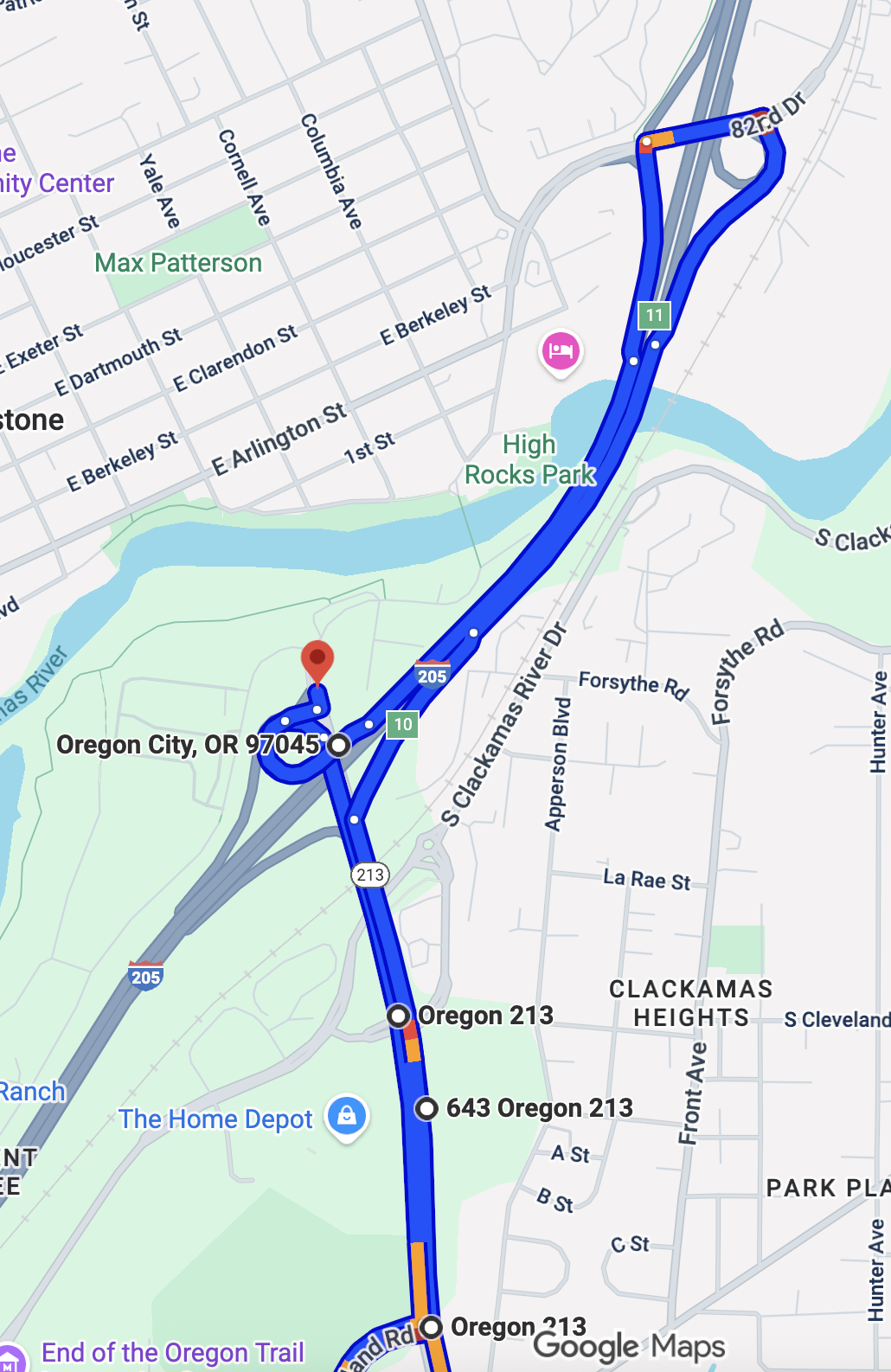
For RMI, these detoured records are less useful as they don't represent the specific SelectedRoute you are monitoring.
- Action: Do not just delete these rows. You should flag them for analysis to understand when and why detours are occurring.
- How to Flag Detours: There are two primary methods to
programmatically identify detours:
- Waypoint Mismatch: Check if the returned route geometry did not include all of your specified intermediate waypoints.
- Distance Discrepancy: Check if the returned route's
distanceis significantly different from the expected distance of yourSelectedRoute. A common threshold is a 5% difference.
- BigQuery Example for Flagging Detours: You can join your
SelectedRoutestable (which contains the expected distance) with theRouteResponsestable and use aCASEstatement to create a flag.
Handling "MultiLineString" Geometries
BigQuery's GEOGRAPHY data type has a limitation: it cannot store a single
LineString that overlaps itself (e.g., a curved U-turn, a route that doubles
back on itself due to a detour).
- Symptom: When this occurs, BigQuery saves the geometry as a
MultiLineString, and parts of the route may be missing. - Action: You should filter these records from your primary analysis.
- BigQuery Filter: Use
WHERE ST_GEOMETRYTYPE(route_geometry)
!= "ST_MultiLineString"
- BigQuery Filter: Use
- Solution:
- If the overlap is caused by a detour, the record can be filtered out as described above.
- If your intended SelectedRoute contains an overlap, you should redefine
it by splitting the SelectedRoute into two or more separate
SelectedRouteobjects.
Timezone Conversion
All timestamp data in the RMI BigQuery export is provided in Coordinated Universal Time (UTC). For reporting or analysis in a local timezone, you should convert these timestamps.
- BigQuery Example for Time Conversion: Use the
DATETIMEandTIMESTAMPfunctions to convert a UTC timestamp to a specific local timezone, such as 'America/Los_Angeles'.
Conclusion
By following the best practices outlined in this guide, you can ensure that your SelectedRoute definitions are accurate and robust, leading to reliable and actionable traffic data from the Roads Management Insights product. Properly defining routes, handling complex road geometries, and validating the resulting data are critical steps to leveraging the full potential of RMI for your road management needs.
Authors
Sarthak Gangopadhyay: Google Maps Devrel Naoya Moritani: Google Maps Devrel