
After you have created your agents, you can't permanently delete them. However, to focus on agents with live traffic and maintain a clean and organized workspace, you can manage your agents' visibility by archiving and unarchiving them.
Archiving an agent hides it from your primary list in the RCS for Business Developer Console.
Archiving is a visibility-only change. It does not delete the agent or affect its underlying launch state. You can unarchive an agent at any time to restore its visibility and continue management.
Archive or unarchive agents
To make sure that active agents are not accidentally hidden, the following rules apply:
- Eligibility: You can only archive agents that are in an inactive state:
UNLAUNCHED,SUSPENDED, orREJECTED. - Restrictions: You can't archive an agent that is
PENDINGorLAUNCHEDon any carrier. The Archive option is disabled for these agents.
Archive an agent
You can archive a single agent from either the Agents list or the Agent overview page in the RCS for Business Developer Console.
- Open the RCS for Business Developer Console.
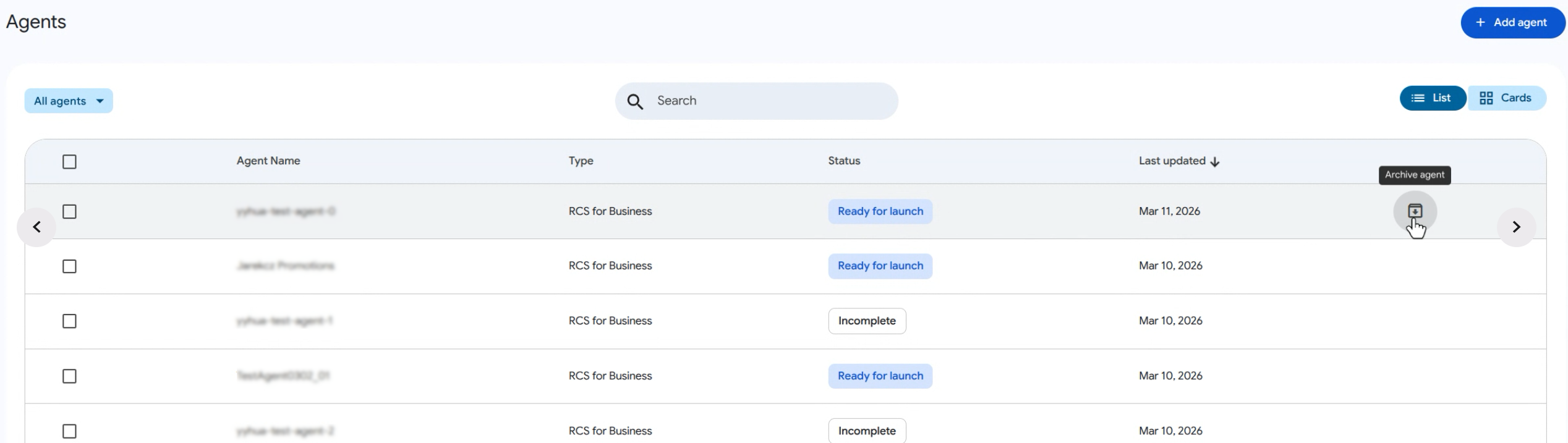
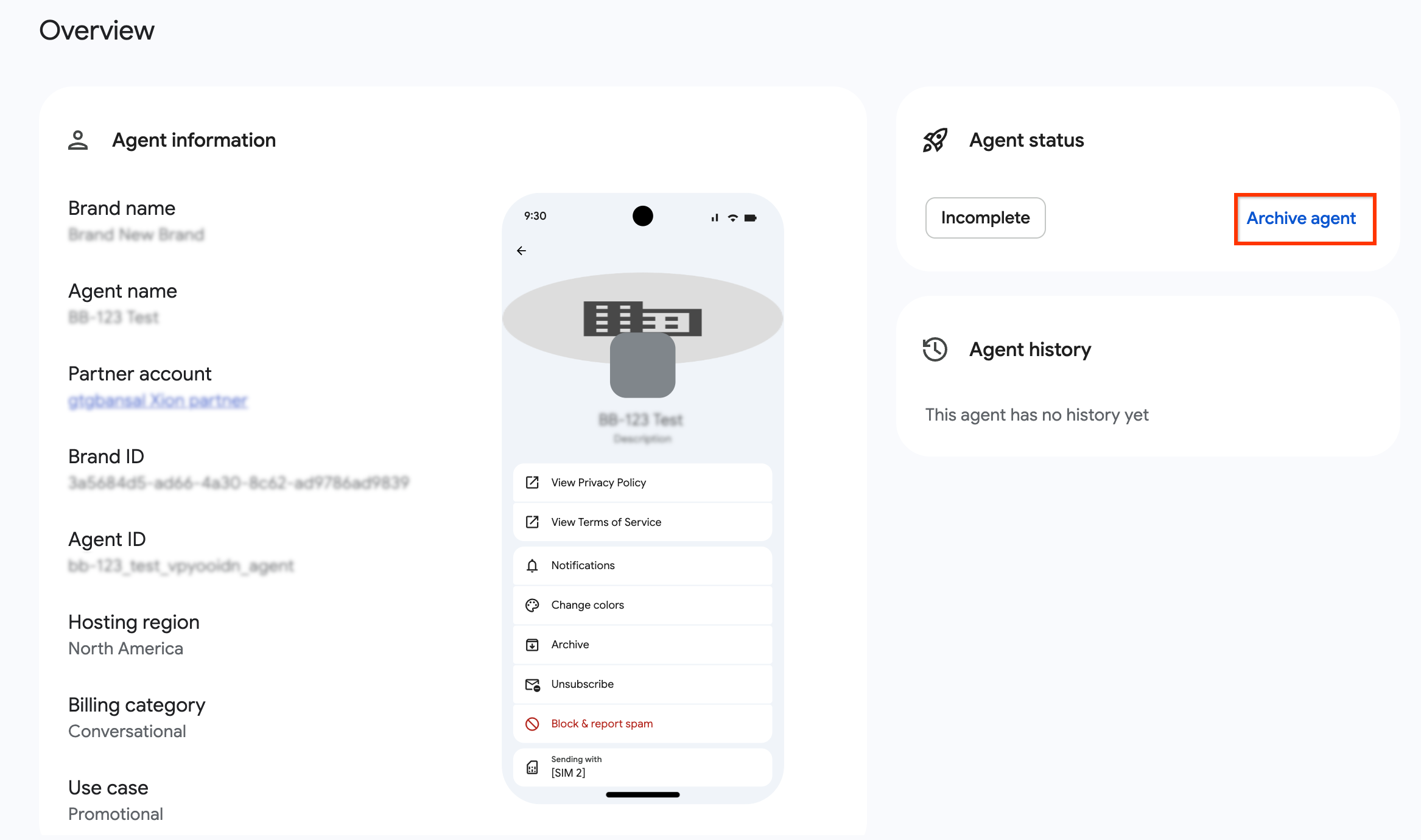
Navigate to the agent you want to archive and click Archive agent.
- In the Agents list, the Archive agent icon appears when you hover over the agent row.
- On the Agent overview page, the Archive agent button is located in the Agent status card.
In the confirmation dialog, review the 'Archive agent?' dialog.
Click Archive.
To see your archived agents, filter the agents table by the 'Archived' status.
Unarchive an agent
You can unarchive a single agent from either the Agents list or the Agent overview page in the RCS for Business Developer Console.
Unarchiving restores an agent to your primary agent list.
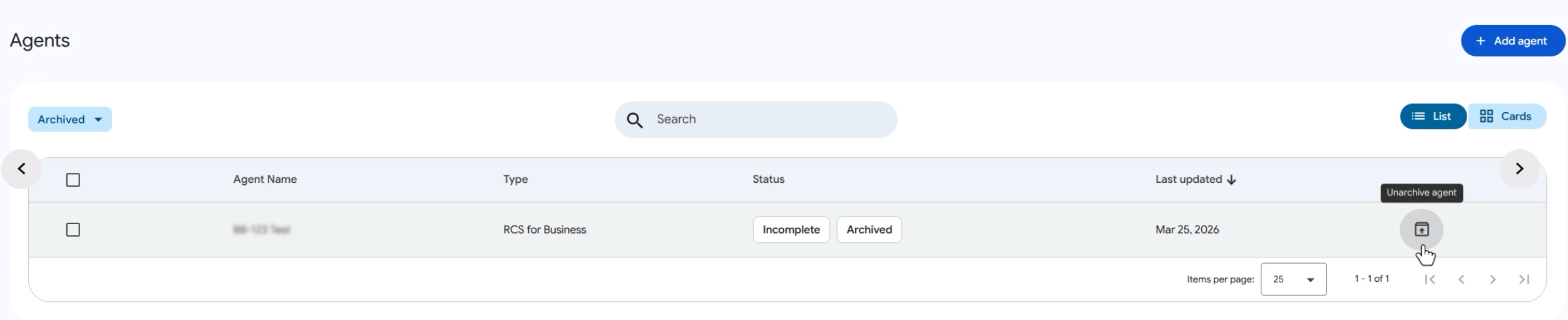
- In the Agents list, filter the agents table by the 'Archived' status.
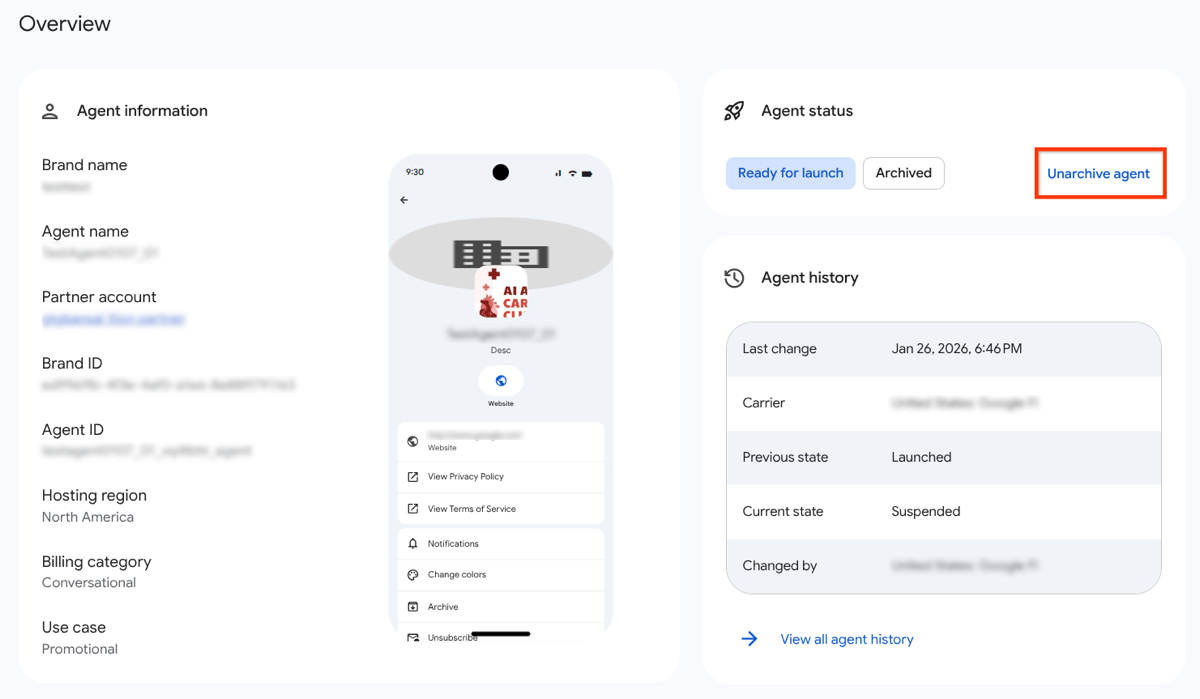
Navigate to the agent you want to unarchive and click Unarchive agent.
- In the Agents list, the Unarchive agent icon appears when you hover over the agent row.
- On the Agent overview page, the Unarchive agent button is located in the Agent status card.
In the confirmation dialog, review the 'Unarchive agent?' dialog.
Click Unarchive.
Bulk archive or unarchive
Important: You can manage the visibility of up to 100 agents simultaneously.
To bulk archive agents, use the Agents list in the RCS for Business Developer Console.
- In the Agents list, use the checkboxes to select the agents you want to modify.
- In the table header, click Archive.
- Confirm the action in the dialog.
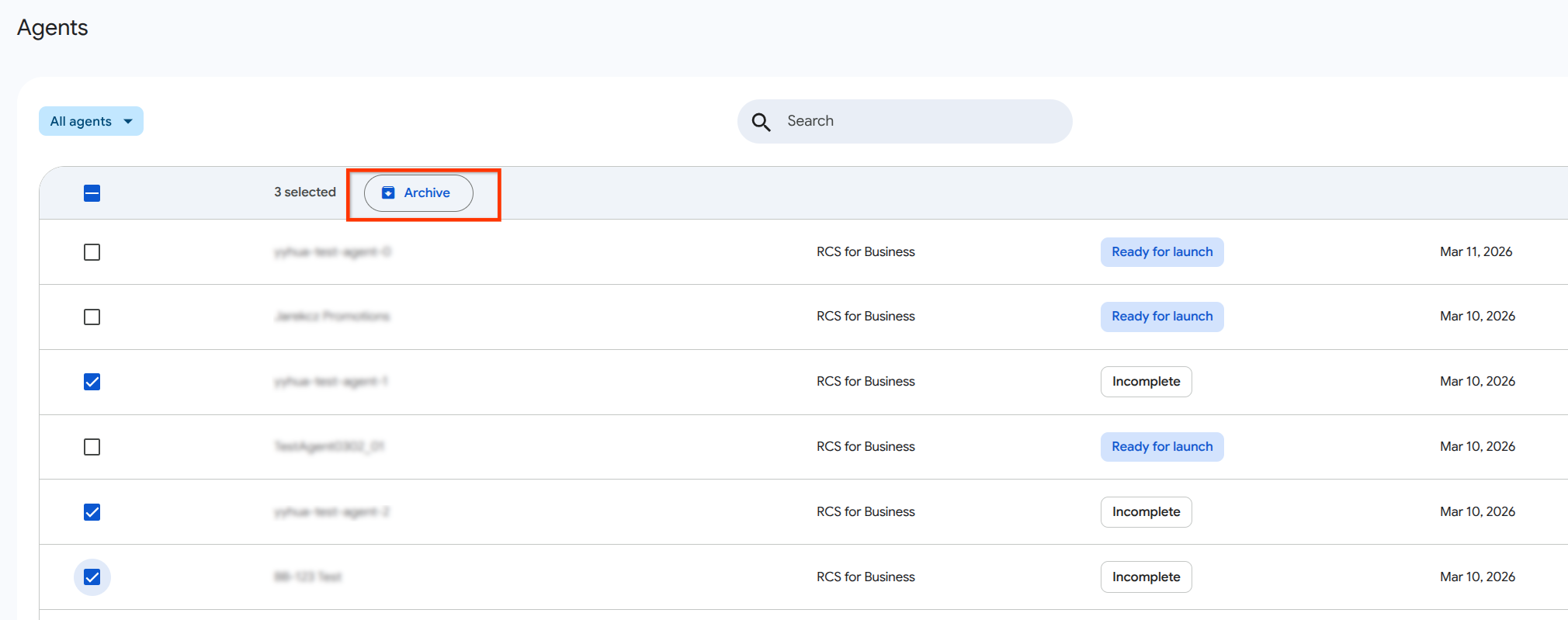
To bulk unarchive agents, use the Agents list in the RCS for Business Developer Console.
- In the Agents list, filter the agents table by the 'Archived' status.
- Use checkboxes to select the agents you want to modify.
- In the table header, click Unarchive.
- Confirm your action in the dialog.
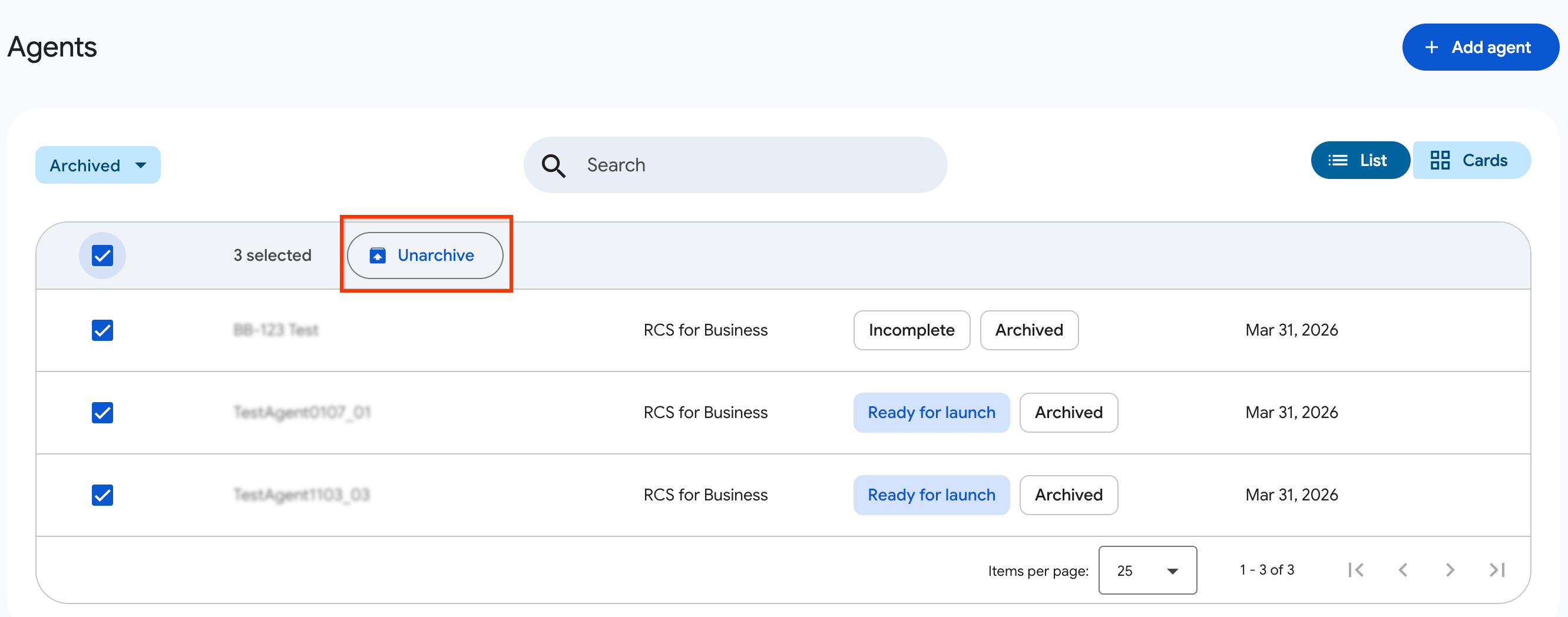
If any selected agents are ineligible for the archive action (for example,
they are LAUNCHED), the bulk request will process the eligible agents and
display an information dialog after the request finishes. This dialog contains
- Display names of agents that were successfully archived
- Display names of agents that failed along with the specific reason for failure, for example "Launched or Pending agents cannot be archived".
Filtered views
By default, archived agents are excluded from the main list. To include the archived agents in their results, filter the Agents list by the 'Archived' status.