
RCS for Business エージェントは、メッセージの送受信によってユーザーとコミュニケーションを取ります。ユーザーにメッセージを送信するには、エージェントが RCS ビジネス メッセージ API にメッセージ リクエストを送信します。1 つのリクエストに、テキスト、リッチカード、メディアと PDF ファイル、候補の返信、候補のアクションを含めることができます。
RCS for Business プラットフォームは、メッセージ配信の管理に役立つように、特定の状況でエラーを返します。
- デバイスが RCS をサポートしていないユーザーや、RCS が有効になっていないユーザーにメッセージを送信すると、RCS for Business プラットフォームから 404 NOT_FOUND エラーが返されます。この場合、インフラストラクチャで定義されたフォールバック メソッドを使用して、ユーザーに連絡を試みることができます。
- エージェントがまだリリースされていないネットワークや、RCS トラフィックが有効になっていないネットワークで RCS ユーザーにメッセージを送信すると、RCS for Business プラットフォームから 404 NOT_FOUND エラーが返されます。
- ユーザーのデバイスがサポートしていない機能を含むメッセージを送信すると、RCS for Business プラットフォームは 400 INVALID_ARGUMENT エラーを返し、メッセージを配信しません。
マルチチャネル メッセージング戦略の一環として、妥当な時間内に配信されなかったメッセージは取り消し、別のチャネルで送信することをおすすめします。事前定義された時間にメッセージを自動的に取り消すには、メッセージの有効期限を設定します。
相手がオフラインになっています
受信者がオフラインの場合でも、RCS for Business プラットフォームは配信用のメッセージを受け付けます。200 OK レスポンスが返され、RCS for Business プラットフォームがメッセージを保持し、30 日間再配信を試みます。RCS for Business にメッセージの再送信を依頼する必要はありません。
RCS for Business は、送信後 30 日経過しても配信されなかったメッセージを削除します。
エージェントのユースケースによっては、この 30 日間のタイムアウトの前に未配信のメッセージを取り消すこともできます。取り消しを行うと、オフラインのユーザーがオンラインに戻ったときに古いメッセージを受信することを防ぐことができます。メッセージを取り消す方法は複数あります。
- 取り消しリクエストを送信して、取り消しをトリガーします。
- メッセージの有効期限を設定して、適切なタイミングでメッセージを自動的に取り消します。
メッセージの有効期限を設定する
エージェントのメッセージは時間的制約がありますか?たとえば、OTP は短期間のみ有効です。期間限定特典の有効期限が切れます。また、予約のリマインダーは予約日を過ぎると関連性がなくなります。メッセージの鮮度と関連性を保つため、メッセージの有効期限を設定します。これにより、オフラインのユーザーがオンラインに戻ったときに失効済みコンテンツを受信することを防ぐことができます。有効期限は、フォールバック メッセージング戦略を呼び出すための適切な合図にもなります。これにより、ユーザーは必要な情報をタイムリーに取得できます。
メッセージの有効期限を設定するには、エージェント メッセージで次のいずれかのフィールドを指定します。
expireTime: メッセージの有効期限が切れる正確な時刻(UTC)。ttl(有効期間): メッセージの有効期限が切れるまでの時間。
書式設定と値のオプションについては、AgentMessage をご覧ください。
ttl と expireTime の最大値は、メッセージ送信後 15 日間です。
ttl と expireTime の最小値はありませんが、メッセージの送信後少なくとも 10 秒経過してからにすることをおすすめします。これにより、取り消しと配信の両方の通知を受け取る可能性を大幅に減らすことができます。
メッセージの有効期間(TTL)
RCS for Business メッセージの TTL を設定すると、メッセージが有効で配信可能と見なされる期間を指定できます。この TTL 期間内にメッセージがユーザーのデバイスに正常に配信されなかった場合、RCS for Business プラットフォームは自動的にメッセージの取り消しを試みます。
メッセージの取り消しを開始すると、RCS for Business プラットフォームにその特定のメッセージの配信を停止するようリクエストします。ただし、この操作は今後の配信試行にのみ影響します。ユーザーのデバイスがすでにメッセージを正常に取得している場合、メッセージは処理中であり、RCS for Business プラットフォームはユーザーのデバイスからメッセージを取り消すことができません。
通知に関する動作は次のとおりです。
TTL 内に配信されたメッセージ: ユーザーのデバイスがオンラインになり、TTL が切れる前にメッセージを受信すると、
DELIVERED通知が届きます。メッセージは正常に配信されたため、取り消し通知は送信されません。これは最も一般的で想定されるシナリオです。TTL の有効期限が切れる前にメッセージが配信されなかった場合: メッセージがユーザーのデバイスに届く前に TTL の有効期限が切れた場合(デバイスがオフラインの場合など)、RCS for Business プラットフォームはメッセージの取り消しを試みます。
TTL_EXPIRATION_REVOKED通知が届き、メッセージが配信キューから正常に削除されたことが示されます。この場合、ユーザーはメッセージを受け取りません。
エッジケースの処理に関する推奨事項
Google のシステムは、RCS for Business メッセージの配信と TTL の有効期限切れを並行して処理します。そのため、ごくまれに、通知のタイミングが想定外になるエッジケースが発生することがあります。たとえば、配信通知と TTL 通知の両方を受け取ることも、どちらも受け取らないこともあります。
RCS for Business メッセージ通知の処理に関する推奨事項は次のとおりです。
DELIVERED通知: メッセージのDELIVERED通知を受け取った場合、メッセージがユーザーに届いたことを確認できます。そのメッセージの TTL 通知は無視してかまいません。TTL_EXPIRATION_REVOKED通知: ステータスがTTL_EXPIRATION_REVOKEDの TTL 通知を受け取った場合、RCS for Business システムがその特定のメッセージの配信を停止したことを意味します。このメッセージは配信されなかったものとして扱い、必要に応じてフォールバック戦略を進めてください。他のステータスの TTL 通知: 他のステータスの TTL 通知を受け取った場合は、取り消し試行が完了していないことを示します。
- ワンタイム パスワード(OTP)などの重要なメッセージの場合は、フォールバック メソッドを開始します。
- 重要度の低いメッセージの場合は、フォールバックを開始するかどうかを決定します。
- 通知なし: まれに、システムが TTL 通知の送信に失敗し、クライアントが配信通知の生成に失敗することがあります。これは非常にまれなケースです。
メッセージ トラフィック タイプを設定する
RBM API には、メッセージを分類するための messageTrafficType フィールドが含まれています。エージェントのユースケースは引き続きエージェントの動作と適用されるビジネスルールを定義しますが、messageTrafficType を使用すると、メッセージ コンテンツをより詳細に分類できます。これにより、1 つのエージェントで複数のユースケースを処理できるようになります。現時点では、既存のエージェントのユースケースやビジネスルールへの影響はありません。
このフィールドは省略可能ですが、フィールドが必須になったときにエラーが発生しないように、今すぐ設定することをおすすめします。
メッセージ トラフィック タイプを設定するには、コンテンツに基づいて各メッセージに適切な messageTrafficType を割り当てます。RCS for Business は、次のトラフィック タイプをサポートしています。
| トラフィックの種類 | メッセージの内容 | エージェントのユースケース |
|---|---|---|
AUTHENTICATION |
認証メッセージの場合。 | OTP |
TRANSACTION |
ユーザーの既存のサービスや商品に関するメッセージの場合。例: 確認書、お支払い領収書、予約の詳細。 | Transactional または Multi-use |
PROMOTION |
特典、割引、お知らせなどのプロモーション メッセージや、その他のプロモーション用コンテンツ。 | プロモーションまたは多用途 |
SERVICEREQUEST |
ユーザーが明示的にリクエストしたサービスに関するメッセージ。 | OTP、トランザクション、プロモーション、マルチユース |
ACKNOWLEDGEMENT |
ユーザーのアクション(特に登録解除リクエスト)を確認するために使用されるメッセージ。これにより、お客様のリクエストが受領され、処理中であることが確認できます。 | OTP、トランザクション、プロモーション、マルチユース |
トラフィック タイプが設定されていない場合、システムはエージェントのユースケースのデフォルト タイプを割り当てます。
| エージェントのユースケース | デフォルトのトラフィック タイプ |
|---|---|
| OTP | AUTHENTICATION |
| トランザクション | TRANSACTION |
| プロモーション | PROMOTION |
| 複数回使用 | MESSAGE_TRAFFIC_TYPE_UNSPECIFIED |
マルチユース エージェントにはデフォルトのトラフィック タイプがありません。メッセージごとに、その内容に基づいてトラフィック タイプを明示的に設定する必要があります。MESSAGE_TRAFFIC_TYPE_UNSPECIFIED 値を置き換えないと、エラーが発生します。
メッセージ サイズの上限
文字列化された AgentMessage 全体の最大サイズは 250 KB です。メッセージのテキスト部分には、3,072 文字という独自の制限があります。
ユーザーの予期しないデータ使用量を防ぐため、RCS for Business で送信できるファイルの最大サイズは 100 MiB です。また、1 つの RCS for Business メッセージ内のすべてのメディアと PDF 添付ファイルの合計サイズは 100 MiB を超えてはなりません。(1 MiB = 1,048,576 バイト)。詳しくは、メディア ファイルと PDF ファイルをご覧ください。
テキスト
最もシンプルなメッセージはテキストで構成されています。テキスト メッセージは、ビジュアル、複雑なインタラクション、応答を必要とせずに情報を伝達するのに最適です。
例
次のコードは、書式なしテキスト メッセージを送信します。形式と値のオプションについては、phones.agentMessages.create をご覧ください。
cURL
curl -X POST "https://REGION-rcsbusinessmessaging.googleapis.com/v1/phones/PHONE_NUMBER/agentMessages?messageId=MESSAGE_ID&agentId=AGENT_ID" \
-H "Content-Type: application/json" \
-H "User-Agent: curl/rcs-business-messaging" \
-H "`oauth2l header --json PATH_TO_SERVICE_ACCOUNT_KEY rcsbusinessmessaging`" \
-d '{
  "contentMessage": {
    "text": "Hello, world!"
  },
  "messageTrafficType": "PROMOTION"
}'
Node.js
// Reference to RBM API helper
const rbmApiHelper = require('@google/rcsbusinessmessaging');

let params = {
   messageText: 'Hello, world!',
   msisdn: '+12223334444',
};

// Send a simple message to the device
rbmApiHelper.sendMessage(params, function(response) {
   console.log(response);
});
Java
import com.google.rbm.RbmApiHelper;
…

try {
   // Create an instance of the RBM API helper
   RbmApiHelper rbmApiHelper = new RbmApiHelper();

   // Send simple text message to user
   rbmApiHelper.sendTextMessage(
      "Hello, world!",
      "+12223334444"
   );
} catch(Exception e) {
   e.printStackTrace();
}
Python
# Reference to RBM Python client helper and messaging object structure
from rcs_business_messaging import rbm_service
from rcs_business_messaging import messages

# Create a simple RBM text message
message_text = messages.TextMessage('Hello, world!')

# Send text message to the device
messages.MessageCluster().append_message(message_text).send_to_msisdn('+12223334444')
C#
using RCSBusinessMessaging;
…

// Create an instance of the RBM API helper
RbmApiHelper rbmApiHelper = new RbmApiHelper(credentialsFileLocation,
                                             projectId);

rbmApiHelper.SendTextMessage(
    "Hello, world!",
    "+12223334444",
);
基本的なメッセージの内容 - SMS の変換
携帯通信会社は、SMS メッセージから RCS for Business への移行をサポートするために、請求モデルを導入しています。最大 160 文字の UTF-8 文字を含む RCS for Business メッセージは、基本メッセージと呼ばれます。
Basic Message を送信するリクエストを作成する際は、文字は 1 バイト(UTF-8)としてカウントされることに注意してください。絵文字やマルチバイト文字セットなどの特殊文字を含むメッセージを送信すると、各文字は 2 ~ 4 個以上の UTF-8 文字としてカウントされます。
ボックスにテキストを入力して、長さを確認します。
テキスト メッセージのコンテンツとリンク プレビュー
RCS クライアントはリンク プレビューを実装できます。テキストのみの RCS for Business メッセージに openGraph タグを含むウェブサイトの URL が含まれている場合、クライアントはプレビュー(画像、タイトルなど)を生成して、よりリッチなエクスペリエンスを提供できます。たとえば、URL プレビュー付きの基本的なメッセージをご覧ください。
RCS クライアントでは、ユーザーがリンクのプレビューを無効にできる場合があります。
ユーザー確認用のワンタイム パスワード
RCS for Business を使用すると、SMS Retriever API でユーザーを自動的に確認するためのワンタイム パスワード(OTP)を送信できます。RCS for Business を介して届いた OTP を読み取る専用の API はありません。
Android での仕組み
SMS Retriever API に登録されている Android アプリの場合、API は正しい形式の RCS for Business メッセージをリッスンします。このメッセージには、OTP とアプリを識別する一意のハッシュの両方が含まれている必要があります。
正しい形式の RCS for Business メッセージを受信すると、SMS Retriever API は SMS OTP と同様に処理します。ハッシュがアプリと一致すると、OTP が抽出され、アプリに転送されてユーザーの自動確認が行われます。
- ユーザー認証用の RCS for Business テキスト メッセージの例:
Your code is <OTP><app hash>. - 例:
Your code is 123456 M8tue43FGT.
SMS Retriever と関連する API の詳細については、SMS Retriever のドキュメントをご覧ください。SMS Retriever API に登録されているアプリでのユーザーの自動確認について詳しくは、こちらのフローチャートをご覧ください。
iOS での仕組み
iOS の場合、システムの組み込み OTP 処理により、SMS OTP と同様に、RCS for Business OTP が自動的に検出され、自動入力候補として表示されます。iOS アプリで OTP を読み取るために、特定の API 統合は必要ありません。
メディア ファイルと PDF ファイル
画像、動画、音声、PDF ファイルを含むメッセージを送信する場合、エージェントはコンテンツの一般公開 URL を提供するか、ファイルを直接アップロードする必要があります。
送信できるファイルの最大サイズは 100 MiB です。1 つのメッセージ内のすべてのメディアと PDF 添付ファイルの合計サイズは 100 MiB を超えてはなりません。
サムネイルの仕様
メディア ファイルの場合は、ユーザーがクリックする前にコンテンツをプレビューできるサムネイル画像を指定することもできます。音声ファイルの場合、デフォルトの音声ウィジェットがプレースホルダとして使用されます。
- サムネイルの最大ファイルサイズは 100 KB です。ユーザー エクスペリエンスを最適化するには、50 kB 以下にすることをおすすめします。
- サムネイルのアスペクト比は、元のファイルのアスペクト比と一致している必要があります。
キャッシュと URL の管理
RCS for Business プラットフォームはファイルを 60 日間キャッシュに保存し、API はエージェントがユーザーへのメッセージに含めることができるファイル ID を返します。60 日後に、RCS for Business はキャッシュからファイルを削除します。
URL でファイルを指定する場合は、contentMessage.forceRefresh を false に設定することが効果的な手法です。contentMessage.forceRefresh を true に設定すると、URL のコンテンツがキャッシュに保存されている場合でも、RCS for Business は指定された URL から新しいコンテンツを強制的に取得するため、ユーザーへのメッセージ配信時間が長くなります。
ファイル URL の例
次のコードは画像を送信します。書式設定と値のオプションについては、AgentContentMessage をご覧ください。
cURL
curl -X POST "https://REGION-rcsbusinessmessaging.googleapis.com/v1/phones/PHONE_NUMBER/agentMessages?messageId=MESSAGE_ID&agentId=AGENT_ID" \
-H "Content-Type: application/json" \
-H "User-Agent: curl/rcs-business-messaging" \
-H "`oauth2l header --json PATH_TO_SERVICE_ACCOUNT_KEY rcsbusinessmessaging`" \
-d '{
  "contentMessage": {
    "contentInfo": {
      "fileUrl": "http://www.google.com/logos/doodles/2015/googles-new-logo-5078286822539264.3-hp2x.gif",
      "forceRefresh": false
    }
  }
}'
Node.js
// Reference to RBM API helper
const rbmApiHelper = require('@google/rcsbusinessmessaging');

let params = {
   fileUrl: 'http://www.google.com/logos/doodles/2015/googles-new-logo-5078286822539264.3-hp2x.gif',
   msisdn: '+12223334444',
};

// Send an image/video to a device
rbmApiHelper.sendMessage(params, function(response) {
   console.log(response);
});
Java
import com.google.api.services.rcsbusinessmessaging.v1.model.AgentContentMessage;
import com.google.api.services.rcsbusinessmessaging.v1.model.AgentMessage;
import com.google.rbm.RbmApiHelper;
…

try {
   // Create an instance of the RBM API helper
   RbmApiHelper rbmApiHelper = new RbmApiHelper();

   String fileUrl = "http://www.google.com/logos/doodles/2015/googles-new-logo-5078286822539264.3-hp2x.gif";

   // create media only message
   AgentContentMessage agentContentMessage = new AgentContentMessage();
   agentContentMessage.setContentInfo(new ContentInfo().setFileUrl(fileUrl));

   // attach content to message
   AgentMessage agentMessage = new AgentMessage();
   agentMessage.setContentMessage(agentContentMessage);

   rbmApiHelper.sendAgentMessage(agentMessage, "+12223334444");
} catch(Exception e) {
   e.printStackTrace();
}
Python
# Reference to RBM Python client helper and messaging object structure
from rcs_business_messaging import rbm_service
from rcs_business_messaging import messages

# Create media file attachment
file_message = messages.FileMessage('http://www.google.com/logos/doodles/2015/googles-new-logo-5078286822539264.3-hp2x.gif')

messages.MessageCluster().append_message(file_message).send_to_msisdn('+12223334444')
C#
using Google.Apis.RCSBusinessMessaging.v1.Data;
using RCSBusinessMessaging;
…

// Create an instance of the RBM API helper
RbmApiHelper rbmApiHelper = new RbmApiHelper(credentialsFileLocation,
                                                 projectId);

string fileUrl = "http://www.google.com/logos/doodles/2015/googles-new-logo-5078286822539264.3-hp2x.gif";

// Create content info with the file url
ContentInfo contentInfo = new ContentInfo
{
    FileUrl = fileUrl
};

// Attach content info to a message
AgentContentMessage agentContentMessage = new AgentContentMessage
{
    ContentInfo = contentInfo,
};

// Attach content to message
AgentMessage agentMessage = new AgentMessage
{
    ContentMessage = agentContentMessage
};

rbmApiHelper.SendAgentMessage(agentMessage, "+12223334444");
または、files.create を使用してメッセージで送信する前にメディアをアップロードすることもできます。
ファイルのアップロードの例
次のコードは、動画ファイルとサムネイル ファイルをアップロードし、両方のファイルをメッセージで送信します。書式設定と値のオプションについては、files.create と AgentContentMessage をご覧ください。
cURL
curl -X POST "https://REGION-rcsbusinessmessaging.googleapis.com/upload/v1/files?agentId=AGENT_ID" \ -H "Content-Type: video/mp4" \ -H "User-Agent: curl/rcs-business-messaging" \ -H "`oauth2l header --json PATH_TO_SERVICE_ACCOUNT_KEY rcsbusinessmessaging`" \ --upload-file "FULL_PATH_TO_VIDEO_MEDIA_FILE"# Capture server-specified video file name from response body JSONcurl -X POST "https://REGION-rcsbusinessmessaging.googleapis.com/upload/v1/files?agentId=AGENT_ID" \ -H "Content-Type: image/jpeg" \ -H "User-Agent: curl/rcs-business-messaging" \ -H "`oauth2l header --json PATH_TO_SERVICE_ACCOUNT_KEY rcsbusinessmessaging`" \ --upload-file "FULL_PATH_TO_THUMBNAIL_MEDIA_FILE"# Capture server-specified image file name from response body JSONcurl -X POST "https://REGION-rcsbusinessmessaging.googleapis.com/v1/phones/PHONE_NUMBER/agentMessages?messageId=MESSAGE_ID&agentId=AGENT_ID" \ -H "Content-Type: application/json" \ -H "User-Agent: curl/rcs-business-messaging" \ -H "`oauth2l header --json PATH_TO_SERVICE_ACCOUNT_KEY rcsbusinessmessaging`" \ -d '{ "contentMessage": { "uploadedRbmFile": { "fileName": "SERVER-SPECIFIED_VIDEO_FILE_NAME", "thumbnailName": "SERVER-SPECIFIED_THUMBNAIL_FILE_NAME" } } }'
サポートされているメディアタイプ
RCS for Business は、次のメディアタイプをサポートしています。サムネイルでは、image/jpeg、image/jpg、image/gif、image/png のみがサポートされています。
| メディアタイプ | ドキュメントの種類 | 広告表示オプション | リッチカードに対応 |
|---|---|---|---|
| application/ogg | OGG オーディオ | .ogx | いいえ |
| application/pdf | はい(インドの Google メッセージのみ) | ||
| audio/aac | AAC 音声 | .aac | いいえ |
| audio/mp3 | MP3 音声 | .mp3 | いいえ |
| audio/mpeg | MPEG オーディオ | .mpeg | いいえ |
| audio/mpg | MPG オーディオ | .mp3 | いいえ |
| audio/mp4 | MP4 オーディオ | .mp4 | いいえ |
| audio/mp4-latm | MP4-latm オーディオ | .mp4 | いいえ |
| audio/3gpp | 3GPP 音声 | .3gp | いいえ |
| image/jpeg | JPEG | .jpeg、.jpg | はい |
| image/gif | GIF | .gif | はい |
| image/png | PNG | .png | はい |
| video/h263 | H263 動画 | .h263 | はい |
| video/m4v | M4V 動画 | .m4v | はい |
| video/mp4 | MP4 動画 | .mp4 | はい |
| video/mpeg4 | MPEG-4 動画 | .mp4、.m4p | はい |
| video/mpeg | MPEG 動画 | .mpeg | はい |
| video/webm | WEBM 動画 | .webm | はい |
候補
エージェントは、候補ワードのリストまたはリッチカードで候補(定型返信文と定型アクション)を送信します。
返信文の候補
返信候補は、エージェントが対応方法を把握している返信を提供することで、ユーザーを会話に誘導します。
ユーザーが返信候補をタップすると、エージェントは返信のテキストとポストバック データを含むイベントを受け取ります。ペイロードの最大文字数は 2,048 文字です。
例
次のコードは、2 つの候補の返信を含むテキストを送信します。形式と値のオプションについては、SuggestedReply をご覧ください。
cURL
curl -X POST "https://REGION-rcsbusinessmessaging.googleapis.com/v1/phones/PHONE_NUMBER/agentMessages?messageId=MESSAGE_ID&agentId=AGENT_ID" \
-H "Content-Type: application/json" \
-H "User-Agent: curl/rcs-business-messaging" \
-H "`oauth2l header --json PATH_TO_SERVICE_ACCOUNT_KEY rcsbusinessmessaging`" \
-d '{
  "contentMessage": {
    "text": "Hello, world!",
    "suggestions": [
      {
        "reply": {
          "text": "Suggestion #1",
          "postbackData": "suggestion_1"
        }
      },
      {
        "reply": {
          "text": "Suggestion #2",
          "postbackData": "suggestion_2"
        }
      }
    ]
  }
}'
Node.js
// Reference to RBM API helper
const rbmApiHelper = require('@google/rcsbusinessmessaging');

let suggestions = [
   {
      reply: {
         'text': 'Suggestion #1',
         'postbackData': 'suggestion_1',
      },
   },
   {
      reply: {
         'text': 'Suggestion #2',
         'postbackData': 'suggestion_2',
      },
   },
];

let params = {
   messageText: 'Hello, world!',
   msisdn: '+12223334444',
   suggestions: suggestions,
};

// Send a simple message with suggestion chips to the device
rbmApiHelper.sendMessage(params, function(response) {
   console.log(response);
});
Java
import com.google.api.services.rcsbusinessmessaging.v1.model.Suggestion;
import com.google.rbm.RbmApiHelper;
import com.google.rbm.SuggestionHelper;
…

try {
   // Create an instance of the RBM API helper
   RbmApiHelper rbmApiHelper = new RbmApiHelper();

   // Create suggestions for chip list
   List<Suggestion> suggestions = new ArrayList<Suggestion>();
   suggestions.add(
      new SuggestionHelper("Suggestion #1", "suggestion_1").getSuggestedReply());

   suggestions.add(
      new SuggestionHelper("Suggestion #2", "suggestion_2").getSuggestedReply());

   // Send simple text message to user
   rbmApiHelper.sendTextMessage(
      "Hello, world!",
      "+12223334444",
      suggestions
   );
} catch(Exception e) {
   e.printStackTrace();
}
Python
# Reference to RBM Python client helper and messaging object structure
from rcs_business_messaging import rbm_service
from rcs_business_messaging import messages

# Create text message to send to user
text_msg = messages.TextMessage('Hello, world!')
cluster = messages.MessageCluster().append_message(text_msg)

# Append suggested replies for the message to send to the user
cluster.append_suggestion_chip(messages.SuggestedReply('Suggestion #1', 'reply:suggestion_1'))
cluster.append_suggestion_chip(messages.SuggestedReply('Suggestion #2', 'reply:suggestion_2'))

# Send a simple message with suggestion chips to the device
cluster.send_to_msisdn('+12223334444')
C#
using Google.Apis.RCSBusinessMessaging.v1.Data;
using RCSBusinessMessaging;
…

// Create an instance of the RBM API helper
RbmApiHelper rbmApiHelper = new RbmApiHelper(credentialsFileLocation,
                                             projectId);

List<Suggestion> suggestions = new List<Suggestion>
{
   // Create suggestion chips
   new SuggestionHelper("Suggestion #1", "suggestion_1").SuggestedReply(),
   new SuggestionHelper("Suggestion #2", "suggestion_2").SuggestedReply()
};

// Send simple text message with suggestions to user
rbmApiHelper.SendTextMessage(
    "Hello, world!",
    "+12223334444",
   suggestions
);
推奨される措置
提案されたアクションは、デバイスの組み込み機能を活用して、会話の中でユーザーをガイドします。エージェントは、ユーザーに電話番号への発信、地図上の場所の表示、位置情報の共有、URL のオープン、カレンダーの予定の作成を提案できます。
提案されたアクションごとに、フォールバック URL を指定できます(最大 2, 048 文字)。ユーザーのデバイスが提案されたアクションをサポートしていない場合、この URL は新しいブラウザ ウィンドウで開きます。
ユーザーが提案されたアクションをタップすると、エージェントはアクションのポストバック データを含むイベントを受け取ります。
書式設定と値のオプションについては、SuggestedAction をご覧ください。
候補の表示
候補を表示する方法は 2 つあります。
- Persistent: メッセージ バブル内に表示され、会話全体を通して固定されたままの提案されたアクションまたは返信。
- 一時的: メッセージ バブルの外に表示され、会話が続くと消える候補。
サポートされているメッセージ形式
- 永続的な候補: スタンドアロンのテキスト メッセージとリッチカードで動作します。
- 一時的な候補: スタンドアロンのテキスト メッセージ、メディア メッセージ、リッチカードで動作します。
候補を組み合わせる
同じメッセージまたはリッチカードに永続的な候補と一時的な候補を混在させることができます。
- テキスト メッセージ: デフォルトでは候補は一時的なものです。バブル内に留まるようにするには、永続として構成する必要があります。
- リッチカード: デフォルトで最大 4 つの永続的な候補をサポートします。その後、カードの下に「チップリスト」として一時的な候補を追加できます。
提案の上限
1 つのテキスト メッセージで、最大 11 個の候補がサポートされます。含める永続的な提案は、この合計上限にカウントされます。たとえば、4 つの永続的な提案を含める場合、最大 7 つの一時的な提案を追加できます。
| 最適化案の種類 | 上限 | 表示場所 |
|---|---|---|
| 永続 | 最大 4 個 | メッセージのふきだし内 |
| 一時的 | 最大 11 | バブルの外(チップとして) |
文字数の上限
各候補の最大文字数は 25 文字です。
アクション候補における URL の透明性
ユーザーの信頼を得るため、「URL を開く」候補アクションの候補ボタン内に、基盤となる URL が 2 行目のテキストとして表示されます。この一貫した動作は、スタンドアロンのテキスト メッセージ、リッチカード、カルーセルに適用されます。
永続的な候補をサポートしているクライアント
- サポート対象: Google メッセージ(バージョン
20260225.00以降)。 - サポート対象外:
20260225.00より前のバージョンの Google メッセージ、iOS、Samsung メッセージ。
電話番号をダイヤル
ダイヤル アクションは、エージェントが指定した電話番号にユーザーがダイヤルするよう促します。電話番号には、数字(0-9)、プラス記号(+)、アスタリスク(*)、番号記号(#)のみを含めることができます。E.164 国際電話形式(例: +14155555555)はサポートされていますが、必須ではありません。つまり、+14155555555 と 1011 の両方が有効なエントリです。
例
次のコードは、ダイヤル アクションを送信します。書式設定と値のオプションについては、DialAction をご覧ください。
cURL
curl -X POST "https://REGION-rcsbusinessmessaging.googleapis.com/v1/phones/PHONE_NUMBER/agentMessages?messageId=MESSAGE_ID&agentId=AGENT_ID" \
-H "Content-Type: application/json" \
-H "User-Agent: curl/rcs-business-messaging" \
-H "`oauth2l header --json PATH_TO_SERVICE_ACCOUNT_KEY rcsbusinessmessaging`" \
-d '{
  "contentMessage": {
    "text": "Hello, world!",
    "suggestions": [
      {
        "action": {
          "text": "Call",
          "postbackData": "postback_data_1234",
          "fallbackUrl": "https://www.google.com/contact/",
          "dialAction": {
            "phoneNumber": "+15556667777"
          }
        }
      }
    ]
  }
}'
Node.js
// Reference to RBM API helper
const rbmApiHelper = require('@google/rcsbusinessmessaging');

// Define a dial suggested action
let suggestions = [
   {
      action: {
         text: 'Call',
         postbackData: 'postback_data_1234',
         dialAction: {
            phoneNumber: '+15556667777'
         }
      }
   },
];

let params = {
   messageText: 'Hello, world!',
   msisdn: '+12223334444',
   suggestions: suggestions,
};

// Send a simple message with a dial suggested action
rbmApiHelper.sendMessage(params, function(response) {
   console.log(response);
});
Java
import com.google.api.services.rcsbusinessmessaging.v1.model.DialAction;
import com.google.api.services.rcsbusinessmessaging.v1.model.SuggestedAction;
import com.google.api.services.rcsbusinessmessaging.v1.model.Suggestion;
import com.google.rbm.RbmApiHelper;
…

try {
   // Create an instance of the RBM API helper
   RbmApiHelper rbmApiHelper = new RbmApiHelper();

   // Create suggestions for chip list
   List<Suggestion> suggestions = new ArrayList<Suggestion>();

   // creating a dial suggested action
   DialAction dialAction = new DialAction();
   dialAction.setPhoneNumber("+15556667777");

   // creating a suggested action based on a dial action
   SuggestedAction suggestedAction = new SuggestedAction();
   suggestedAction.setText("Call");
   suggestedAction.setPostbackData("postback_data_1234");
   suggestedAction.setDialAction(dialAction);

   // attaching action to a suggestion
   Suggestion suggestion = new Suggestion();
   suggestion.setAction(suggestedAction);

   suggestions.add(suggestion);

   // Send simple text message with the suggestion action
   rbmApiHelper.sendTextMessage(
      "Hello, world!",
      "+12223334444",
      suggestions
   );
} catch(Exception e) {
   e.printStackTrace();
}
Python
# Reference to RBM Python client helper and messaging object structure
from rcs_business_messaging import rbm_service
from rcs_business_messaging import messages

# Create a dial suggested action
suggestions = [
      messages.DialAction('Call', 'reply:postback_data_1234', '+15556667777')
]

# Create text message to send to user
text_msg = messages.TextMessage('Hello, world!')
cluster = messages.MessageCluster().append_message(text_msg)

# Append suggestions for the message to send to the user
for suggestion in suggestions:
    cluster.append_suggestion_chip(suggestion)

# Send a simple message with suggested action to the device
cluster.send_to_msisdn('+12223334444')
C#
using Google.Apis.RCSBusinessMessaging.v1.Data;
using RCSBusinessMessaging;
…

// Create an instance of the RBM API helper
RbmApiHelper rbmApiHelper = new RbmApiHelper(credentialsFileLocation,
                                                 projectId);

// Create a dial an agent suggested action
DialAction dialAction = new DialAction
{
    PhoneNumber = "+15556667777"
};

// Creating a suggested action based on a dial action
SuggestedAction suggestedAction = new SuggestedAction
{
    Text = "Call",
    PostbackData = "postback_data_1234",
    DialAction = dialAction
};

// Attach action to a suggestion
Suggestion suggestion = new Suggestion
{
    Action = suggestedAction
};

List<Suggestion> suggestions = new List<Suggestion>
{
    suggestion
};

rbmApiHelper.SendTextMessage(
    "Hello, world!",
    "+12223334444",
    suggestions
);
場所を表示する
[View location] アクションは、ユーザーのデフォルトの地図アプリに位置情報を表示します。位置情報は、緯度と経度で指定するか、ユーザーの現在地に基づくクエリで指定できます。地図アプリに表示されるピンのカスタムラベルを設定することもできます。
例
次のコードは、ビューの場所アクションを送信します。形式と値のオプションについては、ViewLocationAction をご覧ください。
cURL
curl -X POST "https://REGION-rcsbusinessmessaging.googleapis.com/v1/phones/PHONE_NUMBER/agentMessages?messageId=MESSAGE_ID&agentId=AGENT_ID" \
-H "Content-Type: application/json" \
-H "User-Agent: curl/rcs-business-messaging" \
-H "`oauth2l header --json PATH_TO_SERVICE_ACCOUNT_KEY rcsbusinessmessaging`" \
-d '{
  "contentMessage": {
    "text": "Hello, world!",
    "suggestions": [
      {
        "action": {
          "text": "View map",
          "postbackData": "postback_data_1234",
          "fallbackUrl": "https://www.google.com/maps/@37.4220188,-122.0844786,15z",
          "viewLocationAction": {
            "latLong": {
              "latitude": "37.4220188",
              "longitude": "-122.0844786"
            },
            "label": "Googleplex"
          }
        }
      }
    ]
  }
}'
Node.js
// Reference to RBM API helper
const rbmApiHelper = require('@google/rcsbusinessmessaging');

// Define a view location suggested action
let suggestions = [
   {
      action: {
         text: 'View map',
         postbackData: 'postback_data_1234',
         viewLocationAction: {
            latLong: {
               latitude: 37.4220188,
               longitude: -122.0844786
            },
            label: 'Googleplex'
         }
      }
   },
];

let params = {
   messageText: 'Hello, world!',
   msisdn: '+12223334444',
   suggestions: suggestions,
};

// Send a simple message with a view location suggested action
rbmApiHelper.sendMessage(params, function(response) {
   console.log(response);
});
Java
import com.google.api.services.rcsbusinessmessaging.v1.model.ViewLocationAction;
import com.google.api.services.rcsbusinessmessaging.v1.model.SuggestedAction;
import com.google.api.services.rcsbusinessmessaging.v1.model.Suggestion;
import com.google.rbm.RbmApiHelper;
…

try {
   // Create an instance of the RBM API helper
   RbmApiHelper rbmApiHelper = new RbmApiHelper();

   // Create suggestions for chip list
   List<Suggestion> suggestions = new ArrayList<Suggestion>();

   // creating a view location suggested action
   ViewLocationAction viewLocationAction = new ViewLocationAction();
   viewLocationAction.setQuery("Googleplex, Mountain View, CA");

   // creating a suggested action based on a view location action
   SuggestedAction suggestedAction = new SuggestedAction();
   suggestedAction.setText("View map");
   suggestedAction.setPostbackData("postback_data_1234");
   suggestedAction.setViewLocationAction(viewLocationAction);

   // attaching action to a suggestion
   Suggestion suggestion = new Suggestion();
   suggestion.setAction(suggestedAction);

   suggestions.add(suggestion);

   // Send simple text message with the suggestion action
   rbmApiHelper.sendTextMessage(
      "Hello, world!",
      "+12223334444",
      suggestions
   );
} catch(Exception e) {
   e.printStackTrace();
}
Python
# Reference to RBM Python client helper and messaging object structure
from rcs_business_messaging import rbm_service
from rcs_business_messaging import messages

# Create a view location suggested action
suggestions = [
      messages.ViewLocationAction('View map',
            'reply:postback_data_1234',
            query='Googleplex, Mountain View, CA')
]

# Create text message to send to user
text_msg = messages.TextMessage('Hello, world!')
cluster = messages.MessageCluster().append_message(text_msg)

# Append suggestions for the message to send to the user
for suggestion in suggestions:
    cluster.append_suggestion_chip(suggestion)

# Send a simple message with suggested action to the device
cluster.send_to_msisdn('+12223334444')
C#
using Google.Apis.RCSBusinessMessaging.v1.Data;
using RCSBusinessMessaging;
…

// Create an instance of the RBM API helper
RbmApiHelper rbmApiHelper = new RbmApiHelper(credentialsFileLocation,
                                                 projectId);

// create an view location action
ViewLocationAction viewLocationAction = new ViewLocationAction
{
    Query = "Googleplex Mountain View, CA"
};

// Attach the view location action to a suggested action
SuggestedAction suggestedAction = new SuggestedAction
{
    ViewLocationAction = viewLocationAction,
    Text = "View map",
    PostbackData = "postback_data_1234"
};

// Attach the action to a suggestion object
Suggestion suggestion = new Suggestion
{
    Action = suggestedAction
};

List<Suggestion> suggestions = new List<Suggestion>
{
    suggestion
};

rbmApiHelper.SendTextMessage(
    "Hello, world!",
    "+12223334444",
    suggestions
);
場所の共有
[現在地を共有] アクションを使用すると、ユーザーはエージェントと現在地を共有できます。ユーザーは、現在地または Google マップ アプリで手動で選択した場所を共有できます。
例
次のコードは、位置情報の共有アクションを送信します。形式と値のオプションについては、ShareLocationAction をご覧ください。
cURL
curl -X POST "https://REGION-rcsbusinessmessaging.googleapis.com/v1/phones/PHONE_NUMBER/agentMessages?messageId=MESSAGE_ID&agentId=AGENT_ID" \
-H "Content-Type: application/json" \
-H "User-Agent: curl/rcs-business-messaging" \
-H "`oauth2l header --json PATH_TO_SERVICE_ACCOUNT_KEY rcsbusinessmessaging`" \
-d '{
  "contentMessage": {
    "text": "Hello, world!",
    "suggestions": [
      {
        "action": {
          "text": "Share your location",
          "postbackData": "postback_data_1234",
          "shareLocationAction": {}
        }
      }
    ]
  }
}'
Node.js
// Reference to RBM API helper
const rbmApiHelper = require('@google/rcsbusinessmessaging');

// Define a share location suggested action
let suggestions = [
   {
      action: {
         text: 'Share your location',
         postbackData: 'postback_data_1234',
         shareLocationAction: {
         }
      }
   },
];

let params = {
   messageText: 'Hello, world!',
   msisdn: '+12223334444',
   suggestions: suggestions,
};

// Send a simple message with a share location suggested action
rbmApiHelper.sendMessage(params, function(response) {
   console.log(response);
});
Java
import com.google.api.services.rcsbusinessmessaging.v1.model.ShareLocationAction;
import com.google.api.services.rcsbusinessmessaging.v1.model.SuggestedAction;
import com.google.api.services.rcsbusinessmessaging.v1.model.Suggestion;
import com.google.rbm.RbmApiHelper;
…

try {
   // Create an instance of the RBM API helper
   RbmApiHelper rbmApiHelper = new RbmApiHelper();

   // Create suggestions for chip list
   List<Suggestion> suggestions = new ArrayList<Suggestion>();

   // creating a share location suggested action
   ShareLocationAction shareLocationAction = new ShareLocationAction();

   // creating a suggested action based on a share location action
   SuggestedAction suggestedAction = new SuggestedAction();
   suggestedAction.setText("Share location");
   suggestedAction.setPostbackData("postback_data_1234");
   suggestedAction.setShareLocationAction(shareLocationAction);

   // attaching action to a suggestion
   Suggestion suggestion = new Suggestion();
   suggestion.setAction(suggestedAction);

   suggestions.add(suggestion);

   // Send simple text message with the suggestion action
   rbmApiHelper.sendTextMessage(
      "Hello, world!",
      "+12223334444",
      suggestions
   );
} catch(Exception e) {
   e.printStackTrace();
}
Python
# Reference to RBM Python client helper and messaging object structure
from rcs_business_messaging import rbm_service
from rcs_business_messaging import messages

# Create a share location suggested action
suggestions = [
      messages.ShareLocationAction('Share location',
            'reply:postback_data_1234')
]

# Create text message to send to user
text_msg = messages.TextMessage('Hello, world!')
cluster = messages.MessageCluster().append_message(text_msg)

# Append suggestions for the message to send to the user
for suggestion in suggestions:
    cluster.append_suggestion_chip(suggestion)

# Send a simple message with suggested action to the device
cluster.send_to_msisdn('+12223334444')
C#
using Google.Apis.RCSBusinessMessaging.v1.Data;
using RCSBusinessMessaging;
…

// Create an instance of the RBM API helper
RbmApiHelper rbmApiHelper = new RbmApiHelper(credentialsFileLocation,
                                                 projectId);

// Create a share location action
ShareLocationAction shareLocationAction = new ShareLocationAction();

// Attach the share location action to a suggested action
SuggestedAction suggestedAction = new SuggestedAction
{
    ShareLocationAction = shareLocationAction,
    Text = "Share location",
    PostbackData = "postback_data_1234"
};

// Attach the action to a suggestion object
Suggestion suggestion = new Suggestion
{
    Action = suggestedAction
};

List<Suggestion> suggestions = new List<Suggestion>
{
    suggestion
};

rbmApiHelper.SendTextMessage(
    "Hello, world!",
    "+12223334444",
    suggestions
);
URL を開く
[URL を開く] アクションを使用すると、エージェントが指定したウェブページにユーザーを誘導できます。デフォルトでは、ウェブページはユーザーのブラウザで開きます。ウェブページをウェブビューで開くように設定することもできます。詳しくは、WebView で URL を開くをご覧ください。
Google メッセージのみ
基盤となる URL の表示: A2P メッセージの透明性を高めるため、Google メッセージでは、[URL を開く] のアクション候補内に基盤となる URL アドレスが表示されます。この変更は、標準のリッチカードとリッチカード カルーセルの提案アクションに影響します。
![リッチカードに [ウェブサイトを表示] という候補が表示され、その下に URL が表示されています。](https://developers.google.com/static/business-communications/rcs-business-messaging/guides/images/rich-cards/visible_url_rich_card.png?authuser=0000&hl=ja)
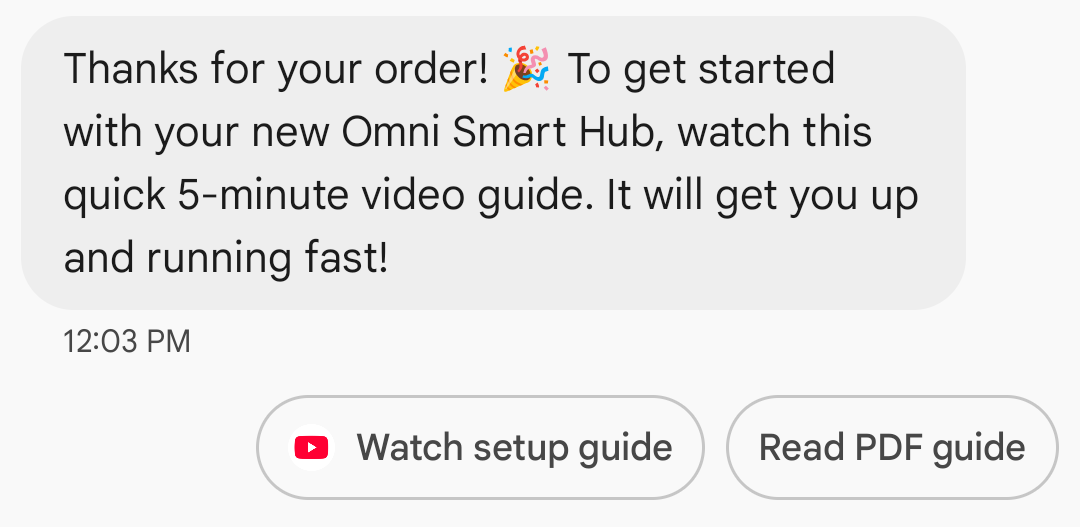
ウェブリンクのアプリアイコンの表示: ユーザーがウェブページ用にデフォルトのアプリを設定している場合、ブラウザや WebView ではなくそのアプリが開き、候補ボタンにアプリのアイコンが表示されます。Google メッセージにアプリアイコンを表示するには、完全な直接 URL を指定する必要があります。短縮 URL を使用すると、代わりにデフォルトの [URL を開く] アイコンが表示されます。
例
次のコードは、URL を開くアクションを送信します。形式と値のオプションについては、OpenUrlAction をご覧ください。
cURL
curl -X POST "https://REGION-rcsbusinessmessaging.googleapis.com/v1/phones/PHONE_NUMBER/agentMessages?messageId=MESSAGE_ID&agentId=AGENT_ID" \
-H "Content-Type: application/json" \
-H "User-Agent: curl/rcs-business-messaging" \
-H "`oauth2l header --json PATH_TO_SERVICE_ACCOUNT_KEY rcsbusinessmessaging`" \
-d '{
  "contentMessage": {
    "text": "Hello, world!",
    "suggestions": [
      {
        "action": {
          "text": "Open Google",
          "postbackData": "postback_data_1234",
          "openUrlAction": {
            "url": "https://www.google.com"
          }
        }
      }
    ]
  }
}'
Node.js
// Reference to RBM API helper
const rbmApiHelper = require('@google/rcsbusinessmessaging');

// Define an open URL suggested action
let suggestions = [
   {
      action: {
         text: 'Open Google',
         postbackData: 'postback_data_1234',
         openUrlAction: {
            url: 'https://www.google.com'
         }
      }
   },
];

let params = {
   messageText: 'Hello, world!',
   msisdn: '+12223334444',
   suggestions: suggestions,
};

// Send a simple message with an open URL suggested action
rbmApiHelper.sendMessage(params, function(response) {
   console.log(response);
});
Java
import com.google.api.services.rcsbusinessmessaging.v1.model.OpenUrlAction;
import com.google.api.services.rcsbusinessmessaging.v1.model.SuggestedAction;
import com.google.api.services.rcsbusinessmessaging.v1.model.Suggestion;
import com.google.rbm.RbmApiHelper;
…

try {
   // Create an instance of the RBM API helper
   RbmApiHelper rbmApiHelper = new RbmApiHelper();

   // Create suggestions for chip list
   List<Suggestion> suggestions = new ArrayList<Suggestion>();

   // creating an open url suggested action
   OpenUrlAction openUrlAction = new OpenUrlAction();
   openUrlAction.setUrl("https://www.google.com");

   // creating a suggested action based on an open url action
   SuggestedAction suggestedAction = new SuggestedAction();
   suggestedAction.setText("Open Google");
   suggestedAction.setPostbackData("postback_data_1234");
   suggestedAction.setOpenUrlAction(openUrlAction);

   // attaching action to a suggestion
   Suggestion suggestion = new Suggestion();
   suggestion.setAction(suggestedAction);

   suggestions.add(suggestion);

   // Send simple text message with the suggestion action
   rbmApiHelper.sendTextMessage(
      "Hello, world!",
      "+12223334444",
      suggestions
   );
} catch(Exception e) {
   e.printStackTrace();
}
Python
# Reference to RBM Python client helper and messaging object structure
from rcs_business_messaging import rbm_service
from rcs_business_messaging import messages

# Create an open url suggested action
suggestions = [
      messages.OpenUrlAction('Open Google',
            'reply:postback_data_1234',
            'https://www.google.com')
]

# Create text message to send to user
text_msg = messages.TextMessage('Hello, world!')
cluster = messages.MessageCluster().append_message(text_msg)

# Append suggestions for the message to send to the user
for suggestion in suggestions:
    cluster.append_suggestion_chip(suggestion)

# Send a simple message with suggested action to the device
cluster.send_to_msisdn('+12223334444')
C#
using Google.Apis.RCSBusinessMessaging.v1.Data;
using RCSBusinessMessaging;
…

// Create an instance of the RBM API helper
RbmApiHelper rbmApiHelper = new RbmApiHelper(credentialsFileLocation,
                                                 projectId);

// Create an open url action
OpenUrlAction openUrlAction = new OpenUrlAction
{
    Url = "https://www.google.com"
};

// Attach the open url action to a suggested action
SuggestedAction suggestedAction = new SuggestedAction
{
    OpenUrlAction = openUrlAction,
    Text = "Open Google",
    PostbackData = "postback_data_1234"
};

// Attach the action to a suggestion object
Suggestion suggestion = new Suggestion
{
    Action = suggestedAction
};

List<Suggestion> suggestions = new List<Suggestion>
{
    suggestion
};

rbmApiHelper.SendTextMessage(
    "Hello, world!",
    "+12223334444",
    suggestions
);
WebView で URL を開く
[Open URL with webview] アクションは、デフォルトのブラウザのレンダリング エンジンを使用して、指定されたウェブページをメッセージ アプリ内に読み込みます。これにより、ユーザーは RCS for Business の会話を離れることなくウェブページを操作できます。ユーザーのデバイスがウェブビューをサポートしていない場合、ウェブページは代わりにユーザーのブラウザで開きます。ウェブビューを有効にするには、OpenURLApplication をご覧ください。
WebView には 3 つの表示モードがあります。書式設定と値のオプションについては、WebviewViewMode をご覧ください。
- 全画面表示: ウェブページが画面全体に表示されます。
- 半分: ウェブページが画面の半分を占めます。
- 縦長: ウェブページが画面の 4 分の 3 を占める
例
次のコードは、ウェブビュー アクションで URL を開くアクションを送信します。形式と値のオプションについては、OpenURLAction をご覧ください。
cURL
curl -X POST "https://REGION-rcsbusinessmessaging.googleapis.com/v1/phones/PHONE_NUMBER/agentMessages?messageId=MESSAGE_ID&agentId=AGENT_ID" \
-H "Content-Type: application/json" \
-H "User-Agent: curl/rcs-business-messaging" \
-H "`oauth2l header --json PATH_TO_SERVICE_ACCOUNT_KEY rcsbusinessmessaging`" \
-d '{
 "contentMessage": {
   "text": "Hello, world!",
   "suggestions": [
     {
       "action": {
         "text": "Open Google",
         "postbackData": "postback_data_1234",
         "openUrlAction": {
           "url": "https://www.google.com",
           "application": "WEBVIEW",
           "webviewViewMode": "FULL",
           "description": "Accessibility description"
         }
       }
     }
   ]
 }
}'
Java
import com.google.api.services.rcsbusinessmessaging.v1.model.OpenUrlAction;
import com.google.api.services.rcsbusinessmessaging.v1.model.SuggestedAction;
import com.google.api.services.rcsbusinessmessaging.v1.model.Suggestion;
import com.google.rbm.RbmApiHelper;
…

try {

   String URL = "https://www.google.com";

   // Create an instance of the RBM API helper
   RbmApiHelper rbmApiHelper = new RbmApiHelper();

   // Create suggestions for chip list
   List<Suggestion> suggestions = new ArrayList<Suggestion>();

   // Create suggestion to view webpage in full mode
   Suggestion viewInFullMode =  getUrlActionInWebview(URL, "FULL")
   suggestions.add(viewInFullMode);

   // create suggestion to view webpage in half mode
   Suggestion viewInHalfMode =  getUrlActionInWebview(URL, "HALF")
   suggestions.add(viewInHalfMode);

   // create suggestion to view webpage in tall mode
   Suggestion viewInTallMode =  getUrlActionInWebview(URL, "TALL")
   suggestions.add(viewInTallMode);

   // Send simple text message with the suggested action
   rbmApiHelper.sendTextMessage(
      "Hello, world!",
      "+12223334444",
      suggestions
   );
} catch(Exception e) {
   e.printStackTrace();
}

  /**
    * Creates a suggested action to open URL in webview.
    *
    * @return a suggestion object for an open URL in webview action .
    */
    private Suggestion getUrlActionInWebview(String url,
                                             String viewMode) {
      // create an open url action
      OpenUrlAction openUrlAction = new OpenUrlAction();
      openUrlAction.setUrl(url);
      openUrlAction.setApplication("WEBVIEW");
      openUrlAction.setWebviewViewMode(viewMode);
      openUrlAction.setDescription("Accessibility description");

      // attach the open url action to a suggested action
      SuggestedAction suggestedAction = new SuggestedAction();
      suggestedAction.setOpenUrlAction(openUrlAction);
      suggestedAction.setText('display_text');
      suggestedAction.setPostbackData('postback_data_123');

      // attach the action to a suggestion object
      Suggestion suggestion = new Suggestion();
      suggestion.setAction(suggestedAction);

      return suggestion;
    }
カレンダーの予定を作成する
カレンダーの予定を作成するアクションは、ユーザーのカレンダー アプリを開き、指定された情報で新しい予定の作成を開始します。
カレンダーの予定のタイトルは必須です。最大 100 文字です。カレンダーのイベントの説明は省略可能で、最大 500 文字です。
例
次のコードは、カレンダー イベント作成アクションを送信します。形式と値のオプションについては、CreateCalendarEventAction をご覧ください。
cURL
curl -X POST "https://REGION-rcsbusinessmessaging.googleapis.com/v1/phones/PHONE_NUMBER/agentMessages?messageId=MESSAGE_ID&agentId=AGENT_ID" \
-H "Content-Type: application/json" \
-H "User-Agent: curl/rcs-business-messaging" \
-H "`oauth2l header --json PATH_TO_SERVICE_ACCOUNT_KEY rcsbusinessmessaging`" \
-d '{
  "contentMessage": {
    "text": "Hello, world!",
    "suggestions": [
      {
        "action": {
          "text": "Save to calendar",
          "postbackData": "postback_data_1234",
          "fallbackUrl": "https://www.google.com/calendar",
          "createCalendarEventAction": {
            "startTime": "2020-06-30T19:00:00Z",
            "endTime": "2020-06-30T20:00:00Z",
            "title": "My calendar event",
            "description": "Description of the calendar event"
          }
        }
      }
    ]
  }
}'
Node.js
// Reference to RBM API helper
const rbmApiHelper = require('@google/rcsbusinessmessaging');

// Define a create calendar event suggested action
let suggestions = [
   {
      action: {
         text: 'Save to calendar',
         postbackData: 'postback_data_1234',
         createCalendarEventAction: {
            startTime: '2020-06-30T19:00:00Z',
            endTime: '2020-06-30T20:00:00Z',
            title: 'My calendar event',
            description: 'Description of the calendar event',
         },
      }
   },
];

let params = {
   messageText: 'Hello, world!',
   msisdn: '+12223334444',
   suggestions: suggestions,
};

// Send a simple message with a create calendar event suggested action
rbmApiHelper.sendMessage(params, function(response) {
   console.log(response);
});
Java
import com.google.api.services.rcsbusinessmessaging.v1.model.CreateCalendarEventAction;
import com.google.api.services.rcsbusinessmessaging.v1.model.SuggestedAction;
import com.google.api.services.rcsbusinessmessaging.v1.model.Suggestion;
import com.google.rbm.RbmApiHelper;
…

try {
   // Create an instance of the RBM API helper
   RbmApiHelper rbmApiHelper = new RbmApiHelper();

   // Create suggestions for chip list
   List<Suggestion> suggestions = new ArrayList<Suggestion>();

   // creating a create calendar event suggested action
   CreateCalendarEventAction createCalendarEventAction = new CreateCalendarEventAction();
   calendarEventAction.setTitle("My calendar event");
   calendarEventAction.setDescription("Description of the calendar event");
   calendarEventAction.setStartTime("2020-06-30T19:00:00Z");
   calendarEventAction.setEndTime("2020-06-30T20:00:00Z");

   // creating a suggested action based on a create calendar event action
   SuggestedAction suggestedAction = new SuggestedAction();
   suggestedAction.setText("Save to calendar");
   suggestedAction.setPostbackData("postback_data_1234");
   suggestedAction.setCreateCalendarEventAction(createCalendarEventAction);

   // attaching action to a suggestion
   Suggestion suggestion = new Suggestion();
   suggestion.setAction(suggestedAction);

   suggestions.add(suggestion);

   // Send simple text message with the suggestion action
   rbmApiHelper.sendTextMessage(
      "Hello, world!",
      "+12223334444",
      suggestions
   );
} catch(Exception e) {
   e.printStackTrace();
}
Python
# Reference to RBM Python client helper and messaging object structure
from rcs_business_messaging import rbm_service
from rcs_business_messaging import messages

# Create a calendar event suggested action
suggestions = [
      messages.CreateCalendarEventAction('Save to Calendar',
                             'reply:postback_data_1234',
                             '2020-06-30T19:00:00Z',
                             '2020-06-30T20:00:00Z',
                             'My calendar event',
                             'Description of the calendar event')

]

# Create text message to send to user
text_msg = messages.TextMessage('Hello, world!')
cluster = messages.MessageCluster().append_message(text_msg)

# Append suggestions for the message to send to the user
for suggestion in suggestions:
    cluster.append_suggestion_chip(suggestion)

# Send a simple message with suggested action to the device
cluster.send_to_msisdn('+12223334444')
C#
using Google.Apis.RCSBusinessMessaging.v1.Data;
using RCSBusinessMessaging;
…

// Create an instance of the RBM API helper
RbmApiHelper rbmApiHelper = new RbmApiHelper(credentialsFileLocation,
                                                 projectId);

// Create a calendar event action
CreateCalendarEventAction calendarEventAction = new CreateCalendarEventAction
{
    Title = "My calendar event",
    Description = "Description of the calendar event",
    StartTime = "2020-06-30T19:00:00Z",
    EndTime = "2020-06-30T20:00:00Z"
};

// Attach the calendar event action to a suggested action
SuggestedAction suggestedAction = new SuggestedAction
{
    CreateCalendarEventAction = calendarEventAction,
    Text = "Save to calendar",
    PostbackData = "postback_data_1234"
};

// Attach the action to a suggestion object
Suggestion suggestion = new Suggestion
{
    Action = suggestedAction
};

List<Suggestion> suggestions = new List<Suggestion>
{
    suggestion
};

rbmApiHelper.SendTextMessage(
    "Hello, world!",
    "+12223334444",
    suggestions
);
候補ワードのリスト
エージェントは、ユーザーの次のアクションをガイドするために、メッセージとともに候補ワードのリストを送信します。チップリストは、関連するメッセージがスレッドの一番下にある場合にのみ表示されます。会話内の後続のメッセージ(ユーザーまたはエージェントからのメッセージ)は、チップリストを上書きします。
チップリストには最大 11 個の候補チップが含まれ、各チップラベルは最大 25 文字です。
書式設定と値のオプションについては、AgentContentMessage をご覧ください。
リッチカード
リッチカードは、メディア、テキスト、インタラクティブな候補を 1 つのメッセージにまとめます。関連情報(商品の画像、名前、価格など)を表示し、「詳細を表示」などの明確な次のステップを提案してユーザーを誘導するのに最適です。
リッチカードには次のものを含めることができます。
これらのフィールドはそれぞれ任意ですが、フィールド 1 ~ 3 のうち少なくとも 1 つはリッチカードに含める必要があります。
複数のカードを水平方向にスクロールするカルーセルでまとめて送信できます。
リッチカードのペイロードの合計は 250 KB です。
技術的な詳細については、リッチカードのドキュメントをご覧ください。
カードの高さ
リッチカードは、コンテンツに合わせて縦方向に拡大します。最小の高さは 112 DP、最大の高さは 344 DP です。カードのコンテンツがカードの最小高を満たすほど大きくない場合、カードは拡大され、余分な高さは空白で埋められます。
リッチカードのメディアは、次の 3 つの高さのいずれかに収まる必要があります。
- 短い: 112 DP
- メディア: 168 DP
- 大: 264 DP
選択した高さでメディアがカード内のサイズに収まらない場合、メディアを拡大 / 縮小して切り抜くことでメディアのプレビューが選択されます。
例
次のコードは、画像と候補の返信を含むリッチカードを送信します。書式設定と値のオプションについては、RichCard をご覧ください。
cURL
curl -X POST "https://REGION-rcsbusinessmessaging.googleapis.com/v1/phones/PHONE_NUMBER/agentMessages?messageId=MESSAGE_ID&agentId=AGENT_ID" \
-H "Content-Type: application/json" \
-H "User-Agent: curl/rcs-business-messaging" \
-H "`oauth2l header --json PATH_TO_SERVICE_ACCOUNT_KEY rcsbusinessmessaging`" \
-d '{
  "contentMessage": {
    "richCard": {
      "standaloneCard": {
        "thumbnailImageAlignment": "RIGHT",
        "cardOrientation": "VERTICAL",
        "cardContent": {
          "title": "Hello, world!",
          "description": "RBM is awesome!",
          "media": {
            "height": "TALL",
            "contentInfo":{
              "fileUrl": "http://www.google.com/logos/doodles/2015/googles-new-logo-5078286822539264.3-hp2x.gif",
              "forceRefresh": false
            }
          },
          "suggestions": [
            {
              "reply": {
                "text": "Suggestion #1",
                "postbackData": "suggestion_1"
              }
            },
            {
              "reply": {
                "text": "Suggestion #2",
                "postbackData": "suggestion_2"
              }
            }
          ]
        }
      }
    }
  }
}'
Node.js
// Reference to RBM API helper
const rbmApiHelper = require('@google/rcsbusinessmessaging');

// Suggested replies to be used in the card
let suggestions = [
   {
      reply: {
         'text': 'Suggestion #1',
         'postbackData': 'suggestion_1',
      },
   },
   {
      reply: {
         'text': 'Suggestion #2',
         'postbackData': 'suggestion_2',
      },
   },
];

// Image to be displayed by the card
let imageUrl = 'http://www.google.com/logos/doodles/2015/googles-new-logo-5078286822539264.3-hp2x.gif';

// Definition of the card parameters
let params = {
   messageText: 'Hello, world!',
   messageDescription: 'RBM is awesome!',
   msisdn: '+12223334444',
   suggestions: suggestions,
   imageUrl: imageUrl,
   height: 'TALL',
};

// Send rich card to device
rbmApiHelper.sendRichCard(params, function(response) {
   console.log(response);
});
Java
import com.google.api.services.rcsbusinessmessaging.v1.model.StandaloneCard;
import com.google.api.services.rcsbusinessmessaging.v1.model.Suggestion;
import com.google.rbm.cards.CardOrientation;
import com.google.rbm.cards.MediaHeight;
import com.google.rbm.RbmApiHelper;
import com.google.rbm.SuggestionHelper;
…

try {
   // Create an instance of the RBM API helper
   RbmApiHelper rbmApiHelper = new RbmApiHelper();

   // Create suggestions for chip list
   List<Suggestion> suggestions = new ArrayList<Suggestion>();
   suggestions.add(
      new SuggestionHelper("Suggestion #1", "suggestion_1").getSuggestedReply());

   suggestions.add(
      new SuggestionHelper("Suggestion #2", "suggestion_2").getSuggestedReply());

   String imageUrl = "http://www.google.com/logos/doodles/2015/googles-new-logo-5078286822539264.3-hp2x.gif";

   // Create a standalone rich card to send to the user
   StandaloneCard standaloneCard = rbmApiHelper.createStandaloneCard(
       "Hello, world!",
       "RBM is awesome!",
       imageUrl,
       MediaHeight.MEDIUM,
       CardOrientation.VERTICAL,
       suggestions
   );

   rbmApiHelper.sendStandaloneCard(standaloneCard, "+12223334444");
} catch(Exception e) {
   e.printStackTrace();
}
Python
# Reference to RBM Python client helper and messaging object structure
from rcs_business_messaging import rbm_service
from rcs_business_messaging import messages

# Suggested replies to be used in the card
suggestions = [
      messages.SuggestedReply('Suggestion #1', 'reply:suggestion_1'),
      messages.SuggestedReply('Suggestion #2', 'reply:suggestion_2')
]

# Image to be displayed by the card
image_url = 'http://www.google.com/logos/doodles/2015/googles-new-logo-5078286822539264.3-hp2x.gif';

# Define rich card structure
rich_card = messages.StandaloneCard('VERTICAL',
                                    'Hello, world!',
                                    'RBM is awesome!',
                                    suggestions,
                                    image_url,
                                    None,
                                    None,
                                    'MEDIUM')

# Append rich card and send to the user
cluster = messages.MessageCluster().append_message(rich_card)
cluster.send_to_msisdn('+12223334444')
C#
using Google.Apis.RCSBusinessMessaging.v1.Data;
using RCSBusinessMessaging;
using RCSBusinessMessaging.Cards;
…

// Create an instance of the RBM API helper
RbmApiHelper rbmApiHelper = new RbmApiHelper(credentialsFileLocation,
                                             projectId);

List<Suggestion> suggestions = new List<Suggestion>
{
   // Create suggestion chips
   new SuggestionHelper("Suggestion #1", "suggestion_1").SuggestedReply(),
   new SuggestionHelper("Suggestion #2", "suggestion_2").SuggestedReply()
};

string imageUrl = "http://www.google.com/logos/doodles/2015/googles-new-logo-5078286822539264.3-hp2x.gif";

// Create rich card with suggestions
StandaloneCard standaloneCard = rbmApiHelper.CreateStandaloneCard(
   "Hello, world!",
   "RBM is awesome",
   imageUrl,
   MediaHeight.TALL,
   CardOrientation.VERTICAL,
   suggestions
);

// Send rich card to user
rbmApiHelper.SendStandaloneCard(standaloneCard, "+12223334444");
リッチカード カルーセル
カルーセルは複数のリッチカードを連結し、ユーザーがアイテムを比較して個別に反応できるようにします。
カルーセルには、最小 2 つ、最大 10 個のリッチカードを含めることができます。カルーセル内のリッチカードは、リッチカードのドキュメントに記載されているように、コンテンツと高さに関する一般的なリッチカードの要件に準拠する必要があります。カルーセルのレイアウトと仕様について詳しくは、カルーセルのドキュメントをご覧ください。
例
次のコードは、リッチカードのカルーセルを送信します。形式と値のオプションについては、RichCard をご覧ください。
cURL
curl -X POST "https://REGION-rcsbusinessmessaging.googleapis.com/v1/phones/PHONE_NUMBER/agentMessages?messageId=MESSAGE_ID&agentId=AGENT_ID" \
-H "Content-Type: application/json" \
-H "User-Agent: curl/rcs-business-messaging" \
-H "`oauth2l header --json PATH_TO_SERVICE_ACCOUNT_KEY rcsbusinessmessaging`" \
-d '{
  "contentMessage": {
    "richCard": {
      "carouselCard": {
        "cardWidth": "MEDIUM",
        "cardContents": [
          {
            "title": "Card #1",
            "description": "The description for card #1",
            "suggestions": [
              {
                "reply": {
                  "text": "Card #1",
                  "postbackData": "card_1"
                }
              }
            ],
            "media": {
              "height": "MEDIUM",
              "contentInfo": {
                "fileUrl": "https://storage.googleapis.com/welcome-bot-sample-images/200.jpg",
                "forceRefresh": false
              }
            }
          },
          {
            "title": "Card #2",
            "description": "The description for card #2",
            "suggestions": [
              {
                "reply": {
                  "text": "Card #2",
                  "postbackData": "card_2"
                }
              }
            ],
            "media": {
              "height": "MEDIUM",
              "contentInfo": {
                "fileUrl": "https://storage.googleapis.com/welcome-bot-sample-images/201.jpg",
                "forceRefresh": false
              }
            }
          }
        ]
      }
    }
  }
}'
Node.js
// Reference to RBM API helper
const rbmApiHelper = require('@google/rcsbusinessmessaging');

// Images for the carousel cards
let card1Image = 'https://storage.googleapis.com/welcome-bot-sample-images/200.jpg';
let card2Image = 'https://storage.googleapis.com/welcome-bot-sample-images/201.jpg';

// Define the card contents for a carousel with two cards, each with one suggested reply
let cardContents = [
   {
      title: 'Card #1',
      description: 'The description for card #1',
      suggestions: [
         {
            reply: {
               text: 'Card #1',
               postbackData: 'card_1',
            }
         }
      ],
      media: {
         height: 'MEDIUM',
         contentInfo: {
            fileUrl: card1Image,
            forceRefresh: false,
         },
      },
   },
   {
      title: 'Card #2',
      description: 'The description for card #2',
      suggestions: [
         {
            reply: {
               text: 'Card #2',
               postbackData: 'card_2',
            }
         }
      ],
      media: {
         height: 'MEDIUM',
         contentInfo: {
            fileUrl: card2Image,
            forceRefresh: false,
         },
      },
   },
];

// Definition of carousel card
let params = {
   msisdn: '+12223334444',
   cardContents: cardContents,
};

// Send the device the carousel card defined above
rbmApiHelper.sendCarouselCard(params, function(response) {
   console.log(response);
});
Java
import com.google.api.services.rcsbusinessmessaging.v1.model.CardContent;
import com.google.api.services.rcsbusinessmessaging.v1.model.Suggestion;
import com.google.rbm.cards.CardOrientation;
import com.google.rbm.cards.CardWidth;
import com.google.rbm.cards.MediaHeight;
import com.google.rbm.RbmApiHelper;
import com.google.rbm.SuggestionHelper;
…

try {
            // Create an instance of the RBM API helper
            RbmApiHelper rbmApiHelper = new RbmApiHelper();

            List cardContents = new ArrayList();

            // Images for the carousel cards
            String card1Image = "https://storage.googleapis.com/welcome-bot-sample-images/200.jpg";

            // Create suggestions for first carousel card
            List card1Suggestions = new ArrayList();
            card1Suggestions.add(
                new SuggestionHelper("Card #1", "card_1"));

            cardContents.add(
                new StandaloneCardHelper(
                    "Card #1",
                    "The description for card #1",
                    card1Image,
                    card1Suggestions)
                    .getCardContent(MediaHeight.SHORT)
            );

            // Images for the carousel cards
            String card2Image = "https://storage.googleapis.com/welcome-bot-sample-images/201.jpg";

            // Create suggestions for second carousel card
            List card2Suggestions = new ArrayList();
            card2Suggestions.add(
                new SuggestionHelper("Card #2", "card_2"));

            cardContents.add(
                new StandaloneCardHelper(
                    "Card #2",
                    "The description for card #2",
                    card2Image,
                    card2Suggestions)
                    .getCardContent(MediaHeight.SHORT)
            );

            // Send the carousel to the user
            rbmApiHelper.sendCarouselCards(cardContents, CardWidth.MEDIUM, "+12223334444");
        } catch(Exception e) {
            e.printStackTrace();
        }
Python
# Reference to RBM Python client helper and messaging object structure
from rcs_business_messaging import rbm_service
from rcs_business_messaging import messages

# Images for the carousel cards
card_image_1 = 'https://storage.googleapis.com/welcome-bot-sample-images/200.jpg';
card_image_2 = 'https://storage.googleapis.com/welcome-bot-sample-images/201.jpg';

# Suggested replies to be used in the cards
suggestions1 = [
      messages.SuggestedReply('Card #1', 'reply:card_1')
]

suggestions2 = [
      messages.SuggestedReply('Card #2', 'reply:card_2')
]

# Define the card contents for a carousel with two cards,
# each with one suggested reply
card_contents = []
card_contents.append(messages.CardContent('Card #1',
                                          'The description for card #1',
                                          card_image_1,
                                          'MEDIUM',
                                          suggestions1))

card_contents.append(messages.CardContent('Card #2',
                                          'The description for card #2',
                                          card_image_2,
                                          'MEDIUM',
                                          suggestions2))

# Send the device the carousel card defined above
carousel_card = messages.CarouselCard('MEDIUM', card_contents)
cluster = messages.MessageCluster().append_message(carousel_card)
cluster.send_to_msisdn('+12223334444')
C#
using Google.Apis.RCSBusinessMessaging.v1.Data;
using RCSBusinessMessaging;
using RCSBusinessMessaging.Cards;
…

// Create an instance of the RBM API helper
RbmApiHelper rbmApiHelper = new RbmApiHelper(credentialsFileLocation,
                                             projectId);

// Image references to be used in the carousel cards
string card1Image = "https://storage.googleapis.com/welcome-bot-sample-images/200.jpg";
string card2Image = "https://storage.googleapis.com/welcome-bot-sample-images/201.jpg";

// Suggestion chip lists to be used in carousel cards
List<Suggestion> suggestions1 = new List<Suggestion>
{
   new SuggestionHelper("Card #1", "card_1").SuggestedReply()
};

List<Suggestion> suggestions2 = new List<Suggestion>
{
   new SuggestionHelper("Card #2", "card_2").SuggestedReply()
};

// Create the card content for the carousel
List<CardContent> cardContents = new List<CardContent>
{
   // Add items as card content
   new StandaloneCardHelper(
                    "Card #1",
                    "The description for card #1",
                    card1Image,
                    suggestions1).GetCardContent(),
   new StandaloneCardHelper(
                    "Card #2",
                    "The description for card #2",
                    card2Image,
                    suggestions2).GetCardContent()
};

// Send the carousel to the user
rbmApiHelper.SendCarouselCards(cardContents, CardWidth.MEDIUM, msisdn);