
เอเจนต์ RCS for Business สื่อสารกับผู้ใช้โดยการส่งและรับข้อความ ในการส่งข้อความไปยังผู้ใช้ เอเจนต์ของคุณจะส่งคำขอข้อความไปยัง RCS Business Messaging API คำขอเดียวสามารถประกอบด้วย ข้อความ การ์ดข้อมูลแบบ Rich Card ไฟล์มีเดียและไฟล์ PDF คำแนะนำในการตอบกลับ และ คำแนะนำในการดำเนินการ
แพลตฟอร์ม RCS for Business จะแสดงข้อผิดพลาดในบางสถานการณ์เพื่อช่วยคุณจัดการการส่งข้อความ:
- หากคุณส่งข้อความไปยังผู้ใช้ที่อุปกรณ์ของเขาไม่รองรับ RCS หรือไม่ได้เปิดใช้งาน RCS แพลตฟอร์ม RCS for Business จะส่งคืนข้อผิดพลาด 404 NOT_FOUND ในกรณีนี้ คุณสามารถลองติดต่อผู้ใช้โดยใช้วิธีการสำรองที่กำหนดไว้ในโครงสร้างพื้นฐานของคุณได้
- หากคุณส่งข้อความไปยังผู้ใช้ RCS บนเครือข่ายที่เอเจนต์ของคุณยังไม่ได้เปิดใช้งาน หรือบนเครือข่ายที่ยังไม่ได้เปิดใช้งานการรับส่งข้อมูล RCS แพลตฟอร์ม RCS for Business จะส่งคืนข้อผิดพลาด 404 NOT_FOUND
- หากคุณส่งข้อความที่มีคุณสมบัติที่อุปกรณ์ของผู้ใช้ไม่รองรับ แพลตฟอร์ม RCS for Business จะแสดงข้อผิดพลาด 400 INVALID_ARGUMENT และจะไม่ส่งข้อความของคุณ
ในการวางแผนกลยุทธ์การส่งข้อความแบบหลายช่องทาง ควร ยกเลิกข้อความ ที่ส่งไม่ถึงผู้รับหลังจากเวลาที่เหมาะสมแล้วส่งผ่านช่องทางอื่นแทน หากต้องการยกเลิกข้อความโดยอัตโนมัติเมื่อถึงเวลาที่กำหนด ให้ตั้งค่า วันหมดอายุของข้อความ
ผู้รับออฟไลน์อยู่
แพลตฟอร์ม RCS for Business ยังคงรับข้อความเพื่อส่งแม้ว่าผู้รับจะออฟไลน์ คุณจะได้รับการตอบกลับ 200 OK และแพลตฟอร์ม RCS for Business จะเก็บข้อความไว้และพยายามส่งซ้ำอีกครั้งภายใน 30 วัน คุณไม่จำเป็นต้องขอให้ RCS for Business ส่งข้อความอีกครั้ง
RCS for Business จะลบข้อความที่ส่งไม่ถึงผู้รับทั้งหมด 30 วันหลังจากส่งข้อความนั้นแล้ว
ขึ้นอยู่กับกรณีการใช้งานของตัวแทนของคุณ คุณอาจต้องการ ยกเลิกข้อความที่ส่งไม่ ถึงก่อนหมดอายุ 30 วัน การยกเลิกสามารถป้องกันผู้ใช้ที่ออฟไลน์จากการได้รับข้อความที่ล้าสมัยเมื่อพวกเขากลับมาออนไลน์ มีหลายวิธีในการยกเลิกข้อความ:
- ส่งคำขอเพิกถอน เพื่อเริ่มกระบวนการเพิกถอน
- ตั้งค่าวันหมดอายุของข้อความ เพื่อยกเลิกข้อความโดยอัตโนมัติเมื่อถึงเวลาที่เหมาะสม
ตั้งค่าวันหมดอายุของข้อความ
ข้อความจากเจ้าหน้าที่ของคุณมีความสำคัญต่อเวลาหรือไม่? ตัวอย่างเช่น รหัส OTP มีอายุการใช้งานเพียงช่วงเวลาสั้นๆ ข้อเสนอพิเศษที่มีระยะเวลาจำกัดจะหมดอายุ และการแจ้งเตือนการนัดหมายจะไม่เกี่ยวข้องอีกต่อไปหลังจากวันนัดหมาย เพื่อให้ข้อความมีความทันสมัยและเกี่ยวข้องอยู่เสมอ ให้ตั้งค่าการหมดอายุของข้อความ วิธีนี้สามารถป้องกันผู้ใช้ที่ออฟไลน์จากการได้รับเนื้อหาที่ล้าสมัยเมื่อพวกเขากลับมาออนไลน์ การหมดอายุยังเป็นสัญญาณที่ดีในการเรียกใช้กลยุทธ์การส่งข้อความสำรองของคุณ เพื่อให้ผู้ใช้ได้รับข้อมูลที่ต้องการได้ทันเวลา
ในการกำหนดวันหมดอายุของข้อความ ให้ระบุฟิลด์ใดฟิลด์หนึ่งต่อไปนี้ในข้อความที่ส่งไปยังเอเจนต์:
-
expireTime: เวลาที่แน่นอนในรูปแบบ UTC ที่ข้อความจะหมดอายุ -
ttl(Time to Live): ระยะเวลาก่อนที่ข้อความจะหมดอายุ
สำหรับตัวเลือกการจัดรูปแบบและค่าต่างๆ โปรดดูที่ AgentMessage
ค่าสูงสุดสำหรับ ttl และ expireTime คือ 15 วัน หลังจากส่งข้อความ
แม้ว่าจะไม่มีค่าต่ำสุด ttl และ expireTime แต่ขอแนะนำให้ตั้งค่าอย่างน้อย 10 วินาที หลังจากส่งข้อความ เพื่อลดโอกาสที่จะได้รับการแจ้งเตือนทั้งการยกเลิกและการส่งอย่างมีนัยสำคัญ
เวลาที่เหลืออยู่ (TTL) สำหรับข้อความ
เมื่อคุณตั้งค่า TTL สำหรับข้อความ RCS for Business คุณจะระบุระยะเวลาที่ข้อความนั้นควรจะถือว่าถูกต้องและส่งถึงได้ หากข้อความไม่ถูกส่งไปยังอุปกรณ์ของผู้ใช้สำเร็จภายในระยะเวลา TTL ที่กำหนด แพลตฟอร์ม RCS for Business จะพยายามยกเลิกข้อความนั้นโดยอัตโนมัติ
เมื่อคุณเริ่มการยกเลิกข้อความ คุณกำลังขอให้แพลตฟอร์ม RCS for Business หยุดพยายามส่งข้อความนั้นโดยเฉพาะ อย่างไรก็ตาม การกระทำนี้จะมีผลเฉพาะกับการพยายามส่งในอนาคตเท่านั้น หากอุปกรณ์ของผู้ใช้ได้รับข้อความนั้นสำเร็จแล้ว ข้อความนั้นจะถูกประมวลผล และแพลตฟอร์ม RCS for Business จะไม่สามารถยกเลิกข้อความนั้นจากอุปกรณ์ของผู้ใช้ได้
ต่อไปนี้คือสิ่งที่คุณควรคาดหวังเกี่ยวกับการแจ้งเตือน:
ข้อความถูกส่งภายในระยะเวลา TTL: หากอุปกรณ์ของผู้ใช้เชื่อมต่ออินเทอร์เน็ตและได้รับข้อความก่อนที่ระยะเวลา TTL จะหมดลง คุณจะได้รับการแจ้งเตือนว่า
DELIVERED" จะไม่มีการส่งการแจ้งเตือนการยกเลิก เนื่องจากข้อความถูกส่งสำเร็จแล้ว นี่เป็นสถานการณ์ที่พบบ่อยที่สุดและเป็นไปตามที่คาดไว้ข้อความไม่ถูกส่งก่อนหมดเวลา TTL: หากเวลา TTL หมดลงก่อนที่ข้อความจะถึงอุปกรณ์ของผู้ใช้ (เช่น อุปกรณ์ออฟไลน์) แพลตฟอร์ม RCS for Business จะพยายามยกเลิกข้อความ คุณจะได้รับการแจ้งเตือน
TTL_EXPIRATION_REVOKEDซึ่งแสดงว่าข้อความถูกลบออกจากคิวการส่งเรียบร้อยแล้ว ในกรณีนี้ ผู้ใช้จะไม่ได้รับข้อความ
คำแนะนำสำหรับการรับมือกับกรณีพิเศษ
ระบบของเราประมวลผลการส่งข้อความ RCS for Business และการหมดอายุของ TTL แบบขนานกัน ด้วยเหตุนี้ จึงอาจมีกรณีพิเศษเกิดขึ้นได้บ้าง เช่น การแจ้งเตือนอาจไม่ตรงกับที่คาดไว้ ตัวอย่างเช่น คุณอาจได้รับการแจ้งเตือนทั้งการส่งและ TTL หรืออาจไม่ได้รับการแจ้งเตือนใดๆ เลย
ต่อไปนี้คือคำแนะนำของเราสำหรับการจัดการการแจ้งเตือนข้อความ RCS for Business:
การแจ้งเตือน
DELIVERED: หากคุณได้รับการแจ้งเตือนDELIVEREDสำหรับข้อความใดๆ แสดงว่าข้อความนั้นได้ส่งถึงผู้ใช้แล้ว คุณสามารถเพิกเฉยต่อการแจ้งเตือน TTL ที่ตามมาสำหรับข้อความนั้นได้อย่างปลอดภัยการแจ้งเตือน
TTL_EXPIRATION_REVOKED: หากคุณได้รับการแจ้งเตือน TTL ที่มีสถานะTTL_EXPIRATION_REVOKEDหมายความว่าระบบ RCS for Business หยุดพยายามส่งข้อความนั้นแล้ว คุณควรถือว่าข้อความนี้ส่งไม่สำเร็จและดำเนินการตามกลยุทธ์สำรองหากจำเป็นการแจ้งเตือน TTL ที่มีสถานะอื่นนอกเหนือจากนี้: หากคุณได้รับการแจ้งเตือน TTL ที่มีสถานะอื่นนอกเหนือจากนี้ แสดงว่าความพยายามในการยกเลิกไม่สำเร็จ
- สำหรับข้อความสำคัญ เช่น รหัสผ่านใช้ครั้งเดียว (OTP) ให้เริ่มใช้งานวิธีการสำรองของคุณ
- สำหรับข้อความที่ไม่สำคัญ ให้ตัดสินใจว่าจะเริ่มใช้ระบบสำรองหรือไม่
- ไม่มีการแจ้งเตือน: ในบางกรณีที่เกิดขึ้นไม่บ่อยนัก ระบบอาจไม่ส่งการแจ้งเตือน TTL และไคลเอนต์อาจไม่สามารถสร้างการแจ้งเตือนการส่งได้เช่นกัน กรณีนี้เกิดขึ้นได้ยากมาก
ตั้งค่าประเภทการรับส่งข้อความ
API ของ RBM มีฟิลด์ messageTrafficType สำหรับจัดหมวดหมู่ข้อความ แม้ว่า กรณีการใช้งานของเอเจนต์ จะยังคงกำหนดพฤติกรรมของเอเจนต์และกฎทางธุรกิจที่ใช้บังคับอยู่ แต่ messageTrafficType ช่วยให้สามารถจัดหมวดหมู่เนื้อหาข้อความได้อย่างละเอียดมากขึ้น ท้ายที่สุดแล้ว สิ่งนี้ทำให้เอเจนต์เพียงคนเดียวสามารถจัดการกรณีการใช้งานได้หลายกรณี ในขณะนี้ยังไม่มีผลกระทบต่อกรณีการใช้งานของเอเจนต์หรือกฎทางธุรกิจที่มีอยู่เดิม
ช่องนี้เป็นช่องที่ไม่จำเป็นต้องกรอก แต่ขอแนะนำให้กรอกไว้ตอนนี้เพื่อป้องกันข้อผิดพลาดเมื่อช่องนี้กลายเป็นช่องที่ต้องกรอก
ในการกำหนดประเภทการรับส่งข้อความ ให้กำหนด messageTrafficType ที่เหมาะสมสำหรับแต่ละข้อความตามเนื้อหาของข้อความนั้น RCS for Business รองรับประเภทการรับส่งข้อความต่อไปนี้
| ประเภทการจราจร | เนื้อหาข้อความ | กรณีการใช้งานเอเจนต์ |
|---|---|---|
AUTHENTICATION | สำหรับข้อความยืนยันตัวตน | โอทีพี |
TRANSACTION | สำหรับข้อความที่เกี่ยวข้องกับบริการหรือผลิตภัณฑ์ที่มีอยู่ของผู้ใช้ ตัวอย่างเช่น การยืนยัน การรับชำระเงิน หรือรายละเอียดการจอง | ธุรกรรมเดียวหรือใช้งานได้หลายครั้ง |
PROMOTION | สำหรับข้อความส่งเสริมการขาย เช่น ข้อเสนอ ส่วนลด ประกาศ หรือเนื้อหาส่งเสริมการขายอื่นๆ | โปรโมชั่นหรือใช้งานได้หลากหลาย |
SERVICEREQUEST | สำหรับข้อความเกี่ยวกับบริการที่ผู้ใช้ร้องขออย่างชัดเจน | รหัส OTP, รหัสธุรกรรม, รหัสส่งเสริมการขาย หรือรหัสใช้งานหลายประเภท |
ACKNOWLEDGEMENT | สำหรับข้อความที่ใช้เพื่อยืนยันการกระทำของผู้ใช้ โดยเฉพาะคำขอขอยกเลิกการสมัครรับข้อมูล ข้อความนี้จะยืนยันว่าได้รับคำขอของผู้ใช้แล้วและกำลังดำเนินการอยู่ | รหัส OTP, รหัสธุรกรรม, รหัสส่งเสริมการขาย หรือรหัสใช้งานหลายประเภท |
หากไม่ได้กำหนดประเภทการรับส่งข้อมูล ระบบจะกำหนดประเภทเริ่มต้นสำหรับ กรณีการใช้งานของเอเจนต์ โดยอัตโนมัติ
| กรณีการใช้งานเอเจนต์ | ประเภทการจราจรเริ่มต้น |
|---|---|
| โอทีพี | AUTHENTICATION |
| ธุรกรรม | TRANSACTION |
| โปรโมชั่น | PROMOTION |
| ใช้งานได้หลากหลาย | MESSAGE_TRAFFIC_TYPE_UNSPECIFIED |
เอเจนต์แบบใช้งานหลายประเภท ไม่มีประเภทการรับส่งข้อมูลเริ่มต้น คุณต้องกำหนดประเภทการรับส่งข้อมูลอย่างชัดเจนสำหรับแต่ละข้อความตามเนื้อหาของข้อความนั้น หากคุณไม่แทนที่ค่า MESSAGE_TRAFFIC_TYPE_UNSPECIFIED จะเกิดข้อผิดพลาดขึ้น
ข้อจำกัดขนาดข้อความ
ขนาดสูงสุดของ AgentMessage ที่แปลงเป็นสตริงทั้งหมดคือ 250 KB ส่วนข้อความนั้นมีข้อจำกัดอยู่ที่ 3072 ตัวอักษร
เพื่อป้องกันการใช้ข้อมูลเกินความจำเป็นสำหรับผู้ใช้ ขนาดไฟล์สูงสุดที่สามารถส่งผ่าน RCS for Business ได้คือ 100 MiB และขนาดรวมทั้งหมดของไฟล์มีเดียและไฟล์ PDF ที่แนบมาในข้อความ RCS for Business เดียวกันต้องไม่เกิน 100 MiB (1 MiB = 1,048,576 ไบต์) สำหรับข้อมูลเพิ่มเติม โปรดดูที่ ไฟล์มีเดียและไฟล์ PDF
ข้อความ
ข้อความที่ง่ายที่สุดคือข้อความตัวอักษร ข้อความตัวอักษรเหมาะที่สุดสำหรับการสื่อสารข้อมูลโดยไม่จำเป็นต้องมีภาพประกอบ การโต้ตอบที่ซับซ้อน หรือการตอบกลับ
ตัวอย่าง
โค้ดต่อไปนี้ส่งข้อความแบบข้อความธรรมดา สำหรับตัวเลือกการจัดรูปแบบและค่าต่างๆ โปรดดูที่ phones.agentMessages.create
เคิร์ล
curl -X POST "https://REGION-rcsbusinessmessaging.googleapis.com/v1/phones/PHONE_NUMBER/agentMessages?messageId=MESSAGE_ID&agentId=AGENT_ID" \
-H "Content-Type: application/json" \
-H "User-Agent: curl/rcs-business-messaging" \
-H "`oauth2l header --json PATH_TO_SERVICE_ACCOUNT_KEY rcsbusinessmessaging`" \
-d '{
  "contentMessage": {
    "text": "Hello, world!"
  },
  "messageTrafficType": "PROMOTION"
}'
โนด.เจ.
// Reference to RBM API helper
const rbmApiHelper = require('@google/rcsbusinessmessaging');

let params = {
   messageText: 'Hello, world!',
   msisdn: '+12223334444',
};

// Send a simple message to the device
rbmApiHelper.sendMessage(params, function(response) {
   console.log(response);
});
ชวา
import com.google.rbm.RbmApiHelper;
…

try {
   // Create an instance of the RBM API helper
   RbmApiHelper rbmApiHelper = new RbmApiHelper();

   // Send simple text message to user
   rbmApiHelper.sendTextMessage(
      "Hello, world!",
      "+12223334444"
   );
} catch(Exception e) {
   e.printStackTrace();
}
ไพธอน
# Reference to RBM Python client helper and messaging object structure
from rcs_business_messaging import rbm_service
from rcs_business_messaging import messages

# Create a simple RBM text message
message_text = messages.TextMessage('Hello, world!')

# Send text message to the device
messages.MessageCluster().append_message(message_text).send_to_msisdn('+12223334444')
ซี#
using RCSBusinessMessaging;
…

// Create an instance of the RBM API helper
RbmApiHelper rbmApiHelper = new RbmApiHelper(credentialsFileLocation,
                                             projectId);

rbmApiHelper.SendTextMessage(
    "Hello, world!",
    "+12223334444",
);
เนื้อหาข้อความพื้นฐาน - การแปลง SMS
ผู้ให้บริการเครือข่ายได้นำ รูปแบบการเรียกเก็บเงิน มาใช้เพื่อรองรับการเปลี่ยนข้อความ SMS ไปใช้ RCS for Business ข้อความ RCS for Business ที่มีอักขระ UTF-8 ได้สูงสุด 160 ตัว เรียกว่า ข้อความพื้นฐาน (Basic Message)
เมื่อสร้างคำขอส่งข้อความพื้นฐาน โปรดจำไว้ว่าอักขระแต่ละตัวนับเป็น 1 ไบต์ (UTF-8) หากคุณส่งข้อความที่มีอักขระพิเศษ เช่น อีโมจิ หรือชุดอักขระหลายไบต์ อักขระแต่ละตัวจะนับเป็น 2-4 ไบต์ (UTF-8) หรือมากกว่านั้น
ป้อนข้อความลงในช่องเพื่อตรวจสอบความยาว:
ตัวอย่างเนื้อหาข้อความและลิงก์
ไคลเอนต์ RCS อาจใช้งานการแสดงตัวอย่างลิงก์ หากข้อความ RCS for Business ที่เป็นข้อความล้วนมี URL ของเว็บไซต์ที่มี แท็ก openGraph ไคลเอนต์สามารถสร้างตัวอย่าง (รูปภาพ ชื่อเรื่อง ฯลฯ) เพื่อมอบประสบการณ์ที่ดียิ่งขึ้น ตัวอย่างเช่น ดู ข้อความพื้นฐานที่มีการแสดงตัวอย่าง URL
โปรดทราบว่าโปรแกรมไคลเอ็นต์ RCS อาจอนุญาตให้ผู้ใช้ปิดการแสดงตัวอย่างลิงก์ได้
รหัสผ่านใช้ครั้งเดียวสำหรับการยืนยันตัวตนผู้ใช้
คุณสามารถใช้ RCS for Business เพื่อส่งรหัสผ่านแบบใช้ครั้งเดียว (OTP) สำหรับการยืนยันผู้ใช้โดยอัตโนมัติด้วย API SMS Retriever อย่างไรก็ตาม ไม่มี API เฉพาะสำหรับการอ่าน OTP ที่ส่งมาผ่าน RCS for Business
วิธีใช้งานบน Android
สำหรับแอป Android ที่ลงทะเบียนกับ SMS Retriever API แล้ว API จะรอรับข้อความ RCS for Business ที่มีรูปแบบถูกต้อง ข้อความนี้ต้องมีทั้ง OTP และแฮชที่ไม่ซ้ำกันซึ่งระบุแอปของคุณ
เมื่อได้รับข้อความ RCS for Business ที่มีรูปแบบถูกต้อง API SMS Retriever จะประมวลผลข้อความนั้นเช่นเดียวกับข้อความ OTP ทาง SMS หลังจากที่ค่าแฮชตรงกับแอปของคุณแล้ว OTP จะถูกดึงออกมาและส่งต่อไปยังแอปของคุณเพื่อยืนยันตัวตนผู้ใช้โดยอัตโนมัติ
- ตัวอย่างข้อความ RCS for Business สำหรับการยืนยันผู้ใช้:
Your code is <OTP><app hash>. - ตัวอย่าง:
Your code is 123456 M8tue43FGT.
หากต้องการเรียนรู้เพิ่มเติมเกี่ยวกับ SMS Retriever และ API ที่เกี่ยวข้อง โปรดดู เอกสารประกอบ SMS Retriever สำหรับรายละเอียดเกี่ยวกับการยืนยันผู้ใช้โดยอัตโนมัติในแอปที่ลงทะเบียนกับ API SMS Retriever โปรดดู แผนผังการไหล นี้
วิธีใช้งานบน iOS
สำหรับ iOS ระบบจะตรวจจับและแนะนำ OTP ของ RCS for Business เพื่อกรอกข้อมูลโดยอัตโนมัติ เช่นเดียวกับ OTP ของ SMS ไม่จำเป็นต้องมีการผสานรวม API เฉพาะใดๆ สำหรับแอป iOS ในการอ่าน OTP
ไฟล์มีเดียและไฟล์ PDF
เมื่อคุณส่งข้อความพร้อมรูปภาพ วิดีโอ ไฟล์เสียง หรือไฟล์ PDF ตัวแทนของคุณจะต้องระบุ URL ที่สามารถเข้าถึงได้จากสาธารณะสำหรับเนื้อหานั้น หรืออัปโหลดไฟล์โดยตรง
ขนาดไฟล์สูงสุดที่สามารถส่งได้คือ 100 MiB และขนาดรวมทั้งหมดของไฟล์มีเดียและไฟล์ PDF ที่แนบมาในข้อความเดียวต้องไม่เกิน 100 MiB
การบีบอัดและการแปลงรหัสสื่อ
แพลตฟอร์ม RCS for Business จะแปลงและบีบอัดไฟล์มีเดีย (เช่น รูปภาพและวิดีโอ) โดยอัตโนมัติก่อนส่งออก เพื่อให้แน่ใจว่าไฟล์เหล่านั้นโหลดได้อย่างรวดเร็วและทำงานได้ดีบนเครือข่ายและอุปกรณ์ต่างๆ
การบีบอัดข้อมูลขึ้นอยู่กับคุณภาพของสื่อต้นฉบับมากกว่าข้อจำกัดขนาดไฟล์ นั่นหมายความว่าไฟล์สามารถบีบอัดได้แม้ว่าขนาดไฟล์จะต่ำกว่าขีดจำกัดสูงสุด 100 MiB ก็ตาม มาตรฐานการแปลงไฟล์มีการเปลี่ยนแปลงอยู่ตลอดเวลา ดังนั้นจึงไม่มีข้อจำกัดขนาดไฟล์ตายตัวที่จะกำหนดว่าเมื่อใดจึงจะข้ามการแปลงไฟล์ ควรทดลองใช้รูปแบบสื่อ ขนาด และอัตราการบีบอัดที่แตกต่างกันเพื่อหาจุดสมดุลที่เหมาะสมที่สุดสำหรับข้อมูลของคุณ
ข้อกำหนดภาพขนาดย่อ
สำหรับไฟล์มีเดีย คุณสามารถระบุภาพขนาดย่อเพื่อให้ผู้ใช้ดูตัวอย่างเนื้อหาก่อนคลิกได้ สำหรับไฟล์เสียง จะใช้ widget เสียงเริ่มต้นเป็นตัวแทน
- ขนาดไฟล์สูงสุดของภาพย่อคือ 100 กิโลไบต์ เพื่อประสบการณ์การใช้งานที่ดีที่สุด เราขอแนะนำให้ใช้ขนาดไฟล์ 50 กิโลไบต์หรือน้อยกว่านั้น
- อัตราส่วนภาพของภาพย่อควรตรงกับอัตราส่วนของไฟล์ต้นฉบับ
การแคชและการจัดการ URL
แพลตฟอร์ม RCS for Business จะจัดเก็บไฟล์ไว้ในแคชเป็นเวลา 60 วัน และ API จะส่งคืนรหัสไฟล์ที่เอเจนต์ของคุณสามารถนำไปใช้ในข้อความที่ส่งถึงผู้ใช้ได้ หลังจาก 60 วัน RCS for Business จะลบไฟล์ออกจากแคช
เมื่อระบุไฟล์โดยใช้ URL วิธีปฏิบัติที่ดีที่สุดคือการตั้งค่า contentMessage.forceRefresh เป็น false การตั้งค่า contentMessage.forceRefresh เป็น true จะบังคับให้ RCS for Business ดึงเนื้อหาใหม่จาก URL ที่ระบุ แม้ว่าเนื้อหาใน URL นั้นจะถูกแคชไว้แล้ว ซึ่งจะทำให้เวลาในการส่งข้อความถึงผู้ใช้นานขึ้น
ตัวอย่าง URL ของไฟล์
โค้ดต่อไปนี้ใช้สำหรับส่งรูปภาพ สำหรับตัวเลือกการจัดรูปแบบและค่าต่างๆ โปรดดูที่ AgentContentMessage
เคิร์ล
curl -X POST "https://REGION-rcsbusinessmessaging.googleapis.com/v1/phones/PHONE_NUMBER/agentMessages?messageId=MESSAGE_ID&agentId=AGENT_ID" \
-H "Content-Type: application/json" \
-H "User-Agent: curl/rcs-business-messaging" \
-H "`oauth2l header --json PATH_TO_SERVICE_ACCOUNT_KEY rcsbusinessmessaging`" \
-d '{
  "contentMessage": {
    "contentInfo": {
      "fileUrl": "http://www.google.com/logos/doodles/2015/googles-new-logo-5078286822539264.3-hp2x.gif",
      "forceRefresh": false
    }
  }
}'
โนด.เจ.
// Reference to RBM API helper
const rbmApiHelper = require('@google/rcsbusinessmessaging');

let params = {
   fileUrl: 'http://www.google.com/logos/doodles/2015/googles-new-logo-5078286822539264.3-hp2x.gif',
   msisdn: '+12223334444',
};

// Send an image/video to a device
rbmApiHelper.sendMessage(params, function(response) {
   console.log(response);
});
ชวา
import com.google.api.services.rcsbusinessmessaging.v1.model.AgentContentMessage;
import com.google.api.services.rcsbusinessmessaging.v1.model.AgentMessage;
import com.google.rbm.RbmApiHelper;
…

try {
   // Create an instance of the RBM API helper
   RbmApiHelper rbmApiHelper = new RbmApiHelper();

   String fileUrl = "http://www.google.com/logos/doodles/2015/googles-new-logo-5078286822539264.3-hp2x.gif";

   // create media only message
   AgentContentMessage agentContentMessage = new AgentContentMessage();
   agentContentMessage.setContentInfo(new ContentInfo().setFileUrl(fileUrl));

   // attach content to message
   AgentMessage agentMessage = new AgentMessage();
   agentMessage.setContentMessage(agentContentMessage);

   rbmApiHelper.sendAgentMessage(agentMessage, "+12223334444");
} catch(Exception e) {
   e.printStackTrace();
}
ไพธอน
# Reference to RBM Python client helper and messaging object structure
from rcs_business_messaging import rbm_service
from rcs_business_messaging import messages

# Create media file attachment
file_message = messages.FileMessage('http://www.google.com/logos/doodles/2015/googles-new-logo-5078286822539264.3-hp2x.gif')

messages.MessageCluster().append_message(file_message).send_to_msisdn('+12223334444')
ซี#
using Google.Apis.RCSBusinessMessaging.v1.Data;
using RCSBusinessMessaging;
…

// Create an instance of the RBM API helper
RbmApiHelper rbmApiHelper = new RbmApiHelper(credentialsFileLocation,
                                                 projectId);

string fileUrl = "http://www.google.com/logos/doodles/2015/googles-new-logo-5078286822539264.3-hp2x.gif";

// Create content info with the file url
ContentInfo contentInfo = new ContentInfo
{
    FileUrl = fileUrl
};

// Attach content info to a message
AgentContentMessage agentContentMessage = new AgentContentMessage
{
    ContentInfo = contentInfo,
};

// Attach content to message
AgentMessage agentMessage = new AgentMessage
{
    ContentMessage = agentContentMessage
};

rbmApiHelper.SendAgentMessage(agentMessage, "+12223334444");
อีกทางเลือกหนึ่ง คุณสามารถอัปโหลดไฟล์มีเดียก่อนส่งในข้อความโดยใช้คำ files.create ได้
ตัวอย่างการอัปโหลดไฟล์
โค้ดต่อไปนี้จะอัปโหลดไฟล์วิดีโอและไฟล์ภาพขนาดย่อ จากนั้นจะส่งไฟล์ทั้งสองไฟล์ในข้อความ สำหรับตัวเลือกการจัดรูปแบบและค่าต่างๆ โปรดดู files.create และ AgentContentMessage
เคิร์ล
curl -X POST "https://REGION-rcsbusinessmessaging.googleapis.com/upload/v1/files?agentId=AGENT_ID" \ -H "Content-Type: video/mp4" \ -H "User-Agent: curl/rcs-business-messaging" \ -H "`oauth2l header --json PATH_TO_SERVICE_ACCOUNT_KEY rcsbusinessmessaging`" \ --upload-file "FULL_PATH_TO_VIDEO_MEDIA_FILE"# Capture server-specified video file name from response body JSONcurl -X POST "https://REGION-rcsbusinessmessaging.googleapis.com/upload/v1/files?agentId=AGENT_ID" \ -H "Content-Type: image/jpeg" \ -H "User-Agent: curl/rcs-business-messaging" \ -H "`oauth2l header --json PATH_TO_SERVICE_ACCOUNT_KEY rcsbusinessmessaging`" \ --upload-file "FULL_PATH_TO_THUMBNAIL_MEDIA_FILE"# Capture server-specified image file name from response body JSONcurl -X POST "https://REGION-rcsbusinessmessaging.googleapis.com/v1/phones/PHONE_NUMBER/agentMessages?messageId=MESSAGE_ID&agentId=AGENT_ID" \ -H "Content-Type: application/json" \ -H "User-Agent: curl/rcs-business-messaging" \ -H "`oauth2l header --json PATH_TO_SERVICE_ACCOUNT_KEY rcsbusinessmessaging`" \ -d '{ "contentMessage": { "uploadedRbmFile": { "fileName": "SERVER-SPECIFIED_VIDEO_FILE_NAME", "thumbnailName": "SERVER-SPECIFIED_THUMBNAIL_FILE_NAME" } } }'
ประเภทสื่อที่รองรับ
RCS for Business รองรับประเภทสื่อต่อไปนี้ สำหรับภาพขนาดย่อ รองรับเฉพาะ image/jpeg, image/jpg, image/gif และ image/png เท่านั้น
| ประเภทสื่อ | ประเภทเอกสาร | ส่วนขยาย | ใช้งานได้กับการ์ดที่มีข้อมูลครบถ้วน |
|---|---|---|---|
| แอปพลิเคชัน/ogg | ไฟล์เสียง OGG | .ogx | เลขที่ |
| แอปพลิเคชัน/pdf | พีดี | ใช่ (เฉพาะสำหรับ Google Messages ในอินเดีย) | |
| เสียง/เอเอซี | เสียง AAC | .aac | เลขที่ |
| เสียง/mp3 | ไฟล์เสียง MP3 | .mp3 | เลขที่ |
| เสียง/เอ็มพีจี | เสียง MPEG | .mpeg | เลขที่ |
| เสียง/mpg | เสียง MPG | .mp3 | เลขที่ |
| เสียง/mp4 | ไฟล์เสียง MP4 | .mp4 | เลขที่ |
| เสียง/mp4-latm | ไฟล์เสียง MP4-latm | .mp4 | เลขที่ |
| เสียง/3จีพีพี | เสียง 3GPP | .3gp | เลขที่ |
| รูปภาพ/jpeg | เจพีเอ | .jpeg, .jpg | ใช่ |
| รูปภาพ/GIF | ภาพเคลื่อนไหว GIF | .gif | ใช่ |
| รูปภาพ/png | PNG | .png | ใช่ |
| วิดีโอ/h263 | วิดีโอ H263 | .h263 | ใช่ |
| วิดีโอ/m4v | วิดีโอ M4V | .m4v | ใช่ |
| วิดีโอ/mp4 | วิดีโอ MP4 | .mp4 | ใช่ |
| วิดีโอ/เอ็มเป็ก4 | วิดีโอ MPEG-4 | .mp4, .m4p | ใช่ |
| วิดีโอ/เอ็มพีจี | วิดีโอ MPEG | .mpeg | ใช่ |
| วิดีโอ/เว็บเอ็ม | วิดีโอ WEBM | .webm | ใช่ |
ข้อเสนอแนะ
ตัวแทนของคุณจะส่งคำแนะนำ (คำตอบที่แนะนำและการดำเนินการที่แนะนำ) ใน รูปแบบรายการชิปคำแนะนำ หรือใน รูปแบบการ์ดข้อมูลครบถ้วน
คำตอบที่แนะนำ
คำแนะนำในการตอบกลับจะช่วยนำทางผู้ใช้ในการสนทนาโดยการให้คำตอบที่ตัวแทนของคุณรู้วิธีตอบสนอง
เมื่อผู้ใช้แตะคำตอบที่แนะนำ ตัวแทนของคุณจะได้รับ เหตุการณ์ที่มีข้อความของคำตอบและข้อมูล postback โดย payload มีความยาวสูงสุด 2048 ตัวอักษร
ตัวอย่าง
โค้ดต่อไปนี้ส่งข้อความพร้อมคำแนะนำการตอบกลับสองข้อ สำหรับตัวเลือกการจัดรูปแบบและค่า โปรดดู SuggestedReply
เคิร์ล
curl -X POST "https://REGION-rcsbusinessmessaging.googleapis.com/v1/phones/PHONE_NUMBER/agentMessages?messageId=MESSAGE_ID&agentId=AGENT_ID" \
-H "Content-Type: application/json" \
-H "User-Agent: curl/rcs-business-messaging" \
-H "`oauth2l header --json PATH_TO_SERVICE_ACCOUNT_KEY rcsbusinessmessaging`" \
-d '{
  "contentMessage": {
    "text": "Hello, world!",
    "suggestions": [
      {
        "reply": {
          "text": "Suggestion #1",
          "postbackData": "suggestion_1"
        }
      },
      {
        "reply": {
          "text": "Suggestion #2",
          "postbackData": "suggestion_2"
        }
      }
    ]
  }
}'
โนด.เจ.
// Reference to RBM API helper
const rbmApiHelper = require('@google/rcsbusinessmessaging');

let suggestions = [
   {
      reply: {
         'text': 'Suggestion #1',
         'postbackData': 'suggestion_1',
      },
   },
   {
      reply: {
         'text': 'Suggestion #2',
         'postbackData': 'suggestion_2',
      },
   },
];

let params = {
   messageText: 'Hello, world!',
   msisdn: '+12223334444',
   suggestions: suggestions,
};

// Send a simple message with suggestion chips to the device
rbmApiHelper.sendMessage(params, function(response) {
   console.log(response);
});
ชวา
import com.google.api.services.rcsbusinessmessaging.v1.model.Suggestion;
import com.google.rbm.RbmApiHelper;
import com.google.rbm.SuggestionHelper;
…

try {
   // Create an instance of the RBM API helper
   RbmApiHelper rbmApiHelper = new RbmApiHelper();

   // Create suggestions for chip list
   List<Suggestion> suggestions = new ArrayList<Suggestion>();
   suggestions.add(
      new SuggestionHelper("Suggestion #1", "suggestion_1").getSuggestedReply());

   suggestions.add(
      new SuggestionHelper("Suggestion #2", "suggestion_2").getSuggestedReply());

   // Send simple text message to user
   rbmApiHelper.sendTextMessage(
      "Hello, world!",
      "+12223334444",
      suggestions
   );
} catch(Exception e) {
   e.printStackTrace();
}
ไพธอน
# Reference to RBM Python client helper and messaging object structure
from rcs_business_messaging import rbm_service
from rcs_business_messaging import messages

# Create text message to send to user
text_msg = messages.TextMessage('Hello, world!')
cluster = messages.MessageCluster().append_message(text_msg)

# Append suggested replies for the message to send to the user
cluster.append_suggestion_chip(messages.SuggestedReply('Suggestion #1', 'reply:suggestion_1'))
cluster.append_suggestion_chip(messages.SuggestedReply('Suggestion #2', 'reply:suggestion_2'))

# Send a simple message with suggestion chips to the device
cluster.send_to_msisdn('+12223334444')
ซี#
using Google.Apis.RCSBusinessMessaging.v1.Data;
using RCSBusinessMessaging;
…

// Create an instance of the RBM API helper
RbmApiHelper rbmApiHelper = new RbmApiHelper(credentialsFileLocation,
                                             projectId);

List<Suggestion> suggestions = new List<Suggestion>
{
   // Create suggestion chips
   new SuggestionHelper("Suggestion #1", "suggestion_1").SuggestedReply(),
   new SuggestionHelper("Suggestion #2", "suggestion_2").SuggestedReply()
};

// Send simple text message with suggestions to user
rbmApiHelper.SendTextMessage(
    "Hello, world!",
    "+12223334444",
   suggestions
);
การดำเนินการที่แนะนำ
การแนะนำการกระทำจะช่วยนำทางผู้ใช้ในการสนทนาโดยใช้ประโยชน์จากฟังก์ชันการทำงานในตัวของอุปกรณ์ ตัวแทนของคุณสามารถแนะนำให้ผู้ใช้โทรออก เปิดตำแหน่งบนแผนที่ แชร์ตำแหน่ง เปิด URL หรือสร้างกิจกรรมในปฏิทินได้
สำหรับแต่ละการกระทำที่แนะนำ คุณสามารถระบุ URL สำรองได้ (ความยาวสูงสุด 2048 ตัวอักษร) URL นี้จะเปิดในหน้าต่างเบราว์เซอร์ใหม่หากอุปกรณ์ของผู้ใช้ไม่รองรับการกระทำที่แนะนำ
เมื่อผู้ใช้แตะการกระทำที่แนะนำ ตัวแทนของคุณจะได้รับ เหตุการณ์ที่มีข้อมูล postback ของการกระทำนั้น
สำหรับตัวเลือกการจัดรูปแบบและค่าต่างๆ โปรดดู SuggestedAction
การแสดงคำแนะนำ
มีสองวิธีในการแสดงคำแนะนำ:
- แบบคงที่ : การกระทำหรือคำตอบที่แนะนำซึ่งแสดงอยู่ภายในฟองข้อความและจะไม่เปลี่ยนแปลงตลอดการสนทนา
- ชั่วคราว : คำแนะนำที่แสดงอยู่นอกกรอบข้อความและจะหายไปเมื่อการสนทนาดำเนินต่อไป
รูปแบบข้อความที่รองรับ
- ข้อเสนอแนะที่เน้นย้ำ: ลองใช้ข้อความธรรมดาและการ์ดข้อมูลแบบ Rich Card ดู
- คำแนะนำชั่วคราว: ลองใช้ข้อความธรรมดา ข้อความสื่อ และการ์ดข้อมูลแบบสมบูรณ์ (rich cards) ดู
รวมข้อเสนอแนะ
คุณสามารถผสมผสานคำแนะนำแบบถาวรและแบบชั่วคราวในข้อความเดียวกันหรือในริชการ์ดได้
- ข้อความ: โดยปกติแล้วคำแนะนำจะแสดงเป็นแบบชั่วคราว หากต้องการให้คำแนะนำคงอยู่ภายในฟองข้อความ คุณต้องตั้งค่าให้เป็นแบบถาวร
- การ์ดแบบ Rich cards: การ์ดเหล่านี้รองรับคำแนะนำถาวรได้สูงสุดสี่รายการโดยค่าเริ่มต้น จากนั้นคุณสามารถเพิ่มคำแนะนำชั่วคราวเป็น "รายการชิป" ใต้การ์ดได้
ข้อจำกัดของคำแนะนำ
ข้อความหนึ่งข้อความรองรับคำแนะนำได้สูงสุด 11 รายการ คำแนะนำแบบถาวรที่คุณใส่ไว้จะนับรวมอยู่ในขีดจำกัดนี้ด้วย ตัวอย่างเช่น หากคุณใส่คำแนะนำแบบถาวร 4 รายการ คุณสามารถเพิ่มคำแนะนำแบบชั่วคราวได้สูงสุด 7 รายการ
| ประเภทคำแนะนำ | ขีดจำกัด | ที่ที่พวกมันปรากฏ |
|---|---|---|
| ดื้อดึง | สูงสุด 4 | ภายในช่องข้อความ |
| ชั่วคราว | สูงสุด 11 | นอกกรอบ (เช่น ชิป) |
ข้อจำกัดของจำนวนตัวอักษร
แต่ละข้อเสนอแนะมีความยาวไม่เกิน 25 ตัวอักษร
ความโปร่งใสของ URL ในการดำเนินการที่แนะนำ
เพื่อสร้างความไว้วางใจให้กับผู้ใช้ URL ต้นฉบับจะแสดงเป็นข้อความบรรทัดที่สองภายในปุ่มแนะนำสำหรับคำสั่ง "เปิด URL" พฤติกรรมที่สอดคล้องกันนี้ใช้ได้กับข้อความธรรมดา การ์ดข้อมูล และภาพสไลด์ทุกภาพ
ให้การสนับสนุนลูกค้าสำหรับข้อเสนอแนะอย่างต่อเนื่อง
- รองรับ: Google Messages (เวอร์ชัน
20260225.00หรือใหม่กว่า) - ไม่รองรับ: แอป Google Messages เวอร์ชันก่อน
20260225.00, แอป iOS และแอป Samsung Messages
กดหมายเลข
ฟังก์ชัน "โทรออก" จะแนะนำให้ผู้ใช้โทรออกหมายเลขโทรศัพท์ที่ตัวแทนของคุณกำหนด หมายเลขโทรศัพท์ต้องประกอบด้วยตัวเลข ( 0-9 ) เครื่องหมายบวก ( + ) เครื่องหมายดอกจัน ( * ) และเครื่องหมายแฮช ( # ) เท่านั้น รูปแบบสากล E.164 (เช่น +14155555555 ) รองรับ แต่ไม่จำเป็นต้องใช้ กล่าวคือ ทั้ง +14155555555 และ 1011 เป็นหมายเลขที่ถูกต้อง
ตัวอย่าง
โค้ดต่อไปนี้จะส่งคำสั่งโทรออก สำหรับตัวเลือกการจัดรูปแบบและค่าต่างๆ โปรดดูที่ DialAction
เคิร์ล
curl -X POST "https://REGION-rcsbusinessmessaging.googleapis.com/v1/phones/PHONE_NUMBER/agentMessages?messageId=MESSAGE_ID&agentId=AGENT_ID" \
-H "Content-Type: application/json" \
-H "User-Agent: curl/rcs-business-messaging" \
-H "`oauth2l header --json PATH_TO_SERVICE_ACCOUNT_KEY rcsbusinessmessaging`" \
-d '{
  "contentMessage": {
    "text": "Hello, world!",
    "suggestions": [
      {
        "action": {
          "text": "Call",
          "postbackData": "postback_data_1234",
          "fallbackUrl": "https://www.google.com/contact/",
          "dialAction": {
            "phoneNumber": "+15556667777"
          }
        }
      }
    ]
  }
}'
โนด.เจ.
// Reference to RBM API helper
const rbmApiHelper = require('@google/rcsbusinessmessaging');

// Define a dial suggested action
let suggestions = [
   {
      action: {
         text: 'Call',
         postbackData: 'postback_data_1234',
         dialAction: {
            phoneNumber: '+15556667777'
         }
      }
   },
];

let params = {
   messageText: 'Hello, world!',
   msisdn: '+12223334444',
   suggestions: suggestions,
};

// Send a simple message with a dial suggested action
rbmApiHelper.sendMessage(params, function(response) {
   console.log(response);
});
ชวา
import com.google.api.services.rcsbusinessmessaging.v1.model.DialAction;
import com.google.api.services.rcsbusinessmessaging.v1.model.SuggestedAction;
import com.google.api.services.rcsbusinessmessaging.v1.model.Suggestion;
import com.google.rbm.RbmApiHelper;
…

try {
   // Create an instance of the RBM API helper
   RbmApiHelper rbmApiHelper = new RbmApiHelper();

   // Create suggestions for chip list
   List<Suggestion> suggestions = new ArrayList<Suggestion>();

   // creating a dial suggested action
   DialAction dialAction = new DialAction();
   dialAction.setPhoneNumber("+15556667777");

   // creating a suggested action based on a dial action
   SuggestedAction suggestedAction = new SuggestedAction();
   suggestedAction.setText("Call");
   suggestedAction.setPostbackData("postback_data_1234");
   suggestedAction.setDialAction(dialAction);

   // attaching action to a suggestion
   Suggestion suggestion = new Suggestion();
   suggestion.setAction(suggestedAction);

   suggestions.add(suggestion);

   // Send simple text message with the suggestion action
   rbmApiHelper.sendTextMessage(
      "Hello, world!",
      "+12223334444",
      suggestions
   );
} catch(Exception e) {
   e.printStackTrace();
}
ไพธอน
# Reference to RBM Python client helper and messaging object structure
from rcs_business_messaging import rbm_service
from rcs_business_messaging import messages

# Create a dial suggested action
suggestions = [
      messages.DialAction('Call', 'reply:postback_data_1234', '+15556667777')
]

# Create text message to send to user
text_msg = messages.TextMessage('Hello, world!')
cluster = messages.MessageCluster().append_message(text_msg)

# Append suggestions for the message to send to the user
for suggestion in suggestions:
    cluster.append_suggestion_chip(suggestion)

# Send a simple message with suggested action to the device
cluster.send_to_msisdn('+12223334444')
ซี#
using Google.Apis.RCSBusinessMessaging.v1.Data;
using RCSBusinessMessaging;
…

// Create an instance of the RBM API helper
RbmApiHelper rbmApiHelper = new RbmApiHelper(credentialsFileLocation,
                                                 projectId);

// Create a dial an agent suggested action
DialAction dialAction = new DialAction
{
    PhoneNumber = "+15556667777"
};

// Creating a suggested action based on a dial action
SuggestedAction suggestedAction = new SuggestedAction
{
    Text = "Call",
    PostbackData = "postback_data_1234",
    DialAction = dialAction
};

// Attach action to a suggestion
Suggestion suggestion = new Suggestion
{
    Action = suggestedAction
};

List<Suggestion> suggestions = new List<Suggestion>
{
    suggestion
};

rbmApiHelper.SendTextMessage(
    "Hello, world!",
    "+12223334444",
    suggestions
);
ดูตำแหน่งที่ตั้ง
การดำเนินการ "ดูตำแหน่ง" จะแสดงตำแหน่งในแอปแผนที่เริ่มต้นของผู้ใช้ คุณสามารถระบุตำแหน่งได้โดยใช้ละติจูดและลองจิจูด หรือโดยการค้นหาตามตำแหน่งปัจจุบันของผู้ใช้ นอกจากนี้ คุณยังสามารถกำหนดป้ายกำกับเองสำหรับหมุดที่แสดงในแอปแผนที่ได้อีกด้วย
ตัวอย่าง
โค้ดต่อไปนี้จะส่งคำสั่งกำหนดตำแหน่งการดู สำหรับตัวเลือกการจัดรูปแบบและค่าต่างๆ โปรดดูที่ ViewLocationAction
เคิร์ล
curl -X POST "https://REGION-rcsbusinessmessaging.googleapis.com/v1/phones/PHONE_NUMBER/agentMessages?messageId=MESSAGE_ID&agentId=AGENT_ID" \
-H "Content-Type: application/json" \
-H "User-Agent: curl/rcs-business-messaging" \
-H "`oauth2l header --json PATH_TO_SERVICE_ACCOUNT_KEY rcsbusinessmessaging`" \
-d '{
  "contentMessage": {
    "text": "Hello, world!",
    "suggestions": [
      {
        "action": {
          "text": "View map",
          "postbackData": "postback_data_1234",
          "fallbackUrl": "https://www.google.com/maps/@37.4220188,-122.0844786,15z",
          "viewLocationAction": {
            "latLong": {
              "latitude": "37.4220188",
              "longitude": "-122.0844786"
            },
            "label": "Googleplex"
          }
        }
      }
    ]
  }
}'
โนด.เจ.
// Reference to RBM API helper
const rbmApiHelper = require('@google/rcsbusinessmessaging');

// Define a view location suggested action
let suggestions = [
   {
      action: {
         text: 'View map',
         postbackData: 'postback_data_1234',
         viewLocationAction: {
            latLong: {
               latitude: 37.4220188,
               longitude: -122.0844786
            },
            label: 'Googleplex'
         }
      }
   },
];

let params = {
   messageText: 'Hello, world!',
   msisdn: '+12223334444',
   suggestions: suggestions,
};

// Send a simple message with a view location suggested action
rbmApiHelper.sendMessage(params, function(response) {
   console.log(response);
});
ชวา
import com.google.api.services.rcsbusinessmessaging.v1.model.ViewLocationAction;
import com.google.api.services.rcsbusinessmessaging.v1.model.SuggestedAction;
import com.google.api.services.rcsbusinessmessaging.v1.model.Suggestion;
import com.google.rbm.RbmApiHelper;
…

try {
   // Create an instance of the RBM API helper
   RbmApiHelper rbmApiHelper = new RbmApiHelper();

   // Create suggestions for chip list
   List<Suggestion> suggestions = new ArrayList<Suggestion>();

   // creating a view location suggested action
   ViewLocationAction viewLocationAction = new ViewLocationAction();
   viewLocationAction.setQuery("Googleplex, Mountain View, CA");

   // creating a suggested action based on a view location action
   SuggestedAction suggestedAction = new SuggestedAction();
   suggestedAction.setText("View map");
   suggestedAction.setPostbackData("postback_data_1234");
   suggestedAction.setViewLocationAction(viewLocationAction);

   // attaching action to a suggestion
   Suggestion suggestion = new Suggestion();
   suggestion.setAction(suggestedAction);

   suggestions.add(suggestion);

   // Send simple text message with the suggestion action
   rbmApiHelper.sendTextMessage(
      "Hello, world!",
      "+12223334444",
      suggestions
   );
} catch(Exception e) {
   e.printStackTrace();
}
ไพธอน
# Reference to RBM Python client helper and messaging object structure
from rcs_business_messaging import rbm_service
from rcs_business_messaging import messages

# Create a view location suggested action
suggestions = [
      messages.ViewLocationAction('View map',
            'reply:postback_data_1234',
            query='Googleplex, Mountain View, CA')
]

# Create text message to send to user
text_msg = messages.TextMessage('Hello, world!')
cluster = messages.MessageCluster().append_message(text_msg)

# Append suggestions for the message to send to the user
for suggestion in suggestions:
    cluster.append_suggestion_chip(suggestion)

# Send a simple message with suggested action to the device
cluster.send_to_msisdn('+12223334444')
ซี#
using Google.Apis.RCSBusinessMessaging.v1.Data;
using RCSBusinessMessaging;
…

// Create an instance of the RBM API helper
RbmApiHelper rbmApiHelper = new RbmApiHelper(credentialsFileLocation,
                                                 projectId);

// create an view location action
ViewLocationAction viewLocationAction = new ViewLocationAction
{
    Query = "Googleplex Mountain View, CA"
};

// Attach the view location action to a suggested action
SuggestedAction suggestedAction = new SuggestedAction
{
    ViewLocationAction = viewLocationAction,
    Text = "View map",
    PostbackData = "postback_data_1234"
};

// Attach the action to a suggestion object
Suggestion suggestion = new Suggestion
{
    Action = suggestedAction
};

List<Suggestion> suggestions = new List<Suggestion>
{
    suggestion
};

rbmApiHelper.SendTextMessage(
    "Hello, world!",
    "+12223334444",
    suggestions
);
แชร์ตำแหน่งที่ตั้ง
ฟังก์ชัน "แชร์ตำแหน่งที่ตั้ง" ช่วยให้ผู้ใช้สามารถแชร์ตำแหน่งที่ตั้งกับเจ้าหน้าที่ของคุณได้ ผู้ใช้สามารถแชร์ตำแหน่งที่ตั้งปัจจุบันของตนเอง หรือเลือกตำแหน่งที่ตั้งด้วยตนเองจากแอปแผนที่ก็ได้
ตัวอย่าง
โค้ดต่อไปนี้จะส่งคำสั่งแชร์ไปยังตำแหน่งที่ต้องการ สำหรับตัวเลือกการจัดรูปแบบและค่าต่างๆ โปรดดูที่ ShareLocationAction
เคิร์ล
curl -X POST "https://REGION-rcsbusinessmessaging.googleapis.com/v1/phones/PHONE_NUMBER/agentMessages?messageId=MESSAGE_ID&agentId=AGENT_ID" \
-H "Content-Type: application/json" \
-H "User-Agent: curl/rcs-business-messaging" \
-H "`oauth2l header --json PATH_TO_SERVICE_ACCOUNT_KEY rcsbusinessmessaging`" \
-d '{
  "contentMessage": {
    "text": "Hello, world!",
    "suggestions": [
      {
        "action": {
          "text": "Share your location",
          "postbackData": "postback_data_1234",
          "shareLocationAction": {}
        }
      }
    ]
  }
}'
โนด.เจ.
// Reference to RBM API helper
const rbmApiHelper = require('@google/rcsbusinessmessaging');

// Define a share location suggested action
let suggestions = [
   {
      action: {
         text: 'Share your location',
         postbackData: 'postback_data_1234',
         shareLocationAction: {
         }
      }
   },
];

let params = {
   messageText: 'Hello, world!',
   msisdn: '+12223334444',
   suggestions: suggestions,
};

// Send a simple message with a share location suggested action
rbmApiHelper.sendMessage(params, function(response) {
   console.log(response);
});
ชวา
import com.google.api.services.rcsbusinessmessaging.v1.model.ShareLocationAction;
import com.google.api.services.rcsbusinessmessaging.v1.model.SuggestedAction;
import com.google.api.services.rcsbusinessmessaging.v1.model.Suggestion;
import com.google.rbm.RbmApiHelper;
…

try {
   // Create an instance of the RBM API helper
   RbmApiHelper rbmApiHelper = new RbmApiHelper();

   // Create suggestions for chip list
   List<Suggestion> suggestions = new ArrayList<Suggestion>();

   // creating a share location suggested action
   ShareLocationAction shareLocationAction = new ShareLocationAction();

   // creating a suggested action based on a share location action
   SuggestedAction suggestedAction = new SuggestedAction();
   suggestedAction.setText("Share location");
   suggestedAction.setPostbackData("postback_data_1234");
   suggestedAction.setShareLocationAction(shareLocationAction);

   // attaching action to a suggestion
   Suggestion suggestion = new Suggestion();
   suggestion.setAction(suggestedAction);

   suggestions.add(suggestion);

   // Send simple text message with the suggestion action
   rbmApiHelper.sendTextMessage(
      "Hello, world!",
      "+12223334444",
      suggestions
   );
} catch(Exception e) {
   e.printStackTrace();
}
ไพธอน
# Reference to RBM Python client helper and messaging object structure
from rcs_business_messaging import rbm_service
from rcs_business_messaging import messages

# Create a share location suggested action
suggestions = [
      messages.ShareLocationAction('Share location',
            'reply:postback_data_1234')
]

# Create text message to send to user
text_msg = messages.TextMessage('Hello, world!')
cluster = messages.MessageCluster().append_message(text_msg)

# Append suggestions for the message to send to the user
for suggestion in suggestions:
    cluster.append_suggestion_chip(suggestion)

# Send a simple message with suggested action to the device
cluster.send_to_msisdn('+12223334444')
ซี#
using Google.Apis.RCSBusinessMessaging.v1.Data;
using RCSBusinessMessaging;
…

// Create an instance of the RBM API helper
RbmApiHelper rbmApiHelper = new RbmApiHelper(credentialsFileLocation,
                                                 projectId);

// Create a share location action
ShareLocationAction shareLocationAction = new ShareLocationAction();

// Attach the share location action to a suggested action
SuggestedAction suggestedAction = new SuggestedAction
{
    ShareLocationAction = shareLocationAction,
    Text = "Share location",
    PostbackData = "postback_data_1234"
};

// Attach the action to a suggestion object
Suggestion suggestion = new Suggestion
{
    Action = suggestedAction
};

List<Suggestion> suggestions = new List<Suggestion>
{
    suggestion
};

rbmApiHelper.SendTextMessage(
    "Hello, world!",
    "+12223334444",
    suggestions
);
เปิด URL
การดำเนินการ "เปิด URL" ช่วยให้คุณนำผู้ใช้ไปยังหน้าเว็บที่ตัวแทนของคุณกำหนด โดยค่าเริ่มต้น หน้าเว็บจะเปิดในเบราว์เซอร์ของผู้ใช้ คุณยังสามารถตั้งค่าให้หน้าเว็บเปิดใน WebView ได้ ดูรายละเอียดเพิ่มเติมได้ที่หัวข้อ "เปิด URL ด้วย WebView"
เฉพาะใน Google Messages เท่านั้น
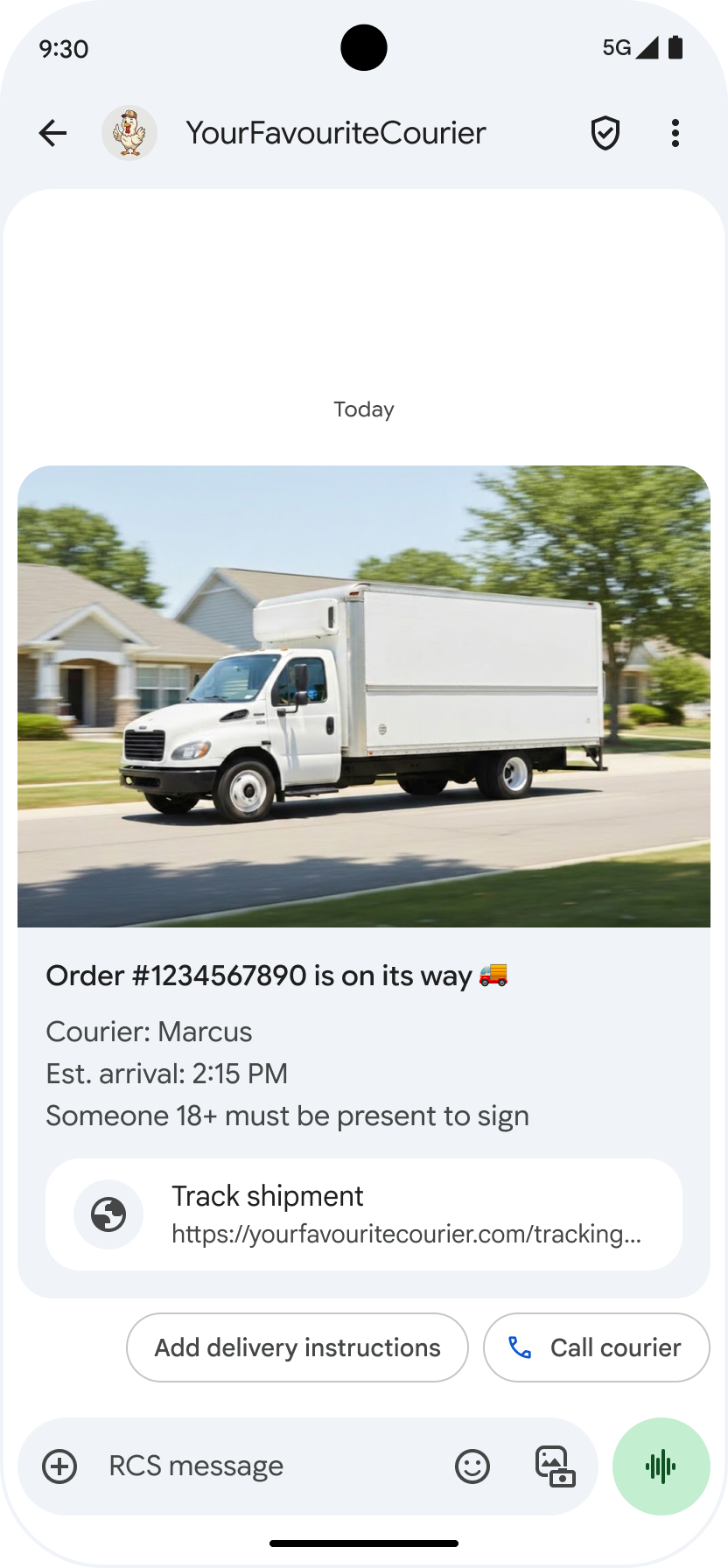
การแสดง URL ต้นฉบับ : เพื่อเพิ่มความโปร่งใสในการส่งข้อความ A2P Google Messages จะแสดงที่อยู่ URL ต้นฉบับภายในคำแนะนำ "เปิด URL" การเปลี่ยนแปลงนี้มีผลกับคำแนะนำใน rich card มาตรฐานและ rich card carousel
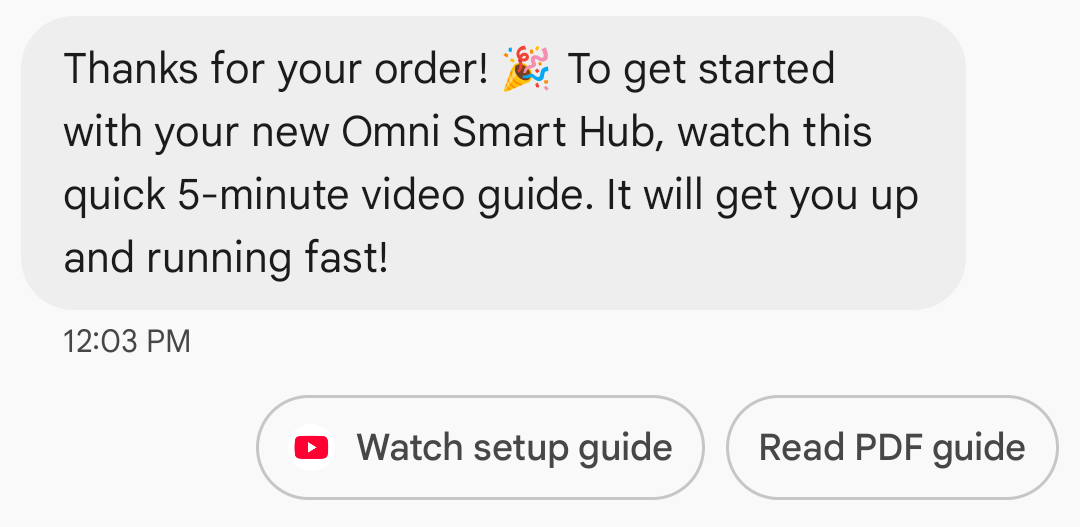
การแสดงไอคอนแอปสำหรับลิงก์เว็บ : หากผู้ใช้ตั้งค่าแอปเริ่มต้นสำหรับหน้าเว็บนั้น แอปนั้นจะเปิดขึ้นแทนเบราว์เซอร์หรือเว็บวิว และปุ่มแนะนำจะแสดงไอคอนของแอปนั้น หากต้องการให้ไอคอนแอปปรากฏใน Google Messages คุณต้องระบุ URL แบบเต็มและตรง หากคุณใช้ URL แบบย่อ ไอคอน "เปิด URL" เริ่มต้นจะแสดงขึ้นแทน
ตัวอย่าง
โค้ดต่อไปนี้จะส่งคำสั่งเปิด URL สำหรับตัวเลือกการจัดรูปแบบและค่าต่างๆ โปรดดูที่ OpenUrlAction
เคิร์ล
curl -X POST "https://REGION-rcsbusinessmessaging.googleapis.com/v1/phones/PHONE_NUMBER/agentMessages?messageId=MESSAGE_ID&agentId=AGENT_ID" \
-H "Content-Type: application/json" \
-H "User-Agent: curl/rcs-business-messaging" \
-H "`oauth2l header --json PATH_TO_SERVICE_ACCOUNT_KEY rcsbusinessmessaging`" \
-d '{
  "contentMessage": {
    "text": "Hello, world!",
    "suggestions": [
      {
        "action": {
          "text": "Open Google",
          "postbackData": "postback_data_1234",
          "openUrlAction": {
            "url": "https://www.google.com"
          }
        }
      }
    ]
  }
}'
โนด.เจ.
// Reference to RBM API helper
const rbmApiHelper = require('@google/rcsbusinessmessaging');

// Define an open URL suggested action
let suggestions = [
   {
      action: {
         text: 'Open Google',
         postbackData: 'postback_data_1234',
         openUrlAction: {
            url: 'https://www.google.com'
         }
      }
   },
];

let params = {
   messageText: 'Hello, world!',
   msisdn: '+12223334444',
   suggestions: suggestions,
};

// Send a simple message with an open URL suggested action
rbmApiHelper.sendMessage(params, function(response) {
   console.log(response);
});
ชวา
import com.google.api.services.rcsbusinessmessaging.v1.model.OpenUrlAction;
import com.google.api.services.rcsbusinessmessaging.v1.model.SuggestedAction;
import com.google.api.services.rcsbusinessmessaging.v1.model.Suggestion;
import com.google.rbm.RbmApiHelper;
…

try {
   // Create an instance of the RBM API helper
   RbmApiHelper rbmApiHelper = new RbmApiHelper();

   // Create suggestions for chip list
   List<Suggestion> suggestions = new ArrayList<Suggestion>();

   // creating an open url suggested action
   OpenUrlAction openUrlAction = new OpenUrlAction();
   openUrlAction.setUrl("https://www.google.com");

   // creating a suggested action based on an open url action
   SuggestedAction suggestedAction = new SuggestedAction();
   suggestedAction.setText("Open Google");
   suggestedAction.setPostbackData("postback_data_1234");
   suggestedAction.setOpenUrlAction(openUrlAction);

   // attaching action to a suggestion
   Suggestion suggestion = new Suggestion();
   suggestion.setAction(suggestedAction);

   suggestions.add(suggestion);

   // Send simple text message with the suggestion action
   rbmApiHelper.sendTextMessage(
      "Hello, world!",
      "+12223334444",
      suggestions
   );
} catch(Exception e) {
   e.printStackTrace();
}
ไพธอน
# Reference to RBM Python client helper and messaging object structure
from rcs_business_messaging import rbm_service
from rcs_business_messaging import messages

# Create an open url suggested action
suggestions = [
      messages.OpenUrlAction('Open Google',
            'reply:postback_data_1234',
            'https://www.google.com')
]

# Create text message to send to user
text_msg = messages.TextMessage('Hello, world!')
cluster = messages.MessageCluster().append_message(text_msg)

# Append suggestions for the message to send to the user
for suggestion in suggestions:
    cluster.append_suggestion_chip(suggestion)

# Send a simple message with suggested action to the device
cluster.send_to_msisdn('+12223334444')
ซี#
using Google.Apis.RCSBusinessMessaging.v1.Data;
using RCSBusinessMessaging;
…

// Create an instance of the RBM API helper
RbmApiHelper rbmApiHelper = new RbmApiHelper(credentialsFileLocation,
                                                 projectId);

// Create an open url action
OpenUrlAction openUrlAction = new OpenUrlAction
{
    Url = "https://www.google.com"
};

// Attach the open url action to a suggested action
SuggestedAction suggestedAction = new SuggestedAction
{
    OpenUrlAction = openUrlAction,
    Text = "Open Google",
    PostbackData = "postback_data_1234"
};

// Attach the action to a suggestion object
Suggestion suggestion = new Suggestion
{
    Action = suggestedAction
};

List<Suggestion> suggestions = new List<Suggestion>
{
    suggestion
};

rbmApiHelper.SendTextMessage(
    "Hello, world!",
    "+12223334444",
    suggestions
);
เปิด URL ด้วย WebView
การดำเนินการ "เปิด URL ด้วย webview" จะโหลดหน้าเว็บที่ระบุภายในแอปพลิเคชันส่งข้อความโดยใช้กลไกการแสดงผลของเบราว์เซอร์เริ่มต้นของคุณ ซึ่งช่วยให้ผู้ใช้สามารถโต้ตอบกับหน้าเว็บได้โดยไม่ต้องออกจากบทสนทนา RCS for Business หากอุปกรณ์ของผู้ใช้ไม่รองรับ webview หน้าเว็บจะเปิดในเบราว์เซอร์ของผู้ใช้แทน หากต้องการเปิดใช้งาน webview โปรดดูที่ OpenURLApplication
Webview มีโหมดการแสดงผลสามโหมด สำหรับตัวเลือกการจัดรูปแบบและค่าต่างๆ โปรดดูที่ WebviewViewMode
- เต็มหน้าจอ: หน้าเว็บแสดงผลเต็มหน้าจอ
- ครึ่ง: หน้าเว็บใช้พื้นที่ครึ่งหนึ่งของหน้าจอ
- สูง: หน้าเว็บใช้พื้นที่สามในสี่ของหน้าจอ
ตัวอย่าง
โค้ดต่อไปนี้จะส่ง URL ที่เปิดอยู่พร้อมกับแอ็กชัน webview สำหรับตัวเลือกการจัดรูปแบบและค่าต่างๆ โปรดดูที่ OpenURLAction
เคิร์ล
curl -X POST "https://REGION-rcsbusinessmessaging.googleapis.com/v1/phones/PHONE_NUMBER/agentMessages?messageId=MESSAGE_ID&agentId=AGENT_ID" \
-H "Content-Type: application/json" \
-H "User-Agent: curl/rcs-business-messaging" \
-H "`oauth2l header --json PATH_TO_SERVICE_ACCOUNT_KEY rcsbusinessmessaging`" \
-d '{
 "contentMessage": {
   "text": "Hello, world!",
   "suggestions": [
     {
       "action": {
         "text": "Open Google",
         "postbackData": "postback_data_1234",
         "openUrlAction": {
           "url": "https://www.google.com",
           "application": "WEBVIEW",
           "webviewViewMode": "FULL",
           "description": "Accessibility description"
         }
       }
     }
   ]
 }
}'
ชวา
import com.google.api.services.rcsbusinessmessaging.v1.model.OpenUrlAction;
import com.google.api.services.rcsbusinessmessaging.v1.model.SuggestedAction;
import com.google.api.services.rcsbusinessmessaging.v1.model.Suggestion;
import com.google.rbm.RbmApiHelper;
…

try {

   String URL = "https://www.google.com";

   // Create an instance of the RBM API helper
   RbmApiHelper rbmApiHelper = new RbmApiHelper();

   // Create suggestions for chip list
   List<Suggestion> suggestions = new ArrayList<Suggestion>();

   // Create suggestion to view webpage in full mode
   Suggestion viewInFullMode =  getUrlActionInWebview(URL, "FULL")
   suggestions.add(viewInFullMode);

   // create suggestion to view webpage in half mode
   Suggestion viewInHalfMode =  getUrlActionInWebview(URL, "HALF")
   suggestions.add(viewInHalfMode);

   // create suggestion to view webpage in tall mode
   Suggestion viewInTallMode =  getUrlActionInWebview(URL, "TALL")
   suggestions.add(viewInTallMode);

   // Send simple text message with the suggested action
   rbmApiHelper.sendTextMessage(
      "Hello, world!",
      "+12223334444",
      suggestions
   );
} catch(Exception e) {
   e.printStackTrace();
}

  /**
    * Creates a suggested action to open URL in webview.
    *
    * @return a suggestion object for an open URL in webview action .
    */
    private Suggestion getUrlActionInWebview(String url,
                                             String viewMode) {
      // create an open url action
      OpenUrlAction openUrlAction = new OpenUrlAction();
      openUrlAction.setUrl(url);
      openUrlAction.setApplication("WEBVIEW");
      openUrlAction.setWebviewViewMode(viewMode);
      openUrlAction.setDescription("Accessibility description");

      // attach the open url action to a suggested action
      SuggestedAction suggestedAction = new SuggestedAction();
      suggestedAction.setOpenUrlAction(openUrlAction);
      suggestedAction.setText('display_text');
      suggestedAction.setPostbackData('postback_data_123');

      // attach the action to a suggestion object
      Suggestion suggestion = new Suggestion();
      suggestion.setAction(suggestedAction);

      return suggestion;
    }
สร้างกิจกรรมในปฏิทิน
การดำเนินการ "สร้างกิจกรรมในปฏิทิน" จะเปิดแอปปฏิทินของผู้ใช้และเริ่มสร้างกิจกรรมใหม่ด้วยข้อมูลที่ระบุ
จำเป็นต้องระบุชื่อกิจกรรมในปฏิทิน โดยมีความยาวสูงสุด 100 ตัวอักษร ส่วนคำอธิบายกิจกรรมในปฏิทินนั้นเป็นตัวเลือก และมีความยาวสูงสุด 500 ตัวอักษร
ตัวอย่าง
โค้ดต่อไปนี้จะส่งคำสั่งสร้างกิจกรรมในปฏิทิน สำหรับตัวเลือกการจัดรูปแบบและค่าต่างๆ โปรดดูที่ CreateCalendarEventAction
เคิร์ล
curl -X POST "https://REGION-rcsbusinessmessaging.googleapis.com/v1/phones/PHONE_NUMBER/agentMessages?messageId=MESSAGE_ID&agentId=AGENT_ID" \
-H "Content-Type: application/json" \
-H "User-Agent: curl/rcs-business-messaging" \
-H "`oauth2l header --json PATH_TO_SERVICE_ACCOUNT_KEY rcsbusinessmessaging`" \
-d '{
  "contentMessage": {
    "text": "Hello, world!",
    "suggestions": [
      {
        "action": {
          "text": "Save to calendar",
          "postbackData": "postback_data_1234",
          "fallbackUrl": "https://www.google.com/calendar",
          "createCalendarEventAction": {
            "startTime": "2020-06-30T19:00:00Z",
            "endTime": "2020-06-30T20:00:00Z",
            "title": "My calendar event",
            "description": "Description of the calendar event"
          }
        }
      }
    ]
  }
}'
โนด.เจ.
// Reference to RBM API helper
const rbmApiHelper = require('@google/rcsbusinessmessaging');

// Define a create calendar event suggested action
let suggestions = [
   {
      action: {
         text: 'Save to calendar',
         postbackData: 'postback_data_1234',
         createCalendarEventAction: {
            startTime: '2020-06-30T19:00:00Z',
            endTime: '2020-06-30T20:00:00Z',
            title: 'My calendar event',
            description: 'Description of the calendar event',
         },
      }
   },
];

let params = {
   messageText: 'Hello, world!',
   msisdn: '+12223334444',
   suggestions: suggestions,
};

// Send a simple message with a create calendar event suggested action
rbmApiHelper.sendMessage(params, function(response) {
   console.log(response);
});
ชวา
import com.google.api.services.rcsbusinessmessaging.v1.model.CreateCalendarEventAction;
import com.google.api.services.rcsbusinessmessaging.v1.model.SuggestedAction;
import com.google.api.services.rcsbusinessmessaging.v1.model.Suggestion;
import com.google.rbm.RbmApiHelper;
…

try {
   // Create an instance of the RBM API helper
   RbmApiHelper rbmApiHelper = new RbmApiHelper();

   // Create suggestions for chip list
   List<Suggestion> suggestions = new ArrayList<Suggestion>();

   // creating a create calendar event suggested action
   CreateCalendarEventAction createCalendarEventAction = new CreateCalendarEventAction();
   calendarEventAction.setTitle("My calendar event");
   calendarEventAction.setDescription("Description of the calendar event");
   calendarEventAction.setStartTime("2020-06-30T19:00:00Z");
   calendarEventAction.setEndTime("2020-06-30T20:00:00Z");

   // creating a suggested action based on a create calendar event action
   SuggestedAction suggestedAction = new SuggestedAction();
   suggestedAction.setText("Save to calendar");
   suggestedAction.setPostbackData("postback_data_1234");
   suggestedAction.setCreateCalendarEventAction(createCalendarEventAction);

   // attaching action to a suggestion
   Suggestion suggestion = new Suggestion();
   suggestion.setAction(suggestedAction);

   suggestions.add(suggestion);

   // Send simple text message with the suggestion action
   rbmApiHelper.sendTextMessage(
      "Hello, world!",
      "+12223334444",
      suggestions
   );
} catch(Exception e) {
   e.printStackTrace();
}
ไพธอน
# Reference to RBM Python client helper and messaging object structure
from rcs_business_messaging import rbm_service
from rcs_business_messaging import messages

# Create a calendar event suggested action
suggestions = [
      messages.CreateCalendarEventAction('Save to Calendar',
                             'reply:postback_data_1234',
                             '2020-06-30T19:00:00Z',
                             '2020-06-30T20:00:00Z',
                             'My calendar event',
                             'Description of the calendar event')

]

# Create text message to send to user
text_msg = messages.TextMessage('Hello, world!')
cluster = messages.MessageCluster().append_message(text_msg)

# Append suggestions for the message to send to the user
for suggestion in suggestions:
    cluster.append_suggestion_chip(suggestion)

# Send a simple message with suggested action to the device
cluster.send_to_msisdn('+12223334444')
ซี#
using Google.Apis.RCSBusinessMessaging.v1.Data;
using RCSBusinessMessaging;
…

// Create an instance of the RBM API helper
RbmApiHelper rbmApiHelper = new RbmApiHelper(credentialsFileLocation,
                                                 projectId);

// Create a calendar event action
CreateCalendarEventAction calendarEventAction = new CreateCalendarEventAction
{
    Title = "My calendar event",
    Description = "Description of the calendar event",
    StartTime = "2020-06-30T19:00:00Z",
    EndTime = "2020-06-30T20:00:00Z"
};

// Attach the calendar event action to a suggested action
SuggestedAction suggestedAction = new SuggestedAction
{
    CreateCalendarEventAction = calendarEventAction,
    Text = "Save to calendar",
    PostbackData = "postback_data_1234"
};

// Attach the action to a suggestion object
Suggestion suggestion = new Suggestion
{
    Action = suggestedAction
};

List<Suggestion> suggestions = new List<Suggestion>
{
    suggestion
};

rbmApiHelper.SendTextMessage(
    "Hello, world!",
    "+12223334444",
    suggestions
);
รายการชิปแนะนำ
ตัวแทนของคุณจะส่งรายการชิปแนะนำพร้อมกับข้อความเพื่อเป็นแนวทางในการดำเนินการต่อไปของผู้ใช้ รายการชิปจะแสดงเฉพาะเมื่อข้อความที่เกี่ยวข้องอยู่ด้านล่างสุดของการสนทนาเท่านั้น ข้อความใดๆ ที่ส่งมาหลังจากนั้นในการสนทนา (ไม่ว่าจะเป็นจากผู้ใช้หรือตัวแทนของคุณ) จะเขียนทับรายการชิปเดิม
ชิปในรายการคือ คำตอบที่แนะนำ และ การกระทำที่แนะนำ
รายการชิปแต่ละรายการมีชิปแนะนำได้สูงสุด 11 รายการ และป้ายกำกับชิปแต่ละรายการสามารถมีได้สูงสุด 25 ตัวอักษร
สำหรับตัวเลือกการจัดรูปแบบและค่าต่างๆ โปรดดูที่ AgentContentMessage
การ์ดริช
การ์ดข้อมูลแบบ Rich Card ผสานรวมสื่อ ข้อความ และคำแนะนำแบบโต้ตอบเข้าไว้ในข้อความเดียว เหมาะอย่างยิ่งสำหรับการนำเสนอข้อมูลที่เกี่ยวข้อง (เช่น ผลิตภัณฑ์พร้อมรูปภาพ ชื่อ และราคา) และแนะนำผู้ใช้ด้วยขั้นตอนต่อไปที่ชัดเจน เช่น คำแนะนำ "ดูรายละเอียด"
การ์ดที่มีข้อมูลครบถ้วนสามารถประกอบด้วยข้อมูลต่อไปนี้:
- สื่อ (ภาพนิ่ง, GIF หรือวิดีโอ)
- ข้อความหัวเรื่อง
- ข้อความอธิบาย
- คำตอบที่แนะนำ และ การดำเนินการที่แนะนำ (สูงสุด 4 รายการ)
แต่ละช่องข้อมูลเหล่านี้เป็นตัวเลือก แต่ต้องมีอย่างน้อยหนึ่งช่องจากช่องที่ 1–3 อยู่ในข้อมูลการ์ดที่สมบูรณ์
สามารถส่งการ์ดหลายใบพร้อมกันได้ใน รูปแบบ เลื่อนแนวนอน
โปรดทราบว่าขนาดไฟล์สูงสุดสำหรับการ์ดที่มีข้อมูลครบถ้วนคือ 250 KB
สำหรับรายละเอียดทางเทคนิคทั้งหมด โปรดดู เอกสารประกอบการใช้งาน Rich cards
ความสูงของการ์ด
การ์ดแบบ Rich Card จะขยายในแนวตั้งเพื่อให้พอดีกับเนื้อหา การ์ดเหล่านี้มีความสูงขั้นต่ำ 112 DP และความสูงสูงสุด 344 DP หากเนื้อหาในการ์ดไม่ใหญ่พอที่จะเติมเต็มความสูงขั้นต่ำ การ์ดจะขยายออกและเติมความสูงส่วนเกินด้วยพื้นที่ว่าง
สื่อในริชการ์ดต้องมีความสูงอย่างน้อยหนึ่งในสามขนาดดังนี้:
- ภาพยนตร์สั้น: 112 DP
- ขนาดกลาง: 168 DP
- สูง: 264 DP
หากไฟล์มีเดียมีขนาดไม่พอดีกับความสูงของการ์ดที่เลือกไว้ ระบบจะเลือกภาพตัวอย่างมีเดียโดยการซูมและตัดส่วนของไฟล์มีเดีย
ตัวอย่าง
โค้ดต่อไปนี้จะส่ง Rich Card ที่มีรูปภาพและคำแนะนำในการตอบกลับ สำหรับตัวเลือกการจัดรูปแบบและค่าต่างๆ โปรดดูที่ RichCard
เคิร์ล
curl -X POST "https://REGION-rcsbusinessmessaging.googleapis.com/v1/phones/PHONE_NUMBER/agentMessages?messageId=MESSAGE_ID&agentId=AGENT_ID" \
-H "Content-Type: application/json" \
-H "User-Agent: curl/rcs-business-messaging" \
-H "`oauth2l header --json PATH_TO_SERVICE_ACCOUNT_KEY rcsbusinessmessaging`" \
-d '{
  "contentMessage": {
    "richCard": {
      "standaloneCard": {
        "thumbnailImageAlignment": "RIGHT",
        "cardOrientation": "VERTICAL",
        "cardContent": {
          "title": "Hello, world!",
          "description": "RBM is awesome!",
          "media": {
            "height": "TALL",
            "contentInfo":{
              "fileUrl": "http://www.google.com/logos/doodles/2015/googles-new-logo-5078286822539264.3-hp2x.gif",
              "forceRefresh": false
            }
          },
          "suggestions": [
            {
              "reply": {
                "text": "Suggestion #1",
                "postbackData": "suggestion_1"
              }
            },
            {
              "reply": {
                "text": "Suggestion #2",
                "postbackData": "suggestion_2"
              }
            }
          ]
        }
      }
    }
  }
}'
โนด.เจ.
// Reference to RBM API helper
const rbmApiHelper = require('@google/rcsbusinessmessaging');

// Suggested replies to be used in the card
let suggestions = [
   {
      reply: {
         'text': 'Suggestion #1',
         'postbackData': 'suggestion_1',
      },
   },
   {
      reply: {
         'text': 'Suggestion #2',
         'postbackData': 'suggestion_2',
      },
   },
];

// Image to be displayed by the card
let imageUrl = 'http://www.google.com/logos/doodles/2015/googles-new-logo-5078286822539264.3-hp2x.gif';

// Definition of the card parameters
let params = {
   messageText: 'Hello, world!',
   messageDescription: 'RBM is awesome!',
   msisdn: '+12223334444',
   suggestions: suggestions,
   imageUrl: imageUrl,
   height: 'TALL',
};

// Send rich card to device
rbmApiHelper.sendRichCard(params, function(response) {
   console.log(response);
});
ชวา
import com.google.api.services.rcsbusinessmessaging.v1.model.StandaloneCard;
import com.google.api.services.rcsbusinessmessaging.v1.model.Suggestion;
import com.google.rbm.cards.CardOrientation;
import com.google.rbm.cards.MediaHeight;
import com.google.rbm.RbmApiHelper;
import com.google.rbm.SuggestionHelper;
…

try {
   // Create an instance of the RBM API helper
   RbmApiHelper rbmApiHelper = new RbmApiHelper();

   // Create suggestions for chip list
   List<Suggestion> suggestions = new ArrayList<Suggestion>();
   suggestions.add(
      new SuggestionHelper("Suggestion #1", "suggestion_1").getSuggestedReply());

   suggestions.add(
      new SuggestionHelper("Suggestion #2", "suggestion_2").getSuggestedReply());

   String imageUrl = "http://www.google.com/logos/doodles/2015/googles-new-logo-5078286822539264.3-hp2x.gif";

   // Create a standalone rich card to send to the user
   StandaloneCard standaloneCard = rbmApiHelper.createStandaloneCard(
       "Hello, world!",
       "RBM is awesome!",
       imageUrl,
       MediaHeight.MEDIUM,
       CardOrientation.VERTICAL,
       suggestions
   );

   rbmApiHelper.sendStandaloneCard(standaloneCard, "+12223334444");
} catch(Exception e) {
   e.printStackTrace();
}
ไพธอน
# Reference to RBM Python client helper and messaging object structure
from rcs_business_messaging import rbm_service
from rcs_business_messaging import messages

# Suggested replies to be used in the card
suggestions = [
      messages.SuggestedReply('Suggestion #1', 'reply:suggestion_1'),
      messages.SuggestedReply('Suggestion #2', 'reply:suggestion_2')
]

# Image to be displayed by the card
image_url = 'http://www.google.com/logos/doodles/2015/googles-new-logo-5078286822539264.3-hp2x.gif';

# Define rich card structure
rich_card = messages.StandaloneCard('VERTICAL',
                                    'Hello, world!',
                                    'RBM is awesome!',
                                    suggestions,
                                    image_url,
                                    None,
                                    None,
                                    'MEDIUM')

# Append rich card and send to the user
cluster = messages.MessageCluster().append_message(rich_card)
cluster.send_to_msisdn('+12223334444')
ซี#
using Google.Apis.RCSBusinessMessaging.v1.Data;
using RCSBusinessMessaging;
using RCSBusinessMessaging.Cards;
…

// Create an instance of the RBM API helper
RbmApiHelper rbmApiHelper = new RbmApiHelper(credentialsFileLocation,
                                             projectId);

List<Suggestion> suggestions = new List<Suggestion>
{
   // Create suggestion chips
   new SuggestionHelper("Suggestion #1", "suggestion_1").SuggestedReply(),
   new SuggestionHelper("Suggestion #2", "suggestion_2").SuggestedReply()
};

string imageUrl = "http://www.google.com/logos/doodles/2015/googles-new-logo-5078286822539264.3-hp2x.gif";

// Create rich card with suggestions
StandaloneCard standaloneCard = rbmApiHelper.CreateStandaloneCard(
   "Hello, world!",
   "RBM is awesome",
   imageUrl,
   MediaHeight.TALL,
   CardOrientation.VERTICAL,
   suggestions
);

// Send rich card to user
rbmApiHelper.SendStandaloneCard(standaloneCard, "+12223334444");
วงล้อการ์ด Rich
Carousel นำเสนอ การ์ดข้อมูล หลากหลายรูปแบบมาเรียงต่อกัน ทำให้ผู้ใช้สามารถเปรียบเทียบสินค้าและแสดงความคิดเห็นต่อแต่ละรายการได้อย่างอิสระ
Carousel สามารถบรรจุ Rich Card ได้อย่างน้อยสองใบและสูงสุดสิบใบ Rich Card ภายใน Carousel ต้องเป็นไปตามข้อกำหนดทั่วไปของ Rich Card ทั้งในด้านเนื้อหาและความสูง ตามที่อธิบายไว้ใน เอกสาร Rich Card สำหรับข้อมูลเพิ่มเติมเกี่ยวกับเค้าโครงและการกำหนดคุณสมบัติของ Carousel โปรดดู เอกสาร Carousel
ตัวอย่าง
โค้ดต่อไปนี้จะส่งข้อมูลแบบ Rich Card Carousel สำหรับตัวเลือกการจัดรูปแบบและค่าต่างๆ โปรดดูที่ RichCard
เคิร์ล
curl -X POST "https://REGION-rcsbusinessmessaging.googleapis.com/v1/phones/PHONE_NUMBER/agentMessages?messageId=MESSAGE_ID&agentId=AGENT_ID" \
-H "Content-Type: application/json" \
-H "User-Agent: curl/rcs-business-messaging" \
-H "`oauth2l header --json PATH_TO_SERVICE_ACCOUNT_KEY rcsbusinessmessaging`" \
-d '{
  "contentMessage": {
    "richCard": {
      "carouselCard": {
        "cardWidth": "MEDIUM",
        "cardContents": [
          {
            "title": "Card #1",
            "description": "The description for card #1",
            "suggestions": [
              {
                "reply": {
                  "text": "Card #1",
                  "postbackData": "card_1"
                }
              }
            ],
            "media": {
              "height": "MEDIUM",
              "contentInfo": {
                "fileUrl": "https://storage.googleapis.com/welcome-bot-sample-images/200.jpg",
                "forceRefresh": false
              }
            }
          },
          {
            "title": "Card #2",
            "description": "The description for card #2",
            "suggestions": [
              {
                "reply": {
                  "text": "Card #2",
                  "postbackData": "card_2"
                }
              }
            ],
            "media": {
              "height": "MEDIUM",
              "contentInfo": {
                "fileUrl": "https://storage.googleapis.com/welcome-bot-sample-images/201.jpg",
                "forceRefresh": false
              }
            }
          }
        ]
      }
    }
  }
}'
โนด.เจ.
// Reference to RBM API helper
const rbmApiHelper = require('@google/rcsbusinessmessaging');

// Images for the carousel cards
let card1Image = 'https://storage.googleapis.com/welcome-bot-sample-images/200.jpg';
let card2Image = 'https://storage.googleapis.com/welcome-bot-sample-images/201.jpg';

// Define the card contents for a carousel with two cards, each with one suggested reply
let cardContents = [
   {
      title: 'Card #1',
      description: 'The description for card #1',
      suggestions: [
         {
            reply: {
               text: 'Card #1',
               postbackData: 'card_1',
            }
         }
      ],
      media: {
         height: 'MEDIUM',
         contentInfo: {
            fileUrl: card1Image,
            forceRefresh: false,
         },
      },
   },
   {
      title: 'Card #2',
      description: 'The description for card #2',
      suggestions: [
         {
            reply: {
               text: 'Card #2',
               postbackData: 'card_2',
            }
         }
      ],
      media: {
         height: 'MEDIUM',
         contentInfo: {
            fileUrl: card2Image,
            forceRefresh: false,
         },
      },
   },
];

// Definition of carousel card
let params = {
   msisdn: '+12223334444',
   cardContents: cardContents,
};

// Send the device the carousel card defined above
rbmApiHelper.sendCarouselCard(params, function(response) {
   console.log(response);
});
ชวา
import com.google.api.services.rcsbusinessmessaging.v1.model.CardContent;
import com.google.api.services.rcsbusinessmessaging.v1.model.Suggestion;
import com.google.rbm.cards.CardOrientation;
import com.google.rbm.cards.CardWidth;
import com.google.rbm.cards.MediaHeight;
import com.google.rbm.RbmApiHelper;
import com.google.rbm.SuggestionHelper;
…

try {
            // Create an instance of the RBM API helper
            RbmApiHelper rbmApiHelper = new RbmApiHelper();

            List cardContents = new ArrayList();

            // Images for the carousel cards
            String card1Image = "https://storage.googleapis.com/welcome-bot-sample-images/200.jpg";

            // Create suggestions for first carousel card
            List card1Suggestions = new ArrayList();
            card1Suggestions.add(
                new SuggestionHelper("Card #1", "card_1"));

            cardContents.add(
                new StandaloneCardHelper(
                    "Card #1",
                    "The description for card #1",
                    card1Image,
                    card1Suggestions)
                    .getCardContent(MediaHeight.SHORT)
            );

            // Images for the carousel cards
            String card2Image = "https://storage.googleapis.com/welcome-bot-sample-images/201.jpg";

            // Create suggestions for second carousel card
            List card2Suggestions = new ArrayList();
            card2Suggestions.add(
                new SuggestionHelper("Card #2", "card_2"));

            cardContents.add(
                new StandaloneCardHelper(
                    "Card #2",
                    "The description for card #2",
                    card2Image,
                    card2Suggestions)
                    .getCardContent(MediaHeight.SHORT)
            );

            // Send the carousel to the user
            rbmApiHelper.sendCarouselCards(cardContents, CardWidth.MEDIUM, "+12223334444");
        } catch(Exception e) {
            e.printStackTrace();
        }
ไพธอน
# Reference to RBM Python client helper and messaging object structure
from rcs_business_messaging import rbm_service
from rcs_business_messaging import messages

# Images for the carousel cards
card_image_1 = 'https://storage.googleapis.com/welcome-bot-sample-images/200.jpg';
card_image_2 = 'https://storage.googleapis.com/welcome-bot-sample-images/201.jpg';

# Suggested replies to be used in the cards
suggestions1 = [
      messages.SuggestedReply('Card #1', 'reply:card_1')
]

suggestions2 = [
      messages.SuggestedReply('Card #2', 'reply:card_2')
]

# Define the card contents for a carousel with two cards,
# each with one suggested reply
card_contents = []
card_contents.append(messages.CardContent('Card #1',
                                          'The description for card #1',
                                          card_image_1,
                                          'MEDIUM',
                                          suggestions1))

card_contents.append(messages.CardContent('Card #2',
                                          'The description for card #2',
                                          card_image_2,
                                          'MEDIUM',
                                          suggestions2))

# Send the device the carousel card defined above
carousel_card = messages.CarouselCard('MEDIUM', card_contents)
cluster = messages.MessageCluster().append_message(carousel_card)
cluster.send_to_msisdn('+12223334444')
ซี#
using Google.Apis.RCSBusinessMessaging.v1.Data;
using RCSBusinessMessaging;
using RCSBusinessMessaging.Cards;
…

// Create an instance of the RBM API helper
RbmApiHelper rbmApiHelper = new RbmApiHelper(credentialsFileLocation,
                                             projectId);

// Image references to be used in the carousel cards
string card1Image = "https://storage.googleapis.com/welcome-bot-sample-images/200.jpg";
string card2Image = "https://storage.googleapis.com/welcome-bot-sample-images/201.jpg";

// Suggestion chip lists to be used in carousel cards
List<Suggestion> suggestions1 = new List<Suggestion>
{
   new SuggestionHelper("Card #1", "card_1").SuggestedReply()
};

List<Suggestion> suggestions2 = new List<Suggestion>
{
   new SuggestionHelper("Card #2", "card_2").SuggestedReply()
};

// Create the card content for the carousel
List<CardContent> cardContents = new List<CardContent>
{
   // Add items as card content
   new StandaloneCardHelper(
                    "Card #1",
                    "The description for card #1",
                    card1Image,
                    suggestions1).GetCardContent(),
   new StandaloneCardHelper(
                    "Card #2",
                    "The description for card #2",
                    card2Image,
                    suggestions2).GetCardContent()
};

// Send the carousel to the user
rbmApiHelper.SendCarouselCards(cardContents, CardWidth.MEDIUM, msisdn);