
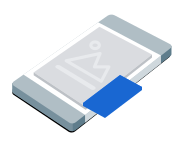
Picture-in-picture (PiP) ads display in a floating window that stays on top of content on the screen, such as articles, feeds, or gameplay. This format lets users interact with your app while the ad remains visible. To display ads that don't take over the entire screen, choose this format.
This guide covers requesting and displaying picture-in-picture ads in your app using GMA Next-Gen SDK.
Before you begin
Before you continue, do the following:
Install GMA Next-Gen SDK version
1.4.0or later.Enable test ads and use the following test ad unit ID:
/21775744923/example/picture-in-picture
Load an ad
To load a
PictureInPictureAd object, create an ad request and call the load method:
Kotlin
Java
Replace AD_UNIT_ID with your ad unit ID.
Show the ad
To display the picture-in-picture ad on screen, configure your
picture-in-picture options and call the show method. The following example
sets the default position of the ad and the presentation scope to the screen:
Kotlin
private fun showPictureInPictureAd(activity: Activity) {
  // Capture the ad reference saved from the onAdLoaded callback.
  val ad = pipAd
  if (ad != null) {
    val options =
      PictureInPictureAdOptions.Builder()
        // Uses the Google Mobile Ads SDK's default screen position.
        .setPosition(PictureInPictureAdPosition.DEFAULT)
        // Binds the ad lifecycle to the host screen.
        .setPresentationScope(PictureInPictureAdPresentationScope.SCREEN)
        .build()
    ad.show(activity, options)
  } else {
    Log.d(TAG, "No ad to show.")
  }
}
Java
private void showPictureInPictureAd(@NonNull Activity activity) {
  // Use the ad reference saved from the onAdLoaded callback.
  if (pipAd != null) {
    PictureInPictureAdOptions options =
        new PictureInPictureAdOptions.Builder()
            // Uses the Google Mobile Ads SDK's default screen position.
            .setPosition(PictureInPictureAdPosition.DEFAULT)
            // Binds the ad lifecycle to the host screen.
            .setPresentationScope(PictureInPictureAdPresentationScope.SCREEN)
            .build();
    pipAd.show(activity, options);
  } else {
    Log.d(TAG, "No ad to show.");
  }
}
Set the position
By default, GMA Next-Gen SDK displays a picture-in-picture ad in the bottom-right corner of the screen when first shown, or at the last known position if previously shown. To customize where the ad appears, set the position in your picture-in-picture options. The following example sets the position on top of content in the top-left corner of the screen:
Kotlin
private fun createTopLeftPositionOptions(): PictureInPictureAdOptions {
  return PictureInPictureAdOptions.Builder()
    // Sets the ad position to the top-left corner of the screen.
    .setPosition(PictureInPictureAdPosition.TOP_LEFT)
    .build()
}
Java
private PictureInPictureAdOptions createTopLeftPositionOptions() {
  return new PictureInPictureAdOptions.Builder()
      // Sets the ad position to the top-left corner of the screen.
      .setPosition(PictureInPictureAdPosition.TOP_LEFT)
      .build();
}
For all available positions, see
PictureInPictureAdPosition.
Set the presentation scope
By default, GMA Next-Gen SDK binds a picture-in-picture ad to the current host screen. GMA Next-Gen SDK dismisses the ad when the host screen's view hierarchy is no longer in memory. To keep the ad visible after the host screen is removed from memory, set the presentation scope to the application:
Kotlin
private fun createApplicationScopedOptions(): PictureInPictureAdOptions {
  return PictureInPictureAdOptions.Builder()
    // Keeps the ad visible beyond the host screen's lifecycle.
    .setPresentationScope(PictureInPictureAdPresentationScope.APPLICATION)
    .build()
}
Java
private PictureInPictureAdOptions createApplicationScopedOptions() {
  return new PictureInPictureAdOptions.Builder()
      // Keeps the ad visible beyond the host screen's lifecycle.
      .setPresentationScope(PictureInPictureAdPresentationScope.APPLICATION)
      .build();
}
For more information, see Keep the ad visible across screens.
Set the ad event callback
To handle picture-in-picture ad lifecycle events, set the event callback on your ad before displaying it. This callback reports standard events, such as clicks and impressions. This callback also reports picture-in-picture-specific events such as when the ad is shown or hidden:
Kotlin
private fun setAdEventCallback(pipAd: PictureInPictureAd) {
  pipAd.adEventCallback =
    object : PictureInPictureAdEventCallback {
      override fun onAdShown() {
        Log.d(TAG, "Picture-in-Picture ad shown.")
      }

      override fun onAdHidden() {
        Log.d(TAG, "Picture-in-Picture ad hidden.")
      }

      override fun onAdImpression() {
        Log.d(TAG, "Picture-in-Picture ad recorded an impression.")
      }

      override fun onAdClicked() {
        Log.d(TAG, "Picture-in-Picture ad recorded a click.")
      }

      override fun onAdShowedFullScreenContent() {
        Log.d(TAG, "Picture-in-Picture ad showed full screen content.")
      }

      override fun onAdDismissedFullScreenContent() {
        Log.d(TAG, "Picture-in-Picture ad dismissed full screen content.")
      }

      override fun onAdFailedToShowFullScreenContent(
        fullScreenContentError: FullScreenContentError
      ) {
        Log.w(
          TAG,
          "Picture-in-Picture ad failed to show full screen content: $fullScreenContentError",
        )
      }

      override fun onAdPaid(value: AdValue) {
        Log.d(TAG, "Picture-in-Picture ad paid: ${value.valueMicros} ${value.currencyCode}")
      }
    }
}
Java
private void setAdEventCallback(@NonNull PictureInPictureAd pipAd) {
  pipAd.setAdEventCallback(
      new PictureInPictureAdEventCallback() {
        @Override
        public void onAdShown() {
          Log.d(TAG, "Picture-in-Picture ad shown.");
        }

        @Override
        public void onAdHidden() {
          Log.d(TAG, "Picture-in-Picture ad hidden.");
        }

        @Override
        public void onAdImpression() {
          Log.d(TAG, "Picture-in-Picture ad recorded an impression.");
        }

        @Override
        public void onAdClicked() {
          Log.d(TAG, "Picture-in-Picture ad recorded a click.");
        }

        @Override
        public void onAdShowedFullScreenContent() {
          Log.d(TAG, "Picture-in-Picture ad showed full screen content.");
        }

        @Override
        public void onAdDismissedFullScreenContent() {
          Log.d(TAG, "Picture-in-Picture ad dismissed full screen content.");
        }

        @Override
        public void onAdFailedToShowFullScreenContent(
            @NonNull FullScreenContentError fullScreenContentError) {
          Log.w(
              TAG,
              "Picture-in-Picture ad failed to show full screen content: "
                  + fullScreenContentError);
        }

        @Override
        public void onAdPaid(@NonNull AdValue value) {
          Log.d(
              TAG,
              "Picture-in-Picture ad paid: "
                  + value.getValueMicros()
                  + " "
                  + value.getCurrencyCode());
        }
      });
}
Hide the ad
To remove the floating ad from the screen, call the hide method. This method
invokes the ad hidden event callback:
Kotlin
private fun hidePictureInPictureAd() {
  // Capture the ad reference saved from the onAdLoaded callback.
  val ad = pipAd
  if (ad != null) {
    ad.hide()
  } else {
    Log.d(TAG, "No ad to hide.")
  }
}
Java
private void hidePictureInPictureAd() {
  // Use the ad reference saved from the onAdLoaded callback.
  if (pipAd != null) {
    pipAd.hide();
  } else {
    Log.d(TAG, "No ad to hide.");
  }
}
Clean up ad resources
To avoid memory leaks, drop your reference to the ad object when your app finishes using the ad. For example, when your app no longer displays or interacts with the ad again. For screen-scoped ads, drop the reference when your app removes the host screen from memory. For app-scoped ads, retain the ad reference while the user navigates across screens, and drop the reference when the user dismisses the ad:
Kotlin
private fun cleanUpPictureInPictureAd() {
  pipAd?.destroy()
  pipAd = null
}
Java
private void cleanUpPictureInPictureAd() {
  // Use the ad reference saved from the onAdLoaded callback.
  if (pipAd != null) {
    pipAd.destroy();
    pipAd = null;
  }
}
Keep the ad visible across screens
When you set the presentation scope to the application, the picture-in-picture ad remains visible even when your app removes the hosting screen from memory. To interact with or dismiss the ad when the user navigates away from the host screen, your app must retain access to the picture-in-picture ad. We recommend holding the ad in an app-level singleton or shared state manager rather than in a single screen's instance variable.
For examples on how to keep an ad visible across screens, see the following sample apps: