The sandbox is a test environment for Google Wallet's identity service. It uses test IDs instead of real ones, so you can build and debug your integration without touching production data.
By default, Google Wallet runs in production mode with real IDs. In this step, you switch a test device to sandbox mode and configure your server for sandbox requests and responses.
Choose your path RP, VR, or In-Person
Steps on this page
Before you start
- An Android device that you can reset. Switching to sandbox deletes the device's existing production Wallet data, so don't use your personal phone.
- A @gmail.com Google Account signed in to Google Wallet on that device.
- Verifier Registrars only: Submit the Verifier Registrar Onboarding Intake Form with your Sandbox and Production Root CA certificates so Google can add your Sandbox Root CA to the sandbox trust store. See Step 5.A: Submit intake form, Root Certificates & accept ToS.
Step A: Request sandbox access for your test account
The option to switch between sandbox and production is hidden by default. To enable the toggle on your test device, your Google Account must be added to the sandbox allowlist:
- Fill out the Google Pay Sandbox Access Request form with the Google Account that you use in Google Wallet.
- If you're testing from a country or region where digital IDs haven't
officially launched yet, also email the Gmail addresses of your test
accounts to
wallet-identity-rp-support@google.com.
Step B: Switch your device to sandbox mode
- Open the Settings app on your Android test device.
- Tap your Google Account / profile picture at the very top of the screen (it shows your name and "Google services and preferences").
- If prompted, choose your profile, then tap All services.
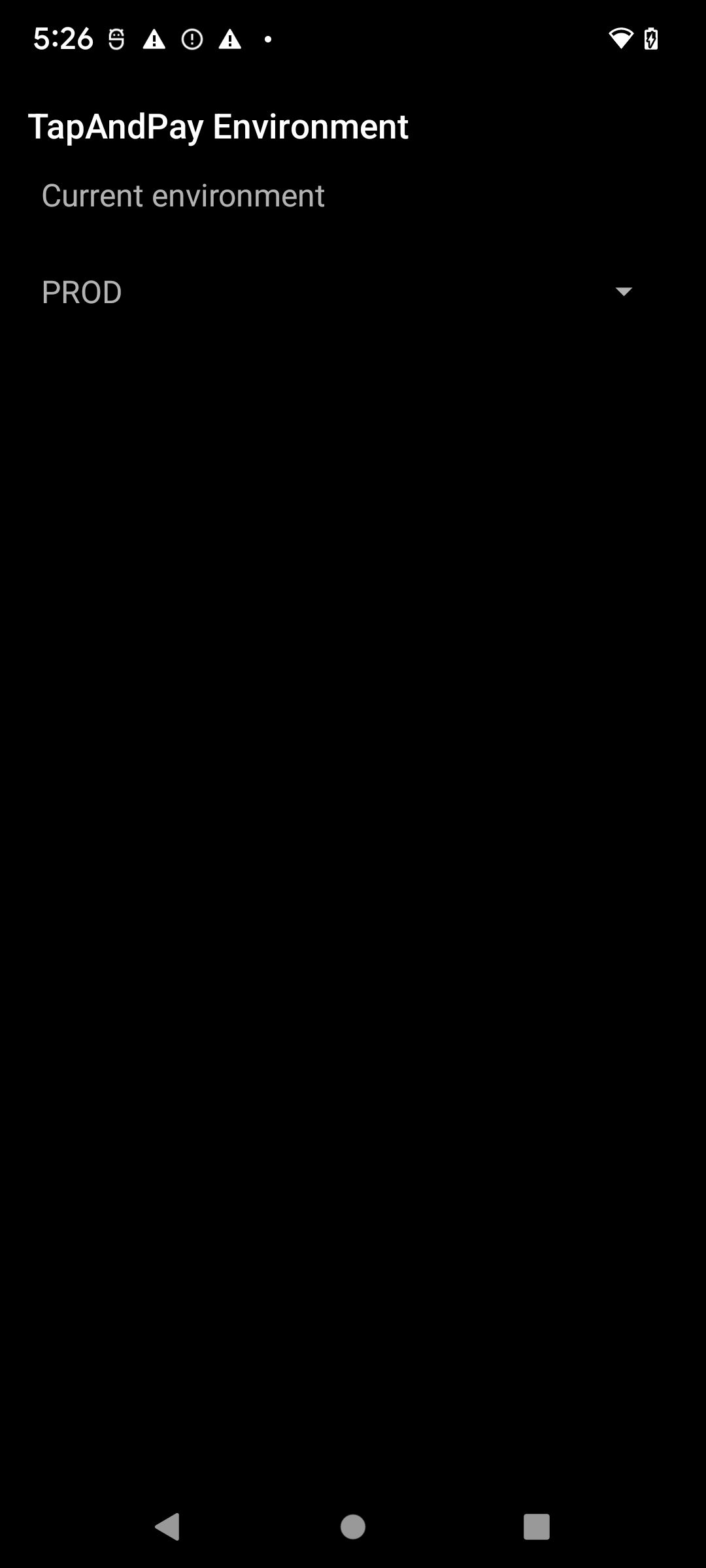
- Go to the Other category and tap TapAndPay Environment. If you don't see TapAndPay Environment, reboot your device and start again from step 1. If it's still missing, verify that your account is on the sandbox allowlist (Step A).
Tap the drop-down menu and select SANDBOX.
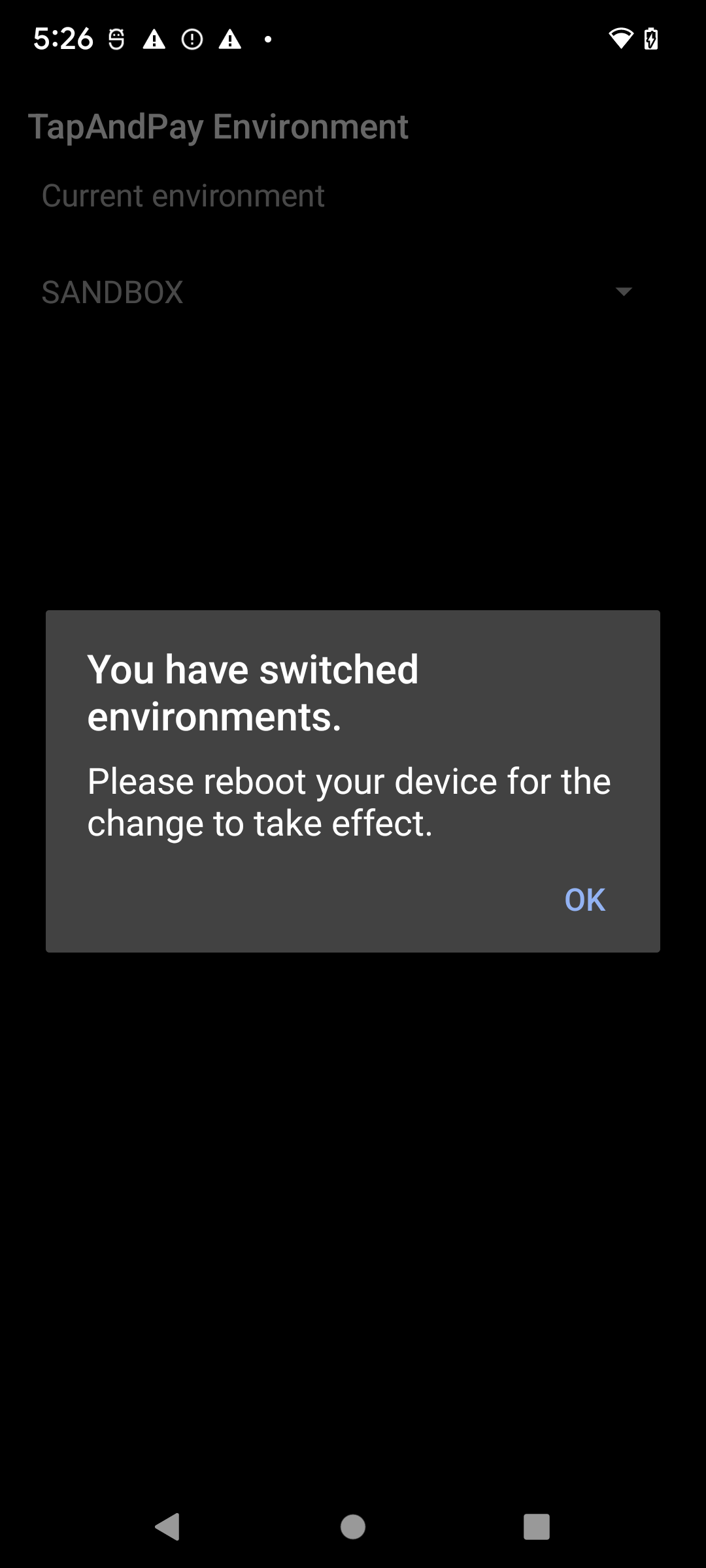
A dialog notifies you that the environment has changed. Tap OK and reboot your device.
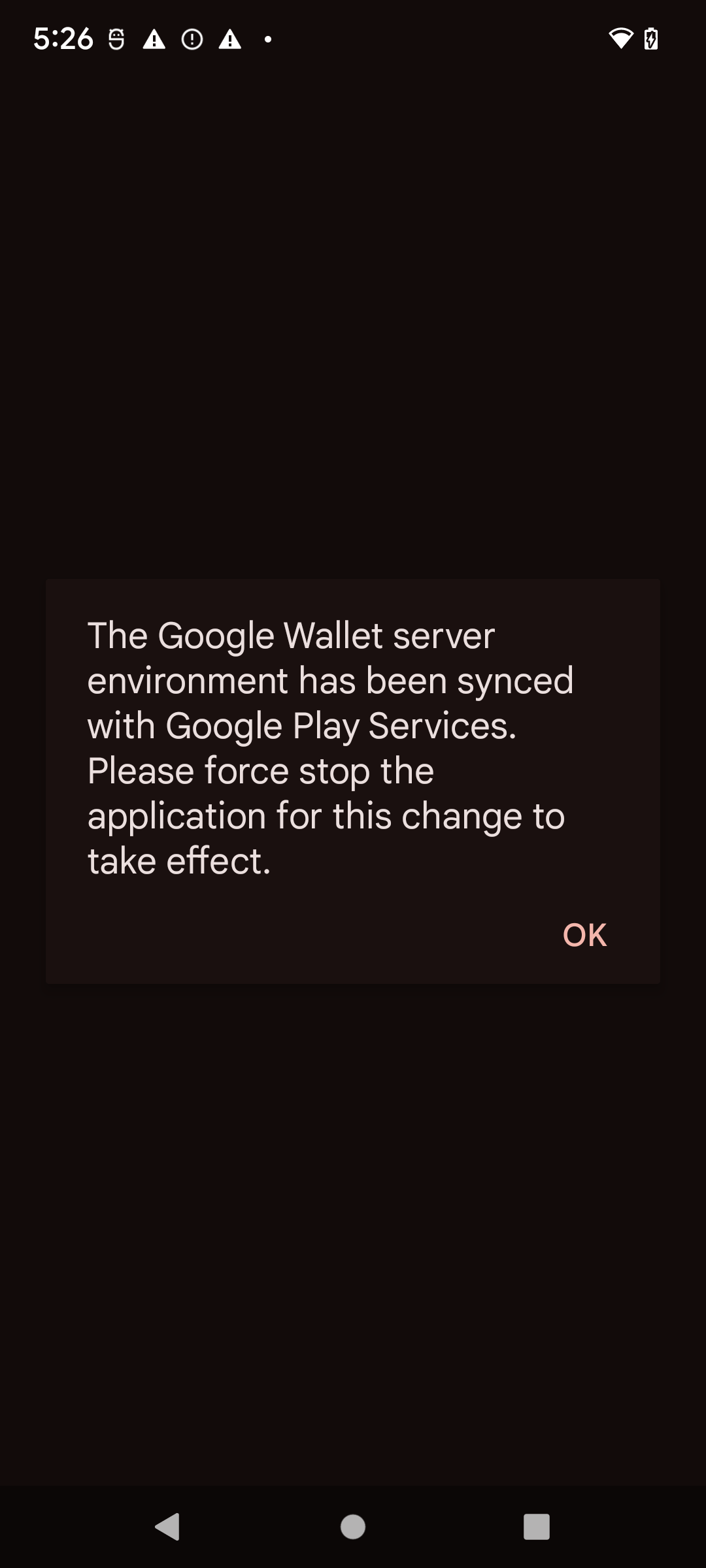
Open Google Wallet after rebooting. If you see the following dialog, force stop and reopen Google Wallet so that it syncs to the sandbox environment:
Step C: Confirm that your device is in sandbox mode
- Open the Google Wallet app .
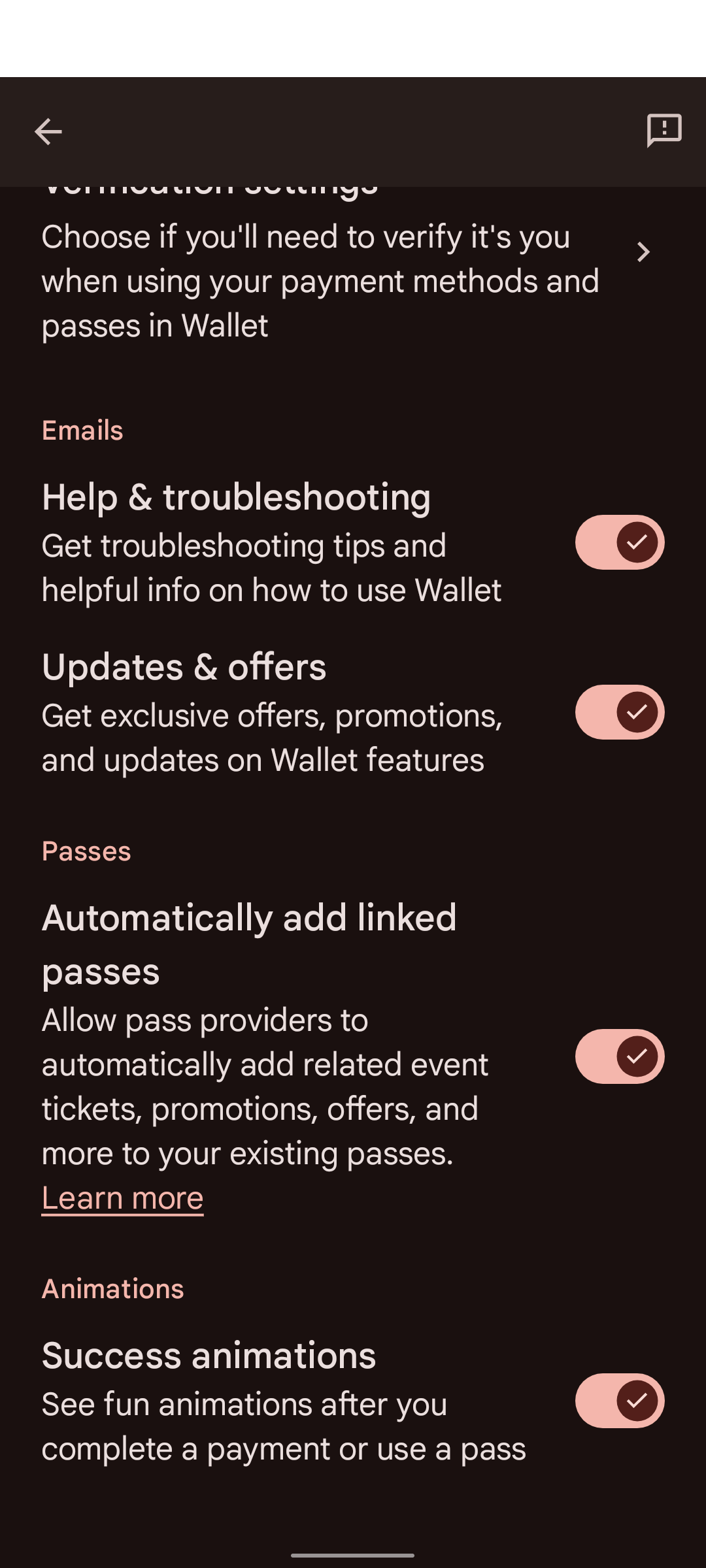
- At the top right, tap your profile picture or account > Wallet settings.
- Go to the bottom of the page. If you see a confirmation message that says SANDBOX, your device is configured for sandbox calls. If you don't see a message, it's in production mode.
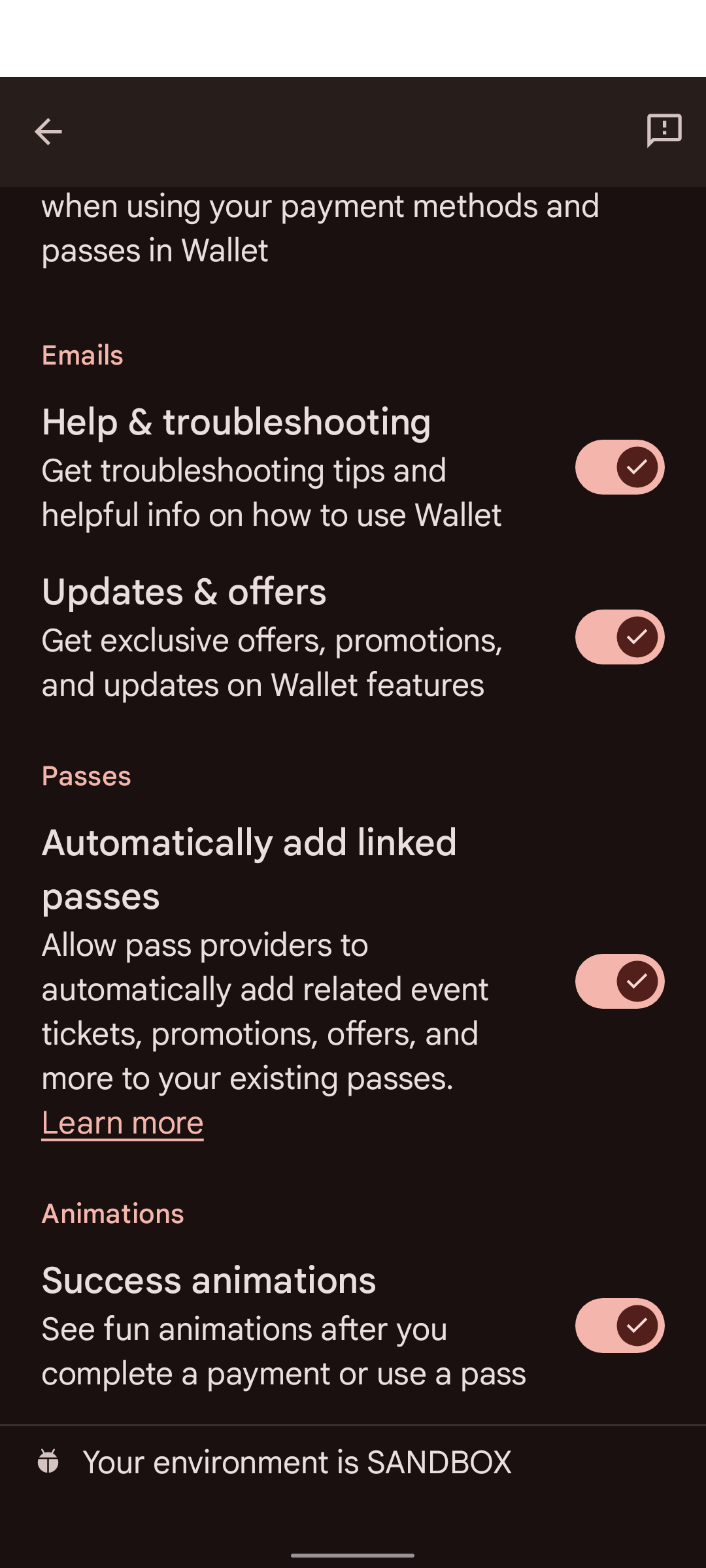
Some devices don't show Google Wallet in Google Settings. To open Google Wallet settings on those devices, use adb with the following command:
adb shell am start -n com.google.android.gms/com.google.android.gms.tapandpay.settings.TapAndPaySettingsActivity
Switch back to production
Repeat Step B, but select PRODUCTION instead of SANDBOX.
Wear OS devices
To enable sandbox mode on a connected Wear OS device, add an empty file and reboot:
adb shell touch /sdcard/Download/android_pay_env_override_sandboxadb reboot
To switch back to production, delete the file and reboot:
adb shell rm /sdcard/Download/android_pay_env_override_sandboxadb reboot
Step D: Configure your server for sandbox

In the sandbox, your server needs two things:
- Request signing credentials trusted by Google Wallet's sandbox:
- Relying Parties: Use Google's pre-trusted sandbox test key pair and the following sample metadata. You don't need to submit a form.
- Verifier Registrars: Sign requests with a leaf certificate issued by
your own Sandbox Root CA (after Google adds it to the sandbox trust
store), and generate your own
gw_rp_metadata_bytesas described in Step 3.A: Configure Your CA Certificate Profile & CBOR Metadata.
- Response verification trust anchor: Both Relying Parties and Verifier Registrars must add the Utopia Sandbox cert to their server's trust store to validate responses from a sandbox test ID.
Sandbox test keys & metadata (Relying Parties)
To test signed requests in the Sandbox environment without registering your own production keys, you can use the following test key pair. These keys are pre-trusted in the Sandbox environment.
Instructions
- Use the test private key to sign your request (JWS).
- Embed the test public certificate in the
x5cheader of your request. - Set the
client_idto thex509_hashof this certificate. See Signed Requests for details on calculating the hash. - Set
gw_rp_metadata_bytesinclient_metadatato the following test Relying Party Metadata (Base64url CBOR).
Private Key (PEM):
-----BEGIN PRIVATE KEY-----
MIGHAgEAMBMGByqGSM49AgEGCCqGSM49AwEHBG0wawIBAQQggRmIZIHQhXcYIeZ7
KSqS/WwJrsOetdI8ZE4HG0fd+3uhRANCAAR3GR6mdt/NOErO7+XtKqo7orgXWPMI
jEQDeE1PP4KWXTBAhuewPvF8uOiYakz5Jqd1kEFKfiecZEZRrLnC7U+e
-----END PRIVATE KEY-----
Relying Party Metadata (Base64url CBOR):
2BhY56Juc2NoZW1hX3ZlcnNpb25idjFnZGlzcGxheaNsZGlzcGxheV9uYW1leBhURVNUIFVTRSBPTkxZIFNhbmRib3ggUlBobG9nb191cml4YWh0dHBzOi8vZm9udHMuZ3N0YXRpYy5jb20vcy9pL3Byb2R1Y3Rsb2dvcy9nb29nbGVnL3Y2L3dlYi02NGRwL2xvZ29fZ29vZ2xlZ19jb2xvcl8xeF93ZWJfNjRkcC5wbmdycHJpdmFjeV9wb2xpY3lfdXJpeCNodHRwczovL3BvbGljaWVzLmdvb2dsZS5jb20vcHJpdmFjeQ
Relying Party Metadata (CBOR Dump):
#24# .bstr

{
  "schema_version": "v1",
  "display": {
    "display_name": "TEST USE ONLY Sandbox RP",
    "logo_uri": "https://fonts.gstatic.com/s/i/productlogos/googleg/v6/web-64dp/logo_googleg_color_1x_web_64dp.png",
    "privacy_policy_uri": "https://policies.google.com/privacy"
  }
}
Public Certificate (PEM):
Certificate:
    Data:
        Version: 3 (0x2)
        Serial Number:
            97:99:aa:8b:09:93:5a:20:c1:8b:27:6c:e2:da:91:97:f2:b7:79:8d
        Signature Algorithm: ecdsa-with-SHA256
        Issuer: O=Google, OU=Wallet, CN=TEST USE ONLY Sandbox RP
        Validity
            Not Before: Jun  2 00:39:54 2026 GMT
            Not After : Jun  2 00:39:54 2027 GMT
        Subject: O=Google, OU=Wallet, CN=TEST USE ONLY Sandbox RP
        Subject Public Key Info:
            Public Key Algorithm: id-ecPublicKey
                Public-Key: (256 bit)
                pub:
                    04:77:19:1e:a6:76:df:cd:38:4a:ce:ef:e5:ed:2a:
                    aa:3b:a2:b8:17:58:f3:08:8c:44:03:78:4d:4f:3f:
                    82:96:5d:30:40:86:e7:b0:3e:f1:7c:b8:e8:98:6a:
                    4c:f9:26:a7:75:90:41:4a:7e:27:9c:64:46:51:ac:
                    b9:c2:ed:4f:9e
                ASN1 OID: prime256v1
                NIST CURVE: P-256
        X509v3 extensions:
            X509v3 Subject Key Identifier:
                29:CA:DA:07:9B:1F:68:FA:80:01:E1:68:E3:38:E8:5A:5C:28:B1:6A
            X509v3 Authority Key Identifier:
                29:CA:DA:07:9B:1F:68:FA:80:01:E1:68:E3:38:E8:5A:5C:28:B1:6A
            X509v3 Basic Constraints: critical
                CA:TRUE
            1.3.6.1.4.1.11129.10.1:
                . ...?..!H.Z\j...uT2. .u.:.O.... 0
    Signature Algorithm: ecdsa-with-SHA256
    Signature Value:
        30:46:02:21:00:91:94:fa:b9:85:82:92:bd:6a:98:44:73:ec:
        30:26:1f:92:01:8f:5b:06:d7:8f:21:34:dc:76:f0:89:3c:04:
        8c:02:21:00:ae:3e:9d:46:99:bd:63:7a:cc:59:30:66:48:d0:
        75:cc:c9:82:07:ca:39:f1:f0:df:2b:07:7b:32:b9:5b:3f:0a

-----BEGIN CERTIFICATE-----
MIICFDCCAbmgAwIBAgIVAJeZqosJk1ogwYsnbOLakZfyt3mNMAoGCCqGSM49BAMC
MEUxDzANBgNVBAoMBkdvb2dsZTEPMA0GA1UECwwGV2FsbGV0MSEwHwYDVQQDDBhU
RVNUIFVTRSBPTkxZIFNhbmRib3ggUlAwHhcNMjYwNjAyMDAzOTU0WhcNMjcwNjAy
MDAzOTU0WjBFMQ8wDQYDVQQKDAZHb29nbGUxDzANBgNVBAsMBldhbGxldDEhMB8G
A1UEAwwYVEVTVCBVU0UgT05MWSBTYW5kYm94IFJQMFkwEwYHKoZIzj0CAQYIKoZI
zj0DAQcDQgAEdxkepnbfzThKzu/l7SqqO6K4F1jzCIxEA3hNTz+Cll0wQIbnsD7x
fLjomGpM+SandZBBSn4nnGRGUay5wu1PnqOBhTCBgjAdBgNVHQ4EFgQUKcraB5sf
aPqAAeFo4zjoWlwosWowHwYDVR0jBBgwFoAUKcraB5sfaPqAAeFo4zjoWlwosWow
DwYDVR0TAQH/BAUwAwEB/zAvBgkrBgEEAdZ5CgEEIgQg5taUP70bIUiJWlxqkwYP
dVQyoyCvdaw62E8u4ASBIDAwCgYIKoZIzj0EAwIDSQAwRgIhAJGU+rmFgpK9aphE
c+wwJh+SAY9bBtePITTcdvCJPASMAiEArj6dRpm9Y3rMWTBmSNB1zMmCB8o58fDf
Kwd7MrlbPwo=
-----END CERTIFICATE-----
Sandbox IACA root certificate (all partners)
Test IDs provisioned in the sandbox are signed by Google's Sandbox Issuing
Authority (Utopia). To cryptographically validate the issuerAuth signature
on responses returned from a sandbox test ID pass, add this root certificate to
your verifier's trust store (do not trust it in production):
| Environment | Issuer / Country | Credential Type | IACA Root Certificate |
|---|---|---|---|
| Sandbox | Utopia | ID pass (com.google.wallet.idcard.1) |
Download Utopia Sandbox cert |
For production IACA root certificates across supported US states and countries, see Supported Issuers & IACA Certificates.
Sandbox uptime
The sandbox environment doesn't have uptime SLAs like our production environment. If you encounter an error that you suspect is related to a sandbox outage, wait one United States business day before contacting us. Outages typically resolve themselves within that time period. Due to the potential for downtime, do not design any of your critical release processes to be dependent on the sandbox environment.