V2 allows users to request performance, GQV, and R&F data directly.
Step-by-Step Data Request Workflow
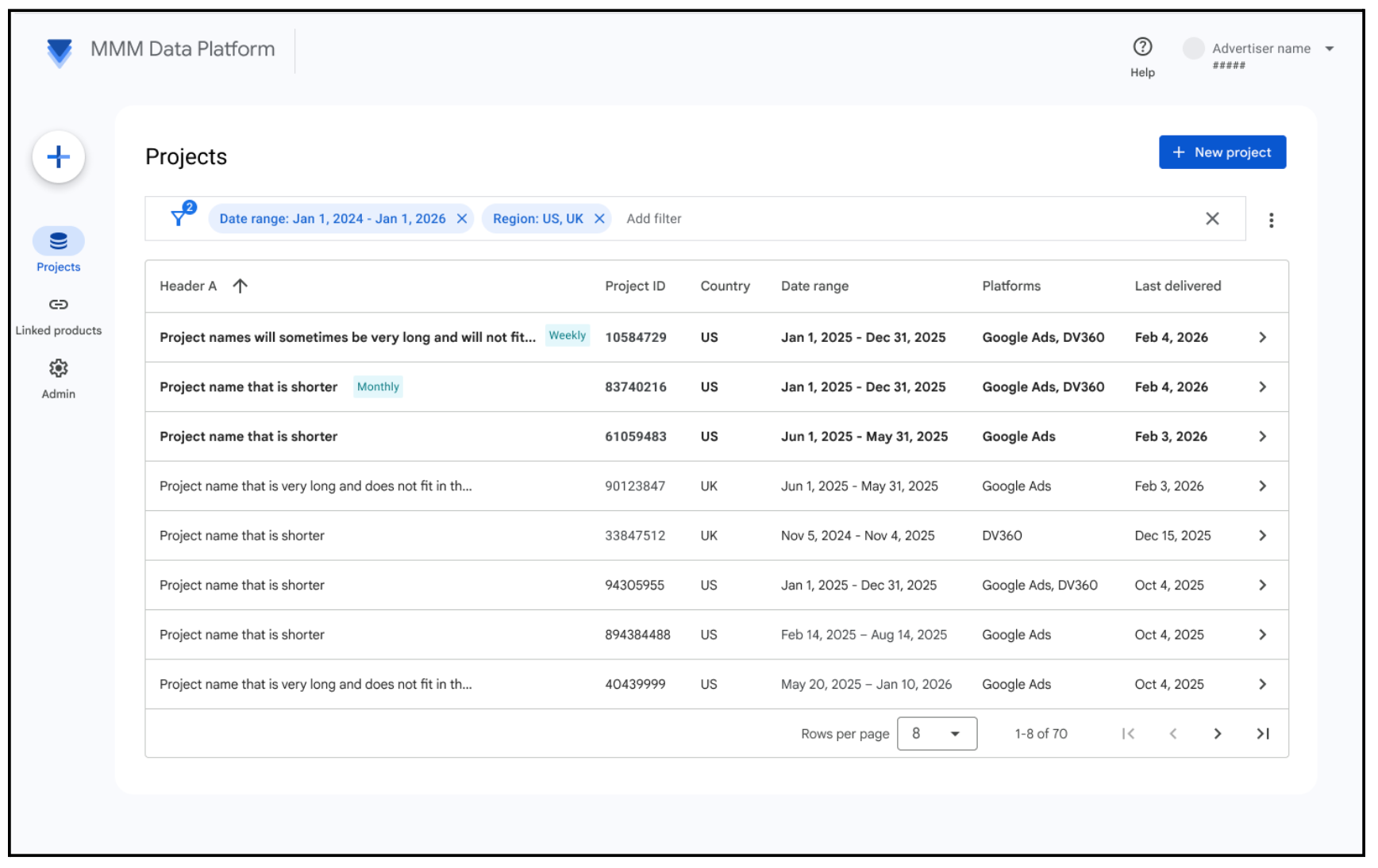
- Navigate to the appropriate Advertiser Workspace inside the MMM Data Platform.
Click New Project in the upper right.
Select your campaign selection methodology. V2 offers two self-service pathways to define modeling scope:
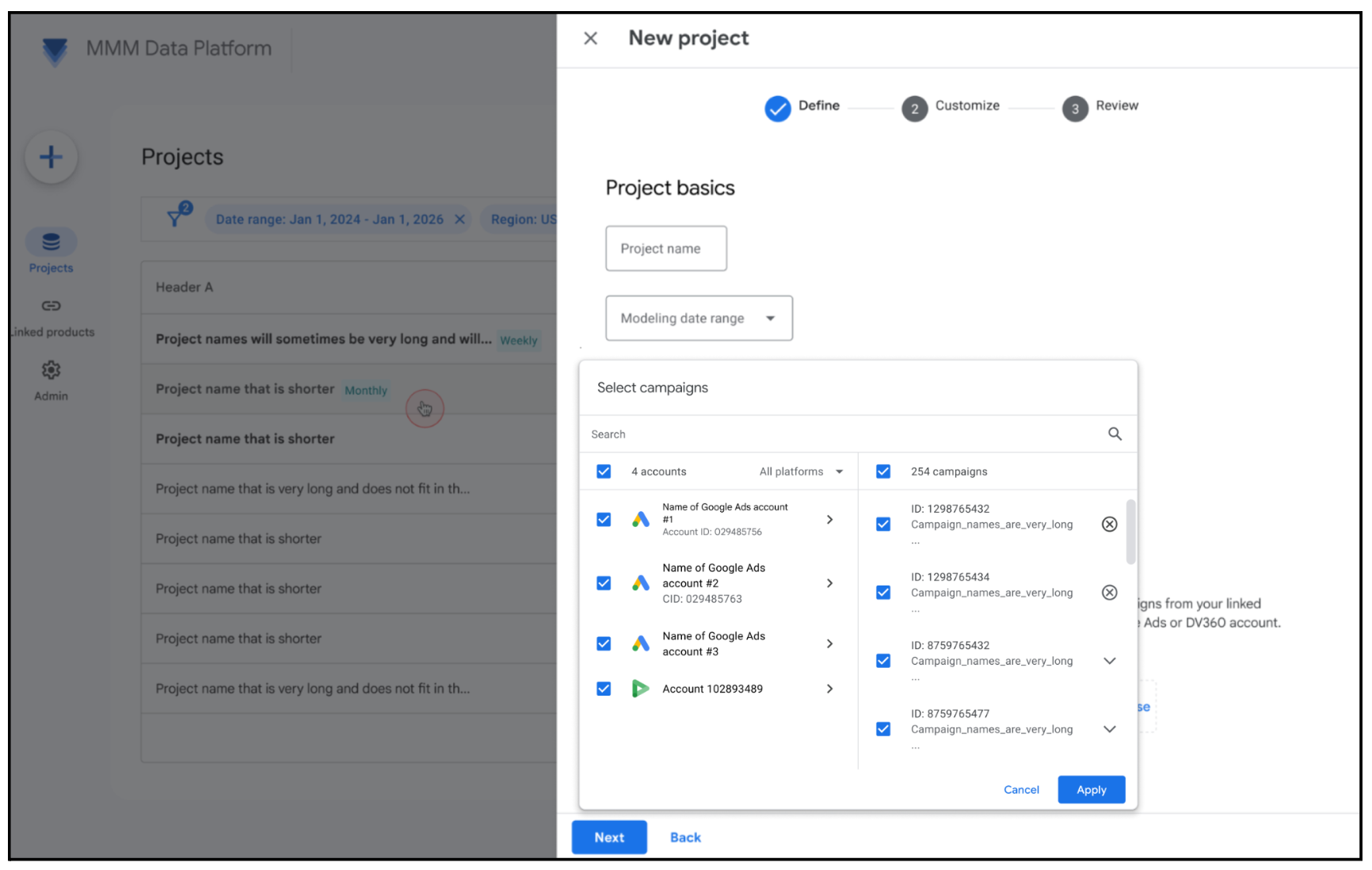
Pathway A (Select Accounts using the In-UI Campaign Picker): Browse, filter, and check the boxes next to the exact Google Ads accounts and campaigns you want to include.
Choose Select accounts, then check the boxes of the accounts and campaigns you want to include.
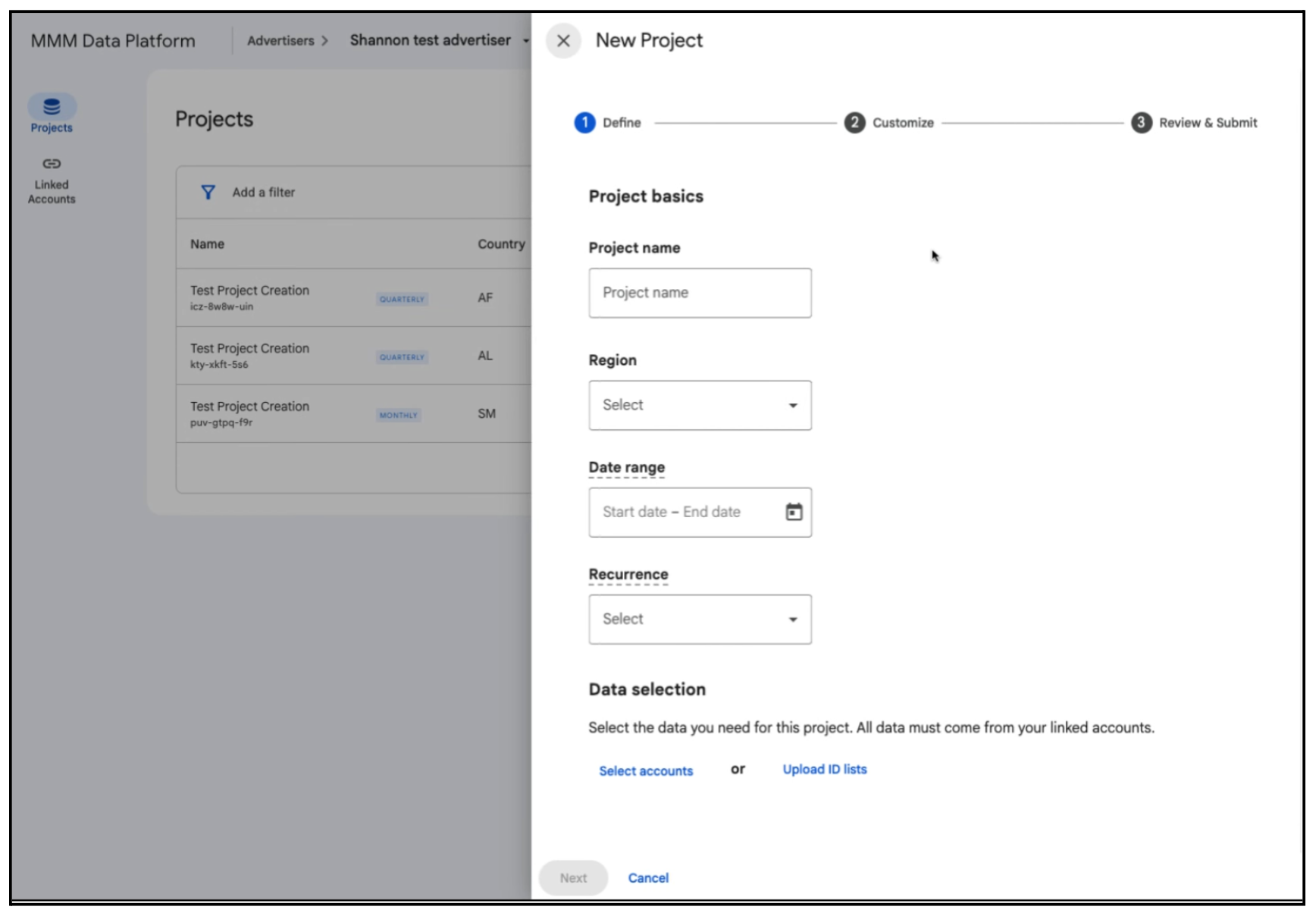
Pathway B (Upload ID lists using CSV Bulk Upload): Prepare and upload a file containing the list of exact Google Ads Customer IDs or Campaign IDs to include (please note, only Google Ads ID inputs will be initially available in the pilot).
- Create a CSV file containing the IDs you are uploading (i.e. either
Google Ads Customer IDs or Campaign IDs). List all IDs in Column A,
entering exactly one ID per cell. For multiple IDs, use consecutive
rows down the column (e.g. A2, A3, A4). Do not include text headers.
- [Tip] Saving your CSV when using:
- Excel: File > Save As. Choose where you want to save the file, click the Save as type drop-down menu, and select CSV (Comma delimited). Click Save).
- Google Sheets: File > Download. Select Comma-separated values (.csv).
- [Tip] Saving your CSV when using:
Select Upload ID lists, then choose the ID Type of the IDs within your CSV file. Upload your file.
- Create a CSV file containing the IDs you are uploading (i.e. either
Google Ads Customer IDs or Campaign IDs). List all IDs in Column A,
entering exactly one ID per cell. For multiple IDs, use consecutive
rows down the column (e.g. A2, A3, A4). Do not include text headers.
Click Next, then set your inputs on the Customize tab.
Submit the request. Clean data will compile and deliver in under 24 hours.