To start using the API, complete the following steps:
- Log into or create a Google Cloud Console account
- In the Google Cloud Console, select or create a project.
- Enable the MMM Data API
- Create a service account for the new project following these instructions.
- Link the service account to your MMM Data Platform account in the MMM Data Platform UI.
Enable the API
gcloud services enable mmmdata.googleapis.comLink service accounts to MMM Data Platform
Click the "cog" icon on the right side of the header and select 'API service accounts'.

Click "New service account".
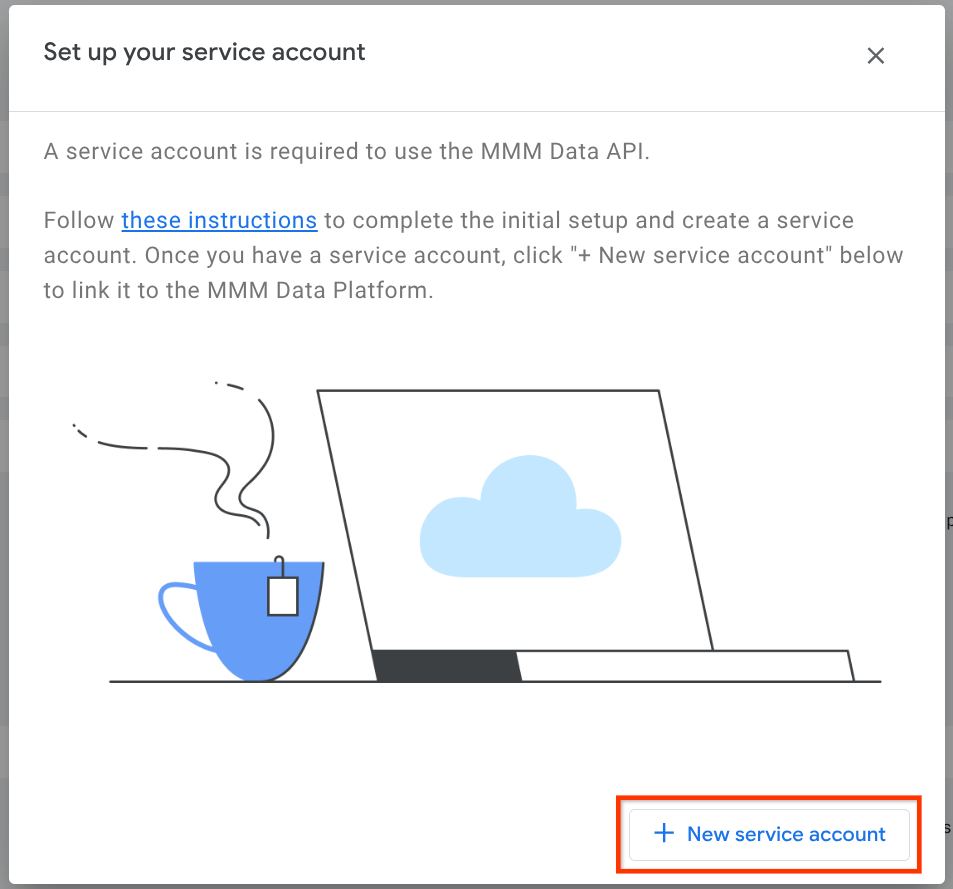
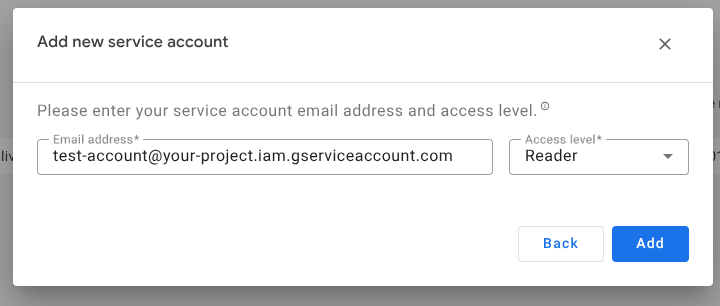
Enter the service account details from your Google Cloud project and select the access level.
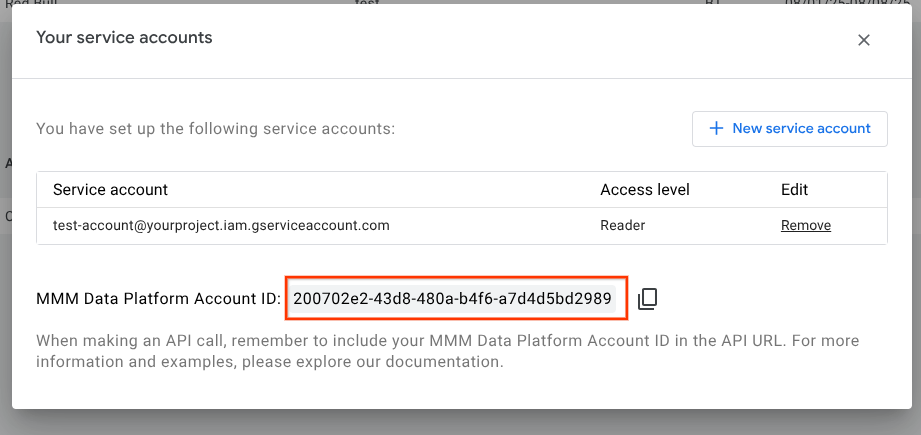
Copy the MMM Data Platform Account ID and use it in your API requests.
Make the first request
- Install the Google Cloud CLI (see instructions)
Ensure that you are signed into the gcloud CLI (see instructions for more details).
gcloud initGenerate the OAuth Token using the previously linked service account ('test-account@yourproject.iam.gserviceaccount.com' in the previous example, see instructions)
OAUTH_TOKEN=$(gcloud auth \
--impersonate-service-account=YOUR_SERVICE_ACCOUNT print-access-token \
--scopes=https://www.googleapis.com/auth/mmm_data.readonly)
Make a call to the API using the MMM Data Platform Account ID:
curl -H "Authorization: Bearer $OAUTH_TOKEN" \
-H "Content-type: application/json" \
"https://mmmdata.googleapis.com/v0/accounts/YOUR_MMM_DATA_PLATFORM_ACCOUNT_ID/projects"