The Principle of Account Linking
Legal authorization to share MMM data on behalf of a data owner is now embedded directly in-platform through cross-product Account Linking with Google Ads Data Manager (GADM) or Display & Video 360. When a link is established, the advertiser reviews and accepts the Terms of Service (TOS) digitally.
Prerequisites for Vendors
A vendor cannot initiate a data project, define campaigns, or request files for an advertiser until they have successfully linked at least one active Google Ads Customer ID or a Display & Video 360 account ID.
To get started:
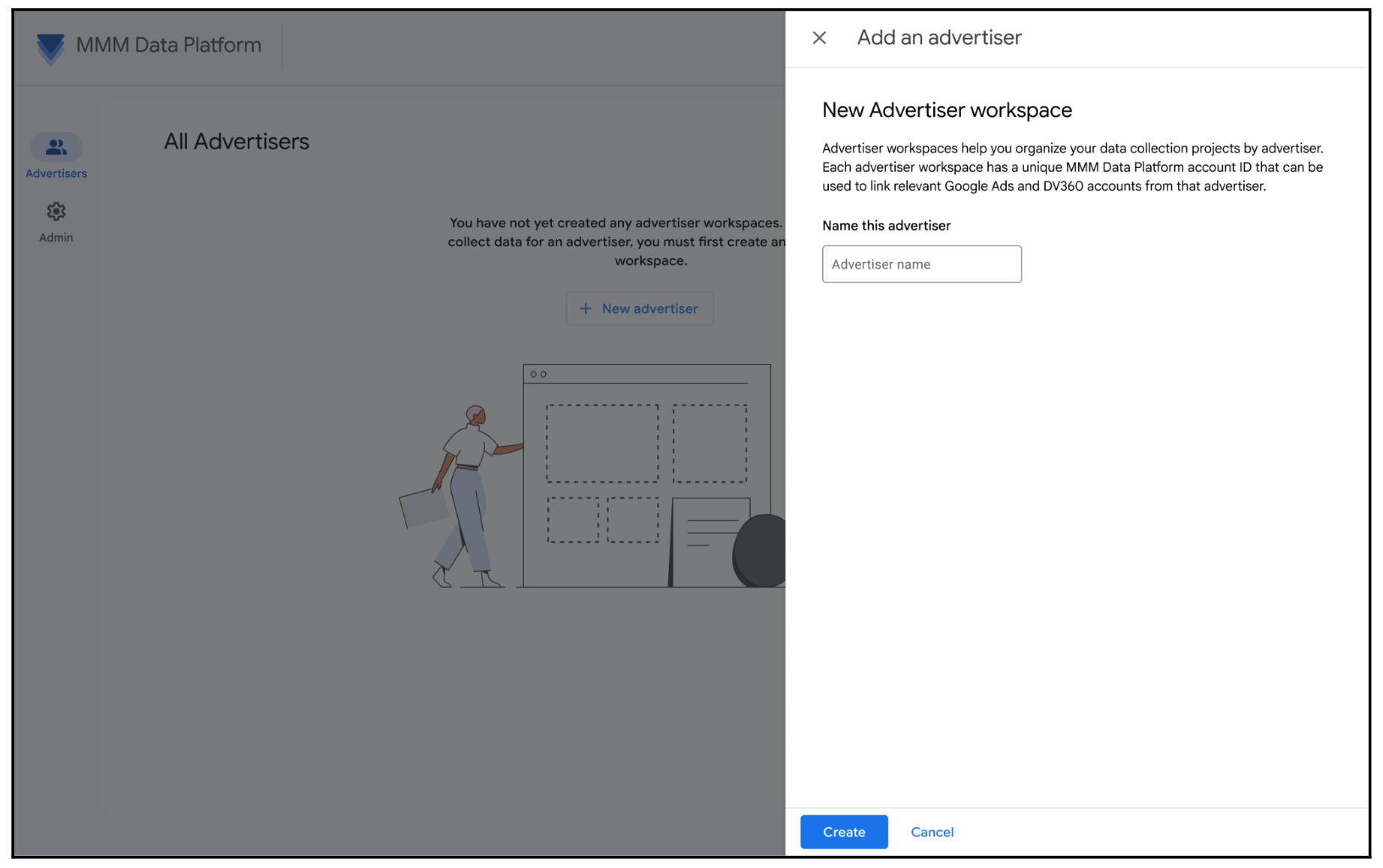
Create an Advertiser Workspace by clicking + New Advertiser.
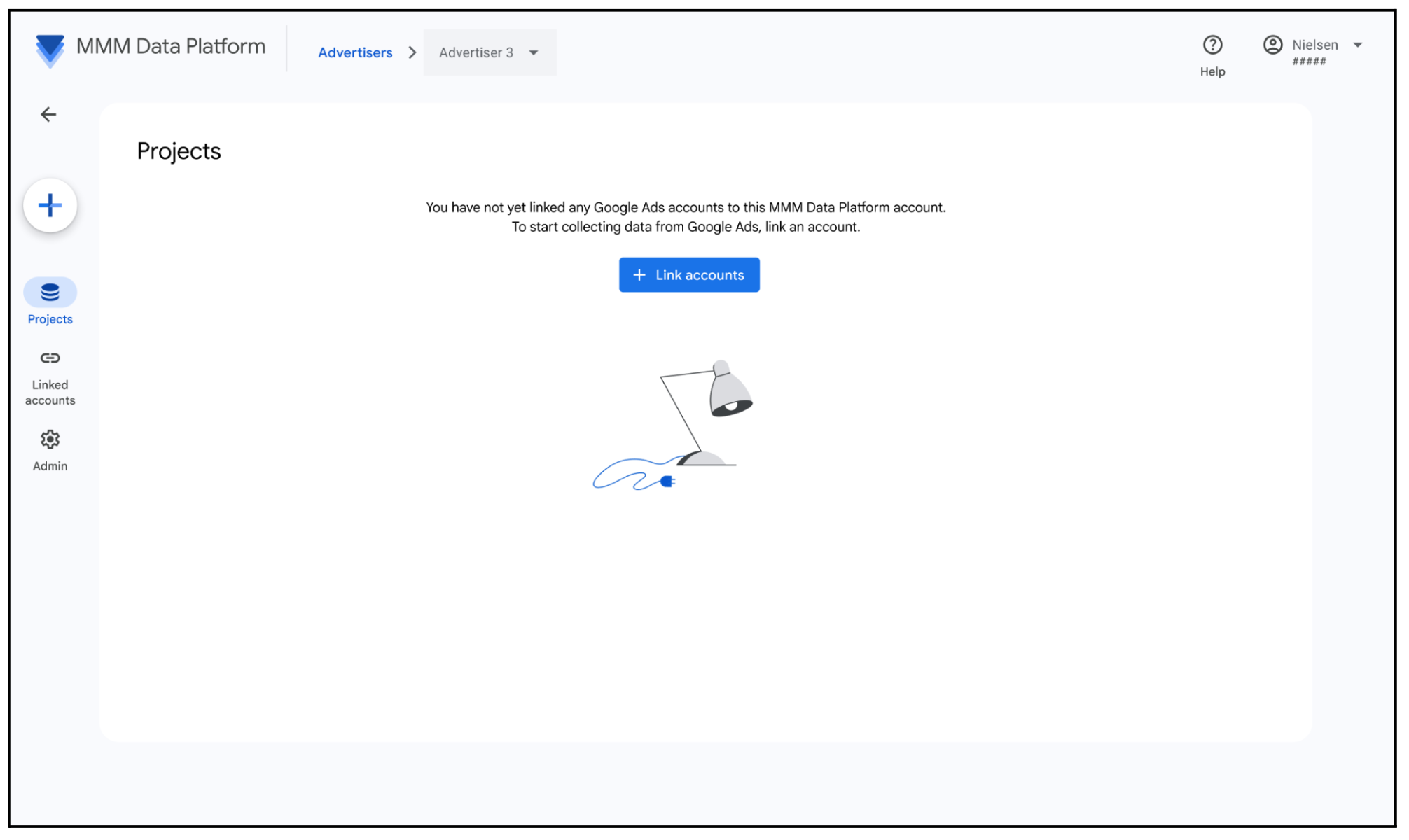
Inside your Advertiser Workspace, click + Link accounts.
Prerequisites for Advertisers
No need to create an Advertiser Workspace. Click + Link accounts to start account linking.
Google Ads
How to Initiate a Link Request
View your existing linked Google Ads accounts.
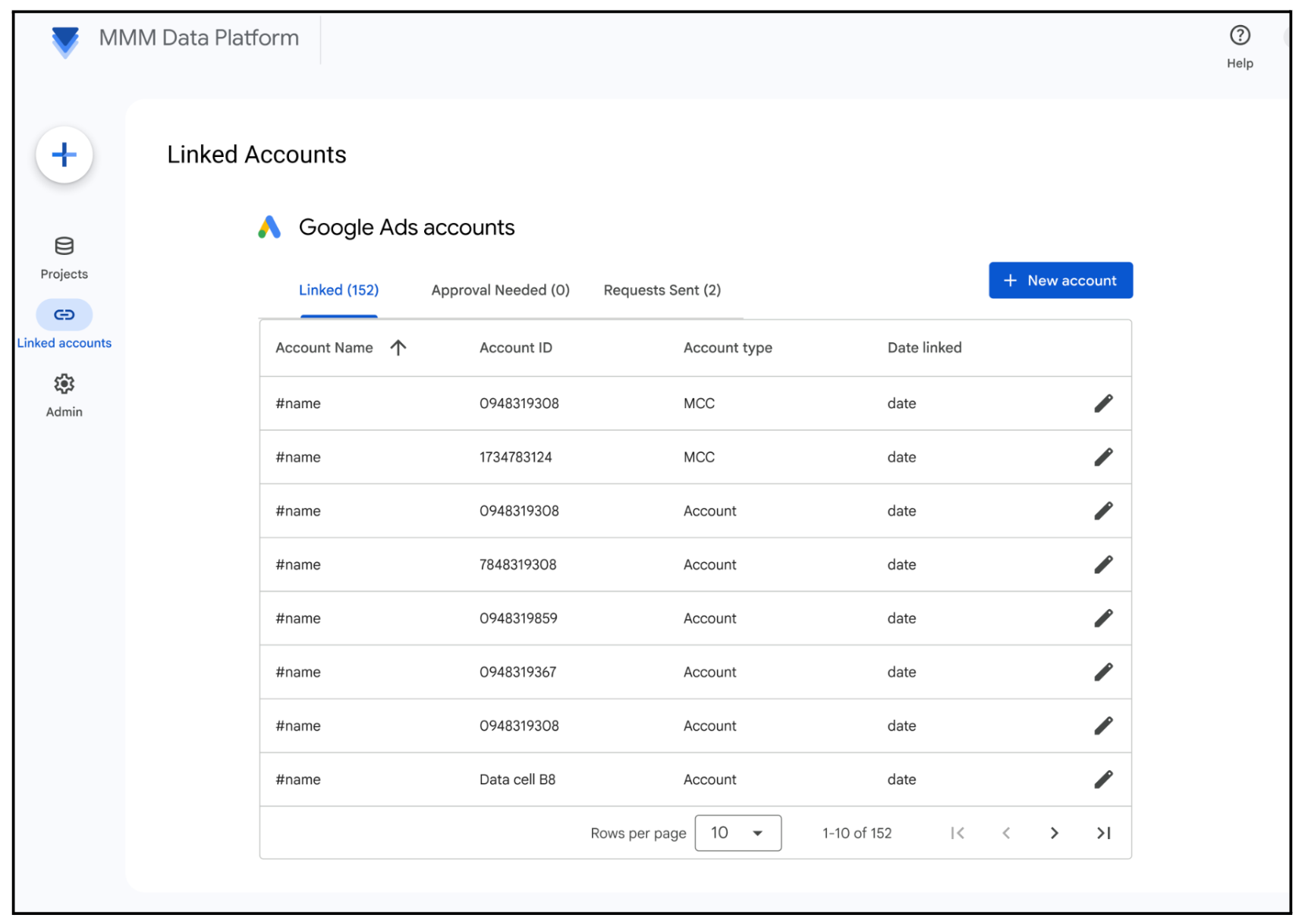
To add a new account link, click + New account.
Select Google Ads.
Choose whether you have admin access to the Google Ads account(s) you want to link.
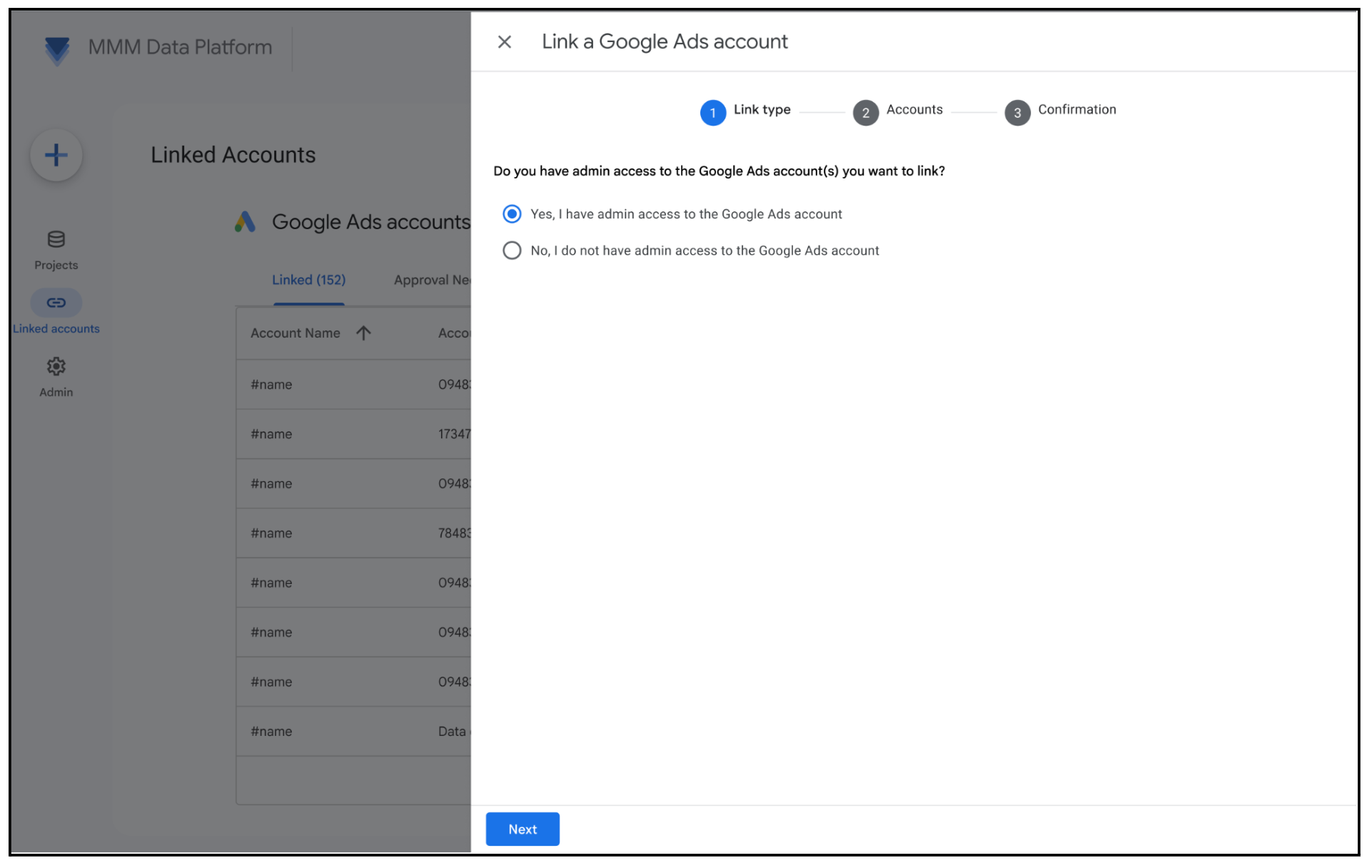
[If selecting "Link to Google Ads accounts I manage" - follow this step] Choose from your own accounts. The MMM Data Platform automatically populates all Google Ads accounts that you have admin access to and can therefore link.
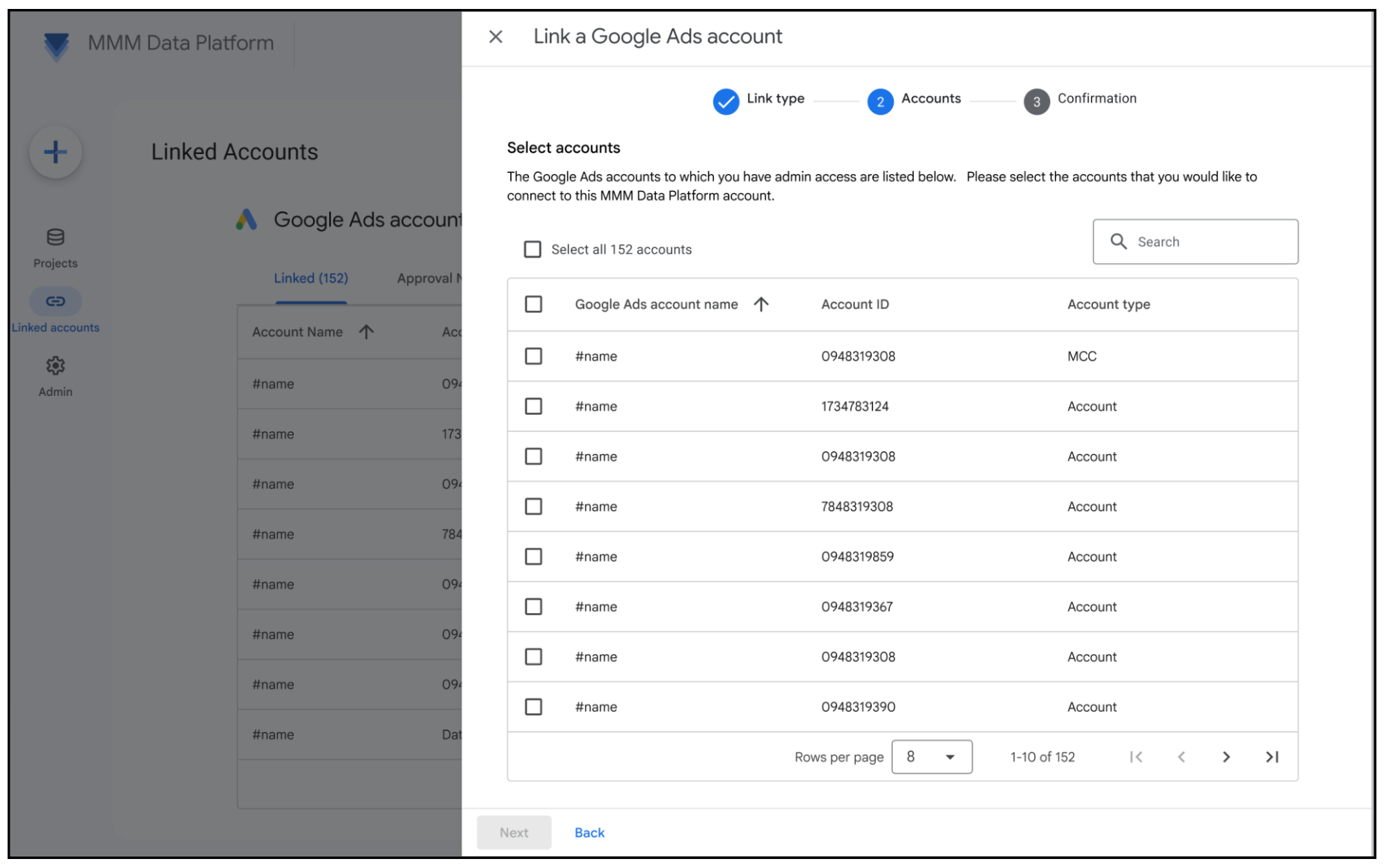
[If selecting "Send request to other Google Ads accounts" - follow this step] Send a link request by entering one or more Customer IDs that hold the advertiser's data.
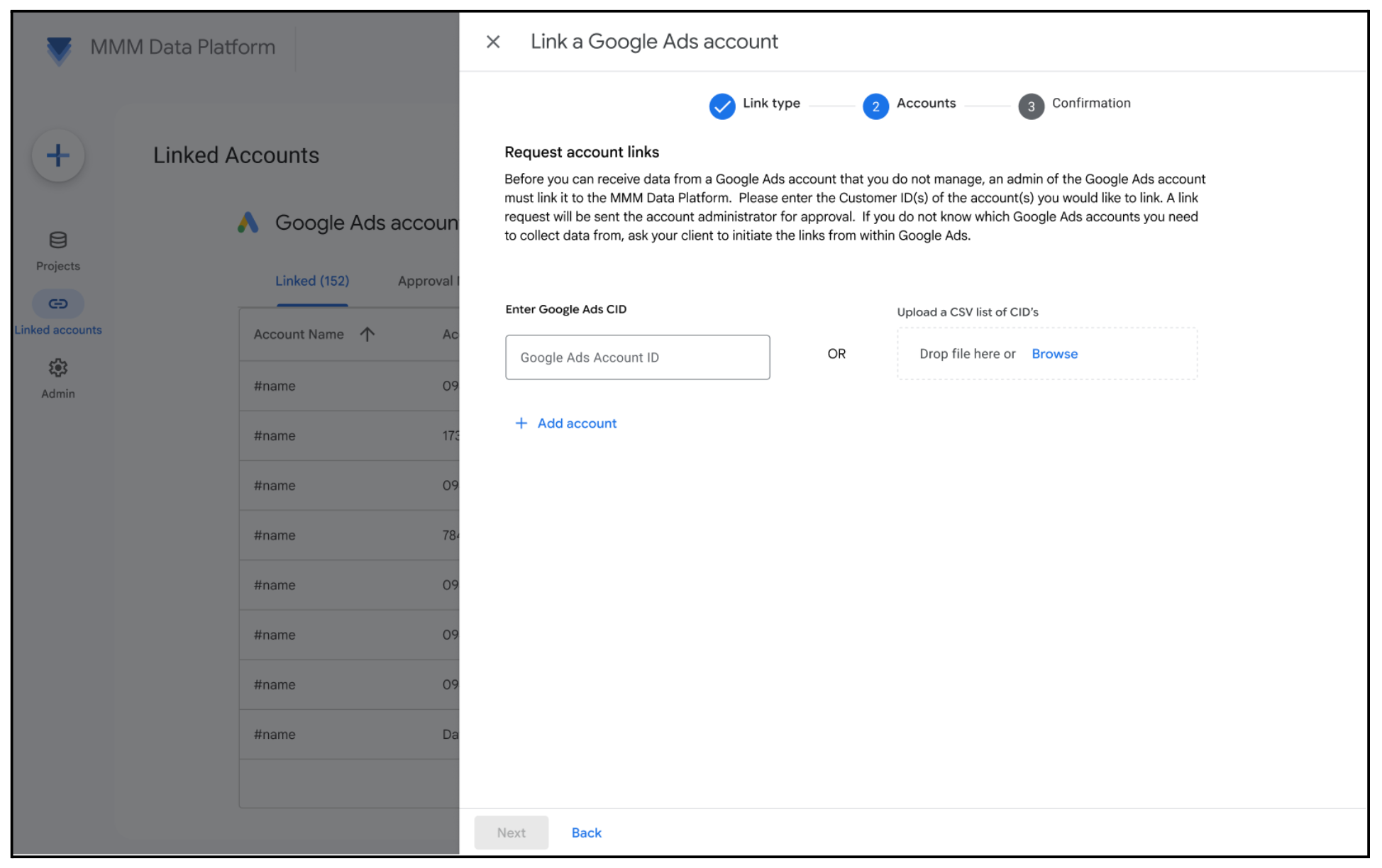
[For Google Ads Account(s) Admins] How to Approve a Link Request
Receive email notification. Each admin of the requested Google Ads accounts receives an email notification in addition to the in-platform notification.
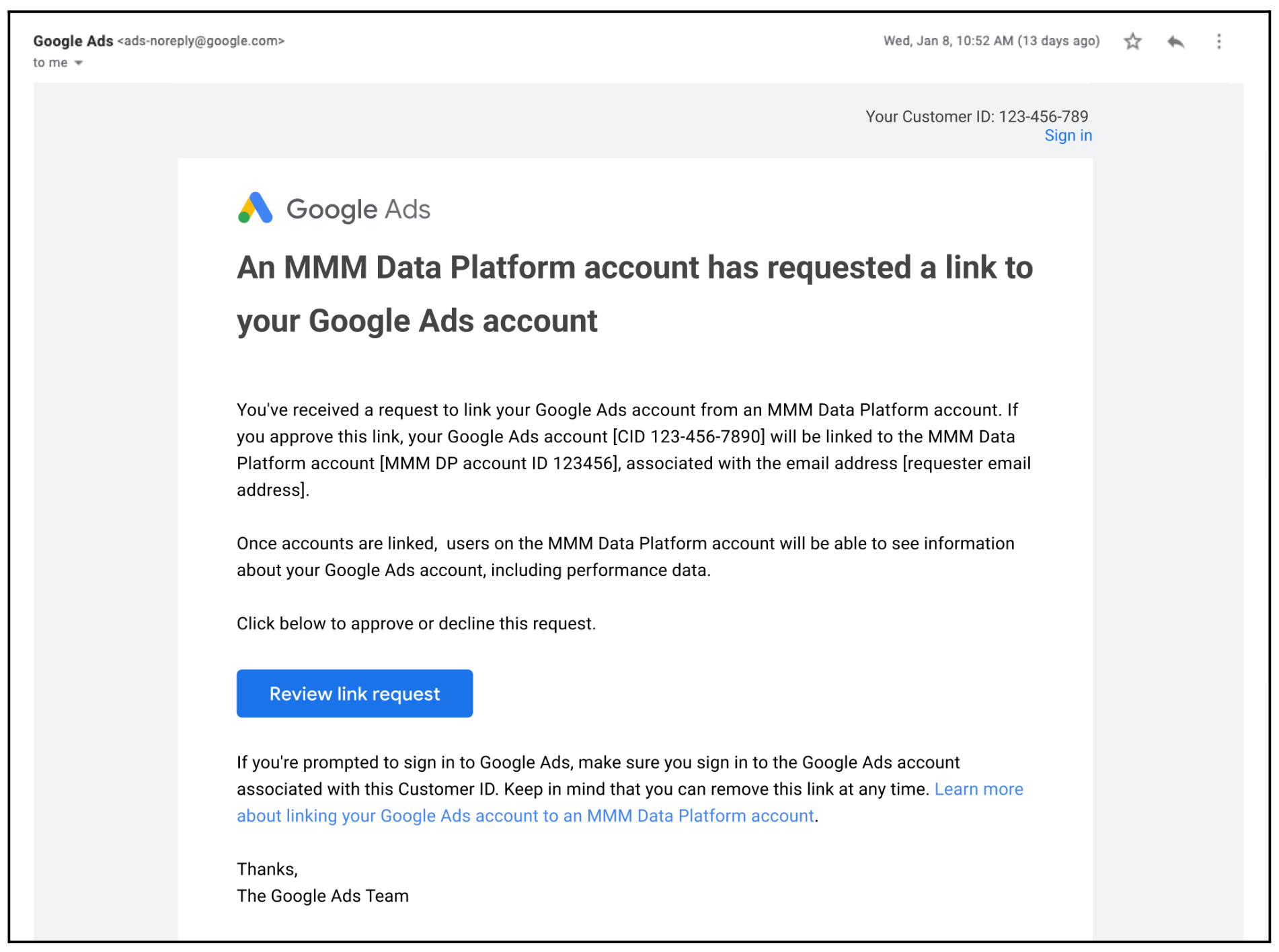
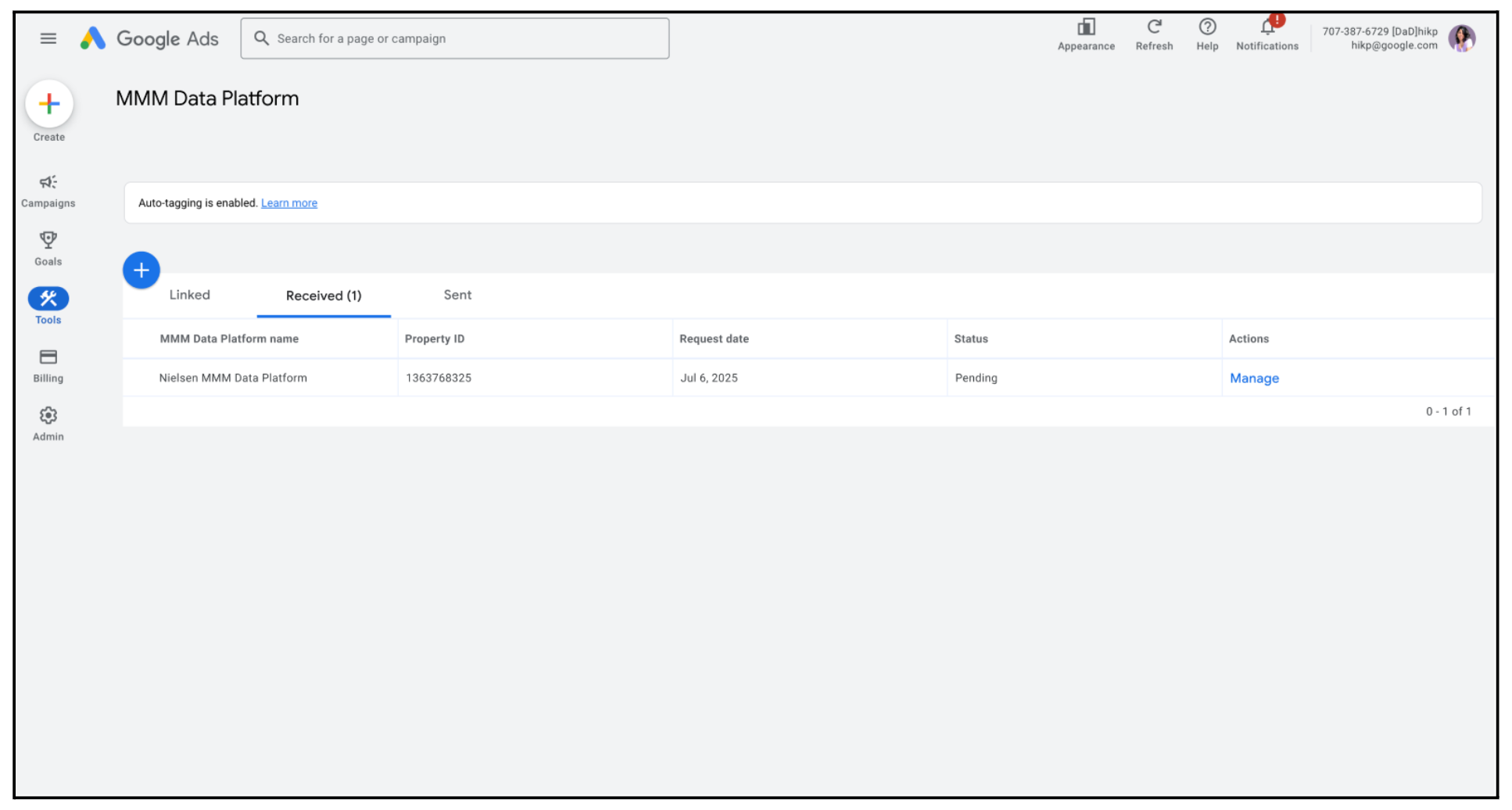
Alternatively, log into your Google Ads account and navigate to Data Manager. Locate the pending link request from the MMM Data Platform tab.
Review link request. See the pending link request in Google Ads Data Manager. Select Manage for the MMM Data Platform request.
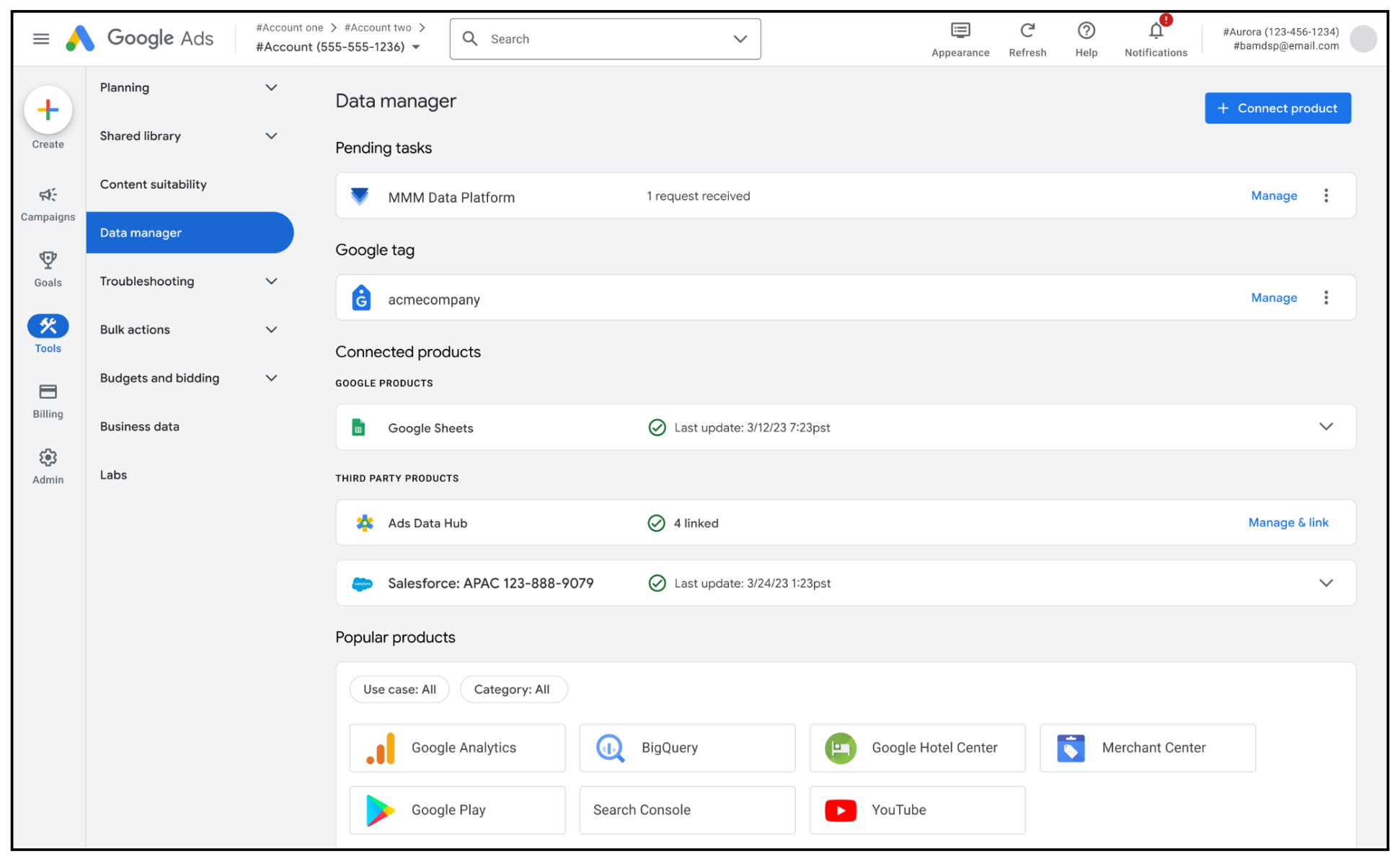
Select Manage.
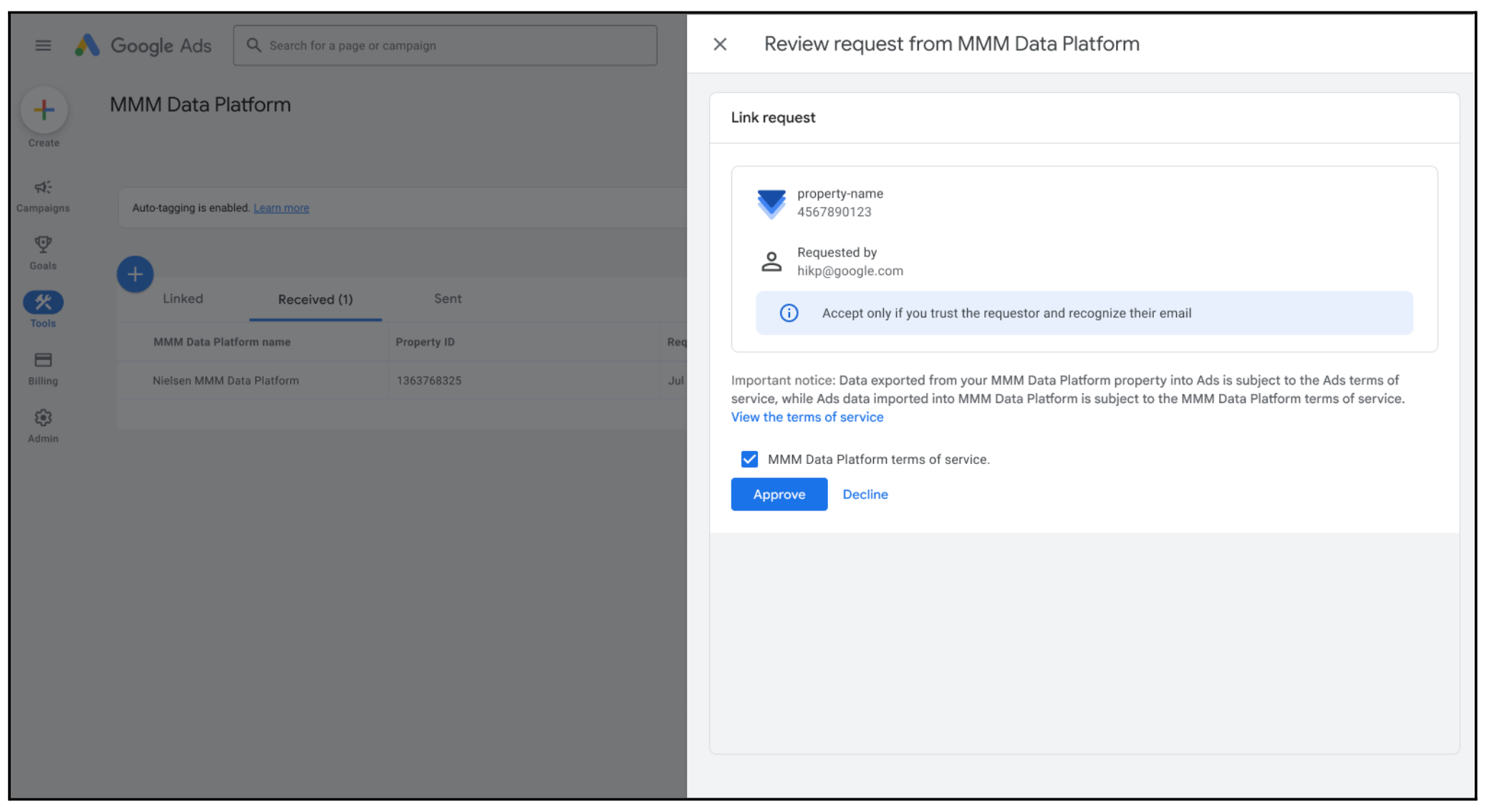
Review MMM Data Platform terms of service before accepting the link. This step replaces the legacy Data Sharing Agreement process.
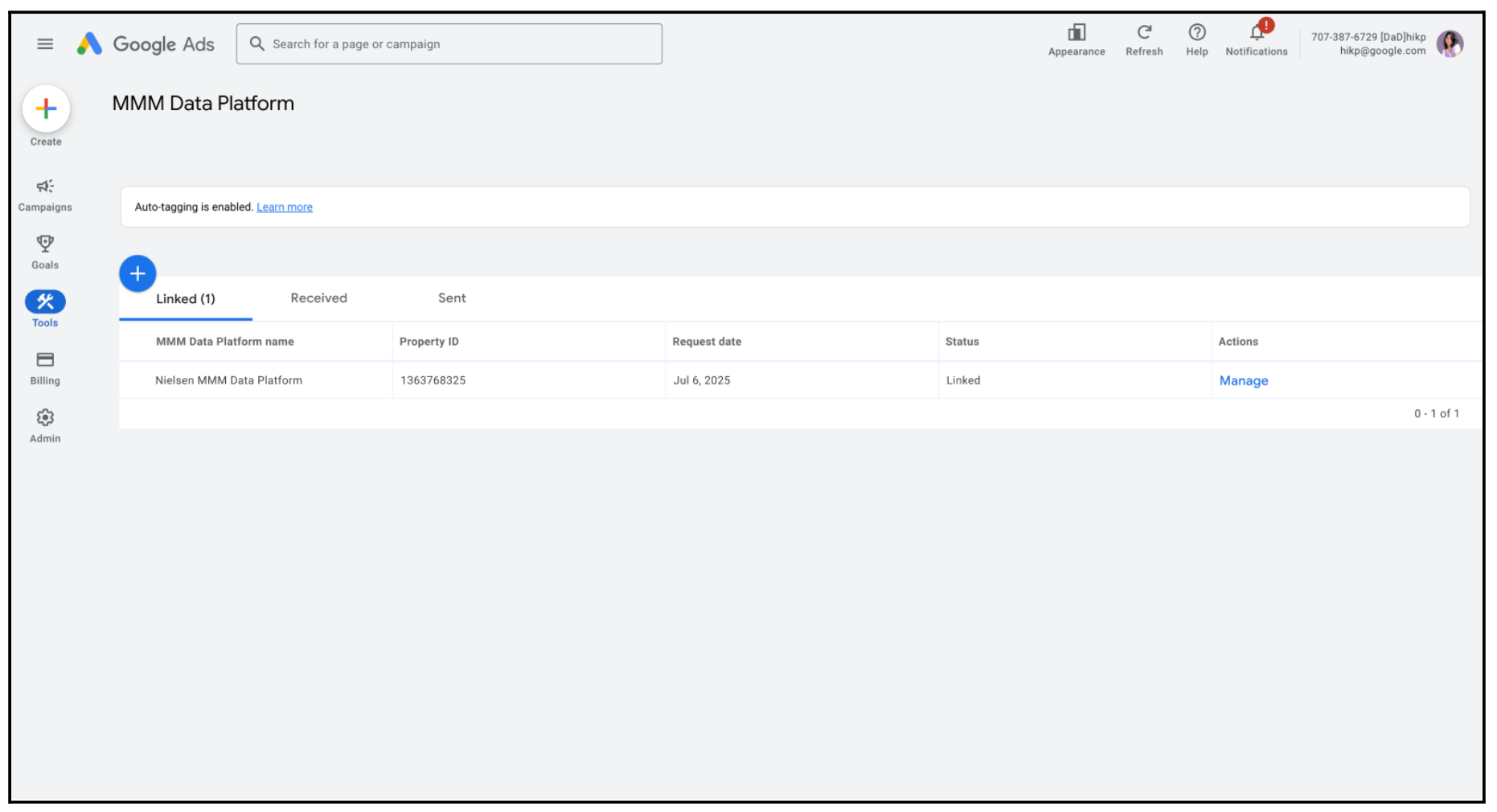
View your linked accounts with the Status of "Linked".
Display & Video 360
How to Initiate a Link Request
View your existing linked Display & Video 360 accounts.
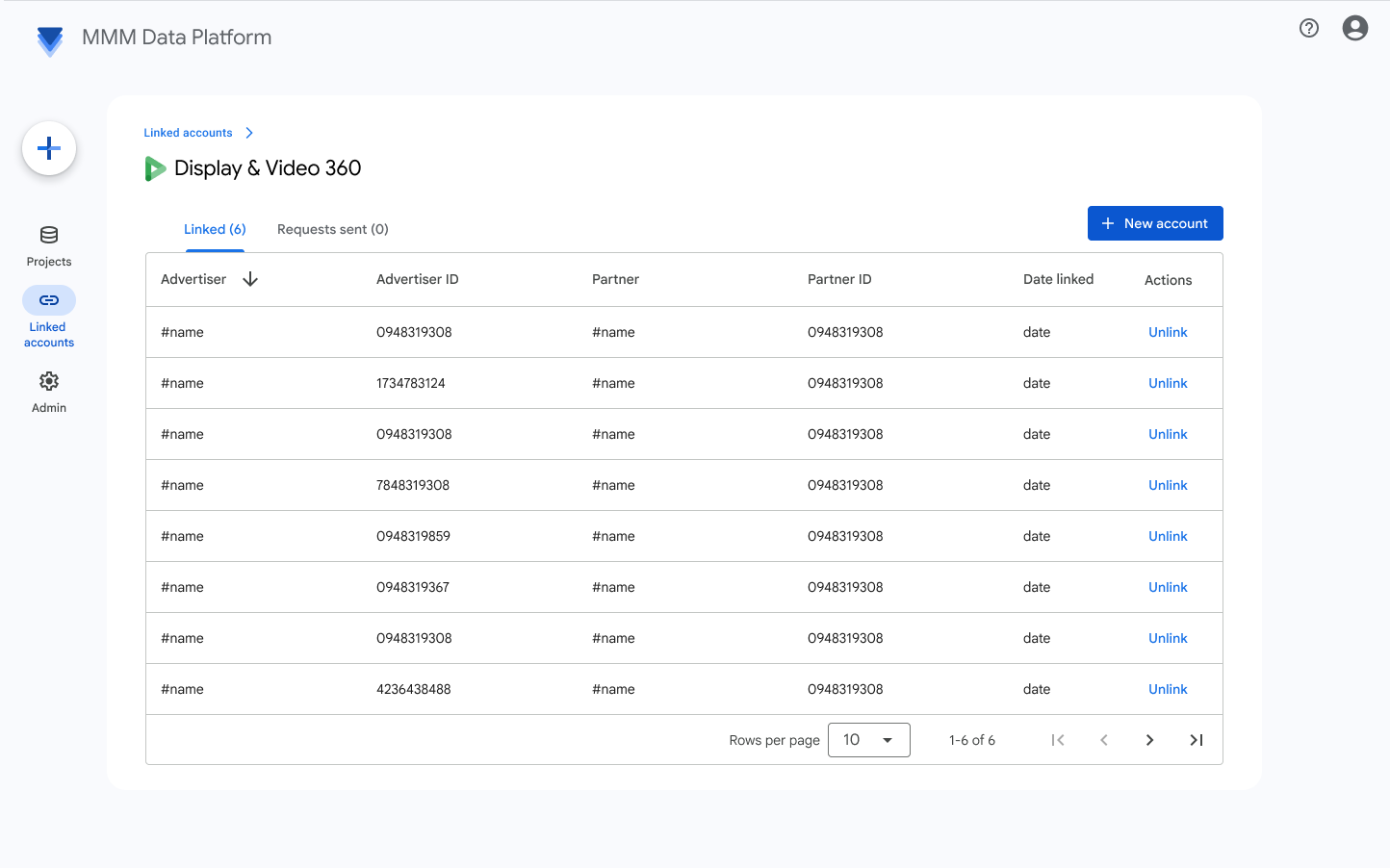
To add a new account link, click + New account.
Select Display & Video 360.
Choose whether you have admin access to the Display & Video 360 account(s) you want to link.
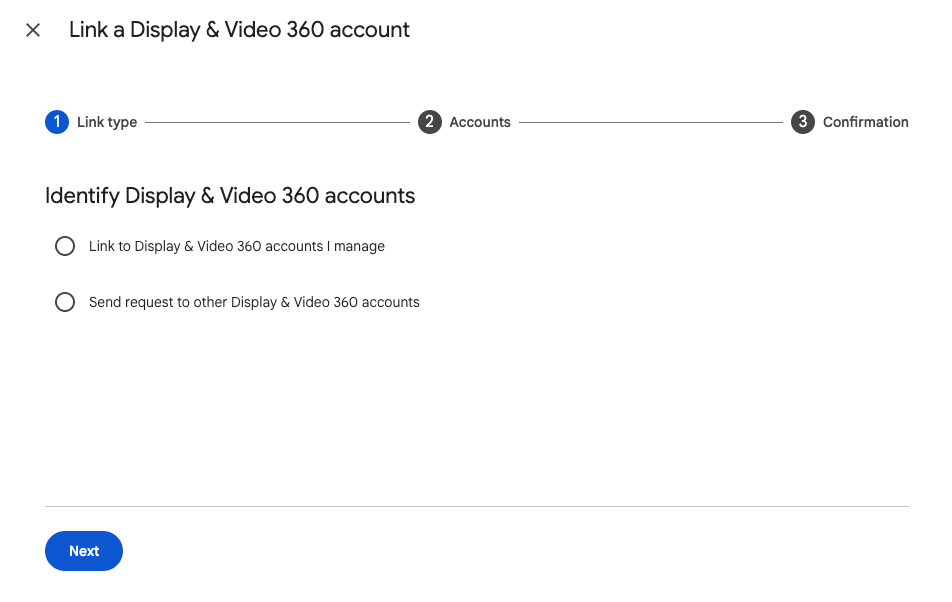
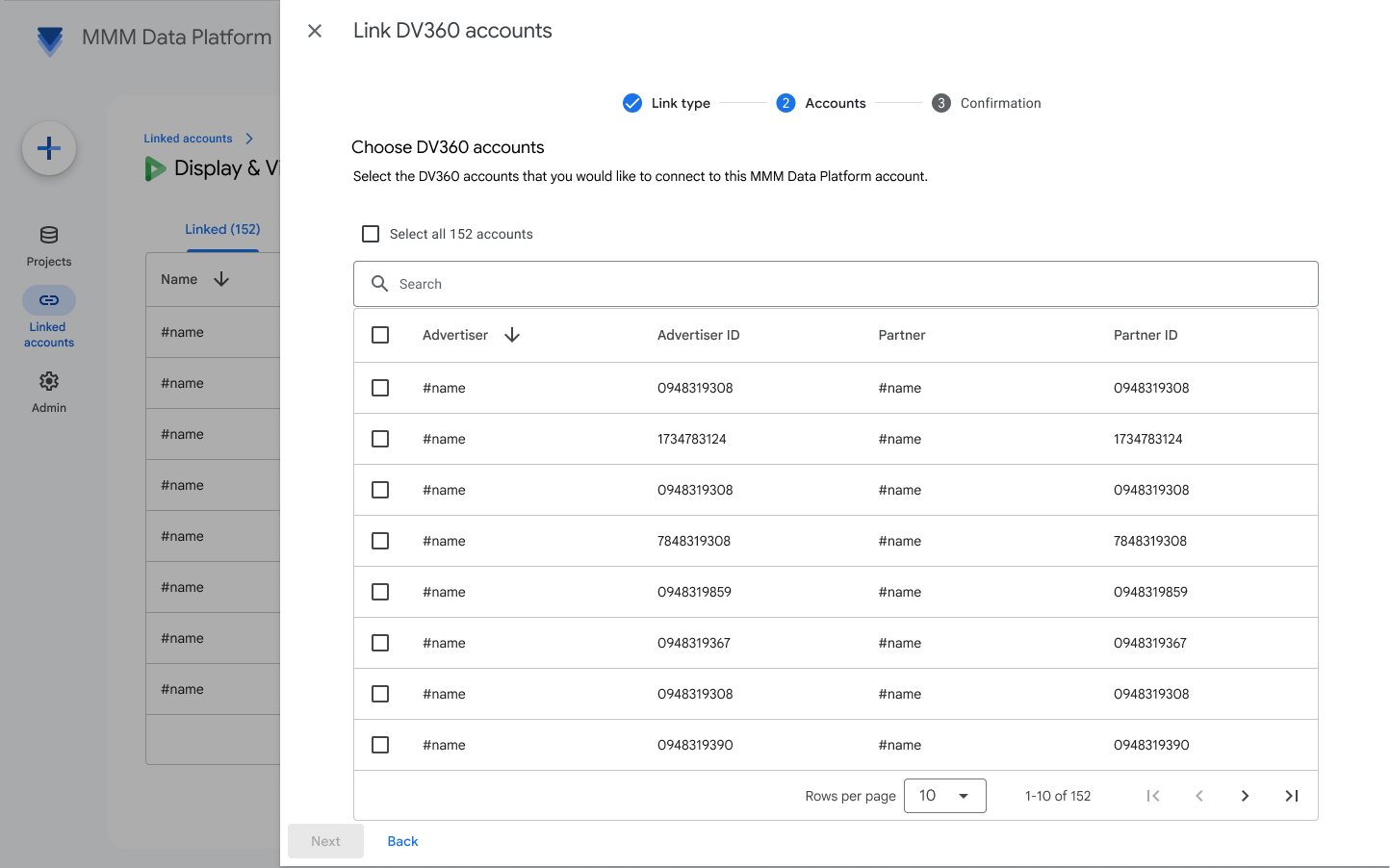
[If selecting "Link to Display & Video 360 accounts I manage" - follow this step] Choose from your own accounts. The MMM Data Platform automatically populates all Display & Video 360 accounts that you have admin access to and can therefore link.
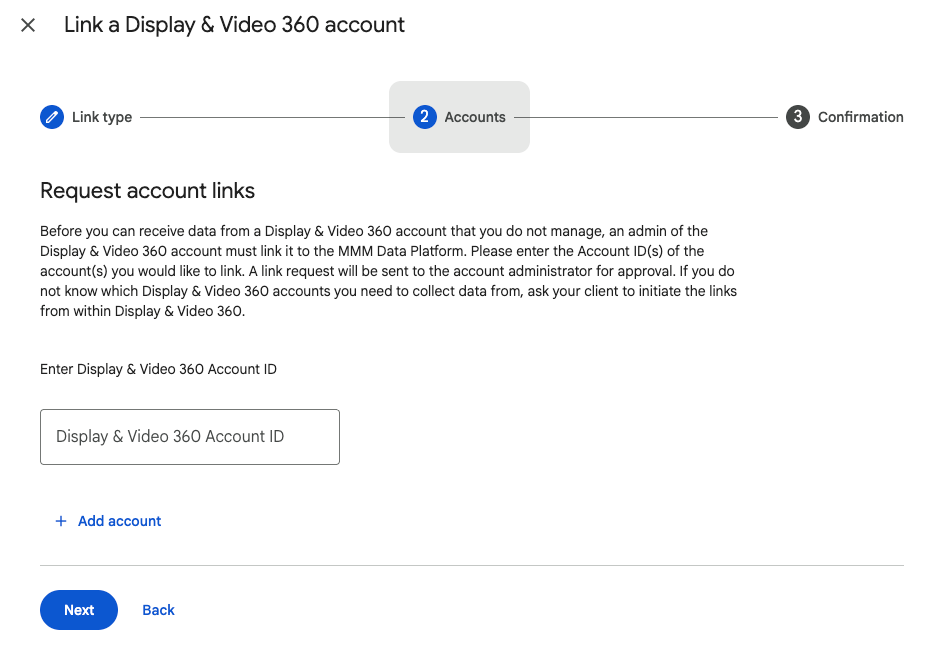
[If selecting "Send request to other Display & Video 360 accounts" - follow this step] Send a link request by entering one or more Display & Video 360 Partner IDs or Advertiser IDs that hold the advertiser's data.
[For Display & Video 360 Account(s) Admins] How to Approve a Link Request
To locate the pending link request, the account admin needs to navigate to the Partner or Advertiser that was requested to be linked in Display & Video
- Then navigate to Partner settings/Advertiser settings -> Linked accounts on the left side menu panel.
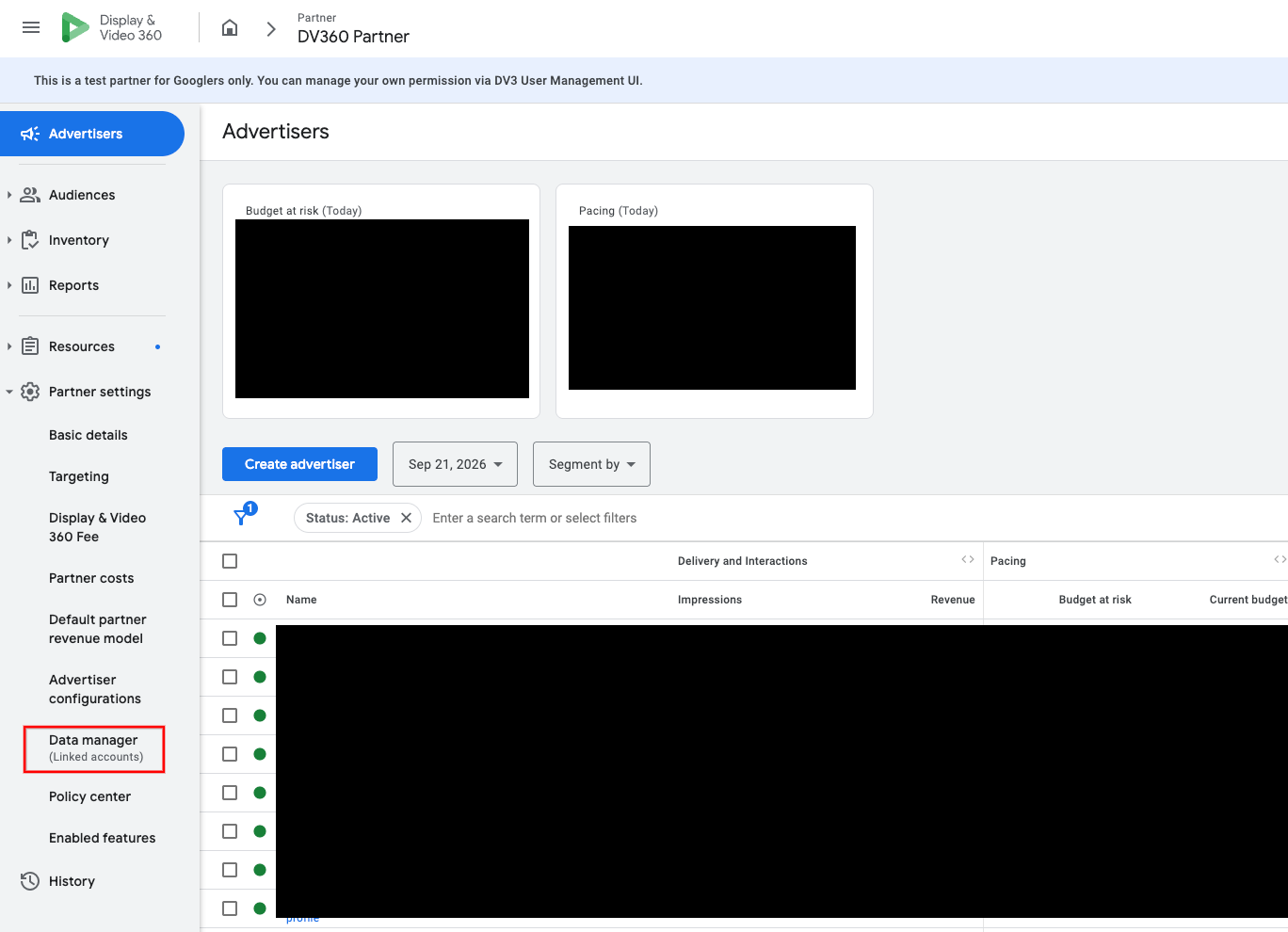
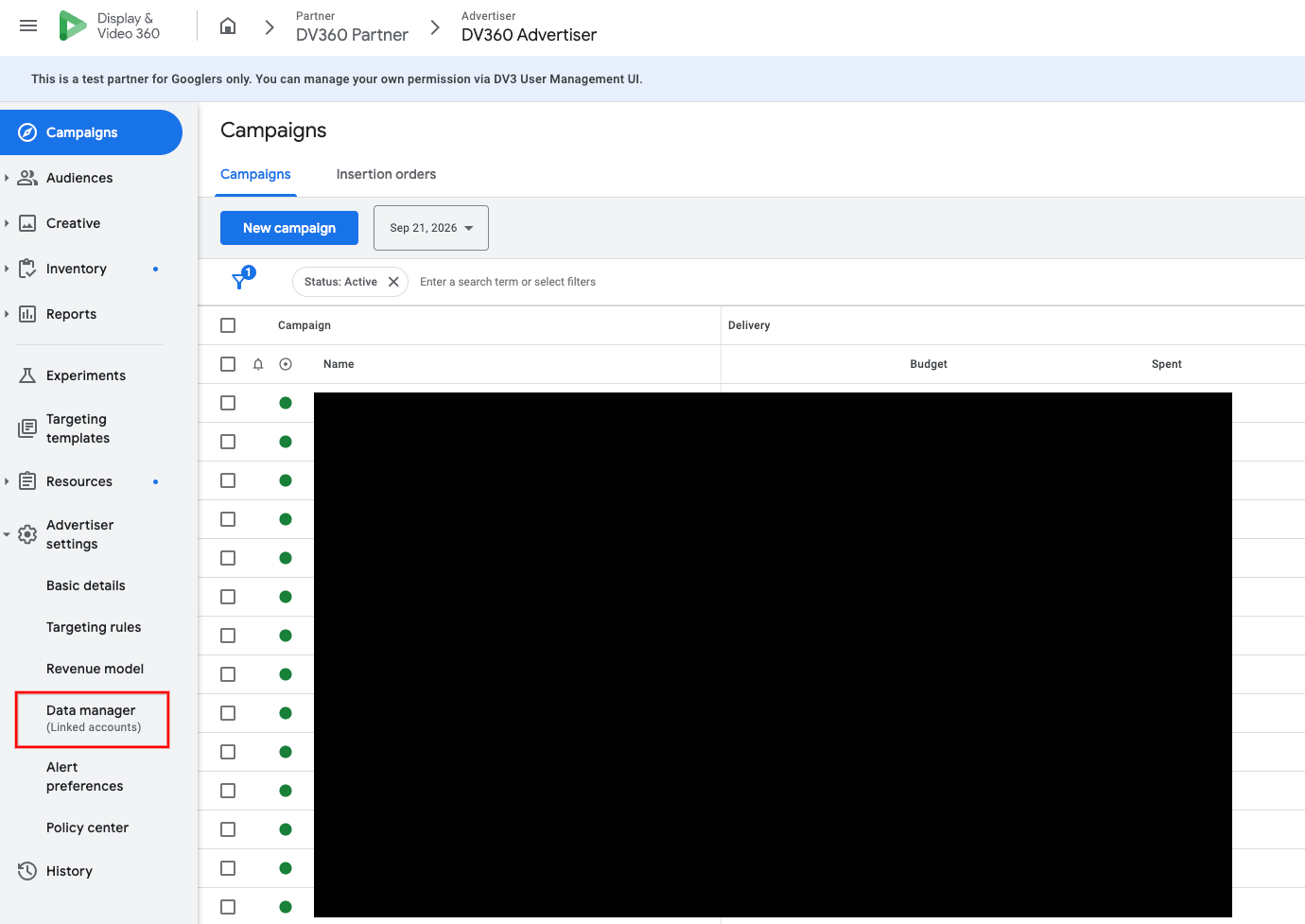
Select Linked accounts tab, then click any Integration Center button.

Select the MMM Data Platform option. If you don't see the MMM Data Platform option, the link request was not sent to this account.
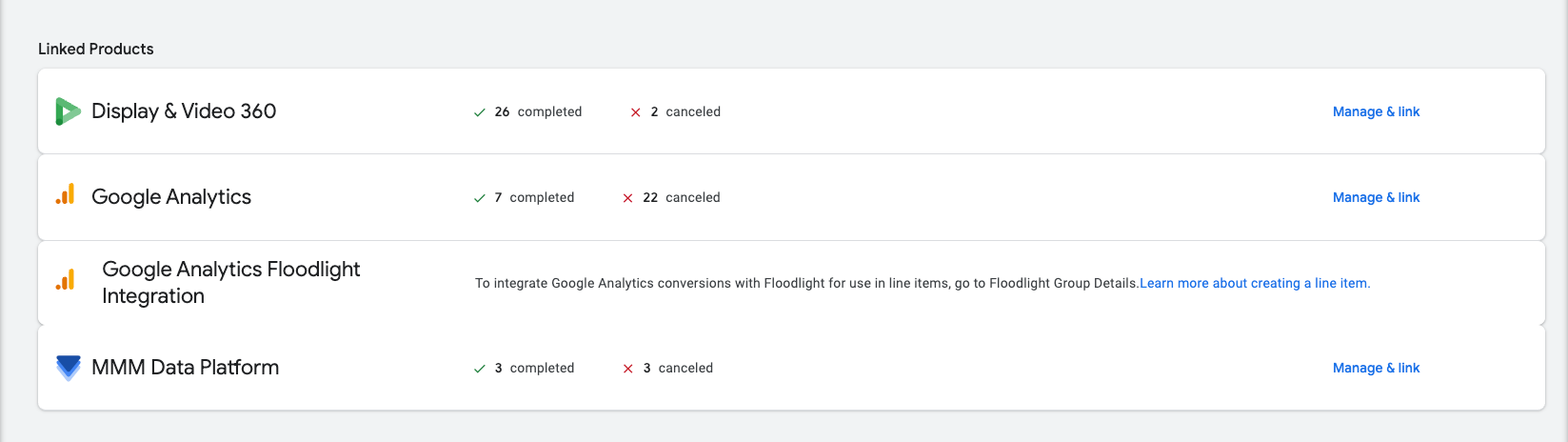
This should take you to a page where you can review and manage the link request under this account.
Select Review.

Review MMM Data Platform terms of service before accepting the link. This step replaces the legacy Data Sharing Agreement process.
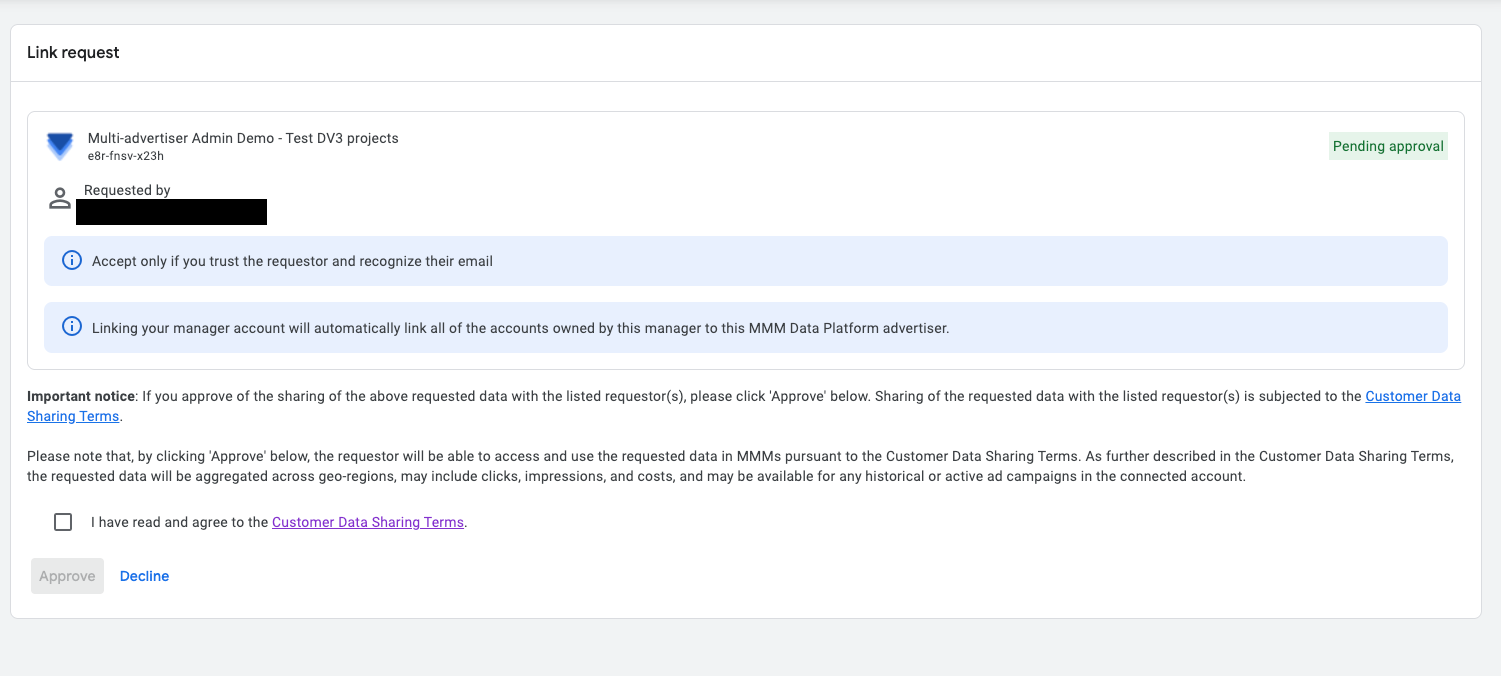
Check the box to confirm you have read and understand the terms, then select Approve. You should see the account is now linked.