
To test and explore upcoming on-device models before they reach general availability, the AICore system service includes a Developer Preview mode. Turning on Developer Preview shows the AICore app icon on your all apps screen so you can download preview models, run interactive test prompts, inspect on-device performance metrics, and prototype with preview models in your own apps.
Developer Preview mode also includes developer controls such as bypassing quota limits to streamline local testing.
Prerequisites
Before opting in to AICore Developer Preview, make sure your device meets these requirements:
- Supported device: Your device is listed under Custom generation and agent device support.
Latest version of AICore: Update AICore through Google system services so your device has the latest features and models:
- Open your device's Settings app.
- On Pixel devices, tap your profile name at the top. On other devices, tap Google (or Google services).
- Tap All services > System services > Android AICore (or AICore).
- If an update is available, tap Update.
Opt in to developer previews
To turn on AICore Developer Preview, do the following. You don't need to join a beta program or a Google group.
If Developer options isn't turned on yet, turn it on:
- Open your device's Settings app and tap About phone.
- Find Build number at the bottom of the page and tap it seven times until you see a message confirming that you are now a developer.
- If prompted, enter your device PIN, pattern, or password.
For device-specific details, see Enable developer options on your device.
Go to Settings > System > Developer options > AICore Settings.
Turn on Enable AICore Developer Preview. Turning on this setting adds the AICore icon
 to your all apps screen and automatically opens
the AICore app.
Accept the terms: In the AICore Developer Preview dialog that appears, review the terms and policies and tap Accept. Accepting unlocks preview models both inside the AICore app and for apps on your device that request preview models.
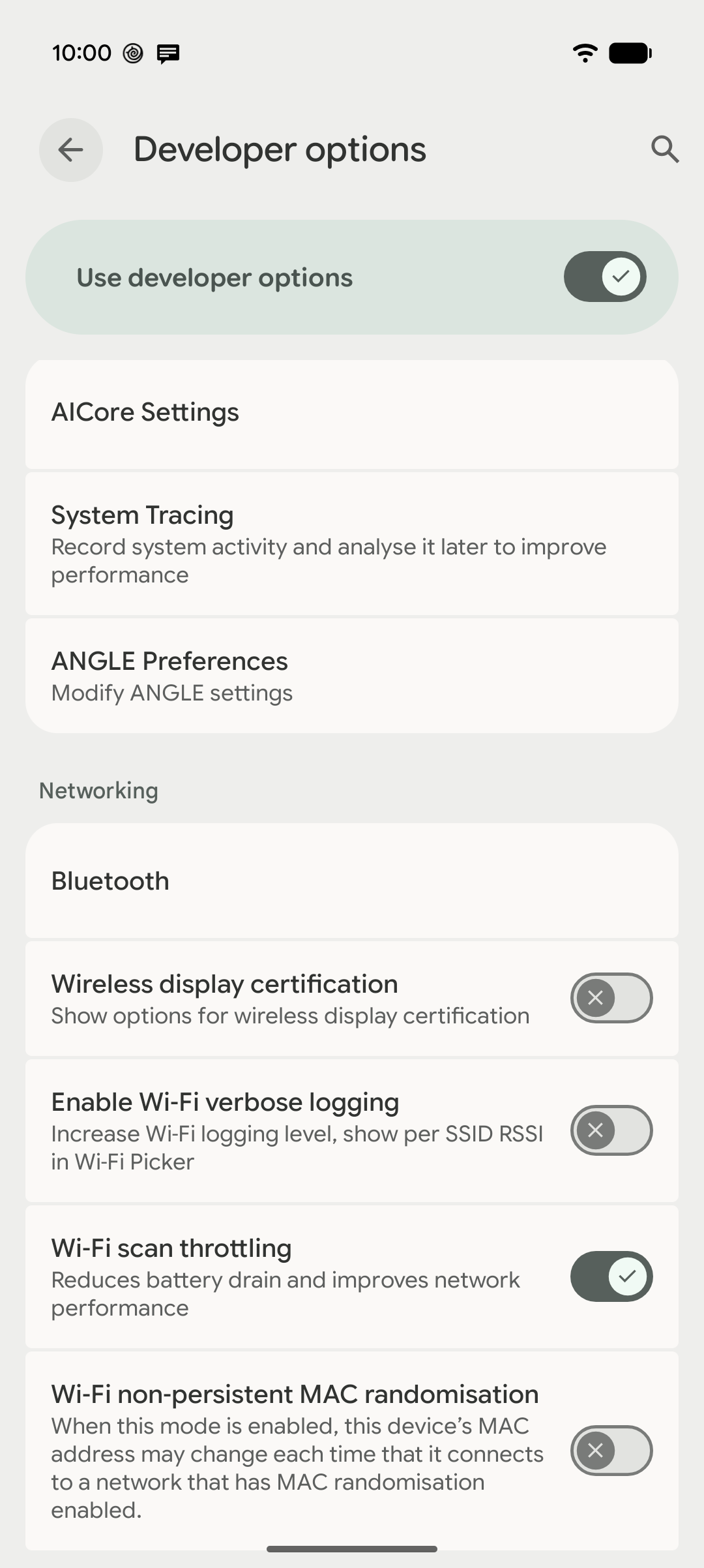
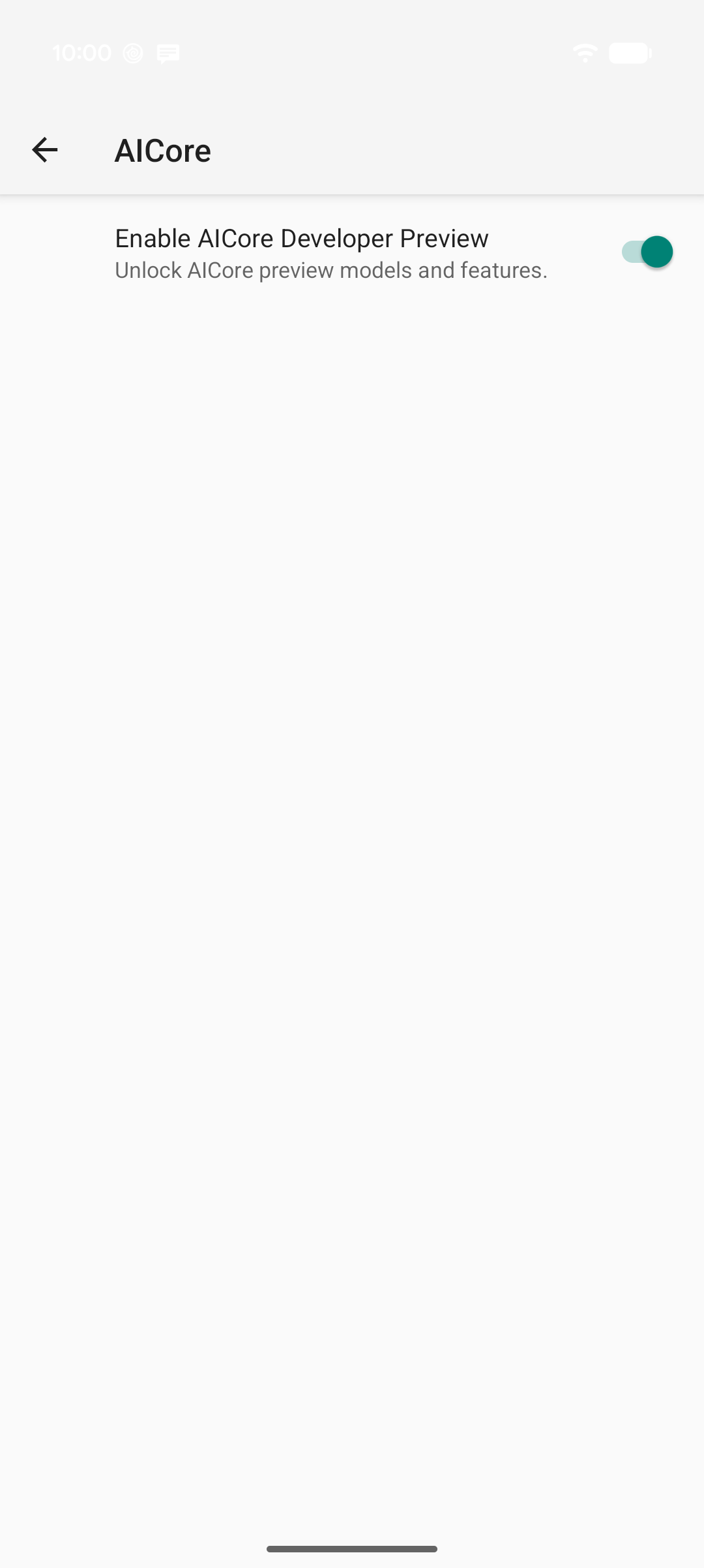
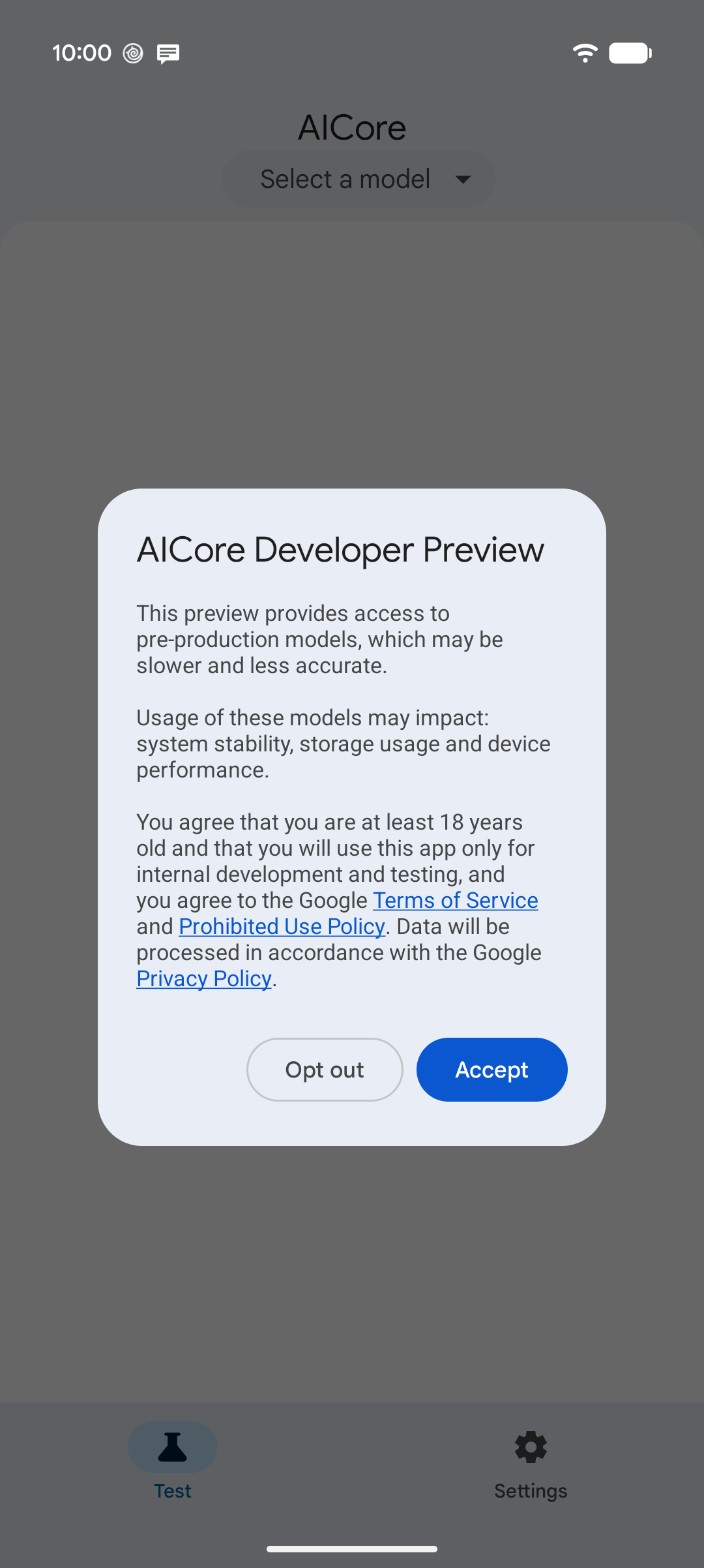
Once you've accepted the terms, you're ready to download and test prompts with preview models.
Opt out of developer previews
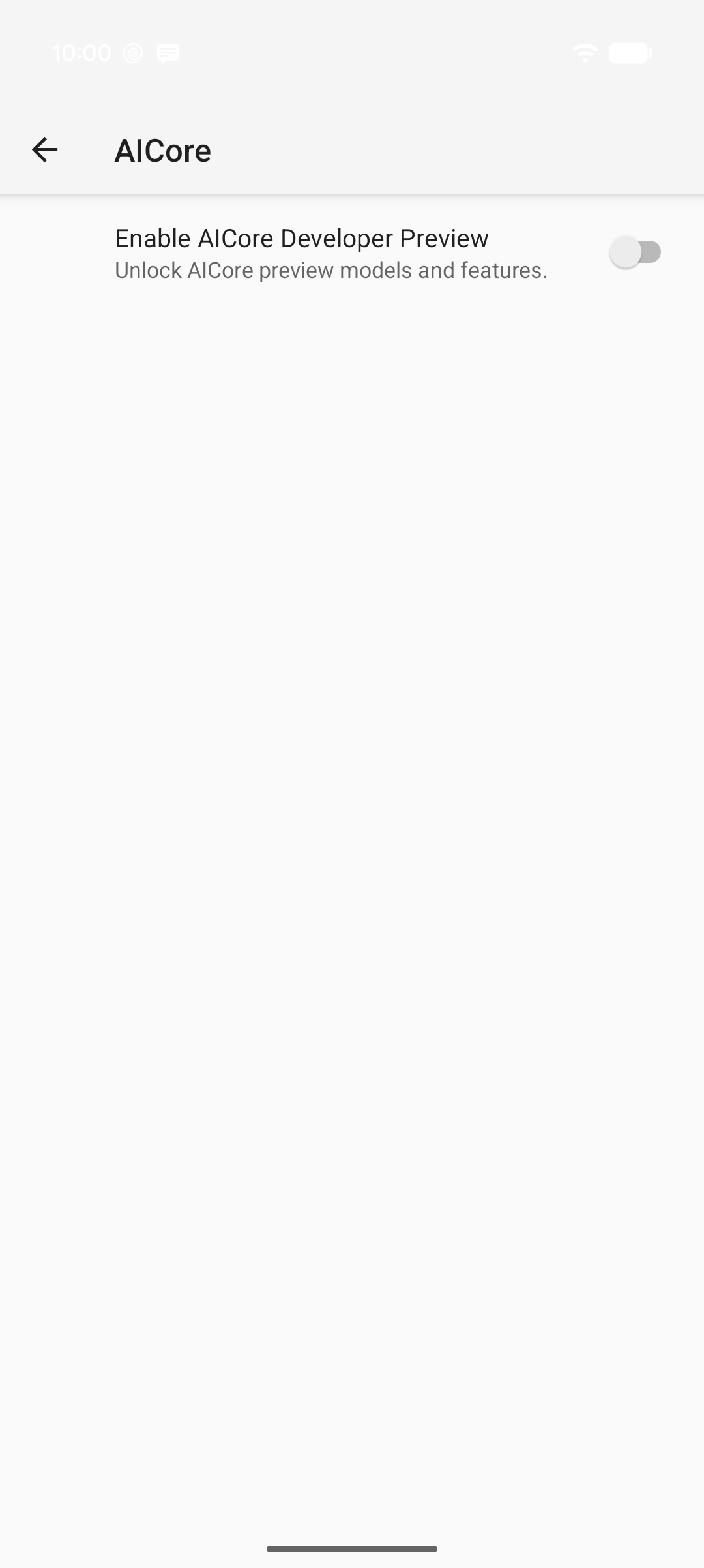
To opt out of AICore Developer Preview, do the following:
- Open your device's Settings app and go to System > Developer options > AICore Settings (or search for AICore Settings in Settings).
- Turn off Enable AICore Developer Preview.
Turning off this setting removes the AICore icon from your all apps screen and disables access to preview models for apps on the device. Standard production AICore features continue working without needing to uninstall updates or re-download production models.
Download and test prompts with preview models
Use the Test tab in the AICore app to download preview models and try out prompts directly on your device:
- Open the AICore app
from your all apps screen.
- At the top of the Test tab, tap Select a model and choose a model labeled Preview (for example, Gemini Nano 4 Fast [Preview, TPU] or Gemini Nano 4 Full [Preview, TPU]).
If the Model download required dialog appears, tap Download. Models download in the background over Wi-Fi and can take a few minutes depending on your connection. While you wait, you can select an already-downloaded stable model from Select a model to start testing immediately.
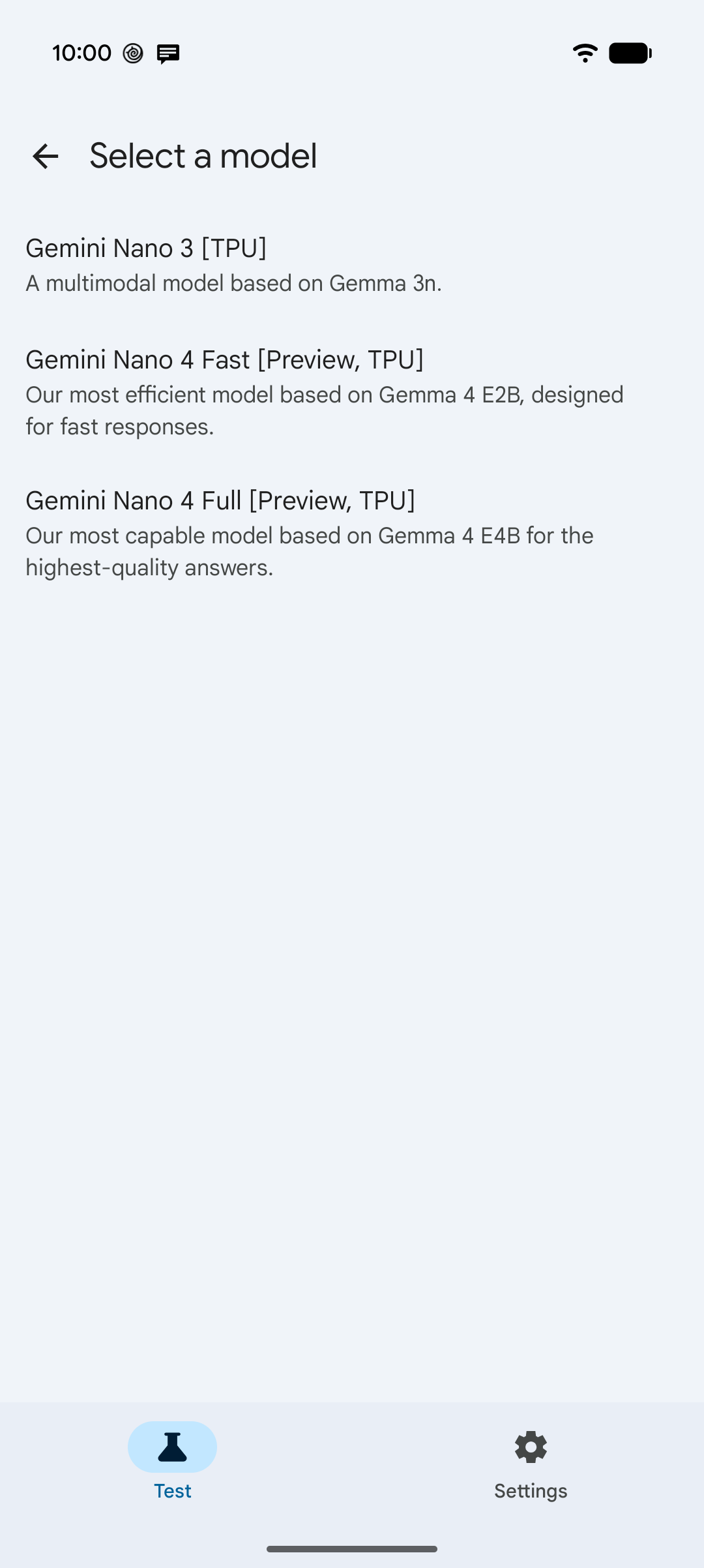
1. Choose a Preview model from Select a model. 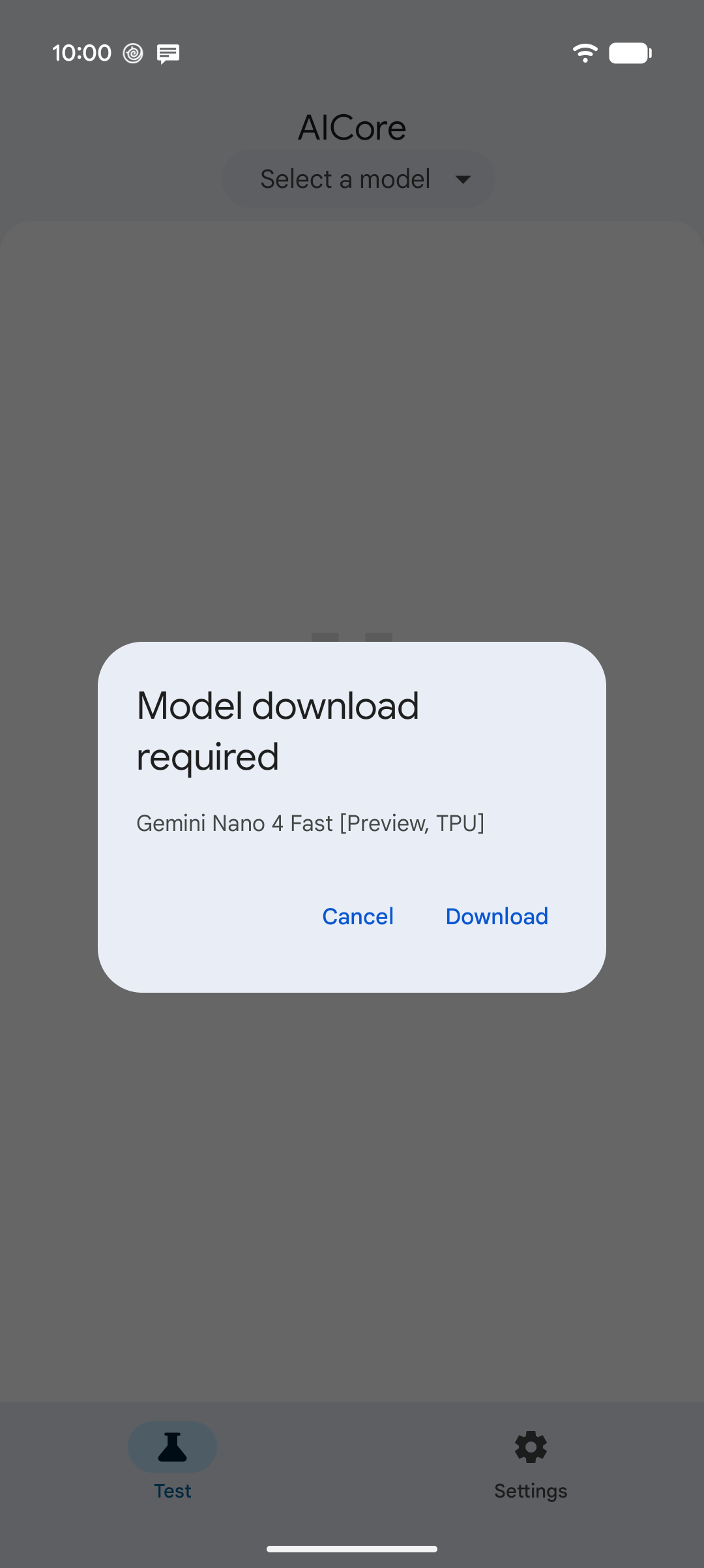
2. Tap Download if the model isn't on your device yet. Once the model is ready, type a prompt in the Enter prompt… box:
- Tap + (Add attachments) to attach an image from your camera or gallery when testing multimodal models.
- Tap the sliders icon (Configure model) to adjust generation settings such as Temperature, Top-K, Max output tokens, Thinking, or System prompt.
- Tap the send arrow (Submit prompt) to run on-device inference and stream the response in real time.
The very first inference after selecting a model can take up to a minute while the model initializes in memory. If you see a
BUSYerror, another feature on the device may be actively using the model—wait a moment and try again.To see performance details for a response, tap Debug info below it. The details include Time to first token, Total inference time, Input rate, Output rate, token counts, and the configuration used for that run.
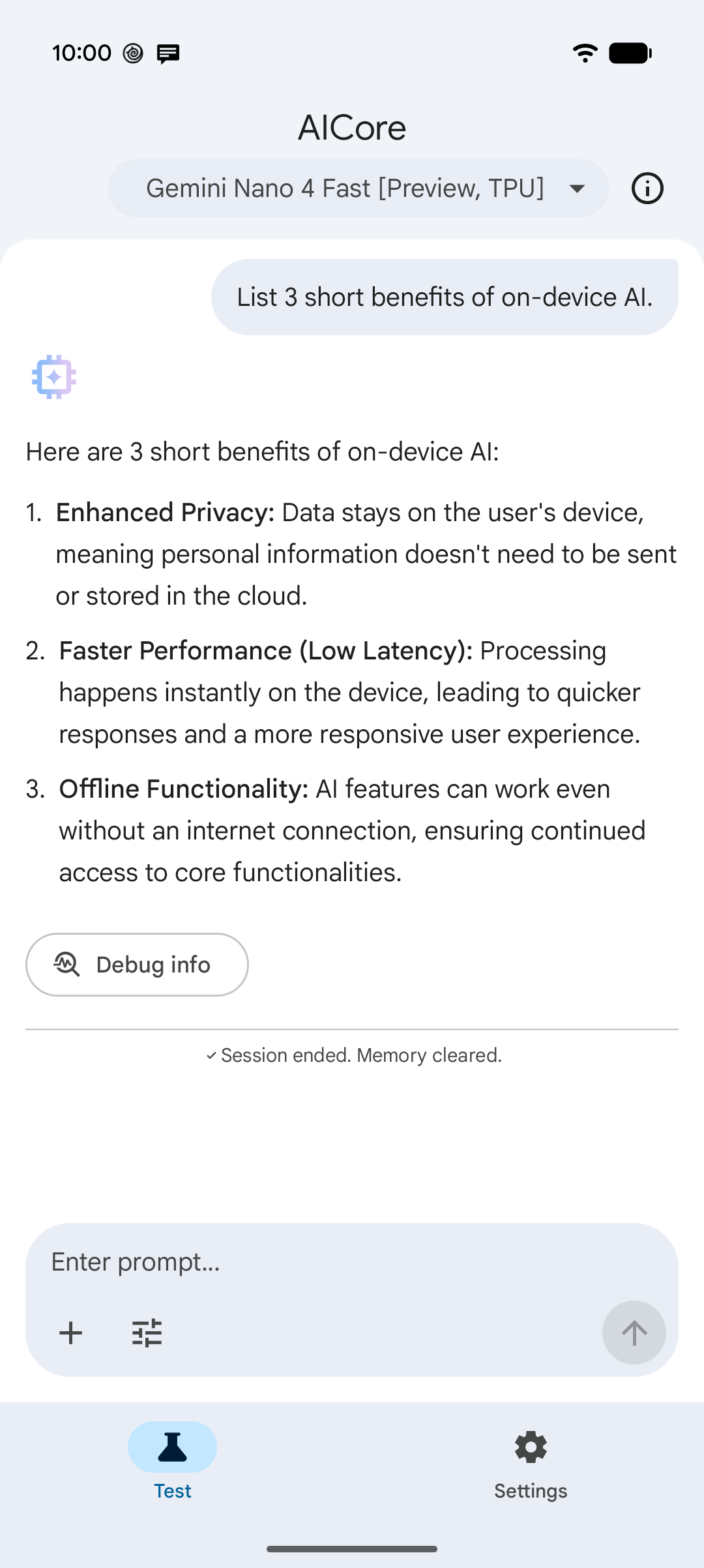
3. Submit a prompt to stream the on-device response. 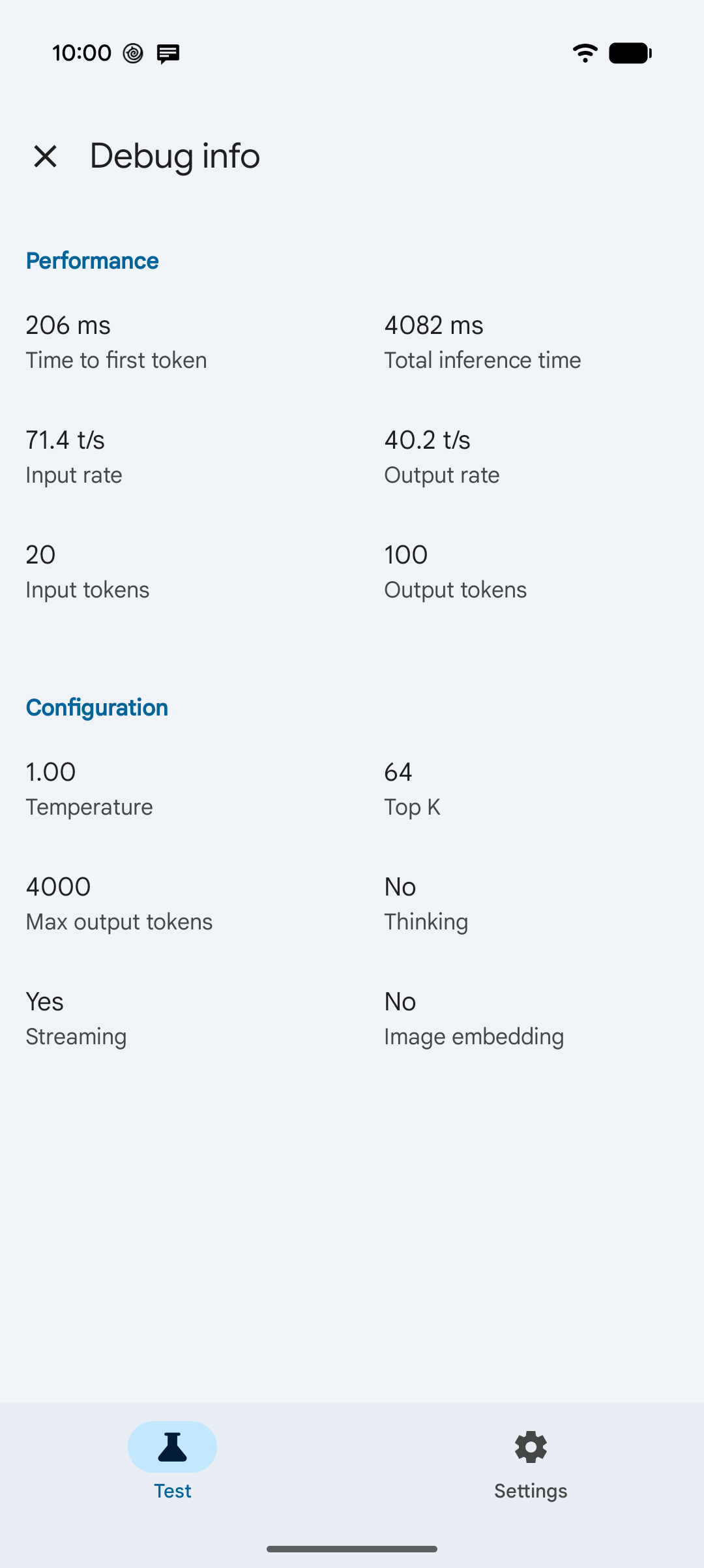
4. Tap Debug info to inspect latency and throughput.
Bypass quota to facilitate testing
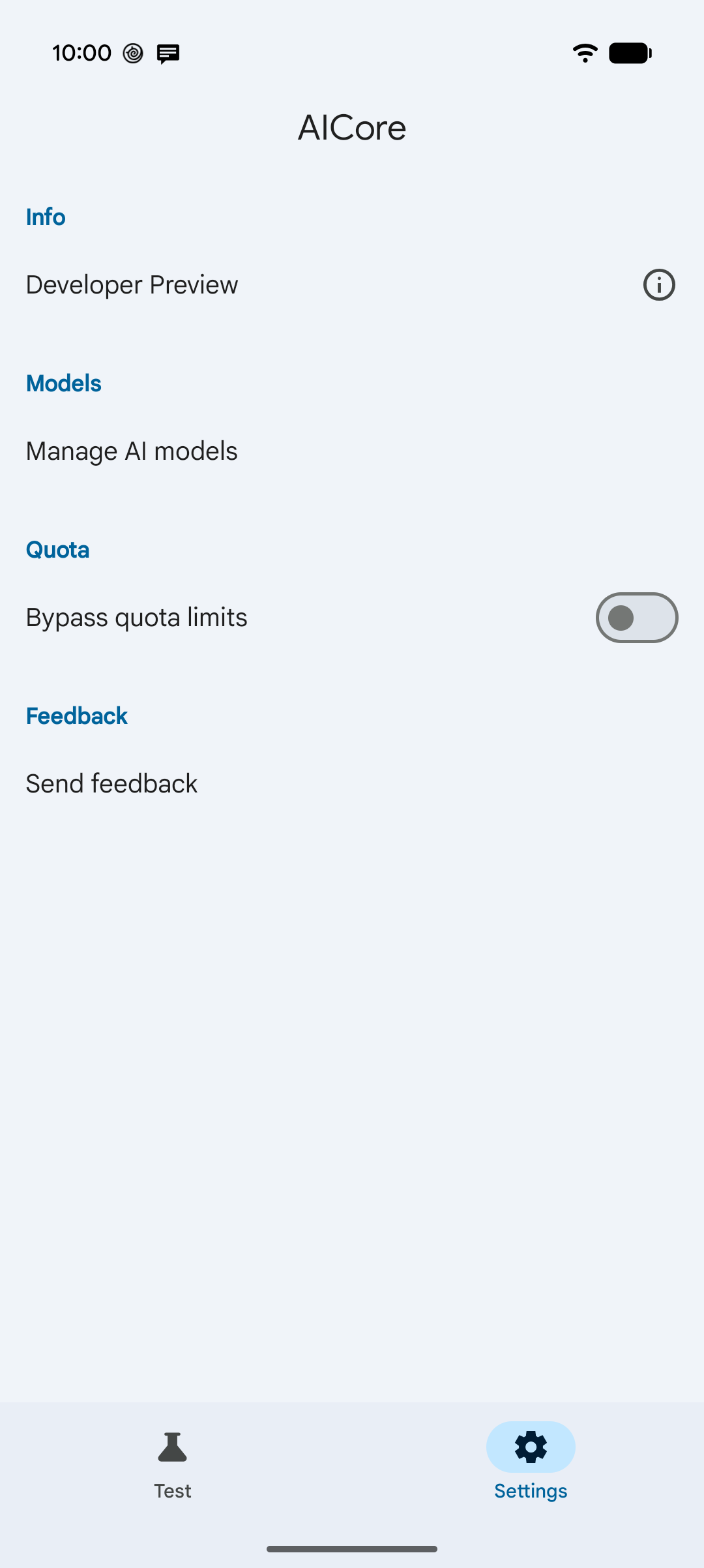
When sending frequent test requests in a short period of time, you might
encounter a BUSY error due to AICore's per-app quota limits. Quota enforcement
helps protect battery life and device health in production, but can get in the
way during rapid iteration.
To temporarily disable quota enforcement during development:
- Open the AICore app and tap the Settings tab in the bottom navigation bar.
- Under Quota, turn on Bypass quota limits. AICore closes briefly to apply the change—reopen the app to continue testing.
Turning on Bypass quota limits applies to all apps on the device that use AICore, so remember to turn it back off when you finish testing. From the same Settings tab, you can also tap Manage AI models to see which models are available on your device.
Share feedback
To share feedback or report an issue, open the AICore app and tap Settings > Send feedback.
Select the model your app uses
After prototyping with preview models in the AICore app, you can configure your own Android app to use a preview model. For setup instructions and fallback best practices, see Select a model.