

หน้านี้อธิบายยูทิลิตีการจัดกลุ่มเครื่องหมายที่มีอยู่ใน ไลบรารียูทิลิตี สำหรับ Maps SDK สำหรับ iOS
การจัดกลุ่มเครื่องหมายช่วยให้คุณวางเครื่องหมายจำนวนมากบนแผนที่ได้ โดยไม่ทำให้แผนที่อ่านยาก ยูทิลิตีการจัดกลุ่มเครื่องหมายช่วยให้คุณ จัดการเครื่องหมายหลายรายการที่ระดับการซูมต่างๆ ได้
เมื่อผู้ใช้ดูแผนที่ที่ระดับการซูมสูง เครื่องหมายแต่ละรายการจะแสดงบนแผนที่ เมื่อผู้ใช้ซูมออก เครื่องหมายจะรวมกันเป็นคลัสเตอร์เพื่อให้ดูแผนที่ได้ง่ายขึ้น
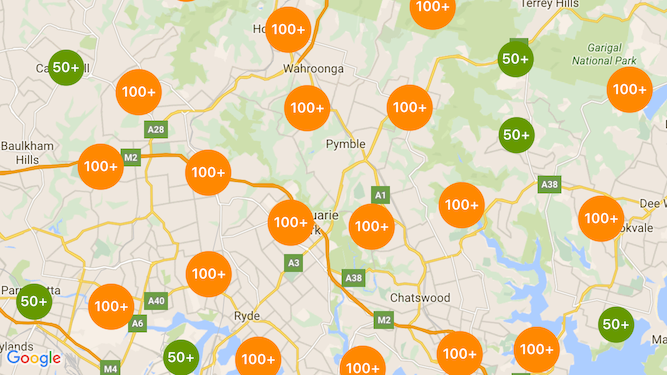
ภาพหน้าจอต่อไปนี้แสดงรูปแบบเริ่มต้นของคลัสเตอร์เครื่องหมาย
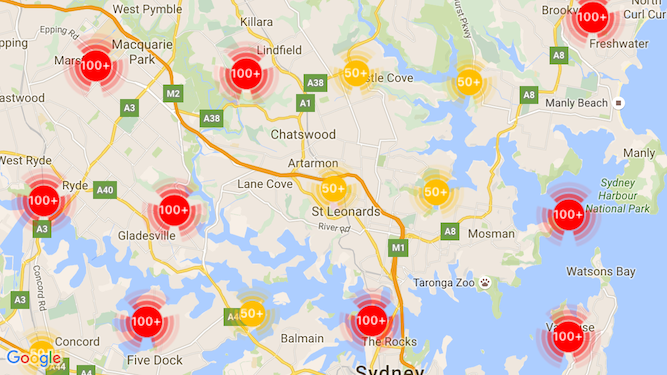
ตัวอย่างคลัสเตอร์เครื่องหมายแบบกำหนดเองมีดังนี้
สิ่งที่ต้องดำเนินการก่อนและหมายเหตุ
ไลบรารียูทิลิตี Maps SDK สำหรับ iOS
ยูทิลิตีการจัดกลุ่มเครื่องหมายเป็นส่วนหนึ่งของ Maps SDK สำหรับ iOS Utility Library หากยังไม่ได้ตั้งค่าคลัง โปรดทำตามคู่มือการตั้งค่า ก่อนอ่านส่วนที่เหลือของหน้านี้
จำนวนเครื่องหมายสูงสุดที่แนะนำคือ 10,000 รายการเพื่อให้ได้ประสิทธิภาพที่ดีที่สุด
สิทธิ์เข้าถึงตำแหน่ง
ตัวอย่างนี้ใช้ GPS ของอุปกรณ์เพื่อระบุตำแหน่งผู้ใช้และแผนที่ตามพิกัดของผู้ใช้ หากต้องการเปิดใช้
ฟีเจอร์นี้ คุณต้องเพิ่มคำอธิบายลงในNSLocationWhenInUseUsageDescriptionสิทธิ์
ในไฟล์ Info.plist ของโปรเจ็กต์
หากต้องการเพิ่ม ให้ทำดังนี้
- คลิกไฟล์
Info.plistในแถบนำทางของโปรเจ็กต์ใน Xcode เพื่อเปิด เครื่องมือแก้ไขรายการพร็อพเพอร์ตี้ - คลิกไอคอน "+" ข้าง "รายการพร็อพเพอร์ตี้ข้อมูล" เพื่อเพิ่มพร็อพเพอร์ตี้ใหม่
- ในช่อง "คีย์" ให้พิมพ์ "NSLocationWhenInUseUsageDescription" Xcode จะแปลเป็นชื่อแบบยาว "Privacy - Location When In Use Usage Description" โดยอัตโนมัติ ดูรายการพร็อพเพอร์ตี้สิทธิ์เข้าถึงตำแหน่งทั้งหมดที่เป็นไปได้ได้ที่ การขอสิทธิ์สำหรับบริการตำแหน่ง ในเอกสารประกอบสำหรับนักพัฒนาแอปของ Apple
- ตั้งค่าช่อง "ประเภท" เป็น "สตริง"
- ในช่อง "ค่า" ให้พิมพ์คำอธิบายเหตุผลที่แอปต้องใช้ตำแหน่งของผู้ใช้ เช่น "ระบุตำแหน่งผู้ใช้เพื่อแสดงข้อมูลธุรกิจที่อยู่ใกล้เคียง"
การติดตั้งใช้งานการคลัสเตอร์เครื่องหมาย
การติดตั้งใช้งานการจัดกลุ่มเครื่องหมายมี 3 ขั้นตอนดังนี้
- สร้างอินสแตนซ์ Cluster Manager
- ส่งเครื่องหมายที่ต้องการจัดกลุ่มไปยังเครื่องมือจัดการคลัสเตอร์
- เรียกใช้ Cluster Manager
การสร้างตัวจัดการคลัสเตอร์
หากต้องการใช้เครื่องมือจัดการคลัสเตอร์ ให้ทำดังนี้
- ตั้งค่า
ViewControllerที่แสดงแผนที่ให้เป็นไปตามโปรโตคอลGMSMapViewDelegate - สร้างอินสแตนซ์ของ
GMUClusterManager - ส่งอินสแตนซ์ของ
GMSMapViewที่คุณต้องการใช้การจัดกลุ่มเครื่องหมาย และใช้โปรโตคอลต่อไปนี้ไปยังอินสแตนซ์GMUClusterManagerGMUClusterIconGenerator: จัดเตรียมตรรกะของแอปพลิเคชันที่ดึงไอคอนคลัสเตอร์เพื่อใช้ในระดับการซูมต่างๆGMUClusterAlgorithm: ระบุอัลกอริทึมที่กำหนดลักษณะการทำงาน ของวิธีจัดกลุ่มเครื่องหมาย เช่น ระยะห่างระหว่างเครื่องหมายที่จะรวมไว้ในคลัสเตอร์เดียวกันGMUClusterRenderer: มีตรรกะของแอปพลิเคชันที่จัดการการแสดงผลจริง ของไอคอนคลัสเตอร์บนแผนที่
- ตั้งค่าผู้มอบสิทธิ์แผนที่ในอินสแตนซ์
GMUClusterManager
ไลบรารียูทิลิตีประกอบด้วยการติดตั้งใช้งานเริ่มต้นของเครื่องมือสร้างไอคอน (GMUDefaultClusterIconGenerator)
อัลกอริทึม (GMUNonHierarchicalDistanceBasedAlgorithm) และตัวแสดงผล (GMUDefaultClusterRenderer)
คุณอาจเลือกสร้างเครื่องมือสร้างไอคอน อัลกอริทึม และตัวแสดงผลการจัดกลุ่มที่กำหนดเองได้
โค้ดต่อไปนี้จะสร้างเครื่องมือจัดการคลัสเตอร์โดยใช้ค่าเริ่มต้นเหล่านี้ในviewDidLoad
การเรียกกลับของ ViewController
Swift
import GoogleMaps
import GoogleMapsUtils

class MarkerClustering: UIViewController, GMSMapViewDelegate {
  private var mapView: GMSMapView!
  private var clusterManager: GMUClusterManager!

  override func viewDidLoad() {
    super.viewDidLoad()

    // Set up the cluster manager with the supplied icon generator and
    // renderer.
    let iconGenerator = GMUDefaultClusterIconGenerator()
    let algorithm = GMUNonHierarchicalDistanceBasedAlgorithm()
    let renderer = GMUDefaultClusterRenderer(mapView: mapView,
                                clusterIconGenerator: iconGenerator)
    clusterManager = GMUClusterManager(map: mapView, algorithm: algorithm,
                                                      renderer: renderer)

    // Register self to listen to GMSMapViewDelegate events.
    clusterManager.setMapDelegate(self)
    // ...
  }
  // ...
}
Objective-C
@import GoogleMaps;
@import GoogleMapsUtils;

@interface MarkerClustering () <GMSMapViewDelegate>

@end

@implementation MarkerClustering {
  GMSMapView *_mapView;
  GMUClusterManager *_clusterManager;
}

- (void)viewDidLoad {
  [super viewDidLoad];

  // Set up the cluster manager with a supplied icon generator and renderer.
  id<GMUClusterAlgorithm> algorithm =
      [[GMUNonHierarchicalDistanceBasedAlgorithm alloc] init];
  id<GMUClusterIconGenerator> iconGenerator =
      [[GMUDefaultClusterIconGenerator alloc] init];
  id<GMUClusterRenderer> renderer =
      [[GMUDefaultClusterRenderer alloc] initWithMapView:_mapView
                                    clusterIconGenerator:iconGenerator];
  _clusterManager =
      [[GMUClusterManager alloc] initWithMap:_mapView
                                   algorithm:algorithm
                                    renderer:renderer];

  // Register self to listen to GMSMapViewDelegate events.
  [_clusterManager setMapDelegate:self];
  // ...
}
// ...
@end
การเพิ่มเครื่องหมาย
การเพิ่มเครื่องหมายลงในเครื่องหมายคลัสเตอร์ทำได้ 2 วิธี ได้แก่ ทีละรายการหรือเป็นอาร์เรย์
ตัวทำเครื่องหมายแต่ละรายการ
Swift
let position = CLLocationCoordinate2D(latitude: 47.60, longitude: -122.33)
let marker = GMSMarker(position: position)
clusterManager.add(marker)
Objective-C
CLLocationCoordinate2D position = CLLocationCoordinate2DMake(47.60, -122.33);
GMSMarker *marker = [GMSMarker markerWithPosition:position];
[_clusterManager addItem:marker];
อาร์เรย์ของเครื่องหมาย
Swift
let position1 = CLLocationCoordinate2D(latitude: 47.60, longitude: -122.33)
let marker1 = GMSMarker(position: position1)

let position2 = CLLocationCoordinate2D(latitude: 47.60, longitude: -122.46)
let marker2 = GMSMarker(position: position2)

let position3 = CLLocationCoordinate2D(latitude: 47.30, longitude: -122.46)
let marker3 = GMSMarker(position: position3)

let position4 = CLLocationCoordinate2D(latitude: 47.20, longitude: -122.23)
let marker4 = GMSMarker(position: position4)

let markerArray = [marker1, marker2, marker3, marker4]
clusterManager.add(markerArray)
Objective-C
CLLocationCoordinate2D position1 = CLLocationCoordinate2DMake(47.60, -122.33);
GMSMarker *marker1 = [GMSMarker markerWithPosition:position1];

CLLocationCoordinate2D position2 = CLLocationCoordinate2DMake(47.60, -122.46);
GMSMarker *marker2 = [GMSMarker markerWithPosition:position2];

CLLocationCoordinate2D position3 = CLLocationCoordinate2DMake(47.30, -122.46);
GMSMarker *marker3 = [GMSMarker markerWithPosition:position3];

CLLocationCoordinate2D position4 = CLLocationCoordinate2DMake(47.20, -122.23);
GMSMarker *marker4 = [GMSMarker markerWithPosition:position4];

NSArray<GMSMarker *> *markerArray = @[marker1, marker2, marker3, marker4];
[_clusterManager addItems:markerArray];
เรียกใช้การคลัสเตอร์เครื่องหมาย
เมื่อสร้าง MarkerClusterer และส่งเครื่องหมายที่ต้องการจัดกลุ่มแล้ว สิ่งที่คุณต้องทำคือเรียกใช้เมธอด cluster ในอินสแตนซ์ MarkerClusterer
Swift
clusterManager.cluster()
Objective-C
[_clusterManager cluster];
จัดการเหตุการณ์ในเครื่องหมายและคลัสเตอร์
โดยทั่วไปเมื่อใช้ Maps SDK สำหรับ iOS หากต้องการฟังเหตุการณ์ในแผนที่ คุณต้องใช้โปรโตคอล GMSMapViewDelegate
คุณสามารถฟังเหตุการณ์ในแผนที่ได้ แต่จะฟัง
เหตุการณ์ของ Cluster Manager ที่ปลอดภัยตามประเภทไม่ได้ เมื่อผู้ใช้แตะเครื่องหมาย
รายการคลัสเตอร์แต่ละรายการ หรือคลัสเตอร์ API จะทริกเกอร์
mapView:didTapMarker: และแนบข้อมูลคลัสเตอร์เพิ่มเติมกับพร็อพเพอร์ตี้
marker.userData จากนั้นคุณสามารถตรวจสอบว่า userData เป็นไปตามโปรโตคอล GMUCluster หรือไม่ เพื่อพิจารณาว่ามีการแตะไอคอนคลัสเตอร์หรือเครื่องหมายหรือไม่
Swift
func mapView(_ mapView: GMSMapView, didTap marker: GMSMarker) -> Bool {
  // center the map on tapped marker
  mapView.animate(toLocation: marker.position)
  // check if a cluster icon was tapped
  if marker.userData is GMUCluster {
    // zoom in on tapped cluster
    mapView.animate(toZoom: mapView.camera.zoom + 1)
    NSLog("Did tap cluster")
    return true
  }

  NSLog("Did tap a normal marker")
  return false
}
Objective-C
- (BOOL)mapView:(GMSMapView *)mapView didTapMarker:(GMSMarker *)marker {
  // center the map on tapped marker
    [_mapView animateToLocation:marker.position];
    // check if a cluster icon was tapped
    if ([marker.userData conformsToProtocol:@protocol(GMUCluster)]) {
      // zoom in on tapped cluster
      [_mapView animateToZoom:_mapView.camera.zoom + 1];
      NSLog(@"Did tap cluster");
      return YES;
    }

    NSLog(@"Did tap marker in cluster");
    return NO;
}
ตอนนี้ Cluster Manager จะสกัดกั้นเหตุการณ์ใดก็ตามที่คุณได้ติดตั้งใช้งานใน
clusterManager โดยจะส่งต่อเหตุการณ์ที่เหลือไปยังตัวแทนแผนที่
หากมี โปรดทราบว่าเหตุการณ์สำหรับเครื่องหมายมาตรฐาน
(นั่นคือ เครื่องหมายที่ไม่ได้สร้างโดยเครื่องมือแสดงผลคลัสเตอร์) จะถูกส่งต่อ
ไปยังตัวแทนแผนที่เสมอ
ปรับแต่งการจัดกลุ่มเครื่องหมาย
คุณสามารถระบุการติดตั้งใช้งานที่กำหนดเองสำหรับ
GMUClusterRenderer, GMUClusterIconGenerator หรือ
GMUClusterAlgorithm คุณสามารถใช้การติดตั้งใช้งานที่กำหนดเอง
ตามการติดตั้งใช้งานตัวอย่างของโปรโตคอลเหล่านี้ที่รวมอยู่ในไลบรารียูทิลิตี
หรือจะเขียนโค้ดการติดตั้งใช้งานที่กำหนดเองทั้งหมดโดยปฏิบัติตาม
โปรโตคอลก็ได้