
RCS for Business エージェントは、メッセージの送受信によってユーザーと通信します。ユーザーにメッセージを送信するには、エージェントは RCS Business Messaging API にメッセージ要求を送信します。1 つの要求には、テキスト、リッチカード、メディアファイル、PDF ファイル、返信候補、およびアクション候補を含めることができます。
RCS for Businessプラットフォームは、メッセージ配信の管理を支援するために、特定の状況でエラーを返します。
- RCSをサポートしていないデバイス、またはRCSが有効になっていないユーザーにメッセージを送信すると、RCS for Businessプラットフォームは404 NOT_FOUNDエラーを返します。この場合、インフラストラクチャで定義されているフォールバック方法を使用してユーザーへの接続を試みることができます。
- エージェントがまだ起動していないネットワーク、またはRCSトラフィックが有効になっていないネットワーク上のRCSユーザーにメッセージを送信すると、RCS for Businessプラットフォームは404 NOT_FOUNDエラーを返します。
- ユーザーのデバイスがサポートしていない機能を含むメッセージを送信した場合、RCS for Businessプラットフォームは400 INVALID_ARGUMENTエラーを返し、メッセージを配信しません。
マルチチャネルメッセージング戦略の一環として、一定時間経過しても配信されないメッセージは取り消し、別のチャネルで送信するのが最善です。メッセージを事前に定義された時間に自動的に取り消すには、メッセージの有効期限を設定します。
受信者はオフラインです
RCS for Businessプラットフォームは、受信者がオフラインの場合でもメッセージの配信を受け付けます。200 OK応答が返され、RCS for Businessプラットフォームはメッセージを30日間保持し、再配信を試みます。RCS for Businessにメッセージの再送信を依頼する必要はありません。
RCS for Businessは、送信後30日経過しても配信されなかったメッセージを削除します。
エージェントの使用状況によっては、30日間のタイムアウト期間が経過する前に未配信メッセージを取り消したい場合があります。取り消しを行うことで、オフラインのユーザーがオンラインに戻った際に古いメッセージを受信するのを防ぐことができます。メッセージを取り消す方法は複数あります。
- 取り消しリクエストを送信して、取り消しをトリガーしてください。
- メッセージの有効期限を設定すると、適切な時期にメッセージが自動的に無効になります。
メッセージの有効期限を設定する
エージェントからのメッセージは時間的な制約がありますか?例えば、ワンタイムパスワード(OTP)は短期間しか有効ではありません。期間限定のオファーは期限切れになります。また、予約リマインダーは予約日を過ぎると意味をなさなくなります。メッセージをタイムリーかつ適切なものに保つには、メッセージの有効期限を設定しましょう。これにより、オフラインのユーザーがオンラインに戻った際に古いコンテンツを受け取ることを防ぐことができます。有効期限は、代替メッセージ戦略を実行する良いタイミングにもなり、ユーザーが必要な情報をタイムリーに受け取ることができます。
メッセージの有効期限を設定するには、エージェントメッセージで以下のいずれかのフィールドを指定します。
-
expireTime:メッセージの有効期限が切れる正確な時刻(UTC)。 -
ttl(有効期限):メッセージが期限切れになるまでの時間。
書式設定と値のオプションについては、 AgentMessage参照してください。
ttlとexpireTimeの最大値は、メッセージ送信後15日間です。
ttlとexpireTime最小値はありませんが、メッセージの送信後少なくとも10秒経過させることで、失効と配信の両方の通知を受け取る可能性を大幅に減らすことができます。
メッセージの有効期間(TTL)
RCS for Business メッセージの TTL を設定すると、メッセージが有効かつ配信可能とみなされる期間を指定できます。メッセージがこの TTL 期間内にユーザーのデバイスに正常に配信されない場合、RCS for Business プラットフォームは自動的にメッセージの取り消しを試みます。
メッセージの取り消しを開始すると、RCS for Businessプラットフォームに対し、その特定のメッセージの配信を停止するよう要求することになります。ただし、この操作は今後の配信試行にのみ影響します。ユーザーのデバイスが既にメッセージを正常に受信している場合、メッセージは処理中であり、RCS for Businessプラットフォームはユーザーのデバイスからメッセージを取り消すことはできません。
通知に関して、以下の点にご注意ください。
TTL内にメッセージが配信された場合:ユーザーのデバイスがオンラインになり、TTLの有効期限が切れる前にメッセージを受信した場合、配信
DELIVERED通知が届きます。メッセージは正常に配信されたため、取り消し通知は送信されません。これは最も一般的で想定されるシナリオです。TTLの有効期限切れ前にメッセージが配信されない場合:メッセージがユーザーのデバイスに到達する前にTTLの有効期限が切れた場合(たとえば、デバイスがオフラインの場合)、RCS for Businessプラットフォームはメッセージの取り消しを試みます。メッセージが配信キューから正常に削除されたことを示す
TTL_EXPIRATION_REVOKED通知が届きます。この場合、ユーザーはメッセージを受信しません。
エッジケースへの対処に関する推奨事項
当社のシステムは、RCS for Businessメッセージの配信とTTLの有効期限切れを並行して処理します。そのため、ごくまれに、通知のタイミングが予期しないケースが発生する場合があります。例えば、配信通知とTTL通知の両方を受け取る場合もあれば、どちらも受け取らない場合もあります。
RCS for Businessのメッセージ通知の処理に関する推奨事項は以下のとおりです。
DELIVERED通知:メッセージに対してDELIVERED通知を受信した場合、メッセージがユーザーに届いたことが確認できます。そのメッセージに関するその後のTTL通知は無視しても問題ありません。TTL_EXPIRATION_REVOKED通知:ステータスがTTL_EXPIRATION_REVOKEDのTTL通知を受信した場合、RCS for Businessシステムはその特定のメッセージの配信を試みなくなったことを意味します。このメッセージは未配信として扱い、必要に応じてフォールバック戦略を実行してください。その他のステータスでのTTL通知:その他のステータスでTTL通知を受け取った場合、これは取り消し試行が不確定であったことを示しています。
- ワンタイムパスワード(OTP)などの重要なメッセージについては、代替手段を開始してください。
- 重要度の低いメッセージについては、フォールバックを開始するかどうかを判断します。
- 通知なし:ごくまれなケースでは、システムがTTL通知を送信できず、クライアントも配信通知を生成できない場合があります。これは極めてまれなケースです。
メッセージトラフィックタイプを設定します
RBM APIには、メッセージを分類するためのmessageTrafficTypeフィールドが含まれています。エージェントのユースケースは引き続きエージェントの動作と適用されるビジネスルールを定義しますが、 messageTrafficType使用すると、メッセージコンテンツをより詳細に分類できます。最終的に、これにより1つのエージェントで複数のユースケースを処理できるようになります。現時点では、既存のエージェントのユースケースやビジネスルールに影響はありません。
この項目は任意入力ですが、必須項目になった際にエラーが発生しないよう、現時点で設定しておくことをお勧めします。
メッセージトラフィックタイプを設定するには、メッセージの内容に基づいて、各メッセージに適切なmessageTrafficTypeを割り当てます。RCS for Businessは、以下のトラフィックタイプをサポートしています。
| 交通の種類 | メッセージの内容 | エージェントの使用例 |
|---|---|---|
AUTHENTICATION | 認証メッセージ用。 | OTP |
TRANSACTION | ユーザーが既に利用しているサービスや製品に関するメッセージ。例えば、確認メール、支払い領収書、予約詳細など。 | 取引型または多目的型 |
PROMOTION | キャンペーン、割引、お知らせ、その他のプロモーションコンテンツなどの宣伝メッセージに使用します。 | 販促用または多目的用 |
SERVICEREQUEST | ユーザーが明示的に要求したサービスに関するメッセージ。 | OTP、トランザクション、プロモーション、またはマルチユース |
ACKNOWLEDGEMENT | ユーザーの操作(特に購読解除リクエスト)を確認するために使用されるメッセージです。これにより、ユーザーからのリクエストが受信され、処理中であることが確認できます。 | OTP、トランザクション、プロモーション、またはマルチユース |
トラフィックタイプが設定されていない場合、システムはエージェントの使用ケースに対してデフォルトのタイプを割り当てます。
| エージェントの使用例 | デフォルトのトラフィックタイプ |
|---|---|
| OTP | AUTHENTICATION |
| 取引 | TRANSACTION |
| プロモーション | PROMOTION |
| 多用途 | MESSAGE_TRAFFIC_TYPE_UNSPECIFIED |
マルチユースエージェントにはデフォルトのトラフィックタイプがありません。各メッセージの内容に基づいて、トラフィックタイプを明示的に設定する必要があります。MESSAGE_TRAFFIC_TYPE_UNSPECIFIED MESSAGE_TRAFFIC_TYPE_UNSPECIFIED値を置き換えないと、エラーが発生します。
メッセージサイズの制限
文字列化されたAgentMessage全体の最大サイズは250KBです。メッセージのテキスト部分自体にも3072文字の制限があります。
ユーザーによる予期せぬデータ消費を防ぐため、RCS for Business で送信できるファイルの最大サイズは 100 MiB であり、単一の RCS for Business メッセージ内のすべてのメディアおよび PDF 添付ファイルの合計サイズは 100 MiB を超えてはなりません (1 MiB = 1,048,576 バイト)。詳細については、 「メディアおよび PDF ファイル」を参照してください。
文章
最もシンプルなメッセージはテキストで構成されています。テキストメッセージは、視覚的な要素や複雑なやり取り、応答を必要とせずに情報を伝えるのに最適です。
例
以下のコードはプレーンテキストメッセージを送信します。書式設定と値のオプションについては、 phones.agentMessages.createを参照してください。
カール
curl -X POST "https://REGION-rcsbusinessmessaging.googleapis.com/v1/phones/PHONE_NUMBER/agentMessages?messageId=MESSAGE_ID&agentId=AGENT_ID" \
-H "Content-Type: application/json" \
-H "User-Agent: curl/rcs-business-messaging" \
-H "`oauth2l header --json PATH_TO_SERVICE_ACCOUNT_KEY rcsbusinessmessaging`" \
-d '{
  "contentMessage": {
    "text": "Hello, world!"
  },
  "messageTrafficType": "PROMOTION"
}'
Node.js
// Reference to RBM API helper
const rbmApiHelper = require('@google/rcsbusinessmessaging');

let params = {
   messageText: 'Hello, world!',
   msisdn: '+12223334444',
};

// Send a simple message to the device
rbmApiHelper.sendMessage(params, function(response) {
   console.log(response);
});
Java
import com.google.rbm.RbmApiHelper;
…

try {
   // Create an instance of the RBM API helper
   RbmApiHelper rbmApiHelper = new RbmApiHelper();

   // Send simple text message to user
   rbmApiHelper.sendTextMessage(
      "Hello, world!",
      "+12223334444"
   );
} catch(Exception e) {
   e.printStackTrace();
}
Python
# Reference to RBM Python client helper and messaging object structure
from rcs_business_messaging import rbm_service
from rcs_business_messaging import messages

# Create a simple RBM text message
message_text = messages.TextMessage('Hello, world!')

# Send text message to the device
messages.MessageCluster().append_message(message_text).send_to_msisdn('+12223334444')
C#
using RCSBusinessMessaging;
…

// Create an instance of the RBM API helper
RbmApiHelper rbmApiHelper = new RbmApiHelper(credentialsFileLocation,
                                             projectId);

rbmApiHelper.SendTextMessage(
    "Hello, world!",
    "+12223334444",
);
基本的なメッセージ内容 - SMSの変換
通信事業者は、SMSメッセージをRCS for Businessに移行するための課金モデルを導入しました。最大160文字のUTF-8文字を含むRCS for Businessメッセージは、ベーシックメッセージと呼ばれます。
ベーシックメッセージを送信するリクエストを作成する際は、文字は1バイト(UTF-8)としてカウントされることに注意してください。絵文字やマルチバイト文字セットなどの特殊文字を含むメッセージを送信する場合、各文字は2~4 UTF-8文字以上としてカウントされます。
長さを確認するには、ボックスにテキストを入力してください。
テキストメッセージの内容とリンクのプレビュー
RCSクライアントはリンクプレビューを実装できます。テキストのみのRCS for BusinessメッセージにopenGraphタグ付きのWebサイトのURLが含まれている場合、クライアントはプレビュー(画像、タイトルなど)を生成して、よりリッチなユーザーエクスペリエンスを提供できます。たとえば、 URLプレビューを含む基本的なメッセージをご覧ください。
RCSクライアントによっては、ユーザーがリンクプレビューを無効にできる場合があることに注意してください。
ユーザー認証用のワンタイムパスワード
RCS for Business を使用すると、SMS Retriever API を介してワンタイムパスワード (OTP) を送信し、ユーザー認証を自動で行うことができます。ただし、RCS for Business 経由で受信した OTP を読み取るための専用 API はありません。
Androidでの仕組み
SMS Retriever APIに登録済みのAndroidアプリの場合、APIは正しくフォーマットされたRCS for Businessメッセージをリッスンします。このメッセージには、OTPとアプリを識別する一意のハッシュの両方が含まれている必要があります。
RCS for Businessメッセージが正しい形式で受信されると、SMS Retriever APIはそれをSMS OTPと同様に処理します。ハッシュがアプリと一致すると、OTPが抽出され、自動ユーザー認証のためにアプリに転送されます。
- ユーザー認証のための RCS for Business のテキスト メッセージの例:
Your code is <OTP><app hash>. - 例:
Your code is 123456 M8tue43FGT.
SMS Retrieverおよび関連APIの詳細については、 SMS Retrieverのドキュメントを参照してください。SMS Retriever APIに登録されているアプリにおける自動ユーザー認証の詳細については、こちらのフロー図を参照してください。
iOSでの動作方法
iOSの場合、システムに内蔵されたOTP処理機能が、SMS OTPと同様に、RCS for Business OTPを自動的に検出し、自動入力候補として提示します。iOSアプリがOTPを読み取るために、特別なAPI統合は必要ありません。
メディアファイルとPDFファイル
画像、動画、音声、またはPDFファイルを含むメッセージを送信する場合、エージェントはコンテンツへの公開アクセス可能なURLを提供するか、ファイルを直接アップロードする必要があります。
送信できるファイルの最大サイズは100MiBであり、1つのメッセージに含まれるすべてのメディアファイルとPDF添付ファイルの合計サイズは100MiBを超えてはなりません。
メディアの圧縮とトランスコーディング
RCS for Businessプラットフォームは、画像や動画などのメディアファイルを送信する前に自動的にトランスコードと圧縮を行い、読み込み速度を速め、さまざまなネットワークやデバイスで適切に動作するようにします。
圧縮は、ファイルサイズの制限ではなく、入力メディアの品質に基づいて行われます。つまり、ファイルサイズが最大制限の100 MiBをはるかに下回っていても、圧縮される可能性があります。トランスコーディング規格は常に変化しているため、トランスコーディングがスキップされるタイミングを決定する固定のファイルサイズ制限はありません。さまざまなメディア形式、寸法、圧縮率を試して、ペイロードに最適なバランスを見つけてください。
サムネイル仕様
メディアファイルの場合、サムネイル画像を指定することで、ユーザーがクリックする前にコンテンツをプレビューできます。音声ファイルの場合は、デフォルトの音声ウィジェットがプレースホルダーとして使用されます。
- サムネイルの最大ファイルサイズは100KBです。最適なユーザーエクスペリエンスのためには、50KB以下にすることをお勧めします。
- サムネイルの縦横比は、元のファイルの縦横比と一致させる必要があります。
キャッシュとURL管理
RCS for Businessプラットフォームはファイルを60日間キャッシュし、APIはエージェントがユーザーへのメッセージに含めることができるファイルIDを返します。60日後、RCS for Businessはキャッシュからファイルを削除します。
ファイルをURLで指定する場合、 contentMessage.forceRefreshをfalseに設定するのがベストプラクティスです。contentMessage.forceRefresh contentMessage.forceRefresh trueに設定すると、指定されたURLのコンテンツがキャッシュされている場合でも、RCS for Businessは指定されたURLから新しいコンテンツを取得するように強制されるため、ユーザーへのメッセージ配信時間が長くなります。
ファイルURLの例
以下のコードは画像を送信します。書式設定と値のオプションについては、 AgentContentMessage参照してください。
カール
curl -X POST "https://REGION-rcsbusinessmessaging.googleapis.com/v1/phones/PHONE_NUMBER/agentMessages?messageId=MESSAGE_ID&agentId=AGENT_ID" \
-H "Content-Type: application/json" \
-H "User-Agent: curl/rcs-business-messaging" \
-H "`oauth2l header --json PATH_TO_SERVICE_ACCOUNT_KEY rcsbusinessmessaging`" \
-d '{
  "contentMessage": {
    "contentInfo": {
      "fileUrl": "http://www.google.com/logos/doodles/2015/googles-new-logo-5078286822539264.3-hp2x.gif",
      "forceRefresh": false
    }
  }
}'
Node.js
// Reference to RBM API helper
const rbmApiHelper = require('@google/rcsbusinessmessaging');

let params = {
   fileUrl: 'http://www.google.com/logos/doodles/2015/googles-new-logo-5078286822539264.3-hp2x.gif',
   msisdn: '+12223334444',
};

// Send an image/video to a device
rbmApiHelper.sendMessage(params, function(response) {
   console.log(response);
});
Java
import com.google.api.services.rcsbusinessmessaging.v1.model.AgentContentMessage;
import com.google.api.services.rcsbusinessmessaging.v1.model.AgentMessage;
import com.google.rbm.RbmApiHelper;
…

try {
   // Create an instance of the RBM API helper
   RbmApiHelper rbmApiHelper = new RbmApiHelper();

   String fileUrl = "http://www.google.com/logos/doodles/2015/googles-new-logo-5078286822539264.3-hp2x.gif";

   // create media only message
   AgentContentMessage agentContentMessage = new AgentContentMessage();
   agentContentMessage.setContentInfo(new ContentInfo().setFileUrl(fileUrl));

   // attach content to message
   AgentMessage agentMessage = new AgentMessage();
   agentMessage.setContentMessage(agentContentMessage);

   rbmApiHelper.sendAgentMessage(agentMessage, "+12223334444");
} catch(Exception e) {
   e.printStackTrace();
}
Python
# Reference to RBM Python client helper and messaging object structure
from rcs_business_messaging import rbm_service
from rcs_business_messaging import messages

# Create media file attachment
file_message = messages.FileMessage('http://www.google.com/logos/doodles/2015/googles-new-logo-5078286822539264.3-hp2x.gif')

messages.MessageCluster().append_message(file_message).send_to_msisdn('+12223334444')
C#
using Google.Apis.RCSBusinessMessaging.v1.Data;
using RCSBusinessMessaging;
…

// Create an instance of the RBM API helper
RbmApiHelper rbmApiHelper = new RbmApiHelper(credentialsFileLocation,
                                                 projectId);

string fileUrl = "http://www.google.com/logos/doodles/2015/googles-new-logo-5078286822539264.3-hp2x.gif";

// Create content info with the file url
ContentInfo contentInfo = new ContentInfo
{
    FileUrl = fileUrl
};

// Attach content info to a message
AgentContentMessage agentContentMessage = new AgentContentMessage
{
    ContentInfo = contentInfo,
};

// Attach content to message
AgentMessage agentMessage = new AgentMessage
{
    ContentMessage = agentContentMessage
};

rbmApiHelper.SendAgentMessage(agentMessage, "+12223334444");
または、 files.createを使用して、メッセージを送信する前にメディアをアップロードすることもできます。
ファイルアップロードの例
以下のコードは、動画ファイルとサムネイルファイルをアップロードし、両方のファイルをメッセージに含めて送信します。書式設定と値のオプションについては、 files.createおよびAgentContentMessage参照してください。
カール
curl -X POST "https://REGION-rcsbusinessmessaging.googleapis.com/upload/v1/files?agentId=AGENT_ID" \ -H "Content-Type: video/mp4" \ -H "User-Agent: curl/rcs-business-messaging" \ -H "`oauth2l header --json PATH_TO_SERVICE_ACCOUNT_KEY rcsbusinessmessaging`" \ --upload-file "FULL_PATH_TO_VIDEO_MEDIA_FILE"# Capture server-specified video file name from response body JSONcurl -X POST "https://REGION-rcsbusinessmessaging.googleapis.com/upload/v1/files?agentId=AGENT_ID" \ -H "Content-Type: image/jpeg" \ -H "User-Agent: curl/rcs-business-messaging" \ -H "`oauth2l header --json PATH_TO_SERVICE_ACCOUNT_KEY rcsbusinessmessaging`" \ --upload-file "FULL_PATH_TO_THUMBNAIL_MEDIA_FILE"# Capture server-specified image file name from response body JSONcurl -X POST "https://REGION-rcsbusinessmessaging.googleapis.com/v1/phones/PHONE_NUMBER/agentMessages?messageId=MESSAGE_ID&agentId=AGENT_ID" \ -H "Content-Type: application/json" \ -H "User-Agent: curl/rcs-business-messaging" \ -H "`oauth2l header --json PATH_TO_SERVICE_ACCOUNT_KEY rcsbusinessmessaging`" \ -d '{ "contentMessage": { "uploadedRbmFile": { "fileName": "SERVER-SPECIFIED_VIDEO_FILE_NAME", "thumbnailName": "SERVER-SPECIFIED_THUMBNAIL_FILE_NAME" } } }'
サポートされているメディアの種類
RCS for Businessは以下のメディアタイプをサポートしています。サムネイルについては、image/jpeg、image/jpg、image/gif、image/pngのみがサポートされています。
| メディアタイプ | 文書の種類 | 拡大 | リッチカードに対応 |
|---|---|---|---|
| アプリケーション/ogg | OGGオーディオ | .ogx | いいえ |
| アプリケーション/PDF | はい(インド国内のGoogleメッセージのみ) | ||
| オーディオ/AAC | AACオーディオ | .aac | いいえ |
| 音声/mp3 | MP3オーディオ | .mp3 | いいえ |
| オーディオ/MPEG | MPEGオーディオ | .mpeg | いいえ |
| オーディオ/mpg | MPGオーディオ | .mp3 | いいえ |
| 音声/mp4 | MP4オーディオ | .mp4 | いいえ |
| オーディオ/mp4-latm | MP4-latmオーディオ | .mp4 | いいえ |
| オーディオ/3gpp | 3GPPオーディオ | .3gp | いいえ |
| 画像/JPEG | JPEG | .jpeg、.jpg | はい |
| 画像/GIF | GIF | .gif | はい |
| 画像/png | PNG | .png | はい |
| ビデオ/h263 | H263ビデオ | .h263 | はい |
| ビデオ/m4v | M4Vビデオ | .m4v | はい |
| ビデオ/mp4 | MP4ビデオ | .mp4 | はい |
| ビデオ/mpeg4 | MPEG-4ビデオ | .mp4、.m4p | はい |
| ビデオ/mpeg | MPEGビデオ | .mpeg | はい |
| ビデオ/webm | WEBMビデオ | .webm | はい |
提案
エージェントは、提案チップリストまたはリッチカードで提案(返信例と行動例)を送信します。
回答例
提案された返信は、エージェントがどのように対応すべきかを知っている回答を提示することで、ユーザーが会話を進める際のガイドとなります。
ユーザーが提案された返信をタップすると、エージェントは返信のテキストとポストバックデータを含むイベントを受信します。ペイロードの最大文字数は2048文字です。
例
以下のコードは、2つの返信候補を含むテキストを送信します。書式設定と値のオプションについては、 SuggestedReply参照してください。
カール
curl -X POST "https://REGION-rcsbusinessmessaging.googleapis.com/v1/phones/PHONE_NUMBER/agentMessages?messageId=MESSAGE_ID&agentId=AGENT_ID" \
-H "Content-Type: application/json" \
-H "User-Agent: curl/rcs-business-messaging" \
-H "`oauth2l header --json PATH_TO_SERVICE_ACCOUNT_KEY rcsbusinessmessaging`" \
-d '{
  "contentMessage": {
    "text": "Hello, world!",
    "suggestions": [
      {
        "reply": {
          "text": "Suggestion #1",
          "postbackData": "suggestion_1"
        }
      },
      {
        "reply": {
          "text": "Suggestion #2",
          "postbackData": "suggestion_2"
        }
      }
    ]
  }
}'
Node.js
// Reference to RBM API helper
const rbmApiHelper = require('@google/rcsbusinessmessaging');

let suggestions = [
   {
      reply: {
         'text': 'Suggestion #1',
         'postbackData': 'suggestion_1',
      },
   },
   {
      reply: {
         'text': 'Suggestion #2',
         'postbackData': 'suggestion_2',
      },
   },
];

let params = {
   messageText: 'Hello, world!',
   msisdn: '+12223334444',
   suggestions: suggestions,
};

// Send a simple message with suggestion chips to the device
rbmApiHelper.sendMessage(params, function(response) {
   console.log(response);
});
Java
import com.google.api.services.rcsbusinessmessaging.v1.model.Suggestion;
import com.google.rbm.RbmApiHelper;
import com.google.rbm.SuggestionHelper;
…

try {
   // Create an instance of the RBM API helper
   RbmApiHelper rbmApiHelper = new RbmApiHelper();

   // Create suggestions for chip list
   List<Suggestion> suggestions = new ArrayList<Suggestion>();
   suggestions.add(
      new SuggestionHelper("Suggestion #1", "suggestion_1").getSuggestedReply());

   suggestions.add(
      new SuggestionHelper("Suggestion #2", "suggestion_2").getSuggestedReply());

   // Send simple text message to user
   rbmApiHelper.sendTextMessage(
      "Hello, world!",
      "+12223334444",
      suggestions
   );
} catch(Exception e) {
   e.printStackTrace();
}
Python
# Reference to RBM Python client helper and messaging object structure
from rcs_business_messaging import rbm_service
from rcs_business_messaging import messages

# Create text message to send to user
text_msg = messages.TextMessage('Hello, world!')
cluster = messages.MessageCluster().append_message(text_msg)

# Append suggested replies for the message to send to the user
cluster.append_suggestion_chip(messages.SuggestedReply('Suggestion #1', 'reply:suggestion_1'))
cluster.append_suggestion_chip(messages.SuggestedReply('Suggestion #2', 'reply:suggestion_2'))

# Send a simple message with suggestion chips to the device
cluster.send_to_msisdn('+12223334444')
C#
using Google.Apis.RCSBusinessMessaging.v1.Data;
using RCSBusinessMessaging;
…

// Create an instance of the RBM API helper
RbmApiHelper rbmApiHelper = new RbmApiHelper(credentialsFileLocation,
                                             projectId);

List<Suggestion> suggestions = new List<Suggestion>
{
   // Create suggestion chips
   new SuggestionHelper("Suggestion #1", "suggestion_1").SuggestedReply(),
   new SuggestionHelper("Suggestion #2", "suggestion_2").SuggestedReply()
};

// Send simple text message with suggestions to user
rbmApiHelper.SendTextMessage(
    "Hello, world!",
    "+12223334444",
   suggestions
);
推奨される行動
提案された操作は、デバイスに内蔵された機能を活用して、ユーザーを会話へと導きます。エージェントは、ユーザーに電話番号をダイヤルしたり、地図上で場所を開いたり、場所を共有したり、URLを開いたり、カレンダーにイベントを作成したりするよう提案できます。
各推奨アクションに対して、オプションで代替URL(最大2048文字)を指定できます。ユーザーのデバイスが推奨アクションをサポートしていない場合、このURLが新しいブラウザウィンドウで開きます。
ユーザーが提案されたアクションをタップすると、エージェントはアクションのポストバックデータを含むイベントを受け取ります。
書式設定と値のオプションについては、 SuggestedAction参照してください。
提案表示
提案を表示する方法は2つあります。
- 永続的:メッセージバブル内に表示され、会話全体を通して固定される、提案されたアクションまたは返信。
- 一時的なもの:メッセージバブルの外側に表示され、会話が続くと消える提案。
サポートされているメッセージ形式
- 繰り返し提案される内容:単独のテキストメッセージとリッチカードを活用する。
- 一時的な提案:単独のテキストメッセージ、メディアメッセージ、リッチカードを活用してください。
提案を組み合わせる
同じメッセージやリッチカード内で、永続的なサジェストと一時的なサジェストを混在させることができます。
- テキストメッセージ:提案はデフォルトでは一時的なものです。提案をバブル内に保持するには、永続的に設定する必要があります。
- リッチカード:デフォルトでは最大4つの永続的な候補表示をサポートします。その後、カードの下に「チップリスト」として一時的な候補表示を追加できます。
提案制限
1通のテキストメッセージでサポートされる提案数は、合計で最大11個です。永続的な提案を含めると、この合計数にカウントされます。たとえば、永続的な提案を4つ含めた場合、一時的な提案は最大7つまで追加できます。
| 提案タイプ | 制限 | それらが現れる場所 |
|---|---|---|
| 持続的 | 最大4人 | メッセージバブルの中 |
| 過渡的 | 最大11人 | バブルの外(チップとして) |
文字数制限
各提案は最大25文字までです。
推奨アクションにおけるURLの透明性
ユーザーの信頼を高めるため、「URLを開く」という提案アクションのボタン内に、基となるURLが2行目のテキストとして表示されます。この一貫した動作は、単独のテキストメッセージ、リッチカード、カルーセルなど、あらゆる形式に適用されます。
継続的な提案に対してクライアントをサポート
- 対応アプリ: Googleメッセージ(バージョン
20260225.00以降)。 - サポート対象外: Google Messages バージョン
20260225.00より前のバージョン、iOS、および Samsung Messages。
番号をダイヤルする
「ダイヤル」アクションは、エージェントが指定した電話番号にダイヤルするようユーザーに指示します。電話番号には、数字( 0-9 )、プラス記号( + )、アスタリスク( * )、およびシャープ記号( # )のみを使用できます。E.164国際形式(例: +14155555555 )もサポートされていますが、必須ではありません。つまり、 +14155555555と1011はどちらも有効な入力です。
例
以下のコードはダイヤルアクションを送信します。書式設定と値のオプションについては、 DialAction参照してください。
カール
curl -X POST "https://REGION-rcsbusinessmessaging.googleapis.com/v1/phones/PHONE_NUMBER/agentMessages?messageId=MESSAGE_ID&agentId=AGENT_ID" \
-H "Content-Type: application/json" \
-H "User-Agent: curl/rcs-business-messaging" \
-H "`oauth2l header --json PATH_TO_SERVICE_ACCOUNT_KEY rcsbusinessmessaging`" \
-d '{
  "contentMessage": {
    "text": "Hello, world!",
    "suggestions": [
      {
        "action": {
          "text": "Call",
          "postbackData": "postback_data_1234",
          "fallbackUrl": "https://www.google.com/contact/",
          "dialAction": {
            "phoneNumber": "+15556667777"
          }
        }
      }
    ]
  }
}'
Node.js
// Reference to RBM API helper
const rbmApiHelper = require('@google/rcsbusinessmessaging');

// Define a dial suggested action
let suggestions = [
   {
      action: {
         text: 'Call',
         postbackData: 'postback_data_1234',
         dialAction: {
            phoneNumber: '+15556667777'
         }
      }
   },
];

let params = {
   messageText: 'Hello, world!',
   msisdn: '+12223334444',
   suggestions: suggestions,
};

// Send a simple message with a dial suggested action
rbmApiHelper.sendMessage(params, function(response) {
   console.log(response);
});
Java
import com.google.api.services.rcsbusinessmessaging.v1.model.DialAction;
import com.google.api.services.rcsbusinessmessaging.v1.model.SuggestedAction;
import com.google.api.services.rcsbusinessmessaging.v1.model.Suggestion;
import com.google.rbm.RbmApiHelper;
…

try {
   // Create an instance of the RBM API helper
   RbmApiHelper rbmApiHelper = new RbmApiHelper();

   // Create suggestions for chip list
   List<Suggestion> suggestions = new ArrayList<Suggestion>();

   // creating a dial suggested action
   DialAction dialAction = new DialAction();
   dialAction.setPhoneNumber("+15556667777");

   // creating a suggested action based on a dial action
   SuggestedAction suggestedAction = new SuggestedAction();
   suggestedAction.setText("Call");
   suggestedAction.setPostbackData("postback_data_1234");
   suggestedAction.setDialAction(dialAction);

   // attaching action to a suggestion
   Suggestion suggestion = new Suggestion();
   suggestion.setAction(suggestedAction);

   suggestions.add(suggestion);

   // Send simple text message with the suggestion action
   rbmApiHelper.sendTextMessage(
      "Hello, world!",
      "+12223334444",
      suggestions
   );
} catch(Exception e) {
   e.printStackTrace();
}
Python
# Reference to RBM Python client helper and messaging object structure
from rcs_business_messaging import rbm_service
from rcs_business_messaging import messages

# Create a dial suggested action
suggestions = [
      messages.DialAction('Call', 'reply:postback_data_1234', '+15556667777')
]

# Create text message to send to user
text_msg = messages.TextMessage('Hello, world!')
cluster = messages.MessageCluster().append_message(text_msg)

# Append suggestions for the message to send to the user
for suggestion in suggestions:
    cluster.append_suggestion_chip(suggestion)

# Send a simple message with suggested action to the device
cluster.send_to_msisdn('+12223334444')
C#
using Google.Apis.RCSBusinessMessaging.v1.Data;
using RCSBusinessMessaging;
…

// Create an instance of the RBM API helper
RbmApiHelper rbmApiHelper = new RbmApiHelper(credentialsFileLocation,
                                                 projectId);

// Create a dial an agent suggested action
DialAction dialAction = new DialAction
{
    PhoneNumber = "+15556667777"
};

// Creating a suggested action based on a dial action
SuggestedAction suggestedAction = new SuggestedAction
{
    Text = "Call",
    PostbackData = "postback_data_1234",
    DialAction = dialAction
};

// Attach action to a suggestion
Suggestion suggestion = new Suggestion
{
    Action = suggestedAction
};

List<Suggestion> suggestions = new List<Suggestion>
{
    suggestion
};

rbmApiHelper.SendTextMessage(
    "Hello, world!",
    "+12223334444",
    suggestions
);
場所を表示する
「位置情報の表示」アクションは、ユーザーのデフォルトの地図アプリに位置情報を表示します。位置情報は、緯度と経度を指定するか、ユーザーの現在位置に基づくクエリで指定できます。また、地図アプリに表示されるピンにカスタムラベルを設定することもできます。
例
以下のコードは、ビュー位置アクションを送信します。書式設定と値のオプションについては、 ViewLocationAction参照してください。
カール
curl -X POST "https://REGION-rcsbusinessmessaging.googleapis.com/v1/phones/PHONE_NUMBER/agentMessages?messageId=MESSAGE_ID&agentId=AGENT_ID" \
-H "Content-Type: application/json" \
-H "User-Agent: curl/rcs-business-messaging" \
-H "`oauth2l header --json PATH_TO_SERVICE_ACCOUNT_KEY rcsbusinessmessaging`" \
-d '{
  "contentMessage": {
    "text": "Hello, world!",
    "suggestions": [
      {
        "action": {
          "text": "View map",
          "postbackData": "postback_data_1234",
          "fallbackUrl": "https://www.google.com/maps/@37.4220188,-122.0844786,15z",
          "viewLocationAction": {
            "latLong": {
              "latitude": "37.4220188",
              "longitude": "-122.0844786"
            },
            "label": "Googleplex"
          }
        }
      }
    ]
  }
}'
Node.js
// Reference to RBM API helper
const rbmApiHelper = require('@google/rcsbusinessmessaging');

// Define a view location suggested action
let suggestions = [
   {
      action: {
         text: 'View map',
         postbackData: 'postback_data_1234',
         viewLocationAction: {
            latLong: {
               latitude: 37.4220188,
               longitude: -122.0844786
            },
            label: 'Googleplex'
         }
      }
   },
];

let params = {
   messageText: 'Hello, world!',
   msisdn: '+12223334444',
   suggestions: suggestions,
};

// Send a simple message with a view location suggested action
rbmApiHelper.sendMessage(params, function(response) {
   console.log(response);
});
Java
import com.google.api.services.rcsbusinessmessaging.v1.model.ViewLocationAction;
import com.google.api.services.rcsbusinessmessaging.v1.model.SuggestedAction;
import com.google.api.services.rcsbusinessmessaging.v1.model.Suggestion;
import com.google.rbm.RbmApiHelper;
…

try {
   // Create an instance of the RBM API helper
   RbmApiHelper rbmApiHelper = new RbmApiHelper();

   // Create suggestions for chip list
   List<Suggestion> suggestions = new ArrayList<Suggestion>();

   // creating a view location suggested action
   ViewLocationAction viewLocationAction = new ViewLocationAction();
   viewLocationAction.setQuery("Googleplex, Mountain View, CA");

   // creating a suggested action based on a view location action
   SuggestedAction suggestedAction = new SuggestedAction();
   suggestedAction.setText("View map");
   suggestedAction.setPostbackData("postback_data_1234");
   suggestedAction.setViewLocationAction(viewLocationAction);

   // attaching action to a suggestion
   Suggestion suggestion = new Suggestion();
   suggestion.setAction(suggestedAction);

   suggestions.add(suggestion);

   // Send simple text message with the suggestion action
   rbmApiHelper.sendTextMessage(
      "Hello, world!",
      "+12223334444",
      suggestions
   );
} catch(Exception e) {
   e.printStackTrace();
}
Python
# Reference to RBM Python client helper and messaging object structure
from rcs_business_messaging import rbm_service
from rcs_business_messaging import messages

# Create a view location suggested action
suggestions = [
      messages.ViewLocationAction('View map',
            'reply:postback_data_1234',
            query='Googleplex, Mountain View, CA')
]

# Create text message to send to user
text_msg = messages.TextMessage('Hello, world!')
cluster = messages.MessageCluster().append_message(text_msg)

# Append suggestions for the message to send to the user
for suggestion in suggestions:
    cluster.append_suggestion_chip(suggestion)

# Send a simple message with suggested action to the device
cluster.send_to_msisdn('+12223334444')
C#
using Google.Apis.RCSBusinessMessaging.v1.Data;
using RCSBusinessMessaging;
…

// Create an instance of the RBM API helper
RbmApiHelper rbmApiHelper = new RbmApiHelper(credentialsFileLocation,
                                                 projectId);

// create an view location action
ViewLocationAction viewLocationAction = new ViewLocationAction
{
    Query = "Googleplex Mountain View, CA"
};

// Attach the view location action to a suggested action
SuggestedAction suggestedAction = new SuggestedAction
{
    ViewLocationAction = viewLocationAction,
    Text = "View map",
    PostbackData = "postback_data_1234"
};

// Attach the action to a suggestion object
Suggestion suggestion = new Suggestion
{
    Action = suggestedAction
};

List<Suggestion> suggestions = new List<Suggestion>
{
    suggestion
};

rbmApiHelper.SendTextMessage(
    "Hello, world!",
    "+12223334444",
    suggestions
);
位置情報を共有する
「位置情報の共有」機能を使用すると、ユーザーはエージェントと位置情報を共有できます。ユーザーは、現在地、またはマップアプリから手動で選択した場所を共有できます。
例
以下のコードは、共有場所アクションを送信します。書式設定と値のオプションについては、 ShareLocationAction参照してください。
カール
curl -X POST "https://REGION-rcsbusinessmessaging.googleapis.com/v1/phones/PHONE_NUMBER/agentMessages?messageId=MESSAGE_ID&agentId=AGENT_ID" \
-H "Content-Type: application/json" \
-H "User-Agent: curl/rcs-business-messaging" \
-H "`oauth2l header --json PATH_TO_SERVICE_ACCOUNT_KEY rcsbusinessmessaging`" \
-d '{
  "contentMessage": {
    "text": "Hello, world!",
    "suggestions": [
      {
        "action": {
          "text": "Share your location",
          "postbackData": "postback_data_1234",
          "shareLocationAction": {}
        }
      }
    ]
  }
}'
Node.js
// Reference to RBM API helper
const rbmApiHelper = require('@google/rcsbusinessmessaging');

// Define a share location suggested action
let suggestions = [
   {
      action: {
         text: 'Share your location',
         postbackData: 'postback_data_1234',
         shareLocationAction: {
         }
      }
   },
];

let params = {
   messageText: 'Hello, world!',
   msisdn: '+12223334444',
   suggestions: suggestions,
};

// Send a simple message with a share location suggested action
rbmApiHelper.sendMessage(params, function(response) {
   console.log(response);
});
Java
import com.google.api.services.rcsbusinessmessaging.v1.model.ShareLocationAction;
import com.google.api.services.rcsbusinessmessaging.v1.model.SuggestedAction;
import com.google.api.services.rcsbusinessmessaging.v1.model.Suggestion;
import com.google.rbm.RbmApiHelper;
…

try {
   // Create an instance of the RBM API helper
   RbmApiHelper rbmApiHelper = new RbmApiHelper();

   // Create suggestions for chip list
   List<Suggestion> suggestions = new ArrayList<Suggestion>();

   // creating a share location suggested action
   ShareLocationAction shareLocationAction = new ShareLocationAction();

   // creating a suggested action based on a share location action
   SuggestedAction suggestedAction = new SuggestedAction();
   suggestedAction.setText("Share location");
   suggestedAction.setPostbackData("postback_data_1234");
   suggestedAction.setShareLocationAction(shareLocationAction);

   // attaching action to a suggestion
   Suggestion suggestion = new Suggestion();
   suggestion.setAction(suggestedAction);

   suggestions.add(suggestion);

   // Send simple text message with the suggestion action
   rbmApiHelper.sendTextMessage(
      "Hello, world!",
      "+12223334444",
      suggestions
   );
} catch(Exception e) {
   e.printStackTrace();
}
Python
# Reference to RBM Python client helper and messaging object structure
from rcs_business_messaging import rbm_service
from rcs_business_messaging import messages

# Create a share location suggested action
suggestions = [
      messages.ShareLocationAction('Share location',
            'reply:postback_data_1234')
]

# Create text message to send to user
text_msg = messages.TextMessage('Hello, world!')
cluster = messages.MessageCluster().append_message(text_msg)

# Append suggestions for the message to send to the user
for suggestion in suggestions:
    cluster.append_suggestion_chip(suggestion)

# Send a simple message with suggested action to the device
cluster.send_to_msisdn('+12223334444')
C#
using Google.Apis.RCSBusinessMessaging.v1.Data;
using RCSBusinessMessaging;
…

// Create an instance of the RBM API helper
RbmApiHelper rbmApiHelper = new RbmApiHelper(credentialsFileLocation,
                                                 projectId);

// Create a share location action
ShareLocationAction shareLocationAction = new ShareLocationAction();

// Attach the share location action to a suggested action
SuggestedAction suggestedAction = new SuggestedAction
{
    ShareLocationAction = shareLocationAction,
    Text = "Share location",
    PostbackData = "postback_data_1234"
};

// Attach the action to a suggestion object
Suggestion suggestion = new Suggestion
{
    Action = suggestedAction
};

List<Suggestion> suggestions = new List<Suggestion>
{
    suggestion
};

rbmApiHelper.SendTextMessage(
    "Hello, world!",
    "+12223334444",
    suggestions
);
URLを開く
「URLを開く」アクションを使用すると、エージェントが指定したWebページにユーザーを誘導できます。デフォルトでは、Webページはユーザーのブラウザで開きます。WebページをWebViewで開くように設定することもできます。詳細については、 「WebViewでURLを開く」を参照してください。
Googleメッセージ限定
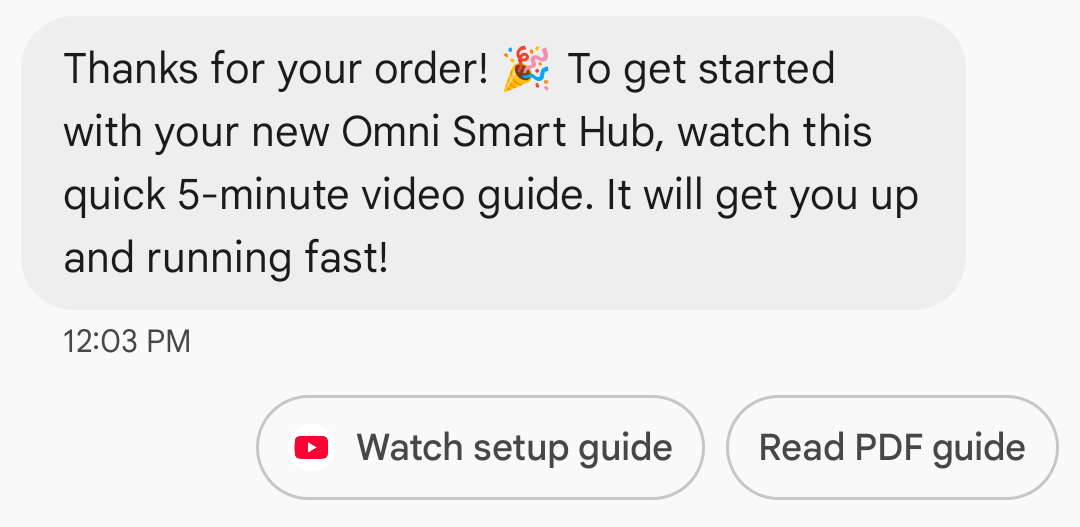
基となるURLの表示:A2Pメッセージングの透明性を向上させるため、Googleメッセージでは「URLを開く」の候補アクション内に基となるURLアドレスが表示されるようになりました。この変更は、標準のリッチカードとリッチカードカルーセルの候補アクションに影響します。
ウェブリンクのアプリアイコン表示:ユーザーがウェブページに既定のアプリを設定している場合、ブラウザやウェブビューではなく、そのアプリが開きます。また、候補ボタンにはアプリのアイコンが表示されます。Google メッセージでアプリのアイコンを表示するには、完全な直接 URL を指定する必要があります。短縮 URL を使用すると、代わりに既定の URL を開くアイコンが表示されます。
例
以下のコードは、Open URLアクションを送信します。書式設定と値のオプションについては、 OpenUrlAction参照してください。
カール
curl -X POST "https://REGION-rcsbusinessmessaging.googleapis.com/v1/phones/PHONE_NUMBER/agentMessages?messageId=MESSAGE_ID&agentId=AGENT_ID" \
-H "Content-Type: application/json" \
-H "User-Agent: curl/rcs-business-messaging" \
-H "`oauth2l header --json PATH_TO_SERVICE_ACCOUNT_KEY rcsbusinessmessaging`" \
-d '{
  "contentMessage": {
    "text": "Hello, world!",
    "suggestions": [
      {
        "action": {
          "text": "Open Google",
          "postbackData": "postback_data_1234",
          "openUrlAction": {
            "url": "https://www.google.com"
          }
        }
      }
    ]
  }
}'
Node.js
// Reference to RBM API helper
const rbmApiHelper = require('@google/rcsbusinessmessaging');

// Define an open URL suggested action
let suggestions = [
   {
      action: {
         text: 'Open Google',
         postbackData: 'postback_data_1234',
         openUrlAction: {
            url: 'https://www.google.com'
         }
      }
   },
];

let params = {
   messageText: 'Hello, world!',
   msisdn: '+12223334444',
   suggestions: suggestions,
};

// Send a simple message with an open URL suggested action
rbmApiHelper.sendMessage(params, function(response) {
   console.log(response);
});
Java
import com.google.api.services.rcsbusinessmessaging.v1.model.OpenUrlAction;
import com.google.api.services.rcsbusinessmessaging.v1.model.SuggestedAction;
import com.google.api.services.rcsbusinessmessaging.v1.model.Suggestion;
import com.google.rbm.RbmApiHelper;
…

try {
   // Create an instance of the RBM API helper
   RbmApiHelper rbmApiHelper = new RbmApiHelper();

   // Create suggestions for chip list
   List<Suggestion> suggestions = new ArrayList<Suggestion>();

   // creating an open url suggested action
   OpenUrlAction openUrlAction = new OpenUrlAction();
   openUrlAction.setUrl("https://www.google.com");

   // creating a suggested action based on an open url action
   SuggestedAction suggestedAction = new SuggestedAction();
   suggestedAction.setText("Open Google");
   suggestedAction.setPostbackData("postback_data_1234");
   suggestedAction.setOpenUrlAction(openUrlAction);

   // attaching action to a suggestion
   Suggestion suggestion = new Suggestion();
   suggestion.setAction(suggestedAction);

   suggestions.add(suggestion);

   // Send simple text message with the suggestion action
   rbmApiHelper.sendTextMessage(
      "Hello, world!",
      "+12223334444",
      suggestions
   );
} catch(Exception e) {
   e.printStackTrace();
}
Python
# Reference to RBM Python client helper and messaging object structure
from rcs_business_messaging import rbm_service
from rcs_business_messaging import messages

# Create an open url suggested action
suggestions = [
      messages.OpenUrlAction('Open Google',
            'reply:postback_data_1234',
            'https://www.google.com')
]

# Create text message to send to user
text_msg = messages.TextMessage('Hello, world!')
cluster = messages.MessageCluster().append_message(text_msg)

# Append suggestions for the message to send to the user
for suggestion in suggestions:
    cluster.append_suggestion_chip(suggestion)

# Send a simple message with suggested action to the device
cluster.send_to_msisdn('+12223334444')
C#
using Google.Apis.RCSBusinessMessaging.v1.Data;
using RCSBusinessMessaging;
…

// Create an instance of the RBM API helper
RbmApiHelper rbmApiHelper = new RbmApiHelper(credentialsFileLocation,
                                                 projectId);

// Create an open url action
OpenUrlAction openUrlAction = new OpenUrlAction
{
    Url = "https://www.google.com"
};

// Attach the open url action to a suggested action
SuggestedAction suggestedAction = new SuggestedAction
{
    OpenUrlAction = openUrlAction,
    Text = "Open Google",
    PostbackData = "postback_data_1234"
};

// Attach the action to a suggestion object
Suggestion suggestion = new Suggestion
{
    Action = suggestedAction
};

List<Suggestion> suggestions = new List<Suggestion>
{
    suggestion
};

rbmApiHelper.SendTextMessage(
    "Hello, world!",
    "+12223334444",
    suggestions
);
WebViewでURLを開く
「WebView で URL を開く」アクションは、指定された Web ページを、デフォルトのブラウザのレンダリング エンジンを使用してメッセージング アプリ内に読み込みます。これにより、ユーザーは RCS for Business の会話を終了せずに Web ページを操作できます。ユーザーのデバイスが WebView をサポートしていない場合は、代わりにユーザーのブラウザで Web ページが開きます。WebView を有効にするには、 OpenURLApplication参照してください。
Webviewには3つの表示モードがあります。書式設定と値のオプションについては、 WebviewViewMode参照してください。
- フル:ウェブページが画面全体を占める
- 半分:ウェブページが画面の半分を占める
- 縦長:ウェブページが画面の4分の3を占める
例
以下のコードは、WebViewアクションを使用してOpen URLを送信します。書式設定と値のオプションについては、 OpenURLAction参照してください。
カール
curl -X POST "https://REGION-rcsbusinessmessaging.googleapis.com/v1/phones/PHONE_NUMBER/agentMessages?messageId=MESSAGE_ID&agentId=AGENT_ID" \
-H "Content-Type: application/json" \
-H "User-Agent: curl/rcs-business-messaging" \
-H "`oauth2l header --json PATH_TO_SERVICE_ACCOUNT_KEY rcsbusinessmessaging`" \
-d '{
 "contentMessage": {
   "text": "Hello, world!",
   "suggestions": [
     {
       "action": {
         "text": "Open Google",
         "postbackData": "postback_data_1234",
         "openUrlAction": {
           "url": "https://www.google.com",
           "application": "WEBVIEW",
           "webviewViewMode": "FULL",
           "description": "Accessibility description"
         }
       }
     }
   ]
 }
}'
Java
import com.google.api.services.rcsbusinessmessaging.v1.model.OpenUrlAction;
import com.google.api.services.rcsbusinessmessaging.v1.model.SuggestedAction;
import com.google.api.services.rcsbusinessmessaging.v1.model.Suggestion;
import com.google.rbm.RbmApiHelper;
…

try {

   String URL = "https://www.google.com";

   // Create an instance of the RBM API helper
   RbmApiHelper rbmApiHelper = new RbmApiHelper();

   // Create suggestions for chip list
   List<Suggestion> suggestions = new ArrayList<Suggestion>();

   // Create suggestion to view webpage in full mode
   Suggestion viewInFullMode =  getUrlActionInWebview(URL, "FULL")
   suggestions.add(viewInFullMode);

   // create suggestion to view webpage in half mode
   Suggestion viewInHalfMode =  getUrlActionInWebview(URL, "HALF")
   suggestions.add(viewInHalfMode);

   // create suggestion to view webpage in tall mode
   Suggestion viewInTallMode =  getUrlActionInWebview(URL, "TALL")
   suggestions.add(viewInTallMode);

   // Send simple text message with the suggested action
   rbmApiHelper.sendTextMessage(
      "Hello, world!",
      "+12223334444",
      suggestions
   );
} catch(Exception e) {
   e.printStackTrace();
}

  /**
    * Creates a suggested action to open URL in webview.
    *
    * @return a suggestion object for an open URL in webview action .
    */
    private Suggestion getUrlActionInWebview(String url,
                                             String viewMode) {
      // create an open url action
      OpenUrlAction openUrlAction = new OpenUrlAction();
      openUrlAction.setUrl(url);
      openUrlAction.setApplication("WEBVIEW");
      openUrlAction.setWebviewViewMode(viewMode);
      openUrlAction.setDescription("Accessibility description");

      // attach the open url action to a suggested action
      SuggestedAction suggestedAction = new SuggestedAction();
      suggestedAction.setOpenUrlAction(openUrlAction);
      suggestedAction.setText('display_text');
      suggestedAction.setPostbackData('postback_data_123');

      // attach the action to a suggestion object
      Suggestion suggestion = new Suggestion();
      suggestion.setAction(suggestedAction);

      return suggestion;
    }
カレンダーイベントを作成する
「カレンダーイベントの作成」アクションは、ユーザーのカレンダーアプリを開き、指定された情報に基づいて新しいイベントの作成を開始します。
カレンダーイベントのタイトルは必須です。最大100文字まで入力できます。カレンダーイベントの説明は任意で、最大500文字まで入力できます。
例
以下のコードは、カレンダーイベント作成アクションを送信します。書式設定と値のオプションについては、 CreateCalendarEventAction参照してください。
カール
curl -X POST "https://REGION-rcsbusinessmessaging.googleapis.com/v1/phones/PHONE_NUMBER/agentMessages?messageId=MESSAGE_ID&agentId=AGENT_ID" \
-H "Content-Type: application/json" \
-H "User-Agent: curl/rcs-business-messaging" \
-H "`oauth2l header --json PATH_TO_SERVICE_ACCOUNT_KEY rcsbusinessmessaging`" \
-d '{
  "contentMessage": {
    "text": "Hello, world!",
    "suggestions": [
      {
        "action": {
          "text": "Save to calendar",
          "postbackData": "postback_data_1234",
          "fallbackUrl": "https://www.google.com/calendar",
          "createCalendarEventAction": {
            "startTime": "2020-06-30T19:00:00Z",
            "endTime": "2020-06-30T20:00:00Z",
            "title": "My calendar event",
            "description": "Description of the calendar event"
          }
        }
      }
    ]
  }
}'
Node.js
// Reference to RBM API helper
const rbmApiHelper = require('@google/rcsbusinessmessaging');

// Define a create calendar event suggested action
let suggestions = [
   {
      action: {
         text: 'Save to calendar',
         postbackData: 'postback_data_1234',
         createCalendarEventAction: {
            startTime: '2020-06-30T19:00:00Z',
            endTime: '2020-06-30T20:00:00Z',
            title: 'My calendar event',
            description: 'Description of the calendar event',
         },
      }
   },
];

let params = {
   messageText: 'Hello, world!',
   msisdn: '+12223334444',
   suggestions: suggestions,
};

// Send a simple message with a create calendar event suggested action
rbmApiHelper.sendMessage(params, function(response) {
   console.log(response);
});
Java
import com.google.api.services.rcsbusinessmessaging.v1.model.CreateCalendarEventAction;
import com.google.api.services.rcsbusinessmessaging.v1.model.SuggestedAction;
import com.google.api.services.rcsbusinessmessaging.v1.model.Suggestion;
import com.google.rbm.RbmApiHelper;
…

try {
   // Create an instance of the RBM API helper
   RbmApiHelper rbmApiHelper = new RbmApiHelper();

   // Create suggestions for chip list
   List<Suggestion> suggestions = new ArrayList<Suggestion>();

   // creating a create calendar event suggested action
   CreateCalendarEventAction createCalendarEventAction = new CreateCalendarEventAction();
   calendarEventAction.setTitle("My calendar event");
   calendarEventAction.setDescription("Description of the calendar event");
   calendarEventAction.setStartTime("2020-06-30T19:00:00Z");
   calendarEventAction.setEndTime("2020-06-30T20:00:00Z");

   // creating a suggested action based on a create calendar event action
   SuggestedAction suggestedAction = new SuggestedAction();
   suggestedAction.setText("Save to calendar");
   suggestedAction.setPostbackData("postback_data_1234");
   suggestedAction.setCreateCalendarEventAction(createCalendarEventAction);

   // attaching action to a suggestion
   Suggestion suggestion = new Suggestion();
   suggestion.setAction(suggestedAction);

   suggestions.add(suggestion);

   // Send simple text message with the suggestion action
   rbmApiHelper.sendTextMessage(
      "Hello, world!",
      "+12223334444",
      suggestions
   );
} catch(Exception e) {
   e.printStackTrace();
}
Python
# Reference to RBM Python client helper and messaging object structure
from rcs_business_messaging import rbm_service
from rcs_business_messaging import messages

# Create a calendar event suggested action
suggestions = [
      messages.CreateCalendarEventAction('Save to Calendar',
                             'reply:postback_data_1234',
                             '2020-06-30T19:00:00Z',
                             '2020-06-30T20:00:00Z',
                             'My calendar event',
                             'Description of the calendar event')

]

# Create text message to send to user
text_msg = messages.TextMessage('Hello, world!')
cluster = messages.MessageCluster().append_message(text_msg)

# Append suggestions for the message to send to the user
for suggestion in suggestions:
    cluster.append_suggestion_chip(suggestion)

# Send a simple message with suggested action to the device
cluster.send_to_msisdn('+12223334444')
C#
using Google.Apis.RCSBusinessMessaging.v1.Data;
using RCSBusinessMessaging;
…

// Create an instance of the RBM API helper
RbmApiHelper rbmApiHelper = new RbmApiHelper(credentialsFileLocation,
                                                 projectId);

// Create a calendar event action
CreateCalendarEventAction calendarEventAction = new CreateCalendarEventAction
{
    Title = "My calendar event",
    Description = "Description of the calendar event",
    StartTime = "2020-06-30T19:00:00Z",
    EndTime = "2020-06-30T20:00:00Z"
};

// Attach the calendar event action to a suggested action
SuggestedAction suggestedAction = new SuggestedAction
{
    CreateCalendarEventAction = calendarEventAction,
    Text = "Save to calendar",
    PostbackData = "postback_data_1234"
};

// Attach the action to a suggestion object
Suggestion suggestion = new Suggestion
{
    Action = suggestedAction
};

List<Suggestion> suggestions = new List<Suggestion>
{
    suggestion
};

rbmApiHelper.SendTextMessage(
    "Hello, world!",
    "+12223334444",
    suggestions
);
提案チップリスト
エージェントは、ユーザーのその後の行動を誘導するメッセージを含む提案リストを送信します。このリストは、関連するメッセージが会話の一番下にある場合にのみ表示されます。会話の中で後続のメッセージ(ユーザーまたはエージェントからのもの)が送信されると、リストは上書きされます。
チップリストには最大11個の提案チップを含めることができ、各チップのラベルには最大25文字まで入力できます。
書式設定と値のオプションについては、 AgentContentMessage参照してください。
リッチカード
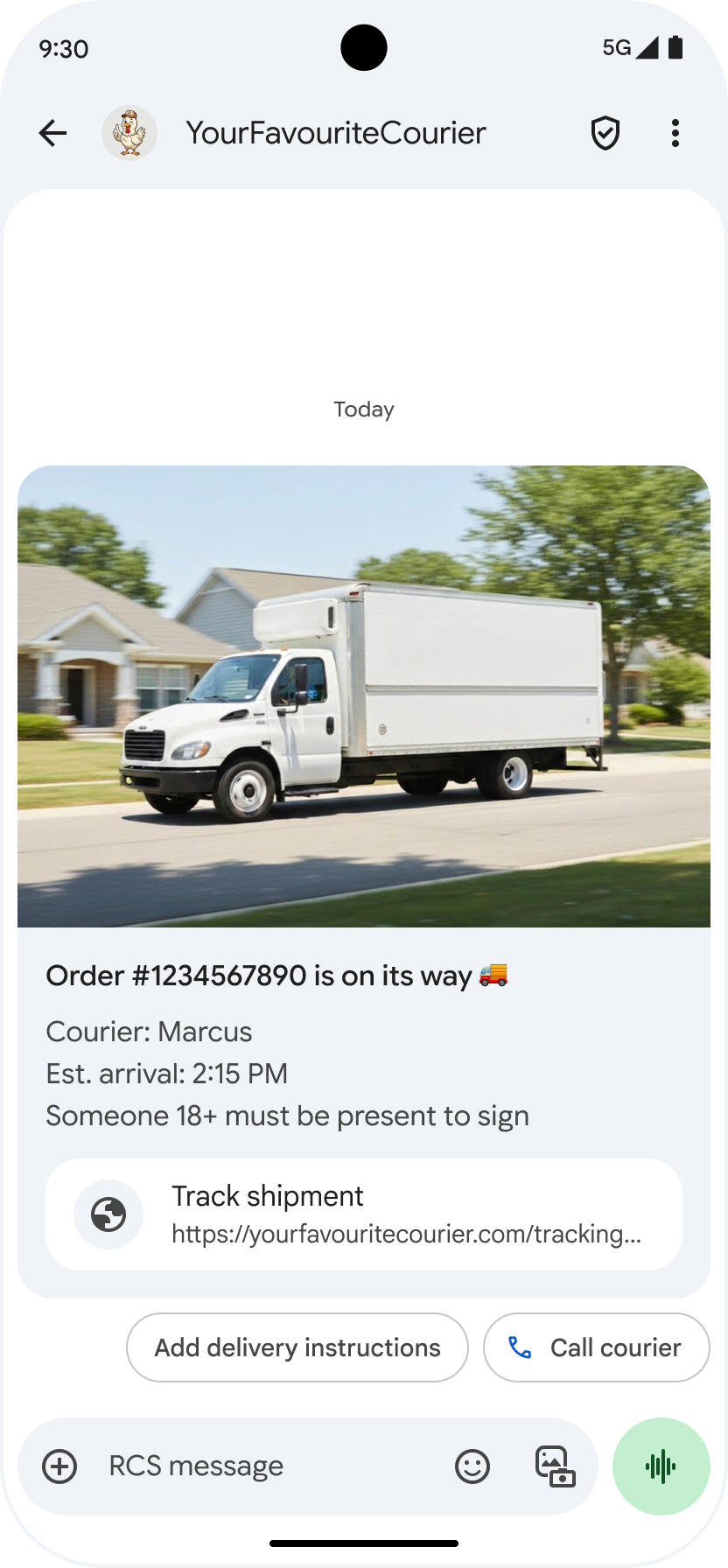
リッチカードは、メディア、テキスト、インタラクティブな提案を1つのメッセージに統合したものです。関連情報(例えば、商品とその画像、名前、価格)を提示したり、「詳細を見る」といった明確な次のステップをユーザーに促したりするのに最適です。
リッチカードには以下の内容を含めることができます。
これらの項目はそれぞれ任意ですが、項目1~3のうち少なくとも1つはリッチカードに含める必要があります。
複数のカードを横スクロール式のカルーセル形式でまとめて送信できます。
リッチカードのペイロード容量は合計250KBであることに注意してください。
技術的な詳細については、リッチカードのドキュメントを参照してください。
カードの高さ
リッチカードは、内容に合わせて縦方向に拡張します。最小高さは112DP、最大高さは344DPです。カードの内容が最小高さに満たない場合、カードは拡張され、余白が埋められます。
リッチカード内のメディアは、次の3つの高さのいずれかに適合する必要があります。
- ショート:112 DP
- 中:168 DP
- 身長:264 DP
選択した高さでカード内の寸法にメディアが収まらない場合、メディアのプレビューはズームとトリミングによって選択されます。
例
以下のコードは、画像と返信候補を含むリッチカードを送信します。書式設定と値のオプションについては、 RichCard参照してください。
カール
curl -X POST "https://REGION-rcsbusinessmessaging.googleapis.com/v1/phones/PHONE_NUMBER/agentMessages?messageId=MESSAGE_ID&agentId=AGENT_ID" \
-H "Content-Type: application/json" \
-H "User-Agent: curl/rcs-business-messaging" \
-H "`oauth2l header --json PATH_TO_SERVICE_ACCOUNT_KEY rcsbusinessmessaging`" \
-d '{
  "contentMessage": {
    "richCard": {
      "standaloneCard": {
        "thumbnailImageAlignment": "RIGHT",
        "cardOrientation": "VERTICAL",
        "cardContent": {
          "title": "Hello, world!",
          "description": "RBM is awesome!",
          "media": {
            "height": "TALL",
            "contentInfo":{
              "fileUrl": "http://www.google.com/logos/doodles/2015/googles-new-logo-5078286822539264.3-hp2x.gif",
              "forceRefresh": false
            }
          },
          "suggestions": [
            {
              "reply": {
                "text": "Suggestion #1",
                "postbackData": "suggestion_1"
              }
            },
            {
              "reply": {
                "text": "Suggestion #2",
                "postbackData": "suggestion_2"
              }
            }
          ]
        }
      }
    }
  }
}'
Node.js
// Reference to RBM API helper
const rbmApiHelper = require('@google/rcsbusinessmessaging');

// Suggested replies to be used in the card
let suggestions = [
   {
      reply: {
         'text': 'Suggestion #1',
         'postbackData': 'suggestion_1',
      },
   },
   {
      reply: {
         'text': 'Suggestion #2',
         'postbackData': 'suggestion_2',
      },
   },
];

// Image to be displayed by the card
let imageUrl = 'http://www.google.com/logos/doodles/2015/googles-new-logo-5078286822539264.3-hp2x.gif';

// Definition of the card parameters
let params = {
   messageText: 'Hello, world!',
   messageDescription: 'RBM is awesome!',
   msisdn: '+12223334444',
   suggestions: suggestions,
   imageUrl: imageUrl,
   height: 'TALL',
};

// Send rich card to device
rbmApiHelper.sendRichCard(params, function(response) {
   console.log(response);
});
Java
import com.google.api.services.rcsbusinessmessaging.v1.model.StandaloneCard;
import com.google.api.services.rcsbusinessmessaging.v1.model.Suggestion;
import com.google.rbm.cards.CardOrientation;
import com.google.rbm.cards.MediaHeight;
import com.google.rbm.RbmApiHelper;
import com.google.rbm.SuggestionHelper;
…

try {
   // Create an instance of the RBM API helper
   RbmApiHelper rbmApiHelper = new RbmApiHelper();

   // Create suggestions for chip list
   List<Suggestion> suggestions = new ArrayList<Suggestion>();
   suggestions.add(
      new SuggestionHelper("Suggestion #1", "suggestion_1").getSuggestedReply());

   suggestions.add(
      new SuggestionHelper("Suggestion #2", "suggestion_2").getSuggestedReply());

   String imageUrl = "http://www.google.com/logos/doodles/2015/googles-new-logo-5078286822539264.3-hp2x.gif";

   // Create a standalone rich card to send to the user
   StandaloneCard standaloneCard = rbmApiHelper.createStandaloneCard(
       "Hello, world!",
       "RBM is awesome!",
       imageUrl,
       MediaHeight.MEDIUM,
       CardOrientation.VERTICAL,
       suggestions
   );

   rbmApiHelper.sendStandaloneCard(standaloneCard, "+12223334444");
} catch(Exception e) {
   e.printStackTrace();
}
Python
# Reference to RBM Python client helper and messaging object structure
from rcs_business_messaging import rbm_service
from rcs_business_messaging import messages

# Suggested replies to be used in the card
suggestions = [
      messages.SuggestedReply('Suggestion #1', 'reply:suggestion_1'),
      messages.SuggestedReply('Suggestion #2', 'reply:suggestion_2')
]

# Image to be displayed by the card
image_url = 'http://www.google.com/logos/doodles/2015/googles-new-logo-5078286822539264.3-hp2x.gif';

# Define rich card structure
rich_card = messages.StandaloneCard('VERTICAL',
                                    'Hello, world!',
                                    'RBM is awesome!',
                                    suggestions,
                                    image_url,
                                    None,
                                    None,
                                    'MEDIUM')

# Append rich card and send to the user
cluster = messages.MessageCluster().append_message(rich_card)
cluster.send_to_msisdn('+12223334444')
C#
using Google.Apis.RCSBusinessMessaging.v1.Data;
using RCSBusinessMessaging;
using RCSBusinessMessaging.Cards;
…

// Create an instance of the RBM API helper
RbmApiHelper rbmApiHelper = new RbmApiHelper(credentialsFileLocation,
                                             projectId);

List<Suggestion> suggestions = new List<Suggestion>
{
   // Create suggestion chips
   new SuggestionHelper("Suggestion #1", "suggestion_1").SuggestedReply(),
   new SuggestionHelper("Suggestion #2", "suggestion_2").SuggestedReply()
};

string imageUrl = "http://www.google.com/logos/doodles/2015/googles-new-logo-5078286822539264.3-hp2x.gif";

// Create rich card with suggestions
StandaloneCard standaloneCard = rbmApiHelper.CreateStandaloneCard(
   "Hello, world!",
   "RBM is awesome",
   imageUrl,
   MediaHeight.TALL,
   CardOrientation.VERTICAL,
   suggestions
);

// Send rich card to user
rbmApiHelper.SendStandaloneCard(standaloneCard, "+12223334444");
リッチカードカルーセル
カルーセルは複数のリッチカードを連結し、ユーザーがアイテムを比較したり、それぞれに個別に反応したりできるようにするものです。
カルーセルには、最低2枚、最大10枚のリッチカードを含めることができます。カルーセル内のリッチカードは、リッチカードのドキュメントに記載されている内容と高さに関する一般的なリッチカードの要件に準拠する必要があります。カルーセルのレイアウトと仕様の詳細については、カルーセルのドキュメントを参照してください。
例
以下のコードは、リッチカードカルーセルを送信します。書式設定と値のオプションについては、 RichCard参照してください。
カール
curl -X POST "https://REGION-rcsbusinessmessaging.googleapis.com/v1/phones/PHONE_NUMBER/agentMessages?messageId=MESSAGE_ID&agentId=AGENT_ID" \
-H "Content-Type: application/json" \
-H "User-Agent: curl/rcs-business-messaging" \
-H "`oauth2l header --json PATH_TO_SERVICE_ACCOUNT_KEY rcsbusinessmessaging`" \
-d '{
  "contentMessage": {
    "richCard": {
      "carouselCard": {
        "cardWidth": "MEDIUM",
        "cardContents": [
          {
            "title": "Card #1",
            "description": "The description for card #1",
            "suggestions": [
              {
                "reply": {
                  "text": "Card #1",
                  "postbackData": "card_1"
                }
              }
            ],
            "media": {
              "height": "MEDIUM",
              "contentInfo": {
                "fileUrl": "https://storage.googleapis.com/welcome-bot-sample-images/200.jpg",
                "forceRefresh": false
              }
            }
          },
          {
            "title": "Card #2",
            "description": "The description for card #2",
            "suggestions": [
              {
                "reply": {
                  "text": "Card #2",
                  "postbackData": "card_2"
                }
              }
            ],
            "media": {
              "height": "MEDIUM",
              "contentInfo": {
                "fileUrl": "https://storage.googleapis.com/welcome-bot-sample-images/201.jpg",
                "forceRefresh": false
              }
            }
          }
        ]
      }
    }
  }
}'
Node.js
// Reference to RBM API helper
const rbmApiHelper = require('@google/rcsbusinessmessaging');

// Images for the carousel cards
let card1Image = 'https://storage.googleapis.com/welcome-bot-sample-images/200.jpg';
let card2Image = 'https://storage.googleapis.com/welcome-bot-sample-images/201.jpg';

// Define the card contents for a carousel with two cards, each with one suggested reply
let cardContents = [
   {
      title: 'Card #1',
      description: 'The description for card #1',
      suggestions: [
         {
            reply: {
               text: 'Card #1',
               postbackData: 'card_1',
            }
         }
      ],
      media: {
         height: 'MEDIUM',
         contentInfo: {
            fileUrl: card1Image,
            forceRefresh: false,
         },
      },
   },
   {
      title: 'Card #2',
      description: 'The description for card #2',
      suggestions: [
         {
            reply: {
               text: 'Card #2',
               postbackData: 'card_2',
            }
         }
      ],
      media: {
         height: 'MEDIUM',
         contentInfo: {
            fileUrl: card2Image,
            forceRefresh: false,
         },
      },
   },
];

// Definition of carousel card
let params = {
   msisdn: '+12223334444',
   cardContents: cardContents,
};

// Send the device the carousel card defined above
rbmApiHelper.sendCarouselCard(params, function(response) {
   console.log(response);
});
Java
import com.google.api.services.rcsbusinessmessaging.v1.model.CardContent;
import com.google.api.services.rcsbusinessmessaging.v1.model.Suggestion;
import com.google.rbm.cards.CardOrientation;
import com.google.rbm.cards.CardWidth;
import com.google.rbm.cards.MediaHeight;
import com.google.rbm.RbmApiHelper;
import com.google.rbm.SuggestionHelper;
…

try {
            // Create an instance of the RBM API helper
            RbmApiHelper rbmApiHelper = new RbmApiHelper();

            List cardContents = new ArrayList();

            // Images for the carousel cards
            String card1Image = "https://storage.googleapis.com/welcome-bot-sample-images/200.jpg";

            // Create suggestions for first carousel card
            List card1Suggestions = new ArrayList();
            card1Suggestions.add(
                new SuggestionHelper("Card #1", "card_1"));

            cardContents.add(
                new StandaloneCardHelper(
                    "Card #1",
                    "The description for card #1",
                    card1Image,
                    card1Suggestions)
                    .getCardContent(MediaHeight.SHORT)
            );

            // Images for the carousel cards
            String card2Image = "https://storage.googleapis.com/welcome-bot-sample-images/201.jpg";

            // Create suggestions for second carousel card
            List card2Suggestions = new ArrayList();
            card2Suggestions.add(
                new SuggestionHelper("Card #2", "card_2"));

            cardContents.add(
                new StandaloneCardHelper(
                    "Card #2",
                    "The description for card #2",
                    card2Image,
                    card2Suggestions)
                    .getCardContent(MediaHeight.SHORT)
            );

            // Send the carousel to the user
            rbmApiHelper.sendCarouselCards(cardContents, CardWidth.MEDIUM, "+12223334444");
        } catch(Exception e) {
            e.printStackTrace();
        }
Python
# Reference to RBM Python client helper and messaging object structure
from rcs_business_messaging import rbm_service
from rcs_business_messaging import messages

# Images for the carousel cards
card_image_1 = 'https://storage.googleapis.com/welcome-bot-sample-images/200.jpg';
card_image_2 = 'https://storage.googleapis.com/welcome-bot-sample-images/201.jpg';

# Suggested replies to be used in the cards
suggestions1 = [
      messages.SuggestedReply('Card #1', 'reply:card_1')
]

suggestions2 = [
      messages.SuggestedReply('Card #2', 'reply:card_2')
]

# Define the card contents for a carousel with two cards,
# each with one suggested reply
card_contents = []
card_contents.append(messages.CardContent('Card #1',
                                          'The description for card #1',
                                          card_image_1,
                                          'MEDIUM',
                                          suggestions1))

card_contents.append(messages.CardContent('Card #2',
                                          'The description for card #2',
                                          card_image_2,
                                          'MEDIUM',
                                          suggestions2))

# Send the device the carousel card defined above
carousel_card = messages.CarouselCard('MEDIUM', card_contents)
cluster = messages.MessageCluster().append_message(carousel_card)
cluster.send_to_msisdn('+12223334444')
C#
using Google.Apis.RCSBusinessMessaging.v1.Data;
using RCSBusinessMessaging;
using RCSBusinessMessaging.Cards;
…

// Create an instance of the RBM API helper
RbmApiHelper rbmApiHelper = new RbmApiHelper(credentialsFileLocation,
                                             projectId);

// Image references to be used in the carousel cards
string card1Image = "https://storage.googleapis.com/welcome-bot-sample-images/200.jpg";
string card2Image = "https://storage.googleapis.com/welcome-bot-sample-images/201.jpg";

// Suggestion chip lists to be used in carousel cards
List<Suggestion> suggestions1 = new List<Suggestion>
{
   new SuggestionHelper("Card #1", "card_1").SuggestedReply()
};

List<Suggestion> suggestions2 = new List<Suggestion>
{
   new SuggestionHelper("Card #2", "card_2").SuggestedReply()
};

// Create the card content for the carousel
List<CardContent> cardContents = new List<CardContent>
{
   // Add items as card content
   new StandaloneCardHelper(
                    "Card #1",
                    "The description for card #1",
                    card1Image,
                    suggestions1).GetCardContent(),
   new StandaloneCardHelper(
                    "Card #2",
                    "The description for card #2",
                    card2Image,
                    suggestions2).GetCardContent()
};

// Send the carousel to the user
rbmApiHelper.SendCarouselCards(cardContents, CardWidth.MEDIUM, msisdn);