

গুগল অ্যাপস স্ক্রিপ্টকে বিল্ট-ইন গুগল পরিষেবা বা অ্যাডভান্সড গুগল পরিষেবা থেকে ব্যক্তিগত ডেটা অ্যাক্সেস করার জন্য ব্যবহারকারীর অনুমোদনের প্রয়োজন হয়।
গুগল পরিষেবাগুলির জন্য অনুমোদন কীভাবে কাজ করে
যখন কোনো স্ক্রিপ্টের গুগল পরিষেবাগুলিতে অ্যাক্সেসের প্রয়োজন হয়, তখন এটি এই সাধারণ প্রক্রিয়াটি অনুসরণ করে:
- শনাক্তকরণ : অ্যাপস স্ক্রিপ্টটি কোন কোন পরিষেবা ব্যবহার করে তা শনাক্ত করার জন্য স্ক্রিপ্টটি স্ক্যান করে (উদাহরণস্বরূপ,
SpreadsheetAppবাGmailApp)। - স্কোপ নির্ধারণ : স্ক্যানের উপর ভিত্তি করে, অ্যাপস স্ক্রিপ্ট স্ক্রিপ্টটি চালানোর জন্য প্রয়োজনীয় এক সেট OAuth স্কোপ শনাক্ত করে।
- অনুমোদন যাচাই : স্ক্রিপ্টটি চালানোর সময়, এটি যাচাই করে দেখে যে ব্যবহারকারী ওই স্কোপগুলোকে আগে থেকেই অনুমোদন দিয়েছেন কিনা।
- ব্যবহারকারীকে অনুরোধ : অনুমোদন না থাকলে, ব্যবহারকারীকে অনুমতি দেওয়ার জন্য একটি ডায়ালগ বক্স প্রদর্শিত হয়।
- কার্যকারিতা : স্ক্রিপ্টটি অনুমোদিত হওয়ার পর, এটি সেই ব্যবহারকারীর জন্য অনুরোধ করা ডেটা অ্যাক্সেস করতে পারে।
স্ক্রিপ্টের অনুমতি এবং প্রকারভেদ
একটি স্ক্রিপ্ট যে ব্যবহারকারী পরিচয়ের অধীনে চলে — এবং ফলস্বরূপ যে ডেটা অ্যাক্সেস করতে পারে — তা স্ক্রিপ্টটি চালানোর পরিস্থিতির উপর ভিত্তি করে পরিবর্তিত হয়, যেমনটি নিম্নলিখিত সারণিতে দেখানো হয়েছে।
| স্ক্রিপ্টের ধরণ | স্ক্রিপ্টটি এভাবে চলে... |
|---|---|
| স্বতন্ত্র , গুগল ওয়ার্কস্পেস অ্যাড-অন , অথবা গুগল ডক্স, গুগল শিটস, গুগল স্লাইডস বা গুগল ফর্মস-এর সাথে সংযুক্ত | কিবোর্ডে থাকা ব্যবহারকারী |
| স্প্রেডশিটে কাস্টম ফাংশন | বেনামী ব্যবহারকারী ; তবে, কোটার সীমাবদ্ধতা কিবোর্ডে থাকা ব্যবহারকারীর ক্ষেত্রে গণনা করা হয়। |
| ওয়েব অ্যাপ বা গুগল সাইটস গ্যাজেট | অ্যাপটি ডেপ্লয় করার সময় নির্বাচিত অপশনগুলোর ওপর নির্ভর করে কিবোর্ডের ব্যবহারকারী অথবা স্ক্রিপ্টের মালিক। |
| ইনস্টলযোগ্য ট্রিগার | যে ব্যবহারকারী ট্রিগারটি তৈরি করেছেন |
প্রবেশাধিকার মঞ্জুর করুন
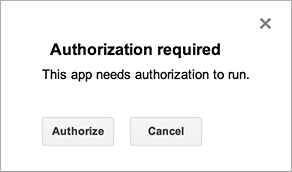
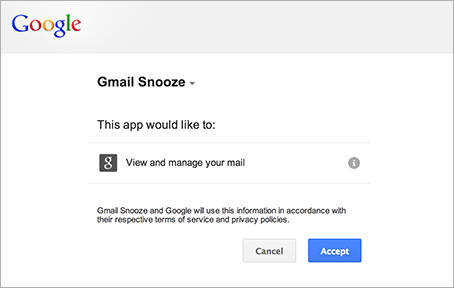
অ্যাপস স্ক্রিপ্ট কোড স্ক্যান করার উপর ভিত্তি করে স্বয়ংক্রিয়ভাবে অনুমোদনের পরিধি (যেমন আপনার শীটস ফাইল বা জিমেইলে অ্যাক্সেস) নির্ধারণ করে। কমেন্ট করা কোডও অনুমোদনের অনুরোধ তৈরি করতে পারে। যদি কোনো স্ক্রিপ্টের অনুমোদনের প্রয়োজন হয়, তবে সেটি চালানোর সময় একটি অনুমোদন ডায়ালগ বক্স প্রদর্শিত হয়।
আপনি পূর্বে অনুমোদন দিয়েছেন এমন স্ক্রিপ্টগুলোও অতিরিক্ত অনুমোদন চাইতে পারে, যদি কোনো কোড পরিবর্তনের ফলে নতুন পরিষেবা যুক্ত হয়। আপনি যদি স্ক্রিপ্টটির মালিকের ব্যবহারকারী পরিচয়ের অধীনে চালিত একটি ওয়েব অ্যাপ হিসেবে স্ক্রিপ্টটি অ্যাক্সেস করেন, তবে স্ক্রিপ্টটি অনুমোদন নাও চাইতে পারে।
প্রবেশাধিকার প্রত্যাহার করুন
আপনার ডেটাতে কোনো স্ক্রিপ্টের অ্যাক্সেস বাতিল করতে, এই ধাপগুলো অনুসরণ করুন:
- আপনার গুগল অ্যাকাউন্টের নিরাপত্তা বিভাগে যান।
- তৃতীয় পক্ষের অ্যাপ ও পরিষেবাগুলিতে আপনার সংযোগগুলির অধীনে, সমস্ত সংযোগ দেখুন-এ ক্লিক করুন।
- যে স্ক্রিপ্ট বা অ্যাপটির অ্যাক্সেস প্রত্যাহার করতে চান, সেটি নির্বাচন করুন।
- APP_NAME সাথে আপনার থাকা সমস্ত সংযোগ মুছতে ক্লিক করুন, তারপর নিশ্চিত করুন-এ ক্লিক করুন।
বর্তমান নথিতে পরিধি সীমাবদ্ধ করুন
আপনি যদি এমন কোনো অ্যাড-অন বা অন্য স্ক্রিপ্ট তৈরি করেন যা স্প্রেডশিট সার্ভিস , ডকুমেন্ট সার্ভিস , স্লাইডস সার্ভিস , বা ফর্মস সার্ভিস ব্যবহার করে, তাহলে আপনি অথরাইজেশন ডায়ালগকে ব্যবহারকারীর সমস্ত স্প্রেডশিট, ডকুমেন্ট বা ফর্মের পরিবর্তে শুধুমাত্র সেই ফাইলগুলিতে অ্যাক্সেসের অনুমতি চাইতে বাধ্য করতে পারেন যেখানে অ্যাড-অন বা স্ক্রিপ্টটি ব্যবহৃত হয়েছে। এটি করার জন্য, একটি ফাইল-লেভেল কমেন্টে নিম্নলিখিত JSDoc অ্যানোটেশনটি অন্তর্ভুক্ত করুন:
/**
 * @OnlyCurrentDoc
 */
এর একটি বিপরীত অ্যানোটেশন, @NotOnlyCurrentDoc , ব্যবহার করা যায় যদি আপনার স্ক্রিপ্টে এমন কোনো লাইব্রেরি অন্তর্ভুক্ত থাকে যা @OnlyCurrentDoc ঘোষণা করে, কিন্তু মূল স্ক্রিপ্টটির আসলে বর্তমান ফাইলের চেয়ে বেশি ফাইলে অ্যাক্সেসের প্রয়োজন হয়।
অ্যাড-অনগুলির জন্য অনুমোদন জীবনচক্র
শীটস, ডকস, স্লাইডস এবং ফর্মস-এর অ্যাড-অনগুলি সাধারণত ডকুমেন্টের সাথে সংযুক্ত স্ক্রিপ্টগুলির মতোই একই অনুমোদন মডেল অনুসরণ করে। তবে, কিছু নির্দিষ্ট পরিস্থিতিতে, তাদের onOpen(e) এবং onEdit(e) ফাংশনগুলি একটি অনুমোদনহীন মোডে চলে, যা কিছু অতিরিক্ত জটিলতা তৈরি করে। আরও তথ্যের জন্য, অ্যাড-অন অনুমোদন জীবনচক্রের নির্দেশিকাটি দেখুন।
OAuth অ্যাপ্লিকেশন ব্যবহারকারীর সীমাবদ্ধতা
অ্যাপস স্ক্রিপ্ট প্রজেক্ট সহ, যেসব অ্যাপ্লিকেশন গুগল ব্যবহারকারীর ডেটা অ্যাক্সেস করতে OAuth ব্যবহার করে, সেগুলো অনুমোদনের সীমাবদ্ধতার অধীন। বিস্তারিত জানতে OAuth অ্যাপ্লিকেশন ব্যবহারকারীর সীমাবদ্ধতা দেখুন।
অ্যাপস স্ক্রিপ্টের সাথে পুনঃপ্রমাণীকরণের আচরণ
অ্যাপস স্ক্রিপ্ট গুগল ক্লাউড পরিষেবা সেটিংসে কনফিগার করা পুনঃপ্রমাণীকরণের সময়সীমা কার্যকর করে না। এর কারণ হলো, অ্যাপস স্ক্রিপ্ট ট্রিগার ব্যবহার করে স্বয়ংক্রিয়ভাবে চলতে পারে, যা ব্যবহারকারীর সরাসরি হস্তক্ষেপ ছাড়াই কাজ করে। এই স্বয়ংক্রিয় কার্যক্রমগুলো পুনঃপ্রমাণীকরণের জন্য অনুরোধ পাঠায় না। আপনার অ্যাপস স্ক্রিপ্ট অ্যাপ্লিকেশনটি নির্দিষ্ট সময় পর (যেমন, ১২ ঘণ্টা) আপনাকে স্বয়ংক্রিয়ভাবে পুনঃপ্রমাণীকরণের জন্য অনুরোধ করে না।
ম্যানিফেস্টে সুস্পষ্ট স্কোপ সেট করুন
অ্যাপস স্ক্রিপ্ট কোডে ফাংশন কল স্ক্যান করে স্বয়ংক্রিয়ভাবে প্রয়োজনীয় স্কোপ নির্ধারণ করে। আপনার যদি আরও বেশি নিয়ন্ত্রণের প্রয়োজন হয়, তবে আপনি প্রজেক্ট ম্যানিফেস্টে ( appsscript.json ) স্কোপগুলো স্পষ্টভাবে সেট করতে পারেন। প্রকাশিত স্ক্রিপ্টগুলোর জন্য এটি সুপারিশ করা হয়, যাতে আপনি ন্যূনতম প্রয়োজনীয় অনুমতিগুলো ব্যবহার করছেন তা নিশ্চিত করা যায়।
নির্দেশাবলীর জন্য, সুস্পষ্ট স্কোপ সেট করুন দেখুন।
সমস্যা সমাধান
- ট্রিগার চালানোর সময় "অনুমোদন প্রয়োজন" ত্রুটি : ট্রিগারগুলি অবশ্যই সেই ব্যবহারকারীর দ্বারা অনুমোদিত হতে হবে যিনি সেগুলি তৈরি করেছেন। আপনি যদি এমন কোড যোগ করেন যার জন্য নতুন অনুমতির প্রয়োজন, তাহলে অনুমোদন ডায়ালগটি চালু করার জন্য আপনাকে স্ক্রিপ্ট এডিটরে একবার ম্যানুয়ালি একটি ফাংশন চালাতে হবে।
- স্কোপ আপডেট হচ্ছে না : আপনি যদি আপনার কোড আপডেট করে থাকেন কিন্তু অথরাইজেশন ডায়ালগে পরিবর্তনগুলো প্রতিফলিত না হয়, তাহলে প্রজেক্টটি সেভ করে এডিটরটি রিফ্রেশ করার চেষ্টা করুন। আপনি যদি ম্যানিফেস্টে সুস্পষ্ট স্কোপ ব্যবহার করে থাকেন, তাহলে নিশ্চিত করুন যে আপনি নতুন স্কোপটি
oauthScopesঅ্যারেতে যোগ করেছেন। - "এই অ্যাপটি ব্লক করা হয়েছে" অথবা "অপরীক্ষিত অ্যাপ" সতর্কতা : এটি ঘটে যদি আপনার স্ক্রিপ্ট সংবেদনশীল বা সীমাবদ্ধ স্কোপ ব্যবহার করে এবং Google দ্বারা যাচাই করা না হয়ে থাকে। OAuth ক্লায়েন্ট যাচাইকরণ দেখুন।