

Google 文件專用的 Google Apps Script 可讓您存取文件中任何分頁的內容。
什麼是索引標籤?
Docs 具有稱為「分頁」的組織層。使用者可以在 Google 文件中建立一或多個分頁,就像現在的 Google 試算表一樣。每個分頁都有自己的標題和 ID (附加在網址中)。分頁也可以有子分頁,也就是巢狀結構位於另一個分頁下方的分頁。
存取分頁
您可以使用 Document.getTabs 存取分頁屬性和內容,這會傳回 Tab 清單。後續章節會簡要概述 Tab 類別;Tab 類別文件也提供更詳細的資訊。
分頁屬性
您可以使用 Tab.getId 和 Tab.getTitle 等方法擷取分頁屬性。
分頁內容
您可以使用 Tab.asDocumentTab 擷取各分頁中的文件內容。「文件類別結構異動」一節說明如何使用這項功能。
分頁階層
Apps Script 會透過 Tab.getChildTabs 顯示子分頁。如要存取所有分頁的內容,必須遍歷子分頁的「樹狀結構」。舉例來說,假設文件包含下列分頁階層:
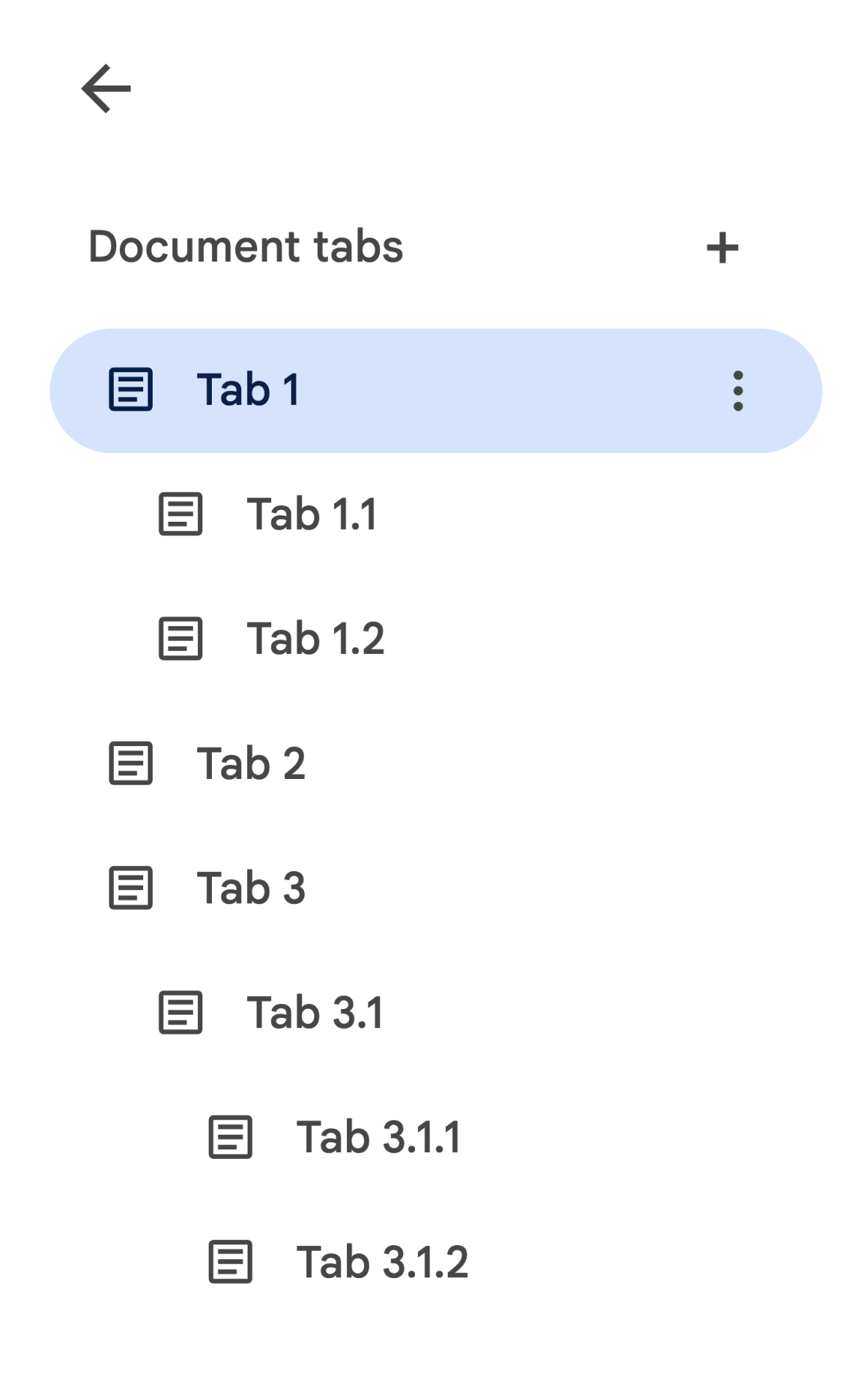
如要存取「分頁 3.1.2」,請按照下列步驟操作:
// Print the ID of Tab 3.1.2.
const doc = DocumentApp.getActiveDocument();
const tab = doc.getTabs()[2].getChildTabs()[0].getChildTabs()[1];
console.log(tab.getId());
如需在文件中所有索引標籤中疊代的程式碼範例,請參閱後續章節的程式碼區塊。
其他還原分頁的方式
你也可以透過其他兩種方式還原分頁:
Document.getTab: 傳回具有指定 ID 的分頁。Document.getActiveTab:傳回使用者的有效分頁。只能在繫結至文件的指令碼中使用。後續章節會詳細說明這點。
文件類別結構異動
過去,文件沒有分頁的概念,因此 Document 類別會公開方法,直接存取及修改文件的文字內容。這類方法包括:
Document.addBookmarkDocument.addFooterDocument.addHeaderDocument.addNamedRangeDocument.getBodyDocument.getBookmarkDocument.getBookmarksDocument.getFooterDocument.getFootnotesDocument.getHeaderDocument.getNamedRangeByIdDocument.getNamedRangesDocument.getNamedRangesDocument.newPositionDocument.newRange
由於分頁新增了結構階層,這些方法不再能以語意方式代表文件中所有分頁的文字內容。文字內容現在會以不同圖層表示;上述所有文字方法都可透過 DocumentTab 存取。
Document 類別的現有方法會存取或修改內容,來源是目前的分頁 (在繫結至特定文件的指令碼中),或是第一個分頁 (如果沒有目前的分頁)。
存取特定分頁中的文字內容
建議您不要使用 Document 的文字方法,而是使用 DocumentTab 類別提供的方法 (可透過 Tab.asDocumentTab 方法取得)。例如:
// Print the text from the body of the active tab.
const doc = DocumentApp.getActiveDocument();
const documentTab = doc.getActiveTab().asDocumentTab();
const body = documentTab.getBody();
console.log(body.getText());
使用者選取項目異動
使用者選取內容的概念只適用於繫結至文件的指令碼,且只能由這類指令碼使用或變更。
選取文字的方法
Document 類別提供 getter 和 setter,可管理使用者在現用文件中選取文字的位置。這些方法會在執行指令碼的使用者所用分頁的環境中運作。
Document.getCursor:傳回使用中分頁中的游標位置。Document.getSelection:傳回使用中分頁中的使用者選取範圍。Document.setCursor: 在現用文件中設定使用者的游標位置。如果位置位於非使用中的分頁中,系統也會將使用者的現用分頁切換至與該位置相關聯的分頁。Document.setSelection: 在現用文件中設定使用者的選取範圍。如果「範圍」位於非使用中的分頁,使用者目前使用的分頁也會切換至與該「範圍」相關聯的分頁。
分頁選取方法和用途
隨著分頁的推出,您現在可以取得及設定執行指令碼的使用者所使用的分頁。請使用下列方法:
Document.getActiveTab: 傳回有效文件中使用者的有效Tab。Document.setActiveTab: 將目前文件中使用者選取的Tab設為具有指定 ID 的分頁。
使用者的整體「選取」是由有效分頁,以及目前的游標位置或選取範圍組合而成。處理有效選取範圍的兩種模式是明確將使用者的有效分頁修改為特定分頁,或是使用使用者的有效分頁。
使用 Document.setActiveTab 明確變更使用者的有效分頁。或者,從非使用中的分頁呼叫 Document.setCursor 或 Document.setSelection (使用 Position 或 Range),會讓該分頁重新啟用。
如果指令碼的預期行為是使用使用者的現用分頁,且不變更分頁,則不需要 Document.setActiveTab。Document.getCursor 和 Document.getSelection 方法會根據使用者執行指令碼的索引標籤,對有效索引標籤執行作業。
文件不支援選取多個分頁,也不支援跨不同分頁選取多個位置或範圍。因此,使用 Document.setActiveTab 會清除先前的游標位置或選取範圍。
特定分頁的位置和範圍方法
特定分頁會為 Position 和 Range 的文字選取概念賦予意義。只有在指令碼知道游標位置或選取範圍所在的特定分頁時,游標位置或選取範圍才有意義。
方法是使用 DocumentTab.newPosition 和 DocumentTab.newRange 方法,建構以方法呼叫來源的特定 DocumentTab 為目標的 Position 或 Range。相反地,Document.newPosition 和 Document.newRange 會在目前的分頁 (或第一個分頁,如果指令碼未繫結) 中建構 Position 或 Range。
如需處理選取範圍的程式碼範例,請參閱後續章節中的程式碼區塊。
分頁的常見使用模式
下列程式碼範例說明與分頁互動的各種方式。
讀取文件中所有分頁的內容
如果現有程式碼在分頁功能推出前執行這項操作,可以透過遍歷分頁樹狀結構,並呼叫 Tab 和 DocumentTab 的 getter 方法 (而非 Document),遷移至支援分頁的程式碼。下列部分程式碼範例顯示如何列印文件中每個分頁的所有文字內容。這個分頁鍵遍歷程式碼可適用於許多其他用例,不必在意分頁的實際結構。
/** Logs all text contents from all tabs in the active document. */
function logAllText() {
  // Generate a list of all the tabs in the document, including any
  // nested child tabs. DocumentApp.openById('abc123456') can also
  // be used instead of DocumentApp.getActiveDocument().
  const doc = DocumentApp.getActiveDocument();
  const allTabs = getAllTabs(doc);

  // Log the content from each tab in the document.
  for (const tab of allTabs) {
    // Get the DocumentTab from the generic Tab object.
    const documentTab = tab.asDocumentTab();
    // Get the body from the given DocumentTab.
    const body = documentTab.getBody();
    // Get the body text and log it to the console.
    console.log(body.getText());
  }
}

/**
 * Returns a flat list of all tabs in the document, in the order
 * they would appear in the UI (i.e. top-down ordering). Includes
 * all child tabs.
 */
function getAllTabs(doc) {
  const allTabs = [];
  // Iterate over all tabs and recursively add any child tabs to
  // generate a flat list of Tabs.
  for (const tab of doc.getTabs()) {
    addCurrentAndChildTabs(tab, allTabs);
  }
  return allTabs;
}

/**
 * Adds the provided tab to the list of all tabs, and recurses
 * through and adds all child tabs.
 */
function addCurrentAndChildTabs(tab, allTabs) {
  allTabs.push(tab);
  for (const childTab of tab.getChildTabs()) {
    addCurrentAndChildTabs(childTab, allTabs);
  }
}
從文件中的第一個分頁讀取分頁內容
這與讀取所有分頁類似。
/**
 * Logs all text contents from the first tab in the active
 * document.
 */
function logAllText() {
  // Generate a list of all the tabs in the document, including any
  // nested child tabs.
  const doc = DocumentApp.getActiveDocument();
  const allTabs = getAllTabs(doc);

  // Log the content from the first tab in the document.
  const firstTab = allTabs[0];
  // Get the DocumentTab from the generic Tab object.
  const documentTab = firstTab.asDocumentTab();
  // Get the body from the DocumentTab.
  const body = documentTab.getBody();
  // Get the body text and log it to the console.
  console.log(body.getText());
}
更新第一個分頁中的分頁內容
以下部分程式碼範例說明如何在更新時指定特定分頁。
/** Inserts text into the first tab of the active document. */
function insertTextInFirstTab() {
  // Get the first tab's body.
  const doc = DocumentApp.getActiveDocument();
  const firstTab = doc.getTabs()[0];
  const firstDocumentTab = firstTab.asDocumentTab();
  const firstTabBody = firstDocumentTab.getBody();

  // Append a paragraph and a page break to the first tab's body
  // section.
  firstTabBody.appendParagraph("A paragraph.");
  firstTabBody.appendPageBreak();
}
更新現用或所選分頁中的分頁內容
以下部分程式碼範例說明如何在更新時指定有效分頁。
/**
 * Inserts text into the active/selected tab of the active
 * document.
 */
function insertTextInActiveTab() {
  // Get the active/selected tab's body.
  const doc = DocumentApp.getActiveDocument();
  const activeTab = doc.getActiveTab();
  const activeDocumentTab = activeTab.asDocumentTab();
  const activeTabBody = activeDocumentTab.getBody();

  // Append a paragraph and a page break to the active tab's body
  // section.
  activeTabBody.appendParagraph("A paragraph.");
  activeTabBody.appendPageBreak();
}
在有效分頁中設定游標位置或選取範圍
下列部分程式碼範例說明如何更新使用者現用分頁中的游標位置或選取範圍。這項功能僅適用於繫結指令碼。
/**
 * Changes the user's selection to select all tables within the tab
 * with the provided ID.
 */
function selectAllTables(tabId) {
  const doc = DocumentApp.getActiveDocument();
  const tab = doc.getTab(tabId);
  const documentTab = tab.asDocumentTab();

  // Build a range that encompasses all tables within the specified
  // tab.
  const rangeBuilder = documentTab.newRange();
  const tables = documentTab.getBody().getTables();
  for (let i = 0; i < tables.length; i++) {
    rangeBuilder.addElement(tables[i]);
  }
  // Set the document's selection to the tables within the specified
  // tab. Note that this actually switches the user's active tab as
  // well.
  doc.setSelection(rangeBuilder.build());
}
設定使用中或選取的分頁
下列部分程式碼範例說明如何變更使用者的現用分頁。這項功能僅適用於繫結指令碼。
/** * Changes the user's selected tab to the tab immediately following * the currently selected one. Handles child tabs. * *Only changes the selection if there is a tab following the
* currently selected one. */ function selectNextTab() { const doc = DocumentApp.getActiveDocument(); const allTabs = getAllTabs(doc); const activeTab = doc.getActiveTab(); // Find the index of the currently active tab. let activeTabIndex = -1; for (let i = 0; i < allTabs.length; i++) { if (allTabs[i].getId() === activeTab.getId()) { activeTabIndex = i; } } // Update the user's selected tab if there is a valid next tab. const nextTabIndex = activeTabIndex + 1; if (nextTabIndex < allTabs.length) { doc.setActiveTab(allTabs[nextTabIndex].getId()); } }