กล่องโต้ตอบและแถบด้านข้างในเอกสาร Google Workspace

โปรเจ็กต์ Google Apps Script ที่เชื่อมโยงกับ Google เอกสาร, Google ชีต หรือ Google ฟอร์มจะแสดง องค์ประกอบของอินเทอร์เฟซผู้ใช้ได้ เช่น การแจ้งเตือนที่สร้างไว้ล่วงหน้า พรอมต์ ข้อความป๊อปอัป กล่องโต้ตอบ และ แถบด้านข้าง โดยปกติแล้ว องค์ประกอบเหล่านี้จะมีเนื้อหาบริการ HTML ที่กำหนดเอง และมักจะเปิดจากรายการเมนู ในฟอร์ม องค์ประกอบของอินเทอร์เฟซผู้ใช้ จะแสดงต่อผู้แก้ไขที่เปิดฟอร์มเพื่อแก้ไขเท่านั้น ไม่แสดงต่อผู้ตอบ

กล่องโต้ตอบการแจ้งเตือน
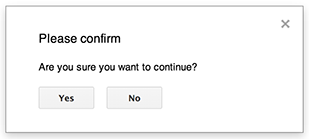
การแจ้งเตือนคือกล่องโต้ตอบที่สร้างไว้ล่วงหน้าซึ่งจะเปิดขึ้นภายในโปรแกรมแก้ไขเอกสาร ชีต สไลด์ หรือฟอร์ม โดยจะแสดงข้อความและปุ่มตกลง ส่วนชื่อและปุ่มทางเลือกนั้น ไม่บังคับ ซึ่งคล้ายกับการเรียกใช้ window.alert ใน JavaScript ฝั่งไคลเอ็นต์ภายในเว็บเบราว์เซอร์

การแจ้งเตือนจะระงับสคริปต์ฝั่งเซิร์ฟเวอร์ขณะที่กล่องโต้ตอบเปิดอยู่ สคริปต์ จะทำงานต่อหลังจากที่ผู้ใช้ปิดกล่องโต้ตอบ แต่การเชื่อมต่อ JDBC จะไม่คงอยู่เมื่อมีการระงับ

ดังที่แสดงในตัวอย่างต่อไปนี้ เอกสาร ฟอร์ม สไลด์ และชีตทั้งหมดใช้วิธีการ Ui.alert ซึ่งมีให้ใช้งาน ใน 3 รูปแบบ หากต้องการลบล้างปุ่มตกลงเริ่มต้น ให้ส่งค่าจาก การแจงนับ Ui.ButtonSet เป็นอาร์กิวเมนต์ buttons หากต้องการประเมินว่าผู้ใช้คลิกปุ่มใด ให้เปรียบเทียบค่าที่ส่งคืน สำหรับ alert กับการแจงนับ Ui.Button

function onOpen() {
  SpreadsheetApp.getUi() // Or DocumentApp or SlidesApp or FormApp.
    .createMenu("Custom Menu")
    .addItem("Show alert", "showAlert")
    .addToUi();
}

function showAlert() {
  const ui = SpreadsheetApp.getUi(); // Same variations.

  const result = ui.alert(
    "Please confirm",
    "Are you sure you want to continue?",
    ui.ButtonSet.YES_NO,
  );

  // Process the user's response.
  if (result === ui.Button.YES) {
    // User clicked "Yes".
    ui.alert("Confirmation received.");
  } else {
    // User clicked "No" or X in the title bar.
    ui.alert("Permission denied.");
  }
}

กล่องโต้ตอบข้อความแจ้ง
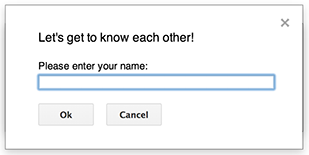
พรอมต์คือกล่องโต้ตอบที่สร้างไว้ล่วงหน้าซึ่งจะเปิดขึ้นภายในโปรแกรมแก้ไขเอกสาร ชีต สไลด์ หรือฟอร์ม โดยจะ แสดงข้อความ ช่องป้อนข้อความ และปุ่มตกลง ส่วนชื่อและ ปุ่มสำรองเป็นตัวเลือก ซึ่งคล้ายกับการเรียกใช้ window.prompt ใน JavaScript ฝั่งไคลเอ็นต์ภายในเว็บเบราว์เซอร์

พรอมต์จะระงับสคริปต์ฝั่งเซิร์ฟเวอร์ขณะที่กล่องโต้ตอบเปิดอยู่ สคริปต์ จะทำงานต่อหลังจากที่ผู้ใช้ปิดกล่องโต้ตอบ แต่การเชื่อมต่อ JDBC จะไม่คงอยู่เมื่อมีการระงับ

ดังที่แสดงในตัวอย่างต่อไปนี้ เอกสาร ฟอร์ม สไลด์ และชีตทั้งหมดใช้วิธีการ Ui.prompt ซึ่งมีให้ใช้งานใน 3 รูปแบบ หากต้องการลบล้างปุ่มตกลงเริ่มต้น ให้ส่งค่าจาก การแจงนับ Ui.ButtonSet เป็นอาร์กิวเมนต์ buttons หากต้องการประเมินการตอบกลับของผู้ใช้ ให้บันทึกค่าที่ส่งคืน สำหรับ prompt จากนั้นเรียกใช้ PromptResponse.getResponseText เพื่อดึงข้อมูลที่ผู้ใช้ป้อน และเปรียบเทียบค่าที่ส่งคืนสำหรับ PromptResponse.getSelectedButton กับ Enum Ui.Button

function onOpen() {
  SpreadsheetApp.getUi() // Or DocumentApp or SlidesApp or FormApp.
    .createMenu("Custom Menu")
    .addItem("Show prompt", "showPrompt")
    .addToUi();
}

function showPrompt() {
  const ui = SpreadsheetApp.getUi(); // Same variations.

  const result = ui.prompt(
    "Let's get to know each other!",
    "Please enter your name:",
    ui.ButtonSet.OK_CANCEL,
  );

  // Process the user's response.
  const button = result.getSelectedButton();
  const text = result.getResponseText();
  if (button === ui.Button.OK) {
    // User clicked "OK".
    ui.alert("Your name is " + text + ".");
  } else if (button === ui.Button.CANCEL) {
    // User clicked "Cancel".
    ui.alert("I didn't get your name.");
  } else if (button === ui.Button.CLOSE) {
    // User clicked X in the title bar.
    ui.alert("You closed the dialog.");
  }
}

ข้อความแจ้งของสเปรดชีต

"ข้อความป๊อปอัป" คือกล่องโต้ตอบขนาดเล็กที่มุมขวาล่างของ โปรแกรมแก้ไขชีต ซึ่งจะแสดงข้อความแต่ไม่ระงับสคริปต์ ซึ่งเป็นวิธีที่ดีในการแสดงข้อความสถานะหรือการอัปเดตที่ไม่ต้องมีการโต้ตอบจากผู้ใช้

ดังที่แสดงในตัวอย่างต่อไปนี้ ชีตจะใช้วิธีการ Spreadsheet.toast ข้อความแจ้งจะใช้ได้ในชีตเท่านั้น

function showToast() {
  SpreadsheetApp.getActiveSpreadsheet().toast("Task completed successfully.");
}

กล่องโต้ตอบที่กำหนดเอง
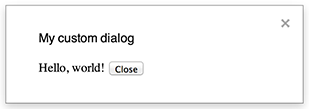
กล่องโต้ตอบที่กำหนดเองสามารถแสดงอินเทอร์เฟซผู้ใช้ HTML Service ภายในเครื่องมือแก้ไขเอกสาร, ชีต, สไลด์ หรือฟอร์ม

กล่องโต้ตอบที่กำหนดเองไม่ระงับสคริปต์ฝั่งเซิร์ฟเวอร์ขณะที่กล่องโต้ตอบเปิดอยู่ เนื่องจากฟังก์ชันฝั่งเซิร์ฟเวอร์ที่เปิดกล่องโต้ตอบ จึงเสร็จสมบูรณ์ทันที หากต้องการส่งข้อมูลจากกล่องโต้ตอบที่กำหนดเองกลับไปยังเซิร์ฟเวอร์ ให้ใช้ API google.script ในโค้ดฝั่งไคลเอ็นต์

กล่องโต้ตอบจะปิดตัวเองได้โดยการเรียกใช้ google.script.host.close ในฝั่งไคลเอ็นต์ของอินเทอร์เฟซบริการ HTML อินเทอร์เฟซอื่นๆ จะปิดกล่องโต้ตอบไม่ได้ มีเพียงผู้ใช้หรือตัวกล่องโต้ตอบเองเท่านั้นที่ปิดได้

ดังที่แสดงในตัวอย่างต่อไปนี้ เอกสาร ฟอร์ม สไลด์ และชีตทั้งหมดใช้วิธีการ Ui.showModalDialog เพื่อเปิดกล่องโต้ตอบ

Code.gs

function onOpen() {
  SpreadsheetApp.getUi() // Or DocumentApp or SlidesApp or FormApp.
      .createMenu('Custom Menu')
      .addItem('Show dialog', 'showDialog')
      .addToUi();
}

function showDialog() {
  const html = HtmlService.createHtmlOutputFromFile('Page')
      .setWidth(400)
      .setHeight(300);
  SpreadsheetApp.getUi() // Or DocumentApp or SlidesApp or FormApp.
      .showModalDialog(html, 'My custom dialog');
}

Page.html

Hello, world! <input type="button" value="Close" onclick="google.script.host.close()" />

แถบด้านข้างที่กำหนดเอง

แถบด้านข้างสามารถแสดงอินเทอร์เฟซผู้ใช้ของบริการ HTML ภายในโปรแกรมแก้ไขเอกสาร, ฟอร์ม, สไลด์ และชีต

แถบด้านข้างไม่ระงับสคริปต์ฝั่งเซิร์ฟเวอร์ขณะที่กล่องโต้ตอบเปิดอยู่ คอมโพเนนต์ฝั่งไคลเอ็นต์สามารถเรียกใช้สคริปต์ฝั่งเซิร์ฟเวอร์แบบไม่พร้อมกัน โดยใช้ API google.script สำหรับ อินเทอร์เฟซบริการ HTML

แถบด้านข้างสามารถปิดตัวเองได้โดยการเรียกใช้ google.script.host.close ในฝั่งไคลเอ็นต์ของอินเทอร์เฟซบริการ HTML แถบด้านข้างจะปิดโดยอินเทอร์เฟซอื่นไม่ได้ แต่ปิดได้โดยผู้ใช้หรือตัวแถบเองเท่านั้น

ดังที่แสดงในตัวอย่างต่อไปนี้ เอกสาร ฟอร์ม สไลด์ และชีตทั้งหมดใช้วิธี Ui.showSidebar เพื่อเปิด แถบด้านข้าง

Code.gs

function onOpen() {
  SpreadsheetApp.getUi() // Or DocumentApp or SlidesApp or FormApp.
      .createMenu('Custom Menu')
      .addItem('Show sidebar', 'showSidebar')
      .addToUi();
}

function showSidebar() {
  const html = HtmlService.createHtmlOutputFromFile('Page')
      .setTitle('My custom sidebar');
  SpreadsheetApp.getUi() // Or DocumentApp or SlidesApp or FormApp.
      .showSidebar(html);
}

Page.html

Hello, world! <input type="button" value="Close" onclick="google.script.host.close()" />

กล่องโต้ตอบการเปิดไฟล์

Google Picker เป็น JavaScript API ที่ช่วยให้ผู้ใช้เลือกหรือ อัปโหลดไฟล์ใน Google ไดรฟ์ได้ ใช้ไลบรารี Google Picker ในบริการ HTML เพื่อสร้างกล่องโต้ตอบที่กำหนดเองซึ่งช่วยให้ผู้ใช้เลือกไฟล์ที่มีอยู่หรืออัปโหลดไฟล์ใหม่ จากนั้นส่งการเลือกกลับไปยังสคริปต์ของคุณ

ข้อกำหนด

การใช้ Google Picker กับ Google Apps Script มีข้อกำหนดหลายประการดังนี้

  • ตั้งค่าสภาพแวดล้อม สำหรับ Google Picker

  • โปรเจ็กต์สคริปต์ต้องใช้โปรเจ็กต์ Google Cloud มาตรฐาน

    ส่งหมายเลขโปรเจ็กต์ Cloud เดียวกันไปยัง PickerBuilder.setAppId หากใช้ขอบเขต drive.file

  • ไฟล์ Manifest ของโปรเจ็กต์ Apps Script ต้องระบุขอบเขต การให้สิทธิ์ที่ Google Picker API ต้องการเพื่อให้ ScriptApp.getOAuthToken แสดงโทเค็นที่ถูกต้องสำหรับ PickerBuilder.setOauthtoken

  • จำกัดคีย์ API ที่ตั้งค่าไว้ใน PickerBuilder.setDeveloperKey เป็น Apps Script ในส่วนการจำกัดแอปพลิเคชัน ให้ทำตามขั้นตอนต่อไปนี้

    1. เลือกผู้อ้างอิง HTTP (เว็บไซต์)
    2. ในส่วนการจํากัดเว็บไซต์ ให้คลิกเพิ่มรายการ
    3. คลิกผู้แนะนำ แล้วป้อน *.google.com
    4. เพิ่มรายการอื่นและป้อน *.googleusercontent.com เป็นผู้แนะนำ
    5. คลิกเสร็จสิ้น
  • โทร PickerBuilder.setOrigin

ตัวอย่าง

ตัวอย่างต่อไปนี้แสดง Google Picker ใน Apps Script

code.gs

picker/code.gs
/**
 * Creates a custom menu in Google Sheets when the spreadsheet opens.
 */
function onOpen() {
  SpreadsheetApp.getUi()
    .createMenu("Picker")
    .addItem("Start", "showPicker")
    .addToUi();
}

/**
 * Displays an HTML-service dialog in Google Sheets that contains client-side
 * JavaScript code for the Google Picker API.
 */
function showPicker() {
  const html = HtmlService.createHtmlOutputFromFile("dialog.html")
    .setWidth(800)
    .setHeight(600)
    .setSandboxMode(HtmlService.SandboxMode.IFRAME);
  SpreadsheetApp.getUi().showModalDialog(html, "Select a file");
}
// Ensure the Drive API is enabled.
if (!Drive) {
  throw new Error("Please enable the Drive advanced service.");
}

/**
 * Checks that the file can be accessed.
 * @param {string} fileId The ID of the file.
 * @return {Object} The file resource.
 */
function getFile(fileId) {
  return Drive.Files.get(fileId, { fields: "*" });
}

/**
 * Gets the user's OAuth 2.0 access token so that it can be passed to Picker.
 * This technique keeps Picker from needing to show its own authorization
 * dialog, but is only possible if the OAuth scope that Picker needs is
 * available in Apps Script. In this case, the function includes an unused call
 * to a DriveApp method to ensure that Apps Script requests access to all files
 * in the user's Drive.
 *
 * @return {string} The user's OAuth 2.0 access token.
 */
function getOAuthToken() {
  return ScriptApp.getOAuthToken();
}

dialog.html

picker/dialog.html
<!DOCTYPE html>
<html>
  <head>
    <link
      rel="stylesheet"
      href="https://ssl.gstatic.com/docs/script/css/add-ons.css"
    />
    <style>
      #result {
        display: flex;
        flex-direction: column;
        gap: 0.25em;
      }

      pre {
        font-size: x-small;
        max-height: 25vh;
        overflow-y: scroll;
        background: #eeeeee;
        padding: 1em;
        border: 1px solid #cccccc;
      }
    </style>
    <script>
      // TODO: Replace the value for DEVELOPER_KEY with the API key obtained
      // from the Google Developers Console.
      const DEVELOPER_KEY = "AIza...";
      // TODO: Replace the value for CLOUD_PROJECT_NUMBER with the project
      // number obtained from the Google Developers Console.
      const CLOUD_PROJECT_NUMBER = "1234567890";

      let pickerApiLoaded = false;
      let oauthToken;

      /**
       * Loads the Google Picker API.
       */
      function onApiLoad() {
        gapi.load("picker", {
          callback: function () {
            pickerApiLoaded = true;
          },
        });
      }

      /**
       * Gets the user's OAuth 2.0 access token from the server-side script so that
       * it can be passed to Picker. This technique keeps Picker from needing to
       * show its own authorization dialog, but is only possible if the OAuth scope
       * that Picker needs is available in Apps Script. Otherwise, your Picker code
       * will need to declare its own OAuth scopes.
       */
      function getOAuthToken() {
        google.script.run
          .withSuccessHandler((token) => {
            oauthToken = token;
            createPicker(token);
          })
          .withFailureHandler(showError)
          .getOAuthToken();
      }

      /**
       * Creates a Picker that can access the user's spreadsheets. This function
       * uses advanced options to hide the Picker's left navigation panel and
       * default title bar.
       *
       * @param {string} token An OAuth 2.0 access token that lets Picker access the
       *     file type specified in the addView call.
       */
      function createPicker(token) {
        document.getElementById("result").innerHTML = "";

        if (pickerApiLoaded && token) {
          const picker = new google.picker.PickerBuilder()
            // Instruct Picker to display only spreadsheets in Drive. For other
            // views, see https://developers.google.com/picker/reference/picker.viewid
            .addView(
              new google.picker.DocsView(
                google.picker.ViewId.SPREADSHEETS
              ).setOwnedByMe(true)
            )
            // Hide the navigation panel so that Picker fills more of the dialog.
            .enableFeature(google.picker.Feature.NAV_HIDDEN)
            // Hide the title bar since an Apps Script dialog already has a title.
            .hideTitleBar()
            .setOAuthToken(token)
            .setDeveloperKey(DEVELOPER_KEY)
            .setAppId(CLOUD_PROJECT_NUMBER)
            .setCallback(pickerCallback)
            .setOrigin(google.script.host.origin)
            .build();
          picker.setVisible(true);
        } else {
          showError("Unable to load the file picker.");
        }
      }

      /**
       * @typedef {Object} PickerResponse
       * @property {string} action
       * @property {PickerDocument[]} docs
       */

      /**
       * @typedef {Object} PickerDocument
       * @property {string} id
       * @property {string} name
       * @property {string} mimeType
       * @property {string} url
       * @property {string} lastEditedUtc
       */

      /**
       * A callback function that extracts the chosen document's metadata from the
       * response object. For details on the response object, see
       * https://developers.google.com/picker/reference/picker.responseobject
       *
       * @param {PickerResponse} data The response object.
       */
      function pickerCallback(data) {
        const action = data[google.picker.Response.ACTION];
        if (action == google.picker.Action.PICKED) {
          handlePicked(data);
        } else if (action == google.picker.Action.CANCEL) {
          document.getElementById("result").innerHTML = "Picker canceled.";
        }
      }

      /**
       * Handles `"PICKED"` responsed from the Google Picker.
       *
       * @param {PickerResponse} data The response object.
       */
      function handlePicked(data) {
        const doc = data[google.picker.Response.DOCUMENTS][0];
        const id = doc[google.picker.Document.ID];

        google.script.run
          .withSuccessHandler((driveFilesGetResponse) => {
            // Render the response from Picker and the Drive.Files.Get API.
            const resultElement = document.getElementById("result");
            resultElement.innerHTML = "";

            for (const response of [
              {
                title: "Picker response",
                content: JSON.stringify(data, null, 2),
              },
              {
                title: "Drive.Files.Get response",
                content: JSON.stringify(driveFilesGetResponse, null, 2),
              },
            ]) {
              const titleElement = document.createElement("h3");
              titleElement.appendChild(document.createTextNode(response.title));
              resultElement.appendChild(titleElement);

              const contentElement = document.createElement("pre");
              contentElement.appendChild(
                document.createTextNode(response.content)
              );
              resultElement.appendChild(contentElement);
            }
          })
          .withFailureHandler(showError)
          .getFile(data[google.picker.Response.DOCUMENTS][0].id);
      }

      /**
       * Displays an error message within the #result element.
       *
       * @param {string} message The error message to display.
       */
      function showError(message) {
        document.getElementById("result").innerHTML = "Error: " + message;
      }
    </script>
  </head>

  <body>
    <div>
      <button onclick="getOAuthToken()">Select a file</button>
      <div id="result"></div>
    </div>
    <script src="https://apis.google.com/js/api.js?onload=onApiLoad"></script>
  </body>
</html>

appsscript.json

picker/appsscript.json
{
  "timeZone": "America/Los_Angeles",
  "exceptionLogging": "STACKDRIVER",
  "runtimeVersion": "V8",
  "oauthScopes": [
    "https://www.googleapis.com/auth/script.container.ui",
    "https://www.googleapis.com/auth/drive.file"
  ],
  "dependencies": {
    "enabledAdvancedServices": [
      {
        "userSymbol": "Drive",
        "version": "v3",
        "serviceId": "drive"
      }
    ]
  }
}