
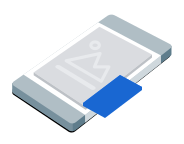
पिक्चर-इन-पिक्चर (पीआईपी) विज्ञापन, फ़्लोटिंग विंडो में दिखते हैं. यह विंडो, स्क्रीन पर मौजूद कॉन्टेंट के ऊपर दिखती है. जैसे, लेख, फ़ीड या गेमप्ले. इस फ़ॉर्मैट की मदद से, उपयोगकर्ता आपके ऐप्लिकेशन के साथ इंटरैक्ट कर सकते हैं. साथ ही, विज्ञापन भी दिखता रहता है. अगर आपको ऐसे विज्ञापन दिखाने हैं जो पूरी स्क्रीन पर न दिखें, तो यह फ़ॉर्मैट चुनें. पिक्चर-इन-पिक्चर विज्ञापनों के बारे में ज़्यादा जानें. पिक्चर-इन-पिक्चर विज्ञापनों के बारे में ज़्यादा जानें.
इस गाइड में, अपने ऐप्लिकेशन में पिक्चर-इन-पिक्चर विज्ञापन दिखाने और उनके लिए अनुरोध करने का तरीका बताया गया है using Google Mobile Ads Unity Plugin.
शुरू करने से पहले
आगे बढ़ने से पहले, यह काम करें:
Google Mobile Ads Unity Plugin वर्शन
11.6.0या इसके बाद का वर्शन इंस्टॉल करें.
- Android ऐप्लिकेशन के लिए, इंस्टॉल करें GMA Next-Gen SDK.
टेस्ट विज्ञापन चालू करें और टेस्ट विज्ञापन यूनिट के इन आईडी का इस्तेमाल करें:
Android
ca-app-pub-3940256099942544/9657123429iOS
ca-app-pub-3940256099942544/8810945611
विज्ञापन लोड करना
PictureInPictureAd ऑब्जेक्ट लोड करने के लिए, विज्ञापन दिखाने का अनुरोध बनाएं और लोड करने के तरीके को कॉल करें:
_adUnitId को अपनी विज्ञापन यूनिट के आईडी से बदलें.
विज्ञापन दिखाना
स्क्रीन पर पिक्चर-इन-पिक्चर विज्ञापन दिखाने के लिए, शो करने के तरीके को कॉल करें. यहां दिए गए उदाहरण में, विज्ञापन डिफ़ॉल्ट पोज़िशन में दिखता है:
public void ShowPictureInPictureAd()
{
    // Use the ad reference saved from the Load callback.
    if (_pictureInPictureAd != null)
    {
        _pictureInPictureAd.Show();
    }
    else
    {
        Debug.Log("No ad to show.");
    }
}
पोज़िशन सेट करना
डिफ़ॉल्ट रूप से, Google Mobile Ads Unity Plugin पिक्चर में पिक्चर विज्ञापन को स्क्रीन के निचले दाएं कोने में दिखाता है. अगर विज्ञापन पहले दिखाया गया है, तो यह पिछली पोज़िशन में दिखता है. विज्ञापन को अपनी पसंद की जगह पर दिखाने के लिए, विज्ञापन दिखाते समय उसकी पोज़िशन तय करें. यहां दिए गए उदाहरण में, विज्ञापन को स्क्रीन के ऊपरी बाएं कोने में, कॉन्टेंट के ऊपर दिखाया गया है:
public void ShowPictureInPictureAdTopLeft()
{
    // Use the ad reference saved from the Load callback.
    if (_pictureInPictureAd != null)
    {
        _pictureInPictureAd.Show(PictureInPictureAdPosition.TopLeft);
    }
    else
    {
        Debug.Log("No ad to show.");
    }
}
सभी उपलब्ध पोज़िशन देखने के लिए, PictureInPictureAdPosition देखें.
विज्ञापन इवेंट सुनना
पिक्चर-इन-पिक्चर विज्ञापन के लाइफ़साइकल इवेंट को मैनेज करने के लिए, विज्ञापन दिखाने से पहले, विज्ञापन इवेंट के लिए रजिस्टर करें. इन इवेंट से, विज्ञापन इंटरैक्शन की रिपोर्ट मिलती है. जैसे, क्लिक और इंप्रेशन. इन इवेंट से, पिक्चर-इन-पिक्चर से जुड़े इवेंट की भी रिपोर्ट मिलती है. जैसे, विज्ञापन कब दिखता है या कब छिपता है:
private void RegisterEventHandlers(PictureInPictureAd ad)
{
    // Raised when the ad is estimated to have earned money.
    ad.OnAdPaid += (AdValue adValue) =>
    {
        Debug.Log($"Picture-in-picture ad paid: {adValue.Value} {adValue.CurrencyCode}");
    };
    // Raised when an impression is recorded for an ad.
    ad.OnAdImpressionRecorded += () =>
    {
        Debug.Log("Picture-in-picture ad recorded an impression.");
    };
    // Raised when a click is recorded for an ad.
    ad.OnAdClicked += () =>
    {
        Debug.Log("Picture-in-picture ad recorded a click.");
    };
    // Raised when the picture-in-picture ad is displayed on the screen.
    ad.OnAdShown += () =>
    {
        Debug.Log("Picture-in-picture ad shown.");
    };
    // Raised when the picture-in-picture ad is hidden from the screen.
    ad.OnAdHidden += () =>
    {
        Debug.Log("Picture-in-picture ad hidden.");
    };
    // Raised when an ad opened full screen content.
    ad.OnAdFullScreenContentOpened += () =>
    {
        Debug.Log("Picture-in-picture ad opened full screen content.");
    };
    // Raised when the ad closed full screen content.
    ad.OnAdFullScreenContentClosed += () =>
    {
        Debug.Log("Picture-in-picture ad closed full screen content.");
    };
    // Raised when the ad failed to open full screen content.
    ad.OnAdFullScreenContentFailed += (AdError error) =>
    {
        Debug.LogWarning(
            "Picture-in-picture ad failed to open full screen " +
            "content: " + error);
    };
}
विज्ञापन छिपाना
स्क्रीन से फ़्लोटिंग विज्ञापन हटाने के लिए, छिपाने के तरीके को कॉल करें. इस तरीके से, विज्ञापन के छिपने का इवेंट ट्रिगर होता है:
public void HidePictureInPictureAd()
{
    // Use the ad reference saved from the Load callback.
    if (_pictureInPictureAd != null)
    {
        _pictureInPictureAd.Hide();
    }
    else
    {
        Debug.Log("No ad to hide.");
    }
}
विज्ञापन के संसाधनों को साफ़ करना
मेमोरी लीक से बचने के लिए, जब आपका ऐप्लिकेशन विज्ञापन का इस्तेमाल करना बंद कर दे, तो विज्ञापन ऑब्जेक्ट के रेफ़रंस को हटा दें. उदाहरण के लिए, जब आपका ऐप्लिकेशन विज्ञापन नहीं दिखाता है या उसके साथ इंटरैक्ट नहीं करता है:
public void DestroyPictureInPictureAd()
{
    // Use the ad reference saved from the Load callback.
    if (_pictureInPictureAd != null)
    {
        _pictureInPictureAd.Destroy();
        _pictureInPictureAd = null;
    }
}