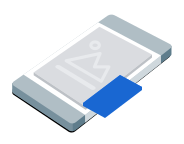
Picture-in-picture (PiP) ads display in a floating window that stays on top of content on the screen, such as articles, feeds, or gameplay. This format lets users interact with your app while the ad remains visible. To display ads that don't take over the entire screen, choose this format. Learn more about picture-in-picture ads.
This guide covers requesting and displaying picture-in-picture ads in your app using Google Mobile Ads Unity Plugin.
Before you begin
Before you continue, do the following:
Install Google Mobile Ads Unity Plugin version
11.6.0or later.
- For Android apps, install GMA Next-Gen SDK.
Enable test ads and use the following test ad unit IDs:
Android
ca-app-pub-3940256099942544/9657123429iOS
ca-app-pub-3940256099942544/8810945611
Load an ad
To load a
PictureInPictureAd
object, create an ad request and call the load method:
Replace _adUnitId with your ad unit ID.
Show the ad
To display the picture-in-picture ad on screen, call the show method. The following example displays the ad in the default position:
public void ShowPictureInPictureAd()
{
    // Use the ad reference saved from the Load callback.
    if (_pictureInPictureAd != null)
    {
        _pictureInPictureAd.Show();
    }
    else
    {
        Debug.Log("No ad to show.");
    }
}
Set the position
By default, Google Mobile Ads Unity Plugin displays a picture-in-picture ad in the bottom-right corner of the screen when first shown, or at the last known position if previously shown. To customize where the ad appears, specify a position when showing the ad. The following example sets the position on top of content in the top-left corner of the screen:
public void ShowPictureInPictureAdTopLeft()
{
    // Use the ad reference saved from the Load callback.
    if (_pictureInPictureAd != null)
    {
        _pictureInPictureAd.Show(PictureInPictureAdPosition.TopLeft);
    }
    else
    {
        Debug.Log("No ad to show.");
    }
}
For all available positions, see
PictureInPictureAdPosition.
Listen to ad events
To handle picture-in-picture ad lifecycle events, register for ad events before displaying your ad. These events report ad interactions, such as clicks and impressions. These events also report picture-in-picture-specific events, such as when the ad shows or hides:
private void RegisterEventHandlers(PictureInPictureAd ad)
{
    // Raised when the ad is estimated to have earned money.
    ad.OnAdPaid += (AdValue adValue) =>
    {
        Debug.Log($"Picture-in-picture ad paid: {adValue.Value} {adValue.CurrencyCode}");
    };
    // Raised when an impression is recorded for an ad.
    ad.OnAdImpressionRecorded += () =>
    {
        Debug.Log("Picture-in-picture ad recorded an impression.");
    };
    // Raised when a click is recorded for an ad.
    ad.OnAdClicked += () =>
    {
        Debug.Log("Picture-in-picture ad recorded a click.");
    };
    // Raised when the picture-in-picture ad is displayed on the screen.
    ad.OnAdShown += () =>
    {
        Debug.Log("Picture-in-picture ad shown.");
    };
    // Raised when the picture-in-picture ad is hidden from the screen.
    ad.OnAdHidden += () =>
    {
        Debug.Log("Picture-in-picture ad hidden.");
    };
    // Raised when an ad opened full screen content.
    ad.OnAdFullScreenContentOpened += () =>
    {
        Debug.Log("Picture-in-picture ad opened full screen content.");
    };
    // Raised when the ad closed full screen content.
    ad.OnAdFullScreenContentClosed += () =>
    {
        Debug.Log("Picture-in-picture ad closed full screen content.");
    };
    // Raised when the ad failed to open full screen content.
    ad.OnAdFullScreenContentFailed += (AdError error) =>
    {
        Debug.LogWarning(
            "Picture-in-picture ad failed to open full screen " +
            "content: " + error);
    };
}
Hide the ad
To remove the floating ad from the screen, call the hide method. This method invokes the ad hidden event:
public void HidePictureInPictureAd()
{
    // Use the ad reference saved from the Load callback.
    if (_pictureInPictureAd != null)
    {
        _pictureInPictureAd.Hide();
    }
    else
    {
        Debug.Log("No ad to hide.");
    }
}
Clean up ad resources
To avoid memory leaks, drop your reference to the ad object when your app finishes using the ad. For example, when your app no longer displays or interacts with the ad again:
public void DestroyPictureInPictureAd()
{
    // Use the ad reference saved from the Load callback.
    if (_pictureInPictureAd != null)
    {
        _pictureInPictureAd.Destroy();
        _pictureInPictureAd = null;
    }
}