
This guide shows you how to use Google Mobile Ads Unity Plugin to load and display ads from BIGO Ads SDK using mediation, covering bidding integrations. It covers how to add BIGO Ads SDK to an ad unit's mediation configuration and how to integrate the BIGO Ads SDK and adapter into a Unity app.
Supported integrations and ad formats
The Ad Manager mediation adapter for BIGO Ads SDK has the following capabilities:
| Integration | |
|---|---|
| Bidding | |
| Waterfall | |
| Formats | |
| App Open | |
| Banner | |
| Interstitial | |
| Rewarded | |
| Rewarded Interstitial | |
| Native | |
Prerequisites
Before you continue, verify the following:
- Latest Google Mobile Ads Unity Plugin version.
- Unity Editor version 2019.4 or later.
- To deploy on Android
- Android API level 24 or later.
- To deploy on iOS
- iOS deployment target of 13.0 or later.
- A working Unity project configured with Google Mobile Ads Unity Plugin. See Get Started for details.
- Set up mediation.
Step 1: Set up configurations in BIGO Ads SDK UI
Log in to your BIGO Ads dashboard.
Create an app
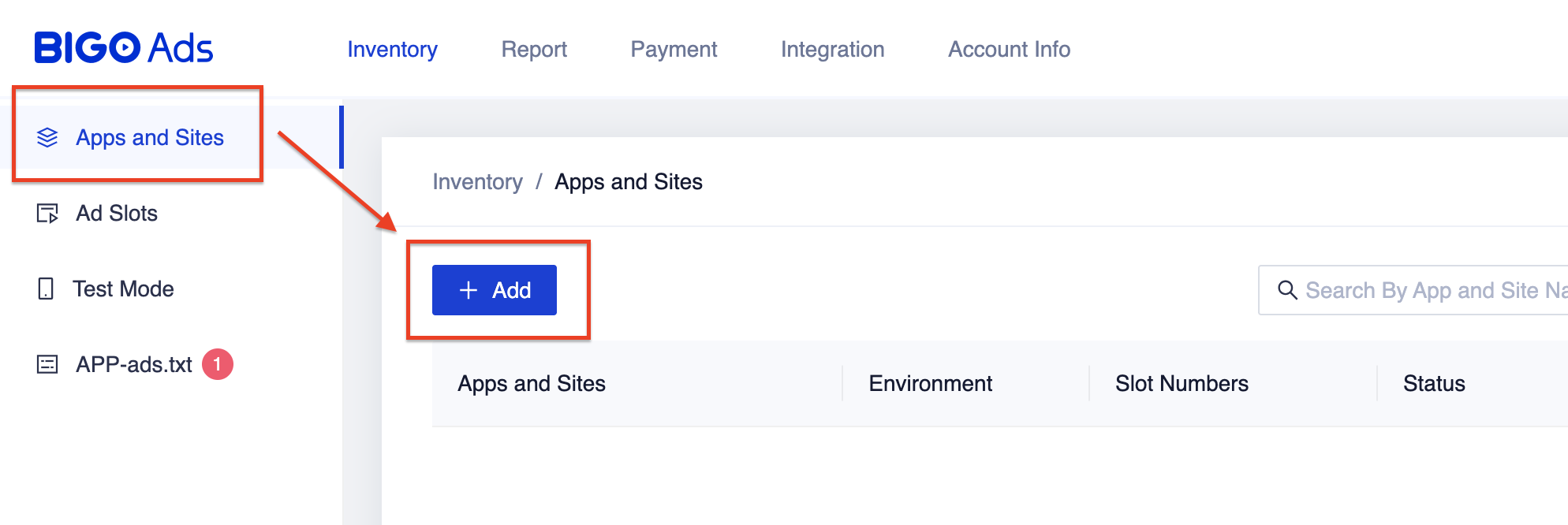
Navigate to the Inventory tab and under the Apps and Sites table, select the + Add button.
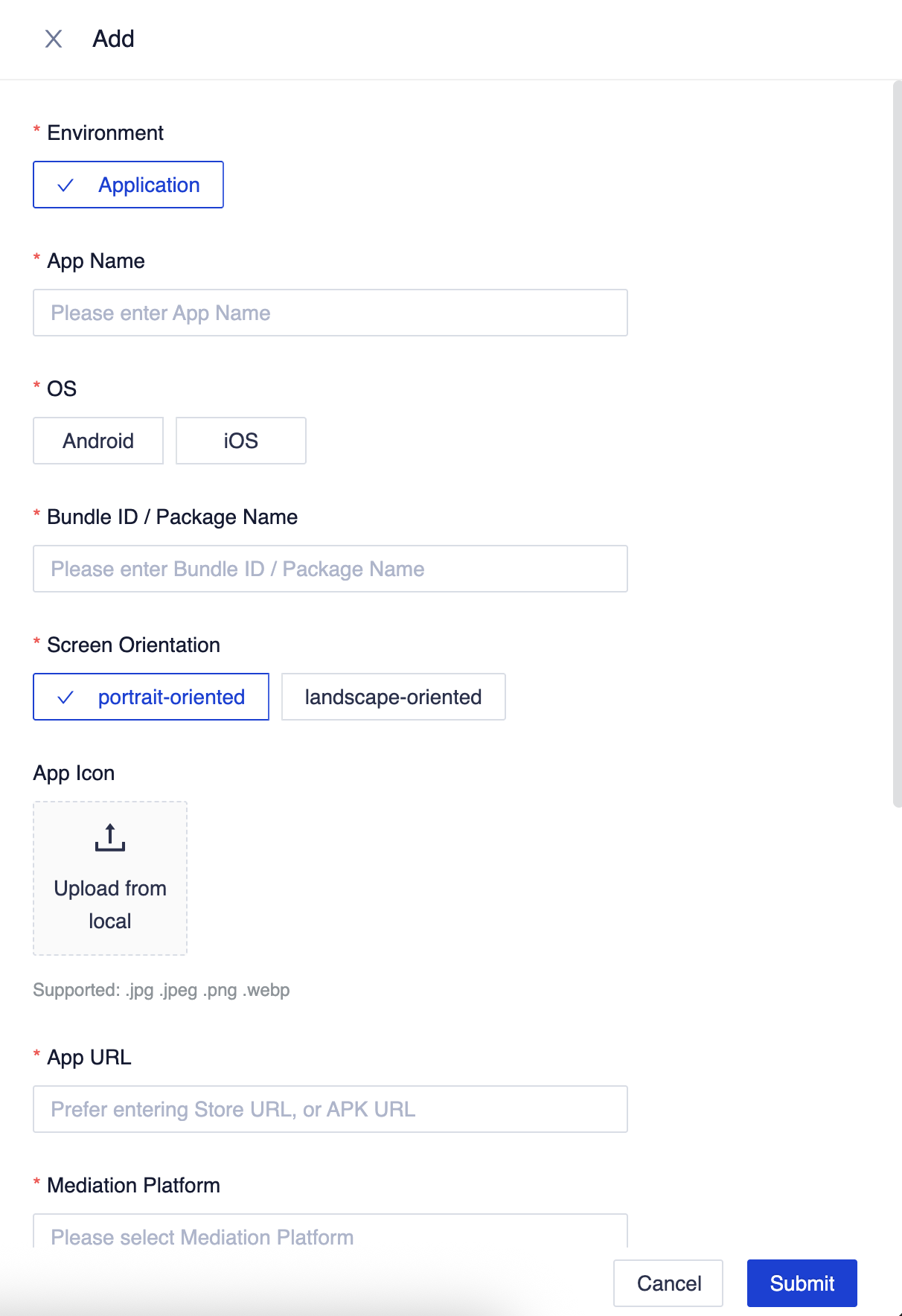
Fill out the rest of the form and click Submit.
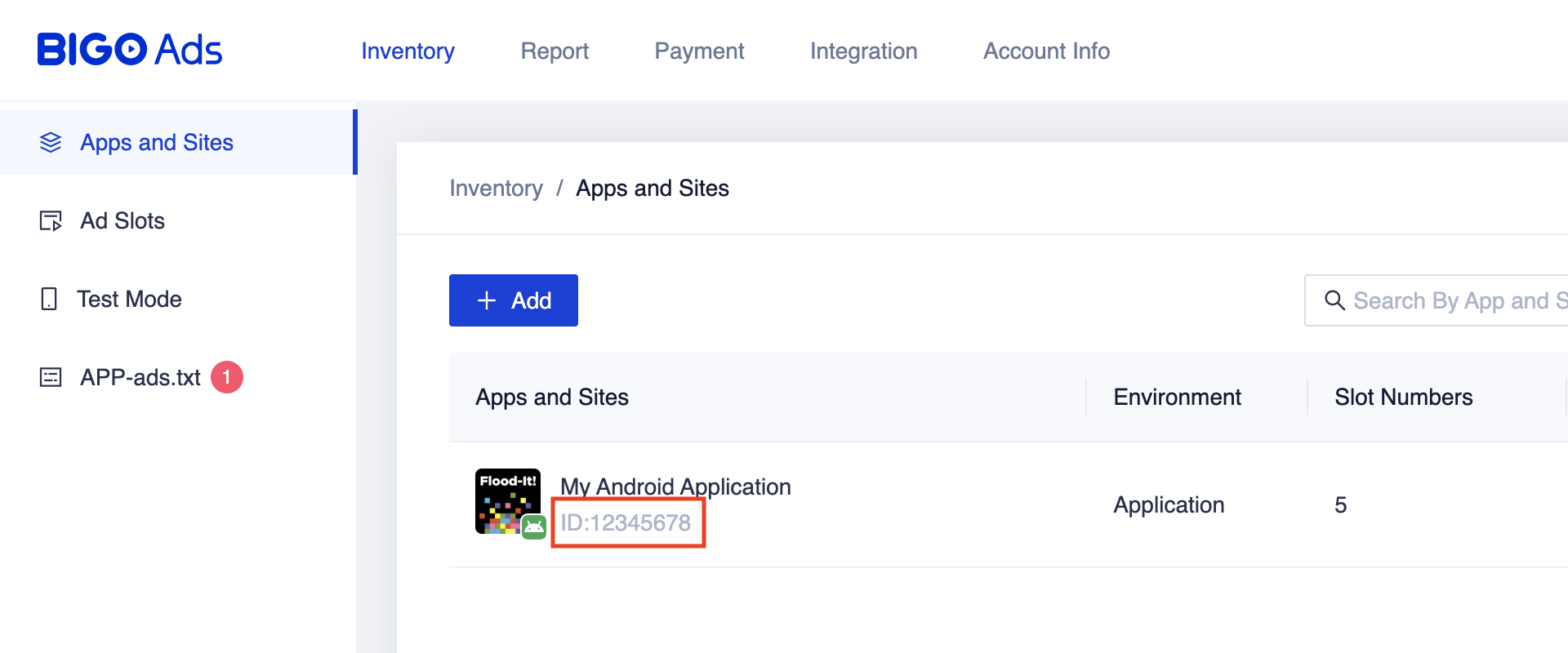
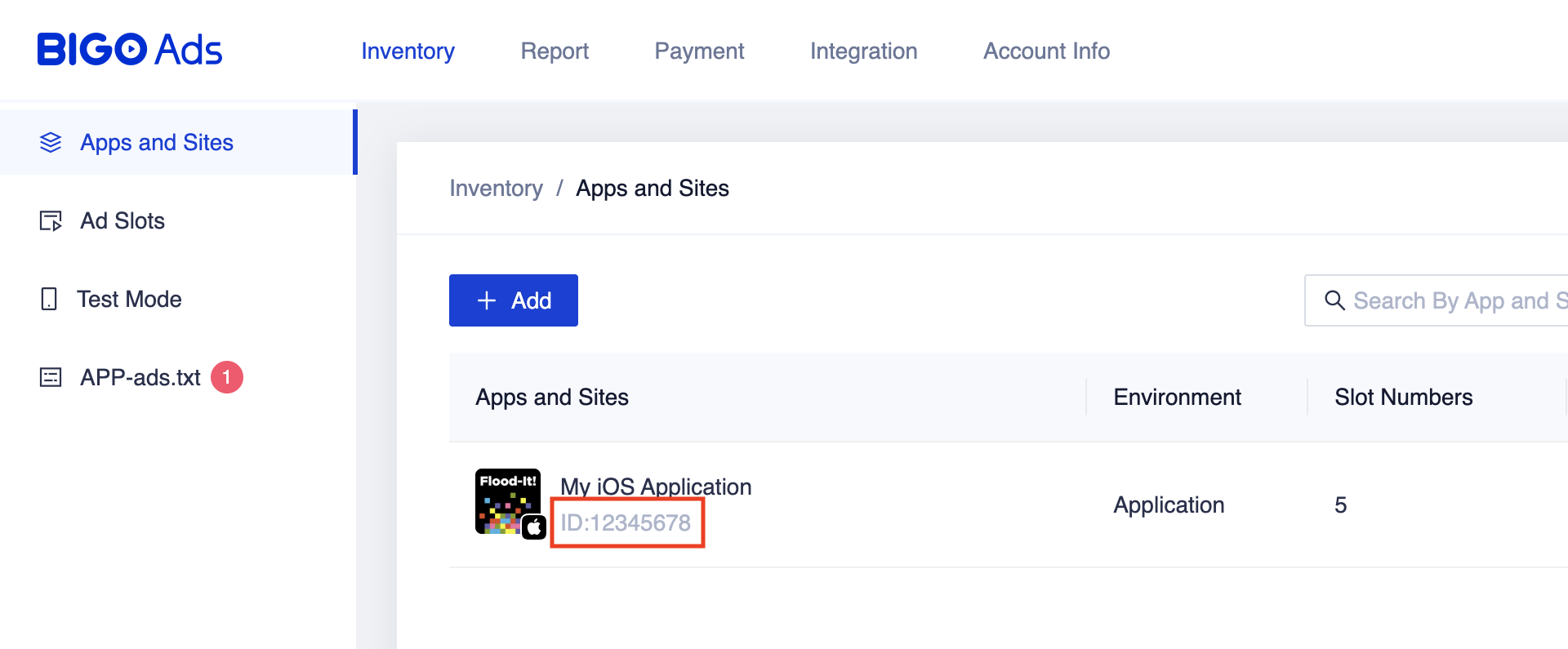
Take note of your Application ID.
Android
iOS
Create an ad slot
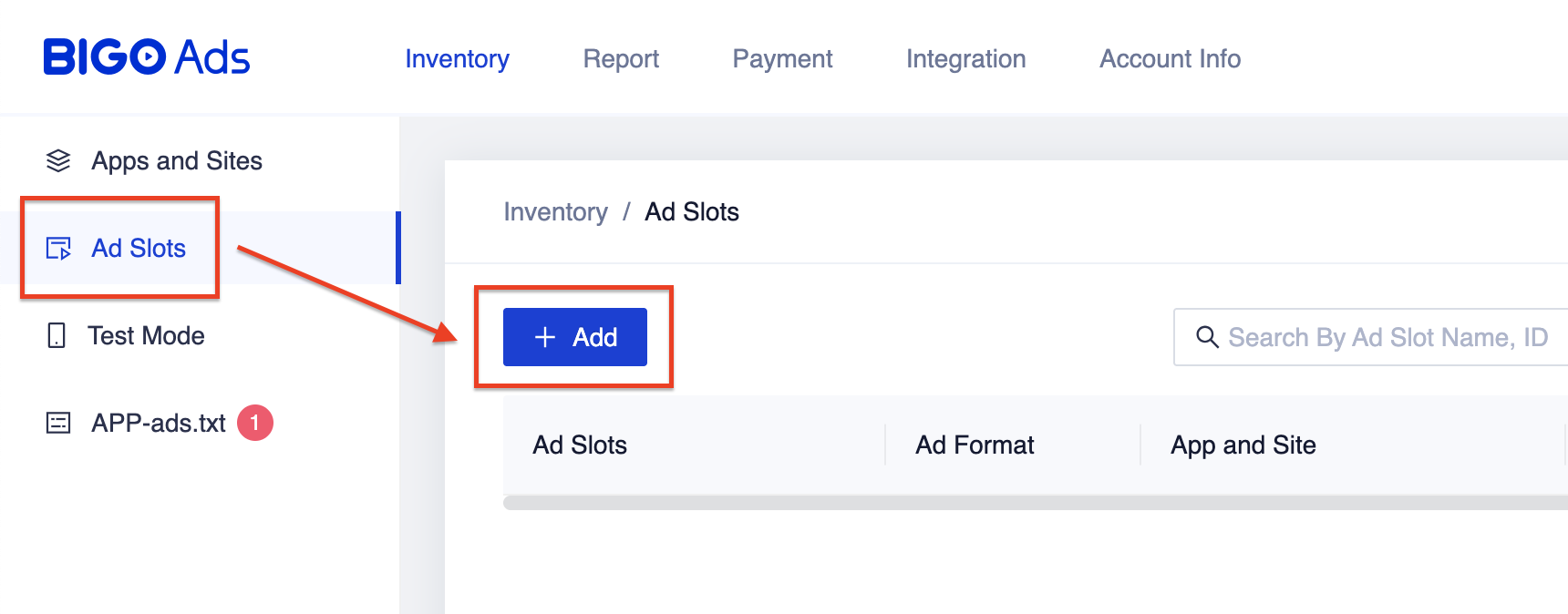
Once your application has been reviewed, navigate to the Ad Slots table and select the + Add button.
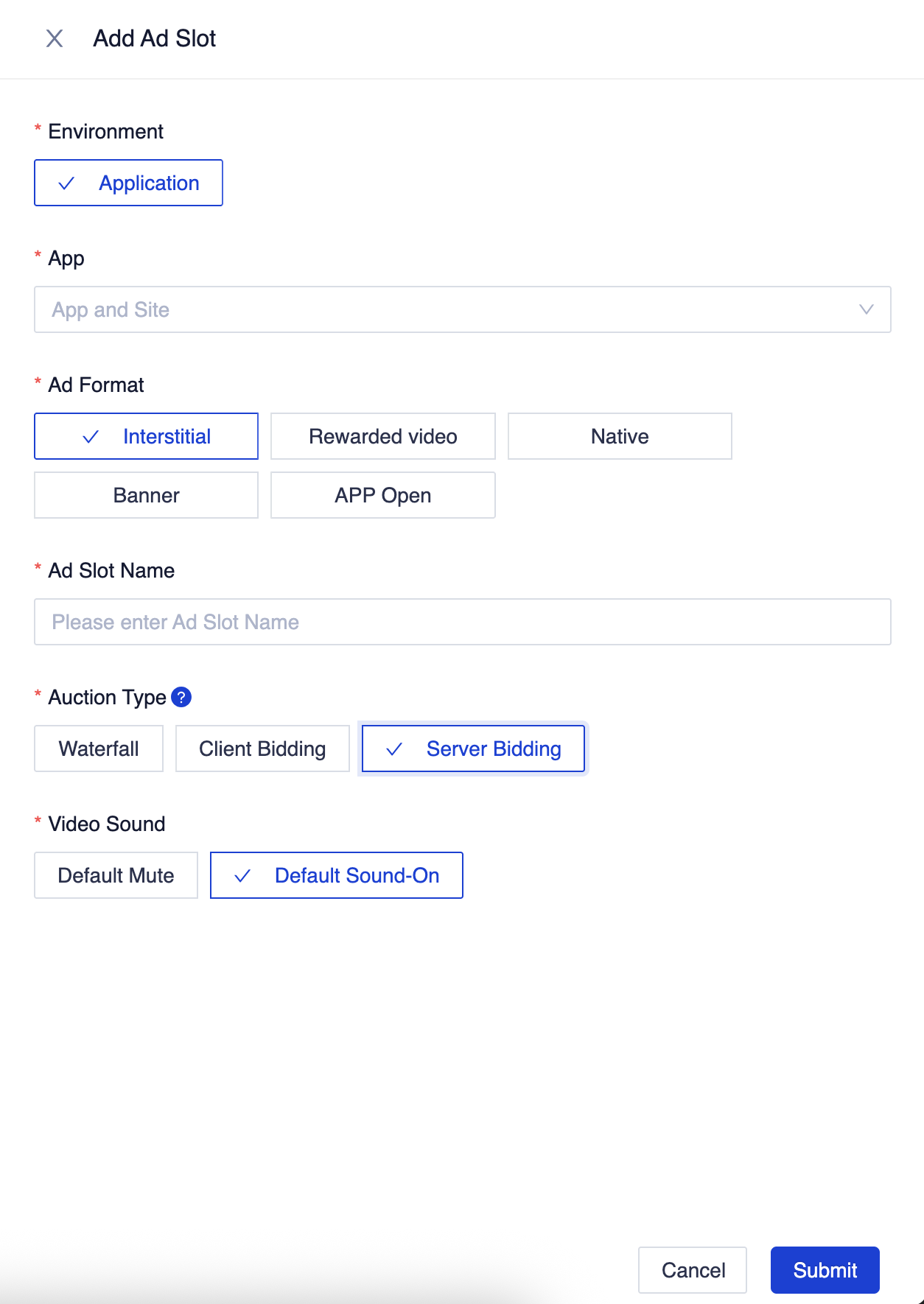
Select Server Bidding for the Auction Type, fill out the rest of the form and click Submit.
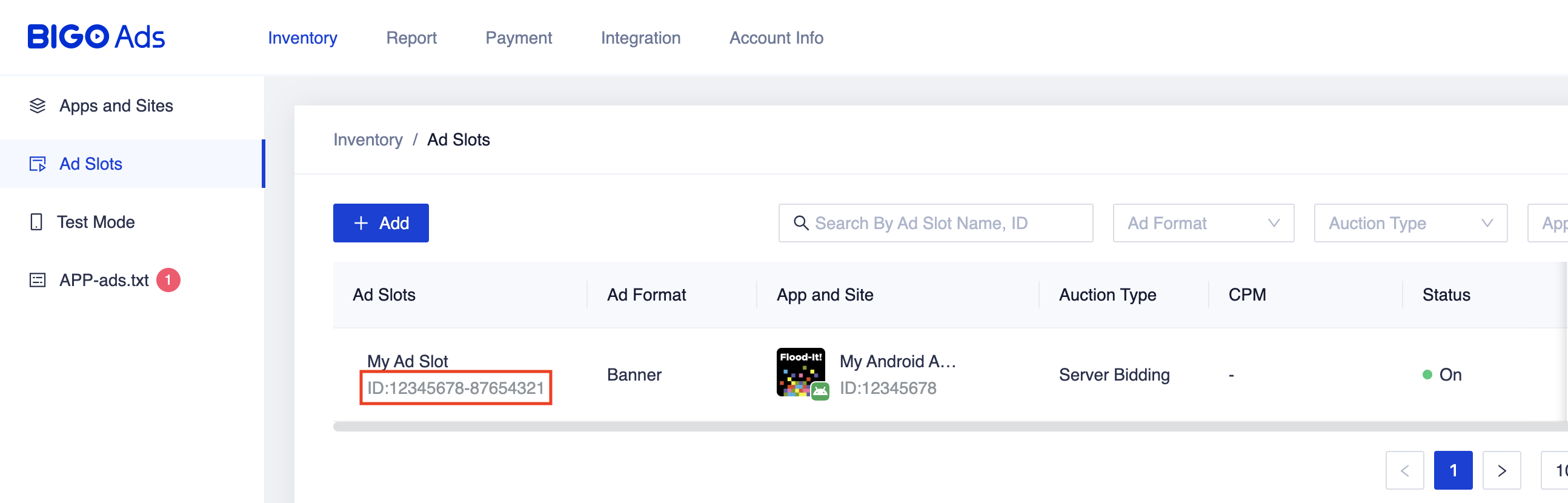
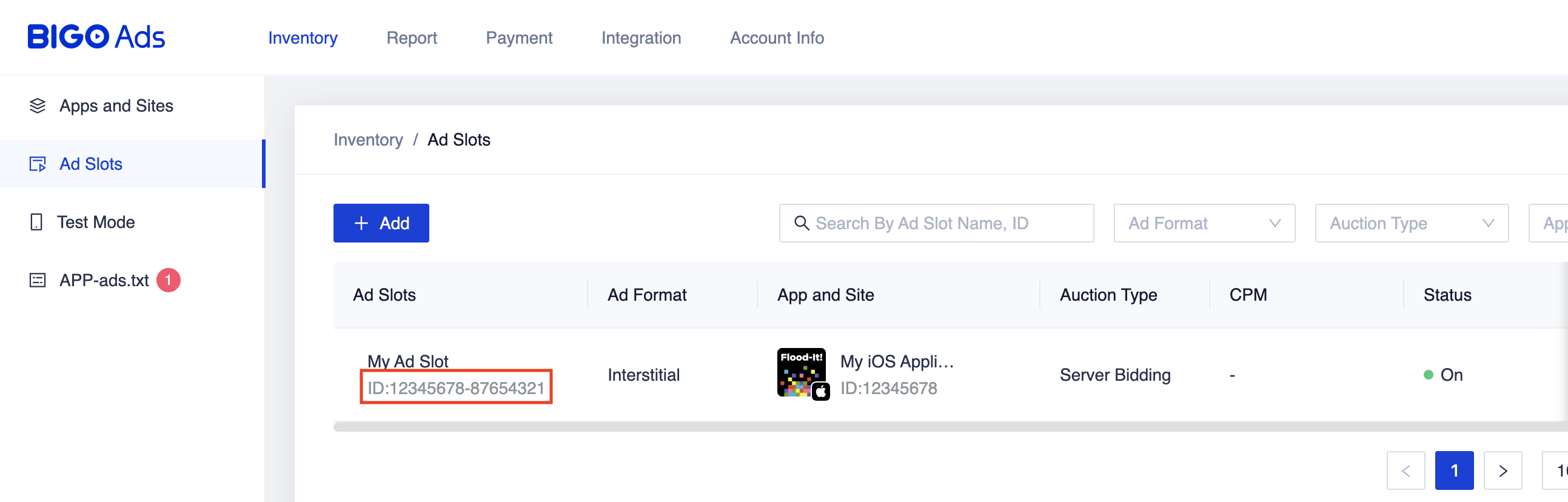
Take note of the Slot ID
Android
iOS
Update your app-ads.txt
Authorized Sellers for Apps app-ads.txt is an IAB Tech Lab initiative that helps ensure your
app ad inventory is only sold through channels you've identified as authorized. To prevent a
significant loss in ad revenue, you'll need to implement an app-ads.txt file.
If you haven't done so already,
create an app-ads.txt file for Ad Manager.
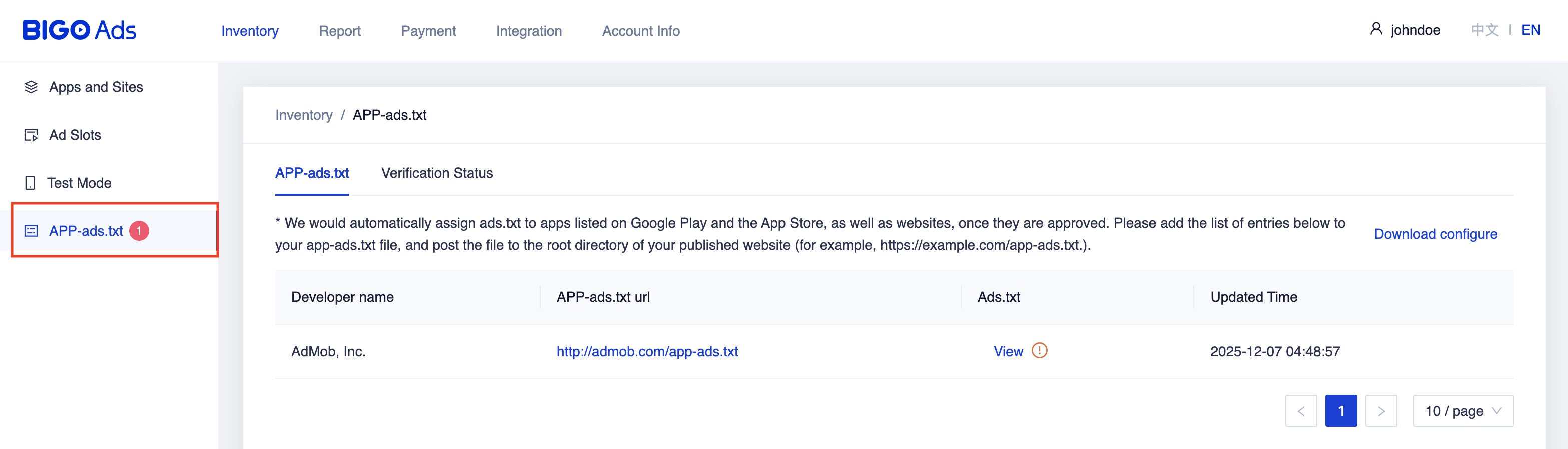
To implement app-ads.txt for BIGO Ads SDK, navigate to the APP-ads.txt
tab from the Dashboard and follow
the instructions located in the tab.
Step 2: Set up BIGO Ads SDK demand in Ad Manager UI
Configure mediation settings for your ad unit
Android
For instructions, see step 2 in the guide for Android.
iOS
For instructions, see step 2 in the guide for iOS.
Add BIGO TECHNOLOGY PTE LTD to GDPR and US state regulations ad partners list
Follow the steps in European regulations settings and US state regulations settings to add Empathy Technology Pte.Ltd. (BIGO Ads) to the European regulations ad partners list and ** BIGOAds** to the US state regulations ad partners list in the Ad Manager UI.
Step 3: Import the BIGO Ads SDK and adapter
OpenUPM-CLI
If you have OpenUPM-CLI installed, you can install the Google Mobile Ads BIGO Ads SDK Mediation Plugin for Unity to your project by running the following command from your project's root directory:
openupm add com.google.ads.mobile.mediation.bigoOpenUPM
In your Unity project editor, select Edit > Project Settings > Package Manager to open the Unity Package Manager Settings.
Under the Scoped Registries tab, add OpenUPM as a scoped registry with the following details:
- Name:
OpenUPM - URL:
https://package.openupm.com - Scope(s):
com.google

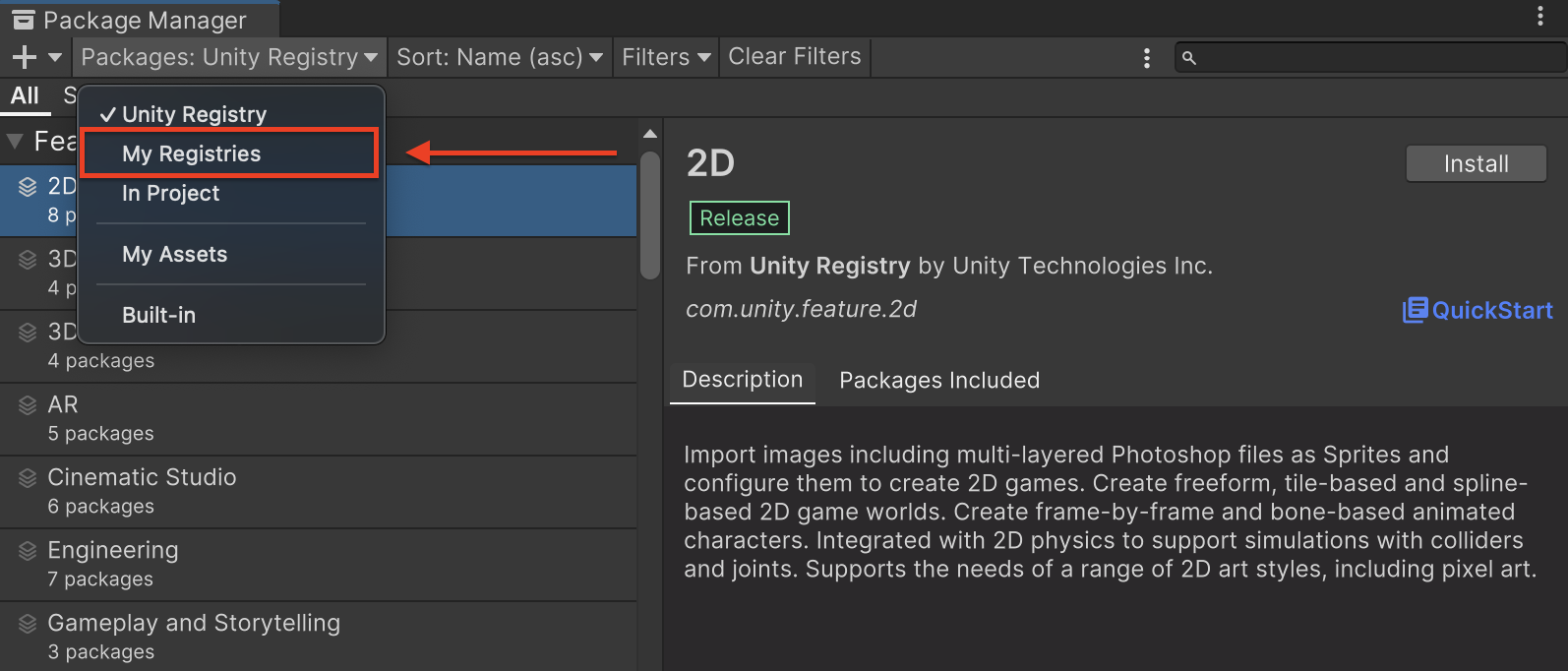
Then, navigate to Window > Package Manager to open the Unity Package Manager and select My Registries from the drop-down menu.
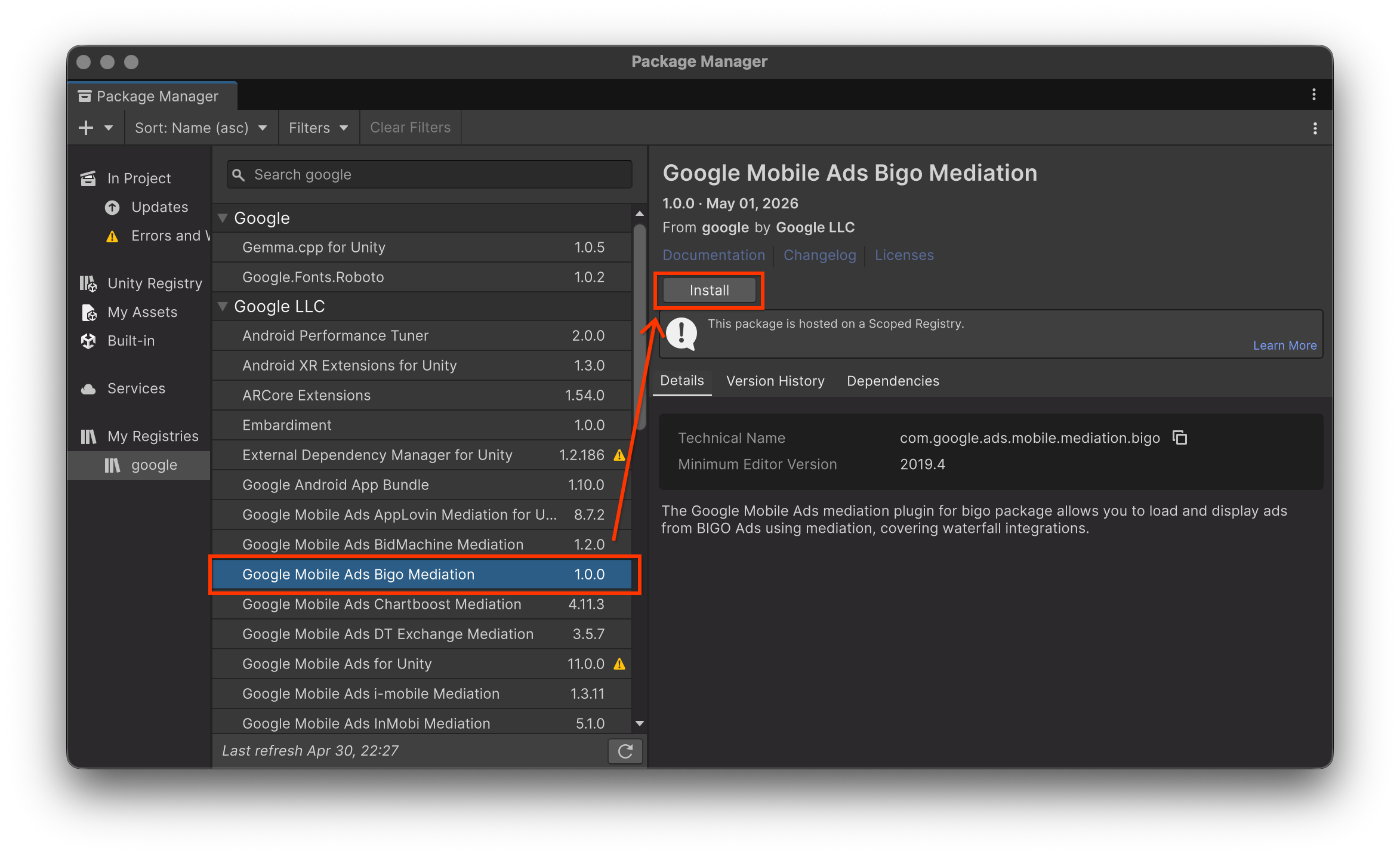
Select the Google Mobile Ads Bigo Mediation package and click Install.
Unity Package
Download the latest version of Google Mobile Ads mediation plugin for
BIGO Ads SDK from the download link in
the
Changelog
and extract the
GoogleMobileAdsBigoMediation.unitypackage from the zip
file.
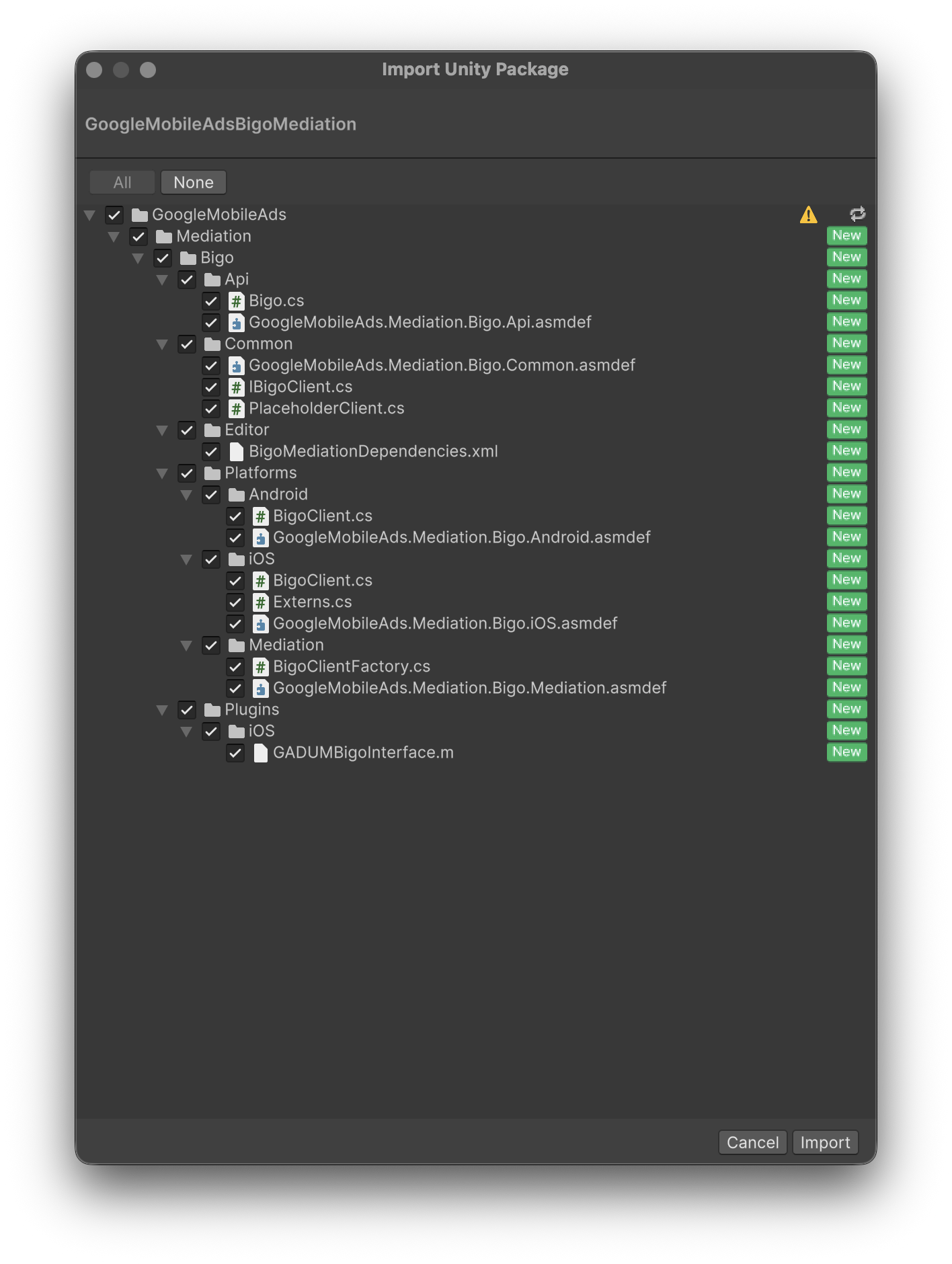
In your Unity project editor, select Assets > Import Package >
Custom Package and find the
GoogleMobileAdsBigoMediation.unitypackage
file you downloaded. Make sure that all the files are selected and click
Import.
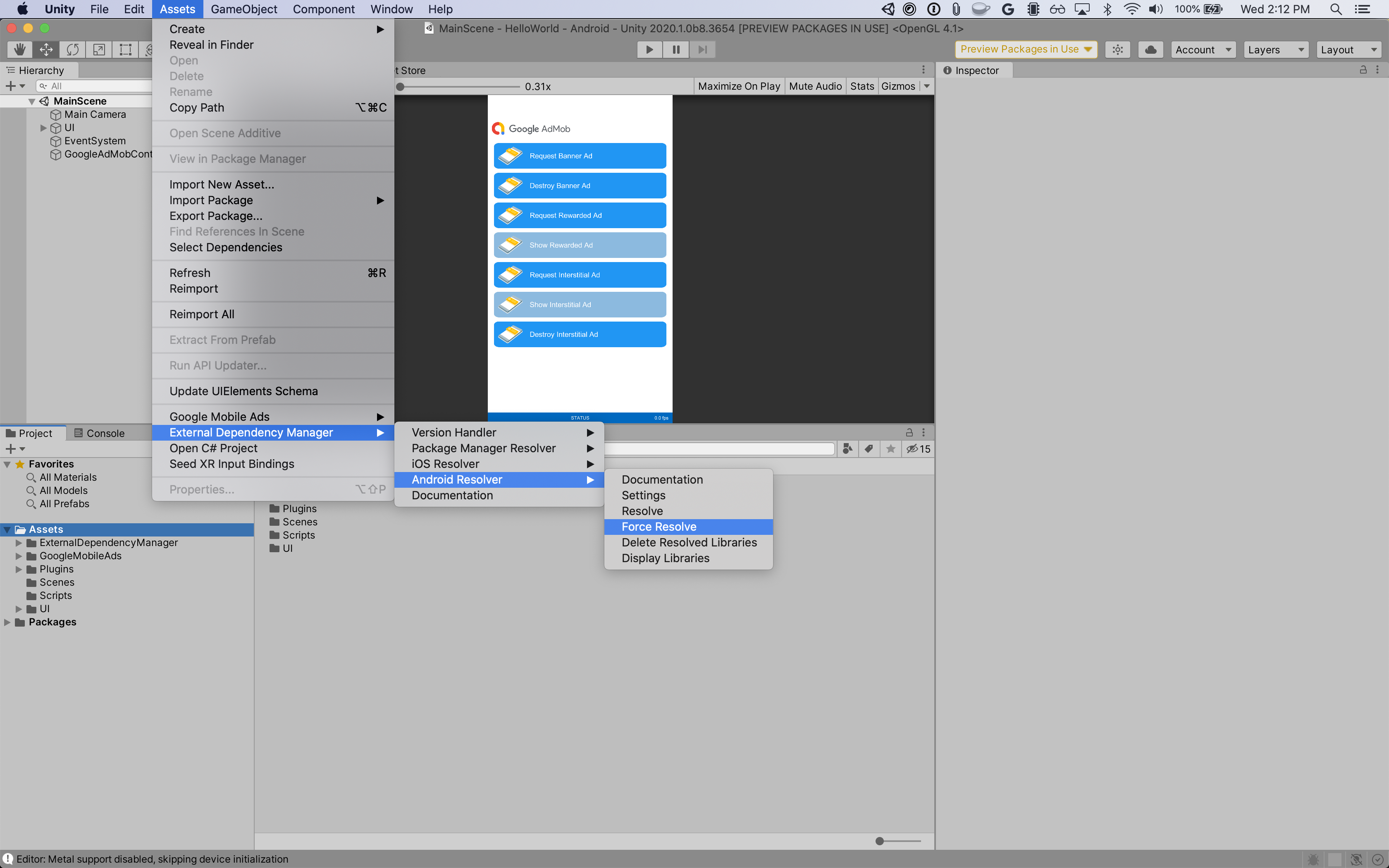
Then, select Assets > External Dependency Manager >
Android Resolver > Force Resolve. The External Dependency Manager
library will perform dependency resolution from scratch and copy the
declared dependencies into the Assets/Plugins/Android directory of your
Unity app.
Step 4: Implement privacy settings on BIGO Ads SDK
To implement privacy settings for BIGO Ads SDK and comply with relevant privacy regulations, read the following sections.
EU Consent and GDPR
To comply with the Google EU User Consent Policy, you must make certain disclosures to your users in the European Economic Area (EEA), the UK, and Switzerland, and obtain their consent for the use of cookies or other local storage where legally required, and for the collection, sharing, and use of personal data for ads personalization. This policy reflects the requirements of the EU ePrivacy Directive and the General Data Protection Regulation (GDPR). You are responsible for verifying that consent is propagated to each ad source in your mediation chain.
BIGO Ads SDK automatically reads GDPR consent set by consent management platforms including the UMP SDK. For more information, see BIGO Ads SDK's GDPR guide for Android and iOS.
US states privacy laws
US states privacy laws require giving users the right to opt out of the "sale" of their "personal information" (as the law defines those terms), with the opt-out offered through a prominent "Do Not Sell My Personal Information" link on the "selling" party's homepage. The US states privacy laws compliance guide offers the ability to enable restricted data processing for Google ad serving, but Google is unable to apply this setting to each ad network in your mediation chain. Therefore, you must identify each ad network in your mediation chain that may participate in the sale of personal information and follow guidance from each of those networks to ensure compliance.
The following sample code shows how to pass the consent flag to BIGO Ads SDK. Call this method before requesting ads through Google Mobile Ads Unity Plugin.
using GoogleMobileAds.Mediation.Bigo.Api;
// ...

Bigo.SetCcpaConsent(true);
Step 5: Add required code
Android
No additional code required for BIGO Ads SDK integration.
iOS
SKAdNetwork integration
Follow BIGO Ads SDK's documentation
to add the SKAdNetwork identifiers to your project's Info.plist file.
Step 6: Test your implementation
Enable test ads
Make sure you register your test device for Ad Manager.
BIGO Ads provides test Application IDs and Ad Slot IDs for Android and iOS to help with testing and integration.
Verify test ads
To verify that you are receiving test ads from BIGO Ads SDK, enable single ad source testing in ad inspector using the BIGO Ads SDK (Bidding) ad source(s).
Error codes
If the adapter fails to receive an ad from BIGO Ads SDK, you can check
the underlying error from the ad response using
ResponseInfo under the
following classes:
Android
sg.bigo.ads
com.google.ads.mediation.bigo.BigoMediationAdapter
iOS
GADMediationAdapterBigo
The codes and accompanying messages are thrown by the BIGO Ads SDK adapter when an ad fails to load:
Android
| Error code | Domain | Reason |
|---|---|---|
| 101 | com.google.ads.mediation.bigo | Missing or empty Bigo Slot ID. |
| 1000-1100 | Sent by BIGO Ads SDK | BIGO Ads SDK returned an error. See BIGO Ads SDK's documentation for more details. |
iOS
| Error code | Domain | Reason |
|---|---|---|
| 101 | com.google.mediation.bigoadapter | Server configuration missing a required application ID. |
| 102 | com.google.mediation.bigoadapter | Invalid ad configuration. |
| 103 | com.google.mediation.bigoadapter | Ad presentation failure. |
| 104 | com.google.mediation.bigoadapter | Unsupported banner size. |
| 105 | com.google.mediation.bigoadapter | Bigo loaded a banner ad successfully but missing an ad view. |
| 1000-1100 | Sent by BIGO Ads SDK | BIGO Ads SDK returned an error. See BIGO Ads SDK's documentation for more details. |
BIGO Ads SDK Unity Mediation Plugin Changelog
Version 3.0.0
- Supports BIGO Ads SDK Android adapter version 6.0.0.1.
- Supports BIGO Ads SDK iOS adapter version 6.0.0.0.
- Built and tested with the Google Mobile Ads Unity Plugin version 11.5.0.
Version 2.0.0
- Supports BIGO Ads SDK Android adapter version 6.0.0.0.
- Supports BIGO Ads SDK iOS adapter version 5.3.0.0.
- Built and tested with the Google Mobile Ads Unity Plugin version 11.4.0.
Version 1.1.0
- Supports BIGO Ads SDK Android adapter version 5.10.1.0.
- Supports BIGO Ads SDK iOS adapter version 5.3.0.0.
- Built and tested with the Google Mobile Ads Unity Plugin version 11.3.0.
Version 1.0.0
- Initial release!
- Supports BIGO Ads SDK Android adapter version 5.8.0.0.
- Supports BIGO Ads SDK iOS adapter version 5.1.2.0.
- Built and tested with the Google Mobile Ads Unity Plugin version 11.0.0.