
Place Markers component
The Place Markers component lets you create customizable map annotations that display key Place information directly on the map. You can display content such as a place's rating, place type, open or closed status, price range, or custom text (for instance, an AI-generated label or itinerary number). This provides your users with a more informative map exploration experience without requiring them to tap into a detailed place card.
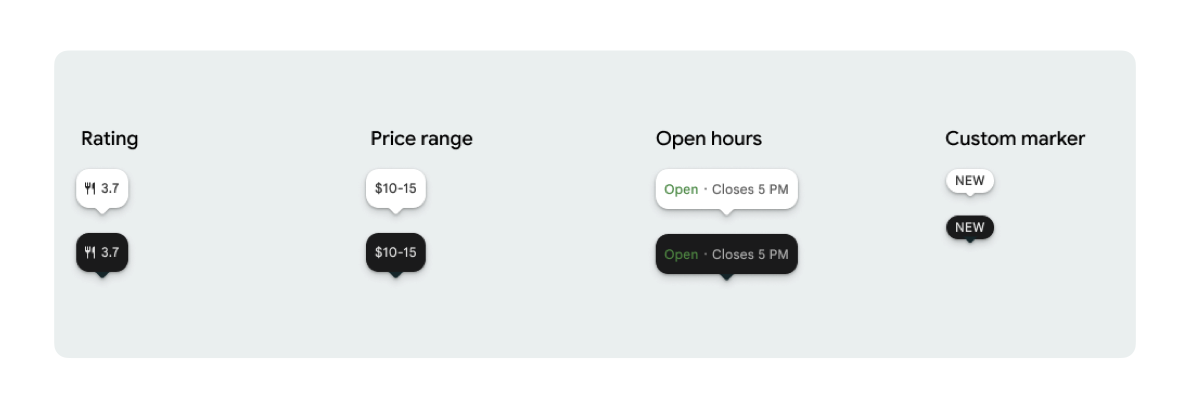
You can display one marker icon and optional marker text per PlaceMarker.
The available icons are:
type: The type of place.none: No icon.
rating: Rating score.priceRange: Price range (for example, $10-20).openStatus: Whether a business is open or closed.custom: Custom text (for example, "POPULAR").
Reference the place using a Place ID (.placeID), Resource name (.resourceName), or geographic coordinates (.coordinate).
Display and attribution requirements
When Places UI Kit map markers are displayed, markers must not appear in isolation. They must be interactive and open an associated Place Details Component or Lightbox upon click or tap to provide required Google branding, contributor attribution, and Report a Problem flows.
See our photos and reviews attribution requirements for scenarios where space is limited.
Place Marker examples
Basic marker customizations
The following code example demonstrates basic place marker customizations.
Swift
import GooglePlacesSwift
import SwiftUI

@MainActor
struct DefaultMarker: View {
  var body: some View {
    PlaceMarker(
      identifier: PlaceIdentifier.placeID("PLACE_ID"),
      markerIcon: .none
    )
  }
}

@MainActor
struct RatingMarker: View {
  var body: some View {
    PlaceMarker(
      identifier: PlaceIdentifier.placeID("PLACE_ID"),
      markerIcon: .none,
      markerText: .rating
    )
  }
}

@MainActor
struct TypeAndRatingMarker: View {
  var body: some View {
    PlaceMarker(
      identifier: PlaceIdentifier.placeID("PLACE_ID"),
      markerIcon: .type,
      markerText: .rating
    )
  }
}


@MainActor
struct PriceRangeMarker: View {
  var body: some View {
    PlaceMarker(
      identifier: PlaceIdentifier.resourceName("places/PLACE_RESOURCE_NAME"),
      markerIcon: .none,
      markerType: .priceRange
    )
  }
}


@MainActor
struct OpenStatusMarker: View {
  var body: some View {
    PlaceMarker(
      identifier: PlaceIdentifier.coordinate(CLLocationCoordinate2D(latitude: 37.7749, longitude: -122.4194)),
      markerIcon: .icon,
      markerText: .openStatus
    )
  }
}
@MainActor
struct PhotoMarker: View {
    PlaceMarker(
        identifier: PlaceIdentifier.resourceName("places/PLACE_RESOURCE_NAME")
        markerIcon =.Photo
    )
}


@MainActor
struct CustomMarker: View {
  var body: some View {
    PlaceMarker(
      identifier: PlaceIdentifier.placeID("PLACE_ID"),
      markerIcon: .none,
      markerType: .custom(label: "3")
    )
  }
}
Customize marker appearance
The following code example demonstrates how to use declarative SwiftUI view modifiers to customize marker appearance by hiding the triangular speech bubble beak and provide a tap callback to trigger custom app actions when the user taps the marker.
Swift
@MainActor
struct ModifierStyleMarker: View {
  var body: some View {
    PlaceMarker(
      identifier: .placeID("PLACE_ID"),
      markerIcon: .none,
      markerText: .openStatus,
      configuration: PlaceMarkerConfiguration(beakPresence: false)
    )
    .onTap { placeID in
      print("Marker tapped for place: \(placeID)")
    }
  }
}
Handle callbacks
The following code example demonstrates how to use callbacks to handle successful rendering or missing data errors.
Swift
import GooglePlacesSwift
import SwiftUI


@MainActor
struct StatusHandlingMarker: View {
  var body: some View {
    PlaceMarker(
      identifier: PlaceIdentifier.placeID("PLACE_ID"),
      markerIcon: .none
      markerText: .priceRange,
    )
    /// Triggered when place data is successfully fetched or when data fetching fails or
    /// required data is missing for the place..
    .onLoad { result in
        if let place = result.place {
          print("Marker successfully loaded for place ID: \(place.placeID)")
        } else if let error = result.error {
          print("Failed to load marker: \(error)")
      }
    }
  }
}
Integrate with the Maps SDK
The following code example demonstrates how to embed PlaceMarker within a Google Maps SDK for iOS GMSMarker using the PlaceMarkerHostingView helper class to wrap around PlaceMarker.
Swift
import GoogleMaps
import GooglePlacesSwift
import SwiftUI
import UIKit


func addPlaceMarker(to mapView: GMSMapView, placeID: String) {
  let marker = GMSMarker()
  let markerView = PlaceMarker(
    identifier: .placeID(placeID),
    markerType: .rating(showIcon: true),
  ).onLoad { result in
    switch Result
    case .success(let place)
      marker.position = place.coordinate
    case .error(let error) {
      print("Failed to load marker: \(error)")
    }
  }

  marker.iconView = PlaceMakerHostingView(markerView)
  marker.map = mapView
}