
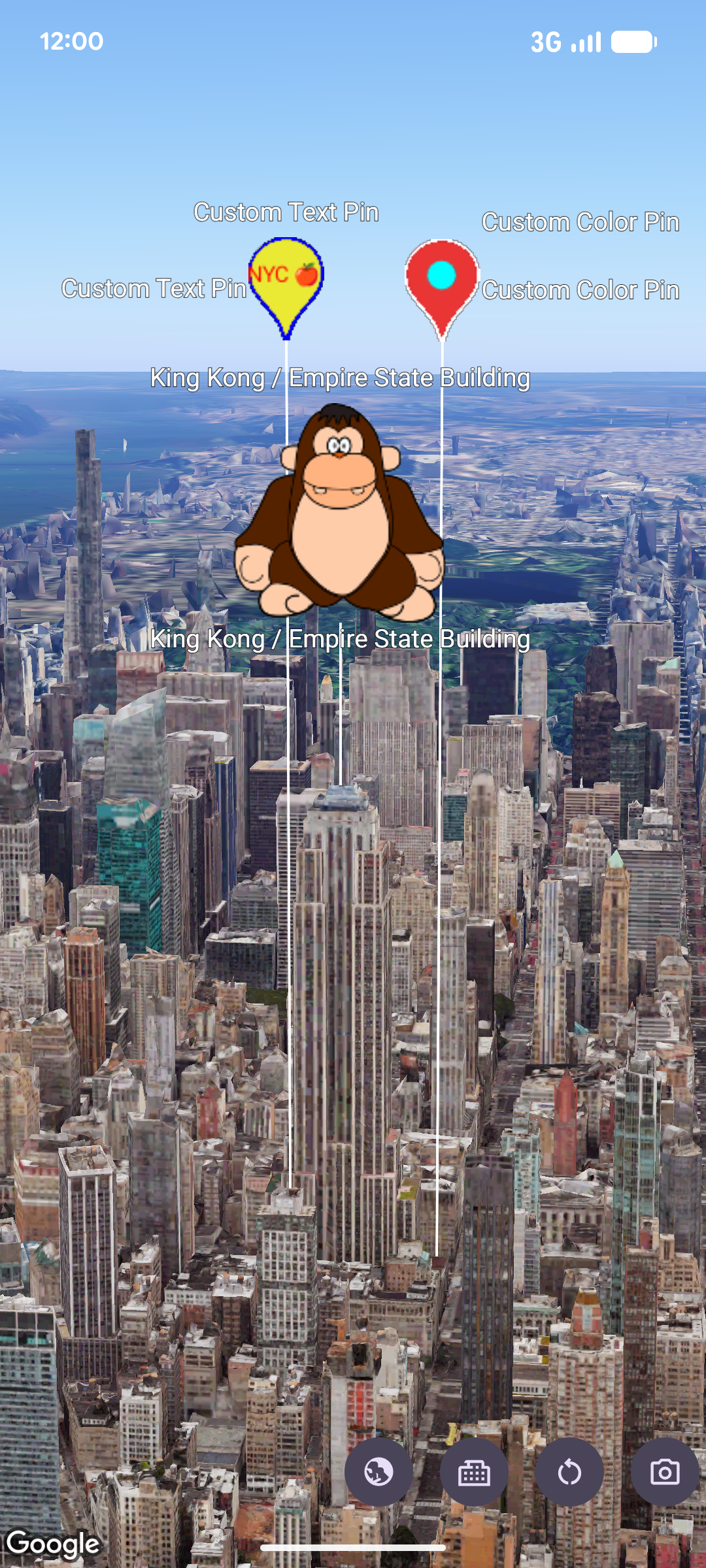
You can use
MarkerView
to render custom Android View hierarchies as markers on a 3D map. Custom view
markers let you display rich UI layouts, interactive widgets, and view
animations anchored to geographic coordinates.
Add a custom view marker
To add a custom view marker to your map, create a
MarkerViewOptions
instance, configure its location with
setPosition
using a
LatLngAltitude
object, and supply your custom Android View using
setContent.
Then, pass the options to
addMarkerView
on your
GoogleMap3D
instance.
If you don't provide a view to
setContent,
the SDK creates and renders a default
PinView.
// Add imports
import android.widget.TextView
import com.google.android.gms.maps3d.model.MarkerViewOptions
import com.google.android.gms.maps3d.model.latLngAltitude

// Create a custom Android View
val badgeView = TextView(context).apply {
    text = "Empire State Building"
    contentDescription = "Marker for Empire State Building"
    setPadding(24, 12, 24, 12)
}

// Configure MarkerViewOptions and add the marker view to the map
val options = MarkerViewOptions().apply {
    position = latLngAltitude {
        latitude = 40.7484
        longitude = -73.9857
        altitude = 100.0
    }
    content = badgeView
}

val markerView = googleMap3D.addMarkerView(options)
Customize the default PinView
Instead of building a completely custom Android View, you can render a
customized pin by creating a
PinView
with a custom
PinConfiguration
(or updating an existing instance with
setPinConfiguration)
and passing it to
setContent.
// Add imports
import android.graphics.Color
import com.google.android.gms.maps3d.model.MarkerViewOptions
import com.google.android.gms.maps3d.model.PinView
import com.google.android.gms.maps3d.model.latLngAltitude
import com.google.android.gms.maps3d.model.pinConfiguration

// Create a customized PinView
val customPinView = PinView(context, pinConfiguration {
    backgroundColor = Color.BLUE
    borderColor = Color.WHITE
})

// Configure MarkerViewOptions and add the marker view to the map
val options = MarkerViewOptions().apply {
    position = latLngAltitude {
        latitude = 40.7484
        longitude = -73.9857
        altitude = 100.0
    }
    content = customPinView
}

val markerView = googleMap3D.addMarkerView(options)
Handle interactions and animations
Because a
MarkerView
wraps an Android View, you can attach standard click listeners and view
animations directly to the view returned by
getContent.
In addition,
MarkerView
implements
Anchorable,
which lets you anchor a
Popover
to the marker view using
addPopover:
markerView?.content?.setOnClickListener { view ->
    // Animate the view when clicked
    view.animate().rotationBy(90f).setDuration(300).start()
}
Configure altitude and collision behavior
You can customize how a
MarkerView
is positioned vertically and how it interacts with overlapping map labels or
markers:
- Altitude mode: Call
setAltitudeModeonMarkerViewOptionswith anAltitudeModeconstant. By default,MarkerViewOptionsusesAltitudeMode.CLAMP_TO_GROUND. - Collision behavior: Call
setCollisionBehaviorwith aCollisionBehaviorconstant (defaults toCollisionBehavior.REQUIRED), and usesetCollisionPriorityto specify display priority when markers collide.
Accessibility and removal
You are responsible for configuring accessibility properties—such as
contentDescription—on the custom Android View supplied to
setContent.
To remove a
MarkerView
from the map, call
remove:
markerView?.remove()