
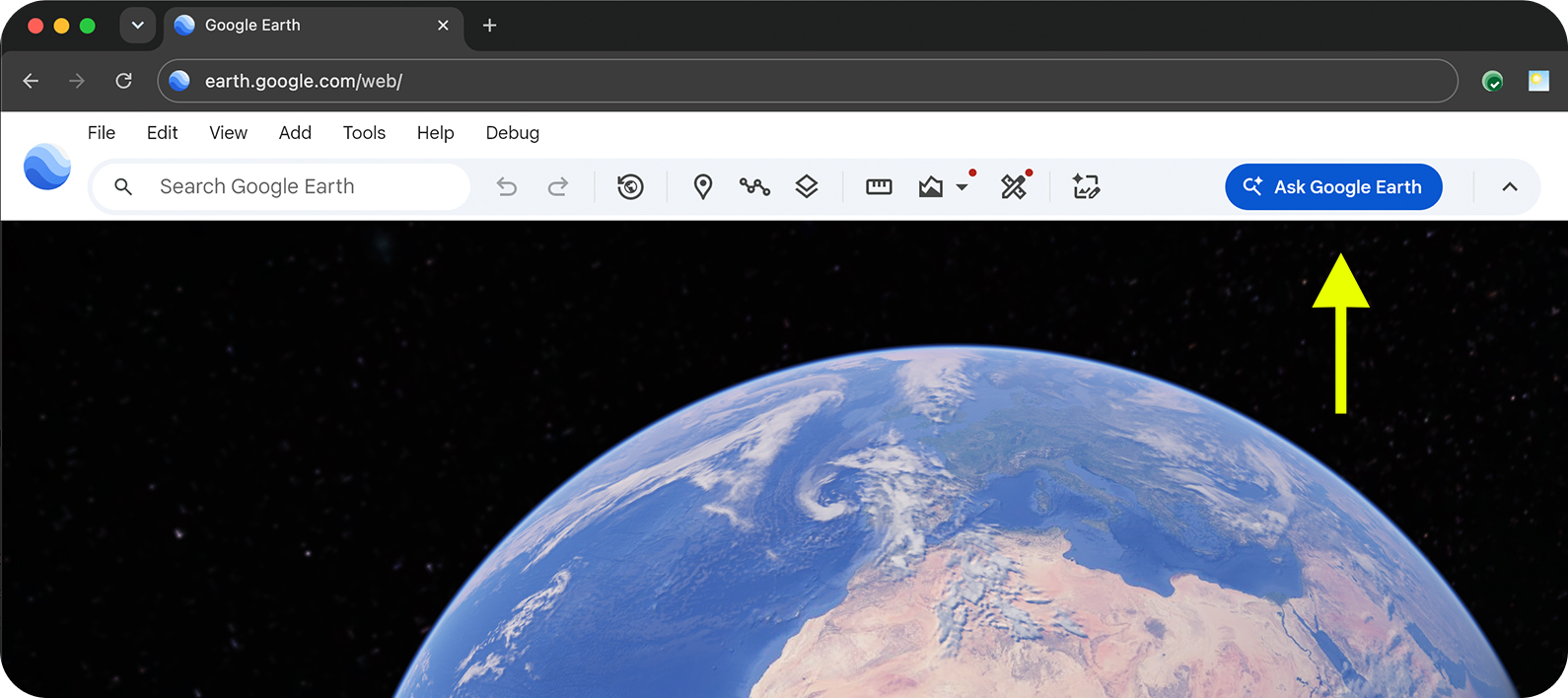
Activate the chat interface in Google Earth
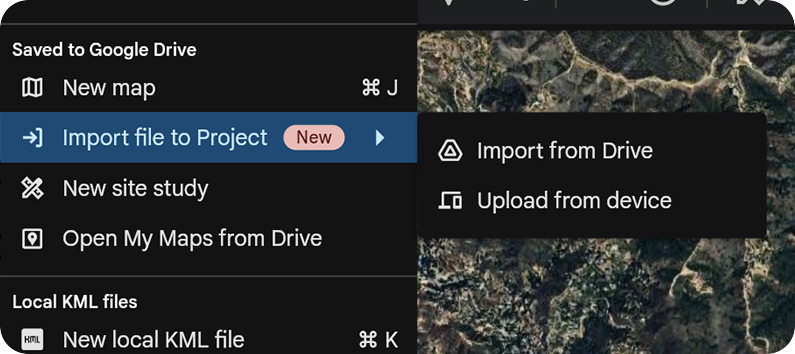
Import KML or KMZ (optional)
To start testing Ask Google Earth, do the following:
- Sign in to your Google Account.
- On your computer, open Google Earth in a web browser.
- Select Create a new map.
Activate the chat interface by clicking
 Ask Google Earth in the menu bar.
Enter your prompt.
- You can now import KML files directly into Google Earth. Select File Import file to {map name} to add a file from your computer or Google Drive. After uploading, you can select features from your imported file and ask things like, "How many of my selected features are within 1,000 feet of a bus stop?"
- Ask Google Earth can use features in your project as context for the prompt. Select folders, placemarks or polygons in your map and reference them in your prompt.
- Ask Google Earth can also scope results to the portion of the map visible on your screen, or viewport..
Analyze new and existing geospatial datasets
Ask Google Earth can help you create and analyze new and existing geospatial datasets. You can submit prompts based on spatial relationships and criteria, or within the context of your project features or viewport.
To get started, try one of the following categories of prompts:
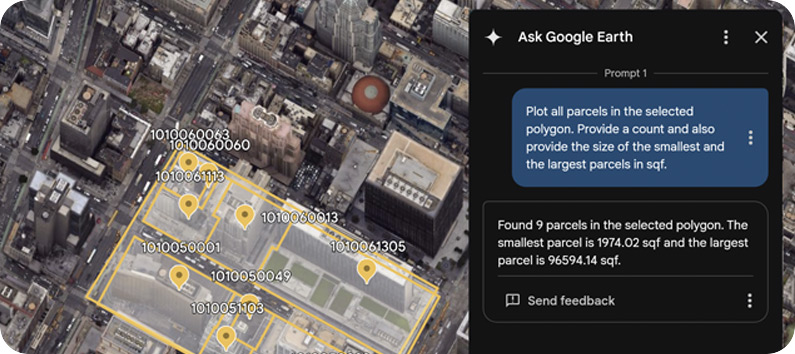
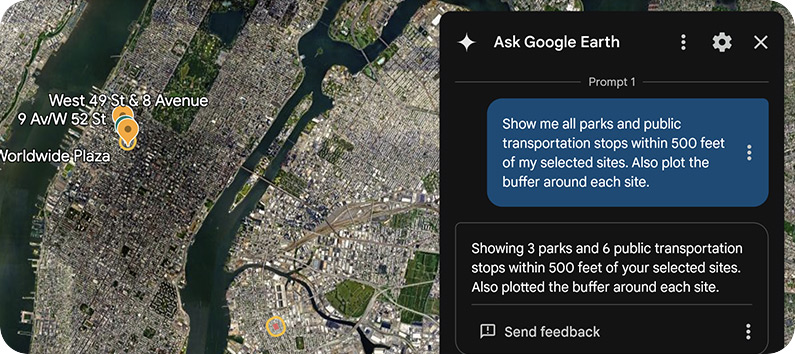
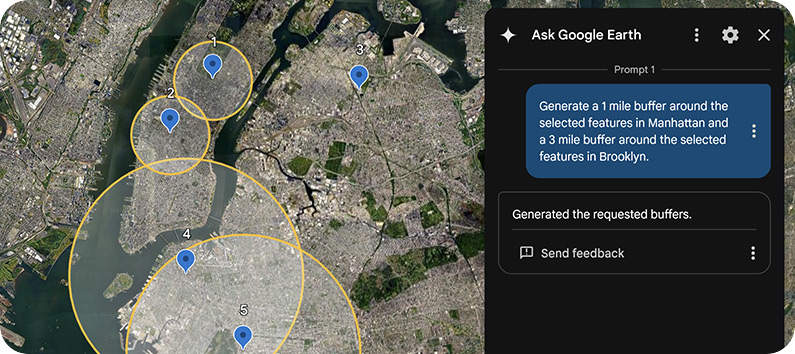
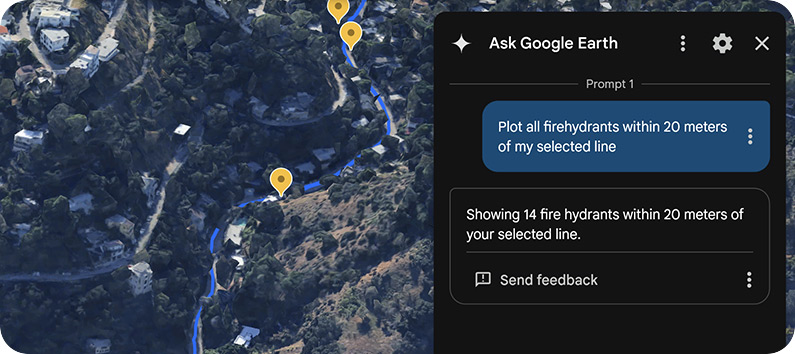
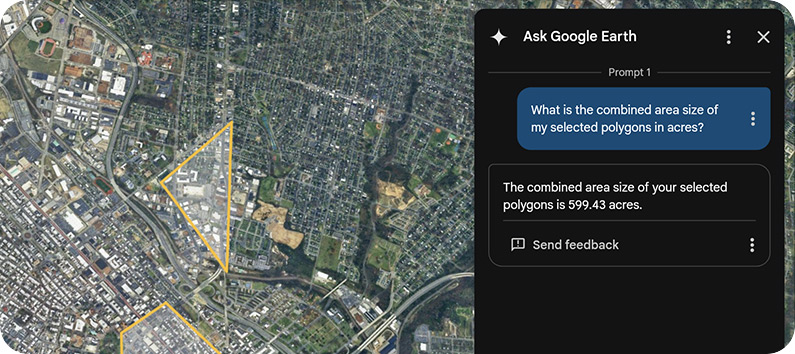
Discover locations based on criteria and spatial relationships
- "Map out all the community centers, parks, and schools within 400 ft of subway stations in lower Manhattan."
- "Highlight parks over 2 acres in Venice Beach."
- "Map out all the community centers, parks, schools, daycares in Carmel, CA."
- "Show me the zip codes in Boston which have more than 5 coffee shops."
- "Show me parcels greater than 20 acres within 1 mile of my placemarks."
- "Show me zip codes: 90047, 90048, and 90034."
- "Map coffee shops and EV chargers within 1000 ft of the Willis Tower."
Analyze data within your selection or viewport
- "Plot all utility poles within my selected polygon."
- "Map all bus stops within 50 ft of my selected placemarks."
- "Show me all of the transit stops and transportation hubs within a half mile of my selected placemark."
- "Map out all the EV chargers within my selected polygon."
- "Plot all parcels in my selected polygon and provide a count."
Perform geospatial operations
Perform lightweight geospatial operations, apply specific conditions and request calculations. For example:
- "Create a 5km buffer around my selected placemarks."
- "Create a 5km buffer for placemarks in Manhattan and a 10km buffer for those in Brooklyn."
- "What is the combined size of my selected polygons in square meters?"
- "How many parcels are within my selected polygon? Plot the largest and smallest ones."
Map along a route
If you have a route or a line string in your KML, you can ask:
- "Plot all bus stops within 1 km of my selected feature."
- "Plot all fire hydrants within 50 feet of my selected feature."
Query parcels and counties
You can now query land parcels (plots) and county lines. For example:
- "Display all parcels within my selected polygons."
- "Plot all counties in Texas."
Interact with the data
Results from each prompt will be organized in folders and appear in the left hand panel of your map. To fly to different placemarks in the folder, double-click the placemark or select Show more options Fly to.
Query processing typically completes within one minute, though this may vary based on the size and complexity of the data and query. More complex queries might require a few minutes to finish — but you can do other things in Google Earth while you wait.
Data you can ask about
Ask Google Earth can help you create and analyze new and existing geospatial datasets. You can submit prompts based on spatial relationships and criteria, or within the context of your project features or viewport.
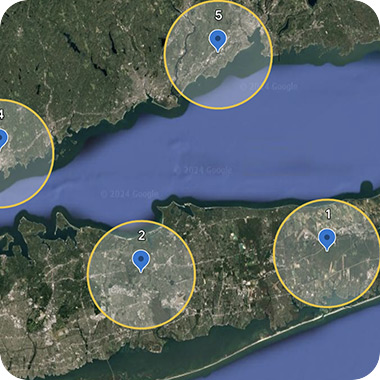
Imported KML
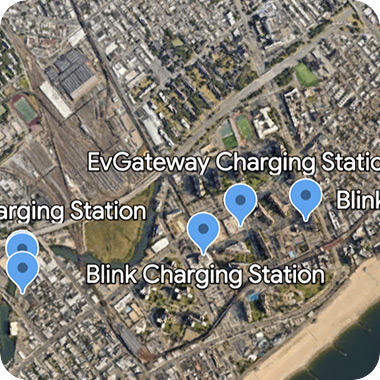
Places and natural features
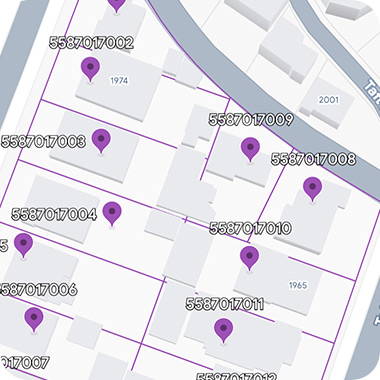
Parcels, counties, and zip codes
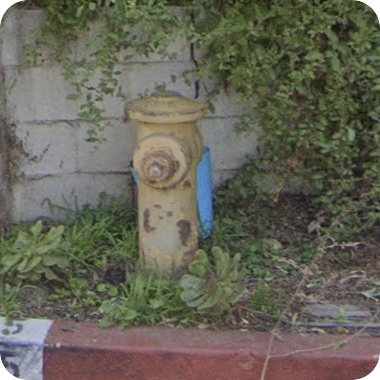
Infrastructure data
Use viewport as context
By sharing your current map view, the agent can interpret the geospatial data captured in your viewport to understand your exact frame of reference. This synchronization lets you ask natural questions about "this area" or "here" without requiring precise coordinates or formal addresses.
To add your viewport information as context, do the following:
- In the bottom left-hand section of the chat interface, select
 Current map view.
 - Ask a contextual question, such as, "What am I looking at?"
- Click
 Send.
Send.
Data sources
We use a variety of different data sources to enrich your experience while testing Ask Google Earth.
Places
The data contained within our prototype largely overlaps with the Places API (New). This includes things like transportation points of interest (POIs), establishments, parks, education, natural features and other similar places. For a full list of queryable place types, see Table A in Place Types (New).
Boundaries
You can ask about parcels, neighborhoods, zip codes, counties, and more. For a full list of queryable place types, see Table B in Place Types (New).
Brainstorm, create custom maps, and ask follow-ups to clarify your needs
- "Map the five most recent Super Bowl host stadiums"
- "I'm looking to build a solar farm in Nevada. Where should I start?"
- "Find neighborhoods in Boston without a public park. Then, rank them by access to public transit"
Known issues
- The system may interpret subjective statements — like "large" or "near" — in arbitrary ways. Being specific helps mitigate unexpected results.
- Complex analytical can be slow to execute and may take time to deliver results. Consider breaking them into smaller, more manageable queries for better results.
- If you're looking for something near a placemark, make sure you add the placemark to your project by right-clicking on the map and selecting Add placemark here, or drawing a polygon using the drawing tool. You can also save placemarks (found using search) to your project.
- In rare cases, you may not see the
 Ask Google Earth icon in the menu bar even when logged into your Google
Account. Attempt to clear cache and
cookies from your browser
and log back in.
Ask Google Earth icon in the menu bar even when logged into your Google
Account. Attempt to clear cache and
cookies from your browser
and log back in.
Share feedback
Throughout the duration of the program, we encourage you to share your feedback at any time. To send feedback in the Ask Google Earth panel, select More Send feedback. Types of feedback you should report include the following:
- Overall product bugs or issues you encounter with Gemini capabilities in Google Earth
- Feature requests
- Examples of queries that you expected to work but didn't
- User experience / UI feedback or issues
To help us improve the user experience, include as much information as possible when you report feedback or issues.