
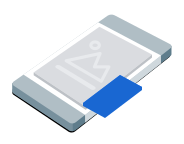
מודעות מסוג "תמונה בתוך תמונה" (PiP) מוצגות בחלון צף שמופיע מעל התוכן במסך, כמו מאמרים, פידים או גיימפליי. הפורמט הזה מאפשר למשתמשים לבצע פעולות באפליקציה בזמן שהמודעה מוצגת. כדי להציג מודעות לרשת המדיה שלא משתלטות על כל המסך, צריך לבחור בפורמט הזה. מידע נוסף על מודעות בתמונה בתוך תמונה
במדריך הזה מוסבר איך לבקש ולהציג מודעות במצב "תמונה בתוך תמונה" באפליקציה באמצעות Google Mobile Ads SDK.
לפני שמתחילים
לפני שממשיכים, צריך לבצע את הפעולות הבאות:
מתקינים את Google Mobile Ads SDK בגרסה
13.10.0ואילך.
מפעילים מודעות בדיקה ומשתמשים במזהה הבא של יחידת המודעות לבדיקה:
ca-app-pub-3940256099942544/8810945611
טעינת מודעה
כדי לטעון אובייקט GADPictureInPictureAd, יוצרים בקשה להצגת מודעה ומפעילים את שיטת הטעינה:
Swift
מחליפים את adUnitID במזהה יחידת המודעות.
Objective-C
מחליפים את kAdUnitID במזהה יחידת המודעות.
הצגת המודעה
כדי להציג את המודעה בפורמט "תמונה בתוך תמונה" במסך, צריך להפעיל את השיטה show. בדוגמה הבאה, המודעה מוצגת במיקום ברירת המחדל והיקף ההצגה מוגדר למסך:
Swift
private func showPictureInPictureAd() {
  // Use the loaded PictureInPictureAd instance.
  guard let pipAd else {
    print("No ad to show.")
    return
  }
  let options = PictureInPictureAdOptions()
  // Uses the Google Mobile Ads SDK's default screen position.
  options.position = .default
  // Binds the ad lifecycle to the host screen.
  options.presentationScope = .screen

  pipAd.show(with: options)
}
Objective-C
- (void)showPictureInPictureAd {
  // Use the loaded PictureInPictureAd instance.
  if (!self.pipAd) {
    NSLog(@"No ad to show.");
    return;
  }
  GADPictureInPictureAdOptions *options =
      [[GADPictureInPictureAdOptions alloc] init];
  // Uses the Google Mobile Ads SDK's default screen position.
  options.position = GADPictureInPictureAdPositionDefault;
  // Binds the ad lifecycle to the host screen.
  options.presentationScope = GADPictureInPictureAdPresentationScopeScreen;

  [self.pipAd showWithOptions:options];
}
הגדרת המיקום
כברירת מחדל, Google Mobile Ads SDK מציג מודעה בפורמט "תמונה בתוך תמונה" בפינה הימנית התחתונה של המסך כשהיא מוצגת בפעם הראשונה, או במיקום האחרון הידוע אם היא הוצגה בעבר. כדי להתאים אישית את המיקום שבו המודעה מופיעה, צריך לציין מיקום כשמציגים את המודעה. בדוגמה הבאה, המיקום מוגדר מעל התוכן בפינה השמאלית העליונה של המסך:
Swift
private func createTopLeftPositionOptions() -> PictureInPictureAdOptions {
  let options = PictureInPictureAdOptions()
  // Sets the ad position to the top-left corner of the screen.
  options.position = .topLeft
  return options
}
Objective-C
- (GADPictureInPictureAdOptions *)createTopLeftPositionOptions {
  GADPictureInPictureAdOptions *options =
      [[GADPictureInPictureAdOptions alloc] init];
  // Sets the ad position to the top-left corner of the screen.
  options.position = GADPictureInPictureAdPositionTopLeft;
  return options;
}
לכל המשרות הפנויות: GADPictureInPictureAdPosition
הגדרת היקף המצגת
כברירת מחדל, Google Mobile Ads SDK מקשר מודעת תמונה בתוך תמונה למסך המארח הנוכחי. Google Mobile Ads SDK סוגר את המודעה כשהיררכיית התצוגה של המסך המארח כבר לא נמצאת בזיכרון. כדי שהמודעה תמשיך להופיע אחרי שהמסך המארח יוסר מהזיכרון, צריך להגדיר את היקף ההצגה לאפליקציה:
Swift
private func createApplicationScopedOptions() -> PictureInPictureAdOptions {
  let options = PictureInPictureAdOptions()
  // Keeps the ad visible beyond the host screen's lifecycle.
  options.presentationScope = .application
  return options
}
Objective-C
- (GADPictureInPictureAdOptions *)createApplicationScopedOptions {
  GADPictureInPictureAdOptions *options =
      [[GADPictureInPictureAdOptions alloc] init];
  // Keeps the ad visible beyond the host screen's lifecycle.
  options.presentationScope = GADPictureInPictureAdPresentationScopeApplication;
  return options;
}
מידע נוסף זמין במאמר הצגת המודעה במסכים שונים.
האזנה לאירועים של מודעות
כדי לטפל באירועים במחזור החיים של מודעות ב"תמונה בתוך תמונה", צריך להירשם לאירועי מודעות לפני שמציגים את המודעה. האירועים האלה מדווחים על אינטראקציות עם מודעות, כמו קליקים וחשיפות. האירועים האלה מדווחים גם על אירועים ספציפיים למצב "תמונה בתוך תמונה", כמו מתי המודעה מוצגת או מוסתרת:
Swift
func pictureInPictureAdDidShow(_ pictureInPictureAd: PictureInPictureAd) {
  print("Picture-in-Picture ad shown.")
}

func pictureInPictureAdDidHide(_ pictureInPictureAd: PictureInPictureAd) {
  print("Picture-in-Picture ad hidden.")
}

func pictureInPictureAdDidFailToShow(
  _ pictureInPictureAd: PictureInPictureAd, error: Error
) {
  print("Picture-in-Picture ad failed to show: \(error.localizedDescription)")
}

func pictureInPictureAdDidRecordImpression(
  _ pictureInPictureAd: PictureInPictureAd
) {
  print("Picture-in-Picture ad recorded an impression.")
}

func pictureInPictureAdDidRecordClick(
  _ pictureInPictureAd: PictureInPictureAd
) {
  print("Picture-in-Picture ad recorded a click.")
}

func pictureInPictureAdWillPresentScreen(
  _ pictureInPictureAd: PictureInPictureAd
) {
  print("Picture-in-Picture ad will present screen.")
}

func pictureInPictureAdWillDismissScreen(
  _ pictureInPictureAd: PictureInPictureAd
) {
  print("Picture-in-Picture ad will dismiss screen.")
}

func pictureInPictureAdDidDismissScreen(
  _ pictureInPictureAd: PictureInPictureAd
) {
  print("Picture-in-Picture ad dismissed screen.")
}
Objective-C
- (void)pictureInPictureAdDidShow:(GADPictureInPictureAd *)pictureInPictureAd {
  NSLog(@"Picture-in-Picture ad shown.");
}

- (void)pictureInPictureAdDidHide:(GADPictureInPictureAd *)pictureInPictureAd {
  NSLog(@"Picture-in-Picture ad hidden.");
}

- (void)pictureInPictureAdDidFailToShow:(GADPictureInPictureAd *)pictureInPictureAd
                              withError:(NSError *)error {
  NSLog(@"Picture-in-Picture ad failed to show: %@", error);
}

- (void)pictureInPictureAdDidRecordImpression:(GADPictureInPictureAd *)pictureInPictureAd {
  NSLog(@"Picture-in-Picture ad recorded an impression.");
}

- (void)pictureInPictureAdDidRecordClick:(GADPictureInPictureAd *)pictureInPictureAd {
  NSLog(@"Picture-in-Picture ad recorded a click.");
}

- (void)pictureInPictureAdWillPresentScreen:(GADPictureInPictureAd *)pictureInPictureAd {
  NSLog(@"Picture-in-Picture ad will present screen.");
}

- (void)pictureInPictureAdWillDismissScreen:(GADPictureInPictureAd *)pictureInPictureAd {
  NSLog(@"Picture-in-Picture ad will dismiss screen.");
}

- (void)pictureInPictureAdDidDismissScreen:(GADPictureInPictureAd *)pictureInPictureAd {
  NSLog(@"Picture-in-Picture ad dismissed screen.");
}
הסתרת המודעה
כדי להסיר את המודעה הצפה מהמסך, צריך להפעיל את ה-method hide. השיטה הזו מפעילה את האירוע של הסתרת המודעה:
Swift
private func hidePictureInPictureAd() {
  // Use the loaded PictureInPictureAd instance.
  guard let pipAd else {
    print("No ad to hide.")
    return
  }
  pipAd.hide()
}
Objective-C
- (void)hidePictureInPictureAd {
  // Use the loaded PictureInPictureAd instance.
  if (!self.pipAd) {
    NSLog(@"No ad to hide.");
    return;
  }
  [self.pipAd hide];
}
ניקוי משאבי המודעות
כדי למנוע דליפות זיכרון, צריך להסיר את ההפניה לאובייקט המודעה כשהאפליקציה מסיימת להשתמש במודעה. לדוגמה, כשהאפליקציה מפסיקה להציג את המודעה או לקיים איתה אינטראקציה. במודעות ברמת המסך, צריך להסיר את ההפניה כשהאפליקציה מסירה את המסך המארח מהזיכרון. במודעות ברמת האפליקציה, צריך לשמור את ההפניה למודעה כשהמשתמש עובר בין מסכים, ולהסיר את ההפניה כשהמשתמש סוגר את המודעה:
Swift
private func cleanUpPictureInPictureAd() {
  pipAd?.hide()
  pipAd = nil
}
Objective-C
- (void)cleanUpPictureInPictureAd {
  [self.pipAd hide];
  self.pipAd = nil;
}
המודעה צריכה להיות גלויה בכל המסכים
כשמגדירים את היקף ההצגה לאפליקציה, המודעה בפורמט "תמונה בתוך תמונה" נשארת גלויה גם כשהאפליקציה מסירה את המסך המארח מהזיכרון. כדי שהמשתמש יוכל לבצע פעולות במודעה או לסגור אותה כשהוא יוצא מהמסך המארח, האפליקציה צריכה לשמור על הגישה למודעה במצב "תמונה בתוך תמונה". מומלץ לשמור את המודעה ב-singleton ברמת האפליקציה או במנהל מצב משותף, ולא במשתנה מופע של מסך יחיד.
כדי לראות דוגמאות לאופן שבו אפשר להשאיר מודעה גלויה במסכים, עיינו באפליקציות לדוגמה הבאות: