

סוג הקישור OAuth תומך בשני תהליכים מקובלים בתחום של OAuth 2.0: התהליך המרומז והתהליך של קוד הרשאה.
בתהליך הקוד המשתמע, Google פותחת את נקודת הקצה של ההרשאה בדפדפן של המשתמש. אחרי שהכניסה לחשבון תושלם בהצלחה, תקבלו מ-Google אסימון גישה לטווח ארוך. אסימון הגישה הזה כלול עכשיו בכל בקשה שנשלחת מ-Assistant לפעולה שלך.
בתהליך הקוד של ההרשאה, נדרשות שתי נקודות קצה:
- נקודת הקצה הרשאה, שאחראית להצגת ממשק המשתמש לכניסה למשתמשים שעדיין לא נכנסו לחשבון, ולתעד הסכמה לגישה המבוקשת כקוד הרשאה לטווח קצר.
- נקודת הקצה להחלפה באסימון, שאחראית לשני סוגים של חילופי הודעות:
- החלפה של קוד הרשאה באסימון רענון לטווח ארוך ובאסימון גישה לטווח קצר. ההחלפה הזו מתרחשת כשהמשתמש עובר את התהליך של קישור החשבון.
- החלפה של אסימון רענון לטווח ארוך באסימון גישה לטווח קצר. ההחלפה הזו מתרחשת כש-Google צריכה אסימון גישה חדש, כי פג התוקף של האסימון שפג תוקפו.
אומנם קל יותר להטמיע את תהליך הקוד המשתמע, אבל ב-Google מומלץ שאף פעם לא יפוג התוקף של אסימוני גישה שהונפקו באמצעות הזרימה המשתמעת, כי השימוש בתפוגת האסימון באמצעות התהליך המשתמע מחייב לאלץ את המשתמש לקשר שוב את החשבון. אם אתם זקוקים לתפוגת תוקף של אסימון מטעמי אבטחה, כדאי מאוד להשתמש בתהליך קוד האימות במקום זאת.
הטמעה של קישור לחשבון OAuth
הגדרת הפרויקט
כדי להגדיר את הפרויקט לשימוש בקישור OAuth, פועלים לפי השלבים הבאים:
- פותחים את Actions Console ובוחרים את הפרויקט שרוצים להשתמש בו.
- לוחצים על הכרטיסייה פיתוח ובוחרים באפשרות קישור חשבונות.
- מפעילים את המתג לצד קישור חשבונות.
- בקטע יצירת חשבון, בוחרים באפשרות לא, אני רוצה לאפשר יצירת חשבון רק באתר שלי.
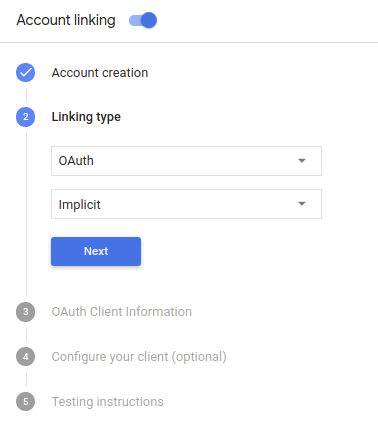
בקטע סוג הקישור, בוחרים באפשרות OAuth ואז באפשרות מרומז.
בקטע Client Information:
- מקצים ערך למזהה הלקוח שהונפק על ידי Actions on Google כדי לזהות בקשות שמגיעות מ-Google.
- מזינים את כתובות ה-URL של נקודות הקצה של ההרשאה ושל החלפת הטוקנים.
- לוחצים על שמירה.
הטמעת שרת OAuth
כדי לתמוך בזרם הענקת גישה משתמע ב-OAuth 2.0, השירות שלכם יוצר הרשאה נקודת הקצה שזמינה ב-HTTPS. נקודת הקצה (endpoint) הזו אחראית לאימות קבלת הסכמה מהמשתמשים לצורך גישה לנתונים. נקודת הקצה של ההרשאה שמציג ממשק משתמש לכניסה למשתמשים שעדיין לא מחוברים לחשבון, להסכים להרשאת הגישה המבוקשת.
כשהפעולה צריכה להפעיל את אחד מממשקי ה-API המורשים של השירות שלך, Google משתמשת את נקודת הקצה הזו כדי לקבל הרשאה מהמשתמשים שלך לקרוא לממשקי ה-API האלה בשם.
בסשן זרם הענקת גישה משתמע ב-OAuth 2.0 ש-Google יזמה, התהליך הבא:
- Google פותחת את נקודת הקצה להרשאה בדפדפן של המשתמש. משתמש נכנס לחשבון אם הוא עדיין לא מחובר, ומעניק ל-Google הרשאת גישה את הנתונים שלהם באמצעות ה-API, אם הם עדיין לא העניקו הרשאה.
- השירות שלכם יוצר אסימון גישה ומחזיר אותו אל Google מפנה את דפדפן המשתמש חזרה אל Google באמצעות אסימון הגישה שמצורף לבקשה.
- Google קוראת לממשקי ה-API של השירות, ומצרפת את אסימון הגישה עם בכל בקשה. השירות שלך מאמת שאסימון הגישה מעניק ל-Google הרשאה לגשת ל-API ואז משלימה את הקריאה ל-API.
טיפול בבקשות הרשאה
כשהפעולה צריכה לבצע קישור חשבונות באמצעות זרם הענקת גישה משתמע ב-OAuth 2.0, Google שולחת את המשתמש לנקודת הקצה (endpoint) של ההרשאה עם בקשה שכוללת את הפרמטרים הבאים:
| פרמטרים של נקודת קצה להרשאה | |
|---|---|
client_id |
מזהה הלקוח שהקצית ל-Google. |
redirect_uri |
כתובת ה-URL שאליה שולחים את התגובה לבקשה הזו. |
state |
ערך של ניהול חשבונות שמועבר אל Google ללא שינוי URI להפניה אוטומטית. |
response_type |
סוג הערך שיוחזר בתשובה. ל-OAuth 2.0 משתמע
סוג התגובה הוא תמיד token. |
לדוגמה, אם נקודת הקצה להרשאה זמינה ב-https://myservice.example.com/auth,
בקשה עשויה להיראות כך:
GET https://myservice.example.com/auth?client_id=GOOGLE_CLIENT_ID&redirect_uri=REDIRECT_URI&state=STATE_STRING&response_type=token
כדי שנקודת הקצה להרשאה תטפל בבקשות כניסה, מבצעים את השלבים הבאים:
צריך לאמת את הערכים
client_idו-redirect_uriכדי למנוע הענקת גישה לאפליקציות לקוח לא מכוונות או שהוגדרו באופן שגוי:- צריך לוודא שה-
client_idתואם למזהה הלקוח שהוקצו ל-Google. - מוודאים שכתובת ה-URL שצוינה ב-
redirect_uriנראה כך:https://oauth-redirect.googleusercontent.com/r/YOUR_PROJECT_ID
- צריך לוודא שה-
לבדוק אם המשתמש נכנס לשירות. אם המשתמש לא חתום להשלים את תהליך הכניסה או ההרשמה לשירות.
יוצרים אסימון גישה שבו Google תשתמש כדי לגשת ל-API. אסימון גישה יכול להיות כל ערך מחרוזת, אבל הוא חייב לייצג באופן ייחודי את למשתמש וללקוח שבשבילם האסימון מיועד והם חייבים להיות ניתנים לניחוש.
לשלוח תגובת HTTP שמפנה מחדש את דפדפן המשתמש לכתובת ה-URL צוין על ידי הפרמטר
redirect_uri. יש לכלול את כל את הפרמטרים הבאים בקטע של כתובת ה-URL:access_token: אסימון הגישה שיצרתם כרגעtoken_type: המחרוזתbearerstate: ערך המצב ללא שינוי מהמקור בקשה הדוגמה הבאה היא של כתובת ה-URL שתתקבל:https://oauth-redirect.googleusercontent.com/r/YOUR_PROJECT_ID#access_token=ACCESS_TOKEN&token_type=bearer&state=STATE_STRING
ה-handler של Google להפניה אוטומטית ב-OAuth 2.0 יקבל את אסימון הגישה ויאשר
שהערך של state לא השתנה. לאחר ש-Google קיבלה
אסימון הגישה לשירות שלך, Google תצרף את האסימון לשיחות הבאות
לפעולה כחלק מה-AppRequest.
עיצוב ממשק המשתמש הקולי לתהליך האימות
בודקים אם המשתמש מאומת ומתחילים את תהליך קישור החשבון
- פותחים את הפרויקט ב-Actions Builder בקונסולה ל-Actions.
- כדי ליצור סצנה חדשה ולהתחיל את קישור החשבון בפעולה:
- לוחצים על סצנות.
- לוחצים על סמל ההוספה (+) כדי להוסיף סצנה חדשה.
- בסצנה החדשה שנוצרה, לוחצים על סמל ההוספה add ליד תנאים.
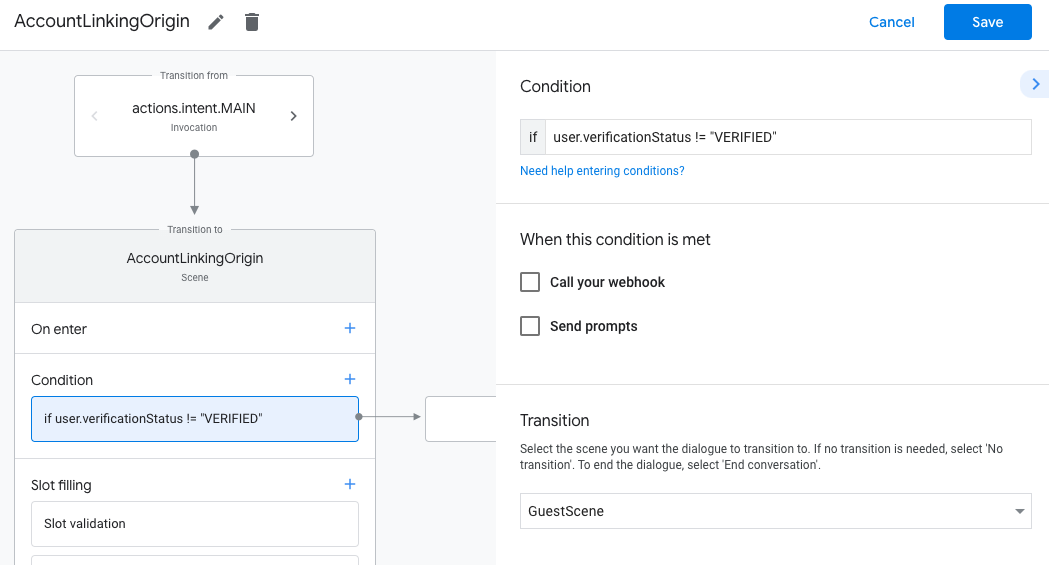
- מוסיפים תנאי שבודק אם המשתמש שמשויך לשיחה הוא משתמש מאומת. אם הבדיקה נכשלת, הפעולה לא יכולה לבצע קישור חשבונות במהלך השיחה, והיא צריכה לחזור למצב שבו היא מספקת גישה לפונקציות שלא דורשות קישור חשבונות.
- בשדה
Enter new expressionבקטע תנאי, מזינים את הלוגיקה הבאה:user.verificationStatus != "VERIFIED" - בקטע מעבר, בוחרים סצנה שלא דורשת קישור חשבון או סצנה שהיא נקודת הכניסה לפונקציונליות שזמינה רק לאורחים.
- בשדה
- לוחצים על סמל ההוספה add לצד תנאים.
- מוסיפים תנאי להפעלת תהליך קישור החשבון אם למשתמש אין זהות משויכת.
- בשדה
Enter new expressionבקטע תנאי, מזינים את הלוגיקה הבאה:user.verificationStatus == "VERIFIED" - בקטע Transition (מעבר), בוחרים את סצנת המערכת Account Linking (קישור חשבונות).
- לוחצים על שמירה.
- בשדה
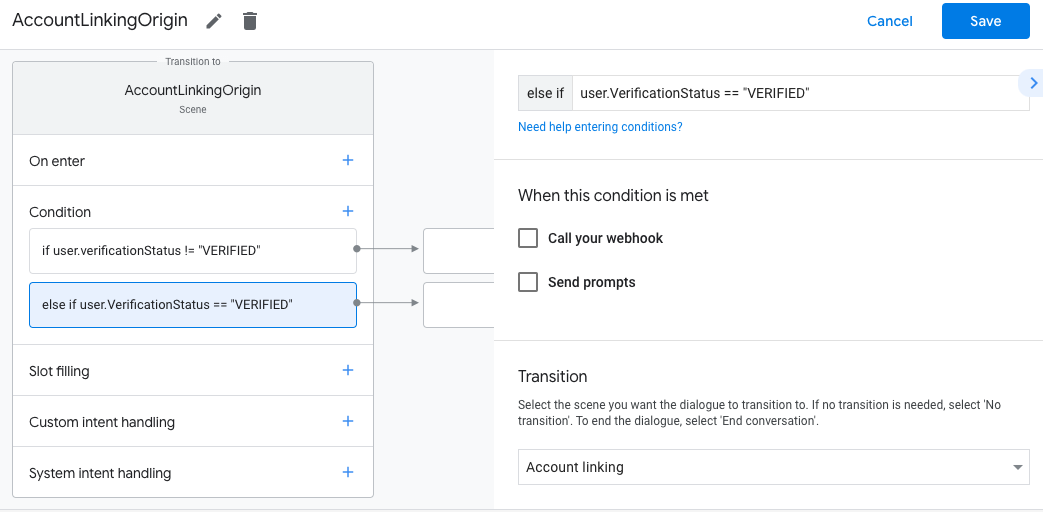
אחרי השמירה, נוספת לפרויקט סצנה חדשה של מערכת קישור חשבונות בשם <SceneName>_AccountLinking.
התאמה אישית של סצנת קישור החשבון
- בקטע Scenes (סצנות), בוחרים את סצנת מערכת קישור החשבונות.
- לוחצים על שליחת הנחיה ומוסיפים משפט קצר שמתאר למשתמש למה הפעולה צריכה לגשת לפרטי הזהות שלו (לדוגמה, "כדי לשמור את ההעדפות שלך").
- לוחצים על שמירה.
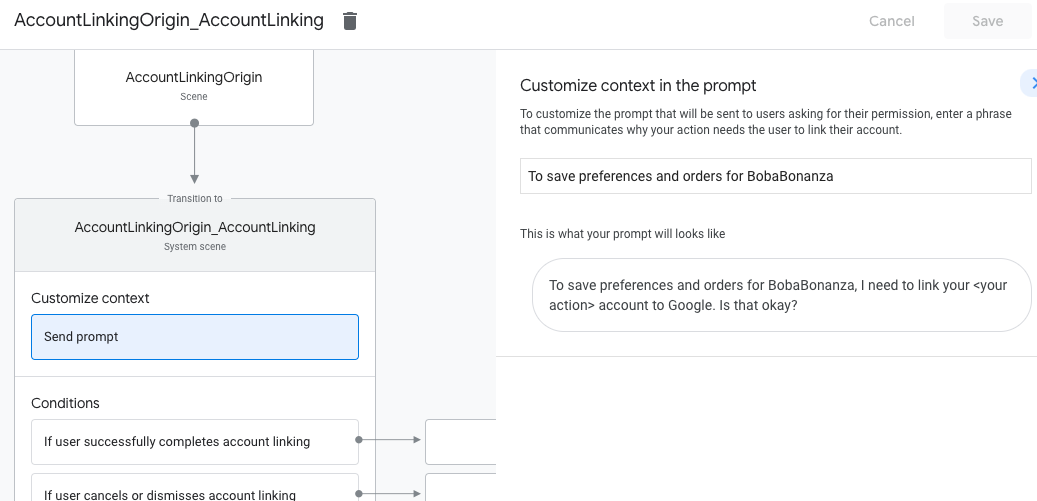
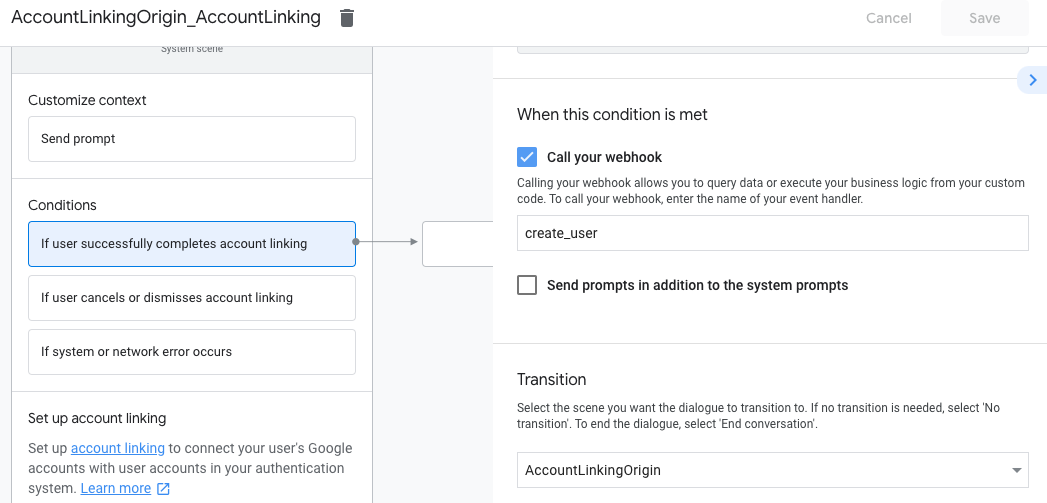
- בקטע תנאים, לוחצים על אם המשתמש משלים בהצלחה את קישור החשבון.
- מגדירים איך התהליך ימשיך אם המשתמש יסכים לקשר את החשבון שלו. לדוגמה, אפשר להתקשר אל ה-webhook כדי לעבד לוגיקה עסקית מותאמת אישית שנדרשת ולחזור לסצנה המקורית.
- לוחצים על שמירה.
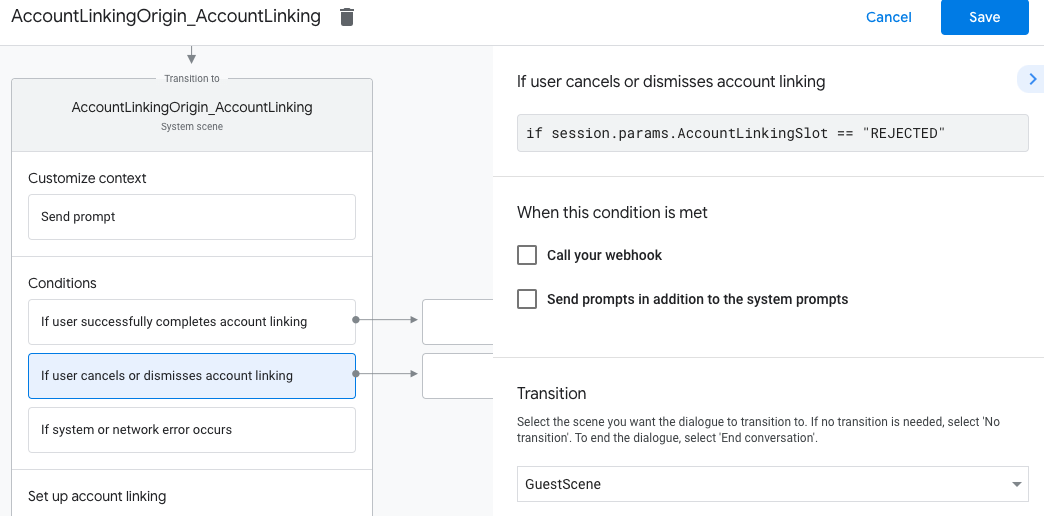
- בקטע תנאים, לוחצים על אם המשתמש מבטל את קישור החשבון או סוגר את חלון הקישור.
- הגדרת המשך התהליך אם המשתמש לא מסכים לקשר את החשבון שלו. לדוגמה, לשלוח הודעת אישור ולהפנות לסצנות שכוללות פונקציונליות שלא דורשת קישור חשבון.
- לוחצים על שמירה.
- בקטע תנאים, לוחצים על אם מתרחשת שגיאת מערכת או שגיאת רשת.
- מגדירים איך התהליך ימשיך אם לא ניתן להשלים את תהליך קישור החשבון בגלל שגיאות במערכת או ברשת. לדוגמה, לשלוח הודעת אישור ולהפנות לסצנות שכוללות פונקציונליות שלא דורשת קישור חשבון.
- לוחצים על שמירה.
טיפול בבקשות גישה לנתונים
אם הבקשה ל-Assistant מכילה טוקן גישה, צריך קודם לוודא שטוקן הגישה תקף (ולא פג התוקף שלו), ואז לאחזר את חשבון המשתמש המשויך ממסד הנתונים.