Onboarding guides help you track the health of your Events integration and identify remaining tasks. These guides cover both sandbox and production environments. You must complete all steps to successfully launch your integration.
Accessing the Onboarding Guides
Once logged into the Actions Center, you can see Onboarding guides for your Events integration in the navigation menu's Home tab.
What each status means
There are three different status options next to each onboarding task:
- Complete (Green): You have completed a task and are meeting the success criteria.
- Needs Attention (Red): The task is not passing the success criteria and needs attention. This could be because you have not begun to work on this aspect of the integration yet.
- Not yet available (Gray): The task depends on a previous task or milestone before it can be marked as completed.
Errors
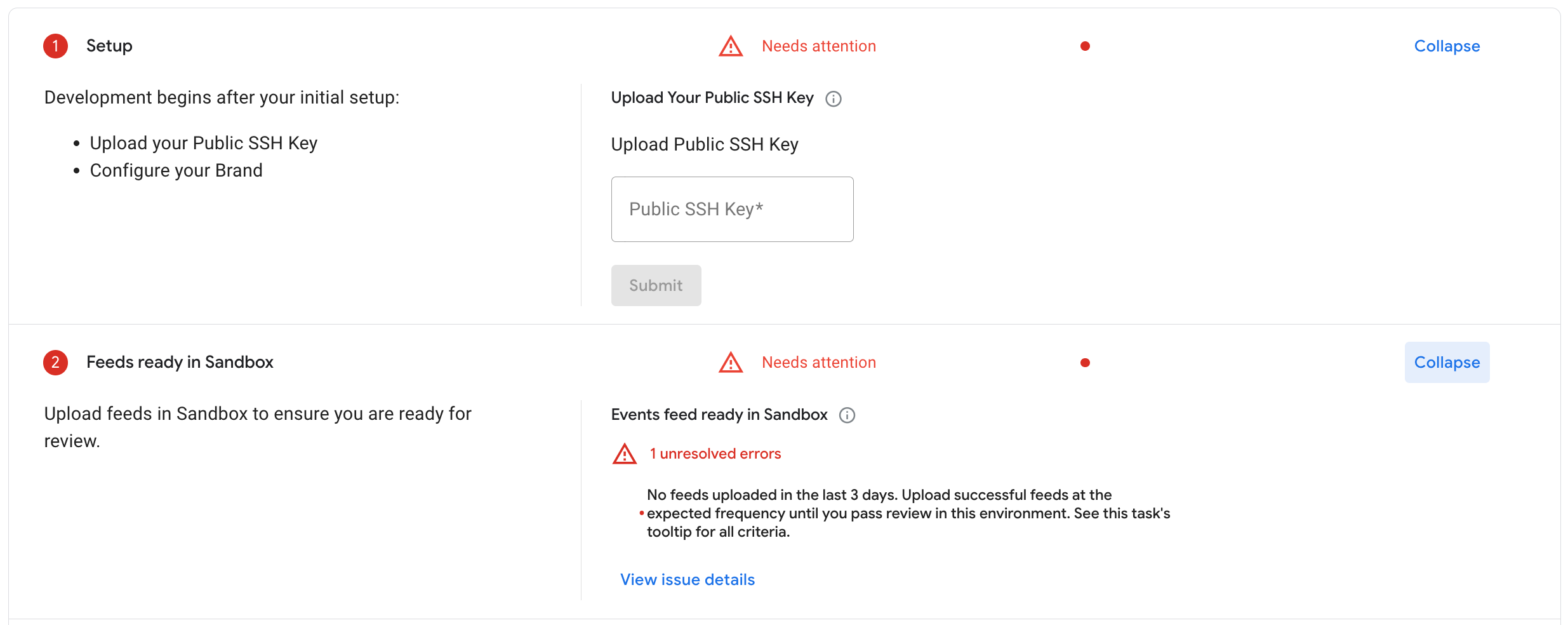
If a task needs attention, the number of errors and a brief description appear underneath it.
- Errors must be addressed in order to complete a task.
What criteria do I need to meet to get a passing score?
In order for your Events integration to be considered healthy, you will need every check to be Completed (Green).
Note: The steps in a guide are in our suggested order for your Events integration, but you can work on multiple steps at once, or work on steps in any order.
Each onboarding task will have the criteria listed next to it and accessible by hovering over the information icon in the Milestone detailed view. The criteria are based on successful and error-free feed uploads, and required configuration steps.
How often is the data updated?
The onboarding guide's data may be delayed by two hours. After making a change—such as fixing a feed error and uploading a new feed—you must re-test that portion of the integration and wait up to two hours for the changes to appear on the Home page.
If the changes have not reflected after two hours, click the Refresh icon located at the top right of the onboarding guide to see them.
Reporting issues
If you notice any significant discrepancies (allowing for differences in upload times) or need help with your integration's health and progress, please reach out to Actions Center Support.