
Tworzenie i zapełnianie folderów

Foldery to pliki, które zawierają tylko metadane i mogą służyć do porządkowania plików na Dysku Google. Mają one te właściwości:

  • Folder to plik o typie MIME application/vnd.google-apps.folder, który nie ma rozszerzenia.
  • Alias root może służyć do odwoływania się do folderu głównego wszędzie tam, gdzie podawany jest identyfikator pliku.

Więcej informacji o limitach folderów na Dysku znajdziesz w artykule Limity liczby plików i folderów.

Z tego przewodnika dowiesz się, jak wykonywać podstawowe zadania związane z folderami.

Tworzenie folderu

Aby utworzyć folder, użyj files.create() metody z parametrem mimeType ustawionym na application/vnd.google-apps.folder i parametrem name. Ten przykładowy kod pokazuje, jak utworzyć folder za pomocą biblioteki klienta:

Java

drive/snippets/drive_v3/src/main/java/CreateFolder.java
import com.google.api.client.googleapis.json.GoogleJsonResponseException;
import com.google.api.client.http.HttpRequestInitializer;
import com.google.api.client.http.javanet.NetHttpTransport;
import com.google.api.client.json.gson.GsonFactory;
import com.google.api.services.drive.Drive;
import com.google.api.services.drive.DriveScopes;
import com.google.api.services.drive.model.File;
import com.google.auth.http.HttpCredentialsAdapter;
import com.google.auth.oauth2.GoogleCredentials;
import java.io.IOException;
import java.util.Arrays;

/* Class to demonstrate use of Drive's create folder API */
public class CreateFolder {


  /**
   * Create new folder.
   *
   * @return Inserted folder id if successful, {@code null} otherwise.
   * @throws IOException if service account credentials file not found.
   */
  public static String createFolder() throws IOException {
    // Load pre-authorized user credentials from the environment.
    // TODO(developer) - See https://developers.google.com/identity for
    // guides on implementing OAuth2 for your application.
    GoogleCredentials credentials = GoogleCredentials.getApplicationDefault()
        .createScoped(Arrays.asList(DriveScopes.DRIVE_FILE));
    HttpRequestInitializer requestInitializer = new HttpCredentialsAdapter(
        credentials);

    // Build a new authorized API client service.
    Drive service = new Drive.Builder(new NetHttpTransport(),
        GsonFactory.getDefaultInstance(),
        requestInitializer)
        .setApplicationName("Drive samples")
        .build();
    // File's metadata.
    File fileMetadata = new File();
    fileMetadata.setName("Test");
    fileMetadata.setMimeType("application/vnd.google-apps.folder");
    try {
      File file = service.files().create(fileMetadata)
          .setFields("id")
          .execute();
      System.out.println("Folder ID: " + file.getId());
      return file.getId();
    } catch (GoogleJsonResponseException e) {
      // TODO(developer) - handle error appropriately
      System.err.println("Unable to create folder: " + e.getDetails());
      throw e;
    }
  }
}

Python

drive/snippets/drive-v3/file_snippet/create_folder.py
import google.auth
from googleapiclient.discovery import build
from googleapiclient.errors import HttpError


def create_folder():
  """Create a folder and prints the folder ID
  Returns : Folder Id

  Load pre-authorized user credentials from the environment.
  TODO(developer) - See https://developers.google.com/identity
  for guides on implementing OAuth2 for the application.
  """
  creds, _ = google.auth.default()

  try:
    # create drive api client
    service = build("drive", "v3", credentials=creds)
    file_metadata = {
        "name": "Invoices",
        "mimeType": "application/vnd.google-apps.folder",
    }

    # pylint: disable=maybe-no-member
    file = service.files().create(body=file_metadata, fields="id").execute()
    print(f'Folder ID: "{file.get("id")}".')
    return file.get("id")

  except HttpError as error:
    print(f"An error occurred: {error}")
    return None


if __name__ == "__main__":
  create_folder()

Node.js

drive/snippets/drive_v3/file_snippets/create_folder.js
import {GoogleAuth} from 'google-auth-library';
import {google} from 'googleapis';

/**
 * Creates a new folder in Google Drive.
 * @return {Promise<string|null|undefined>} The ID of the created folder.
 */
async function createFolder() {
  // Authenticate with Google and get an authorized client.
  // TODO (developer): Use an appropriate auth mechanism for your app.
  const auth = new GoogleAuth({
    scopes: 'https://www.googleapis.com/auth/drive',
  });

  // Create a new Drive API client (v3).
  const service = google.drive({version: 'v3', auth});

  // The metadata for the new folder.
  const fileMetadata = {
    name: 'Invoices',
    mimeType: 'application/vnd.google-apps.folder',
  };

  // Create the new folder.
  const file = await service.files.create({
    requestBody: fileMetadata,
    fields: 'id',
  });

  // Print the ID of the new folder.
  console.log('Folder Id:', file.data.id);
  return file.data.id;
}

PHP

drive/snippets/drive_v3/src/DriveCreateFolder.php
<?php
use Google\Client;
use Google\Service\Drive;
function createFolder()
{
    try {
        $client = new Client();
        $client->useApplicationDefaultCredentials();
        $client->addScope(Drive::DRIVE);
        $driveService = new Drive($client);
        $fileMetadata = new Drive\DriveFile(array(
            'name' => 'Invoices',
            'mimeType' => 'application/vnd.google-apps.folder'));
        $file = $driveService->files->create($fileMetadata, array(
            'fields' => 'id'));
        printf("Folder ID: %s\n", $file->id);
        return $file->id;

    }catch(Exception $e) {
       echo "Error Message: ".$e;
    }
}

.NET

drive/snippets/drive_v3/DriveV3Snippets/CreateFolder.cs
using Google.Apis.Auth.OAuth2;
using Google.Apis.Drive.v3;
using Google.Apis.Services;

namespace DriveV3Snippets
{
    // Class to demonstrate use of Drive create folder API.
    public class CreateFolder
    {
        /// <summary>
        /// Creates a new folder.
        /// </summary>
        /// <returns>created folder id, null otherwise</returns>
        public static string DriveCreateFolder()
        {
            try
            {
                /* Load pre-authorized user credentials from the environment.
                 TODO(developer) - See https://developers.google.com/identity for 
                 guides on implementing OAuth2 for your application. */
                GoogleCredential credential = GoogleCredential.GetApplicationDefault()
                    .CreateScoped(DriveService.Scope.Drive);

                // Create Drive API service.
                var service = new DriveService(new BaseClientService.Initializer
                {
                    HttpClientInitializer = credential,
                    ApplicationName = "Drive API Snippets"
                });

                // File metadata
                var fileMetadata = new Google.Apis.Drive.v3.Data.File()
                {
                    Name = "Invoices",
                    MimeType = "application/vnd.google-apps.folder"
                };

                // Create a new folder on drive.
                var request = service.Files.Create(fileMetadata);
                request.Fields = "id";
                var file = request.Execute();
                // Prints the created folder id.
                Console.WriteLine("Folder ID: " + file.Id);
                return file.Id;
            }
            catch (Exception e)
            {
                // TODO(developer) - handle error appropriately
                if (e is AggregateException)
                {
                    Console.WriteLine("Credential Not found");
                }
                else
                {
                    throw;
                }
            }
            return null;
        }
    }
}

curl

curl -X POST 'https://www.googleapis.com/drive/v3/files' \
 -H 'Authorization: Bearer ACCESS_TOKEN' \
 -H 'Content-Type: application/json' \
 -d '{
   "name": "FOLDER_NAME",
   "mimeType": "application/vnd.google-apps.folder"
 }'

Zastąp te elementy:

  • ACCESS_TOKEN: token OAuth 2.0 Twojej aplikacji.
  • FOLDER_NAME: nazwa folderu, który chcesz utworzyć.

Tworzenie pliku w określonym folderze

Aby utworzyć plik w określonym folderze, użyj metody files.create() i określ identyfikator folderu we właściwości parents pliku.

Właściwość parents zawiera identyfikator folderu nadrzędnego, w którym znajduje się plik. Właściwość parents można używać podczas tworzenia plików w folderze najwyższego poziomu lub w dowolnym innym folderze.

Plik może mieć tylko 1 folder nadrzędny. Określanie wielu folderów nadrzędnych nie jest obsługiwane. Jeśli pole parents nie jest określone, plik jest umieszczany bezpośrednio w folderze Mój dysk użytkownika.

Ten przykładowy kod pokazuje, jak utworzyć plik w określonym folderze za pomocą biblioteki klienta:

Java

drive/snippets/drive_v3/src/main/java/UploadToFolder.java
import com.google.api.client.googleapis.json.GoogleJsonResponseException;
import com.google.api.client.http.FileContent;
import com.google.api.client.http.HttpRequestInitializer;
import com.google.api.client.http.javanet.NetHttpTransport;
import com.google.api.client.json.gson.GsonFactory;
import com.google.api.services.drive.Drive;
import com.google.api.services.drive.DriveScopes;
import com.google.api.services.drive.model.File;
import com.google.auth.http.HttpCredentialsAdapter;
import com.google.auth.oauth2.GoogleCredentials;
import java.io.IOException;
import java.util.Arrays;
import java.util.Collections;

/* Class to demonstrate Drive's upload to folder use-case. */
public class UploadToFolder {

  /**
   * Upload a file to the specified folder.
   *
   * @param realFolderId Id of the folder.
   * @return Inserted file metadata if successful, {@code null} otherwise.
   * @throws IOException if service account credentials file not found.
   */
  public static File uploadToFolder(String realFolderId) throws IOException {
    // Load pre-authorized user credentials from the environment.
    // TODO(developer) - See https://developers.google.com/identity for
    // guides on implementing OAuth2 for your application.
    GoogleCredentials credentials = GoogleCredentials.getApplicationDefault()
        .createScoped(Arrays.asList(DriveScopes.DRIVE_FILE));
    HttpRequestInitializer requestInitializer = new HttpCredentialsAdapter(
        credentials);

    // Build a new authorized API client service.
    Drive service = new Drive.Builder(new NetHttpTransport(),
        GsonFactory.getDefaultInstance(),
        requestInitializer)
        .setApplicationName("Drive samples")
        .build();

    // File's metadata.
    File fileMetadata = new File();
    fileMetadata.setName("photo.jpg");
    fileMetadata.setParents(Collections.singletonList(realFolderId));
    java.io.File filePath = new java.io.File("files/photo.jpg");
    FileContent mediaContent = new FileContent("image/jpeg", filePath);
    try {
      File file = service.files().create(fileMetadata, mediaContent)
          .setFields("id, parents")
          .execute();
      System.out.println("File ID: " + file.getId());
      return file;
    } catch (GoogleJsonResponseException e) {
      // TODO(developer) - handle error appropriately
      System.err.println("Unable to upload file: " + e.getDetails());
      throw e;
    }
  }
}

Python

drive/snippets/drive-v3/file_snippet/upload_to_folder.py
import google.auth
from googleapiclient.discovery import build
from googleapiclient.errors import HttpError
from googleapiclient.http import MediaFileUpload


def upload_to_folder(folder_id):
  """Upload a file to the specified folder and prints file ID, folder ID
  Args: Id of the folder
  Returns: ID of the file uploaded

  Load pre-authorized user credentials from the environment.
  TODO(developer) - See https://developers.google.com/identity
  for guides on implementing OAuth2 for the application.
  """
  creds, _ = google.auth.default()

  try:
    # create drive api client
    service = build("drive", "v3", credentials=creds)

    file_metadata = {"name": "photo.jpg", "parents": [folder_id]}
    media = MediaFileUpload(
        "download.jpeg", mimetype="image/jpeg", resumable=True
    )
    # pylint: disable=maybe-no-member
    file = (
        service.files()
        .create(body=file_metadata, media_body=media, fields="id")
        .execute()
    )
    print(f'File ID: "{file.get("id")}".')
    return file.get("id")

  except HttpError as error:
    print(f"An error occurred: {error}")
    return None


if __name__ == "__main__":
  upload_to_folder(folder_id="1s0oKEZZXjImNngxHGnY0xed6Mw-tvspu")

Node.js

drive/snippets/drive_v3/file_snippets/upload_to_folder.js
import fs from 'node:fs';
import {GoogleAuth} from 'google-auth-library';
import {google} from 'googleapis';

/**
 * Uploads a file to the specified folder.
 * @param {string} folderId The ID of the folder to upload the file to.
 * @return {Promise<string>} The ID of the uploaded file.
 */
async function uploadToFolder(folderId) {
  // Authenticate with Google and get an authorized client.
  // TODO (developer): Use an appropriate auth mechanism for your app.
  const auth = new GoogleAuth({
    scopes: 'https://www.googleapis.com/auth/drive',
  });

  // Create a new Drive API client (v3).
  const service = google.drive({version: 'v3', auth});

  // The request body for the file to be uploaded.
  const requestBody = {
    name: 'photo.jpg',
    parents: [folderId],
  };

  // The media content to be uploaded.
  const media = {
    mimeType: 'image/jpeg',
    body: fs.createReadStream('files/photo.jpg'),
  };

  // Upload the file to the specified folder.
  const file = await service.files.create({
    requestBody,
    media,
    fields: 'id',
  });

  // Print the ID of the uploaded file.
  console.log('File Id:', file.data.id);
  if (!file.data.id) {
    throw new Error('File ID not found.');
  }
  return file.data.id;
}

PHP

drive/snippets/drive_v3/src/DriveUploadToFolder.php
<?php
use Google\Client;
use Google\Service\Drive;
function uploadToFolder($folderId)
{
    try {
        $client = new Client();
        $client->useApplicationDefaultCredentials();
        $client->addScope(Drive::DRIVE);
        $driveService = new Drive($client);
        $fileMetadata = new Drive\DriveFile(array(
            'name' => 'photo.jpg',
            'parents' => array($folderId)
        ));
        $content = file_get_contents('../files/photo.jpg');
        $file = $driveService->files->create($fileMetadata, array(
            'data' => $content,
            'mimeType' => 'image/jpeg',
            'uploadType' => 'multipart',
            'fields' => 'id'));
        printf("File ID: %s\n", $file->id);
        return $file->id;
    } catch (Exception $e) {
        echo "Error Message: " . $e;
    }
}
require_once 'vendor/autoload.php';
uploadToFolder();

.NET

drive/snippets/drive_v3/DriveV3Snippets/UploadToFolder.cs
using Google.Apis.Auth.OAuth2;
using Google.Apis.Drive.v3;
using Google.Apis.Services;

namespace DriveV3Snippets
{
    // Class to demonstrate use of Drive upload to folder.
    public class UploadToFolder
    {
        /// <summary>
        /// Upload a file to the specified folder.
        /// </summary>
        /// <param name="filePath">Image path to upload.</param>
        /// <param name="folderId">Id of the folder.</param>
        /// <returns>Inserted file metadata if successful, null otherwise</returns>
        public static Google.Apis.Drive.v3.Data.File DriveUploadToFolder
            (string filePath, string folderId)
        {
            try
            {
                /* Load pre-authorized user credentials from the environment.
                 TODO(developer) - See https://developers.google.com/identity for
                 guides on implementing OAuth2 for your application. */
                GoogleCredential credential = GoogleCredential.GetApplicationDefault()
                    .CreateScoped(DriveService.Scope.Drive);

                // Create Drive API service.
                var service = new DriveService(new BaseClientService.Initializer
                {
                    HttpClientInitializer = credential,
                    ApplicationName = "Drive API Snippets"
                });

                // Upload file photo.jpg in specified folder on drive.
                var fileMetadata = new Google.Apis.Drive.v3.Data.File()
                {
                    Name = "photo.jpg",
                    Parents = new List<string>
                    {
                        folderId
                    }
                };
                FilesResource.CreateMediaUpload request;
                // Create a new file on drive.
                using (var stream = new FileStream(filePath,
                           FileMode.Open))
                {
                    // Create a new file, with metadata and stream.
                    request = service.Files.Create(
                        fileMetadata, stream, "image/jpeg");
                    request.Fields = "id";
                    request.Upload();
                }
                var file = request.ResponseBody;
                // Prints the uploaded file id.
                Console.WriteLine("File ID: " + file.Id);
                return file;
            }
            catch (Exception e)
            {
                // TODO(developer) - handle error appropriately
                if (e is AggregateException)
                {
                    Console.WriteLine("Credential Not found");
                }
                else if (e is FileNotFoundException)
                {
                    Console.WriteLine("File not found");
                }
                else if (e is DirectoryNotFoundException)
                {
                    Console.WriteLine("Directory Not found");
                }
                else
                {
                    throw;
                }
            }
            return null;
        }
    }
}

curl

curl -X POST 'https://www.googleapis.com/drive/v3/files' \
 -H 'Authorization: Bearer ACCESS_TOKEN' \
 -H 'Content-Type: application/json' \
 -d '{
   "name": "photo.jpg",
   "parents": [
     "FOLDER_ID"
   ]
 }'

Zastąp te elementy:

  • ACCESS_TOKEN: token OAuth 2.0 Twojej aplikacji.
  • FOLDER_ID: identyfikator folderu, w którym chcesz utworzyć plik.

Przenoszenie plików między folderami

Aby przenieść pliki, musisz zaktualizować identyfikator właściwości parents.

Aby dodać lub usunąć foldery nadrzędne istniejącego pliku, użyj metody files.update() z parametrami zapytania addParents i removeParents.

Plik może mieć tylko 1 folder nadrzędny. Określanie wielu folderów nadrzędnych nie jest obsługiwane.

.

Ten przykładowy kod pokazuje, jak przenieść plik między folderami za pomocą biblioteki klienta:

Java

drive/snippets/drive_v3/src/main/java/MoveFileToFolder.java
import com.google.api.client.googleapis.json.GoogleJsonResponseException;
import com.google.api.client.http.HttpRequestInitializer;
import com.google.api.client.http.javanet.NetHttpTransport;
import com.google.api.client.json.gson.GsonFactory;
import com.google.api.services.drive.Drive;
import com.google.api.services.drive.DriveScopes;
import com.google.api.services.drive.model.File;
import com.google.auth.http.HttpCredentialsAdapter;
import com.google.auth.oauth2.GoogleCredentials;
import java.io.IOException;
import java.util.Arrays;
import java.util.List;

/* Class to demonstrate use case for moving file to folder.*/
public class MoveFileToFolder {


  /**
   * @param fileId   Id of file to be moved.
   * @param folderId Id of folder where the fill will be moved.
   * @return list of parent ids for the file.
   */
  public static List<String> moveFileToFolder(String fileId, String folderId)
      throws IOException {
        /* Load pre-authorized user credentials from the environment.
        TODO(developer) - See https://developers.google.com/identity for
        guides on implementing OAuth2 for your application.*/
    GoogleCredentials credentials = GoogleCredentials.getApplicationDefault()
        .createScoped(Arrays.asList(DriveScopes.DRIVE_FILE));
    HttpRequestInitializer requestInitializer = new HttpCredentialsAdapter(
        credentials);
    // Build a new authorized API client service.
    Drive service = new Drive.Builder(new NetHttpTransport(),
        GsonFactory.getDefaultInstance(),
        requestInitializer)
        .setApplicationName("Drive samples")
        .build();

    // Retrieve the existing parents to remove
    File file = service.files().get(fileId)
        .setFields("parents")
        .execute();
    StringBuilder previousParents = new StringBuilder();
    for (String parent : file.getParents()) {
      previousParents.append(parent);
      previousParents.append(',');
    }
    try {
      // Move the file to the new folder
      file = service.files().update(fileId, null)
          .setAddParents(folderId)
          .setRemoveParents(previousParents.toString())
          .setFields("id, parents")
          .execute();

      return file.getParents();
    } catch (GoogleJsonResponseException e) {
      // TODO(developer) - handle error appropriately
      System.err.println("Unable to move file: " + e.getDetails());
      throw e;
    }
  }
}

Python

drive/snippets/drive-v3/file_snippet/move_file_to_folder.py
import google.auth
from googleapiclient.discovery import build
from googleapiclient.errors import HttpError


def move_file_to_folder(file_id, folder_id):
  """Move specified file to the specified folder.
  Args:
      file_id: Id of the file to move.
      folder_id: Id of the folder
  Print: An object containing the new parent folder and other meta data
  Returns : Parent Ids for the file

  Load pre-authorized user credentials from the environment.
  TODO(developer) - See https://developers.google.com/identity
  for guides on implementing OAuth2 for the application.
  """
  creds, _ = google.auth.default()

  try:
    # call drive api client
    service = build("drive", "v3", credentials=creds)

    # pylint: disable=maybe-no-member
    # Retrieve the existing parents to remove
    file = service.files().get(fileId=file_id, fields="parents").execute()
    previous_parents = ",".join(file.get("parents"))
    # Move the file to the new folder
    file = (
        service.files()
        .update(
            fileId=file_id,
            addParents=folder_id,
            removeParents=previous_parents,
            fields="id, parents",
        )
        .execute()
    )
    return file.get("parents")

  except HttpError as error:
    print(f"An error occurred: {error}")
    return None


if __name__ == "__main__":
  move_file_to_folder(
      file_id="1KuPmvGq8yoYgbfW74OENMCB5H0n_2Jm9",
      folder_id="1jvTFoyBhUspwDncOTB25kb9k0Fl0EqeN",
  )

Node.js

drive/snippets/drive_v3/file_snippets/move_file_to_folder.js
import {GoogleAuth} from 'google-auth-library';
import {google} from 'googleapis';

/**
 * Moves a file to a new folder in Google Drive.
 * @param {string} fileId The ID of the file to move.
 * @param {string} folderId The ID of the folder to move the file to.
 * @return {Promise<number>} The status of the move operation.
 */
async function moveFileToFolder(fileId, folderId) {
  // Authenticate with Google and get an authorized client.
  // TODO (developer): Use an appropriate auth mechanism for your app.
  const auth = new GoogleAuth({
    scopes: 'https://www.googleapis.com/auth/drive',
  });

  // Create a new Drive API client (v3).
  const service = google.drive({version: 'v3', auth});

  // Get the file's metadata to retrieve its current parents.
  const file = await service.files.get({
    fileId,
    fields: 'parents',
  });

  // Get the current parents as a comma-separated string.
  const previousParents = (file.data.parents ?? []).join(',');

  // Move the file to the new folder.
  const result = await service.files.update({
    fileId,
    addParents: folderId,
    removeParents: previousParents,
    fields: 'id, parents',
  });

  // Print the status of the move operation.
  console.log(result.status);
  return result.status;
}

PHP

drive/snippets/drive_v3/src/DriveMoveFileToFolder.php
<?php
use Google\Client;
use Google\Service\Drive;
use Google\Service\Drive\DriveFile;
function moveFileToFolder($fileId,$folderId)
{
    try {
        $client = new Client();
        $client->useApplicationDefaultCredentials();
        $client->addScope(Drive::DRIVE);
        $driveService = new Drive($client);
        $emptyFileMetadata = new DriveFile();
        // Retrieve the existing parents to remove
        $file = $driveService->files->get($fileId, array('fields' => 'parents'));
        $previousParents = join(',', $file->parents);
        // Move the file to the new folder
        $file = $driveService->files->update($fileId, $emptyFileMetadata, array(
            'addParents' => $folderId,
            'removeParents' => $previousParents,
            'fields' => 'id, parents'));
        return $file->parents;
    } catch(Exception $e) {
        echo "Error Message: ".$e;
    }
}

.NET

drive/snippets/drive_v3/DriveV3Snippets/MoveFileToFolder.cs
using Google;
using Google.Apis.Auth.OAuth2;
using Google.Apis.Drive.v3;
using Google.Apis.Services;

namespace DriveV3Snippets
{
    // Class to demonstrate use-case of Drive move file to folder.
    public class MoveFileToFolder
    {
        /// <summary>
        /// Move specified file to the specified folder.
        /// </summary>
        /// <param name="fileId">Id of file to be moved.</param>
        /// <param name="folderId">Id of folder where the fill will be moved.</param>
        /// <returns>list of parent ids for the file, null otherwise.</returns>
        public static IList<string> DriveMoveFileToFolder(string fileId,
            string folderId)
        {
            try
            {
                /* Load pre-authorized user credentials from the environment.
                 TODO(developer) - See https://developers.google.com/identity for 
                 guides on implementing OAuth2 for your application. */
                GoogleCredential credential = GoogleCredential.GetApplicationDefault()
                    .CreateScoped(DriveService.Scope.Drive);

                // Create Drive API service.
                var service = new DriveService(new BaseClientService.Initializer
                {
                    HttpClientInitializer = credential,
                    ApplicationName = "Drive API Snippets"
                });

                // Retrieve the existing parents to remove
                var getRequest = service.Files.Get(fileId);
                getRequest.Fields = "parents";
                var file = getRequest.Execute();
                var previousParents = String.Join(",", file.Parents);
                // Move the file to the new folder
                var updateRequest =
                    service.Files.Update(new Google.Apis.Drive.v3.Data.File(),
                        fileId);
                updateRequest.Fields = "id, parents";
                updateRequest.AddParents = folderId;
                updateRequest.RemoveParents = previousParents;
                file = updateRequest.Execute();

                return file.Parents;
            }
            catch (Exception e)
            {
                // TODO(developer) - handle error appropriately
                if (e is AggregateException)
                {
                    Console.WriteLine("Credential Not found");
                }
                else if (e is GoogleApiException)
                {
                    Console.WriteLine("File or Folder not found");
                }
                else
                {
                    throw;
                }
            }
            return null;
        }
    }
}

curl

curl -X PATCH 'https://www.googleapis.com/drive/v3/files/FILE_ID?addParents=NEW_PARENT_ID&removeParents=PREVIOUS_PARENT_ID' \
 -H 'Authorization: Bearer ACCESS_TOKEN' \
 -H 'Accept: application/json'

Zastąp te elementy:

  • FILE_ID: identyfikator pliku, który chcesz przenieść.
  • NEW_PARENT_ID: identyfikator folderu, do którego chcesz przenieść plik.
  • PREVIOUS_PARENT_ID: lista rozdzielona przecinkami folderów nadrzędnych, z których chcesz usunąć plik.
  • ACCESS_TOKEN: token OAuth 2.0 Twojej aplikacji.

Limity liczby plików i folderów

Pliki i foldery na Dysku mają pewne limity miejsca na dane.

Limit elementów użytkownika

Każdy użytkownik może mieć maksymalnie 500 milionów elementów utworzonych na tym koncie. Po osiągnięciu limitu użytkownik nie może już tworzyć ani przesyłać elementów na Dysk. Nadal może wyświetlać i edytować istniejące elementy. Aby ponownie tworzyć pliki, użytkownicy muszą trwale usunąć elementy lub użyć innego konta. Więcej informacji znajdziesz w artykule Przenoszenie plików i folderów do kosza lub ich usuwanie.

Obiekty, które są wliczane do tego limitu:

  • elementy utworzone lub przesłane przez użytkownika na Dysk;
  • elementy utworzone przez użytkownika, które należą teraz do kogoś innego;
  • elementy w koszu;
  • skróty;
  • skróty innych firm.

Obiekty, które nie są wliczane do tego limitu:

  • trwale usunięte elementy;
  • elementy udostępnione użytkownikowi, ale należące do kogoś innego;
  • elementy należące do użytkownika, ale utworzone przez kogoś innego.

Próby dodania więcej niż 500 milionów elementów spowodują zwrócenie activeItemCreationLimitExceeded kodu stanu HTTP.

Pamiętaj, że konta usług nie mogą być właścicielami żadnych plików. Zamiast tego muszą przesyłać pliki i foldery na dyski współdzielone lub używać protokołu OAuth 2.0 do przesyłania elementów w imieniu użytkownika.

Limit elementów w folderze

Każdy folder na Moim dysku użytkownika ma limit 500 tys. elementów. Ten limit nie dotyczy folderu głównego Mojego dysku. Elementy, które są wliczane do tego limitu:

  • foldery;
  • pliki. Wszystkie typy plików, niezależnie od ich właściciela.
  • skróty. Są liczone jako pojedynczy element w folderze, nawet jeśli prowadzą do elementu, który się w tym folderze nie znajduje. Więcej informacji znajdziesz w artykule Tworzenie skrótu do pliku na Dysku.
  • skróty innych firm. Są liczone jako pojedynczy element w folderze, nawet jeśli prowadzą do elementu, który się w tym folderze nie znajduje. Więcej informacji znajdziesz w artykule Tworzenie pliku skrótu do treści przechowywanych przez aplikację.

Więcej informacji o limitach folderów znajdziesz w artykule Limity folderów na Dysku Google.

Limit głębokości folderu

Mój dysk użytkownika może zawierać maksymalnie 100 poziomów zagnieżdżonych folderów. Oznacza to, że folder podrzędny nie może być przechowywany w folderze, który jest głębszy niż 99 poziomów. To ograniczenie dotyczy tylko folderów podrzędnych. Plik podrzędny o typie MIME innym niż application/vnd.google-apps.folder jest zwolniony z tego ograniczenia.

Na przykład na tym diagramie nowy folder można zagnieździć w folderze nr 99, ale nie w folderze nr 100. Folder nr 100 może jednak przechowywać pliki tak jak każdy inny folder na Dysku:
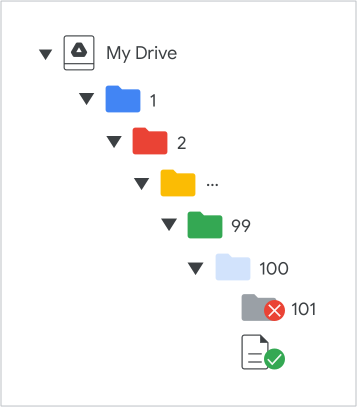
Limit głębokości folderu na Dysku.

Próby dodania więcej niż 100 poziomów folderów spowodują zwrócenie kodu stanu myDriveHierarchyDepthLimitExceeded HTTP.