
This document explains how to integrate the Google Picker into your desktop and mobile apps using the Google Picker API.
The Google Picker API is a way to let users select or upload Google Drive files. Users can grant permission to your desktop, mobile, or web app to access their Drive data, providing a secure and authorized way to interact with their files.
Features
The Google Picker has several features:
- A similar look and feel to the Google Drive UI.
- Several views showing previews and thumbnail images of Drive files.
- Pre-filtered views that only show specific file types (like PDFs or images) or certain folders.
- A redirect to the Google Picker within a new tab in the user's default browser. To have the Google Picker API open in a client page, use the Google Picker API for web apps instead.
Note that while you can select and upload files with the Google Picker, it doesn't allow users to organize, move, or copy files from one folder to another. To manage files, you must use either the Google Drive API or the Drive UI.
Prerequisites
Apps using the Google Picker must abide by all existing Terms of Service. Most importantly, you must correctly identify yourself in your requests.
You must also have a Google Cloud project.
Set up your environment
To start using the Google Picker API, you must set up your environment.
Enable the API
Before using Google APIs, you need to turn them on in a Google Cloud project. You can turn on one or more APIs in a single Google Cloud project.In the Google Cloud console, enable the Google Picker API.
Set up authentication and authorization
To authenticate end users and access user data in your app, you need to create one or more OAuth 2.0 Client IDs. A client ID is used to identify a single app to Google's OAuth servers. If your app runs on multiple platforms, you must create a separate client ID for each platform.Authorize credentials for a desktop app
To create an OAuth 2.0 Client ID, follow these steps:
- In the Google Cloud Console, go to Menu > Google Auth platform > Clients.
- Click Create Client.
- Click Application type > Select the recommended application type for your app.
- In the Name field, type a name for the credential. This name is only shown in the Google Cloud Console.
- Optional: If your app is an AI agent that takes actions on behalf of users, select Use this client for an AI-powered agent. If your app supports both AI agent workflows and standard user features, create separate OAuth clients for each. You can't change this setting after you create the client.
- Click Create.
The newly created credential appears under "OAuth 2.0 Client IDs."
For apps to get authorization to files previously granted to them, you must use the following steps:
You must obtain an OAuth 2.0 token with the
drive.file,drive, ordrive.readonlyscope using these instructions: Using OAuth 2.0 to Access Google APIs. For more information on scopes, see Choose Google Drive API scopes.Pass the OAuth 2.0 token to the Drive API to read and modify files in which the user previously granted access.
Authorize credentials for your mobile app
To create an OAuth 2.0 Client ID, follow the steps under Authorize credentials for a mobile app.
Authorize credentials for your web app
To create an OAuth 2.0 Client ID, follow the steps under Authorize credentials for a web app.
Display the Google Picker
The Google Picker API for desktop and mobile apps redirects to the Google Picker within a new tab in the user's default browser. Once the user grants access and picks the relevant files, the Google Picker returns to the calling app through the callback URL.
-
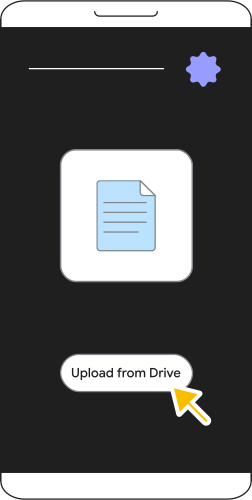
Authenticate your app by triggering the Google Picker.
-
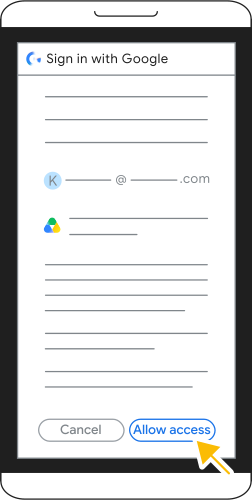
Sign in with Google and grant the requested permissions.
-
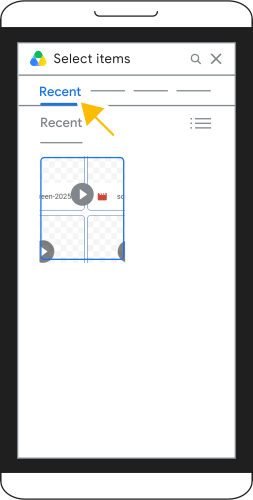
Browse your Google Drive files in the Google Picker and select your desired item.
-
Confirm your selection and tap Insert to add the file to your app.
Integrate the Google Picker into your app
To allow users to grant access to additional files or to pick files for use in your app flow, follow these steps:
Request access to the
drive.filescope to open the OAuth 2.0 access page in a new browser tab using these instructions: Using OAuth 2.0 to Access Google APIs. For more information on scopes, see Choose Google Drive API scopes.Note that only the
drive.filescope is permitted for these apps and it can't be combined with any other scope.The URL for the new browser tab accepts all standard OAuth query string parameters.
You must append the
promptandtrigger_onepickURL parameters to your OAuth 2.0 authorization URL request. Optionally, you can also customize the Google Picker with several other parameters:Parameter Description Status prompt=consentPrompt for file access. Required trigger_onepick=trueEnable the Google Picker. Required allow_multiple=trueIf true, allow the user to select multiple files. Optional mimetypes=MIMETYPESA comma-separated list of MIME types to filter the search results. If not set, files for all MIME types are displayed in the view. Optional file_ids=FILE_IDSA comma-separated list of file IDs to filter the search results. If not set, all files are displayed in the view. Optional allow_folder_selection=trueIf true, allow the user to also select folders. Optional The following sample shows an OAuth 2.0 authorization URL request:
https://accounts.google.com/o/oauth2/v2/auth? \
client_id=CLIENT_ID \
&scope=https://www.googleapis.com/auth/drive.file \
&redirect_uri=REDIRECT_URI \
&response_type=code \
&access_type=offline \
&prompt=consent \
&trigger_onepick=true
Replace the following:
CLIENT_ID: Your app's client ID.REDIRECT_URI: Where the authorization server redirects the user's browser after successful authentication. For example,https://www.cymbalgroup.com/oauth2callback.Select a
redirect_urithat works with your application type and OAuth setup. The Google Picker imposes no additional restrictions.
Once the user grants access and picks the relevant files, OAuth redirects to the
redirect_urispecified in the request with the following URL parameters appended:picked_file_ids: If the user granted access and picked files, a comma-separated list of selected file IDs.code: The access token or access code based on theresponse_typeparameter set in the request. This parameter includes a new authorization code.scope: The scope(s) included in the request.error: If the user cancelled the request within the consent flow, an error is shown.
The following sample shows an OAuth 2.0 authorization URL response:
https://REDIRECT_URI?picked_file_ids=PICKED_FILE_IDS&code=CODE&scope=SCOPESApps must exchange the authorization code from step 3 for a new OAuth 2.0 token. For more information, see Exchange authorization code for refresh and access tokens.
Apps can then use the file IDs from the URL parameter in step 3 and OAuth 2.0 token obtained in step 4 to call the Drive API. For more information, see Google Drive API overview.
Use the Google Picker with Android apps
You can also use the Google Picker in your Android mobile apps.
Authorize credentials for a mobile app
To use the Google Picker in your Android app, you need to authorize users using OAuth 2.0, similar to desktop apps. For details on Android authentication, see Authorize access to Google user data.
To display the Google Picker during authorization, create an
AuthorizationRequest
and use the PICKER_OAUTH_TRIGGER resource parameter on the
AuthorizationRequest.ResourceParameter
object.
When building the AuthorizationRequest:
Use the
drive.filescope.Call
setOptOutIncludingGrantedScopestotrueto make sure the token returned is only for thedrive.filescope and not for any previously granted scopes.Set the
AuthorizationRequest.Promptfield toCONSENTto prompt the user for consent even if it was granted before.You can optionally use the bitmap "OR" (
|) operator to also set theAuthorizationRequest.Promptfield toSELECT_ACCOUNTto let the user select an account before the consent prompt is shown.
Call the Google Picker
Similar to desktop apps, you can customize the Google Picker with several optional parameters:
PICKER_ALLOW_MULTIPLE: Allows users to select multiple files.PICKER_MIMETYPES: Accepts a comma-separated list of MIME types to filter the search results. If not set, files for all MIME types are displayed in the view.PICKER_FILE_IDS: Accepts a comma-separated list of file IDs to filter the search results. If not set, all files are displayed in the view.PICKER_ALLOW_FOLDER_SELECTION: Allows users to also pick folders.
For more information on the optional parameters in desktop apps, see Display the Google Picker.
Once the user grants access and picks the relevant files, the
getTokenResponseParams
object of the
AuthorizationResult
resource is returned. If the user granted access, this object contains the
picked_file_ids value, which is a comma-separated list of selected file IDs.