

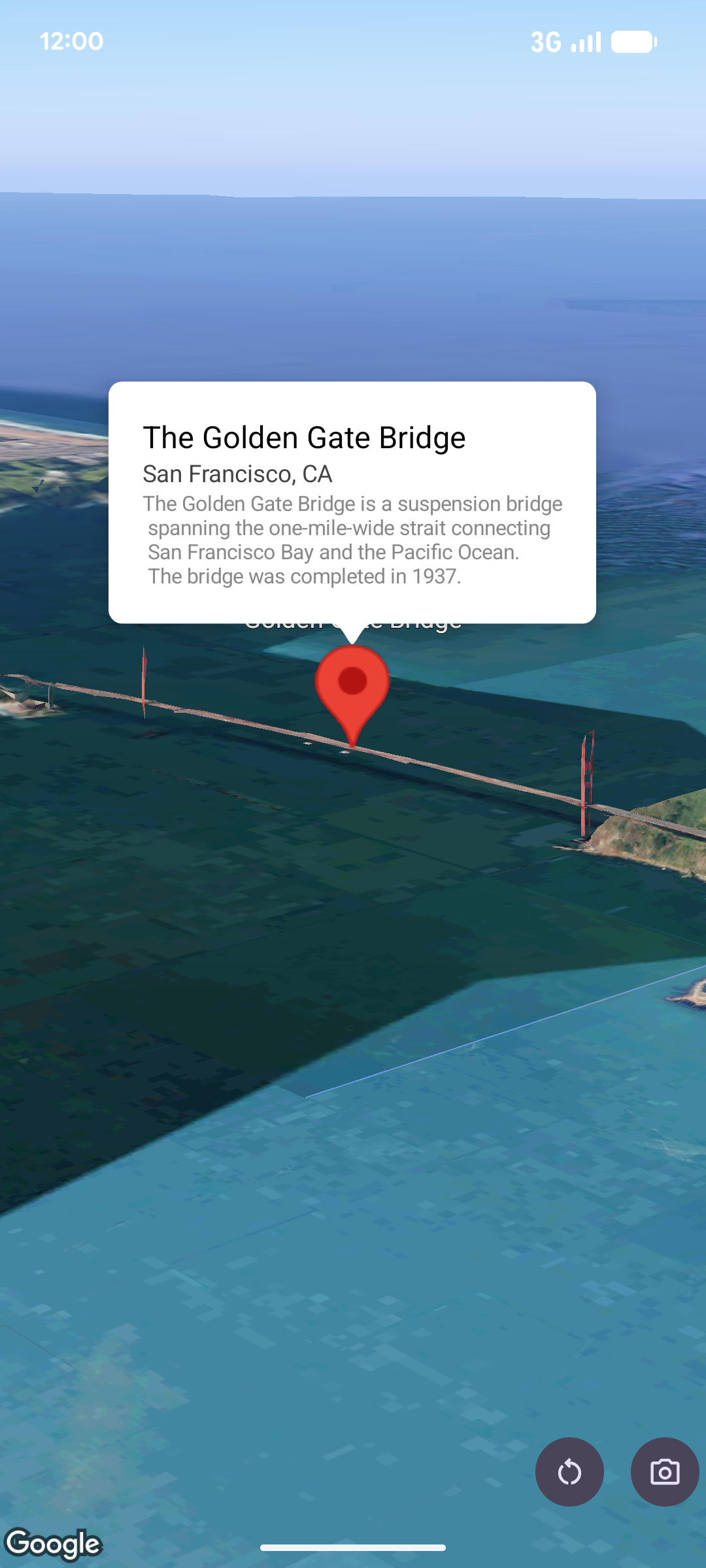
彈出式視窗會在特定位置的地圖上方,以資訊泡泡視窗顯示內容 (通常為文字或圖片)。彈出式視窗是由一個內容區域和一個錐形柄所組成,錐形柄的尖端會連接地圖上的指定位置。
一般來說,您可以將快顯視窗附加至標記,但也可以附加至特定LatLng座標。
新增彈出式視窗
如要新增快顯視窗,請建立 Popover 物件並設定其選項,包括位置和高度模式。位置是 LatLng 物件,包含經緯度和海拔高度,可決定顯示快顯視窗的位置。如果錨定至標記,則會改用標記的位置。您也可以設定海拔高度模式,控制海拔高度的解讀方式。
彈出式視窗的內容必須包含在 AndroidView 中。 彈出式視窗預設可捲動,且有預先定義的高度上限。
將快顯視窗錨定至標記
您可以將彈出式視窗錨定至標記。新增錨定至標記的彈出式視窗時,您需要將彈出式視窗與 Marker 物件建立關聯。
class MapManager(private val map: MapView) {

    /**
     * Adds a popover anchored to a marker.
     * @param context The Context required to instantiate UI views.
     */
    fun addPopoverToMarker(context: Context) {
        // 1. Create a marker
        val markerOptions = markerOptions {
            position = latLngAltitude {
                latitude = 37.422
                longitude = -122.084
                altitude = 0.0
            }
        }

        val marker = map.addMarker(markerOptions) ?: return

        // 2. Create the custom view using the passed-in context
        val textView = TextView(context).apply {
            text = context.getString(R.string.popover_hello)
            setPadding(16, 16, 16, 16)
            setBackgroundColor(Color.WHITE)
            setTextColor(Color.BLACK)
        }

        // 3. Configure and display the popover
        val options = popoverOptions {
            content = textView
            positionAnchor = marker
            altitudeMode = AltitudeMode.RELATIVE_TO_GROUND
        }

        val popover = map.addPopover(options)
        popover.show()
    }
}
新增已設定的快顯視窗
下列範例會新增一個彈出式視窗,使用者輕觸彈出式視窗外部時,該視窗會自動關閉,且不會自動平移至新開啟的彈出式視窗:
/**
 * Adds a configured popover (auto-close enabled, auto-pan disabled).
 * @param context The Context used to inflate the UI and retrieve string resources.
 */
fun addConfiguredPopover(context: Context) {
    // 1. Initialize the view with the explicit context
    val textView = TextView(context).apply {
        text = context.getString(com.example.snippets.common.R.string.popover_info)
        setPadding(12, 12, 12, 12)
        setBackgroundColor(Color.WHITE)
        setTextColor(Color.BLACK)
    }

    // 2. Configure popover behavior
    val options = popoverOptions {
        content = textView
        // Setting a fixed coordinate anchor
        positionAnchor = latLngAltitude {
            latitude = 0.0
            longitude = 0.0
            altitude = 0.0
        }
        autoCloseEnabled = true // Closes automatically when the map is tapped elsewhere
        autoPanEnabled = false  // Map camera remains stationary when popover appears
    }

    // 3. Add to the map instance
    map.addPopover(options)
}