
This guide covers how carriers interact with the RBM Administration Console to manage agents' Country Profiles under the Multi-partner model.
Switch between partner models
Depending on the availability in a given country, agents are onboarded under either the Single partner or the Multi-partner model.
- Single-partner model: Used in most countries, where a single messaging partner manages the agent launch and messaging traffic.
- Multi-partner model: Used in the US, where onboarding, traffic routing, and launch approvals involve a collaborative ecosystem of multiple partners, including Onboarding Partners (OP), Brand Partners, and Launch Partners (LP).
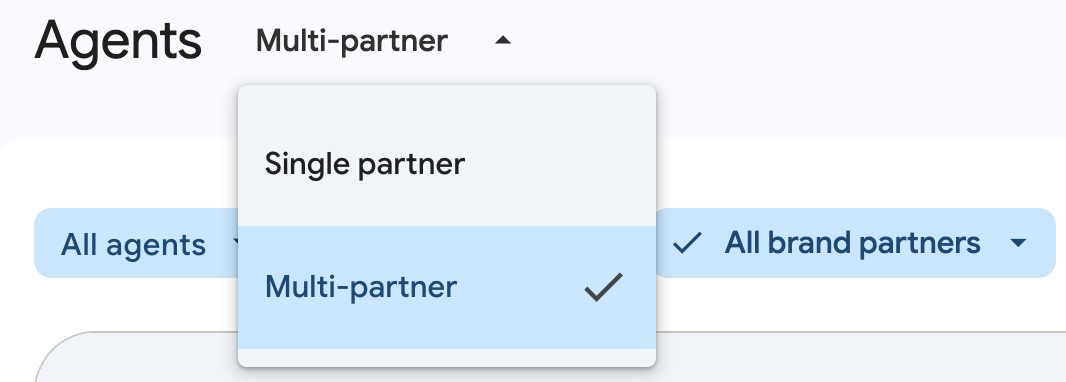
Because of these differences, agents are grouped into different views in the console. You can switch between these models to view and manage the corresponding agents.
To switch between partner models:
- Open the RBM Administration Console and sign in with your RCS for Business Carrier Google Account.
- Above the Agents list, use a drop-down switcher to select the Single partner or the Multi-partner model.
Review agent launch requests
In countries using the Multi-partner model (like the US), the agent launch request is only displayed to the carriers after all the designated LPs in a given country have completed their review and accepted.
To review an agent launch request:
- Open the RBM Administration Console and sign in with your RCS for Business Carrier Google Account.
- In the agents list, filter or locate an agent with the Pending status and click it to open.
- Navigate to the Agent overview page to review the agent information:
- Use case and Billing category.
- Navigate to the Agent information page to review the other agent
information:
- All fields that are visible to end users, such as agent display name, logo, description, and contact information.
- Navigate to the Launch page to review specific launch details and
partner associations:
- Agent information: Brand name representing the business.
- Partner roles: The designated LP routing your traffic.
- Agent Launch Questionnaire (ALQ): Responses to country-specific launch questions.
- Supporting documents: Any partner-uploaded verification PDFs (providing these is optional for partners but helpful for compliance context).
Approve an agent
Approving an agent completes its launch on your network for the specified Country Profile. After the agent is approved, its status shifts to Launched, and it can immediately exchange messages with your subscribers.
To approve an agent:
- In the RBM Administration Console agents list, select the agent in the Pending status.
- On either the Overview or Launch page, click Approve.
Optional. In the confirmation dialog, enter an approval comment to provide operational context.
Click Approve.
The launch status is updated to Launched.
Reject an agent
If an agent fails to meet your network's regulatory or policy criteria, you must reject its launch. When rejecting, provide a clear and specific rejection reason.
To reject an agent:
- In the RBM Administration Console agents list, select the agent.
- On the Launch page, click Reject.
- In the dialog window, enter the mandatory rejection reason, citing the policies or branding standards violated.
- Click Reject.
The launch status is updated to Rejected. This allows the OP and the LP to review the carrier's feedback, update the configuration, and resubmit for carrier approval.
Suspend an agent
If you detect policy violations, spam, or other issues, you can suspend a live agent on your network at any time using the console. You must provide a clear reason before submitting the suspension.
To suspend an agent:
- In the RBM Administration Console agents list, select the agent.
- On the Launch page, click Suspend.
- In the dialog window, enter the mandatory suspension reason to be shared with the partners.
Click Suspend to submit.
The launch status is updated to Suspended.
Reactivate a suspended agent
After you've identified and resolved the agent's compliance issues with the agent owner, you can reactivate the agent to restore normal messaging traffic on your network.
To reactivate an agent:
- In the RBM Administration Console agents list, select the suspended agent.
- On the Launch page, click Reactivate.
In the confirmation dialog, click Reactivate.
The agent's status returns to Launched.
Send feedback
You can add feedback for the agents in the Pending status for the specified Country Profile without approving or rejecting them. The feedback doesn't affect the agent's launch status, but it triggers an email notification to both the OP and LP containing your feedback.
To submit independent feedback:
- In the RBM Administration Console agents list, select the agent.
- On either the Overview or Launch page, click Send feedback.
- Enter your comment detailing the feedback or questions to the partners.
Click Send feedback.
The comment is visible to both the OP and LP in the table on the Launch page.