
במדריך הזה מפורטות שיטות מומלצות לכתיבת קוד לאפליקציות, כדי שהמודעות יוצגו בצורה נכונה ב-iPhone X.
דרישות מוקדמות
- מייבאים את Google Mobile Ads SDK בגרסה 7.26.0 ואילך, בנפרד או כחלק מ-Firebase.
מודעות באנר
כדי למנוע מצב שבו מודעות באנר מוסתרות על ידי פינות מעוגלות, חיישנים ואינדיקטור הבית, צריך להציב אותן ב"אזור הבטוח". בדף הזה מפורטות דוגמאות להוספת אילוצים כדי למקם מודעת באנר בחלק העליון או התחתון של האזור הבטוח.
Storyboard/Interface Builder
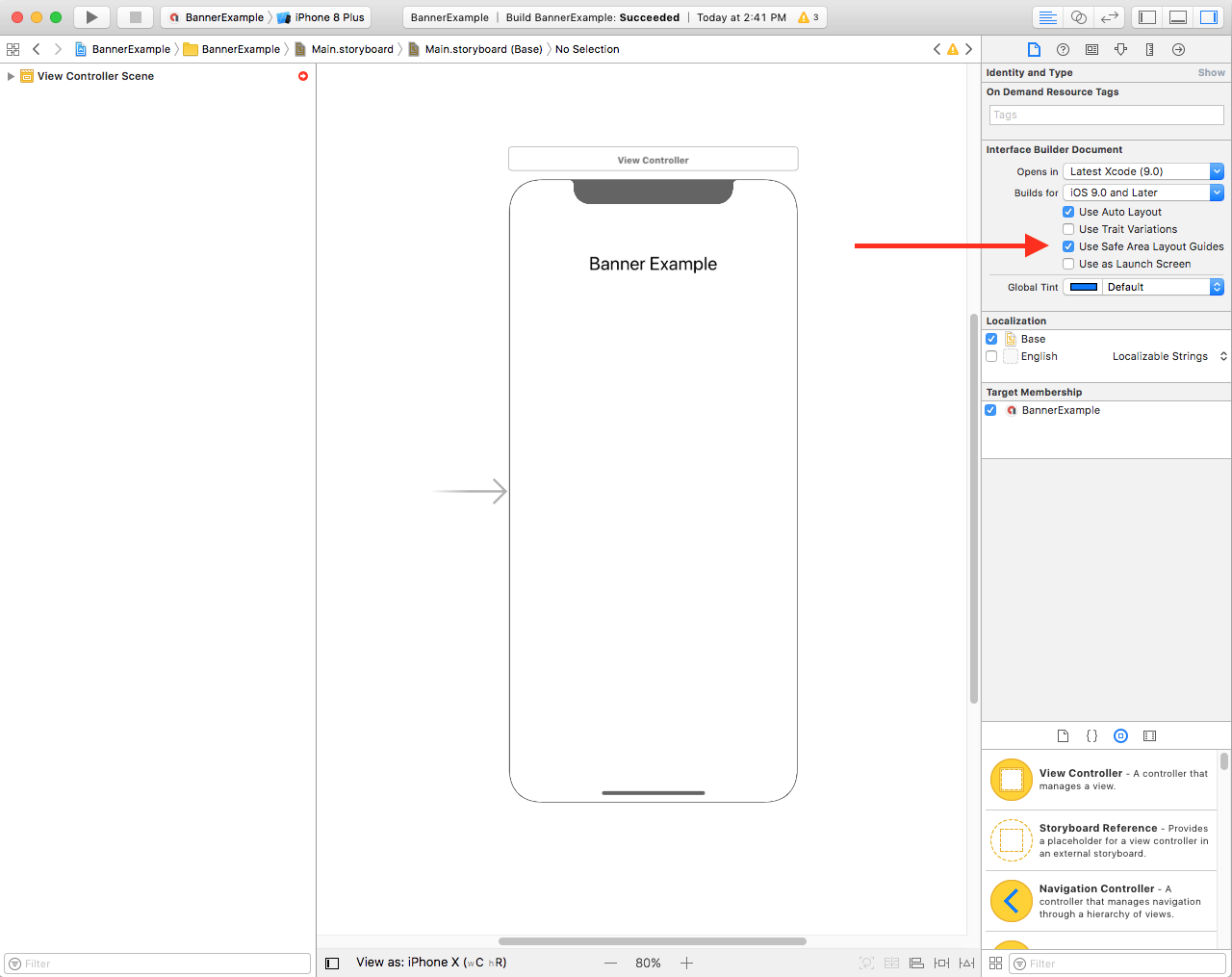
אם האפליקציה שלכם משתמשת ב-Interface Builder, קודם צריך לוודא שהפעלתם את מדריכי הפריסה של Safe Area. כדי לעשות את זה, צריך להפעיל את Xcode בגרסה 9 ואילך ולטרגט ל-iOS בגרסה 9 ואילך.
פותחים את הקובץ של Interface Builder ולוחצים על הסצנה של בקר התצוגה. האפשרויות של Interface Builder Document יופיעו בצד שמאל. מסמנים את האפשרות Use Safe Area Layout Guides ומוודאים שה-build מיועד ל-iOS 9.0 ואילך.
מומלץ להגביל את הבאנר לגודל הנדרש באמצעות אילוצי רוחב וגובה.
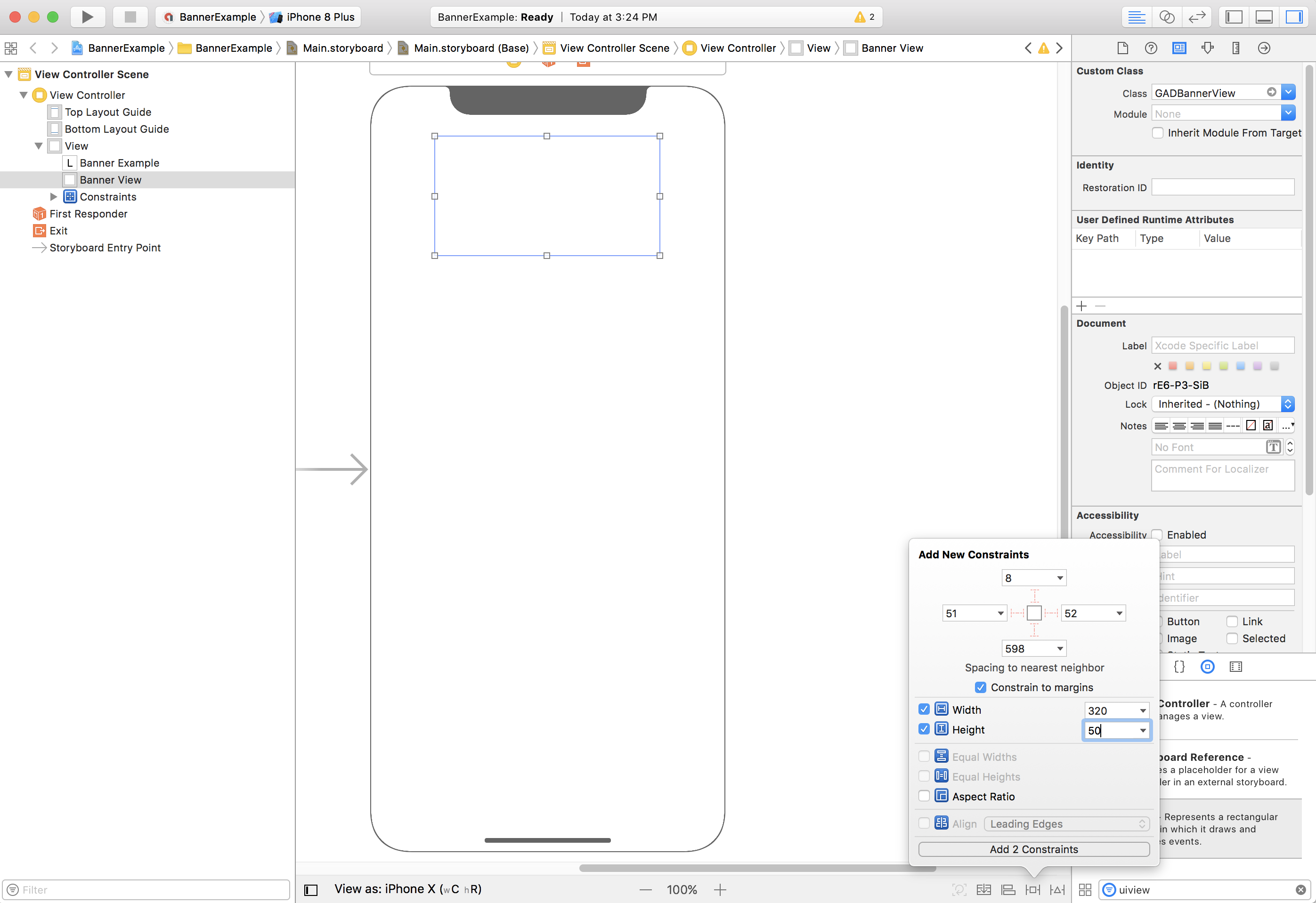
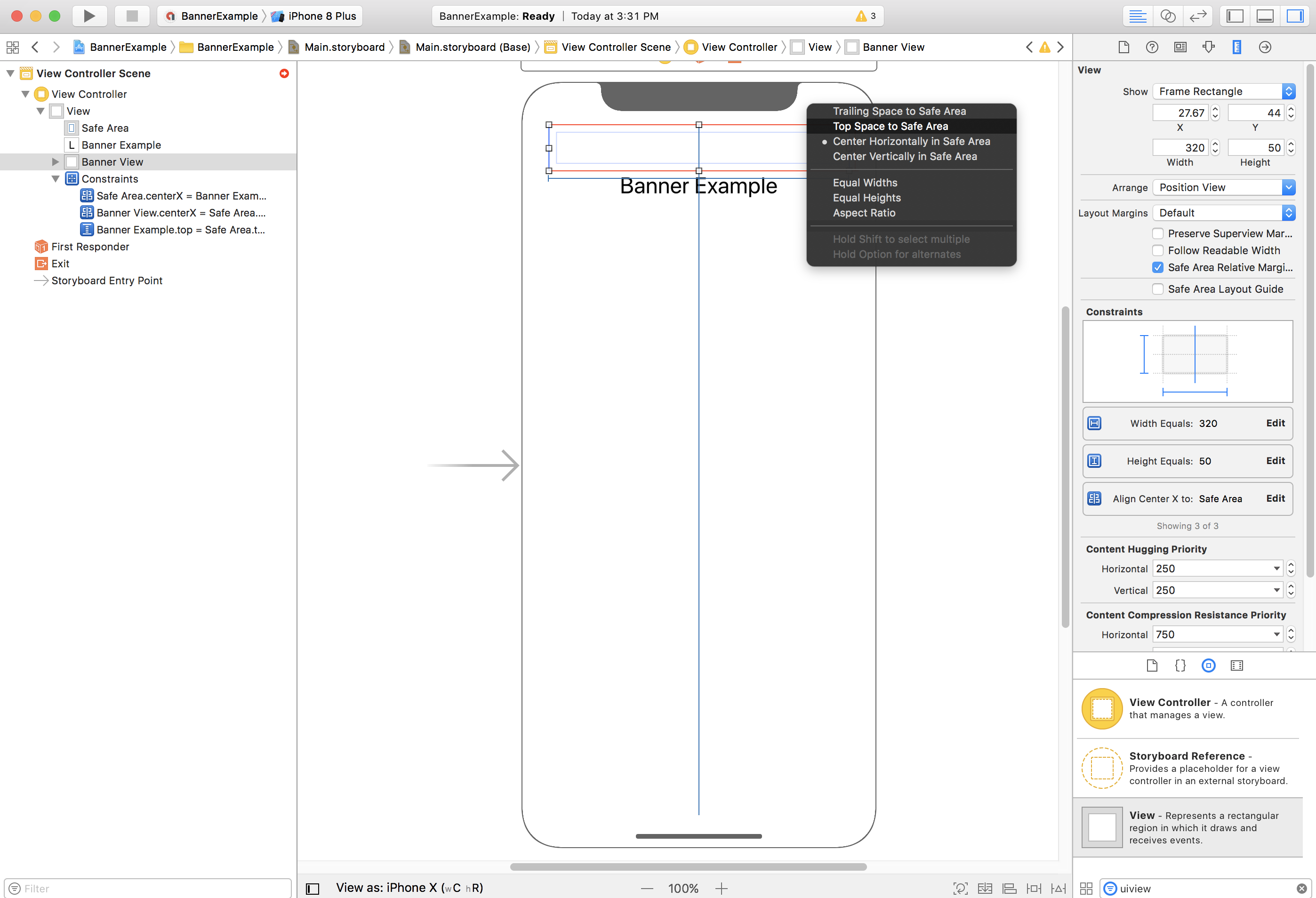
עכשיו אפשר ליישר את מודעת הבאנר לחלק העליון של האזור הבטוח על ידי הגבלת המאפיין Top של GADBannerView לחלק העליון של האזור הבטוח:
באופן דומה, אפשר ליישר את הבאנר לחלק התחתון של האזור הבטוח על ידי הגבלת המאפיין Bottom של GADBannerView לחלק התחתון של האזור הבטוח:
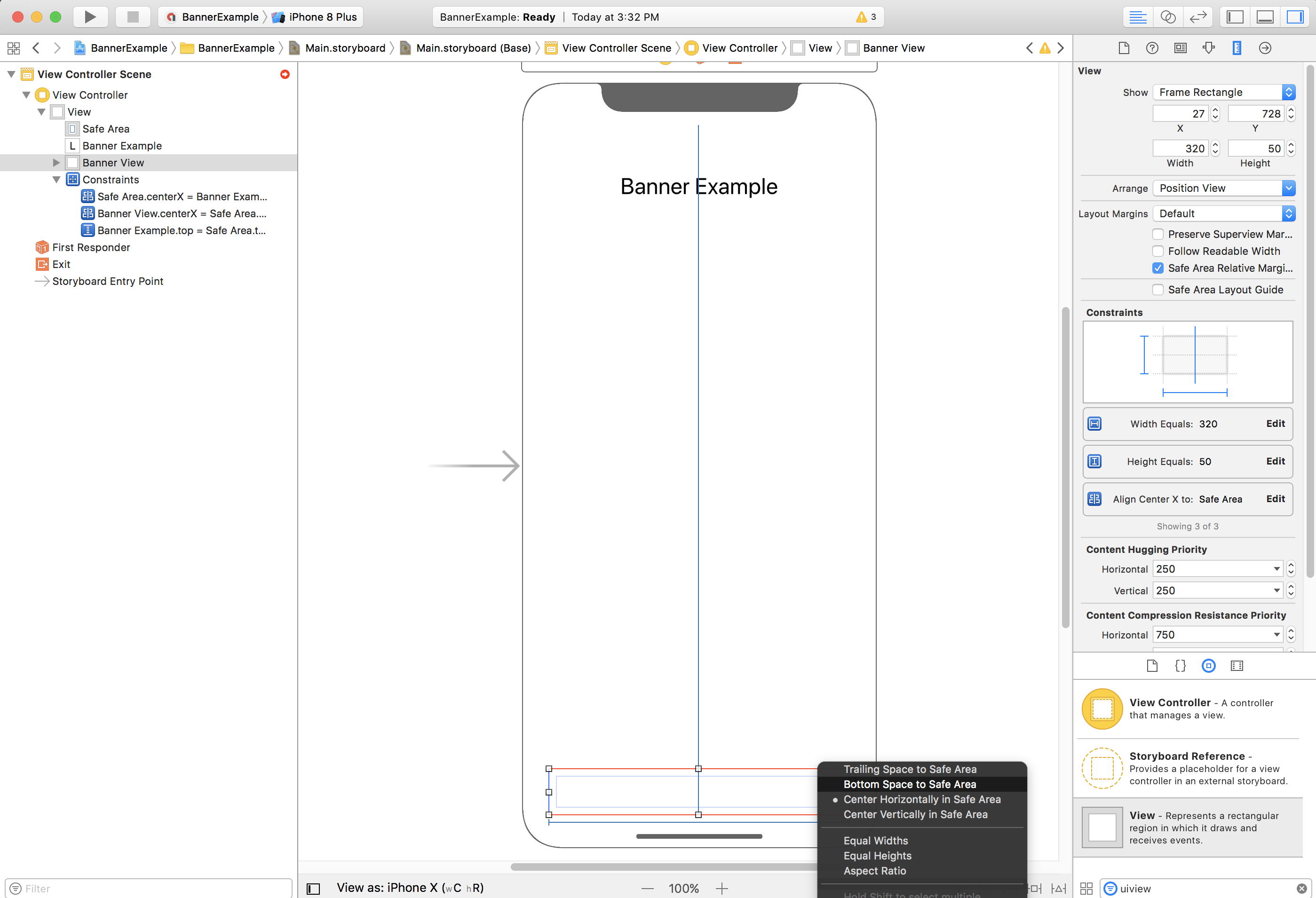
עכשיו האילוצים אמורים להיראות כמו בצילום המסך הבא (הגודל והמיקום יכולים להשתנות):

ViewController
הנה קטע קוד פשוט של בקר תצוגה שמבצע את הפעולות המינימליות הנדרשות כדי להציג מודעת באנר ב-GADBannerView, כפי שהוגדר ב-storyboard שלמעלה:
Swift
class ViewController: UIViewController {

  /// The banner view.
  @IBOutlet var bannerView: BannerView!

  override func viewDidLoad() {
    super.viewDidLoad()
    // Replace this ad unit ID with your own ad unit ID.
    bannerView.adUnitID = "ca-app-pub-3940256099942544/2934735716"
    bannerView.rootViewController = self
    bannerView.load(Request())
  }

}
Objective-C
@interface ViewController()

@property(nonatomic, strong) IBOutlet GADBannerView *bannerView;

@end

@implementation ViewController

- (void)viewDidLoad {
  [super viewDidLoad];

  // Replace this ad unit ID with your own ad unit ID.
  self.bannerView.adUnitID = @"ca-app-pub-3940256099942544/2934735716";
  self.bannerView.rootViewController = self;
  GADRequest *request = [GADRequest request];
  [self.bannerView loadRequest:request];
}
יישור מודעות באנר לקצה של האזור הבטוח
אם רוצים להציג מודעת באנר שמיושרת לשמאל או לימין, צריך להגביל את הקצה השמאלי או הימני של מודעת הבאנר לקצה השמאלי או הימני של האזור הבטוח, ולא לקצה השמאלי או הימני של התצוגה הראשית.
אם האפשרות Use Safe Area Layout Guides מופעלת, כברירת מחדל, כלי בניית הממשק ישתמש בקצוות של האזור הבטוח כשמוסיפים אילוצים לתצוגה.
פרסום פרוגרמטי
אם האפליקציה שלכם יוצרת מודעות באנר באופן פרוגרמטי, אתם יכולים להגדיר אילוצים ולמקם את מודעת הבאנר בקוד. בדוגמה הזו מוצג איך להגדיר אילוץ למודעת באנר כך שתופיע במרכז האופקי בחלק התחתון של האזור הבטוח:
Swift
class ViewController: UIViewController {

  var bannerView: BannerView!

  override func viewDidLoad() {
    super.viewDidLoad()

    // Instantiate the banner view with your desired banner size.
    bannerView = BannerView(adSize: AdSizeBanner)
    addBannerViewToView(bannerView)
    bannerView.rootViewController = self
    // Set the ad unit ID to your own ad unit ID here.
    bannerView.adUnitID = "ca-app-pub-3940256099942544/2934735716"
    bannerView.load(Request())
  }

  func addBannerViewToView(_ bannerView: UIView) {
    bannerView.translatesAutoresizingMaskIntoConstraints = false
    view.addSubview(bannerView)
    if #available(iOS 11.0, *) {
      positionBannerAtBottomOfSafeArea(bannerView)
    }
    else {
      positionBannerAtBottomOfView(bannerView)
    }
  }

  @available (iOS 11, *)
  func positionBannerAtBottomOfSafeArea(_ bannerView: UIView) {
    // Position the banner. Stick it to the bottom of the Safe Area.
    // Centered horizontally.
    let guide: UILayoutGuide = view.safeAreaLayoutGuide

    NSLayoutConstraint.activate(
      [bannerView.centerXAnchor.constraint(equalTo: guide.centerXAnchor),
       bannerView.bottomAnchor.constraint(equalTo: guide.bottomAnchor)]
    )
  }

  func positionBannerAtBottomOfView(_ bannerView: UIView) {
    // Center the banner horizontally.
    view.addConstraint(NSLayoutConstraint(item: bannerView,
                                          attribute: .centerX,
                                          relatedBy: .equal,
                                          toItem: view,
                                          attribute: .centerX,
                                          multiplier: 1,
                                          constant: 0))
    // Lock the banner to the top of the bottom layout guide.
    view.addConstraint(NSLayoutConstraint(item: bannerView,
                                          attribute: .bottom,
                                          relatedBy: .equal,
                                          toItem: self.bottomLayoutGuide,
                                          attribute: .top,
                                          multiplier: 1,
                                          constant: 0))
  }

}
Objective-C
@interface ViewController()

@property(nonatomic, strong) GADBannerView *bannerView;

@end

@implementation ViewController

- (void)viewDidLoad {
  [super viewDidLoad];

  // Instantiate the banner view with your desired banner size.
  self.bannerView = [[GADBannerView alloc] initWithAdSize:GADAdSizeBanner];
  [self addBannerViewToView:self.bannerView];

  // Replace this ad unit ID with your own ad unit ID.
  self.bannerView.adUnitID = @"ca-app-pub-3940256099942544/2934735716";
  self.bannerView.rootViewController = self;
  GADRequest *request = [GADRequest request];
  [self.bannerView loadRequest:request];
}

#pragma mark - view positioning

-(void)addBannerViewToView:(UIView *_Nonnull)bannerView {
  self.bannerView.translatesAutoresizingMaskIntoConstraints = NO;
  [self.view addSubview:self.bannerView];
  if (@available(ios 11.0, *)) {
    [self positionBannerViewAtBottomOfSafeArea:bannerView];
  } else {
    [self positionBannerViewAtBottomOfView:bannerView];
  }
}

- (void)positionBannerViewAtBottomOfSafeArea:(UIView *_Nonnull)bannerView NS_AVAILABLE_IOS(11.0) {
  // Position the banner. Stick it to the bottom of the Safe Area.
  // Centered horizontally.
  UILayoutGuide *guide = self.view.safeAreaLayoutGuide;
  [NSLayoutConstraint activateConstraints:@[
    [bannerView.centerXAnchor constraintEqualToAnchor:guide.centerXAnchor],
    [bannerView.bottomAnchor constraintEqualToAnchor:guide.bottomAnchor]
  ]];
}

- (void)positionBannerViewAtBottomOfView:(UIView *_Nonnull)bannerView {
  [self.view addConstraint:[NSLayoutConstraint constraintWithItem:bannerView
                                                        attribute:NSLayoutAttributeCenterX
                                                        relatedBy:NSLayoutRelationEqual
                                                           toItem:self.view
                                                        attribute:NSLayoutAttributeCenterX
                                                       multiplier:1
                                                         constant:0]];
  [self.view addConstraint:[NSLayoutConstraint constraintWithItem:bannerView
                                                        attribute:NSLayoutAttributeBottom
                                                        relatedBy:NSLayoutRelationEqual
                                                           toItem:self.bottomLayoutGuide
                                                        attribute:NSLayoutAttributeTop
                                                       multiplier:1
                                                         constant:0]];
}

@end
כדי להגביל את המיקום לחלק העליון של האזור הבטוח, אפשר להשתמש בטכניקות שלמעלה ולשנות את המאפיינים ואת נקודות העיגון.
מודעות באנר חכמות
אם אתם משתמשים במודעות באנר חכמות, במיוחד במצב לרוחב, מומלץ להשתמש באילוצים כדי ליישר את קצוות הבאנר לקצוות השמאלי והימני של האזור הבטוח.
ב-Interface Builder, אפשר להשתמש ב-Safe Area Layout Guides גם בגרסאות קודמות, עד iOS 9, על ידי סימון האפשרות Use Safe Area Layout Guides כפי שמתואר למעלה.
בקוד, צריך להגדיר את אילוצי הקצוות ביחס למדריכי הפריסה של האזור הבטוח, אם הם זמינים. קטע הקוד הבא מוסיף תצוגת באנר לתצוגה ומגביל אותה לתחתית התצוגה, ברוחב מלא:
Swift
func addBannerViewToView(_ bannerView: BannerView) {
  bannerView.translatesAutoresizingMaskIntoConstraints = false
  view.addSubview(bannerView)
  if #available(iOS 11.0, *) {
    // In iOS 11, we need to constrain the view to the safe area.
    positionBannerViewFullWidthAtBottomOfSafeArea(bannerView)
  }
  else {
    // In lower iOS versions, safe area is not available so we use
    // bottom layout guide and view edges.
    positionBannerViewFullWidthAtBottomOfView(bannerView)
  }
}

// MARK: - view positioning
@available (iOS 11, *)
func positionBannerViewFullWidthAtBottomOfSafeArea(_ bannerView: UIView) {
  // Position the banner. Stick it to the bottom of the Safe Area.
  // Make it constrained to the edges of the safe area.
  let guide = view.safeAreaLayoutGuide
  NSLayoutConstraint.activate([
    guide.leftAnchor.constraint(equalTo: bannerView.leftAnchor),
    guide.rightAnchor.constraint(equalTo: bannerView.rightAnchor),
    guide.bottomAnchor.constraint(equalTo: bannerView.bottomAnchor)
  ])
}

func positionBannerViewFullWidthAtBottomOfView(_ bannerView: UIView) {
  view.addConstraint(NSLayoutConstraint(item: bannerView,
                                        attribute: .leading,
                                        relatedBy: .equal,
                                        toItem: view,
                                        attribute: .leading,
                                        multiplier: 1,
                                        constant: 0))
  view.addConstraint(NSLayoutConstraint(item: bannerView,
                                        attribute: .trailing,
                                        relatedBy: .equal,
                                        toItem: view,
                                        attribute: .trailing,
                                        multiplier: 1,
                                        constant: 0))
  view.addConstraint(NSLayoutConstraint(item: bannerView,
                                        attribute: .bottom,
                                        relatedBy: .equal,
                                        toItem: bottomLayoutGuide,
                                        attribute: .top,
                                        multiplier: 1,
                                        constant: 0))
}
Objective-C
- (void)addBannerViewToView:(UIView *)bannerView {
  bannerView.translatesAutoresizingMaskIntoConstraints = NO;
  [self.view addSubview:bannerView];
  if (@available(ios 11.0, *)) {
    // In iOS 11, we need to constrain the view to the safe area.
    [self positionBannerViewFullWidthAtBottomOfSafeArea:bannerView];
  } else {
    // In lower iOS versions, safe area is not available so we use
    // bottom layout guide and view edges.
    [self positionBannerViewFullWidthAtBottomOfView:bannerView];
  }
}

#pragma mark - view positioning

- (void)positionBannerViewFullWidthAtBottomOfSafeArea:(UIView *_Nonnull)bannerView NS_AVAILABLE_IOS(11.0) {
  // Position the banner. Stick it to the bottom of the Safe Area.
  // Make it constrained to the edges of the safe area.
  UILayoutGuide *guide = self.view.safeAreaLayoutGuide;

  [NSLayoutConstraint activateConstraints:@[
    [guide.leftAnchor constraintEqualToAnchor:bannerView.leftAnchor],
    [guide.rightAnchor constraintEqualToAnchor:bannerView.rightAnchor],
    [guide.bottomAnchor constraintEqualToAnchor:bannerView.bottomAnchor]
  ]];
}

- (void)positionBannerViewFullWidthAtBottomOfView:(UIView *_Nonnull)bannerView {
  [self.view addConstraint:[NSLayoutConstraint constraintWithItem:bannerView
                                                        attribute:NSLayoutAttributeLeading
                                                        relatedBy:NSLayoutRelationEqual
                                                           toItem:self.view
                                                        attribute:NSLayoutAttributeLeading
                                                       multiplier:1
                                                         constant:0]];
  [self.view addConstraint:[NSLayoutConstraint constraintWithItem:bannerView
                                                        attribute:NSLayoutAttributeTrailing
                                                        relatedBy:NSLayoutRelationEqual
                                                           toItem:self.view
                                                        attribute:NSLayoutAttributeTrailing
                                                       multiplier:1
                                                         constant:0]];
  [self.view addConstraint:[NSLayoutConstraint constraintWithItem:bannerView
                                                        attribute:NSLayoutAttributeBottom
                                                        relatedBy:NSLayoutRelationEqual
                                                           toItem:self.bottomLayoutGuide
                                                        attribute:NSLayoutAttributeTop
                                                       multiplier:1
                                                         constant:0]];
}
מודעות מותאמות
אם באפליקציה שלכם יש מודעות מותאמות שמוצמדות לחלק העליון או התחתון של המסך, העקרונות שחלים על מודעות באנר חלים גם על המודעות המותאמות.
ההבדל העיקרי הוא שבמקום להוסיף אילוצים ל-GADBannerView, תצטרכו להוסיף אילוצים ל-GADNativeAdView (או לתצוגה שמכילה את המודעה) כדי לפעול בהתאם למדריכי הפריסה של Safe Area. בתצוגות מותאמות, מומלץ לספק מגבלות גודל מפורשות יותר.
מודעות מעברון ומודעות מתגמלות
החל מגרסה 7.26.0, Google Mobile Ads SDK תומך באופן מלא בפורמטים של מודעות מעברון ומודעות מתגמלות באייפון X.