
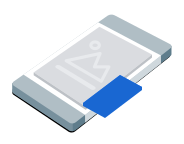
Quảng cáo hình trong hình (PiP) xuất hiện trong một cửa sổ nổi luôn ở trên cùng của nội dung trên màn hình, chẳng hạn như bài viết, nguồn cấp dữ liệu hoặc trò chơi. Định dạng này cho phép người dùng tương tác với ứng dụng của bạn trong khi quảng cáo vẫn hiển thị. Để hiển thị quảng cáo hiển thị không chiếm toàn bộ màn hình, hãy chọn định dạng này. Tìm hiểu thêm về quảng cáo trong chế độ hình trong hình.
Hướng dẫn này trình bày cách yêu cầu và hiển thị quảng cáo hình trong hình trong ứng dụng của bạn bằng Google Mobile Ads SDK.
Trước khi bắt đầu
Trước khi tiếp tục, hãy làm như sau:
Cài đặt Google Mobile Ads SDK phiên bản
13.10.0trở lên.
Bật quảng cáo thử nghiệm và sử dụng mã đơn vị quảng cáo thử nghiệm sau:
ca-app-pub-3940256099942544/8810945611
Tải một quảng cáo
Để tải một đối tượng
GADPictureInPictureAd, hãy tạo một yêu cầu quảng cáo và gọi phương thức tải:
Swift
Thay thế adUnitID bằng mã đơn vị quảng cáo của bạn.
Objective-C
Thay thế kAdUnitID bằng mã đơn vị quảng cáo của bạn.
Hiển thị quảng cáo
Để hiển thị quảng cáo trong hình trong hình trên màn hình, hãy gọi phương thức show. Ví dụ sau đây cho thấy quảng cáo ở vị trí mặc định và đặt phạm vi trình bày cho màn hình:
Swift
private func showPictureInPictureAd() {
  // Use the loaded PictureInPictureAd instance.
  guard let pipAd else {
    print("No ad to show.")
    return
  }
  let options = PictureInPictureAdOptions()
  // Uses the Google Mobile Ads SDK's default screen position.
  options.position = .default
  // Binds the ad lifecycle to the host screen.
  options.presentationScope = .screen

  pipAd.show(with: options)
}
Objective-C
- (void)showPictureInPictureAd {
  // Use the loaded PictureInPictureAd instance.
  if (!self.pipAd) {
    NSLog(@"No ad to show.");
    return;
  }
  GADPictureInPictureAdOptions *options =
      [[GADPictureInPictureAdOptions alloc] init];
  // Uses the Google Mobile Ads SDK's default screen position.
  options.position = GADPictureInPictureAdPositionDefault;
  // Binds the ad lifecycle to the host screen.
  options.presentationScope = GADPictureInPictureAdPresentationScopeScreen;

  [self.pipAd showWithOptions:options];
}
Đặt vị trí
Theo mặc định, Google Mobile Ads SDK sẽ hiển thị quảng cáo hình trong hình ở góc dưới cùng bên phải màn hình khi xuất hiện lần đầu hoặc ở vị trí đã biết gần đây nhất nếu xuất hiện trước đó. Để tuỳ chỉnh vị trí xuất hiện của quảng cáo, hãy chỉ định một vị trí khi hiển thị quảng cáo. Ví dụ sau đây đặt vị trí ở đầu nội dung ở góc trên cùng bên trái màn hình:
Swift
private func createTopLeftPositionOptions() -> PictureInPictureAdOptions {
  let options = PictureInPictureAdOptions()
  // Sets the ad position to the top-left corner of the screen.
  options.position = .topLeft
  return options
}
Objective-C
- (GADPictureInPictureAdOptions *)createTopLeftPositionOptions {
  GADPictureInPictureAdOptions *options =
      [[GADPictureInPictureAdOptions alloc] init];
  // Sets the ad position to the top-left corner of the screen.
  options.position = GADPictureInPictureAdPositionTopLeft;
  return options;
}
Để biết tất cả các vị trí có sẵn, hãy xem GADPictureInPictureAdPosition.
Đặt phạm vi trình bày
Theo mặc định, Google Mobile Ads SDK liên kết quảng cáo trong hình trong hình với màn hình lưu trữ hiện tại. Google Mobile Ads SDK sẽ đóng quảng cáo khi hệ phân cấp view của màn hình lưu trữ không còn trong bộ nhớ. Để quảng cáo vẫn hiển thị sau khi màn hình lưu trữ bị xoá khỏi bộ nhớ, hãy đặt phạm vi trình bày cho ứng dụng:
Swift
private func createApplicationScopedOptions() -> PictureInPictureAdOptions {
  let options = PictureInPictureAdOptions()
  // Keeps the ad visible beyond the host screen's lifecycle.
  options.presentationScope = .application
  return options
}
Objective-C
- (GADPictureInPictureAdOptions *)createApplicationScopedOptions {
  GADPictureInPictureAdOptions *options =
      [[GADPictureInPictureAdOptions alloc] init];
  // Keeps the ad visible beyond the host screen's lifecycle.
  options.presentationScope = GADPictureInPictureAdPresentationScopeApplication;
  return options;
}
Để biết thêm thông tin, hãy xem bài viết Giữ cho quảng cáo luôn hiển thị trên các màn hình.
Theo dõi các sự kiện quảng cáo
Để xử lý các sự kiện trong vòng đời của quảng cáo ở chế độ hình trong hình, hãy đăng ký các sự kiện quảng cáo trước khi hiển thị quảng cáo. Các báo cáo Sự kiện này báo cáo lượt tương tác với quảng cáo, chẳng hạn như lượt nhấp và lượt hiển thị. Các sự kiện này cũng báo cáo các sự kiện dành riêng cho chế độ hình trong hình, chẳng hạn như khi quảng cáo hiển thị hoặc ẩn:
Swift
func pictureInPictureAdDidShow(_ pictureInPictureAd: PictureInPictureAd) {
  print("Picture-in-Picture ad shown.")
}

func pictureInPictureAdDidHide(_ pictureInPictureAd: PictureInPictureAd) {
  print("Picture-in-Picture ad hidden.")
}

func pictureInPictureAdDidFailToShow(
  _ pictureInPictureAd: PictureInPictureAd, error: Error
) {
  print("Picture-in-Picture ad failed to show: \(error.localizedDescription)")
}

func pictureInPictureAdDidRecordImpression(
  _ pictureInPictureAd: PictureInPictureAd
) {
  print("Picture-in-Picture ad recorded an impression.")
}

func pictureInPictureAdDidRecordClick(
  _ pictureInPictureAd: PictureInPictureAd
) {
  print("Picture-in-Picture ad recorded a click.")
}

func pictureInPictureAdWillPresentScreen(
  _ pictureInPictureAd: PictureInPictureAd
) {
  print("Picture-in-Picture ad will present screen.")
}

func pictureInPictureAdWillDismissScreen(
  _ pictureInPictureAd: PictureInPictureAd
) {
  print("Picture-in-Picture ad will dismiss screen.")
}

func pictureInPictureAdDidDismissScreen(
  _ pictureInPictureAd: PictureInPictureAd
) {
  print("Picture-in-Picture ad dismissed screen.")
}
Objective-C
- (void)pictureInPictureAdDidShow:(GADPictureInPictureAd *)pictureInPictureAd {
  NSLog(@"Picture-in-Picture ad shown.");
}

- (void)pictureInPictureAdDidHide:(GADPictureInPictureAd *)pictureInPictureAd {
  NSLog(@"Picture-in-Picture ad hidden.");
}

- (void)pictureInPictureAdDidFailToShow:(GADPictureInPictureAd *)pictureInPictureAd
                              withError:(NSError *)error {
  NSLog(@"Picture-in-Picture ad failed to show: %@", error);
}

- (void)pictureInPictureAdDidRecordImpression:(GADPictureInPictureAd *)pictureInPictureAd {
  NSLog(@"Picture-in-Picture ad recorded an impression.");
}

- (void)pictureInPictureAdDidRecordClick:(GADPictureInPictureAd *)pictureInPictureAd {
  NSLog(@"Picture-in-Picture ad recorded a click.");
}

- (void)pictureInPictureAdWillPresentScreen:(GADPictureInPictureAd *)pictureInPictureAd {
  NSLog(@"Picture-in-Picture ad will present screen.");
}

- (void)pictureInPictureAdWillDismissScreen:(GADPictureInPictureAd *)pictureInPictureAd {
  NSLog(@"Picture-in-Picture ad will dismiss screen.");
}

- (void)pictureInPictureAdDidDismissScreen:(GADPictureInPictureAd *)pictureInPictureAd {
  NSLog(@"Picture-in-Picture ad dismissed screen.");
}
Ẩn quảng cáo
Để xoá quảng cáo nổi khỏi màn hình, hãy gọi phương thức ẩn. Phương thức này gọi sự kiện quảng cáo bị ẩn:
Swift
private func hidePictureInPictureAd() {
  // Use the loaded PictureInPictureAd instance.
  guard let pipAd else {
    print("No ad to hide.")
    return
  }
  pipAd.hide()
}
Objective-C
- (void)hidePictureInPictureAd {
  // Use the loaded PictureInPictureAd instance.
  if (!self.pipAd) {
    NSLog(@"No ad to hide.");
    return;
  }
  [self.pipAd hide];
}
Xoá tài nguyên quảng cáo
Để tránh rò rỉ bộ nhớ, hãy bỏ tham chiếu đến đối tượng quảng cáo khi ứng dụng của bạn hoàn tất việc sử dụng quảng cáo. Ví dụ: khi ứng dụng của bạn không còn hiển thị hoặc tương tác với quảng cáo nữa. Đối với quảng cáo trong phạm vi màn hình, hãy bỏ tệp đối chiếu khi ứng dụng của bạn xoá màn hình lưu trữ khỏi bộ nhớ. Đối với quảng cáo trong phạm vi ứng dụng, hãy giữ lại tệp đối chiếu quảng cáo trong khi người dùng di chuyển giữa các màn hình và bỏ tệp đối chiếu khi người dùng đóng quảng cáo:
Swift
private func cleanUpPictureInPictureAd() {
  pipAd?.hide()
  pipAd = nil
}
Objective-C
- (void)cleanUpPictureInPictureAd {
  [self.pipAd hide];
  self.pipAd = nil;
}
Giữ cho quảng cáo luôn hiển thị trên các màn hình
Khi bạn đặt phạm vi trình bày cho ứng dụng, quảng cáo trong hình ảnh trong hình ảnh vẫn hiển thị ngay cả khi ứng dụng của bạn xoá màn hình lưu trữ khỏi bộ nhớ. Để tương tác hoặc đóng quảng cáo khi người dùng rời khỏi màn hình lưu trữ, ứng dụng của bạn phải giữ quyền truy cập vào quảng cáo trong hình trong hình. Bạn nên giữ quảng cáo trong một trình quản lý trạng thái chung hoặc singleton ở cấp ứng dụng thay vì trong biến thực thể của một màn hình.
Để xem ví dụ về cách giữ cho quảng cáo luôn hiển thị trên các màn hình, hãy xem các ứng dụng mẫu sau: