
Hiển thị định dạng quảng cáo gốc do hệ thống xác định
Khi quảng cáo gốc tải, ứng dụng của bạn sẽ nhận được một đối tượng quảng cáo gốc bằng cách sử dụng một trong các thông báo giao thức GADAdLoaderDelegate. Sau đó, ứng dụng của bạn sẽ chịu trách nhiệm hiển thị quảng cáo (nhưng không nhất thiết phải hiển thị ngay lập tức).
Để việc hiển thị định dạng quảng cáo do hệ thống xác định trở nên dễ dàng hơn, SDK sẽ cung cấp cho bạn một số tài nguyên hữu ích.
GADNativeAdView
Đối với GADNativeAd, có một lớp "khung hiển thị quảng cáo"
:
GADNativeAdView.
Lớp khung hiển thị quảng cáo này là UIView mà nhà xuất bản nên dùng để hiển thị quảng cáo.
Ví dụ: một GADNativeAdView có thể hiển thị một thực thể của
một GADNativeAd. Mỗi đối tượng UIView được dùng để hiển thị thành phần của quảng cáo đó phải là khung hiển thị con của đối tượng GADNativeAdView đó.
Ví dụ: nếu bạn đang hiển thị quảng cáo trong UITableView, thì hệ phân cấp view cho một trong các ô có thể trông như sau:
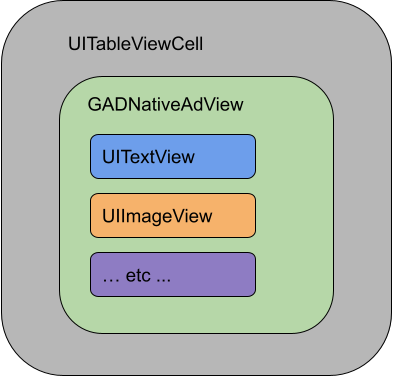
Lớp GADNativeAdView cũng cung cấp IBOutlets được dùng để đăng ký
khung hiển thị cho từng thành phần và một phương thức để đăng ký chính đối tượng
GADNativeAd. Việc đăng ký khung hiển thị theo cách này cho phép SDK tự động xử lý các tác vụ như:
- Ghi lại số lượt nhấp.
- Ghi lại số lượt hiển thị (khi pixel đầu tiên xuất hiện trên màn hình).
- Hiển thị lớp phủ Lựa chọn quảng cáo.
Lớp phủ Lựa chọn quảng cáo
Đối với quảng cáo gốc gián tiếp (được phân phối thông qua quảng cáo thay thế của AdMob hoặc thông qua Ad Exchange hoặc AdSense), SDK sẽ thêm lớp phủ Lựa chọn quảng cáo. Hãy để trống không gian ở góc bạn muốn trong khung hiển thị quảng cáo gốc cho biểu trưng Lựa chọn quảng cáo được chèn tự động. Ngoài ra, hãy đảm bảo rằng lớp phủ Lựa chọn quảng cáo được đặt trên nội dung cho phép người dùng dễ dàng nhìn thấy biểu tượng đó. Để biết thêm thông tin về giao diện và chức năng của lớp phủ, hãy xem nguyên tắc triển khai quảng cáo gốc có lập trình.
Thuộc tính quảng cáo
Khi hiển thị quảng cáo gốc có lập trình, bạn phải hiển thị thuộc tính quảng cáo để cho biết rằng khung hiển thị đó là quảng cáo.Ví dụ về mã
Phần này cho biết cách hiển thị quảng cáo gốc bằng các khung hiển thị được tải động từ tệp xib. Đây có thể là một phương pháp rất hữu ích khi sử dụng GADAdLoaders được định cấu hình để yêu cầu nhiều định dạng.
Bố trí UIViews
Bước đầu tiên là bố trí UIViews sẽ hiển thị thành phần quảng cáo gốc.
Bạn có thể làm việc này trong Trình tạo giao diện, giống như khi tạo bất kỳ tệp xib nào khác. Sau đây là cách bố cục cho quảng cáo gốc có thể trông như sau:
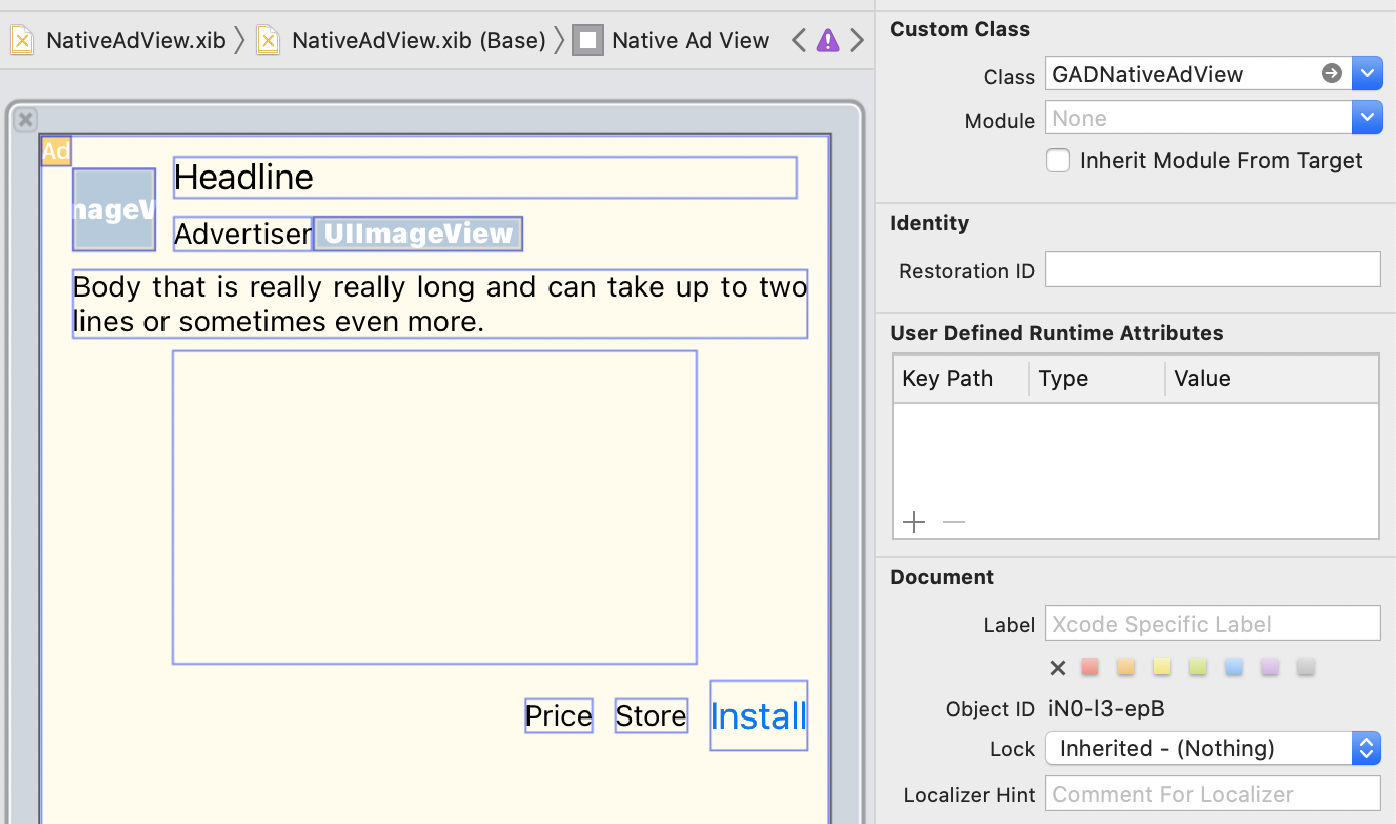
Hãy chú ý tới giá trị Lớp tuỳ chỉnh ở góc trên cùng bên phải của hình ảnh. Giá trị này được đặt thành
GADNativeAdView.
Đây là lớp khung hiển thị quảng cáo được dùng để hiển thị GADNativeAd.
Bạn cũng cần đặt lớp tuỳ chỉnh cho GADMediaView được dùng để hiển thị video hoặc hình ảnh cho quảng cáo.
Liên kết đầu ra với khung hiển thị
Sau khi các khung hiển thị được đặt đúng vị trí và bạn đã chỉ định lớp khung hiển thị quảng cáo chính xác cho bố cục, hãy liên kết các đầu ra thành phần của khung hiển thị quảng cáo với UIViews mà bạn đã tạo.
Sau đây là cách bạn có thể liên kết các đầu ra thành phần của khung hiển thị quảng cáo với UIViews được tạo
cho quảng cáo:

Trong bảng điều khiển đầu ra, các đầu ra trong GADNativeAdView đã được liên kết với UIViews được bố trí trong Trình tạo giao diện. Điều này cho phép SDK biết UIView nào hiển thị thành phần nào.
Bạn cũng cần nhớ rằng các đầu ra này đại diện cho các khung hiển thị có thể nhấp vào trong quảng cáo.
Hiển thị quảng cáo
Sau khi hoàn tất bố cục và liên kết các đầu ra, hãy thêm mã sau vào ứng dụng của bạn để hiển thị quảng cáo sau khi quảng cáo đã tải:
Swift
func adLoader(_ adLoader: AdLoader, didReceive nativeAd: NativeAd) {
// ...
// Set ourselves as the native ad delegate to be notified of native ad events.
nativeAd.delegate = self
// Populate the native ad view with the native ad assets.
// The headline and mediaContent are guaranteed to be present in every native ad.
(nativeAdView.headlineView as? UILabel)?.text = nativeAd.headline
nativeAdView.mediaView?.mediaContent = nativeAd.mediaContent
// Some native ads will include a video asset, while others do not. Apps can use the
// GADVideoController's hasVideoContent property to determine if one is present, and adjust their
// UI accordingly.
let mediaContent = nativeAd.mediaContent
if mediaContent.hasVideoContent {
// By acting as the delegate to the GADVideoController, this ViewController receives messages
// about events in the video lifecycle.
mediaContent.videoController.delegate = self
videoStatusLabel.text = "Ad contains a video asset."
} else {
videoStatusLabel.text = "Ad does not contain a video."
}
// This app uses a fixed width for the GADMediaView and changes its height to match the aspect
// ratio of the media it displays.
if let mediaView = nativeAdView.mediaView, nativeAd.mediaContent.aspectRatio > 0 {
let aspectRatioConstraint = NSLayoutConstraint(
item: mediaView,
attribute: .width,
relatedBy: .equal,
toItem: mediaView,
attribute: .height,
multiplier: CGFloat(nativeAd.mediaContent.aspectRatio),
constant: 0)
mediaView.addConstraint(aspectRatioConstraint)
nativeAdView.layoutIfNeeded()
}
// These assets are not guaranteed to be present. Check that they are before
// showing or hiding them.
(nativeAdView.bodyView as? UILabel)?.text = nativeAd.body
nativeAdView.bodyView?.isHidden = nativeAd.body == nil
(nativeAdView.callToActionView as? UIButton)?.setTitle(nativeAd.callToAction, for: .normal)
nativeAdView.callToActionView?.isHidden = nativeAd.callToAction == nil
(nativeAdView.iconView as? UIImageView)?.image = nativeAd.icon?.image
nativeAdView.iconView?.isHidden = nativeAd.icon == nil
(nativeAdView.starRatingView as? UIImageView)?.image = imageOfStars(from: nativeAd.starRating)
nativeAdView.starRatingView?.isHidden = nativeAd.starRating == nil
(nativeAdView.storeView as? UILabel)?.text = nativeAd.store
nativeAdView.storeView?.isHidden = nativeAd.store == nil
(nativeAdView.priceView as? UILabel)?.text = nativeAd.price
nativeAdView.priceView?.isHidden = nativeAd.price == nil
(nativeAdView.advertiserView as? UILabel)?.text = nativeAd.advertiser
nativeAdView.advertiserView?.isHidden = nativeAd.advertiser == nil
// In order for the SDK to process touch events properly, user interaction should be disabled.
nativeAdView.callToActionView?.isUserInteractionEnabled = false
// Associate the native ad view with the native ad object. This is
// required to make the ad clickable.
// Note: this should always be done after populating the ad views.
nativeAdView.nativeAd = nativeAd
}
SwiftUI
Tạo mô hình khung hiển thị
Tạo mô hình khung hiển thị tải quảng cáo gốc và xuất bản các thay đổi về dữ liệu quảng cáo gốc:
import GoogleMobileAds
class NativeAdViewModel: NSObject, ObservableObject, NativeAdLoaderDelegate {
@Published var nativeAd: NativeAd?
private var adLoader: AdLoader!
func refreshAd() {
adLoader = AdLoader(
adUnitID: "ca-app-pub-3940256099942544/3986624511",
// The UIViewController parameter is optional.
rootViewController: nil,
adTypes: [.native], options: nil)
adLoader.delegate = self
adLoader.load(Request())
}
func adLoader(_ adLoader: AdLoader, didReceive nativeAd: NativeAd) {
// Native ad data changes are published to its subscribers.
self.nativeAd = nativeAd
nativeAd.delegate = self
}
func adLoader(_ adLoader: AdLoader, didFailToReceiveAdWithError error: Error) {
print("\(adLoader) failed with error: \(error.localizedDescription)")
}
}
Tạo UIViewRepresentable
Tạo
UIViewRepresentable
cho NativeView và đăng ký các thay đổi về dữ liệu trong lớp ViewModel:
private struct NativeAdViewContainer: UIViewRepresentable {
typealias UIViewType = NativeAdView
// Observer to update the UIView when the native ad value changes.
@ObservedObject var nativeViewModel: NativeAdViewModel
func makeUIView(context: Context) -> NativeAdView {
return
Bundle.main.loadNibNamed(
"NativeAdView",
owner: nil,
options: nil)?.first as! NativeAdView
}
func updateUIView(_ nativeAdView: NativeAdView, context: Context) {
guard let nativeAd = nativeViewModel.nativeAd else { return }
// Each UI property is configurable using your native ad.
(nativeAdView.headlineView as? UILabel)?.text = nativeAd.headline
nativeAdView.mediaView?.mediaContent = nativeAd.mediaContent
(nativeAdView.bodyView as? UILabel)?.text = nativeAd.body
(nativeAdView.iconView as? UIImageView)?.image = nativeAd.icon?.image
(nativeAdView.starRatingView as? UIImageView)?.image = imageOfStars(from: nativeAd.starRating)
(nativeAdView.storeView as? UILabel)?.text = nativeAd.store
(nativeAdView.priceView as? UILabel)?.text = nativeAd.price
(nativeAdView.advertiserView as? UILabel)?.text = nativeAd.advertiser
(nativeAdView.callToActionView as? UIButton)?.setTitle(nativeAd.callToAction, for: .normal)
// For the SDK to process touch events properly, user interaction should be disabled.
nativeAdView.callToActionView?.isUserInteractionEnabled = false
// Associate the native ad view with the native ad object. This is required to make the ad
// clickable.
// Note: this should always be done after populating the ad views.
nativeAdView.nativeAd = nativeAd
}
Thêm khung hiển thị vào hệ phân cấp view
Mã sau đây minh hoạ cách thêm UIViewRepresentable vào hệ phân cấp khung hiển thị:
struct NativeContentView: View {
// Single source of truth for the native ad data.
@StateObject private var nativeViewModel = NativeAdViewModel()
var body: some View {
ScrollView {
VStack(spacing: 20) {
// Updates when the native ad data changes.
NativeAdViewContainer(nativeViewModel: nativeViewModel)
.frame(minHeight: 300) // minHeight determined from xib.
Objective-C
- (void)adLoader:(GADAdLoader *)adLoader didReceiveNativeAd:(GADNativeAd *)nativeAd {
// ...
GADNativeAdView *nativeAdView = self.nativeAdView;
// Set ourselves as the ad delegate to be notified of native ad events.
nativeAd.delegate = self;
// Populate the native ad view with the native ad assets.
// The headline and mediaContent are guaranteed to be present in every native ad.
((UILabel *)nativeAdView.headlineView).text = nativeAd.headline;
nativeAdView.mediaView.mediaContent = nativeAd.mediaContent;
// This app uses a fixed width for the GADMediaView and changes its height
// to match the aspect ratio of the media content it displays.
if (nativeAdView.mediaView != nil && nativeAd.mediaContent.aspectRatio > 0) {
NSLayoutConstraint *aspectRatioConstraint =
[NSLayoutConstraint constraintWithItem:nativeAdView.mediaView
attribute:NSLayoutAttributeWidth
relatedBy:NSLayoutRelationEqual
toItem:nativeAdView.mediaView
attribute:NSLayoutAttributeHeight
multiplier:(nativeAd.mediaContent.aspectRatio)
constant:0];
[nativeAdView.mediaView addConstraint:aspectRatioConstraint];
[nativeAdView layoutIfNeeded];
}
if (nativeAd.mediaContent.hasVideoContent) {
// By acting as the delegate to the GADVideoController, this ViewController
// receives messages about events in the video lifecycle.
nativeAd.mediaContent.videoController.delegate = self;
self.videoStatusLabel.text = @"Ad contains a video asset.";
} else {
self.videoStatusLabel.text = @"Ad does not contain a video.";
}
// These assets are not guaranteed to be present. Check that they are before
// showing or hiding them.
((UILabel *)nativeAdView.bodyView).text = nativeAd.body;
nativeAdView.bodyView.hidden = nativeAd.body ? NO : YES;
[((UIButton *)nativeAdView.callToActionView) setTitle:nativeAd.callToAction
forState:UIControlStateNormal];
nativeAdView.callToActionView.hidden = nativeAd.callToAction ? NO : YES;
((UIImageView *)nativeAdView.iconView).image = nativeAd.icon.image;
nativeAdView.iconView.hidden = nativeAd.icon ? NO : YES;
((UIImageView *)nativeAdView.starRatingView).image = [self imageForStars:nativeAd.starRating];
nativeAdView.starRatingView.hidden = nativeAd.starRating ? NO : YES;
((UILabel *)nativeAdView.storeView).text = nativeAd.store;
nativeAdView.storeView.hidden = nativeAd.store ? NO : YES;
((UILabel *)nativeAdView.priceView).text = nativeAd.price;
nativeAdView.priceView.hidden = nativeAd.price ? NO : YES;
((UILabel *)nativeAdView.advertiserView).text = nativeAd.advertiser;
nativeAdView.advertiserView.hidden = nativeAd.advertiser ? NO : YES;
// In order for the SDK to process touch events properly, user interaction
// should be disabled.
nativeAdView.callToActionView.userInteractionEnabled = NO;
// Associate the native ad view with the native ad object. This is
// required to make the ad clickable.
// Note: this should always be done after populating the ad views.
nativeAdView.nativeAd = nativeAd;
}
Ví dụ hoàn chỉnh trên GitHub
Xem ví dụ hoàn chỉnh về cách tích hợp quảng cáo gốc trong Swift, SwiftUI và Objective-C bằng cách nhấp vào đường liên kết tương ứng trên GitHub.
Ví dụ về quảng cáo gốc nâng cao trong Swift Ví dụ về quảng cáo gốc trong SwiftUI Ví dụ về quảng cáo gốc nâng cao trong Objective-CGADMediaView
Thành phần hình ảnh và video được hiển thị cho người dùng bằng cách sử dụng
GADMediaView.
Đây là UIView có thể được xác định trong tệp xib hoặc được tạo động.
Bạn nên đặt thành phần này trong hệ phân cấp view của GADNativeAdView, giống như mọi khung hiển thị thành phần khác.
Giống như tất cả khung hiển thị thành phần, khung hiển thị nội dung nghe nhìn cần có nội dung được điền sẵn. Bạn có thể đặt nội dung này bằng cách sử dụng thuộc tính
mediaContent
trên GADMediaView. Thuộc tính
mediaContent
của
GADNativeAd
chứa nội dung nghe nhìn có thể được truyền đến
GADMediaView.
Dưới đây là một đoạn mã trong ví dụ về quảng cáo gốc nâng cao (Swift | Objective-C) cho biết cách điền GADMediaView bằng thành phần quảng cáo gốc bằng cách sử dụng GADMediaContent từ GADNativeAd:
Swift
nativeAdView.mediaView?.mediaContent = nativeAd.mediaContent
Objective-C
nativeAdView.mediaView.mediaContent = nativeAd.mediaContent;
Đảm bảo rằng trong tệp trình tạo giao diện cho khung hiển thị quảng cáo gốc, bạn đã đặt lớp tuỳ chỉnh của khung hiển thị thành GADMediaView và đã kết nối lớp này với đầu ra mediaView.
Thay đổi chế độ nội dung hình ảnh
Lớp GADMediaView tuân theo thuộc tính UIView
contentMode
khi hiển thị hình ảnh. Nếu bạn muốn thay đổi cách thu phóng hình ảnh trong
GADMediaView, hãy đặt
UIViewContentMode
tương ứng trên thuộc tính contentMode của GADMediaView để thực hiện việc này.
Ví dụ: để điền GADMediaView khi hình ảnh được hiển thị (quảng cáo không có video):
Swift
nativeAdView.mediaView?.contentMode = .scaleAspectFit
Objective-C
nativeAdView.mediaView.contentMode = UIViewContentModeScaleAspectFit;
GADMediaContent
Lớp GADMediaContent
chứa dữ liệu liên quan đến nội dung nghe nhìn của quảng cáo gốc. Nội dung này được
hiển thị bằng cách sử dụng lớp GADMediaView. Khi được đặt trên thuộc tính GADMediaView
mediaContent:
Nếu có thành phần video, thì video đó sẽ được lưu vào vùng đệm và bắt đầu phát bên trong
GADMediaView. Bạn có thể biết liệu có thành phần video hay không bằng cách kiểm trahasVideoContent.Nếu quảng cáo không chứa thành phần video, thì thành phần
mainImagesẽ được tải xuống và đặt bên trongGADMediaView.
Các bước tiếp theo
Tìm hiểu thêm về quyền riêng tư của người dùng.