
הצגת פורמט של מודעה מותאמת שמוגדר על ידי המערכת
כשהמודעה נטענת, האפליקציה מקבלת אובייקט של מודעה מותאמת באמצעות אחת מההודעות של פרוטוקול GADAdLoaderDelegate. לאחר מכן, האפליקציה אחראית להצגת המודעה (אבל לא בהכרח באופן מיידי).
כדי להקל על הצגת פורמטים של מודעות שמוגדרים על ידי המערכת, ה-SDK מציע כמה משאבים שימושיים.
GADNativeAdView
לכל GADNativeAd יש מחלקת "תצוגת מודעה" תואמת: GADNativeAdView.
המחלקה הזו של תצוגת המודעה היא UIView שבעלי תוכן דיגיטלי צריכים להשתמש בה כדי להציג את המודעה.
לדוגמה, GADNativeAdView יחיד יכול להציג מופע יחיד של GADNativeAd. כל אחד מאובייקטי UIView שמשמשים להצגת הנכסים של המודעה צריך להיות תצוגת משנה של אובייקט GADNativeAdView.
לדוגמה, אם הצגתם מודעה ב-UITableView, היררכיית התצוגות של אחד מהתאים עשויה להיראות כך:
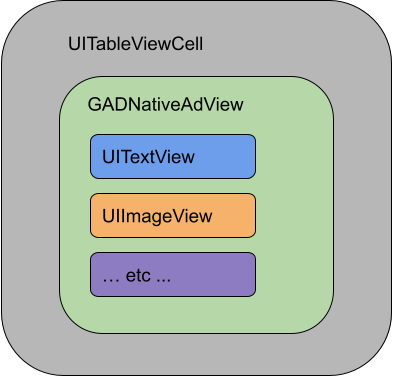
הכיתה GADNativeAdView מספקת גם את IBOutlets שמשמש לרישום התצוגה של כל נכס בנפרד, ו-method לרישום האובייקט GADNativeAd עצמו. רישום התצוגות בדרך הזו מאפשר ל-SDK לטפל באופן אוטומטי במשימות כמו:
- קליקים על הקלטה.
- תיעוד חשיפות (כשהפיקסל הראשון גלוי במסך).
- הצגת שכבת העל של AdChoices.
שכבת-על של AdChoices
במודעות מותאמות עקיפות (שמוצגות דרך מילוי חוסרים ב-AdMob או דרך Ad Exchange או AdSense), ערכת ה-SDK מוסיפה שכבת-על של AdChoices. השאירו מקום בפינה המועדפת עליכם בתצוגה של המודעה המותאמת, כדי שהמערכת תוכל להוסיף את הלוגו של AdChoices באופן אוטומטי. בנוסף, חשוב לוודא ששכבת העל של AdChoices ממוקמת על תוכן שמאפשר לראות את הסמל בבירור. מידע נוסף על המראה והתפקוד של שכבת-העל זמין בהנחיות להטמעה של מודעות מותאמות פרוגרמטיות.
סימן למודעה
כשמציגים מודעות מותאמות פרוגרמטיות, צריך להציג סימן למודעה כדי לציין שהתצוגה היא מודעה.קוד לדוגמה
בקטע הזה מוסבר איך להציג מודעות מותאמות באמצעות תצוגות שנטענות באופן דינמי מקובצי xib. זו יכולה להיות גישה שימושית מאוד כשמשתמשים ב-GADAdLoaders שמוגדר לבקש כמה פורמטים.
פריסת ה-UIViews
השלב הראשון הוא פריסת ה-UIViews שיציג את הנכסים שמצורפים למודעה המותאמת.
אפשר לעשות את זה ב-Interface Builder, כמו שיוצרים כל קובץ xib אחר. כך יכולה להיראות פריסה של מודעה מותאמת:
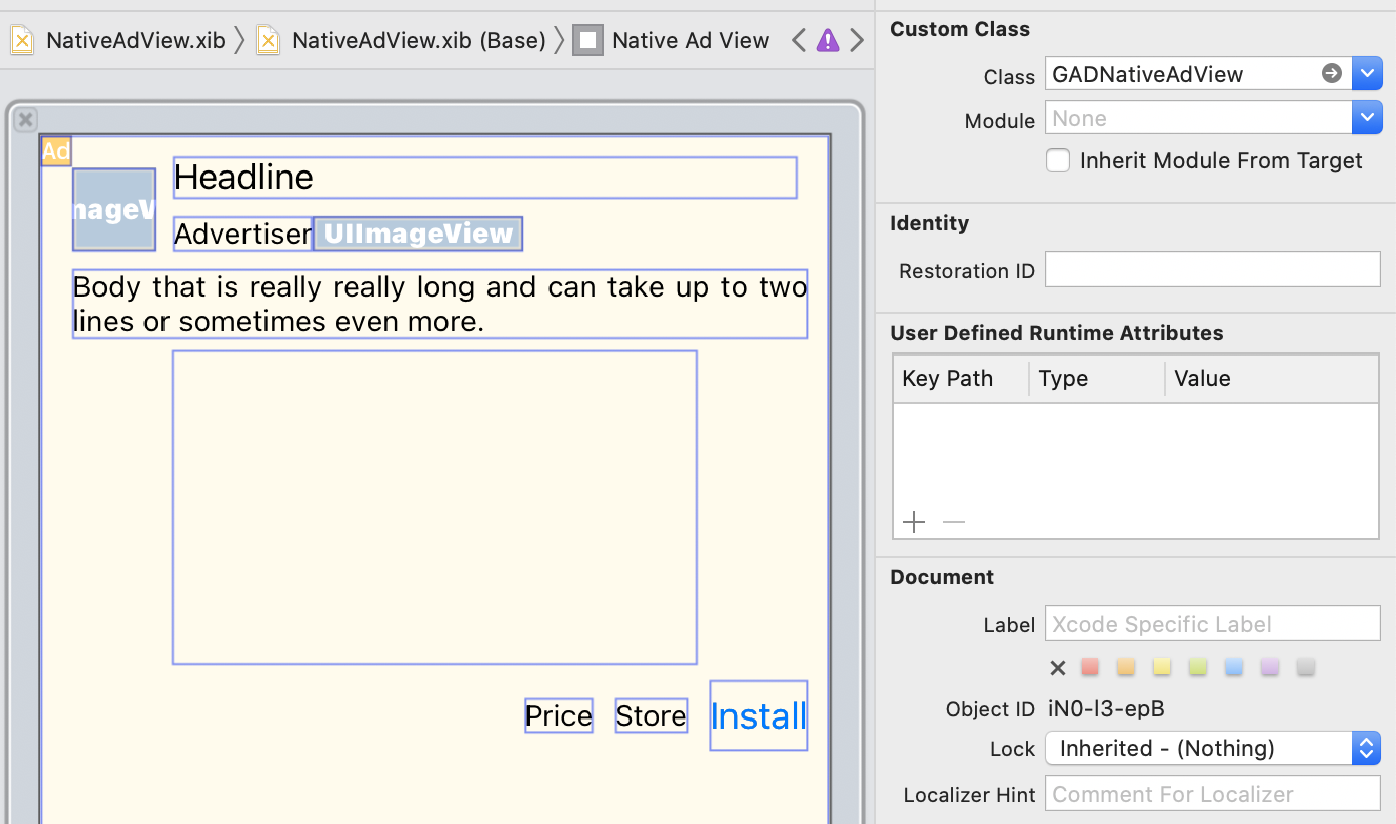
שימו לב לערך של Custom Class (מחלקה בהתאמה אישית) בפינה השמאלית העליונה של התמונה. הוא מוגדר לערך
GADNativeAdView.
זוהי המחלקה של תצוגת המודעה שמשמשת להצגת GADNativeAd.
צריך גם להגדיר את המחלקה המותאמת אישית של GADMediaView, שמשמשת להצגת הסרטון או התמונה של המודעה.
קישור של נקודות מכירה לתצוגות
אחרי שהתצוגות מוכנות והקציתם את המחלקה הנכונה של תצוגת המודעה לפריסה, מקשרים את נקודות היציאה של הנכסים בתצוגת המודעה אל ה-UIViews שיצרתם.
כך אפשר לקשר את נקודות היציאה של הנכסים בתצוגת המודעה אל UIViews שנוצר בשביל מודעה:
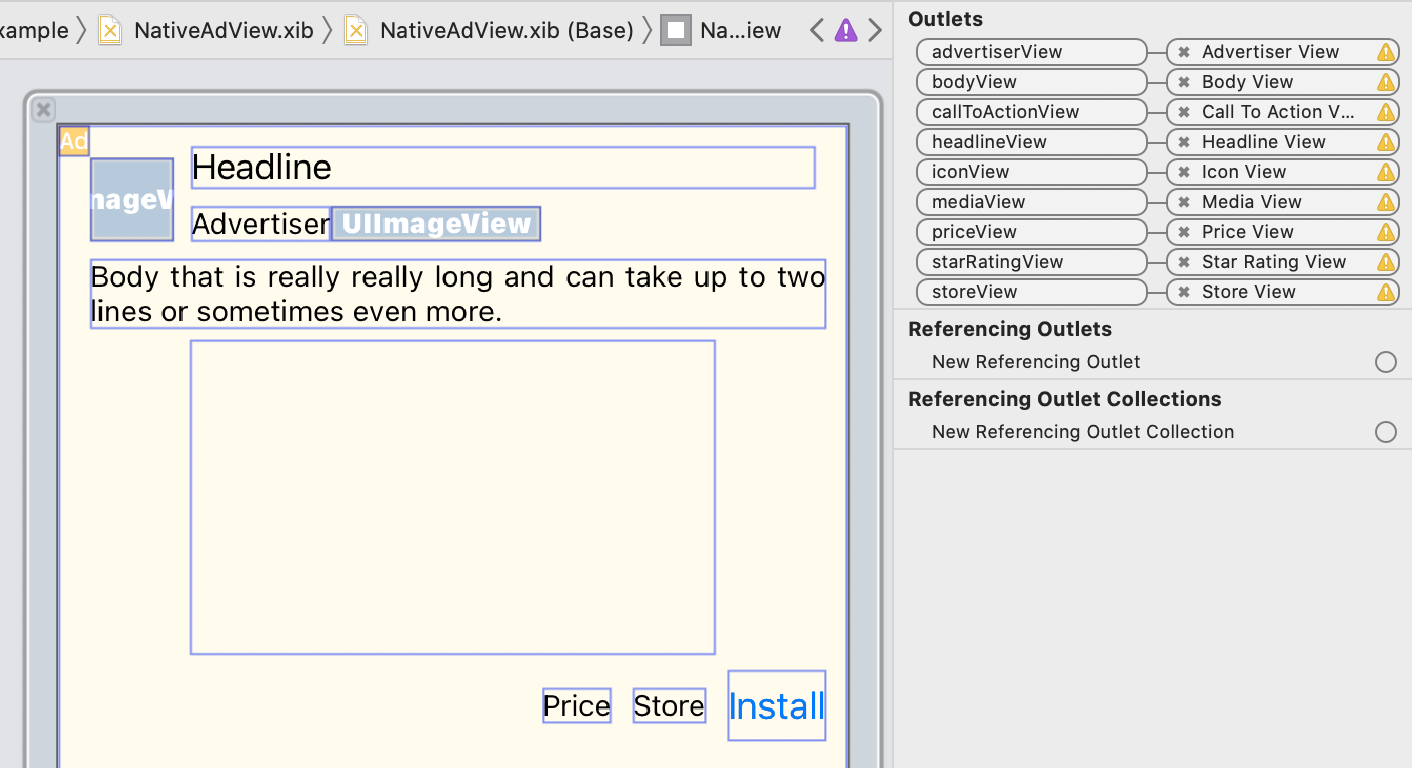
בחלונית השקעים, השקעים ב-GADNativeAdView קושרו אל UIViews שמוצג ב-Interface Builder. כך ערכת ה-SDK יודעת איזה UIView מציג איזה נכס.
חשוב גם לזכור שהערוצים האלה מייצגים את הדעות שאפשר ללחוץ עליהן במודעה.
הצגת המודעה
אחרי שמשלימים את הפריסה ומקשרים את ה-outlets, מוסיפים לאפליקציה את הקוד הבא כדי להציג מודעה אחרי שהיא נטענת:
Swift
func adLoader(_ adLoader: AdLoader, didReceive nativeAd: NativeAd) {
// ...
// Set ourselves as the native ad delegate to be notified of native ad events.
nativeAd.delegate = self
// Populate the native ad view with the native ad assets.
// The headline and mediaContent are guaranteed to be present in every native ad.
(nativeAdView.headlineView as? UILabel)?.text = nativeAd.headline
nativeAdView.mediaView?.mediaContent = nativeAd.mediaContent
// Some native ads will include a video asset, while others do not. Apps can use the
// GADVideoController's hasVideoContent property to determine if one is present, and adjust their
// UI accordingly.
let mediaContent = nativeAd.mediaContent
if mediaContent.hasVideoContent {
// By acting as the delegate to the GADVideoController, this ViewController receives messages
// about events in the video lifecycle.
mediaContent.videoController.delegate = self
videoStatusLabel.text = "Ad contains a video asset."
} else {
videoStatusLabel.text = "Ad does not contain a video."
}
// This app uses a fixed width for the GADMediaView and changes its height to match the aspect
// ratio of the media it displays.
if let mediaView = nativeAdView.mediaView, nativeAd.mediaContent.aspectRatio > 0 {
let aspectRatioConstraint = NSLayoutConstraint(
item: mediaView,
attribute: .width,
relatedBy: .equal,
toItem: mediaView,
attribute: .height,
multiplier: CGFloat(nativeAd.mediaContent.aspectRatio),
constant: 0)
mediaView.addConstraint(aspectRatioConstraint)
nativeAdView.layoutIfNeeded()
}
// These assets are not guaranteed to be present. Check that they are before
// showing or hiding them.
(nativeAdView.bodyView as? UILabel)?.text = nativeAd.body
nativeAdView.bodyView?.isHidden = nativeAd.body == nil
(nativeAdView.callToActionView as? UIButton)?.setTitle(nativeAd.callToAction, for: .normal)
nativeAdView.callToActionView?.isHidden = nativeAd.callToAction == nil
(nativeAdView.iconView as? UIImageView)?.image = nativeAd.icon?.image
nativeAdView.iconView?.isHidden = nativeAd.icon == nil
(nativeAdView.starRatingView as? UIImageView)?.image = imageOfStars(from: nativeAd.starRating)
nativeAdView.starRatingView?.isHidden = nativeAd.starRating == nil
(nativeAdView.storeView as? UILabel)?.text = nativeAd.store
nativeAdView.storeView?.isHidden = nativeAd.store == nil
(nativeAdView.priceView as? UILabel)?.text = nativeAd.price
nativeAdView.priceView?.isHidden = nativeAd.price == nil
(nativeAdView.advertiserView as? UILabel)?.text = nativeAd.advertiser
nativeAdView.advertiserView?.isHidden = nativeAd.advertiser == nil
// In order for the SDK to process touch events properly, user interaction should be disabled.
nativeAdView.callToActionView?.isUserInteractionEnabled = false
// Associate the native ad view with the native ad object. This is
// required to make the ad clickable.
// Note: this should always be done after populating the ad views.
nativeAdView.nativeAd = nativeAd
}
SwiftUI
יצירת מודל תצוגה
יוצרים מודל תצוגה שטוען מודעה מותאמת ומפרסם שינויים בנתונים של המודעה המותאמת:
import GoogleMobileAds
class NativeAdViewModel: NSObject, ObservableObject, NativeAdLoaderDelegate {
@Published var nativeAd: NativeAd?
private var adLoader: AdLoader!
func refreshAd() {
adLoader = AdLoader(
adUnitID: "ca-app-pub-3940256099942544/3986624511",
// The UIViewController parameter is optional.
rootViewController: nil,
adTypes: [.native], options: nil)
adLoader.delegate = self
adLoader.load(Request())
}
func adLoader(_ adLoader: AdLoader, didReceive nativeAd: NativeAd) {
// Native ad data changes are published to its subscribers.
self.nativeAd = nativeAd
nativeAd.delegate = self
}
func adLoader(_ adLoader: AdLoader, didFailToReceiveAdWithError error: Error) {
print("\(adLoader) failed with error: \(error.localizedDescription)")
}
}
יצירת UIViewRepresentable
יוצרים
UIViewRepresentable
עבור NativeView, ונרשמים לשינויים בנתונים במחלקה ViewModel:
private struct NativeAdViewContainer: UIViewRepresentable {
typealias UIViewType = NativeAdView
// Observer to update the UIView when the native ad value changes.
@ObservedObject var nativeViewModel: NativeAdViewModel
func makeUIView(context: Context) -> NativeAdView {
return
Bundle.main.loadNibNamed(
"NativeAdView",
owner: nil,
options: nil)?.first as! NativeAdView
}
func updateUIView(_ nativeAdView: NativeAdView, context: Context) {
guard let nativeAd = nativeViewModel.nativeAd else { return }
// Each UI property is configurable using your native ad.
(nativeAdView.headlineView as? UILabel)?.text = nativeAd.headline
nativeAdView.mediaView?.mediaContent = nativeAd.mediaContent
(nativeAdView.bodyView as? UILabel)?.text = nativeAd.body
(nativeAdView.iconView as? UIImageView)?.image = nativeAd.icon?.image
(nativeAdView.starRatingView as? UIImageView)?.image = imageOfStars(from: nativeAd.starRating)
(nativeAdView.storeView as? UILabel)?.text = nativeAd.store
(nativeAdView.priceView as? UILabel)?.text = nativeAd.price
(nativeAdView.advertiserView as? UILabel)?.text = nativeAd.advertiser
(nativeAdView.callToActionView as? UIButton)?.setTitle(nativeAd.callToAction, for: .normal)
// For the SDK to process touch events properly, user interaction should be disabled.
nativeAdView.callToActionView?.isUserInteractionEnabled = false
// Associate the native ad view with the native ad object. This is required to make the ad
// clickable.
// Note: this should always be done after populating the ad views.
nativeAdView.nativeAd = nativeAd
}
הוספת התצוגה להיררכיית התצוגות
הקוד הבא מדגים איך מוסיפים את UIViewRepresentable להיררכיית התצוגות:
struct NativeContentView: View {
// Single source of truth for the native ad data.
@StateObject private var nativeViewModel = NativeAdViewModel()
var body: some View {
ScrollView {
VStack(spacing: 20) {
// Updates when the native ad data changes.
NativeAdViewContainer(nativeViewModel: nativeViewModel)
.frame(minHeight: 300) // minHeight determined from xib.
Objective-C
- (void)adLoader:(GADAdLoader *)adLoader didReceiveNativeAd:(GADNativeAd *)nativeAd {
// ...
GADNativeAdView *nativeAdView = self.nativeAdView;
// Set ourselves as the ad delegate to be notified of native ad events.
nativeAd.delegate = self;
// Populate the native ad view with the native ad assets.
// The headline and mediaContent are guaranteed to be present in every native ad.
((UILabel *)nativeAdView.headlineView).text = nativeAd.headline;
nativeAdView.mediaView.mediaContent = nativeAd.mediaContent;
// This app uses a fixed width for the GADMediaView and changes its height
// to match the aspect ratio of the media content it displays.
if (nativeAdView.mediaView != nil && nativeAd.mediaContent.aspectRatio > 0) {
NSLayoutConstraint *aspectRatioConstraint =
[NSLayoutConstraint constraintWithItem:nativeAdView.mediaView
attribute:NSLayoutAttributeWidth
relatedBy:NSLayoutRelationEqual
toItem:nativeAdView.mediaView
attribute:NSLayoutAttributeHeight
multiplier:(nativeAd.mediaContent.aspectRatio)
constant:0];
[nativeAdView.mediaView addConstraint:aspectRatioConstraint];
[nativeAdView layoutIfNeeded];
}
if (nativeAd.mediaContent.hasVideoContent) {
// By acting as the delegate to the GADVideoController, this ViewController
// receives messages about events in the video lifecycle.
nativeAd.mediaContent.videoController.delegate = self;
self.videoStatusLabel.text = @"Ad contains a video asset.";
} else {
self.videoStatusLabel.text = @"Ad does not contain a video.";
}
// These assets are not guaranteed to be present. Check that they are before
// showing or hiding them.
((UILabel *)nativeAdView.bodyView).text = nativeAd.body;
nativeAdView.bodyView.hidden = nativeAd.body ? NO : YES;
[((UIButton *)nativeAdView.callToActionView) setTitle:nativeAd.callToAction
forState:UIControlStateNormal];
nativeAdView.callToActionView.hidden = nativeAd.callToAction ? NO : YES;
((UIImageView *)nativeAdView.iconView).image = nativeAd.icon.image;
nativeAdView.iconView.hidden = nativeAd.icon ? NO : YES;
((UIImageView *)nativeAdView.starRatingView).image = [self imageForStars:nativeAd.starRating];
nativeAdView.starRatingView.hidden = nativeAd.starRating ? NO : YES;
((UILabel *)nativeAdView.storeView).text = nativeAd.store;
nativeAdView.storeView.hidden = nativeAd.store ? NO : YES;
((UILabel *)nativeAdView.priceView).text = nativeAd.price;
nativeAdView.priceView.hidden = nativeAd.price ? NO : YES;
((UILabel *)nativeAdView.advertiserView).text = nativeAd.advertiser;
nativeAdView.advertiserView.hidden = nativeAd.advertiser ? NO : YES;
// In order for the SDK to process touch events properly, user interaction
// should be disabled.
nativeAdView.callToActionView.userInteractionEnabled = NO;
// Associate the native ad view with the native ad object. This is
// required to make the ad clickable.
// Note: this should always be done after populating the ad views.
nativeAdView.nativeAd = nativeAd;
}
דוגמה פתורה ב-GitHub
בקישורים הבאים ל-GitHub אפשר לראות דוגמה מלאה לשילוב של מודעות מותאמות ב-Swift, ב-SwiftUI וב-Objective-C.
דוגמה מתקדמת למודעות מותאמות ב-Swift דוגמה למודעות מותאמות ב-SwiftUI דוגמה מתקדמת למודעות מותאמות ב-Objective-CGADMediaView
נכסי תמונות ונכסי וידאו מוצגים למשתמשים באמצעות GADMediaView.
זהו UIView שאפשר להגדיר בקובץ xib או ליצור באופן דינמי.
צריך למקם אותו בהיררכיית התצוגות של GADNativeAdView, כמו כל תצוגת נכס אחרת.
כמו בכל תצוגות הנכסים, צריך לאכלס את התוכן של תצוגת המדיה. כדי להגדיר את זה, משתמשים במאפיין mediaContent ב-GADMediaView. המאפיין mediaContent של GADNativeAd מכיל תוכן מדיה שאפשר להעביר אל GADMediaView.
הנה קטע קוד מהדוגמה של מודעה מותאמת מסוג Advanced (Swift | Objective-C) שמראה איך לאכלס את GADMediaView בנכסים שמצורפים למודעה המותאמת באמצעות GADMediaContent מ-GADNativeAd:
Swift
nativeAdView.mediaView?.mediaContent = nativeAd.mediaContent
Objective-C
nativeAdView.mediaView.mediaContent = nativeAd.mediaContent;
בקובץ של ה-interface builder של תצוגת המודעה המותאמת, חשוב לוודא שהמחלקה המותאמת אישית של התצוגות מוגדרת כ-GADMediaView ושהיא מחוברת ל-outlet של mediaView.
שינוי מצב התוכן של התמונה
הכיתה GADMediaView מכבדת את המאפיין UIView
contentMode
כשמוצגות תמונות. כדי לשנות את קנה המידה של תמונה ב-GADMediaView, מגדירים את UIViewContentMode התואם במאפיין contentMode של GADMediaView.
לדוגמה, כדי למלא את GADMediaView כשמוצגת תמונה (במודעה אין סרטון):
Swift
nativeAdView.mediaView?.contentMode = .scaleAspectFit
Objective-C
nativeAdView.mediaView.contentMode = UIViewContentModeScaleAspectFit;
GADMediaContent
הכיתה GADMediaContent מכילה את הנתונים שקשורים לתוכן המדיה של המודעה המותאמת, שמוצג באמצעות הכיתה GADMediaView. כשמגדירים את המדיניות בנכס GADMediaView
mediaContent:
אם יש נכס וידאו זמין, הוא נטען ומתחיל לפעול בתוך ה-
GADMediaView. כדי לבדוק אם נכס וידאו זמין, אפשר לעיין ב-hasVideoContent.אם המודעה לא מכילה נכס וידאו, הנכס
mainImageיורד ומוצב בתוךGADMediaViewבמקום זאת.